Creating KB Articles
Sportdata
Start
1
/27
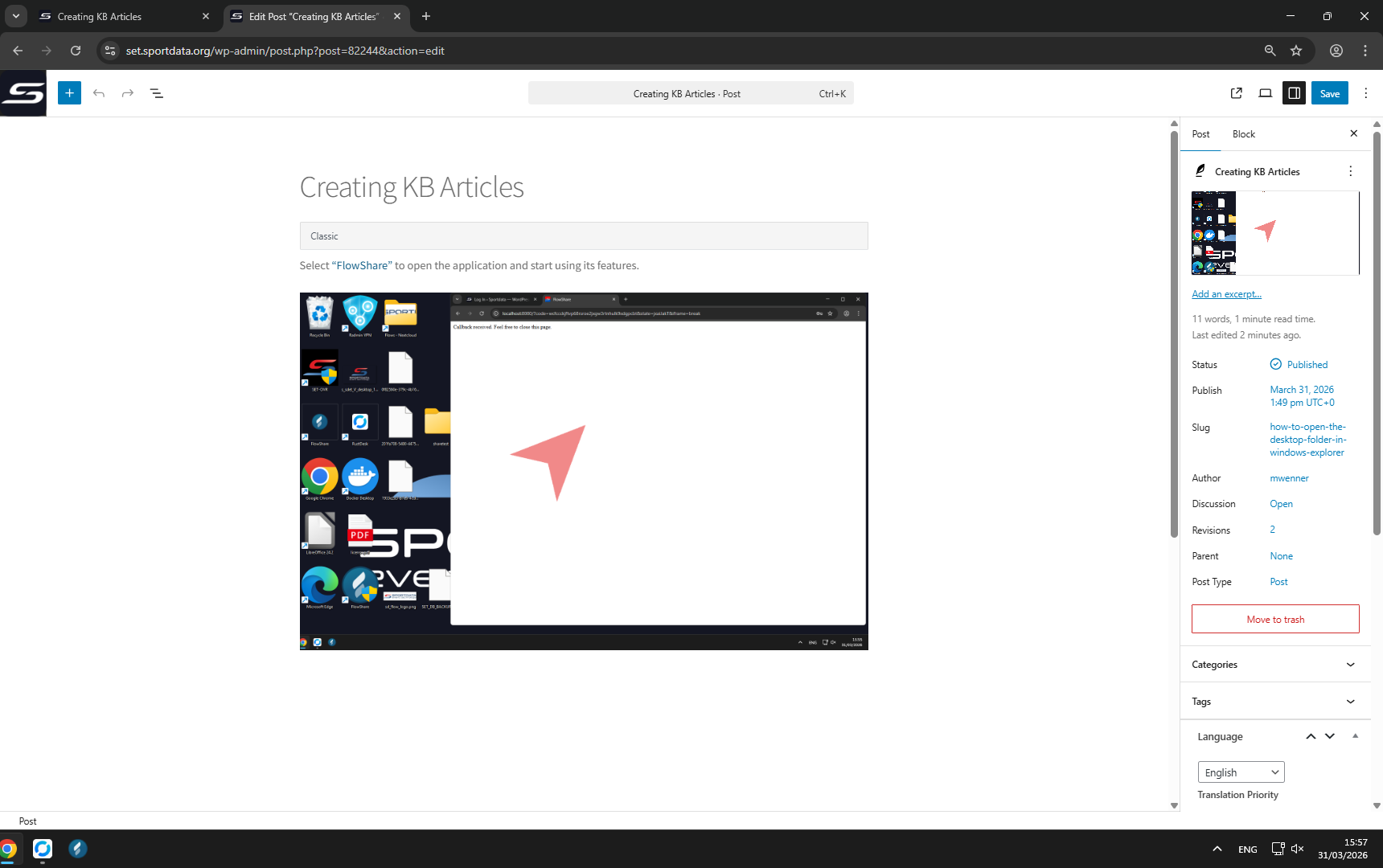
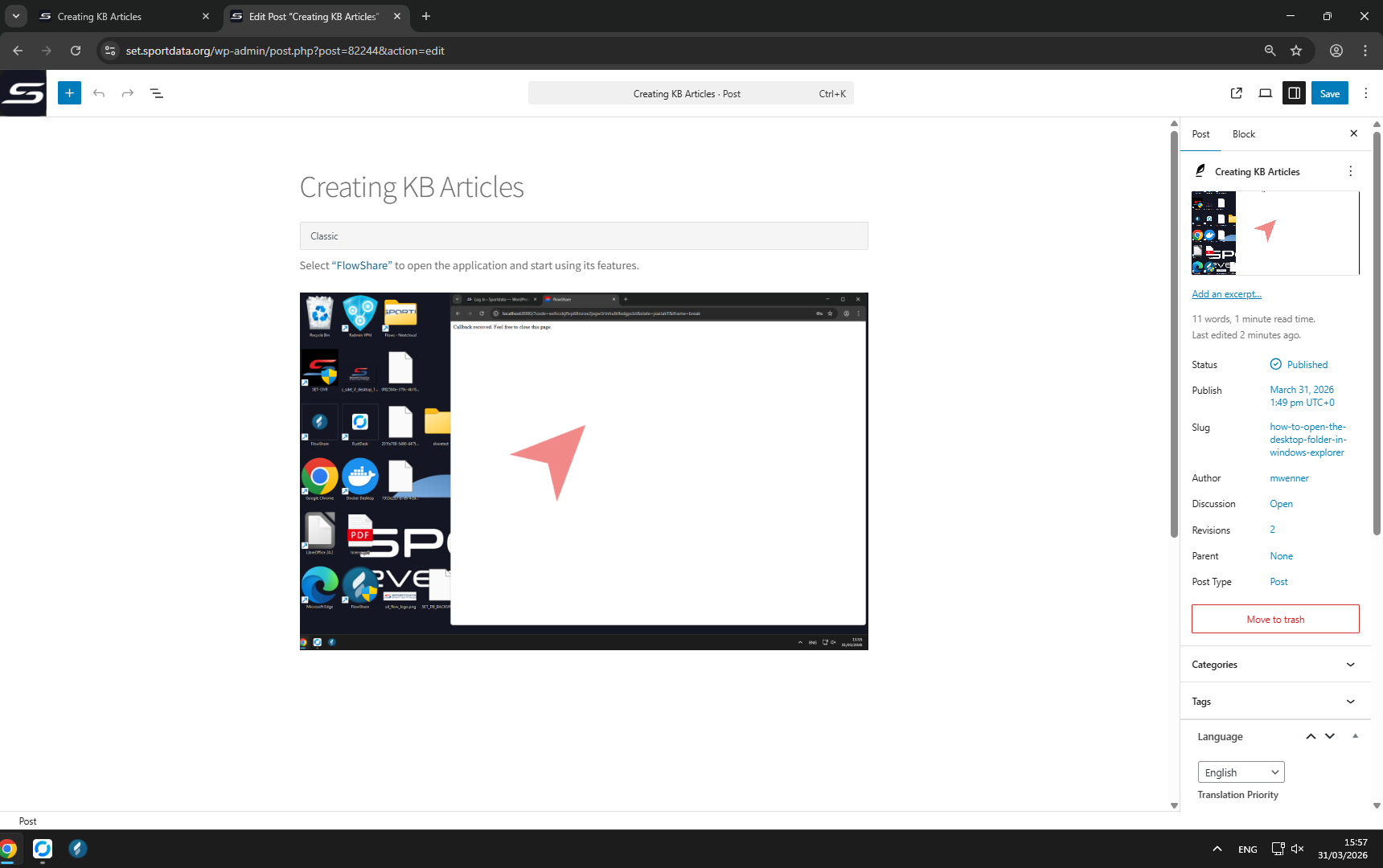
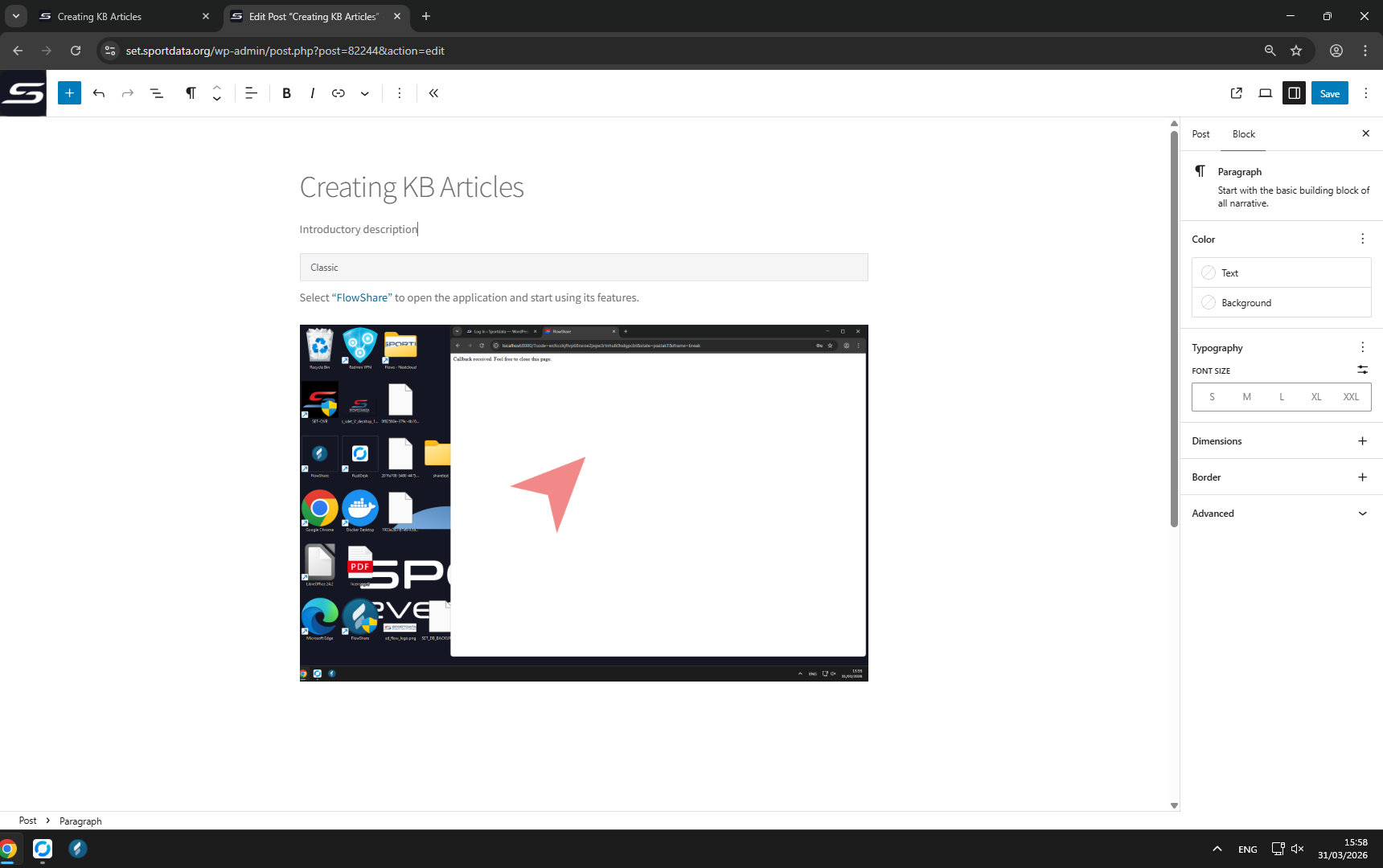
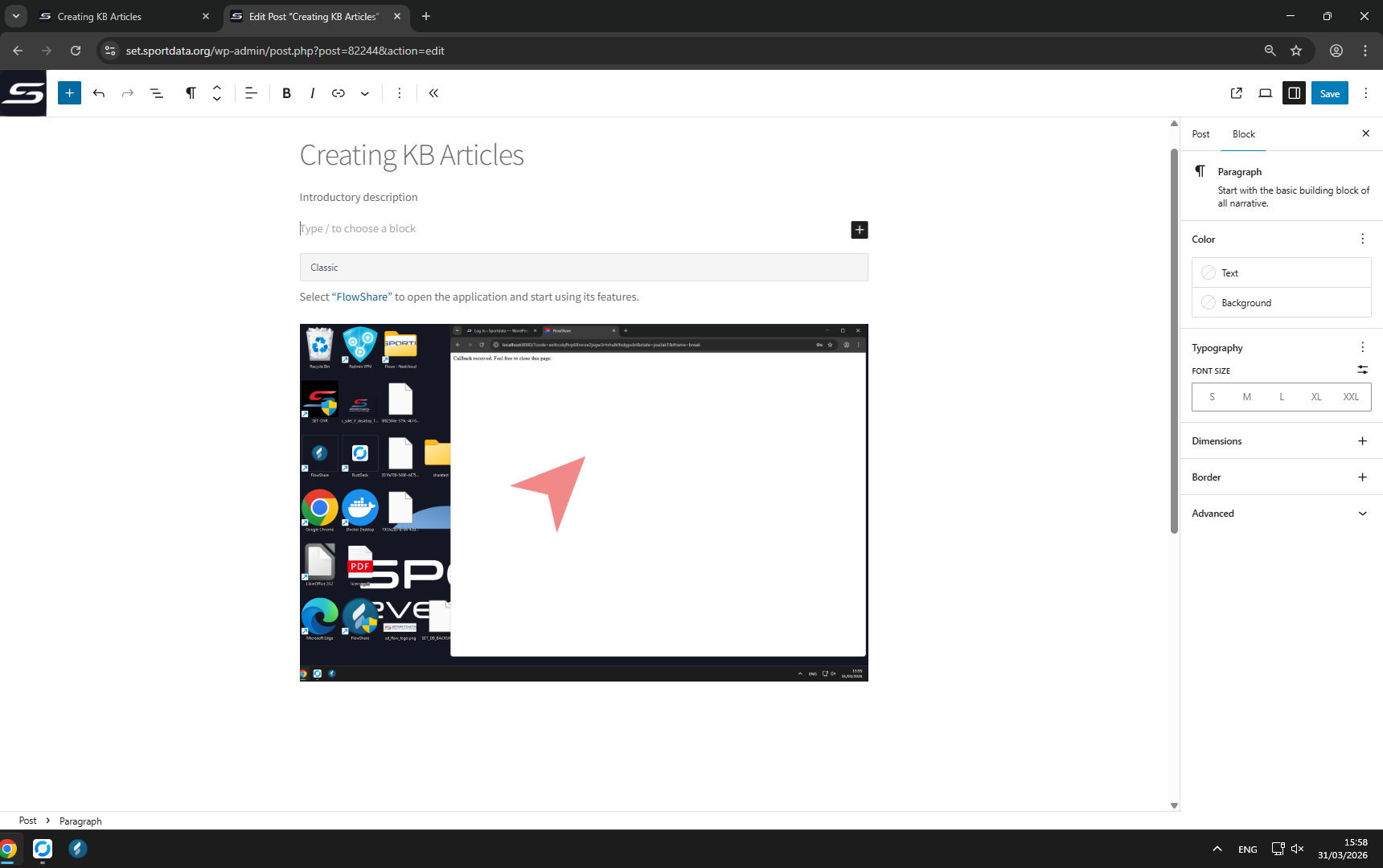
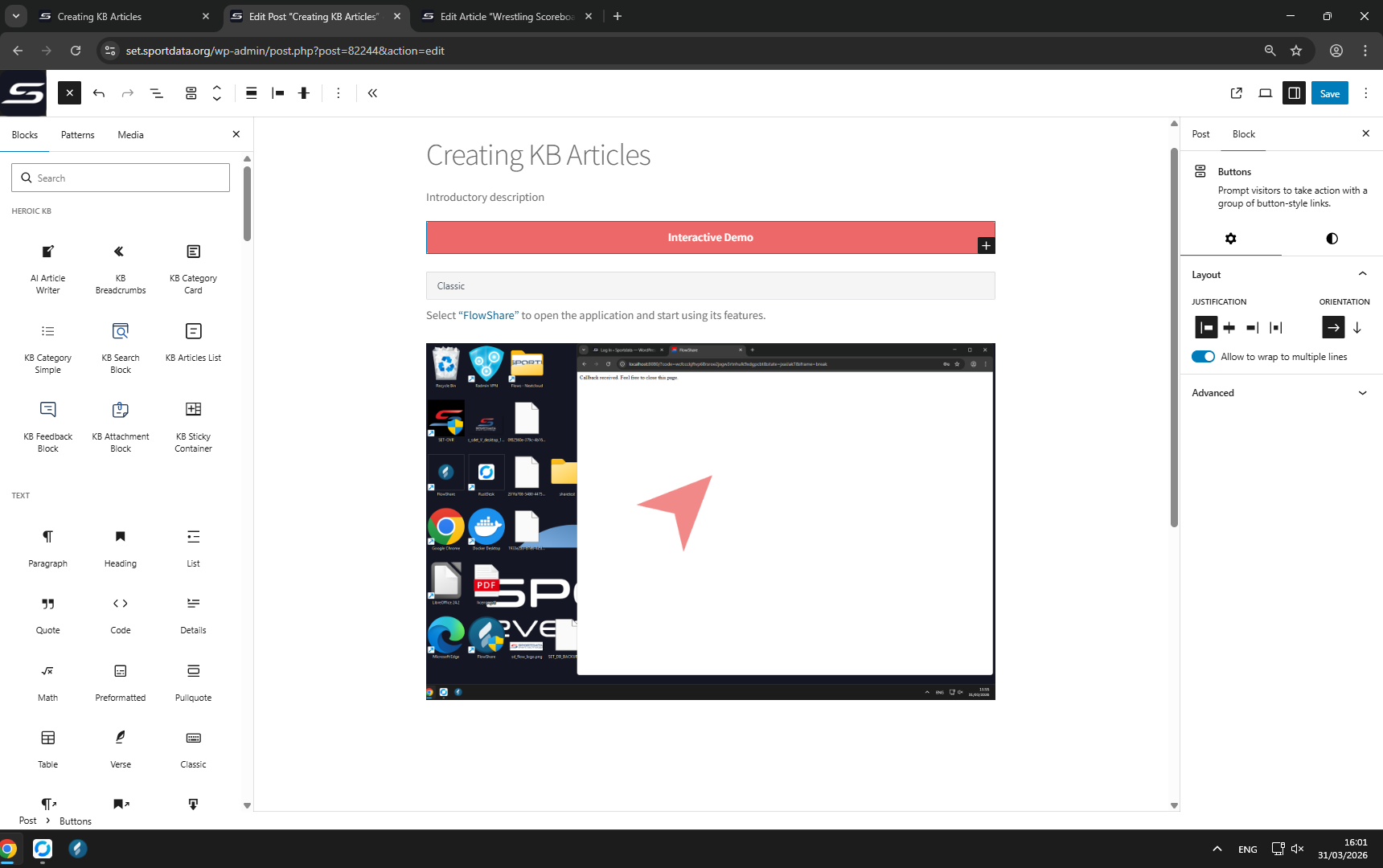
Select
“FlowShare”
to open the application and start using its features.
2
/27
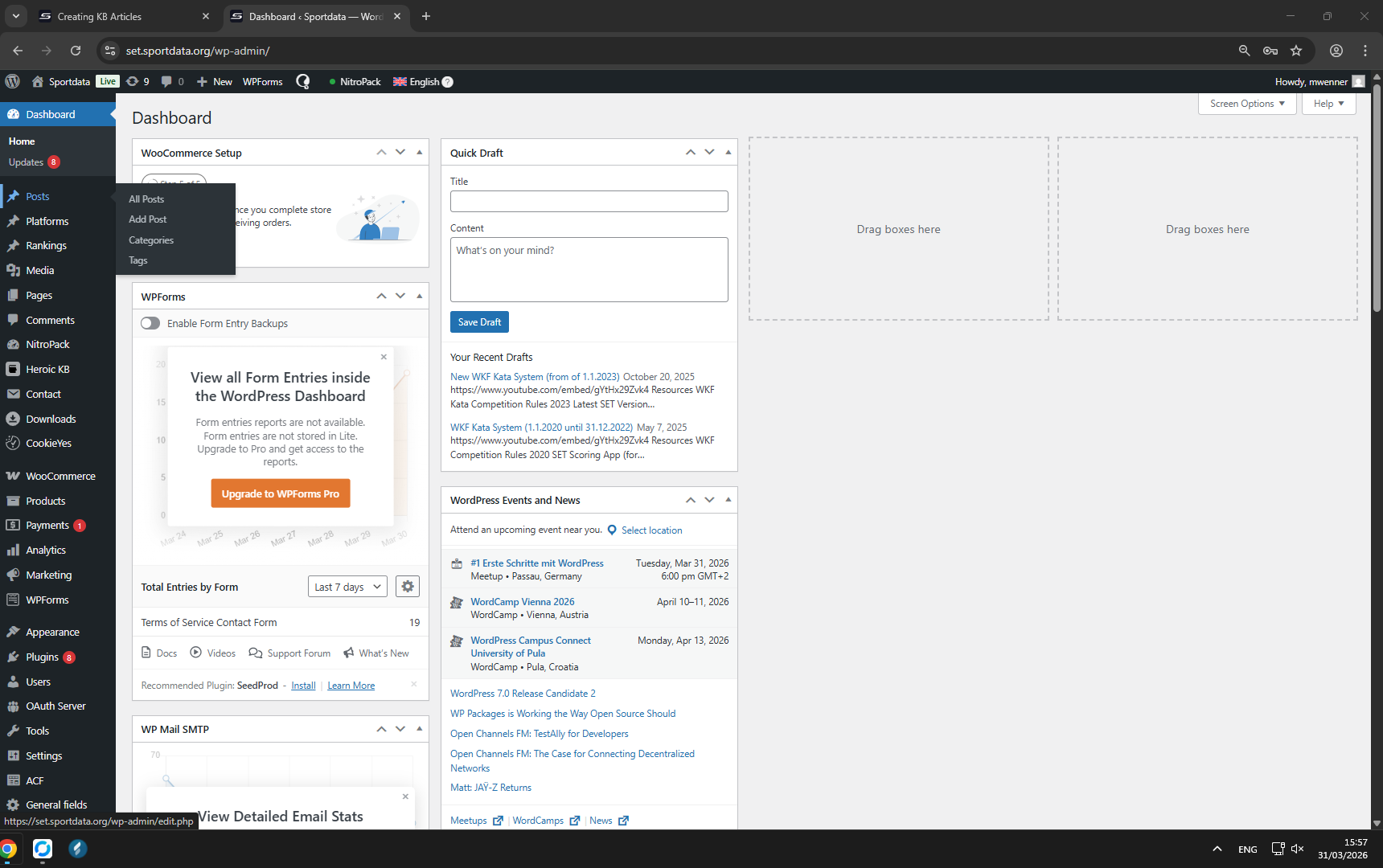
In set.sportdata.org, follow the link labeled
“Posts”
to access the posts section.
3
/27
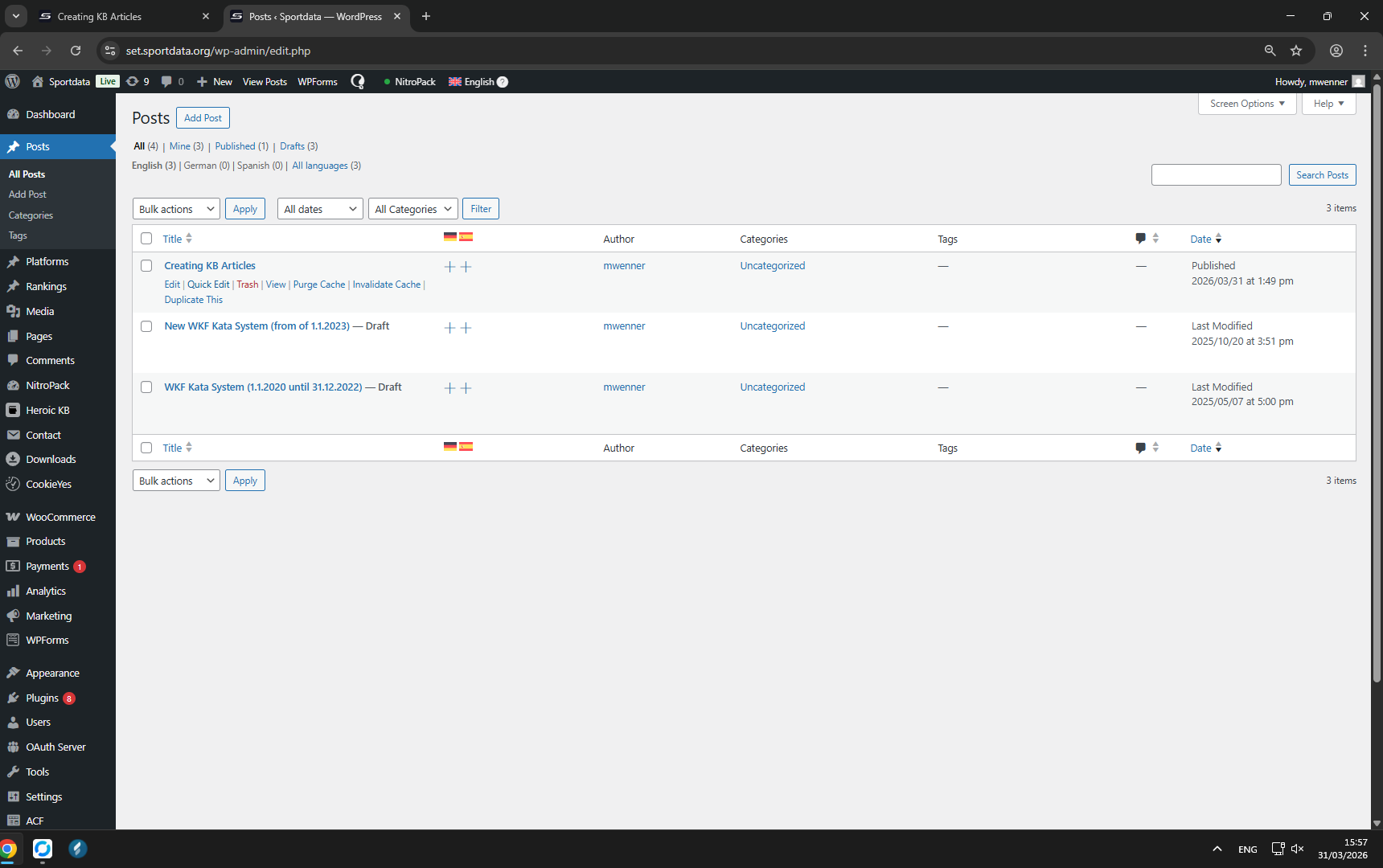
In , click the
“Quick edit \”
Creating KB Articles\
“ inline”
button to easily start editing this article.
4
/27
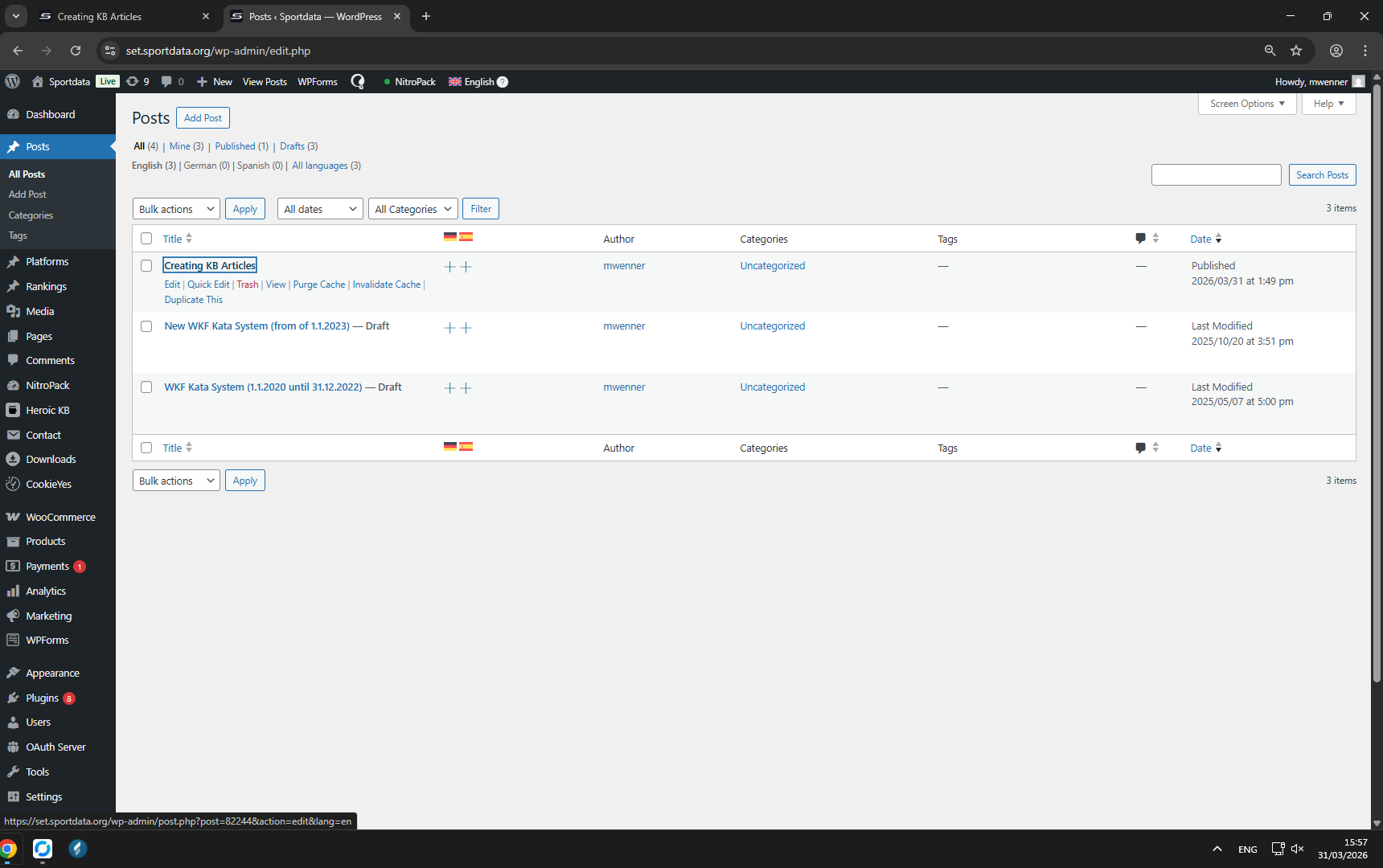
In set.sportdata.org, follow the link labeled
“\”
Creating KB Articles\
“ (Edit)”
to open the editing page for this article.
5
/27
Click
“Add title”
to name your article.
6
/27
Press Enter key to confirm your title.
7
/27
Press Enter key again to create a new line below.
8
/27
Click the
“Block Inserter”
button to add new content blocks.
9
/27
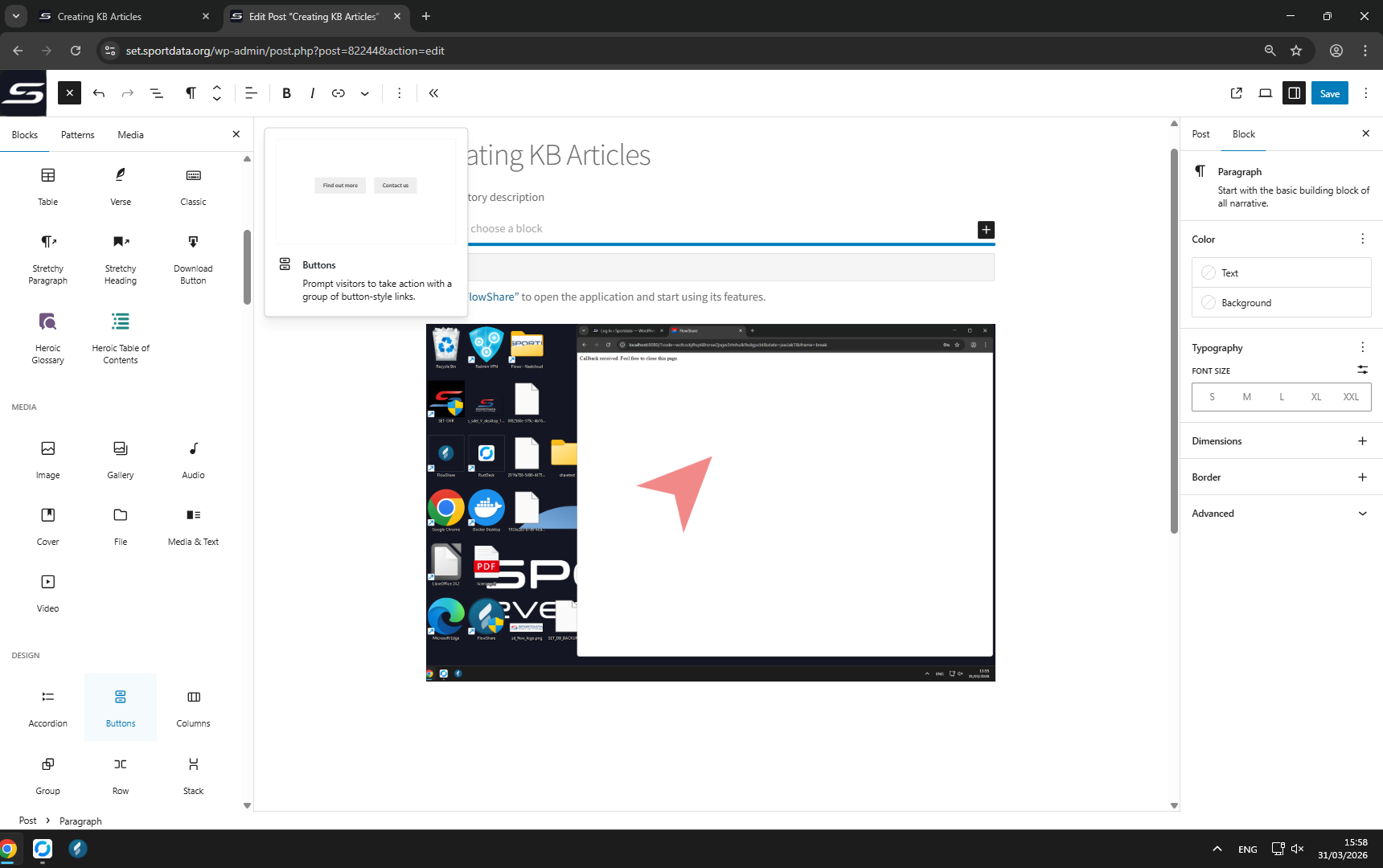
Click
“Buttons”
to insert a button into your article.
10
/27
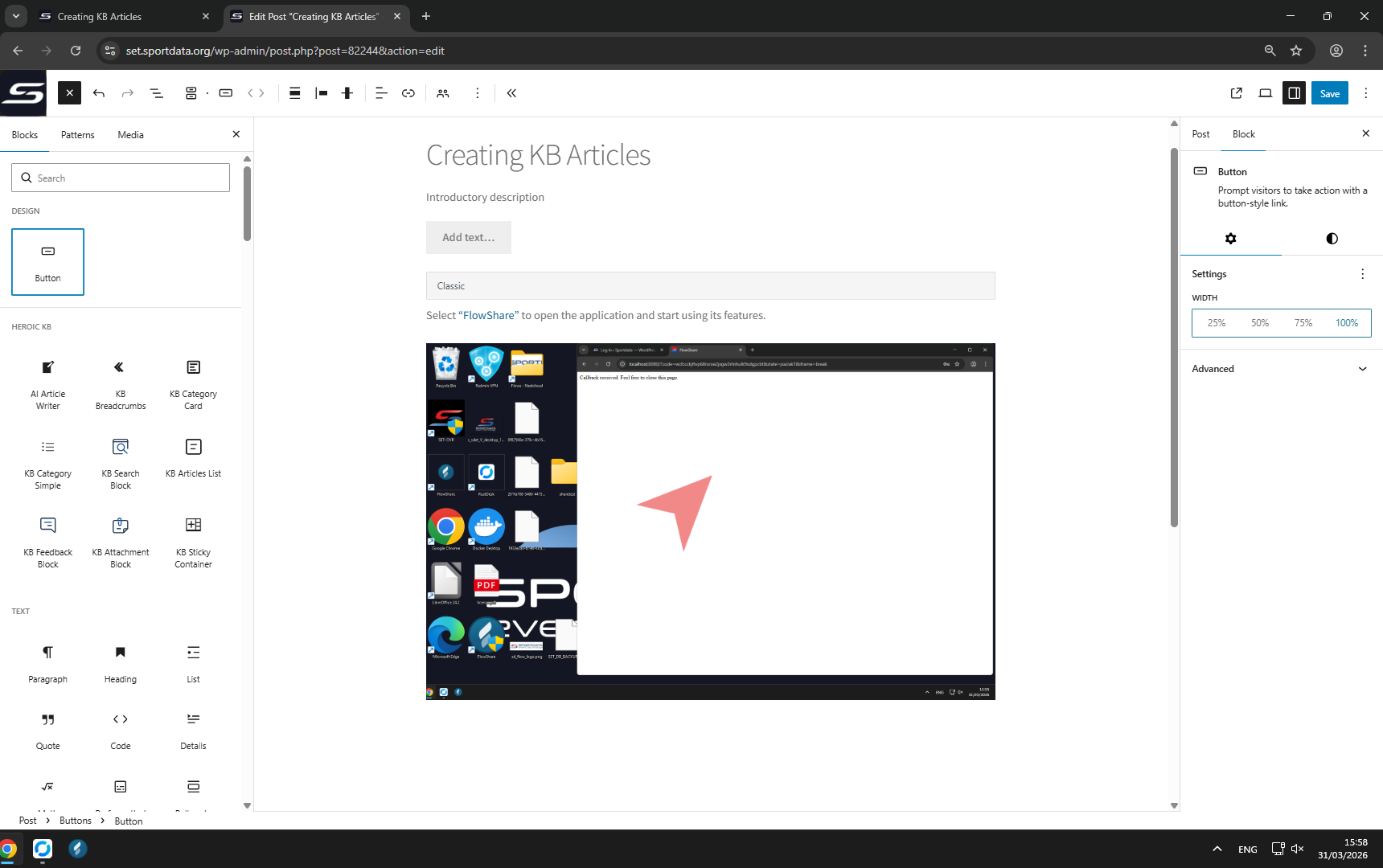
Click
“100%”
to make the button full width.
11
/27
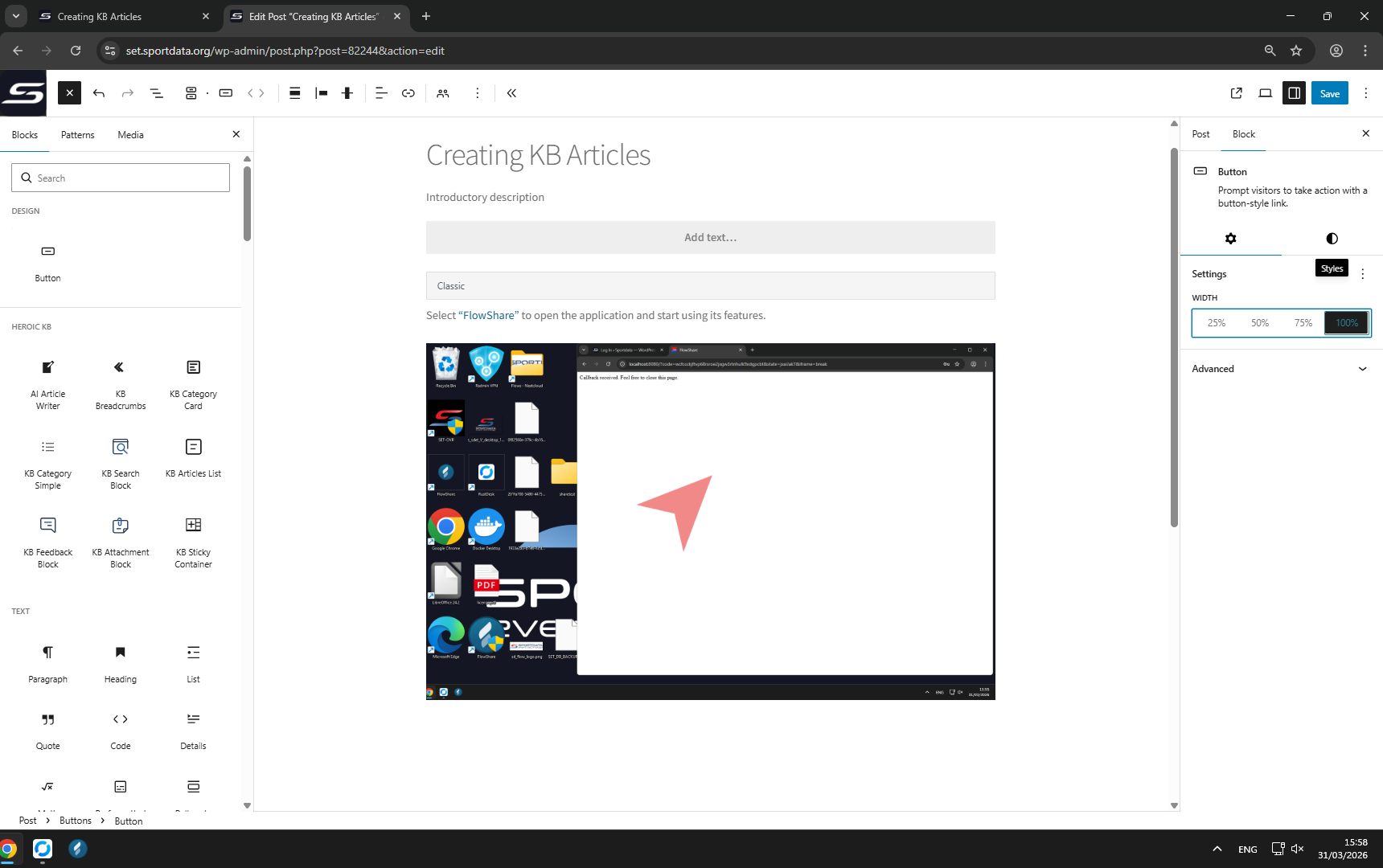
Switch to tab
“Styles”
so you can customize the design.
12
/27
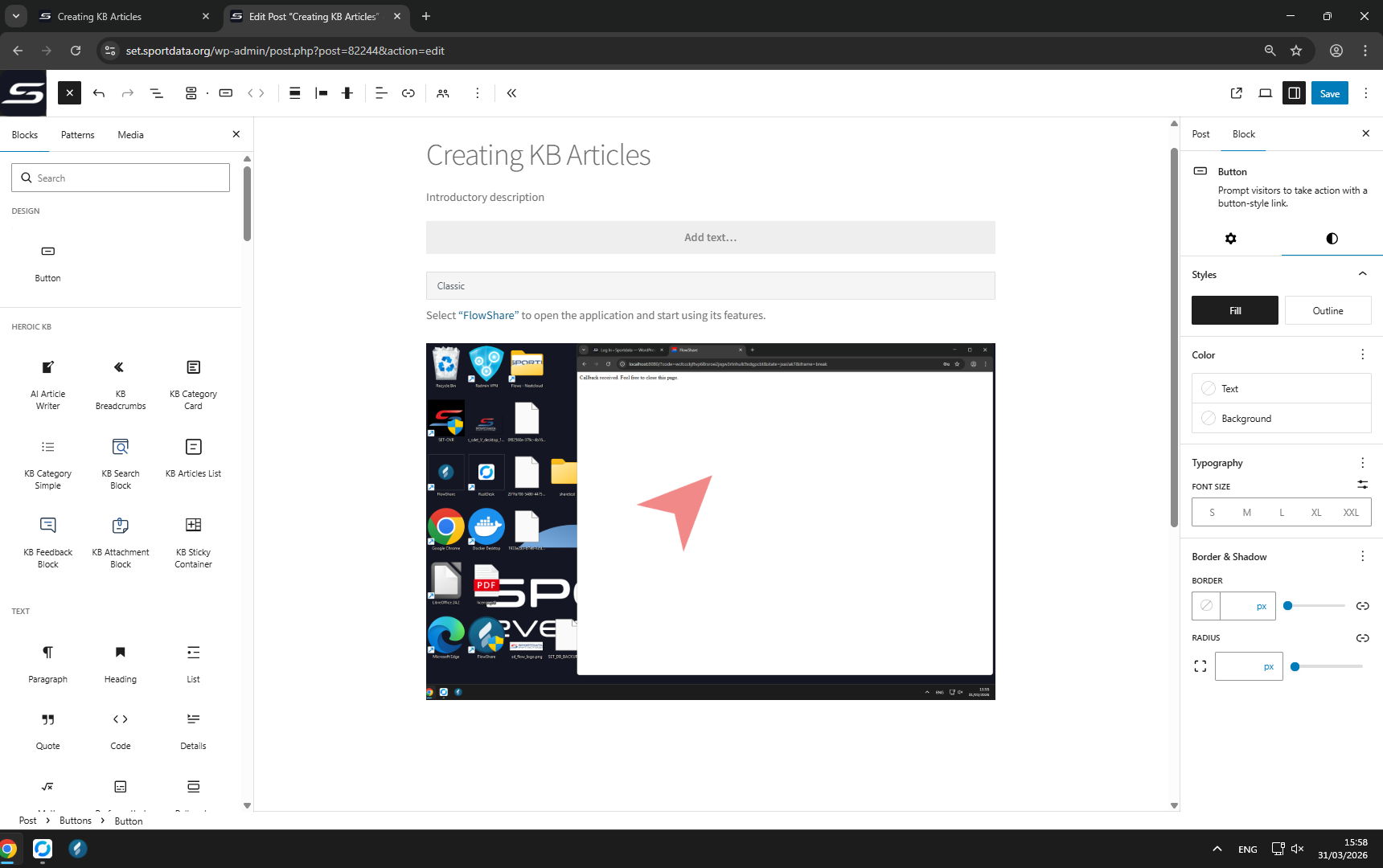
Click the
“Text”
button to change the button text style.
13
/27
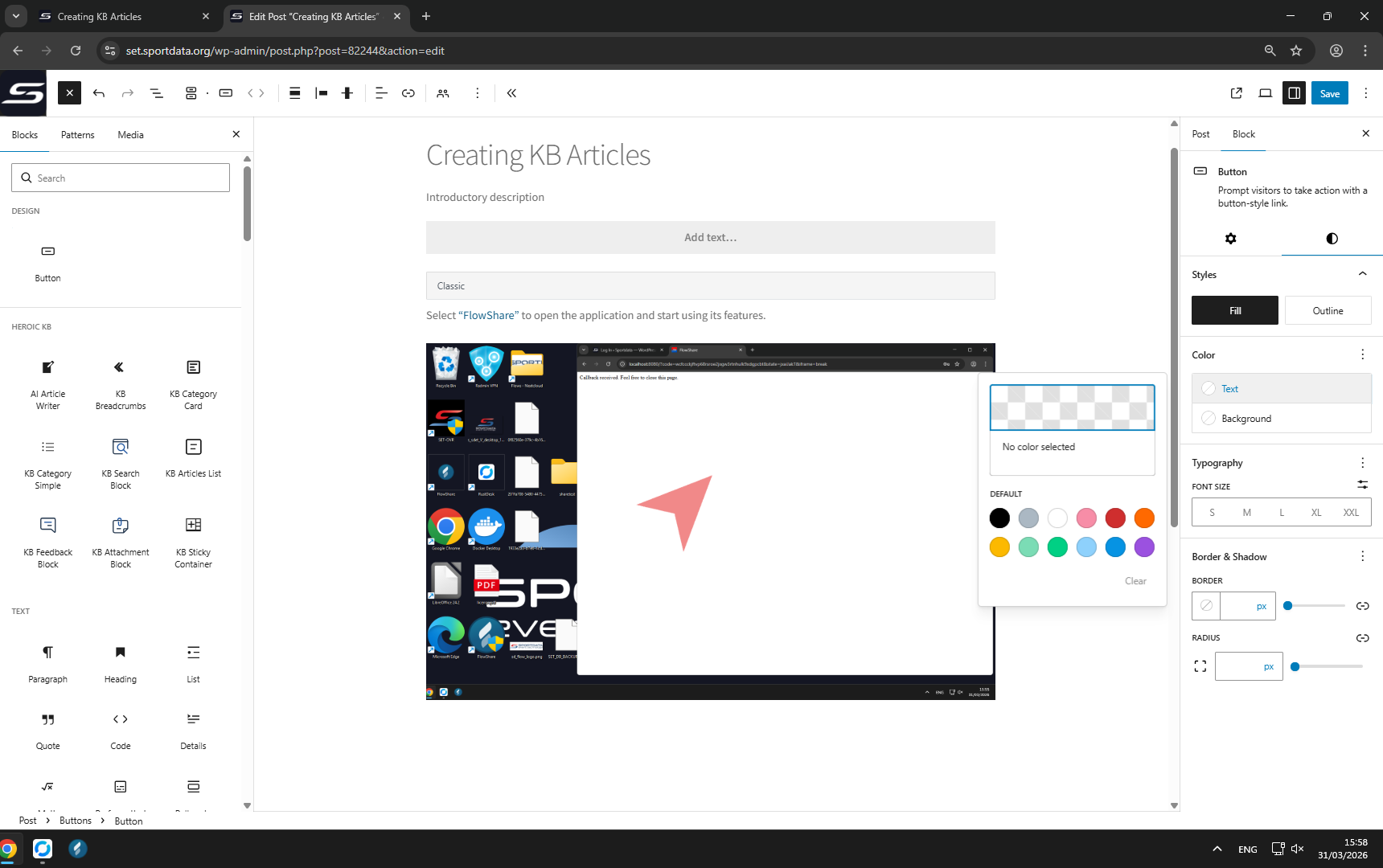
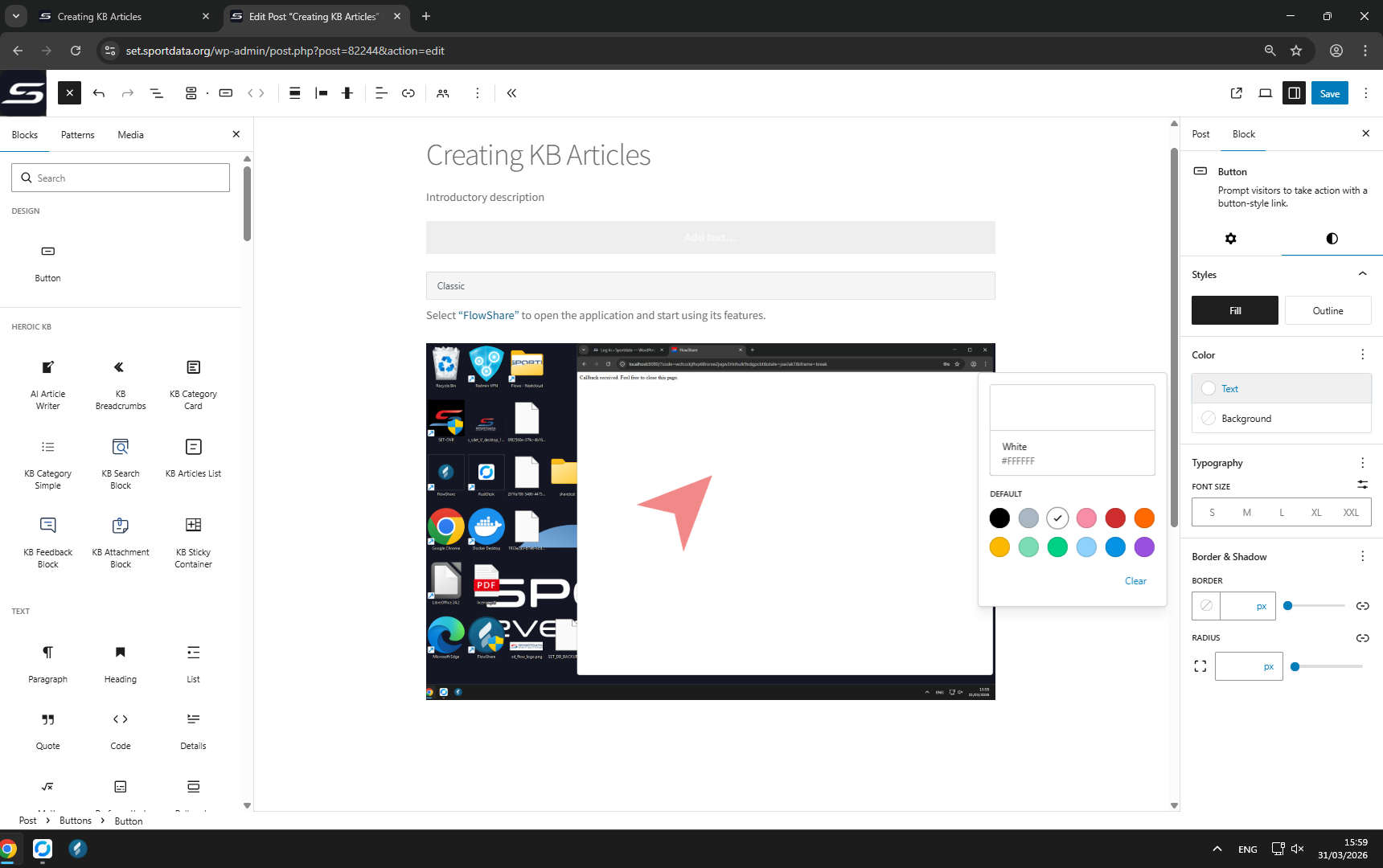
Click
“Custom color picker”
to select a text color.
14
/27
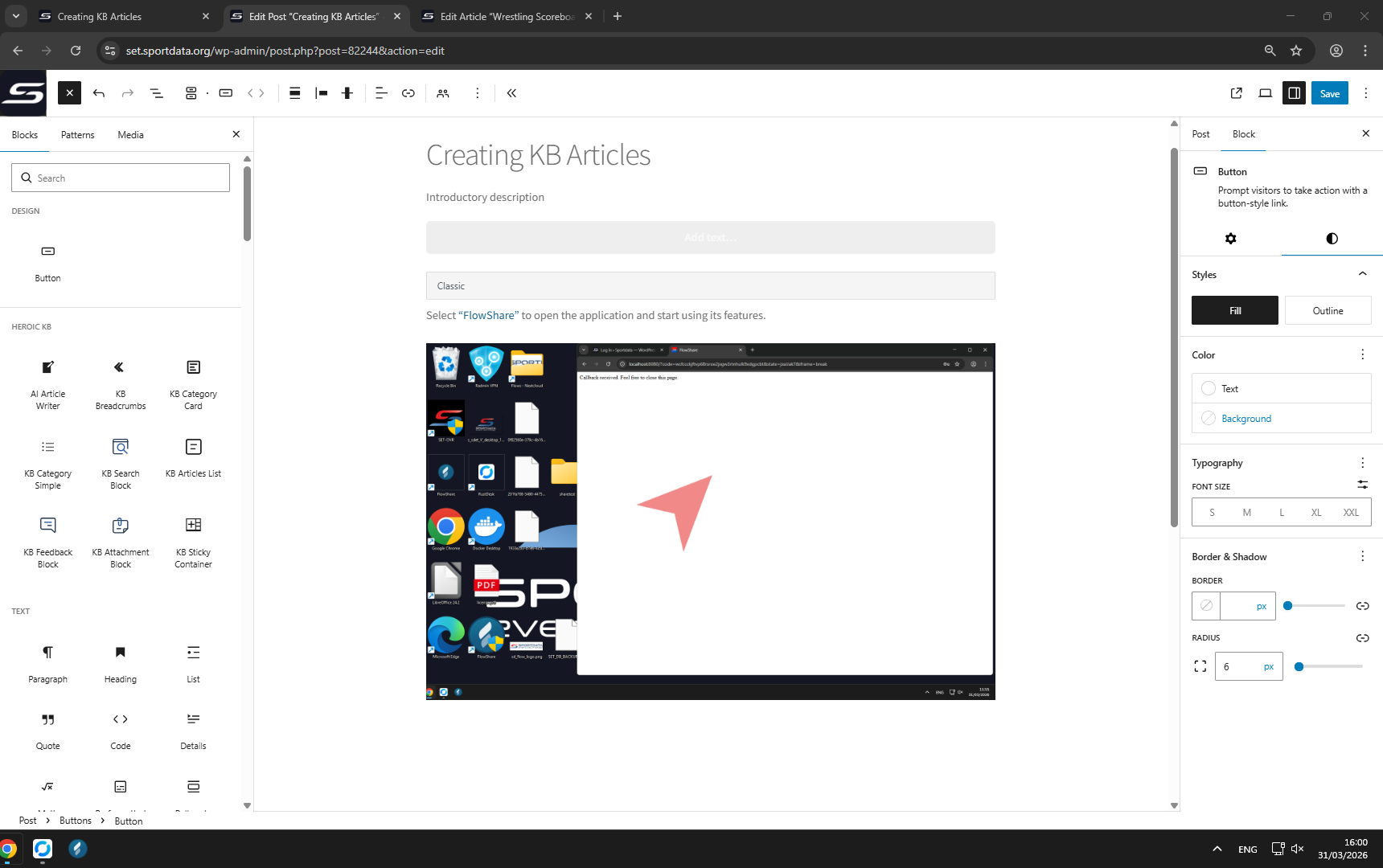
Click
“Border radius”
to adjust how rounded the button corners are.
15
/27
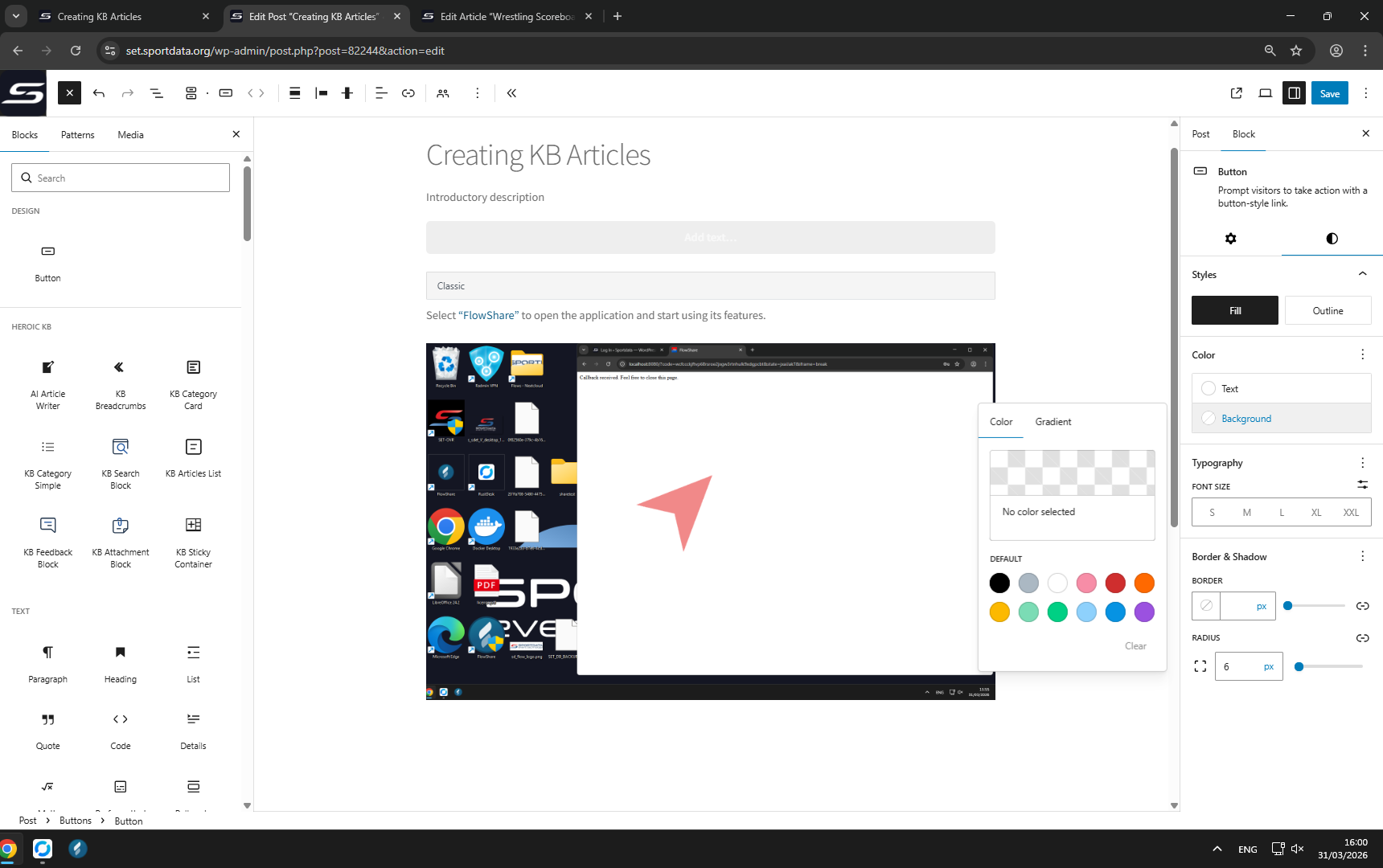
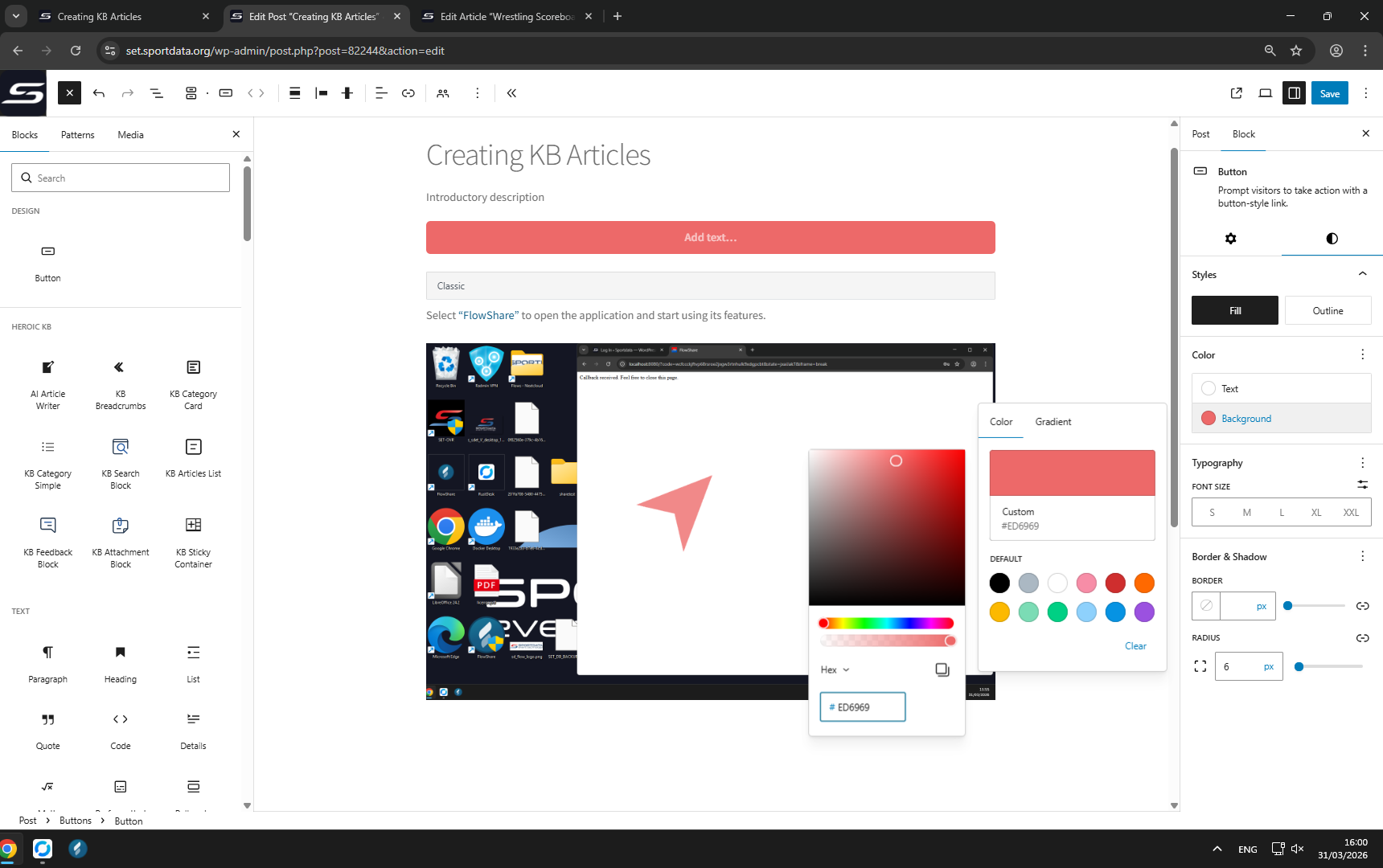
Click the
“Background”
button to open background color settings.
16
/27
Click the
“Custom color picker”
button to choose a background color.
17
/27
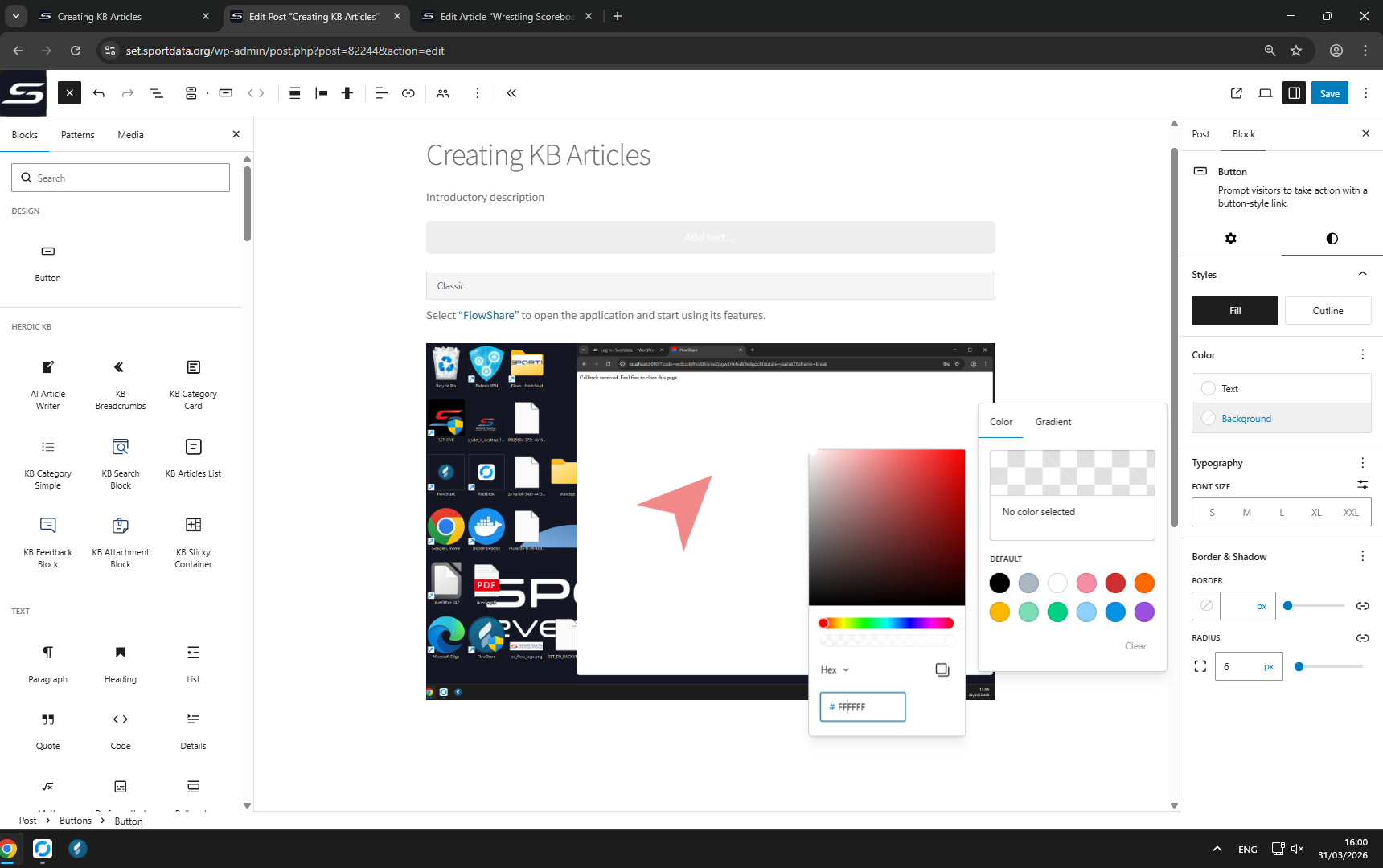
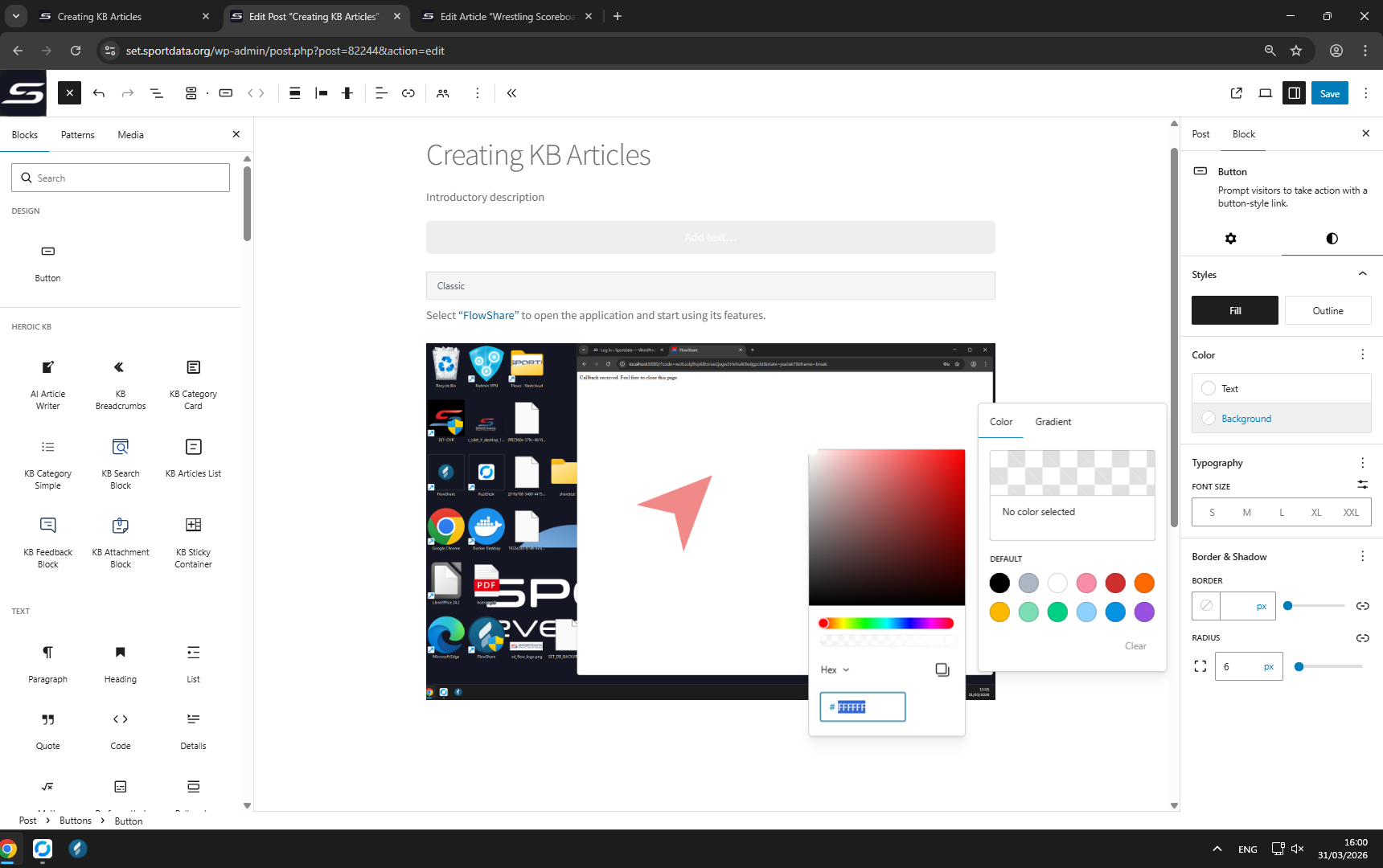
Double-click
“Hex color”
to highlight the hex color code for editing.
18
/27
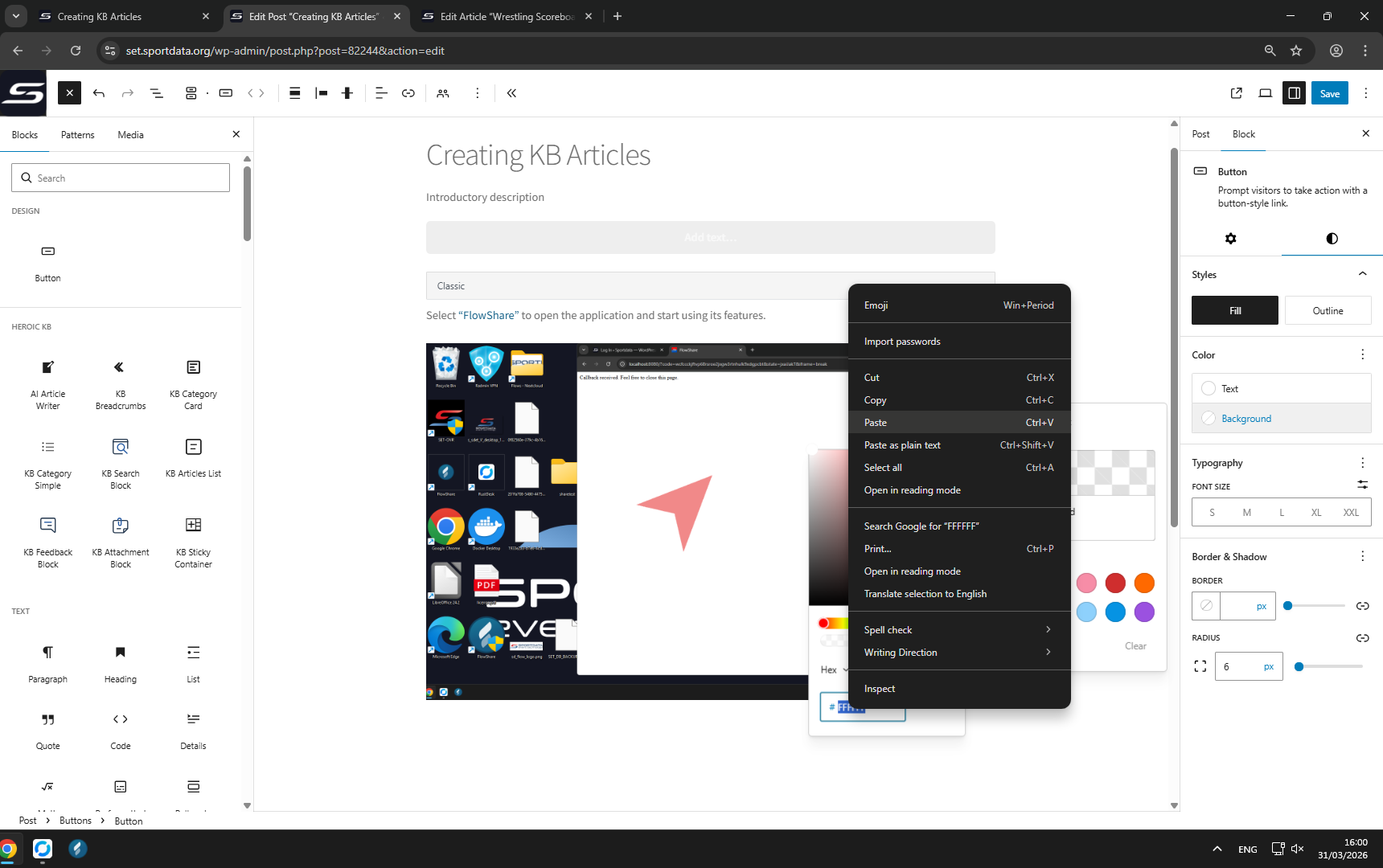
Right-click
“Hex color”
to open the context menu options.
19
/27
In , select
“Paste Ctrl+V”
from the menu to paste your copied color code.
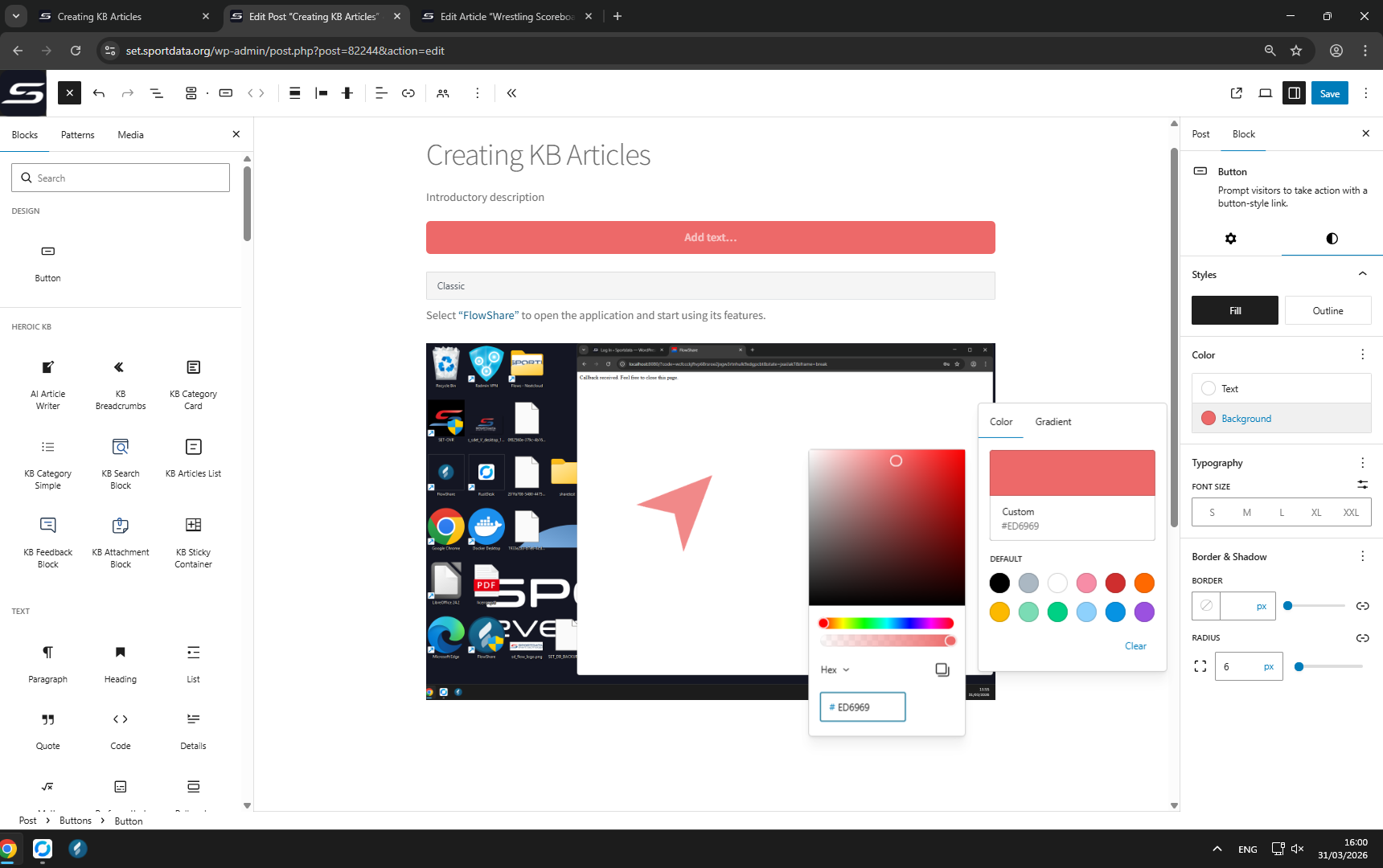
20
/27
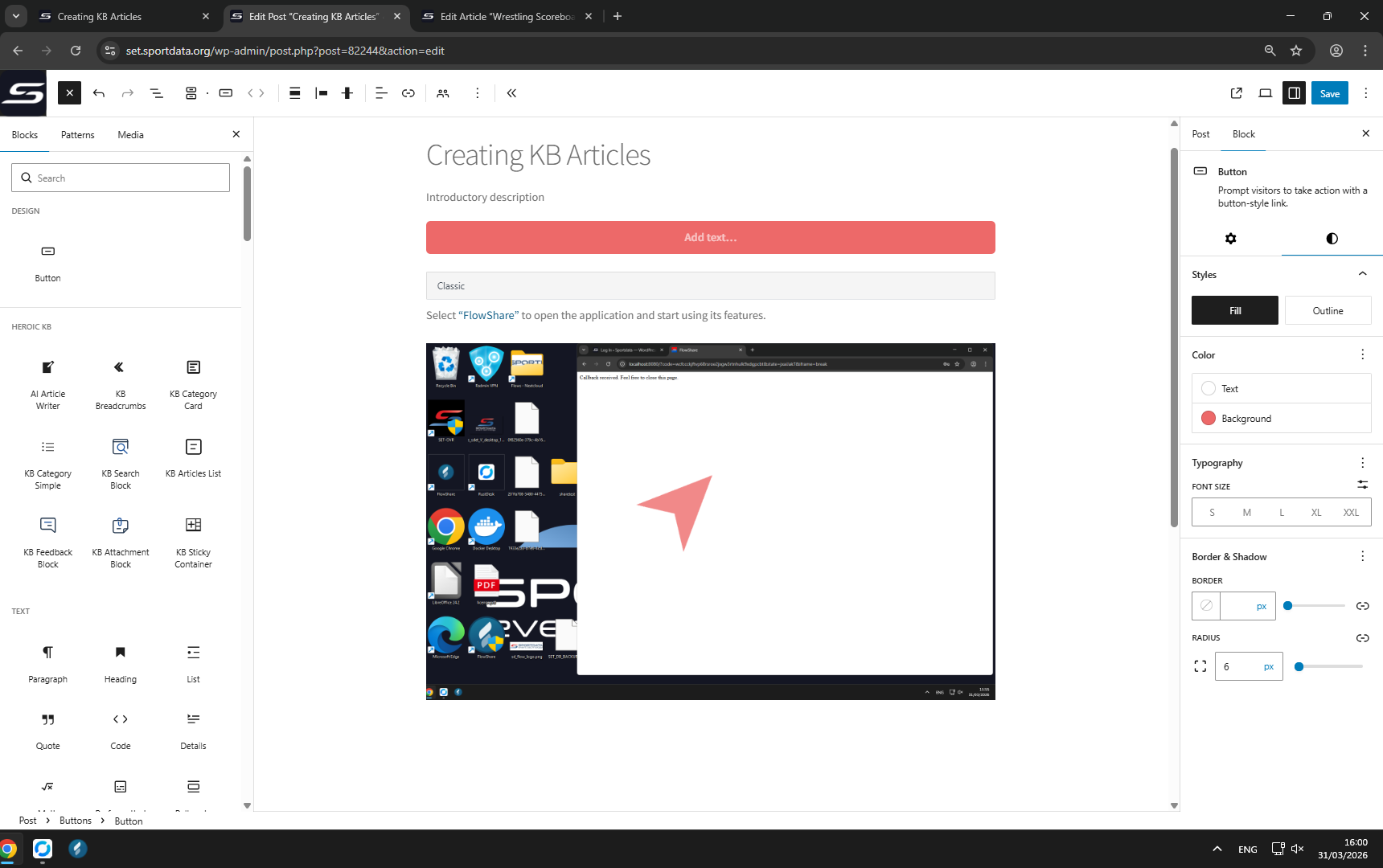
Press Enter key to apply your changes.
21
/27
In set.sportdata.org, click to return to the previous screen.
22
/27
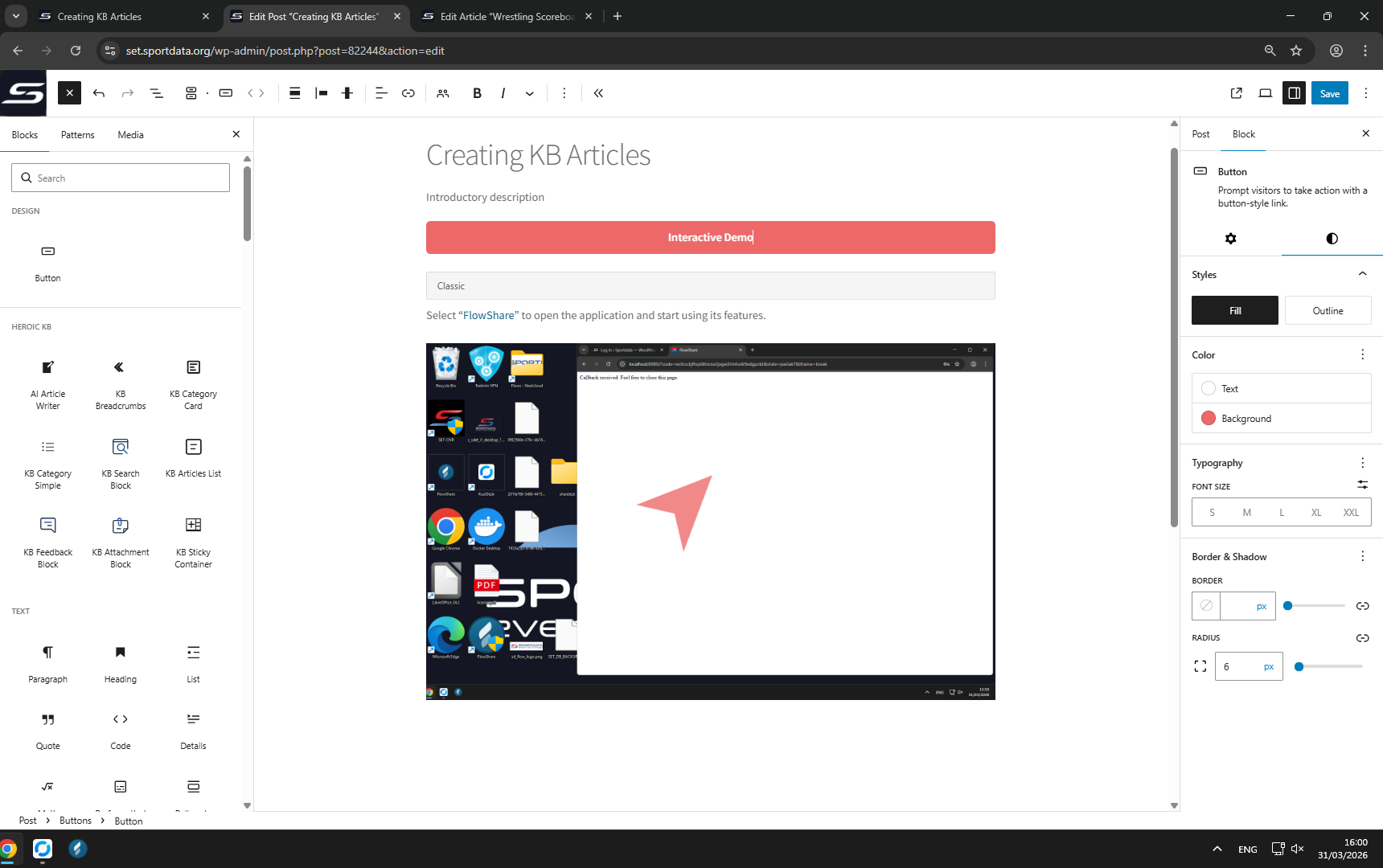
Click
“Button text”
to change what the button says.
23
/27
Click
“Block: Paragraph”
to add a paragraph block to your article.
24
/27
Click
“Block: Paragraph”
again to add another paragraph block.
25
/27
Click
“Block: Paragraph”
one more time to add an additional paragraph block.
26
/27
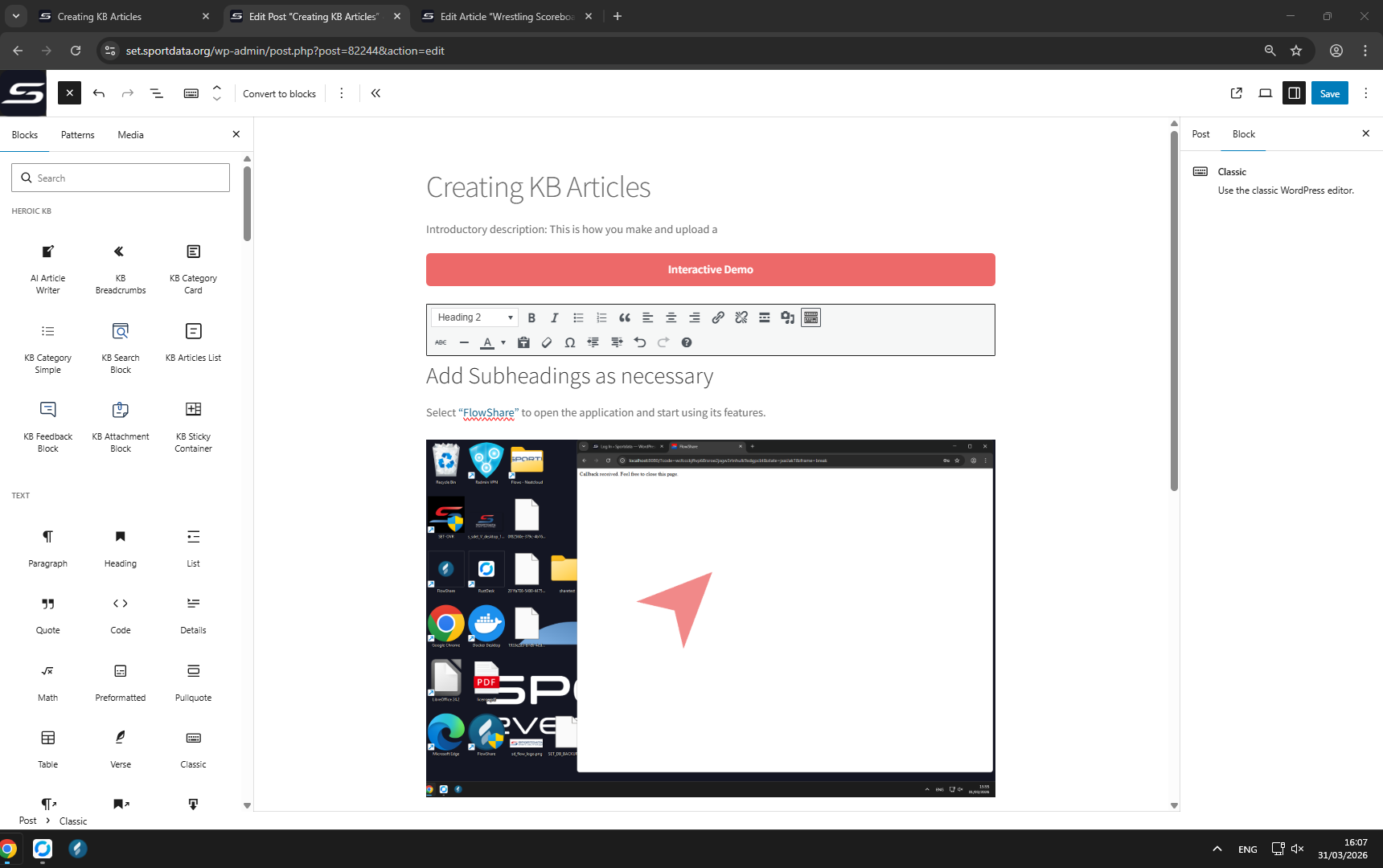
Click
“Add Subheadings as necessary”
to organize your article with headings.
27
/27
Click the
“Save”
button to store all your changes.
Thank you!
Restart Tour