Kabaddi Scoreboard
Sportdata
Start
1
/32

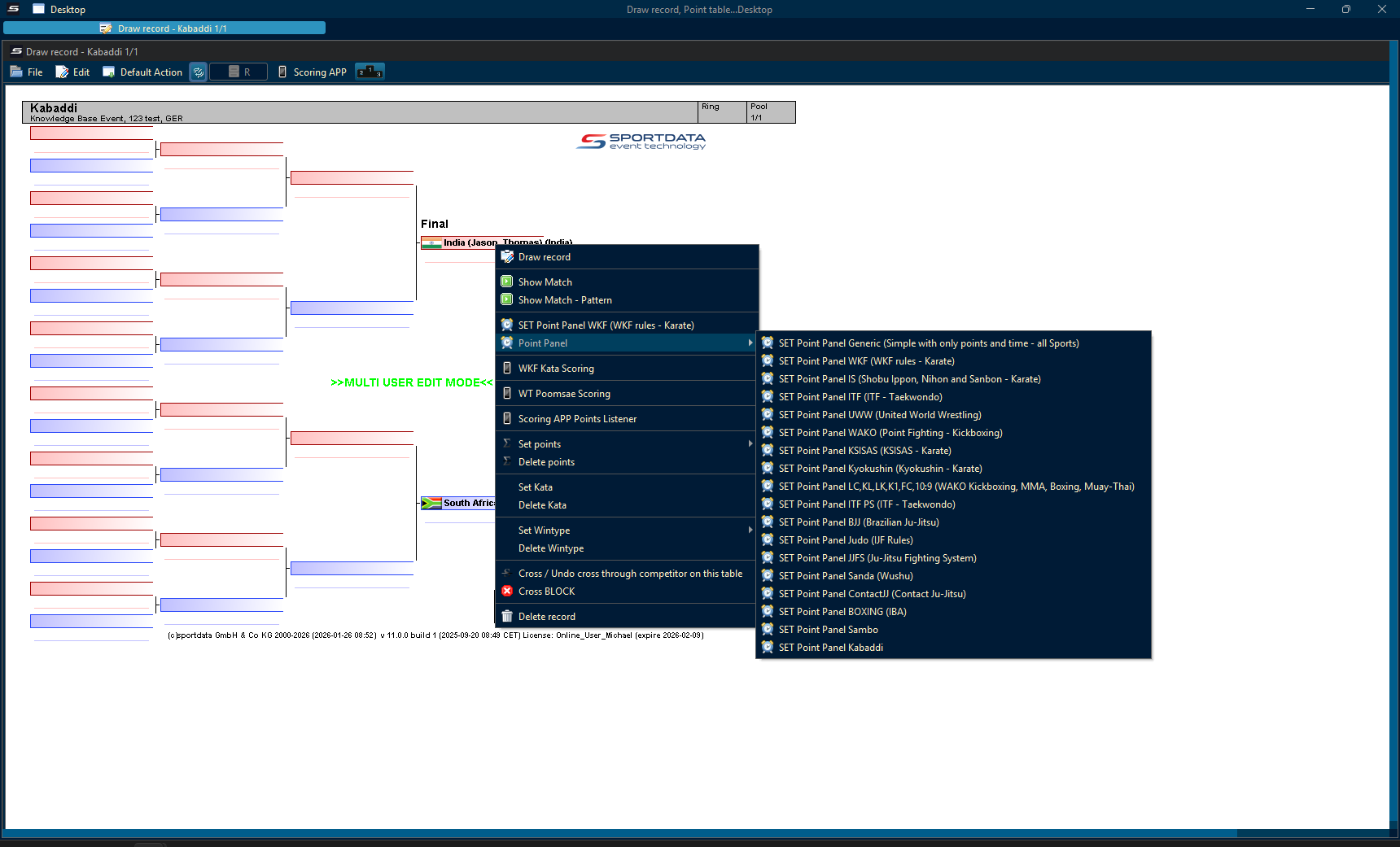
Open a Match

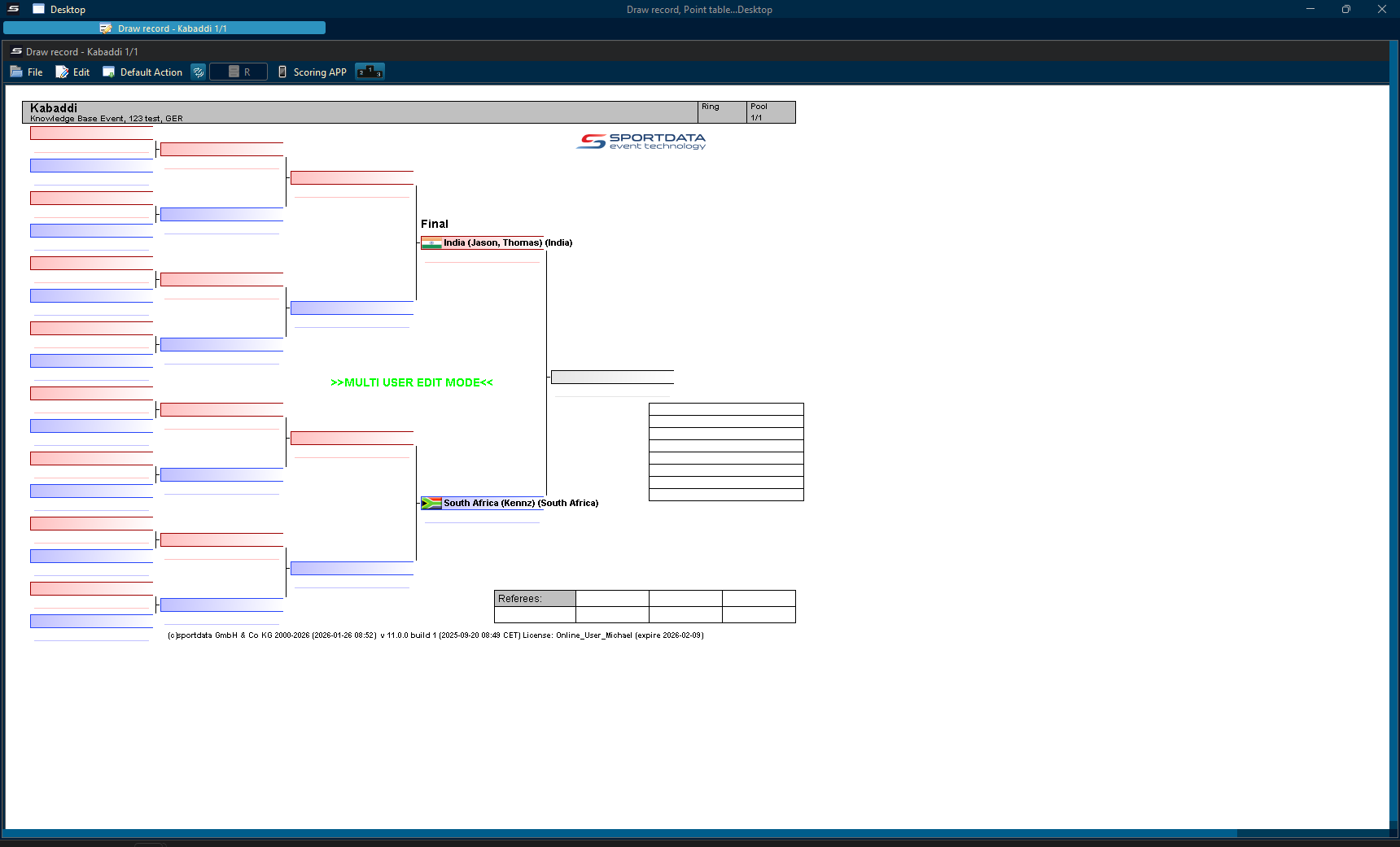
In draw records, right click on the match you wish to see.

2
/32


Go to point panel in the menu.

3
/32


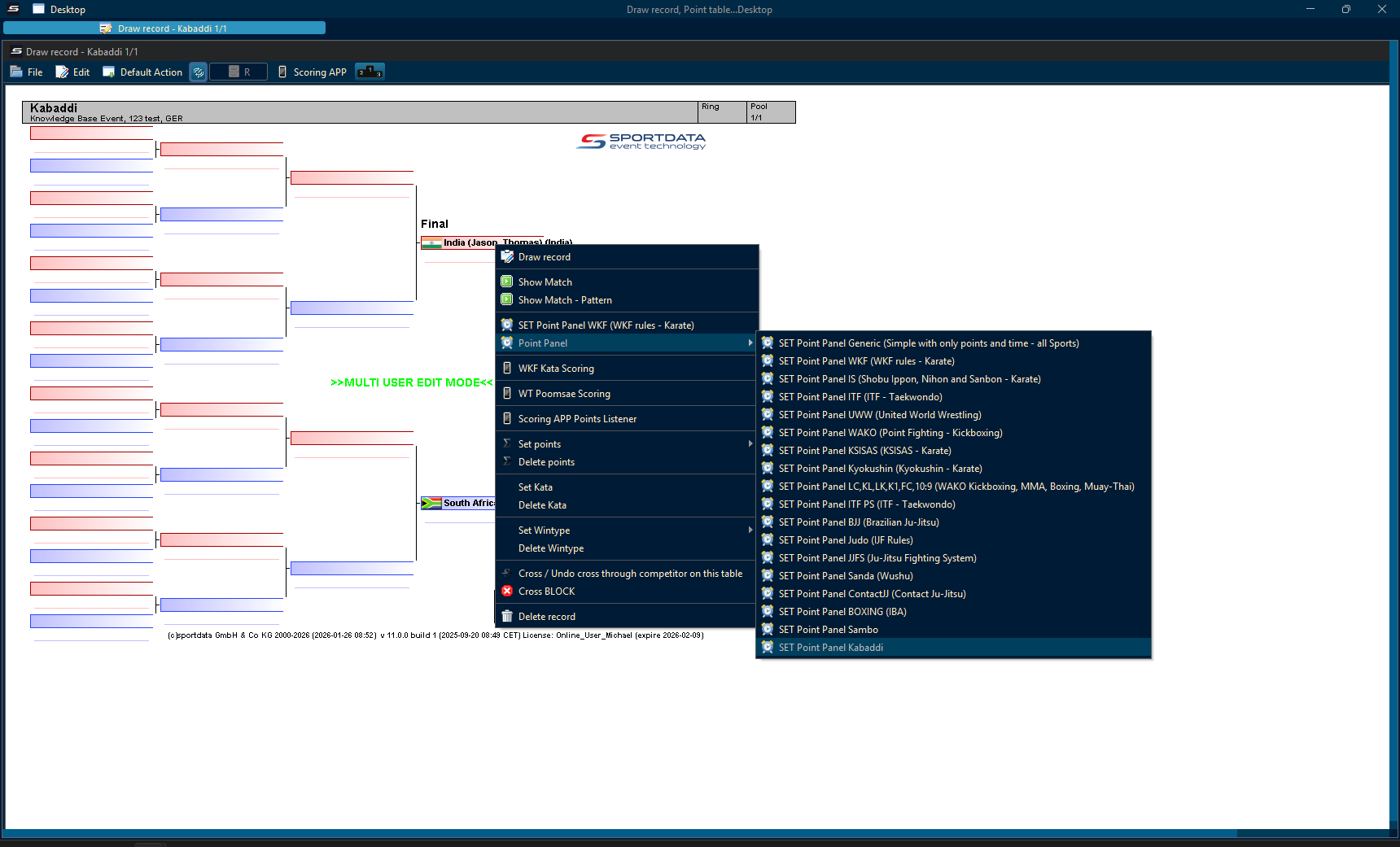
Select the kabaddi point panel.

4
/32


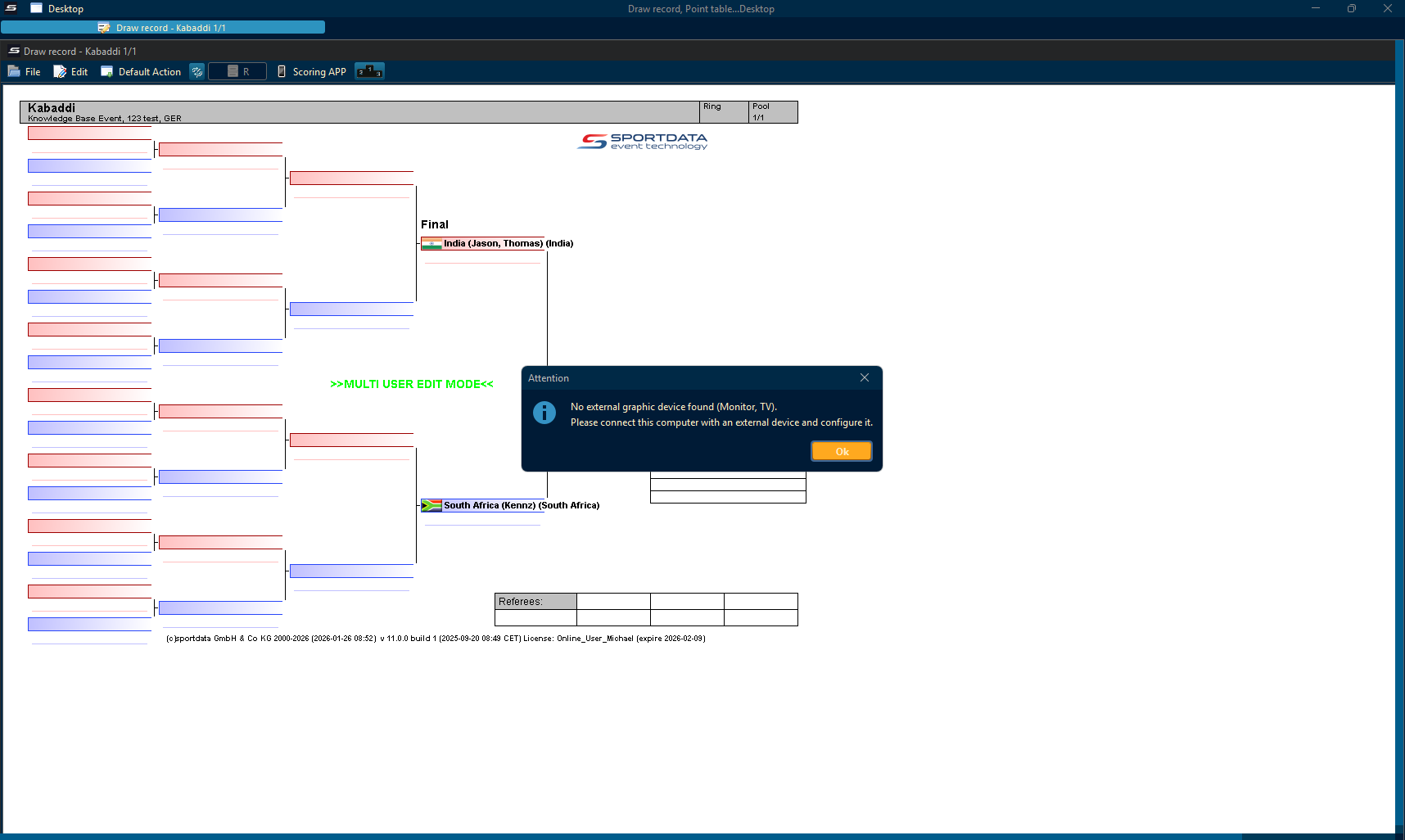
This window appears if when you are not connected to an external monitor. Check your cable connection, and, or press okay to continue.

5
/32

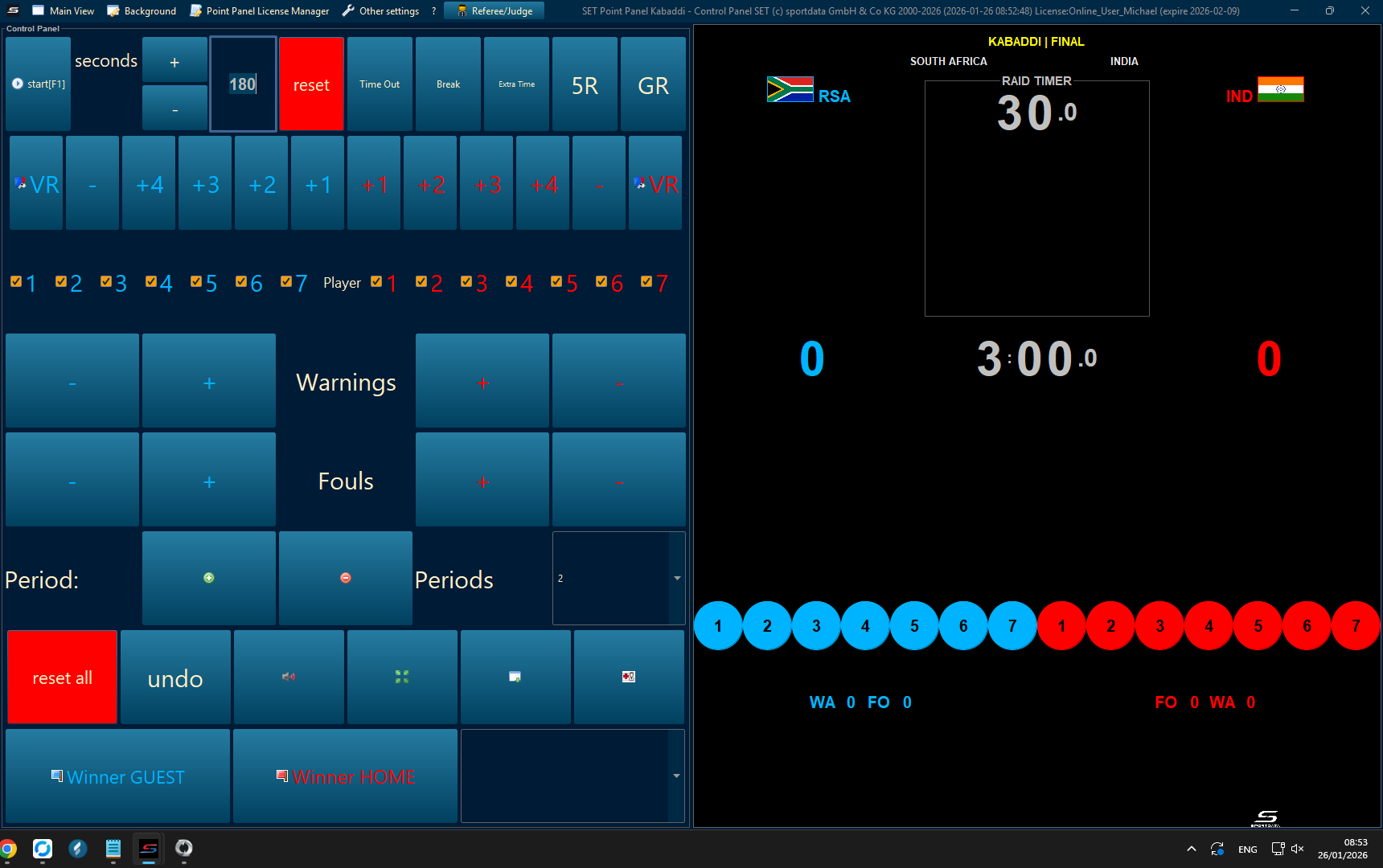
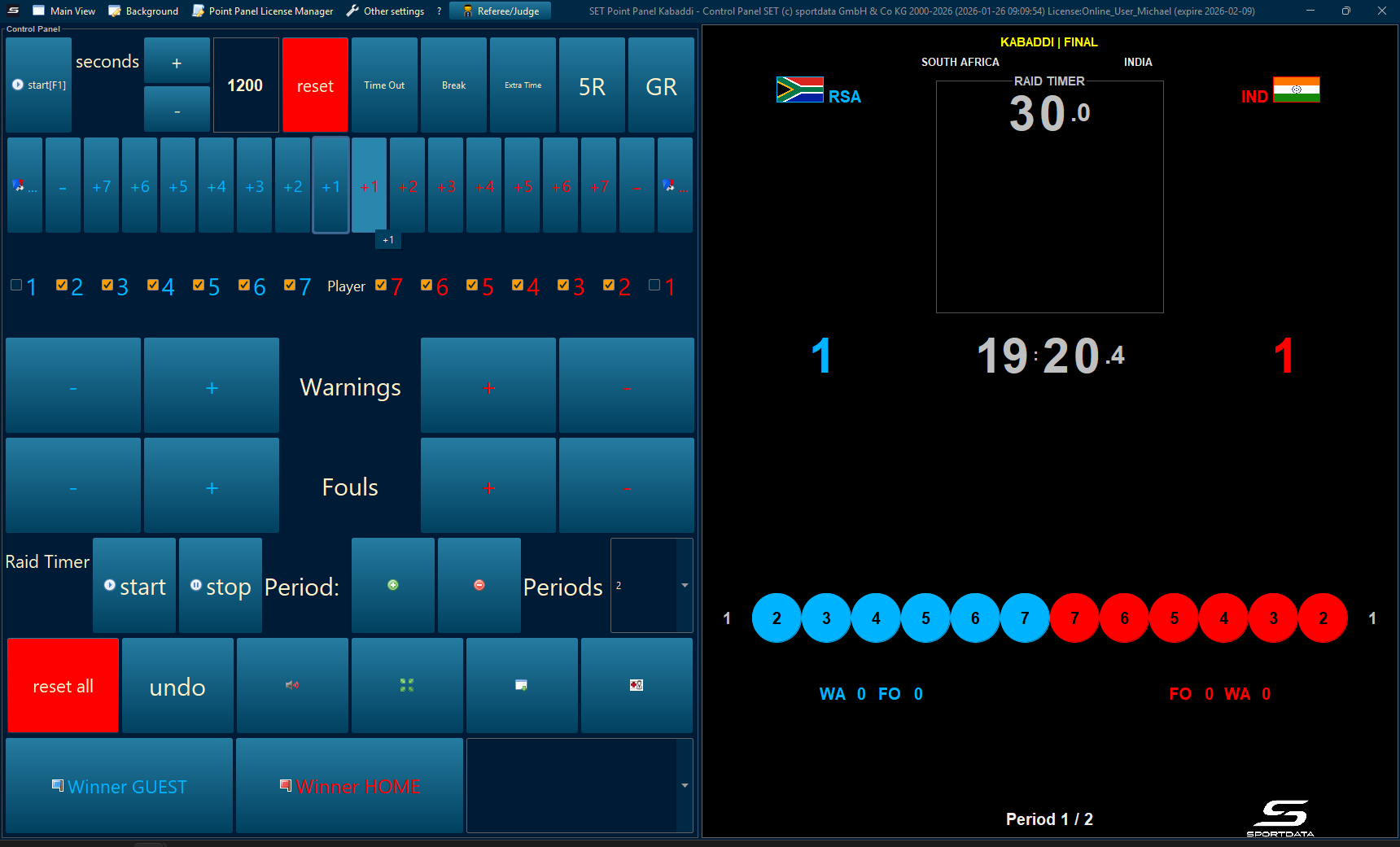
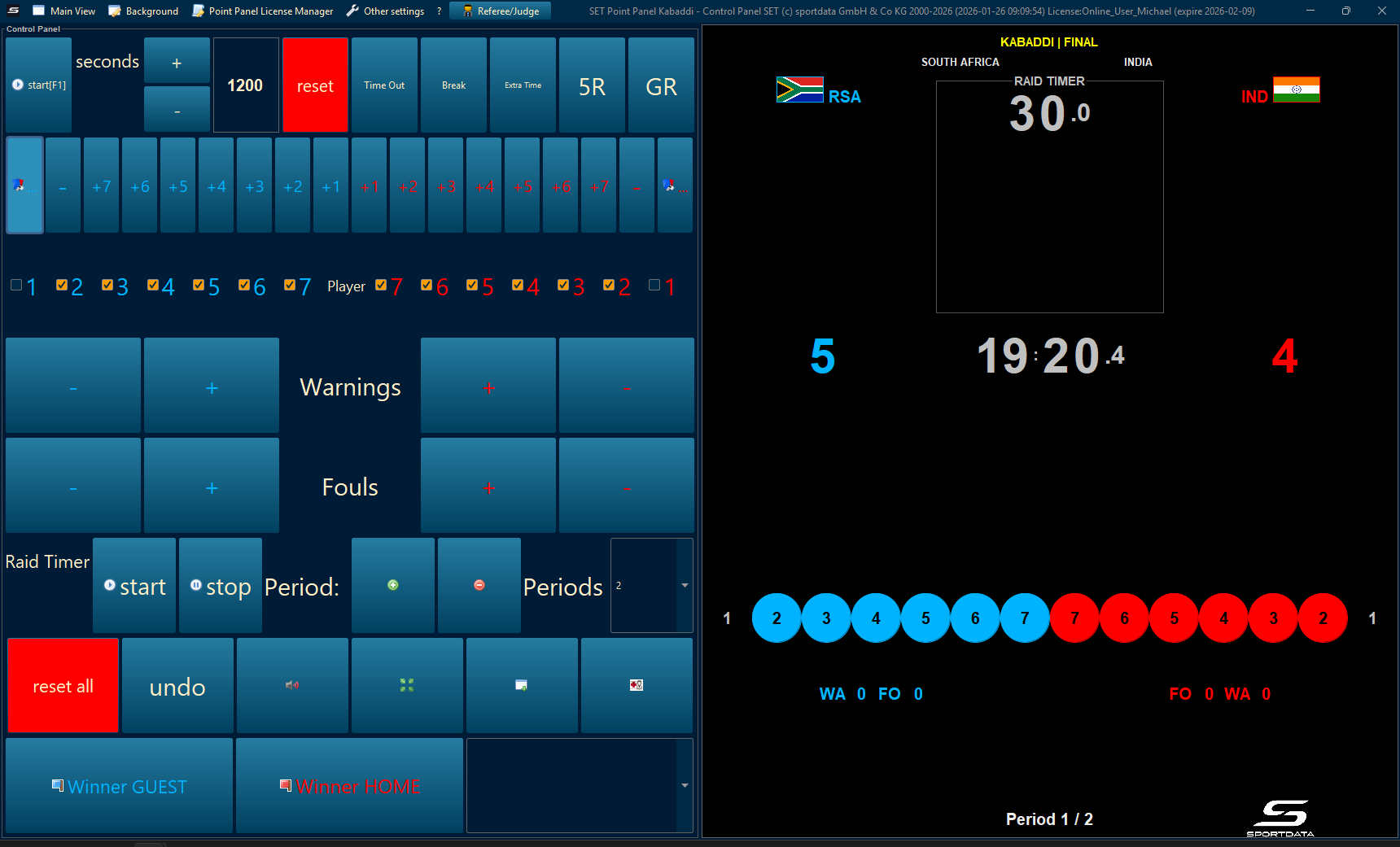
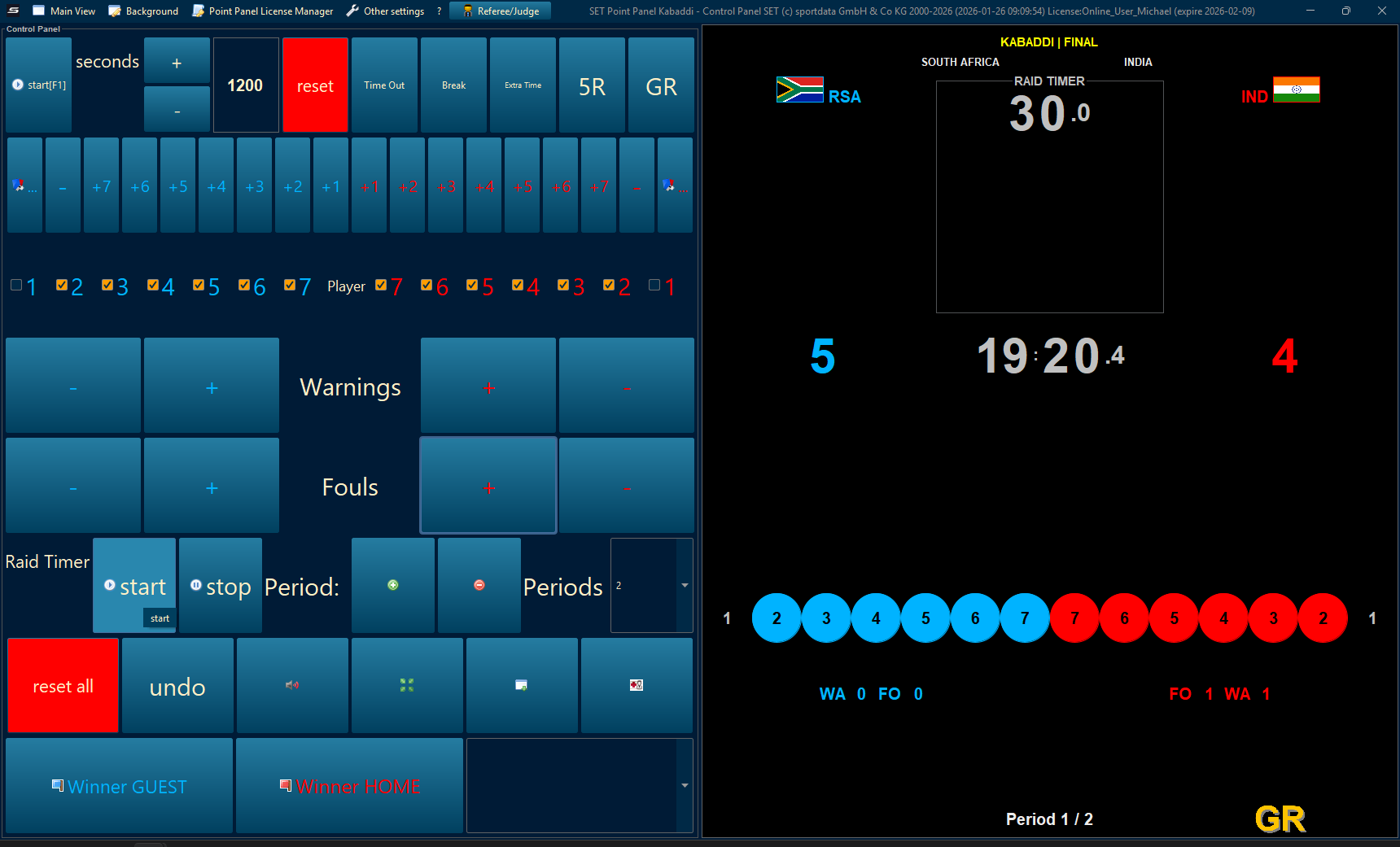
Scoreboard

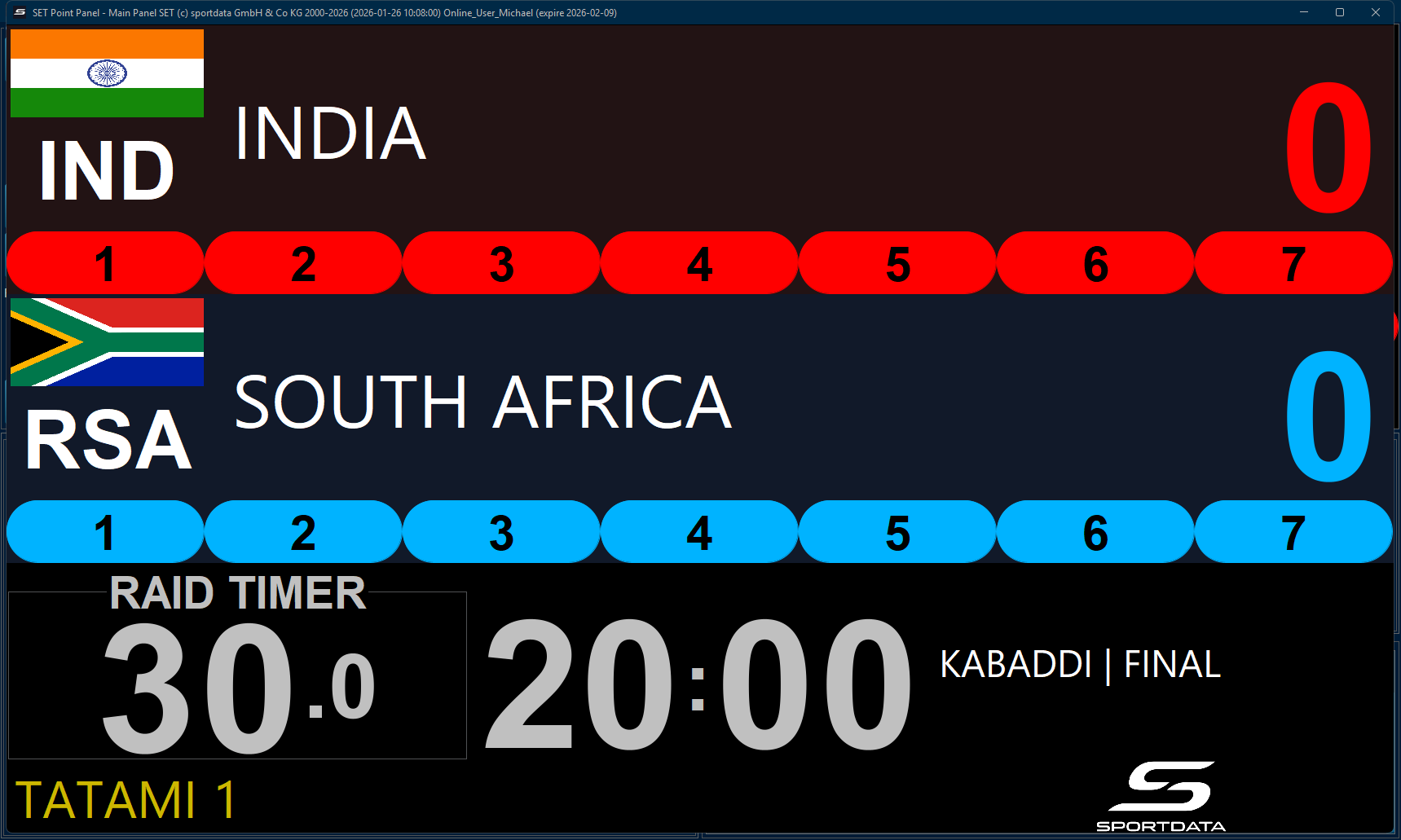
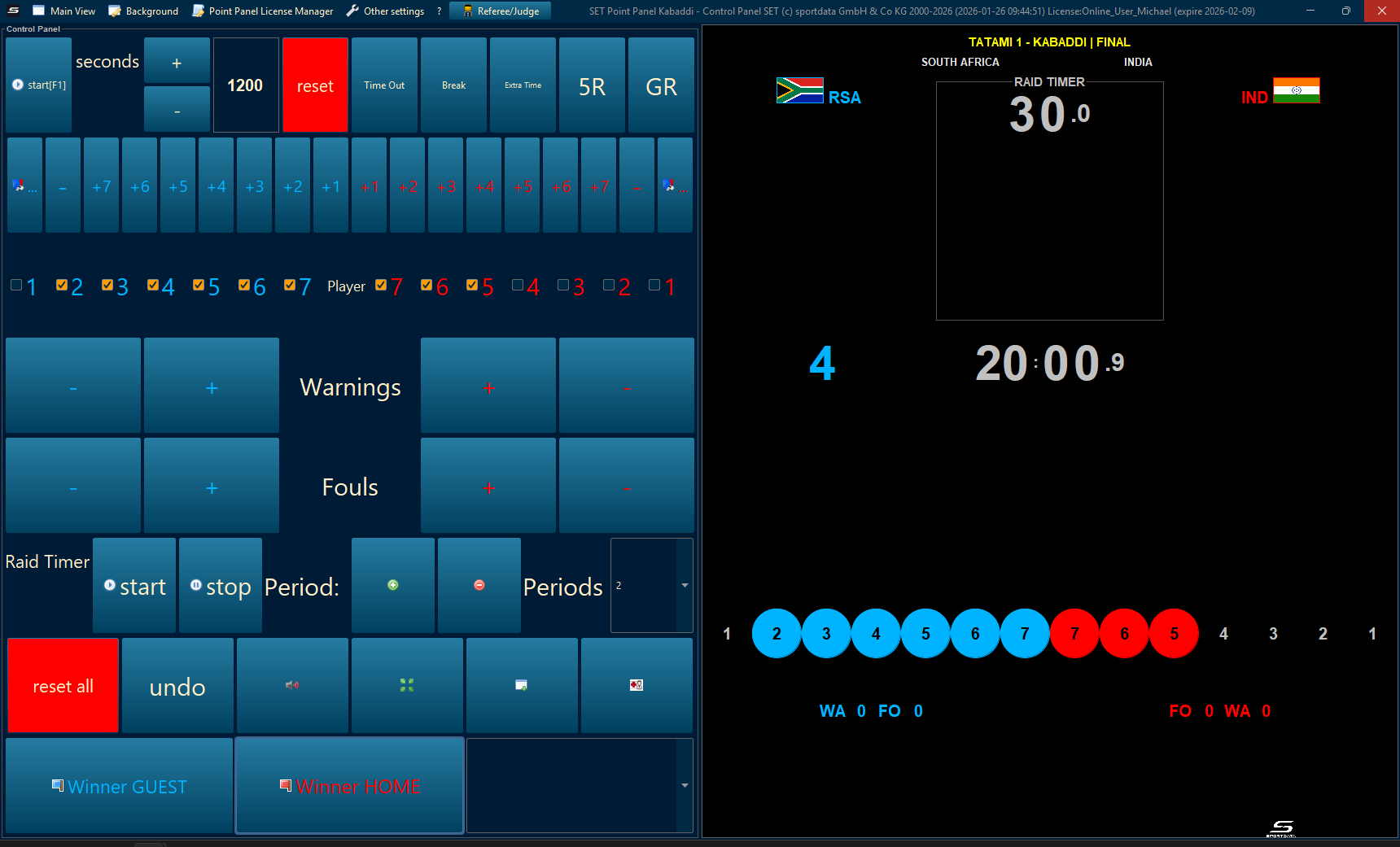
The scoreboard has ...
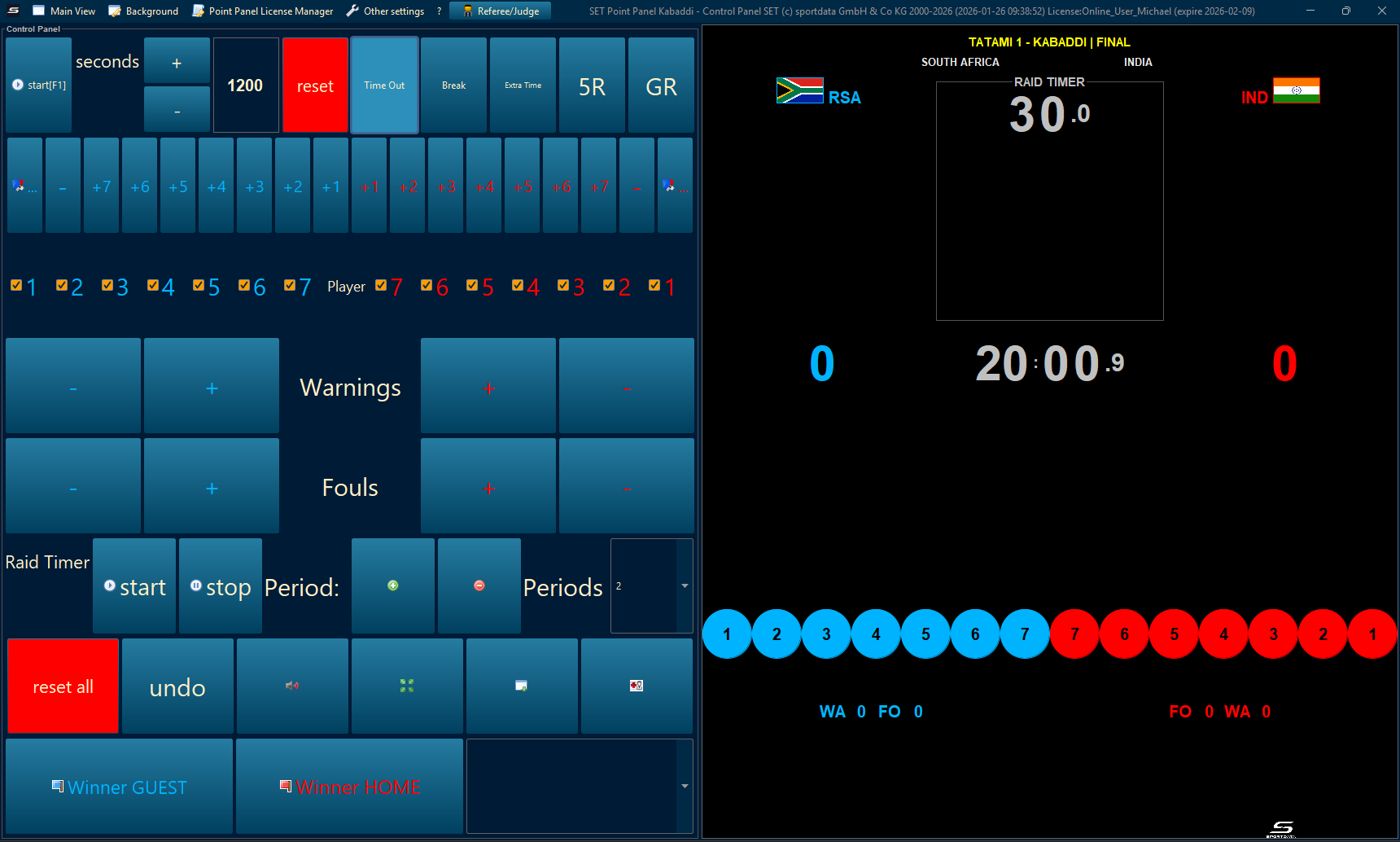
Team Name (Club) with their total points and active players.

Game Clock: Tracks the overall time remaining in the current half.

Raid Timer: A 30-second countdown for each raid to ensure quick gameplay.

Field of Play (Court) : Needs to be changed in main settings
Name of Category & Phase: example Men, women, indoor, beach / Final, Semi-Final, etc.

Next
6
/32

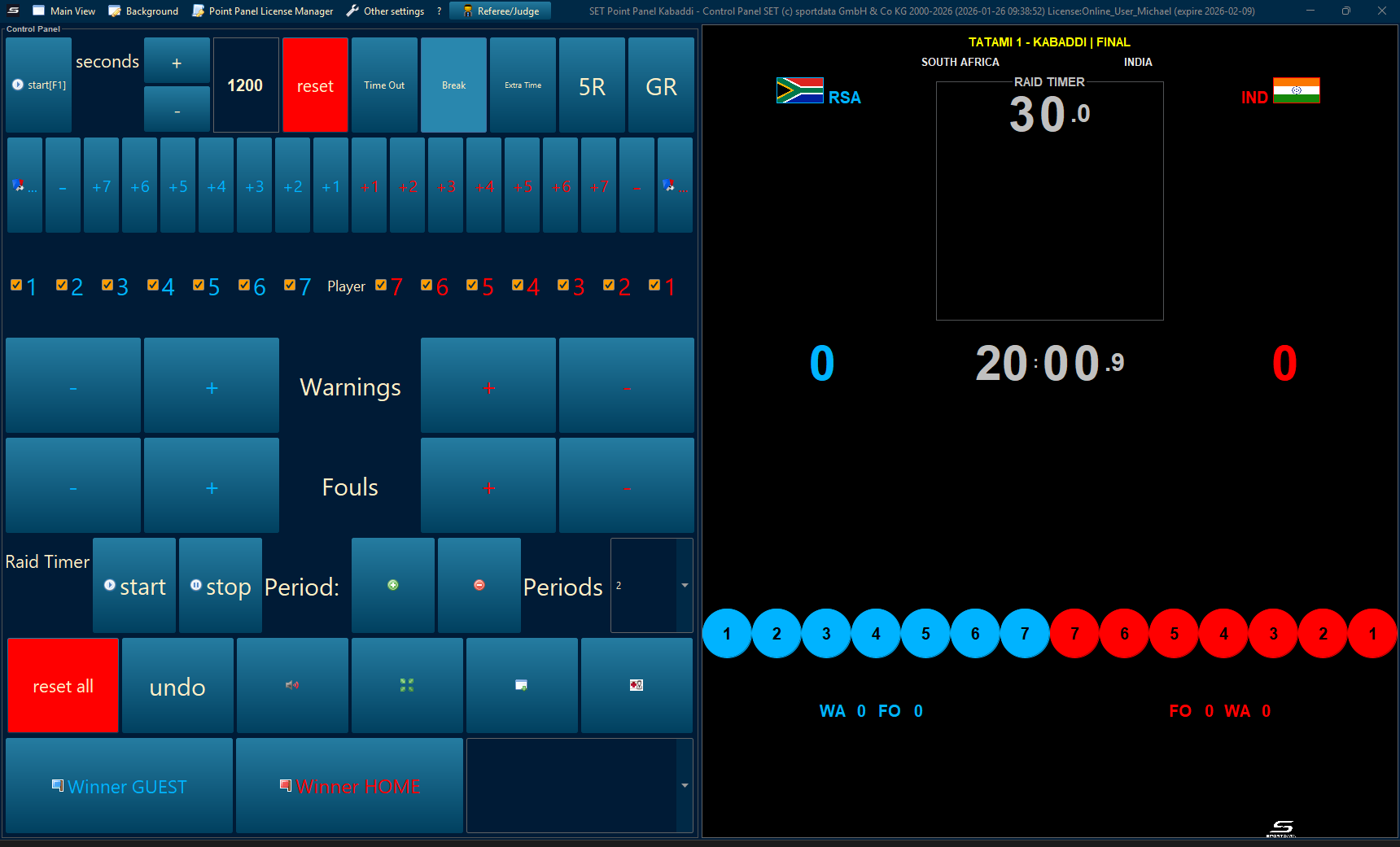
Point Panel Match Time

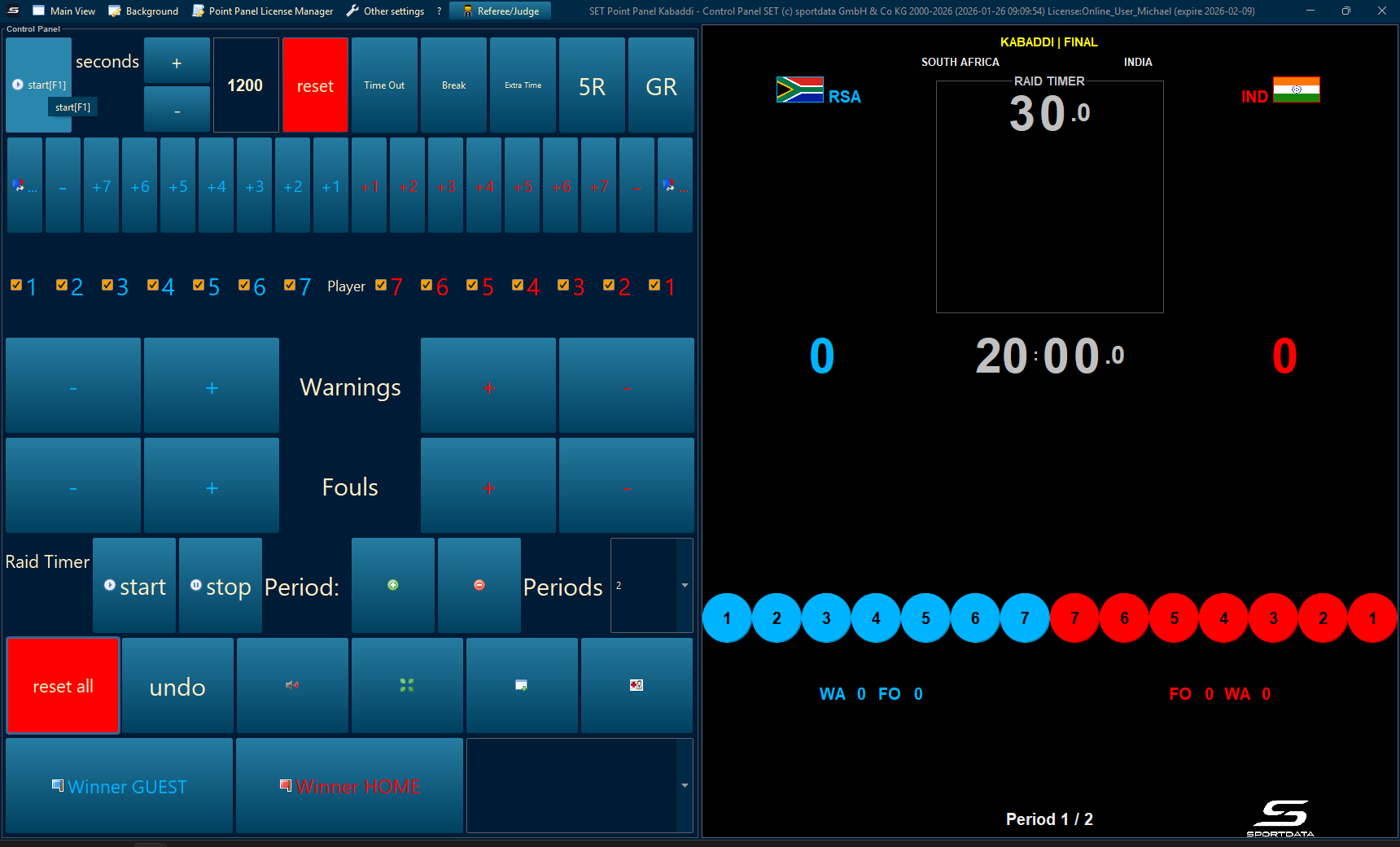
Point panel is where the scoreboard operator will input the match data. To update the match time, click the time field, change the number of seconds, and then click reset. Common times you might use are 20 minutes (1200 sec) or 15 minutes (900 sec). If you need to include milliseconds, simply add a period, for example 30.3.

7
/32

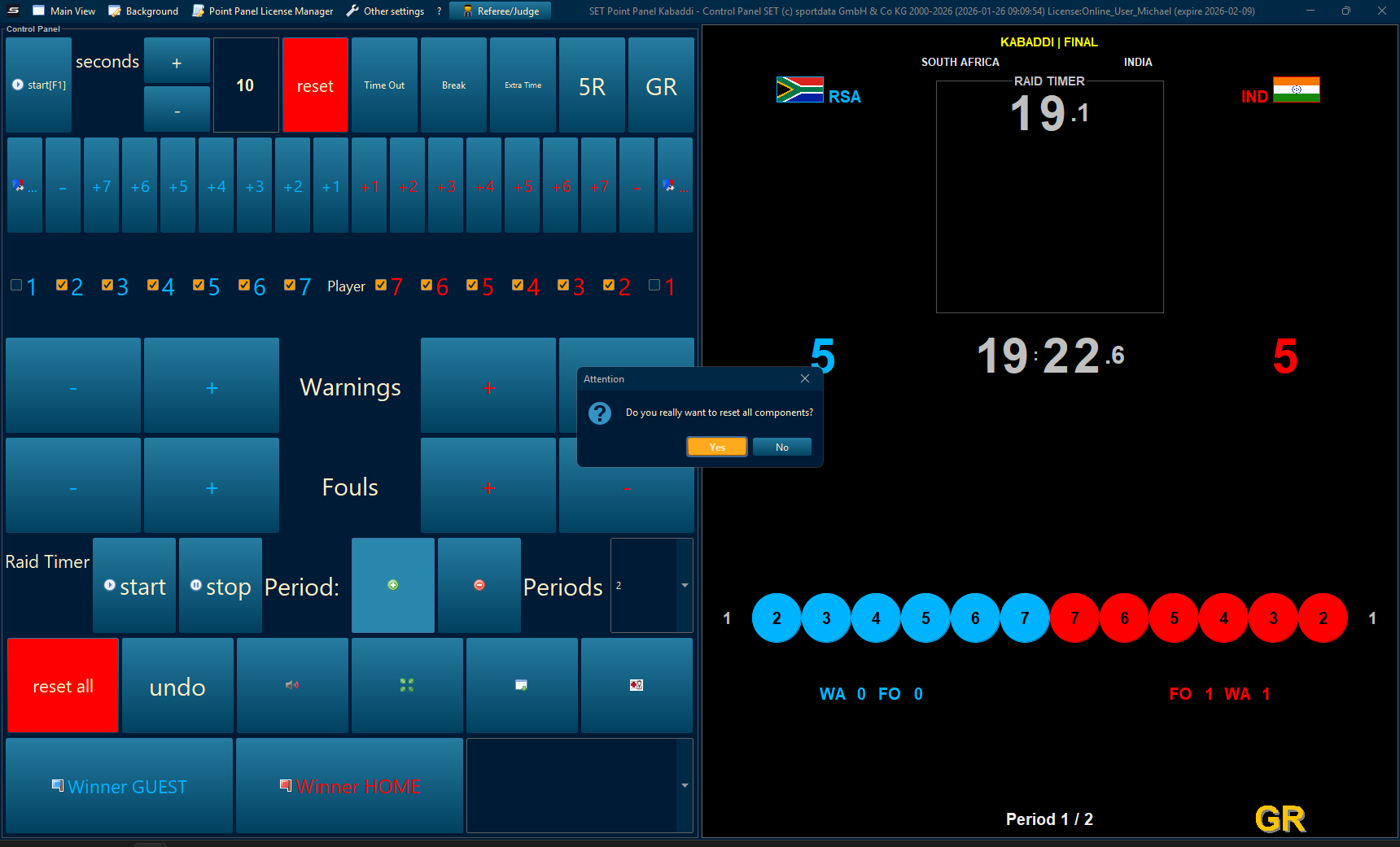
Reset All

Before each match Reset all.

8
/32

Start Match

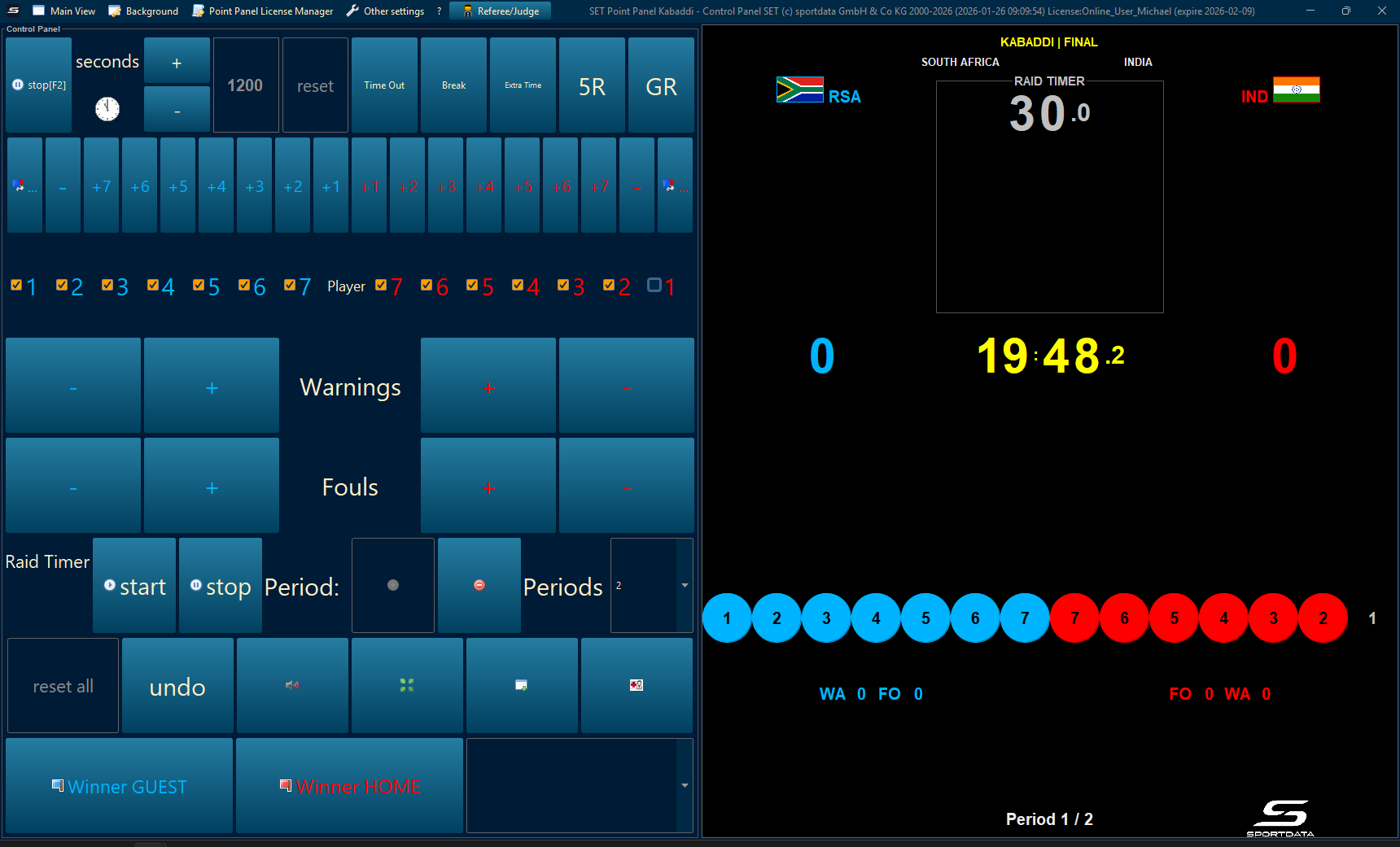
Start Match can be initiated by pressing the space bar or clicking the start button.

9
/32

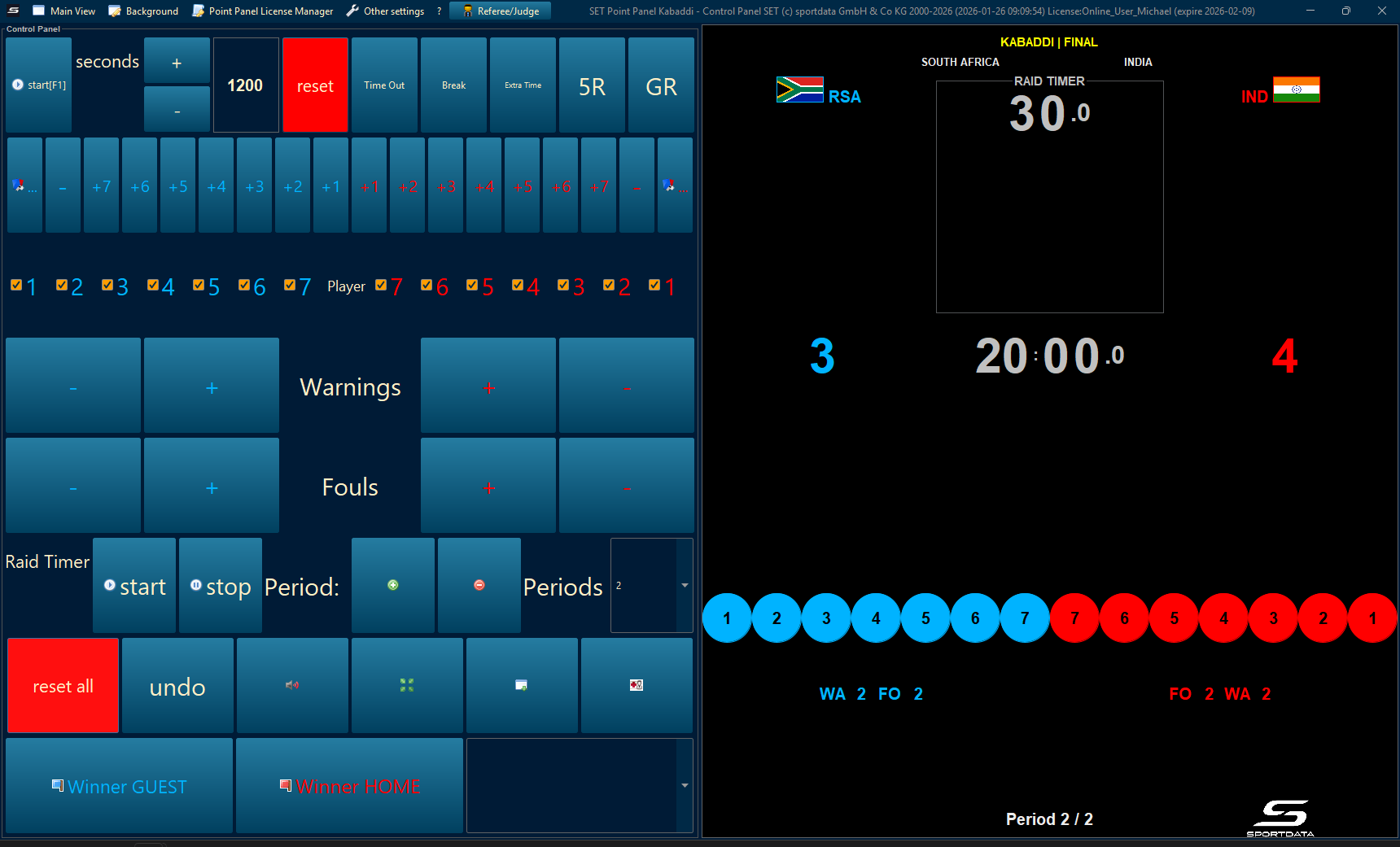
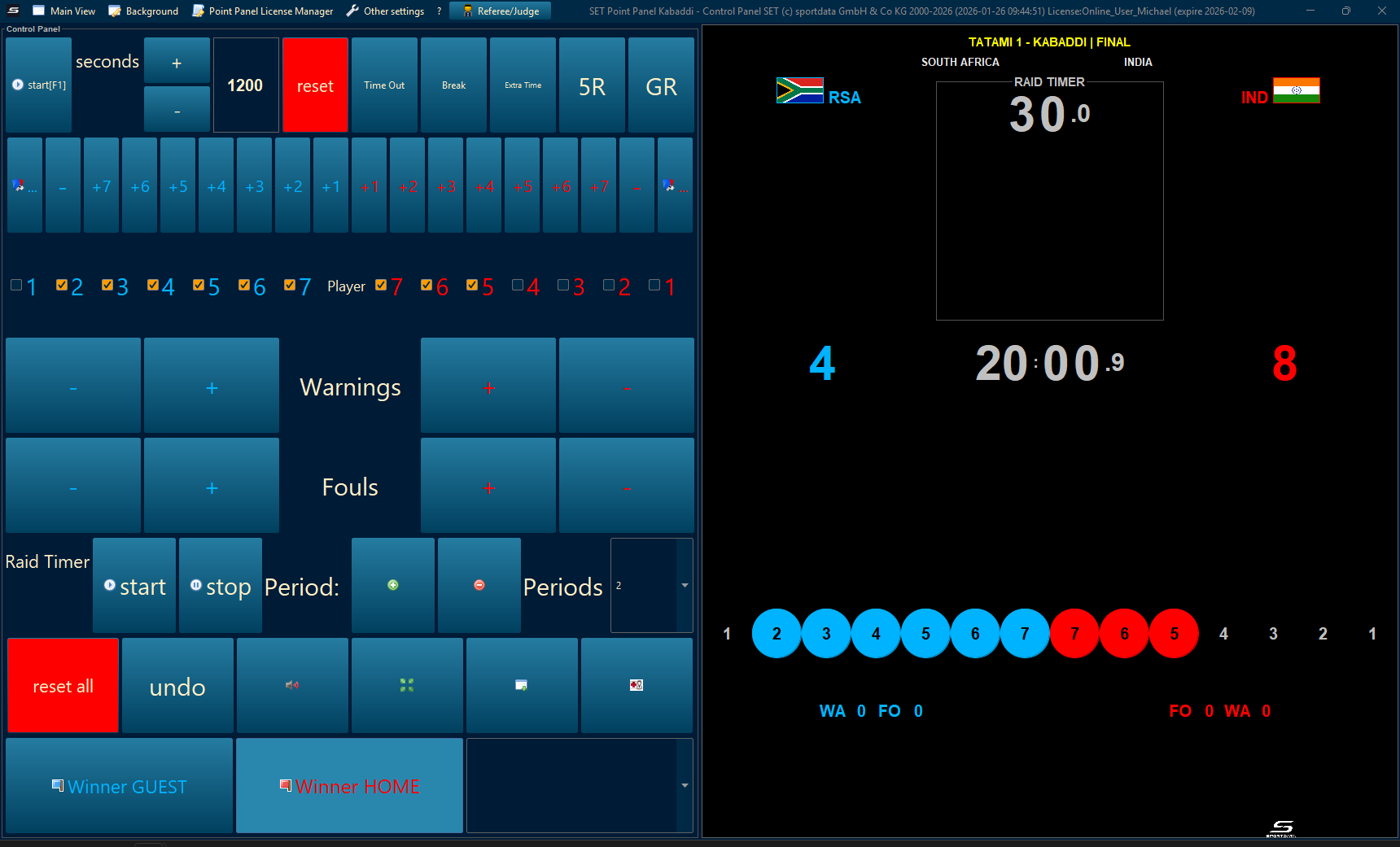
Active Players

Click on the colour and athlete number in ascending order to show the number of active athletes on the court.

10
/32

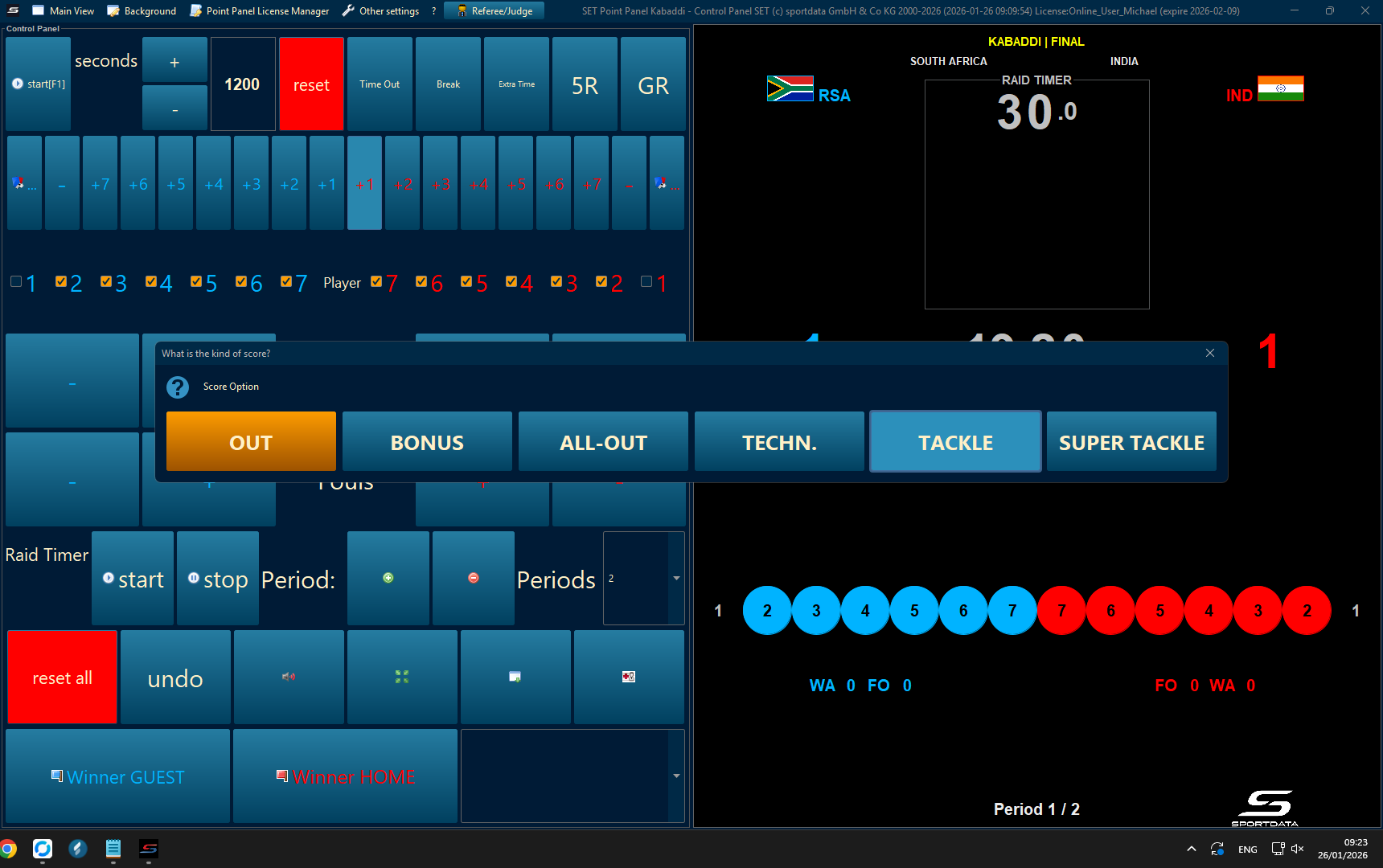
Points

To add points select the colour and the number of points.

11
/32

Scoring System

Tackle – 1 Point : Awarded to the defending team for successfully stopping the raider and preventing them from returning to their half.


Super Tackle – 2 Points :When a defending team has three or fewer players on the mat, a successful tackle on the raider earns 2 points instead of 1.


Touch Point (Raid Point) – 1 Point per Defender : A raider earns 1 point for each defender touched, provided the raider returns safely to their half.

If the raider is stopped and fails to return, the defending team earns 1 point.


Bonus Point – 1 Point : A raider earns 1 bonus point by crossing the bonus line with one foot while the other foot is in the air.

The bonus line is only active when 6 or 7 defenders are on the mat.


All Out – 2 Points :When all 7 players of a team are ruled out, the opposing team is awarded 2 additional points, known as an All Out or Lona.

After an All Out, all players of the eliminated team are revived.


Technical Point – 1 Point : Awarded to the opposing team for rule violations, including but not limited to:

Raider failing to chant “Kabaddi”

More than one raider entering the court

Illegal defending (e.g., pulling hair or clothing, dangerous holds)
12
/32

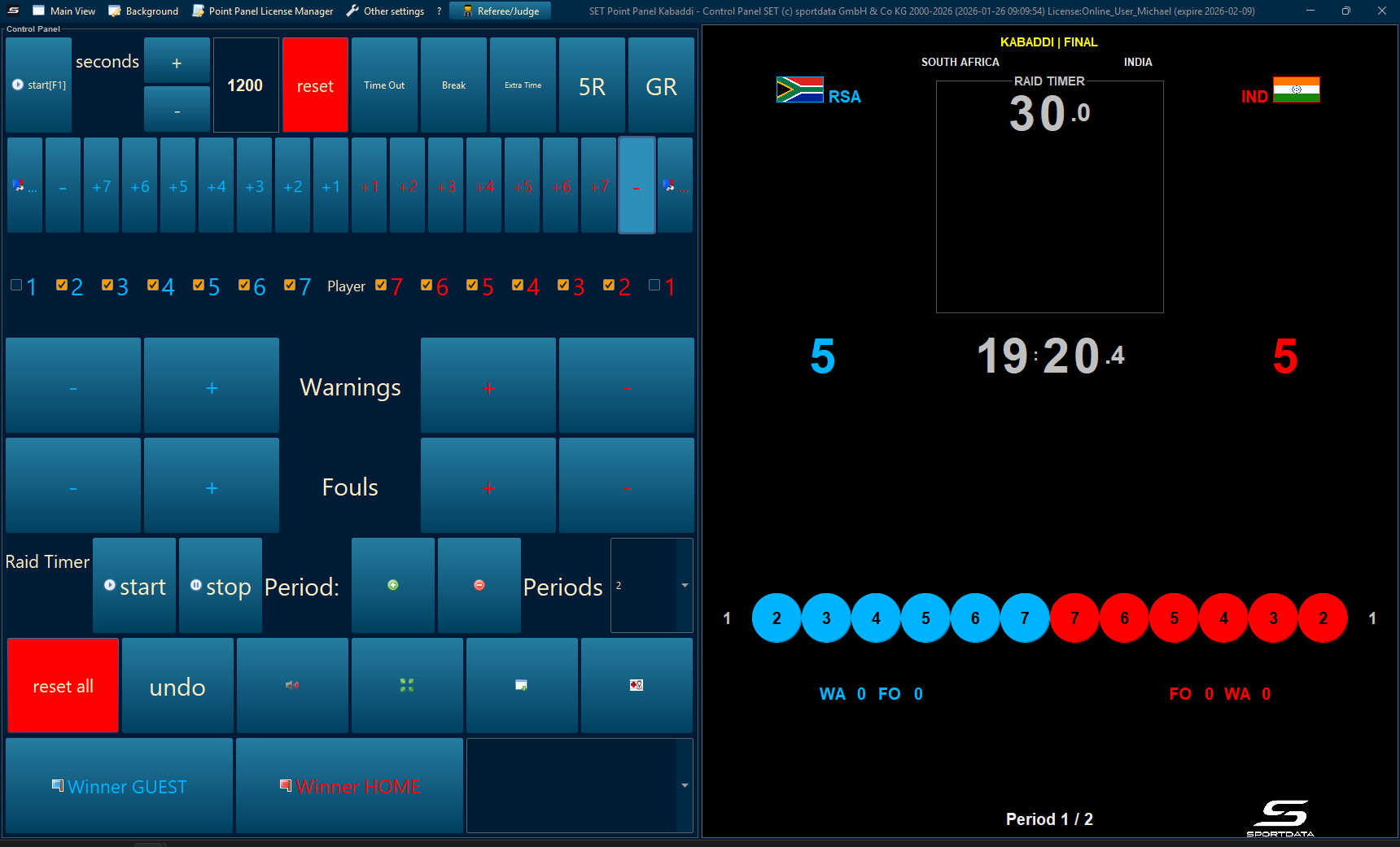
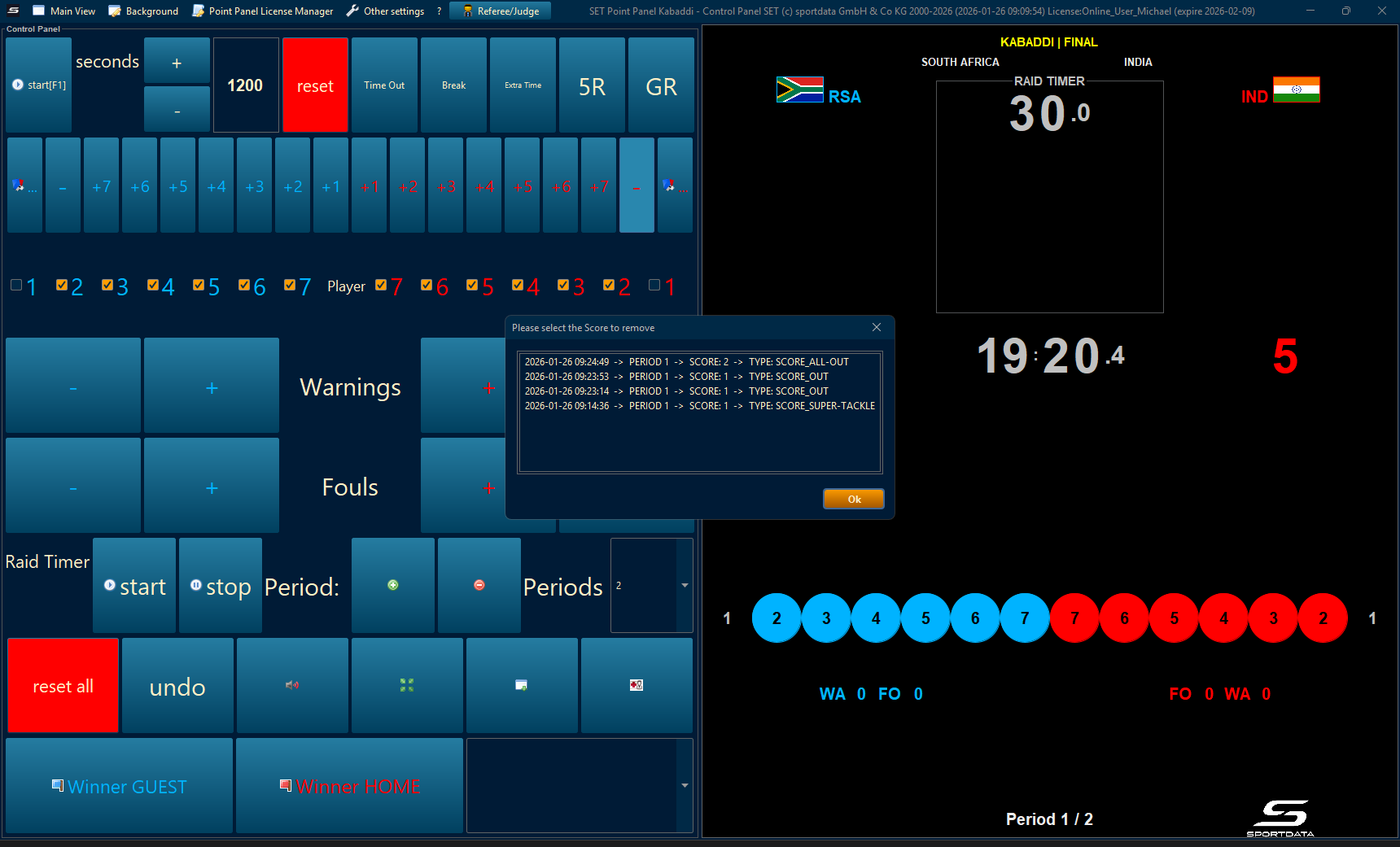
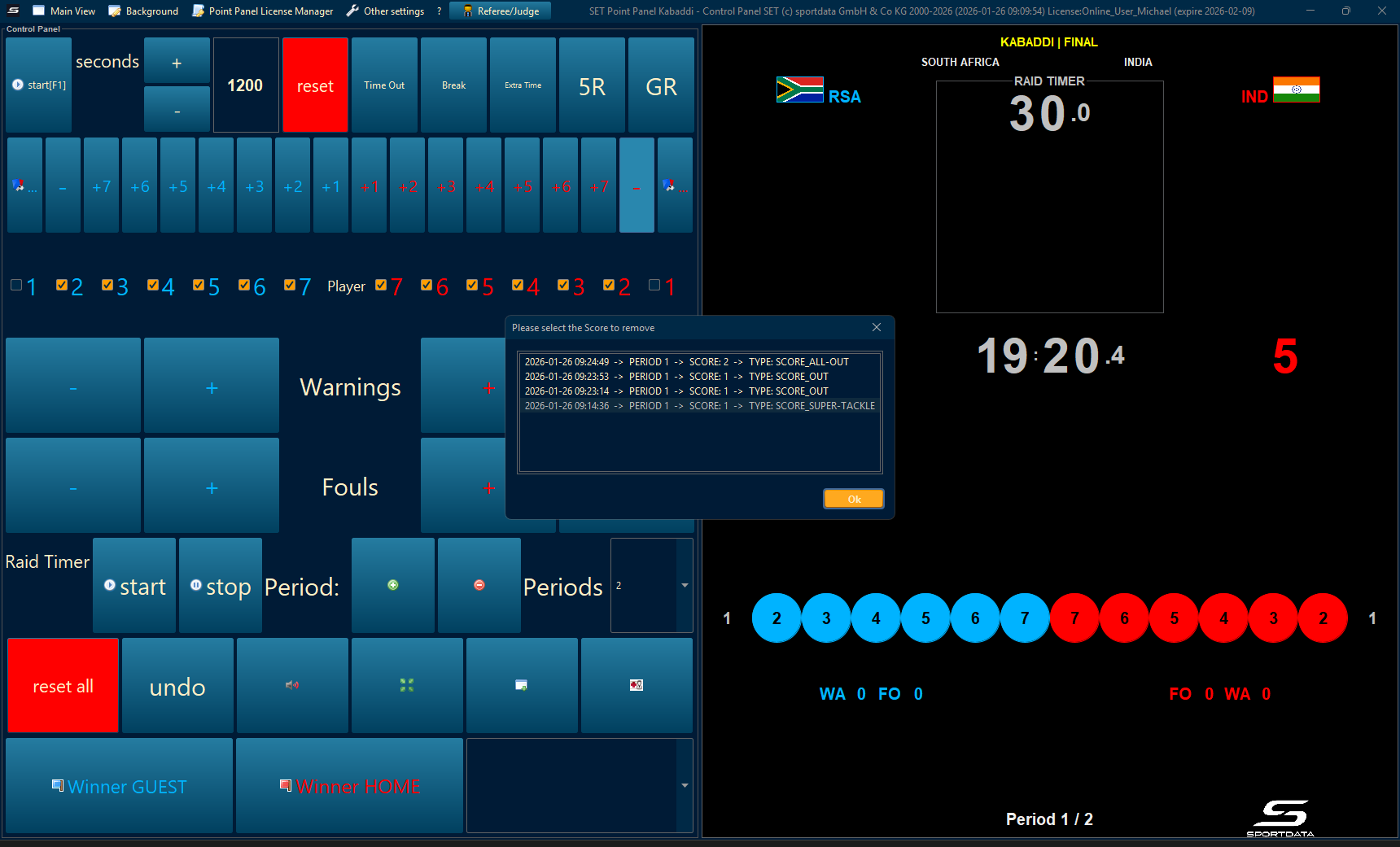
Remove Points

To remove points, select the minus (-) symbol.

13
/32


Click the point you with to remove

14
/32


Click ok button to proceed

15
/32

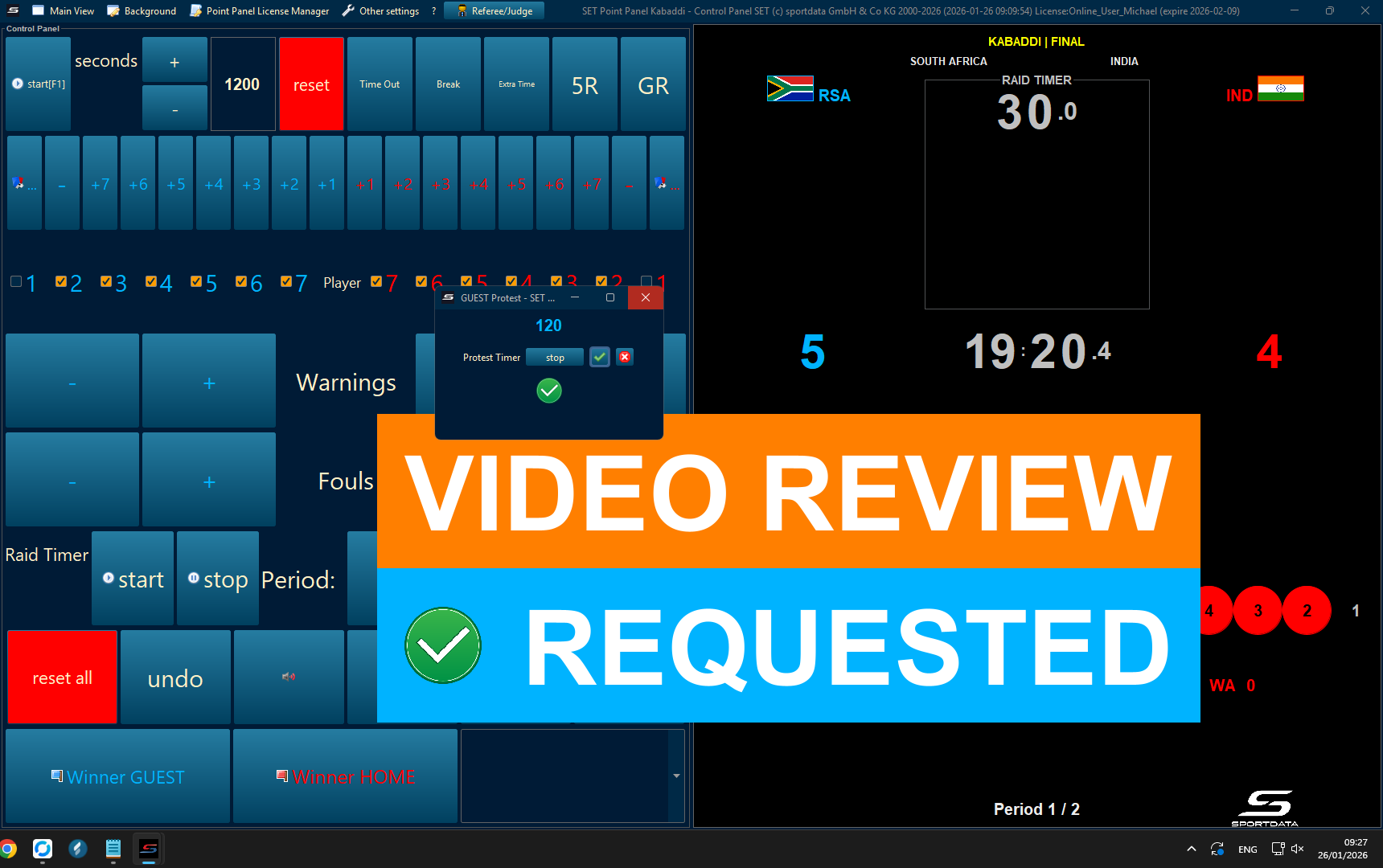
Video (arbitration system) Review (replay)

To activate the video review, click the red-blue cards symbol next to the minus symbol.

16
/32

Video Review (Scoreboard)
Click to go to the next step.
17
/32

Video Review (Point Panel)

Stop the time, accept or reject the protest, and to close the video review click the close button on the pop up.

18
/32

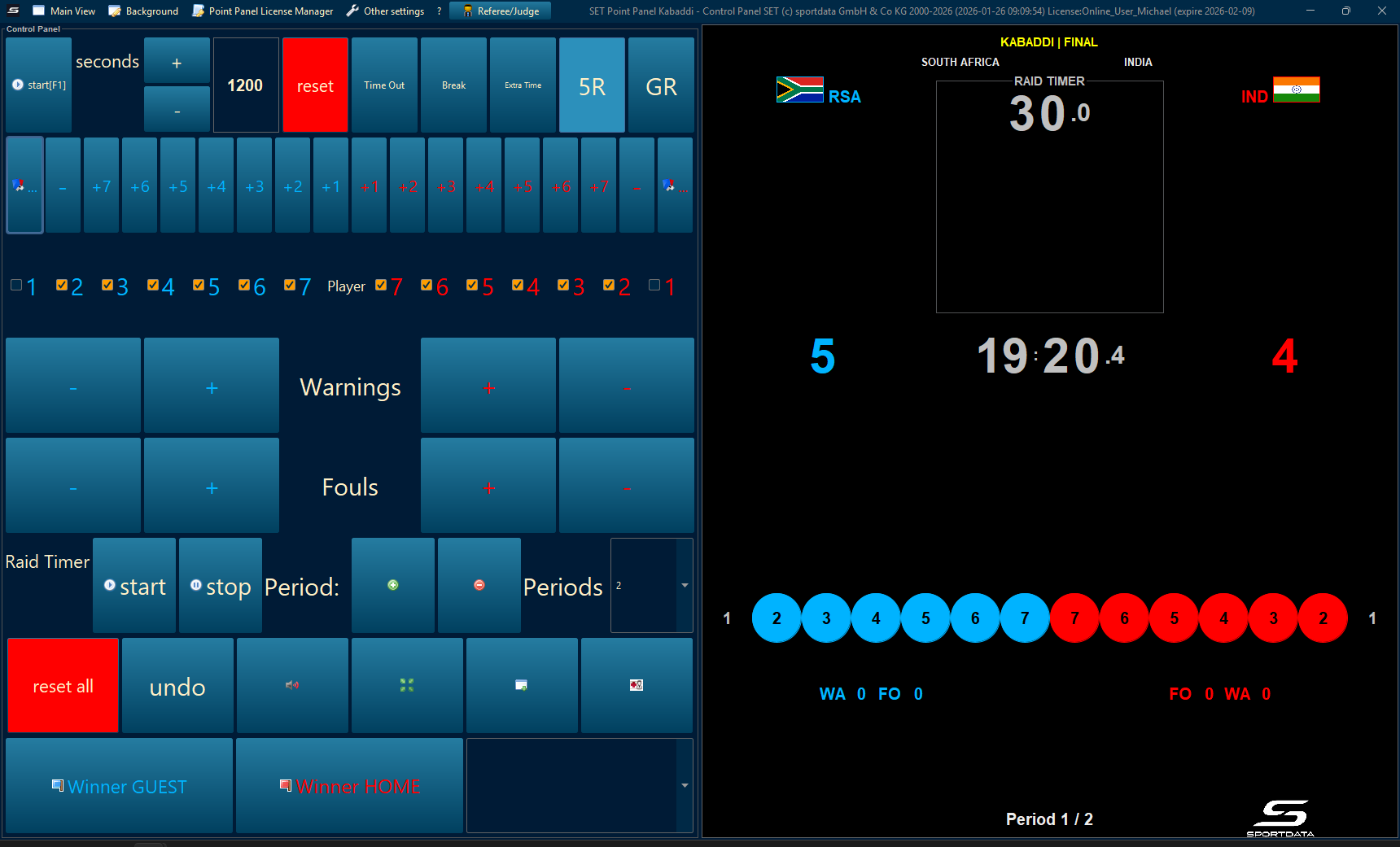
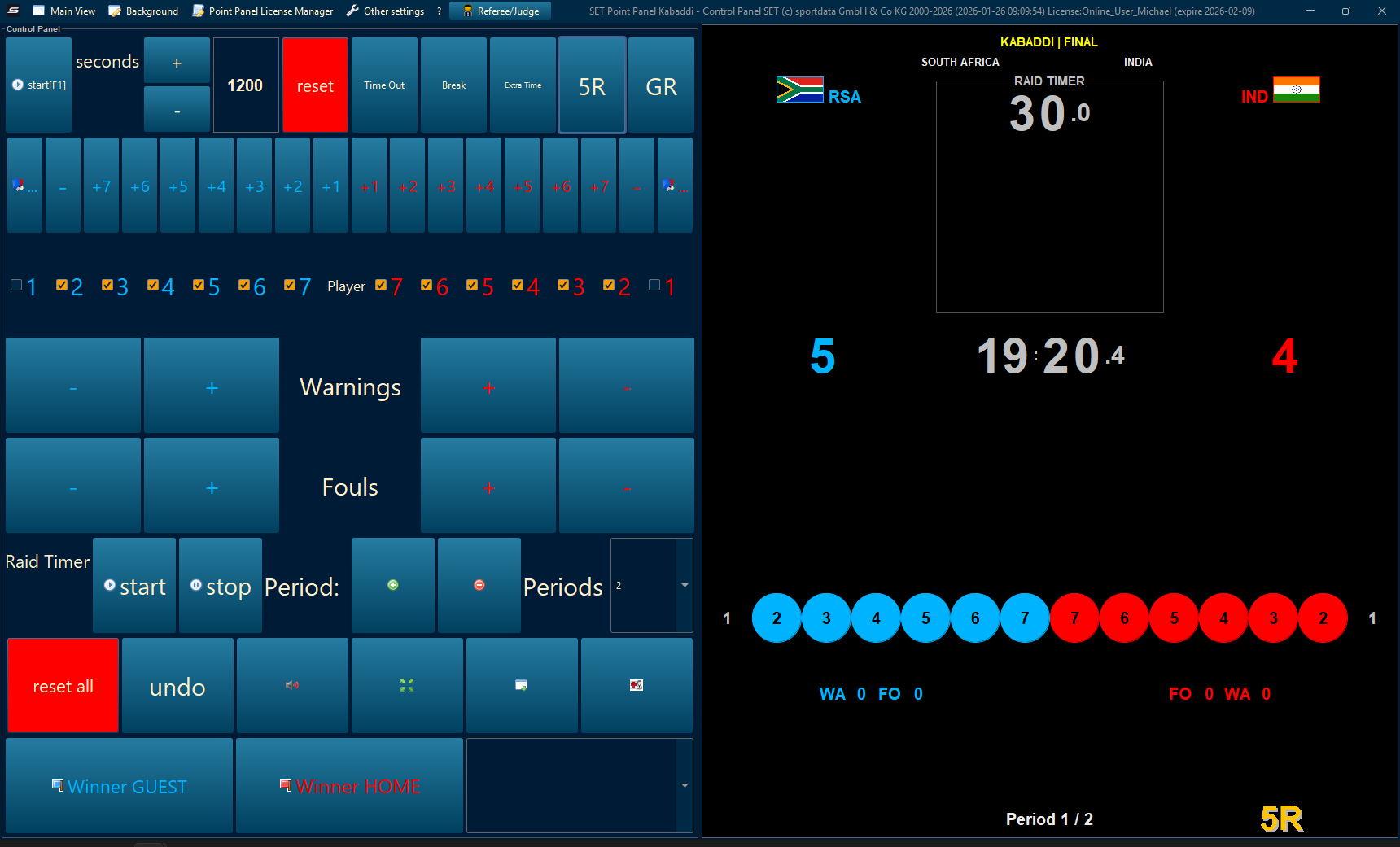
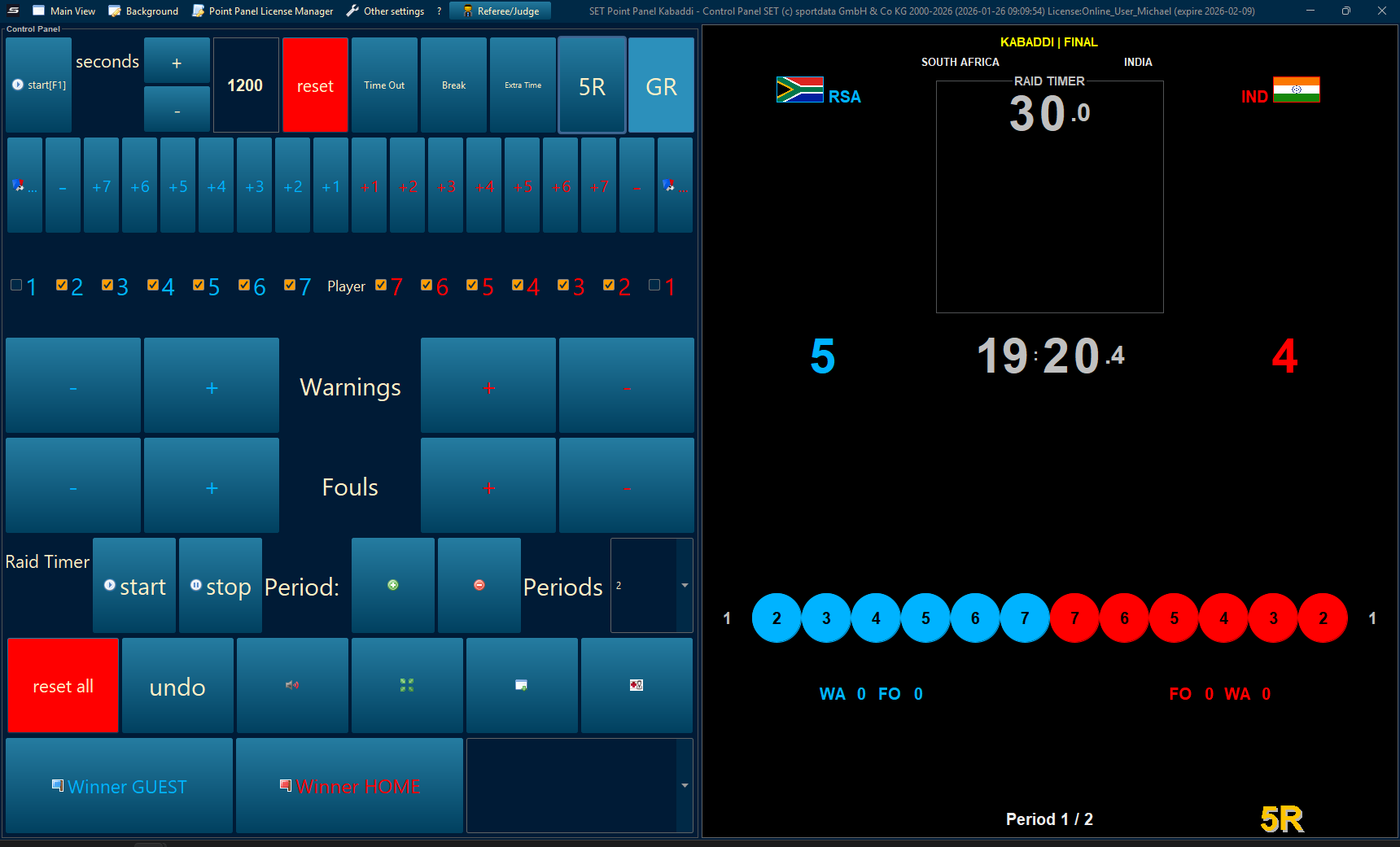
Five-raid

Click 5R button to activate Five read shootout

19
/32


20
/32

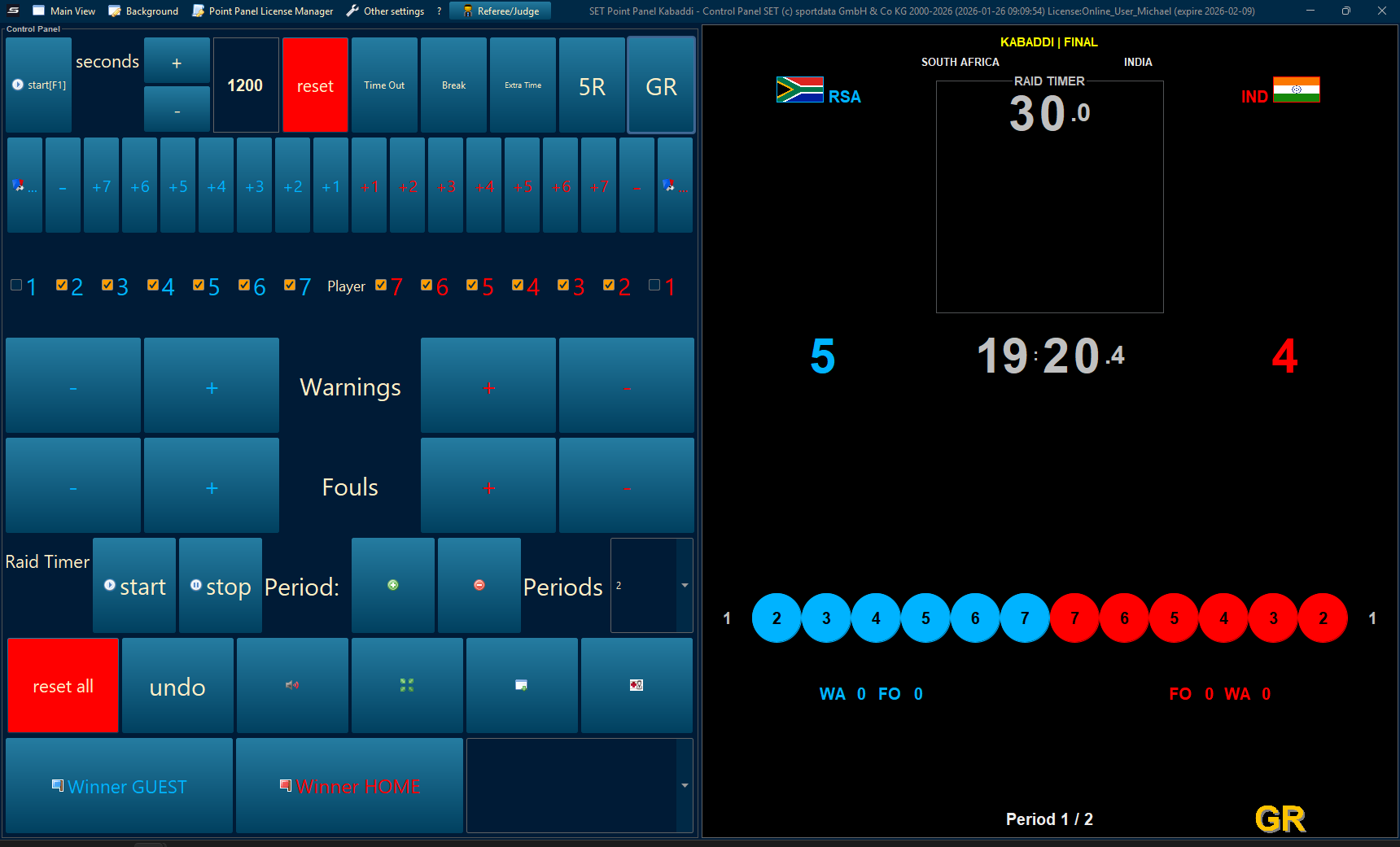
Golden Raid

To activate the golden raid, click GR.

21
/32


Click to select or confirm.
22
/32

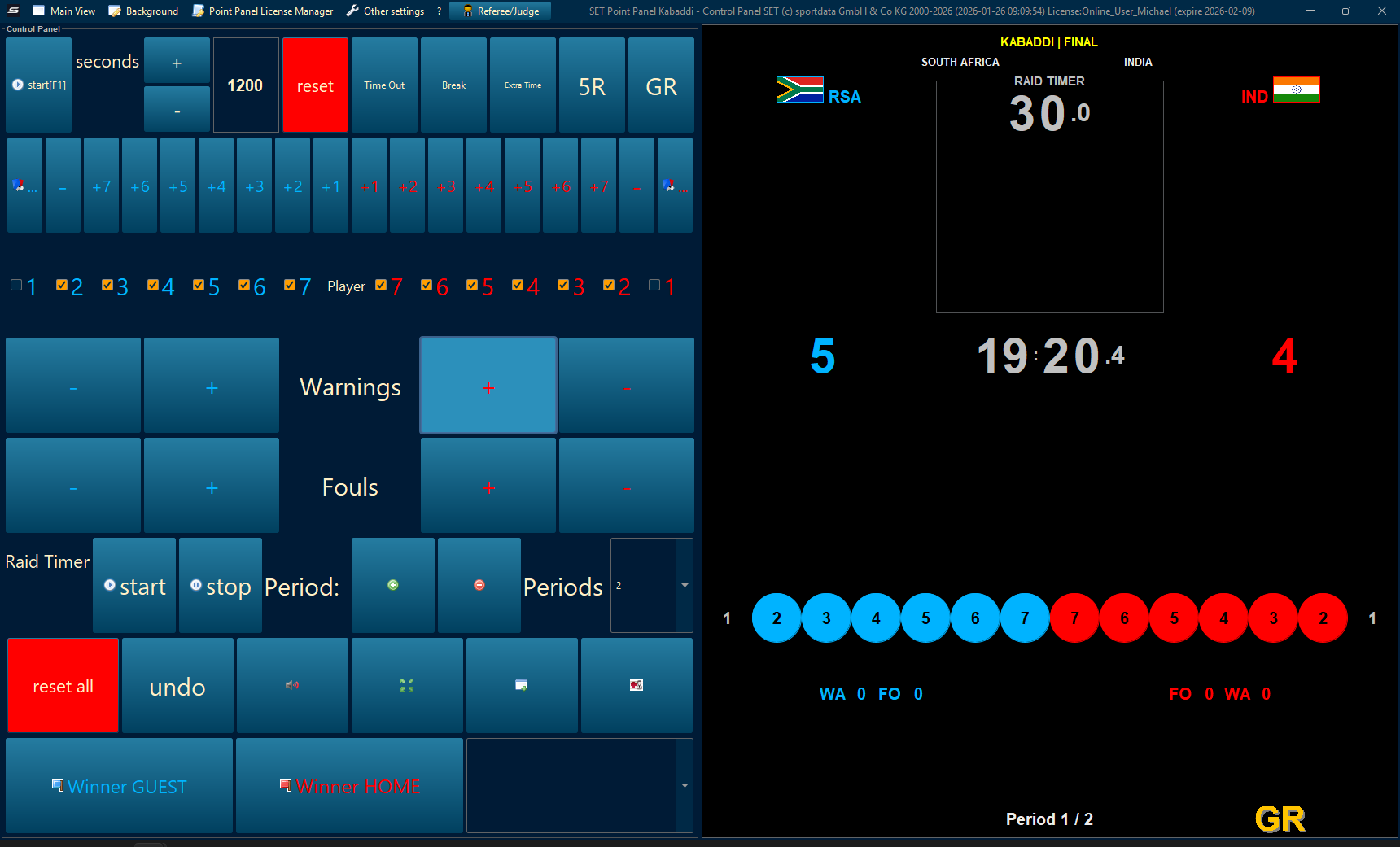
Warnings & fouls

On the point panel, you can keep track of the warnings and fouls.

23
/32

Raid Time

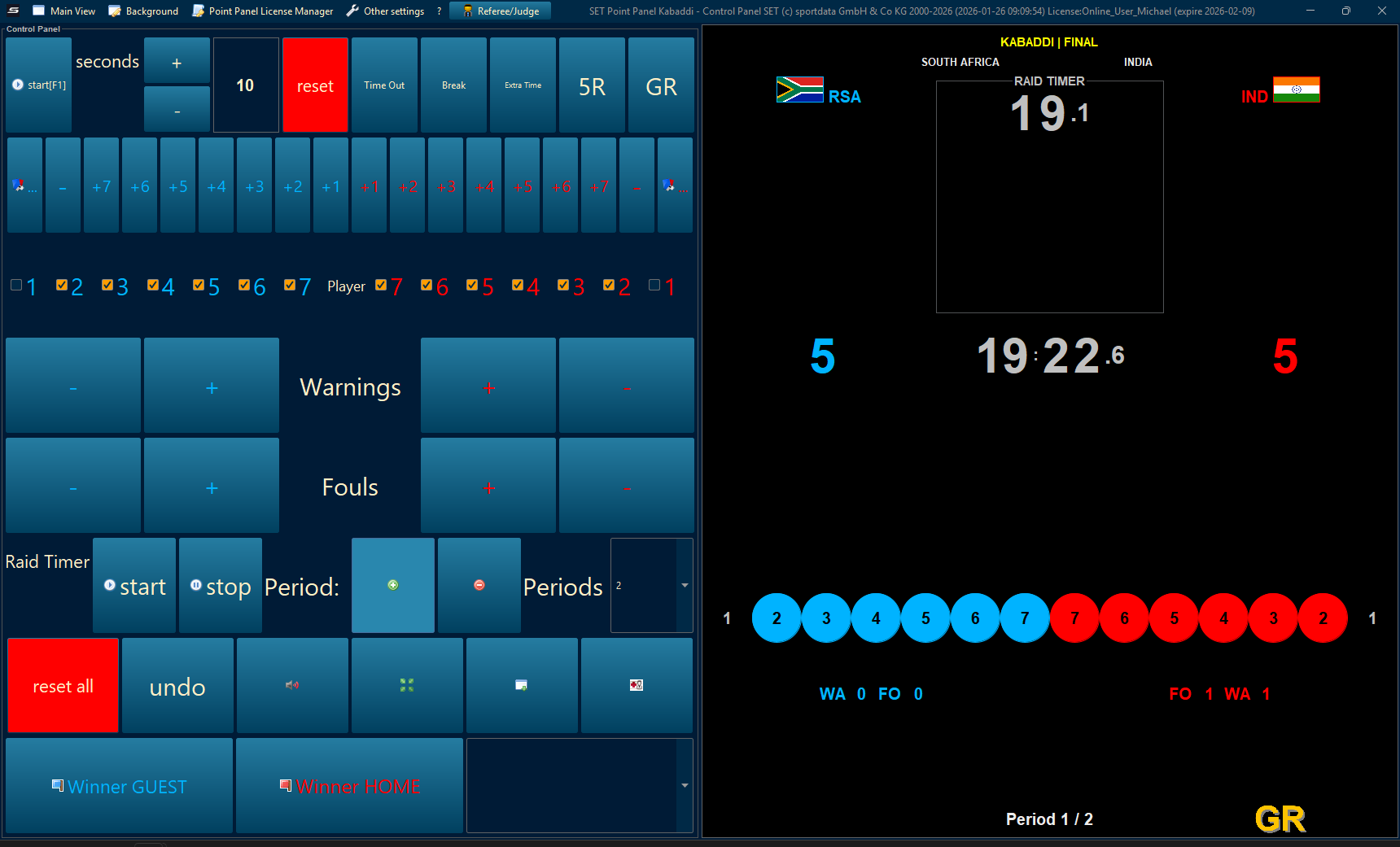
Start and stop the raid time to complete one raid. To begin the next raid, just press start and the time will reset.

24
/32

Changing Halves

To change halfs, press the green plus sign to go into the second half. Make sure that the match is set to 2 periods. You can verify the period in which zou are bz looking at the bottom right hand side of the point panel display. To return back to the first period, simply press the red minus symbol.

25
/32


Proceed to confirm reset all components to start the new half as it will only reset the times, active players, but not the points, warnings, or fouls.

26
/32

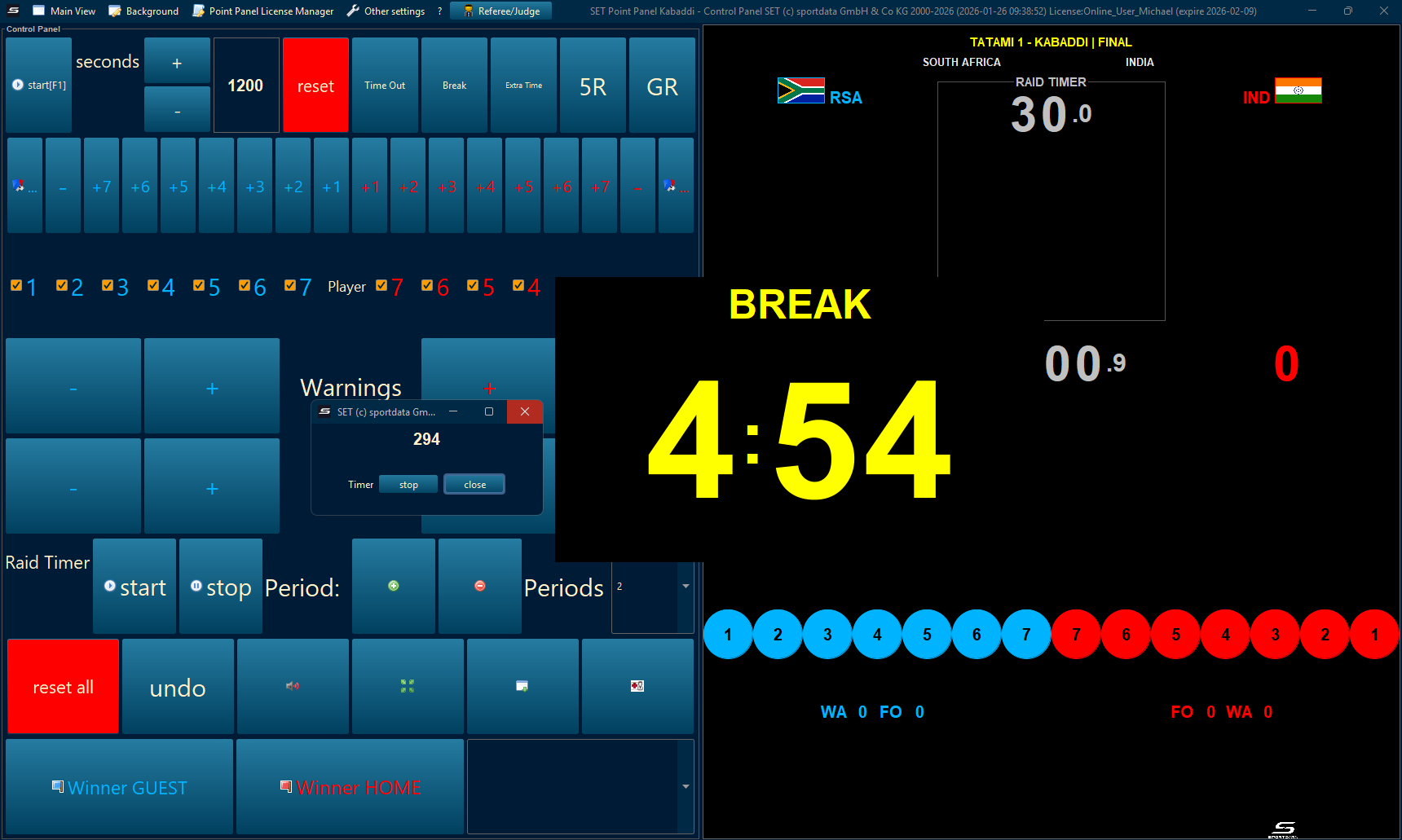
Break

5 Minute break timer

27
/32


This timer will appear on the scoreboard, to close it, click the close button on the pop-up.

28
/32

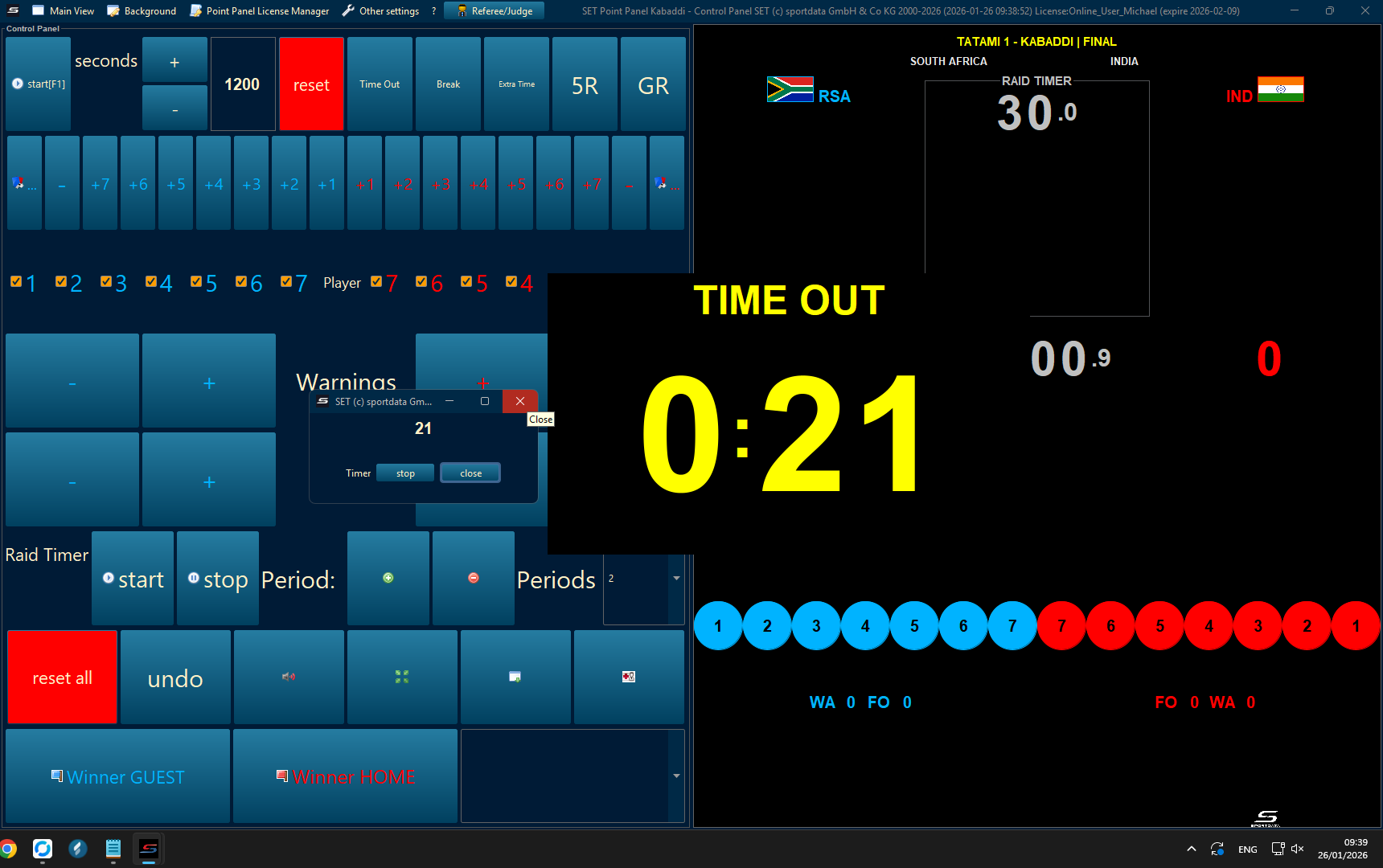
Time-outs

Click time-out button to initiate the timer.

29
/32


When the time-out is finished click the close button.

30
/32

Finish Match

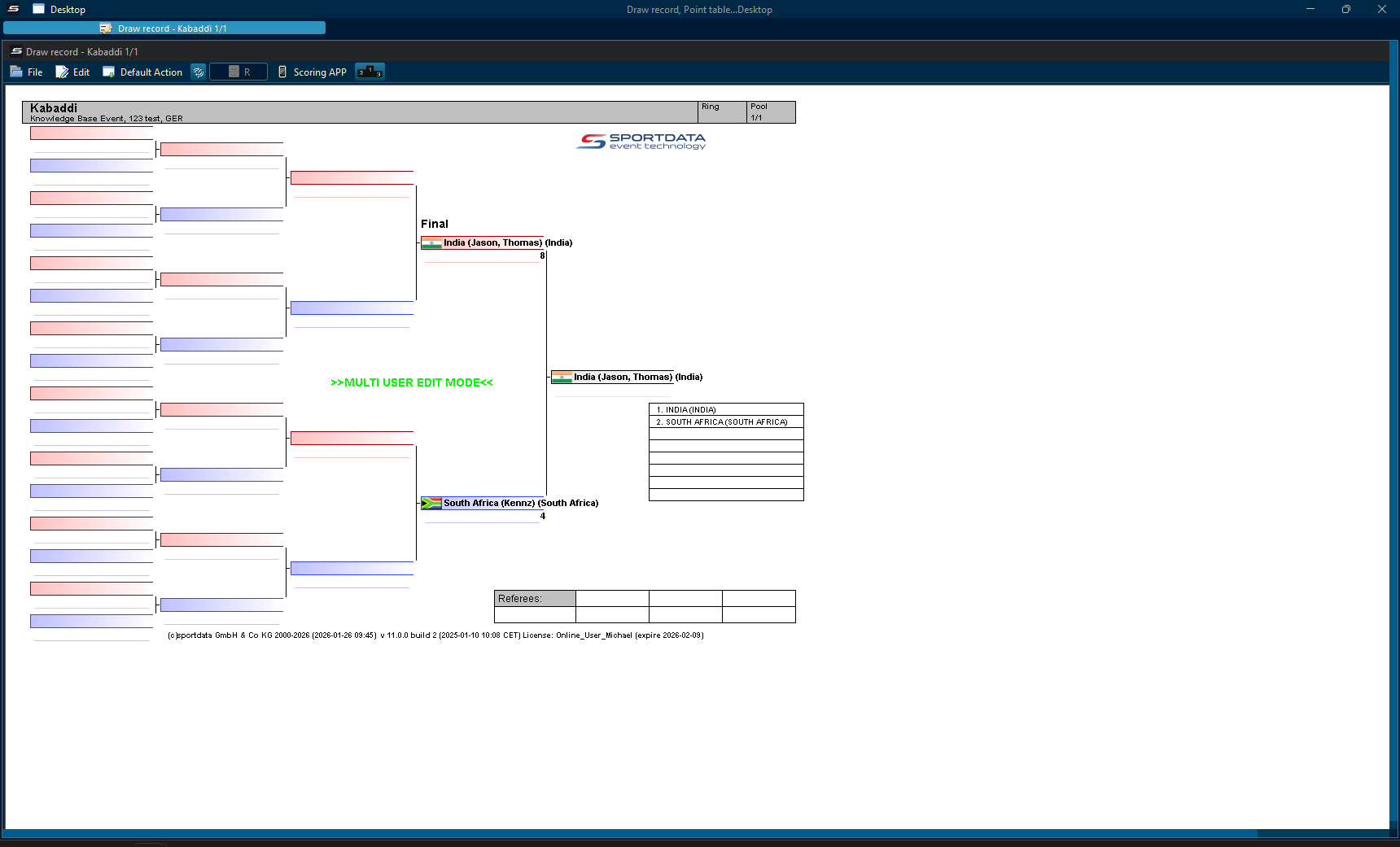
When the match has finished declare the winner.

31
/32


Close the window.

Next
32
/32


In the draw record, you will see the updated draw records

Thank you!
Restart Tour