Approve individual membership requests

Interactive Demo

 
How to approve membership requests

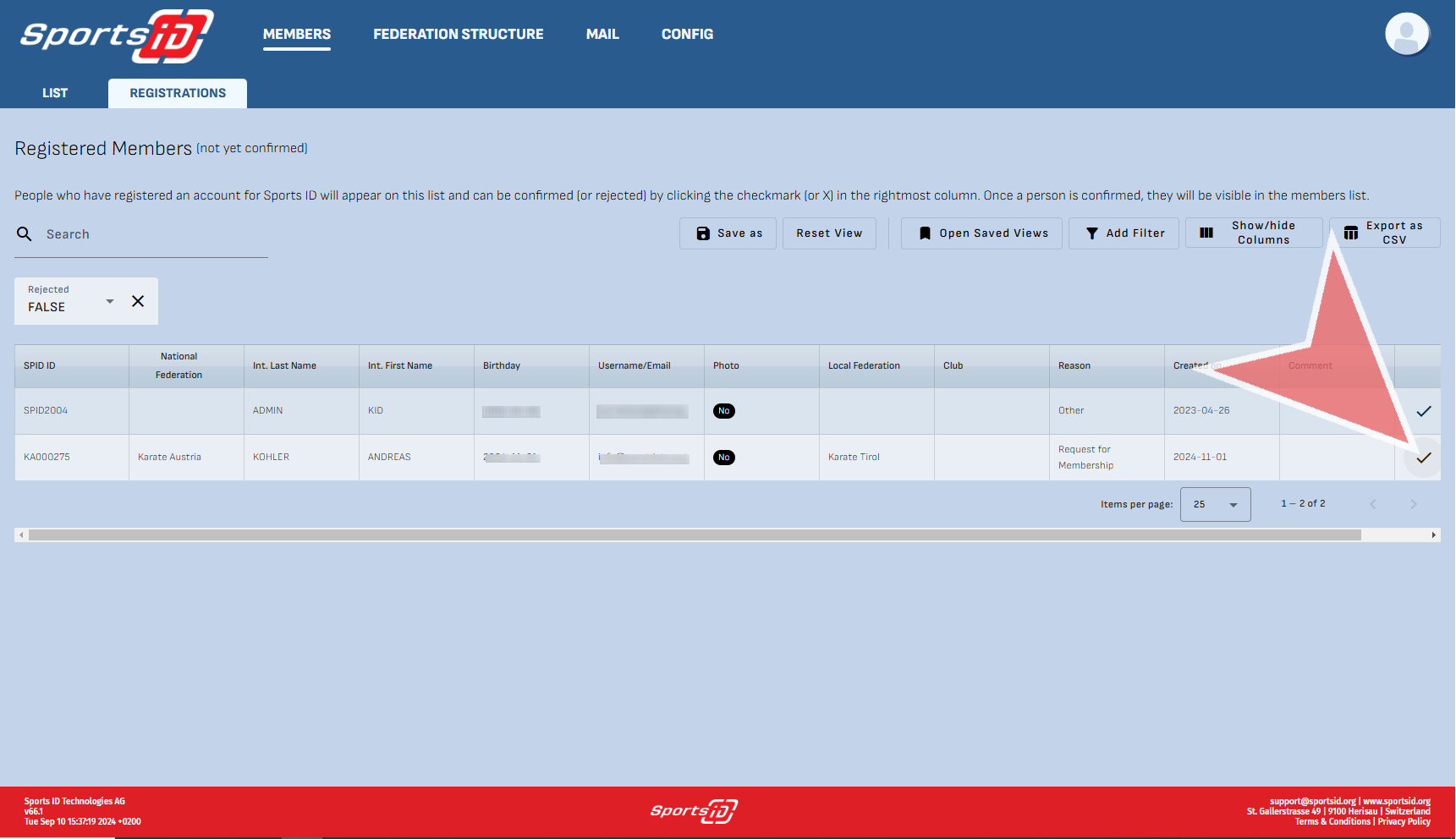
To approve new member that have registered, click on the ‚Registration‘ tab to see all pending members.
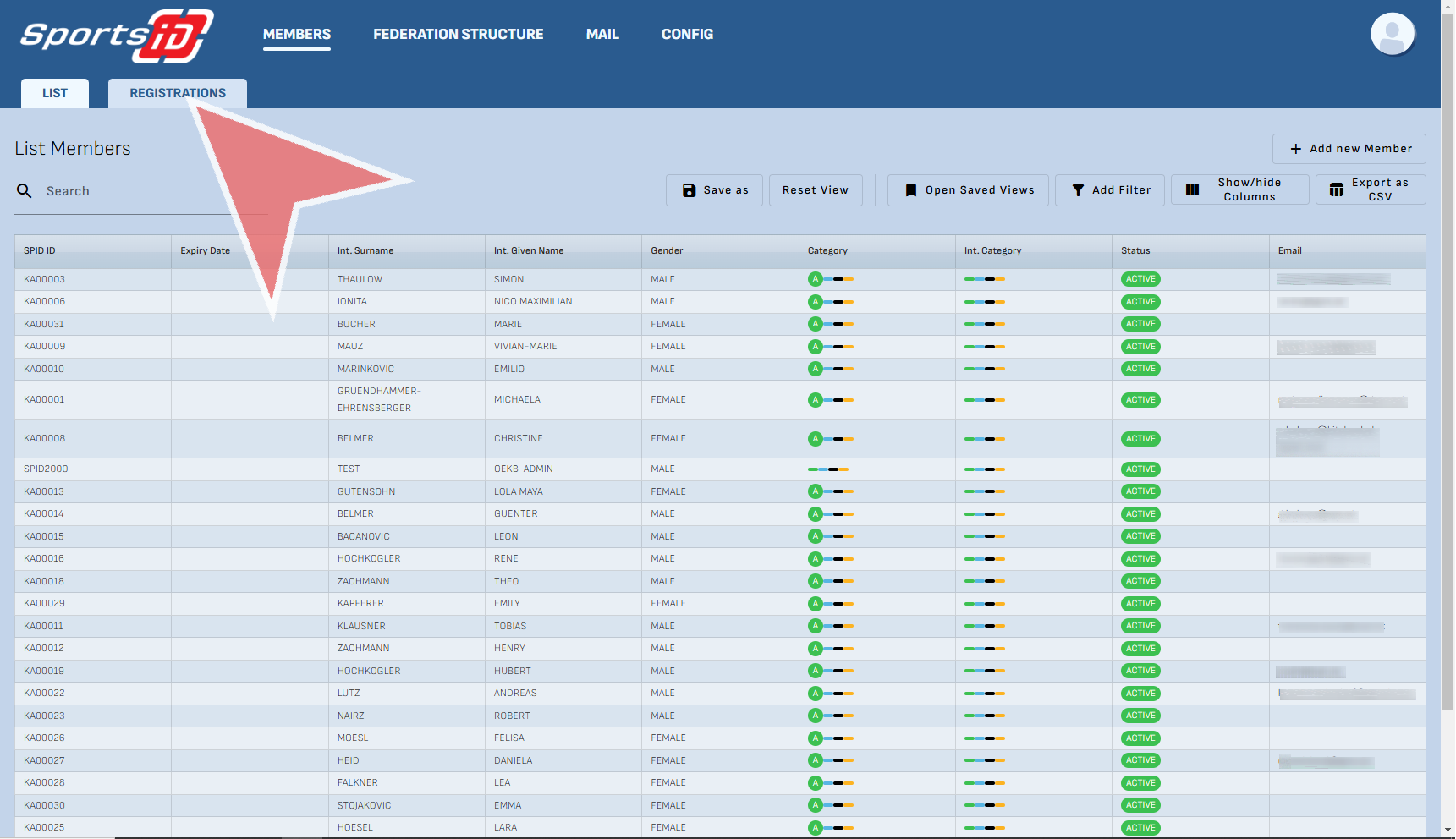
You can see all members who have not been approved. In order to approve their registration, click the check mark on the right hand side and the account will be transferred to the Member’s ‚List‘ Tab.
Change status & add category

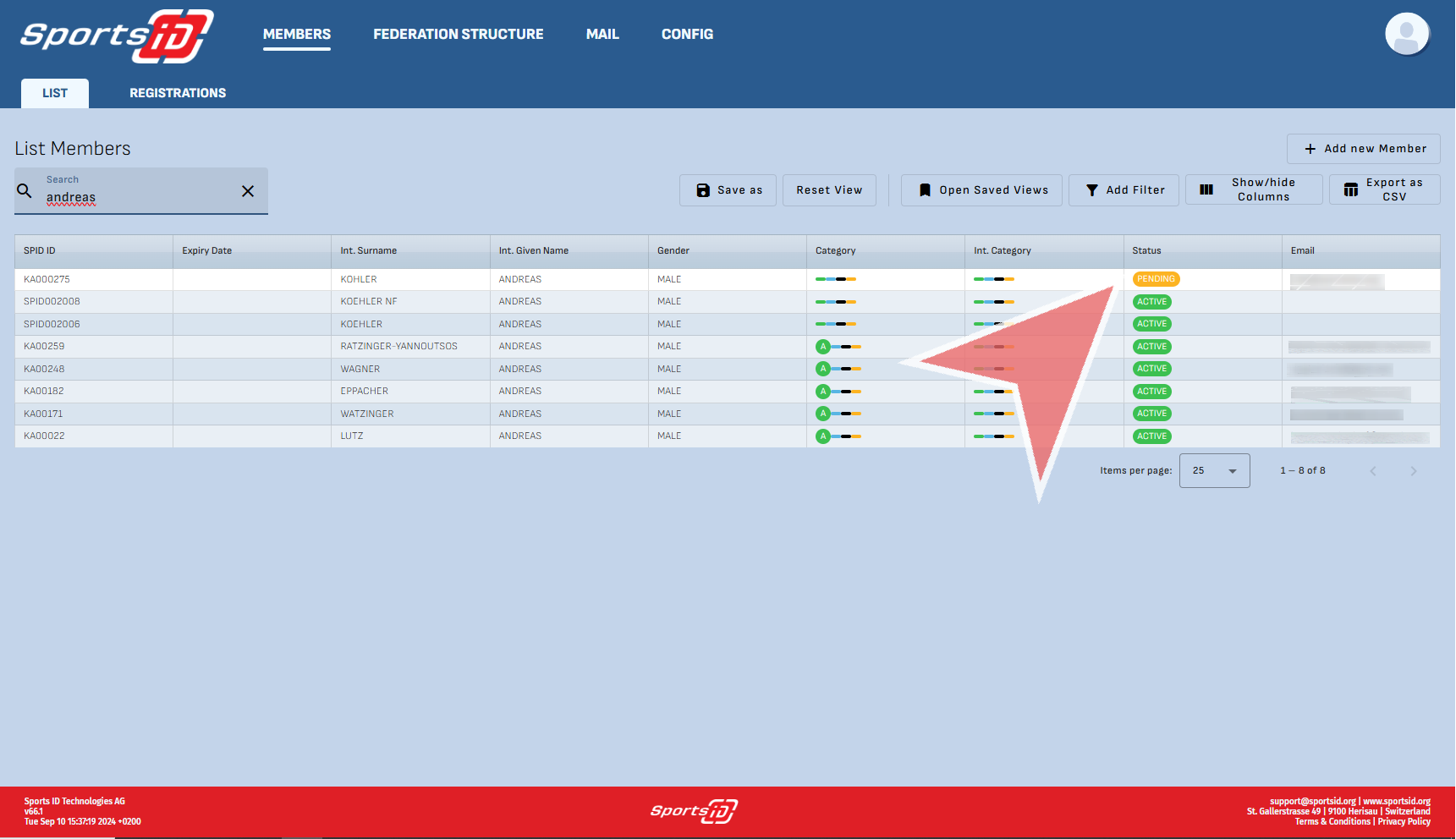
You will see that the status of the individual is pending, and has no category (athlete coach, referee) assigned to them. Click on the profile to edit their data.
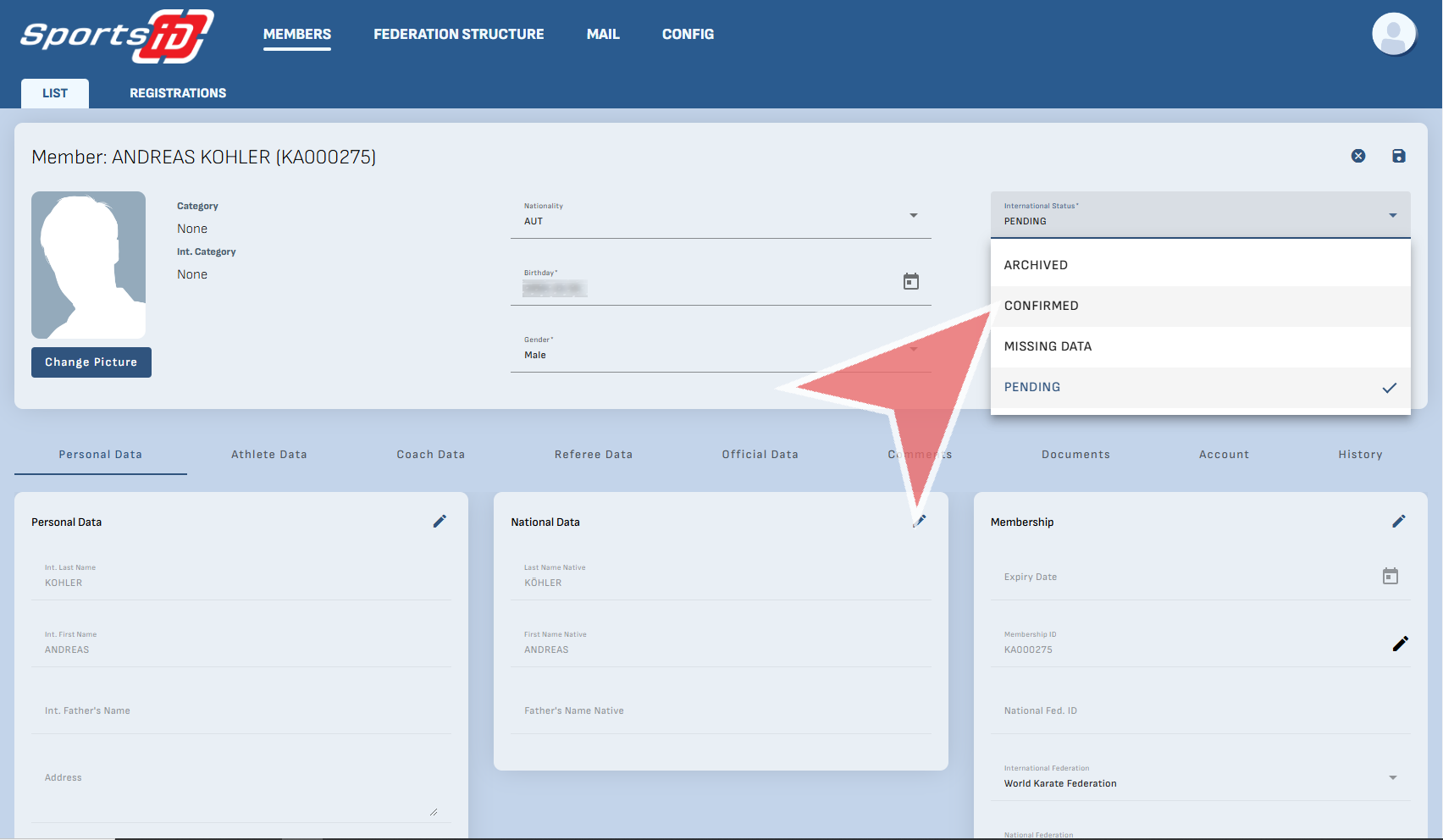
International Status

Now, as the international federation you can confirm a new member as internationally active by clicking on ‚International Status‘ field and selecting ‚Confirm‘. Additional you could add ‚Archived‘ if the account becomes inactive, or ‚Missing Data‘ if you are waiting for them to provide additional information like a photo or certificates.
Status

Parallel to the international status, there is also the status within your structure which you can decided as a federations.
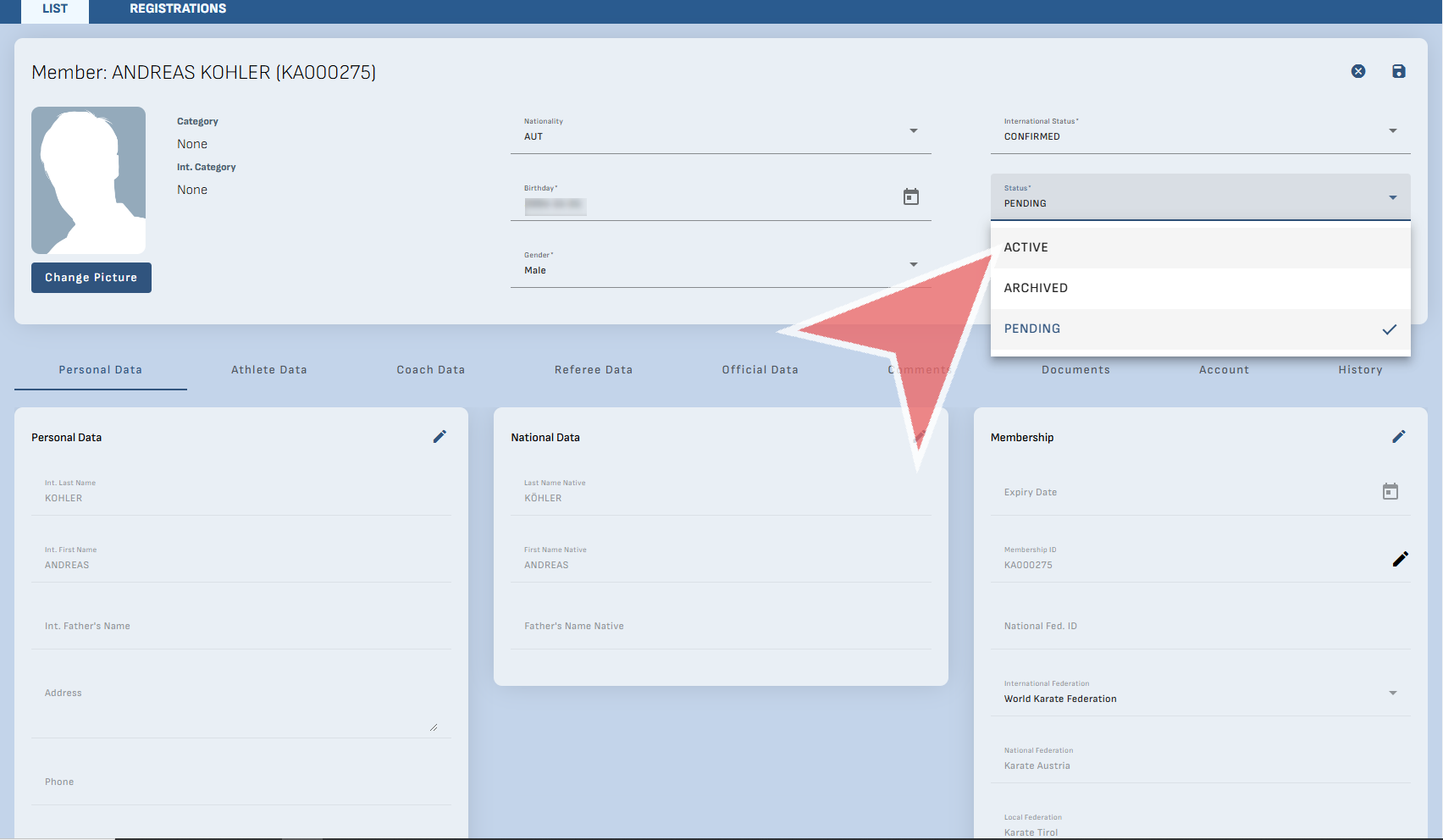
To save, click the ‚Save‘ Icon.
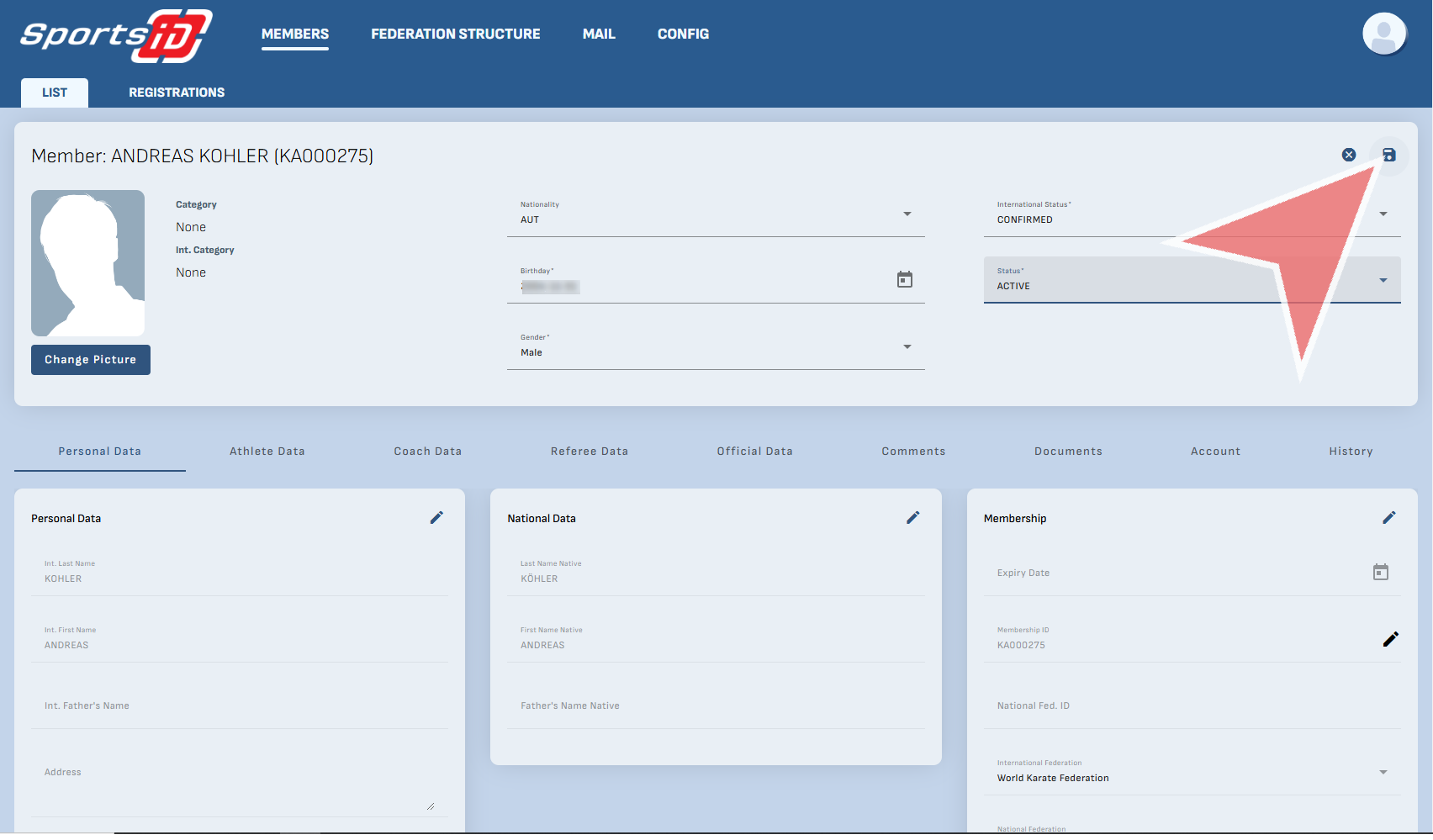
Finally, you will notice that their status has been changed to ‚Active‘.

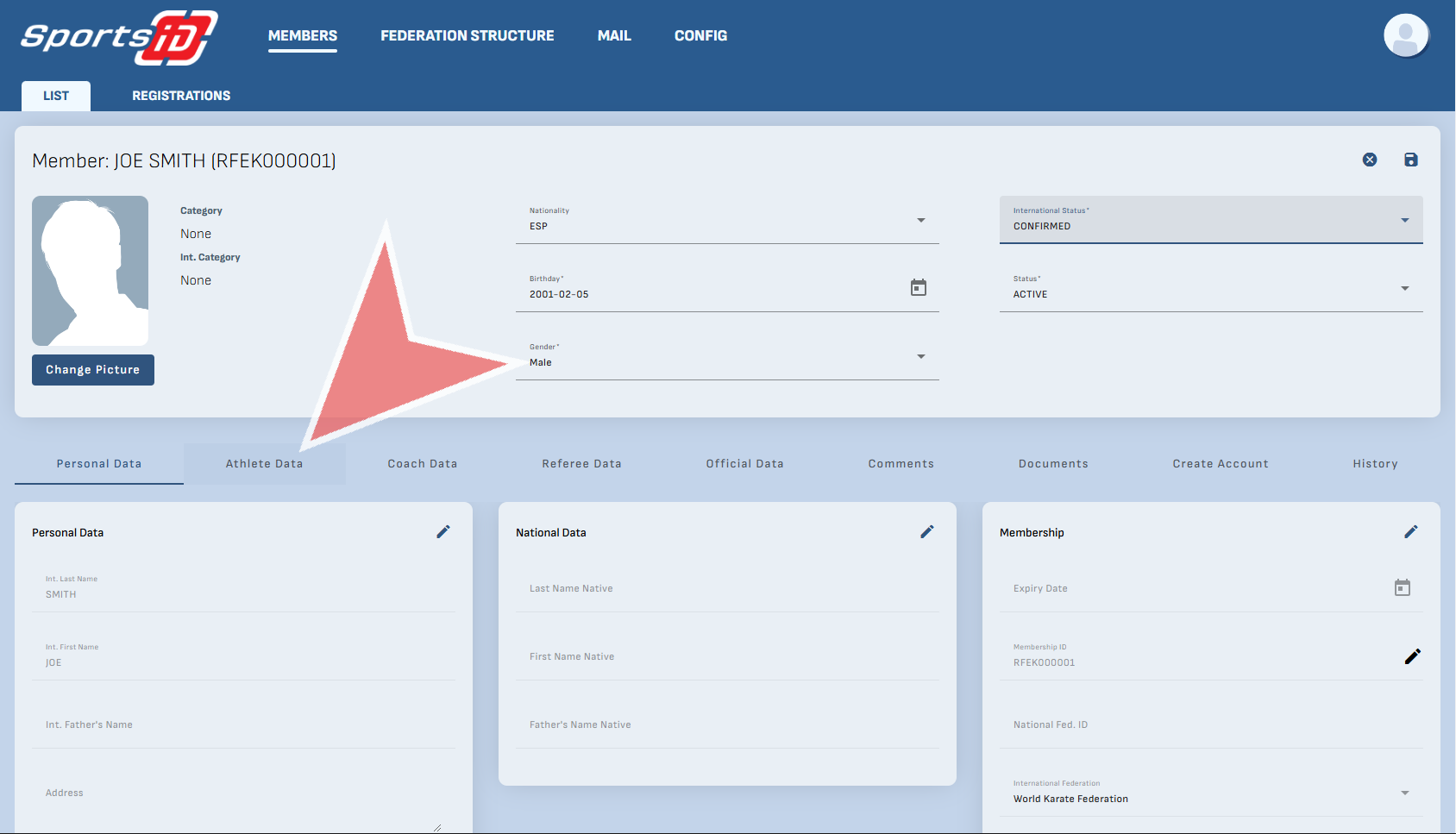
Add a new member manually in Sports-ID

Interactive Demo

 
How to add a new member manually in Sports-ID

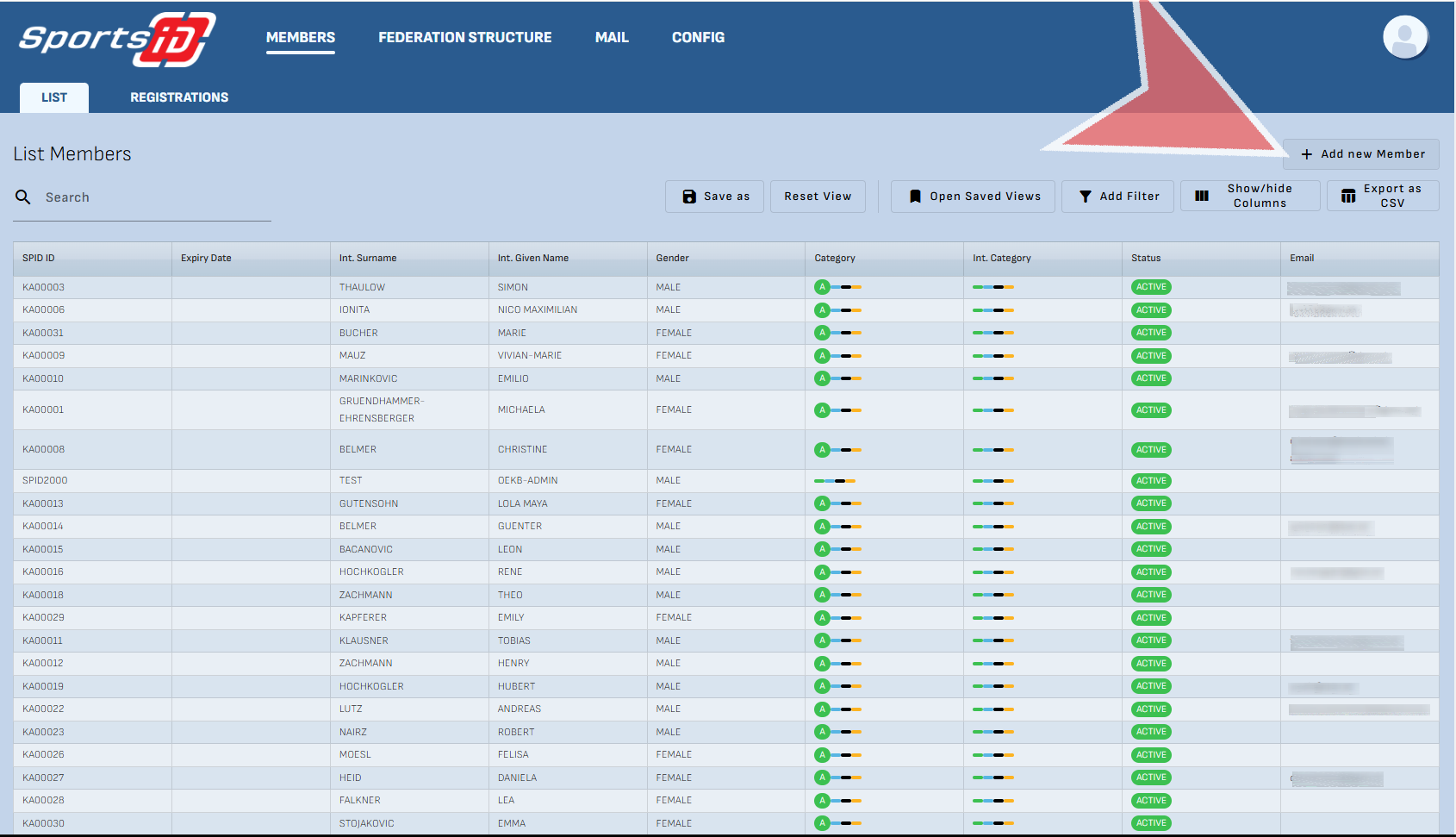
To add a new member, click on the button labeled ‚Add New Member‘.
Now, simply fill out the information and click ‚Add New Member‘.
Edit Profile Status

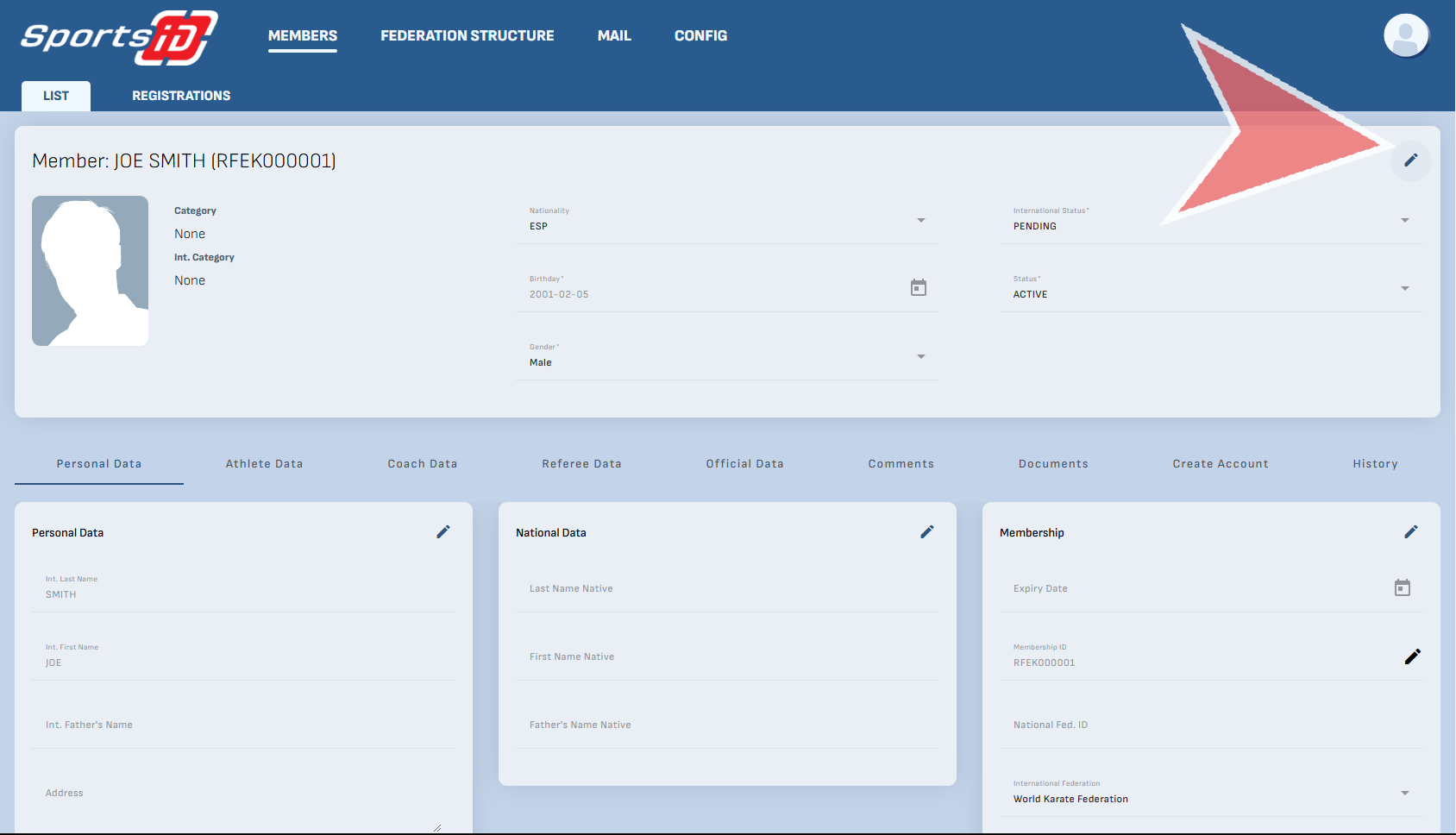
To edit the status of the new member, click on the edit icon on the top right corner and select Active, Pending or Archived.

Additionally, there are multiple tabs where the data can be edited including personal, athlete, coach, referee, official. You can also add private or public comments, or documents to their profile.

Add a document

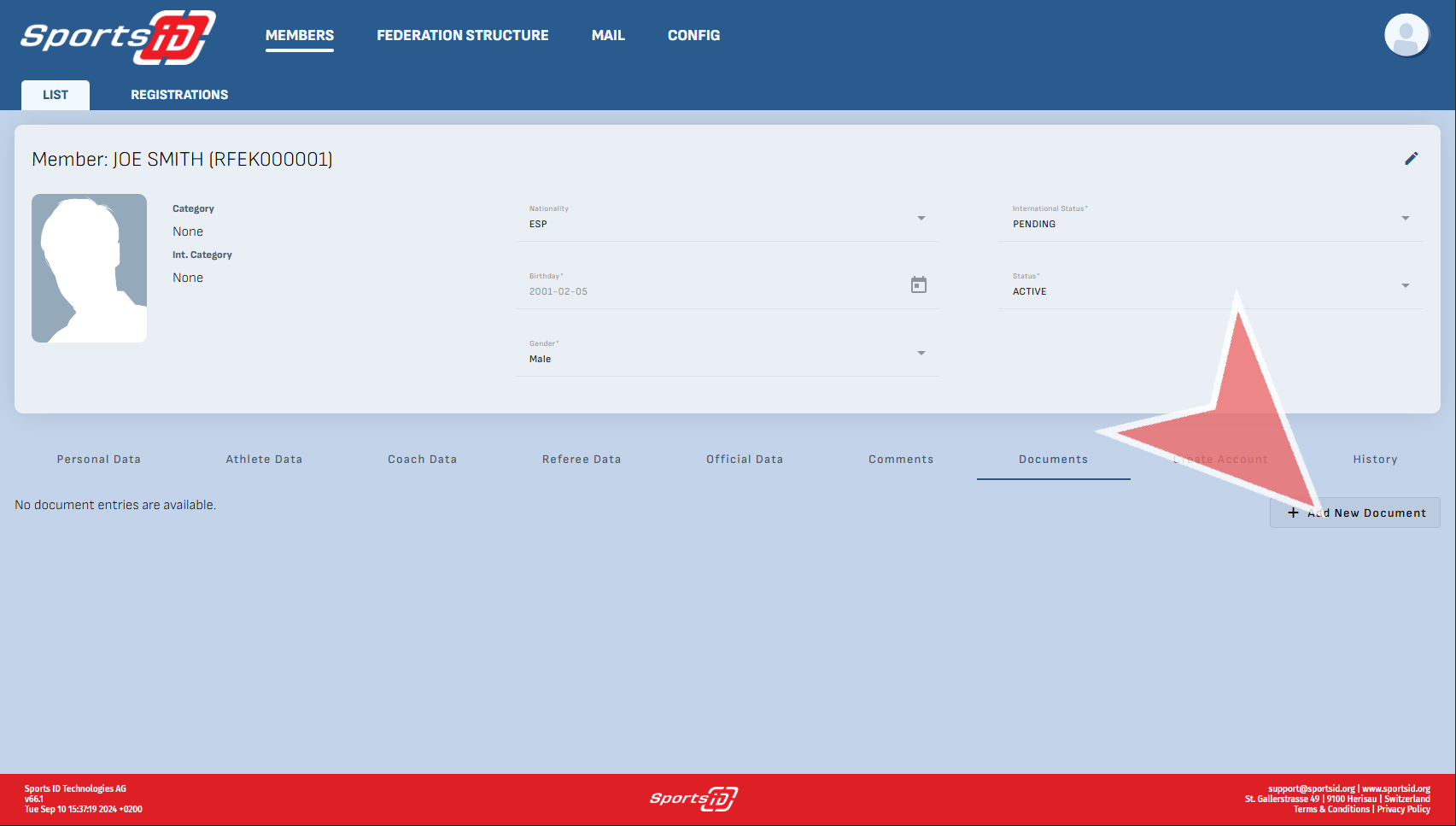
Click ‚Add New Document‘

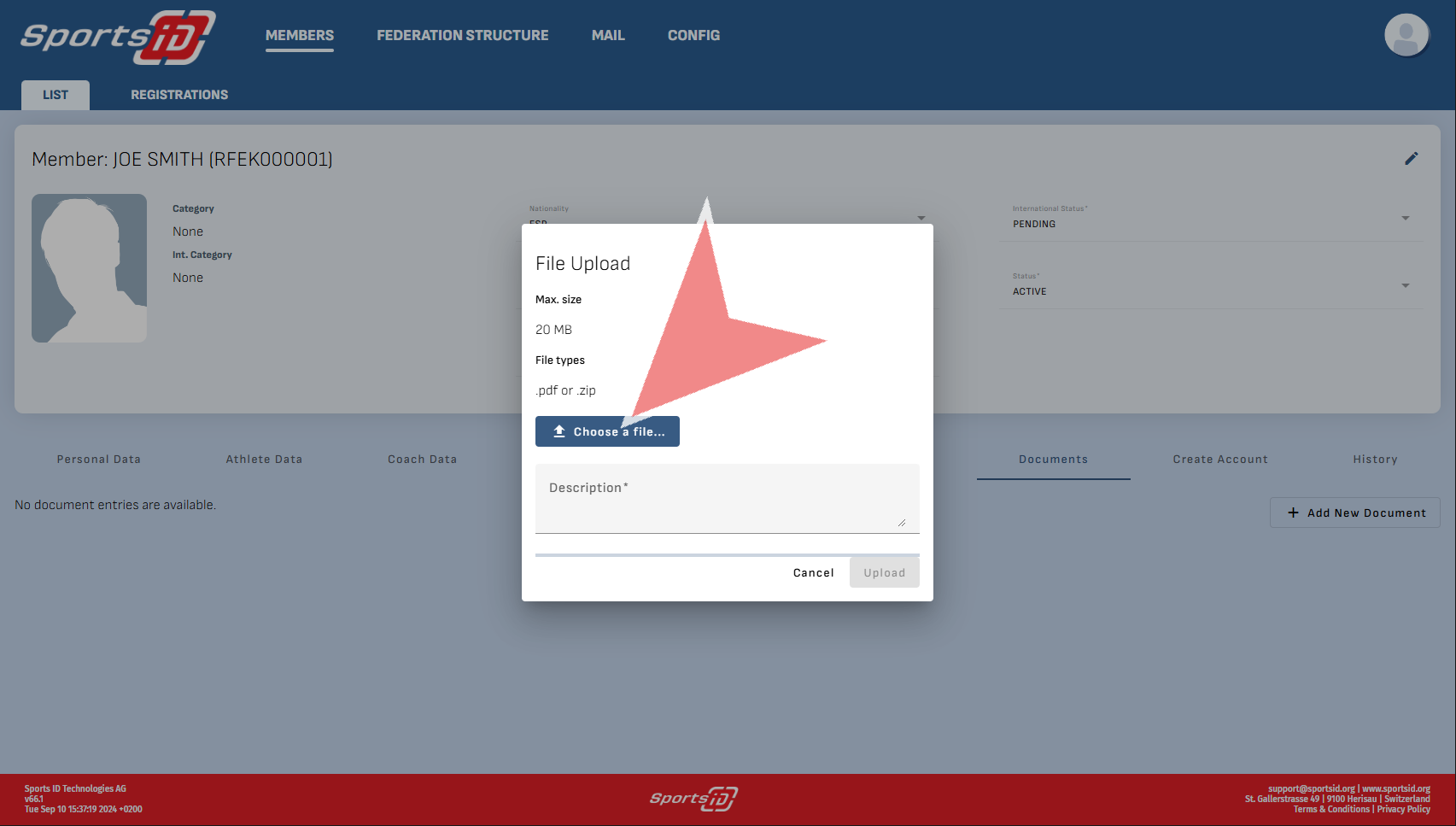
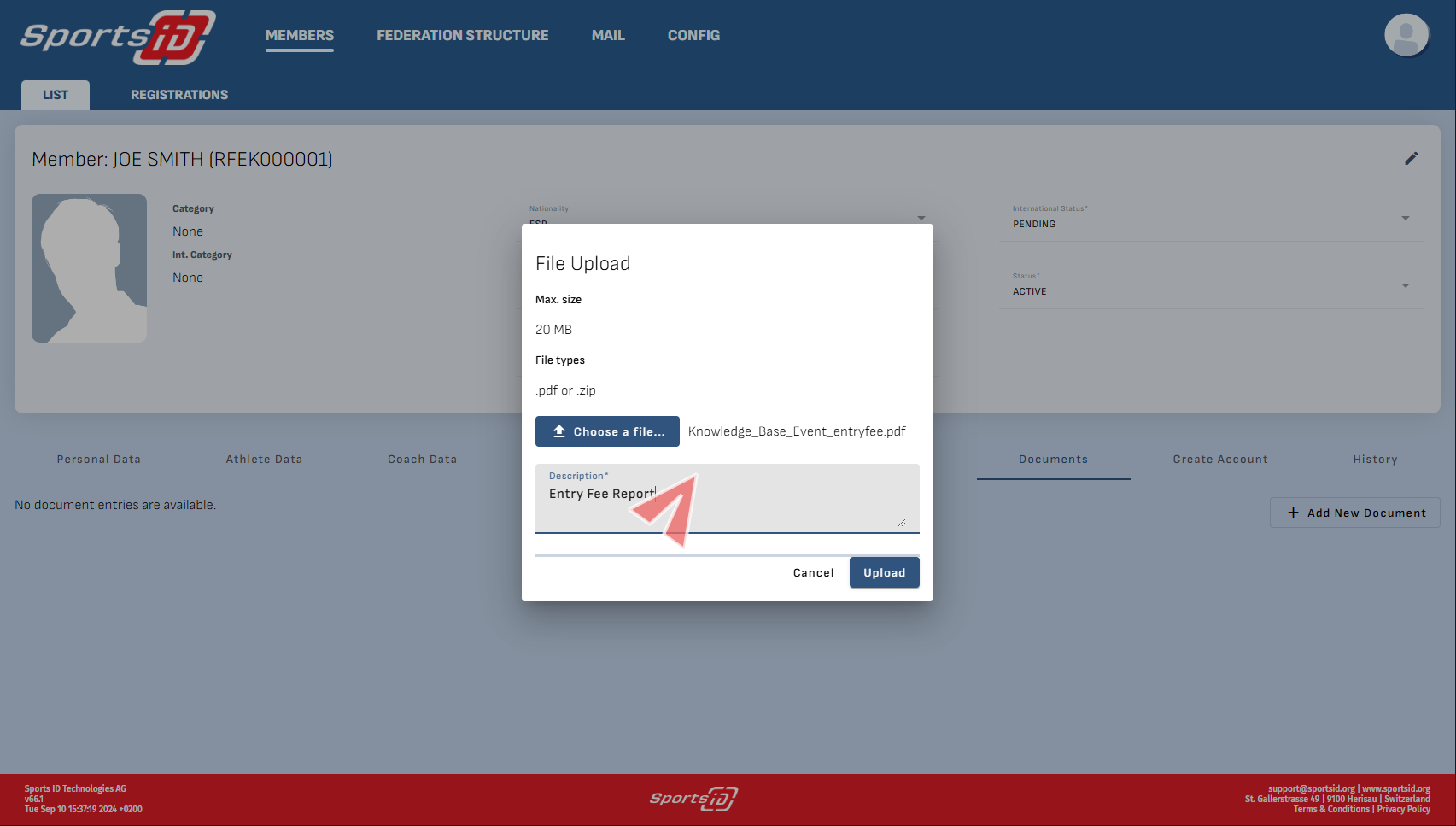
Chose a file.

Provide a description for the document you have just uploaded and press the ‚Upload‘ button when finished

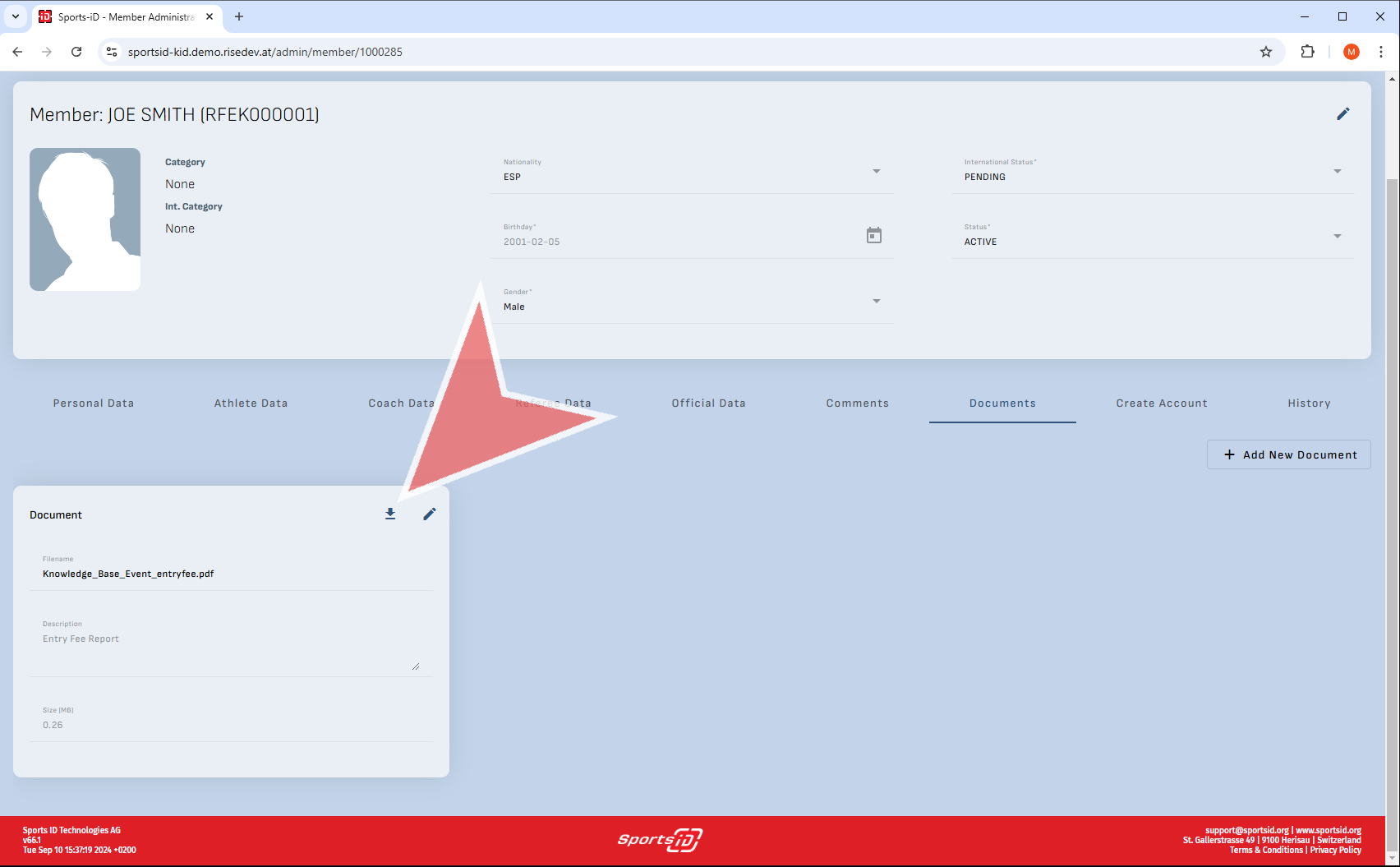
The upload document can now be seen by those with access and can be downloaded by clicking the Download Icon next to the edit Icon. You can upload multiple documents.

Create account by adding email

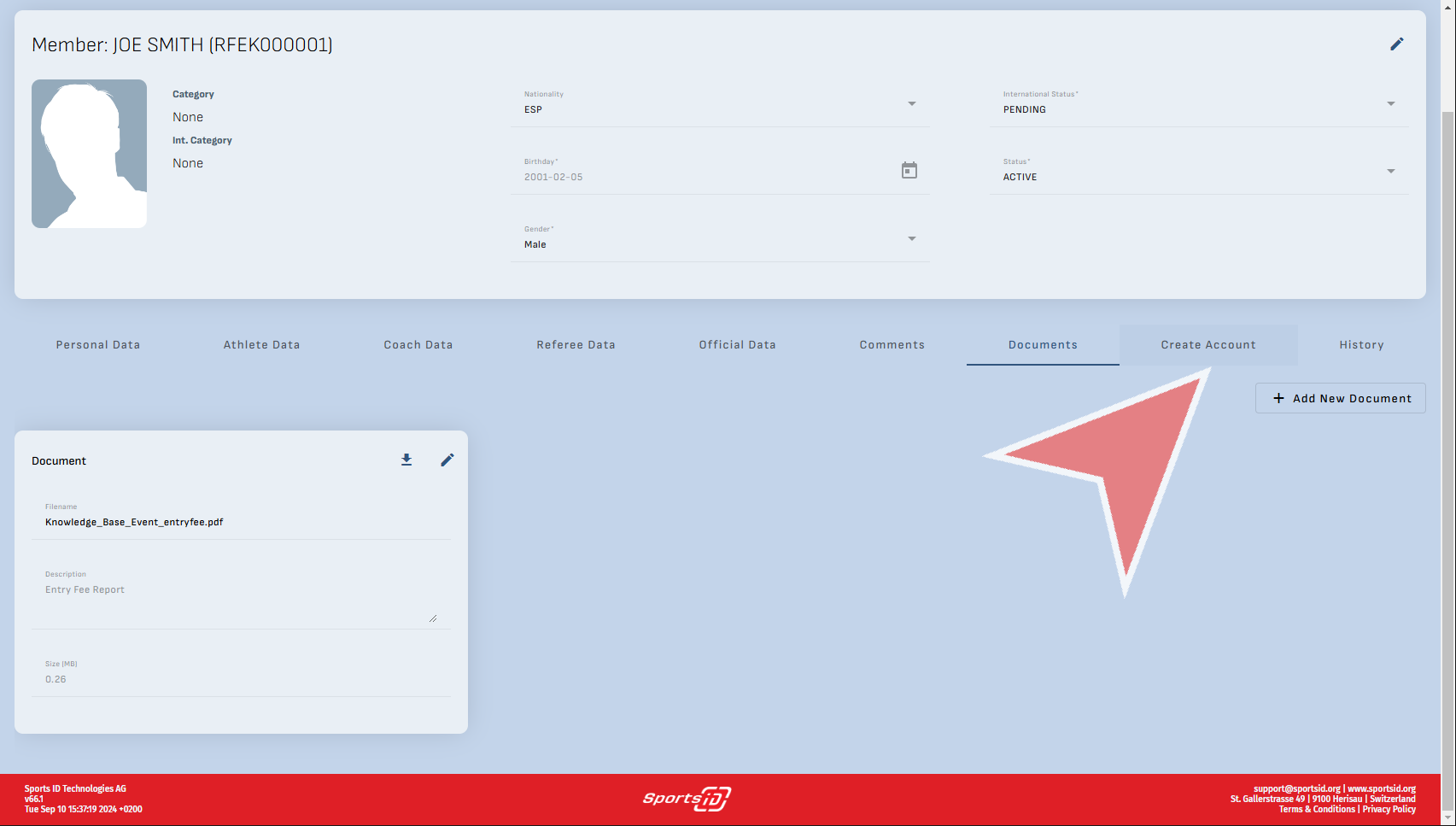
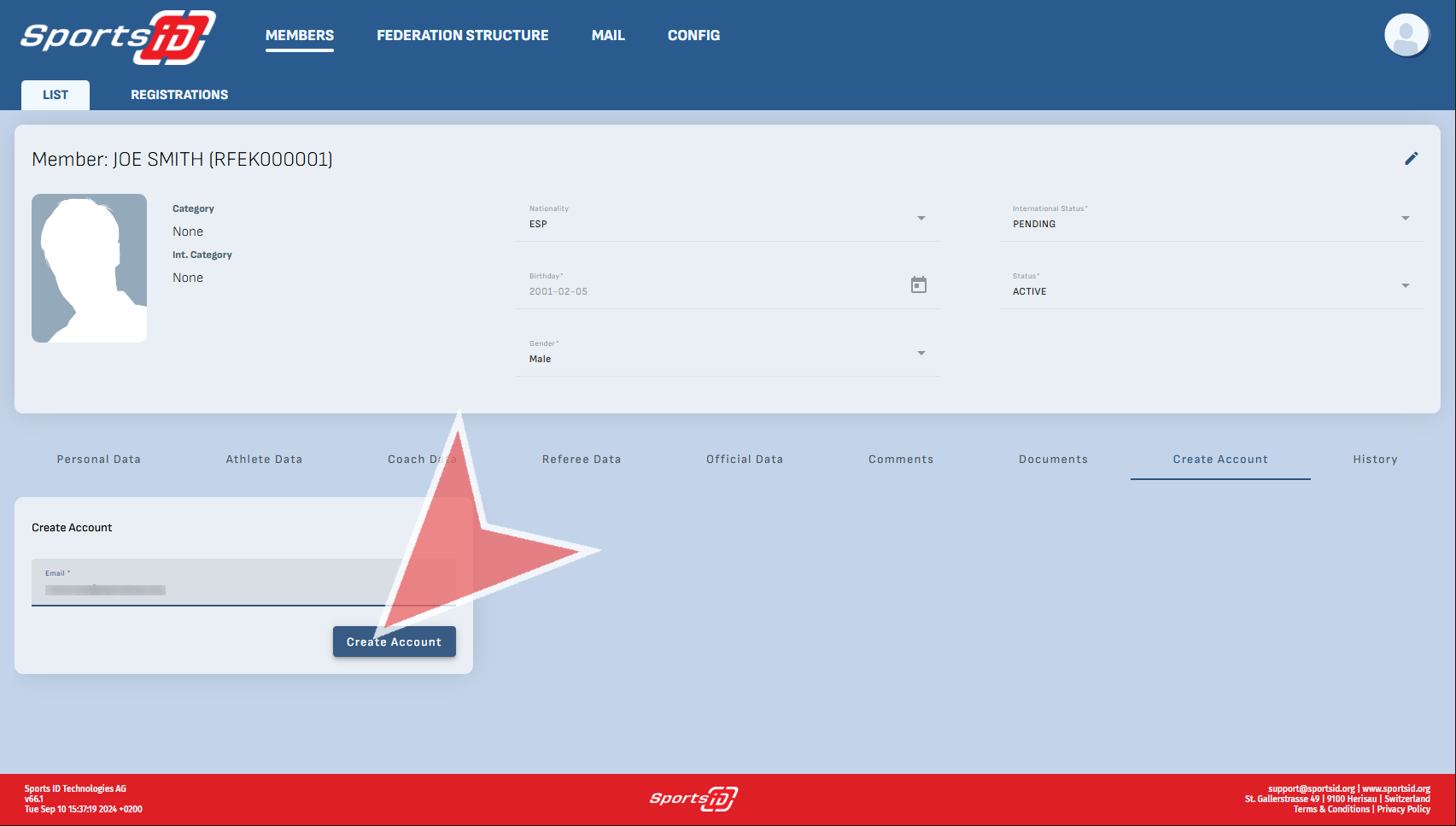
Additionally, by going to the tab ‚create account‘ you can add an email account.

Add an email to link to the account.

If an existing account has the same email, you will be notified and asked whether you would like to replace the old one with the new one. A reminder only one email may be associated with one account.

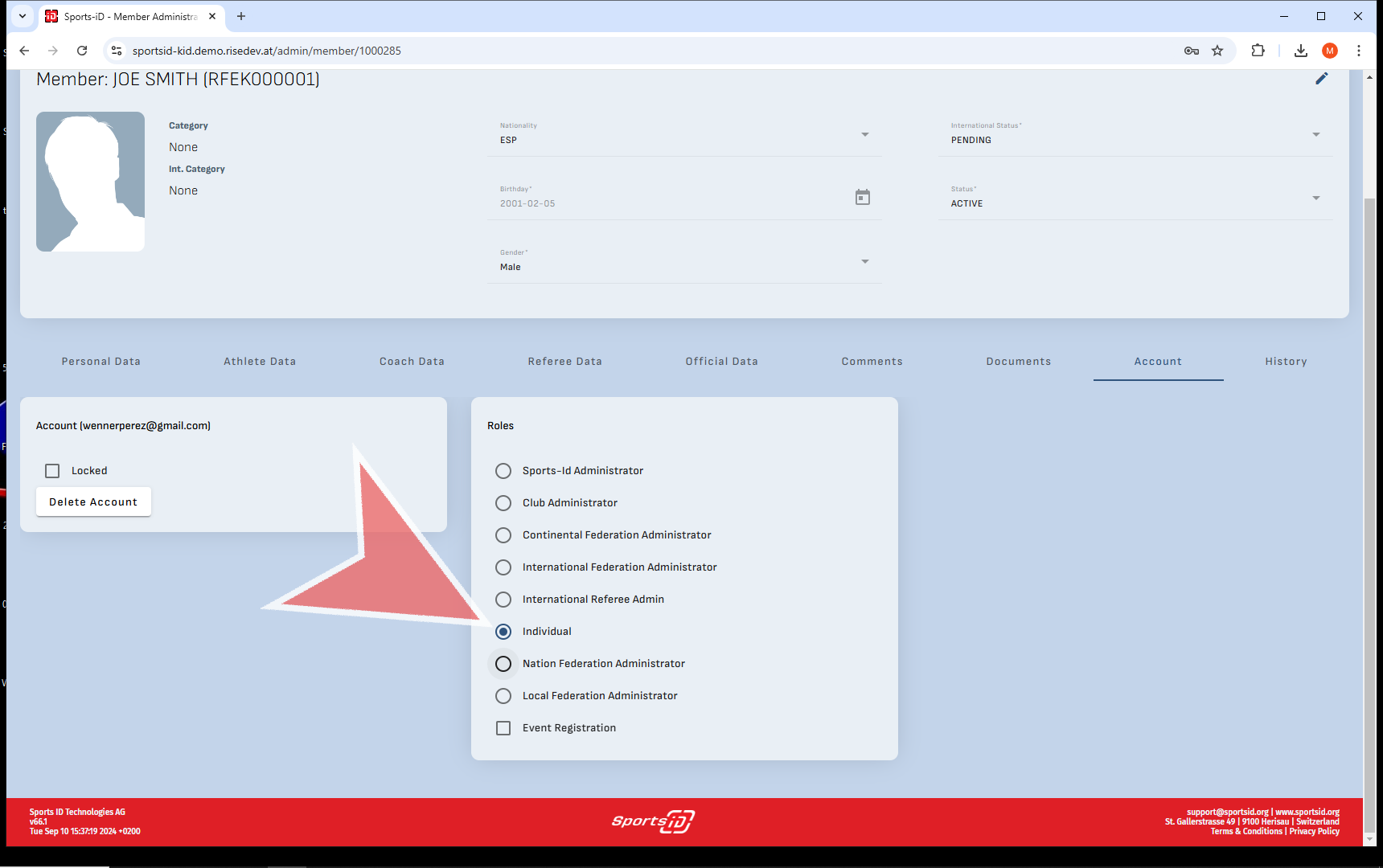
Select the role this account will have and if they will be able to register others to events which would be the case for clubs.

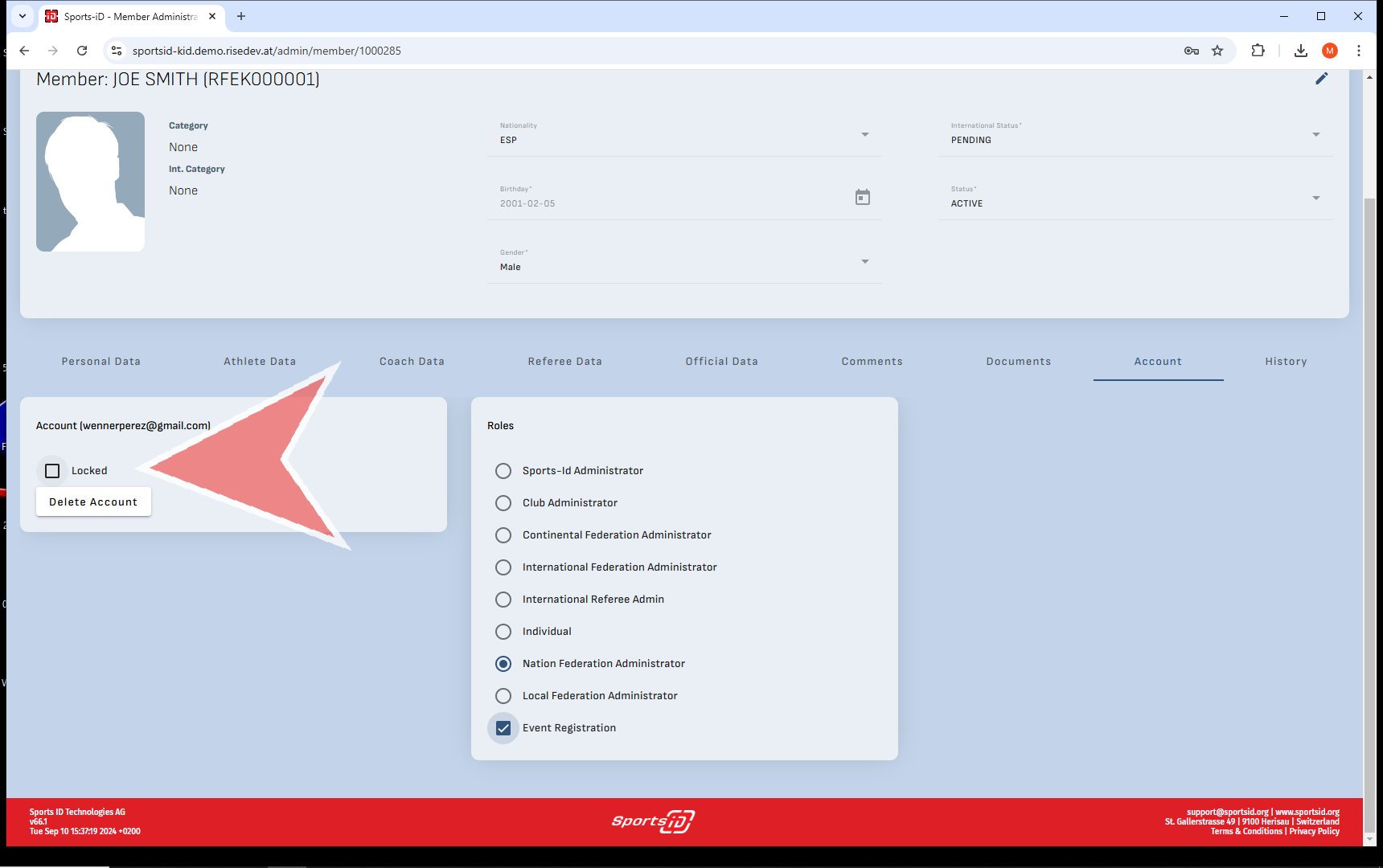
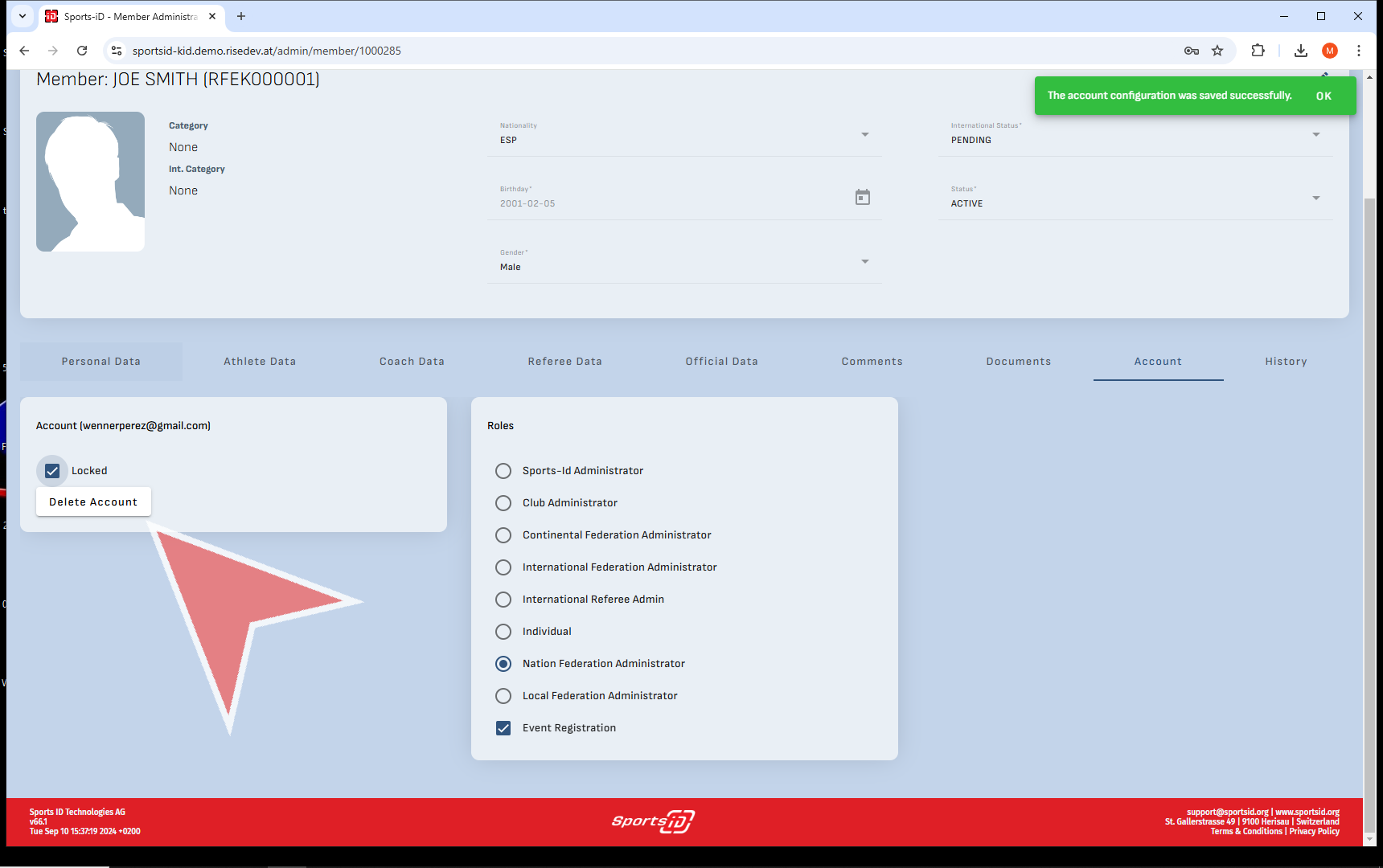
If you wanted to lock or block a member from accessing their profile you can tick the locked checkbox.

If you wanted to delete the account you can also do so in this tab.

Upload merchandise for sale – other expense items

Interactive Demo

Event Manager – Event Page

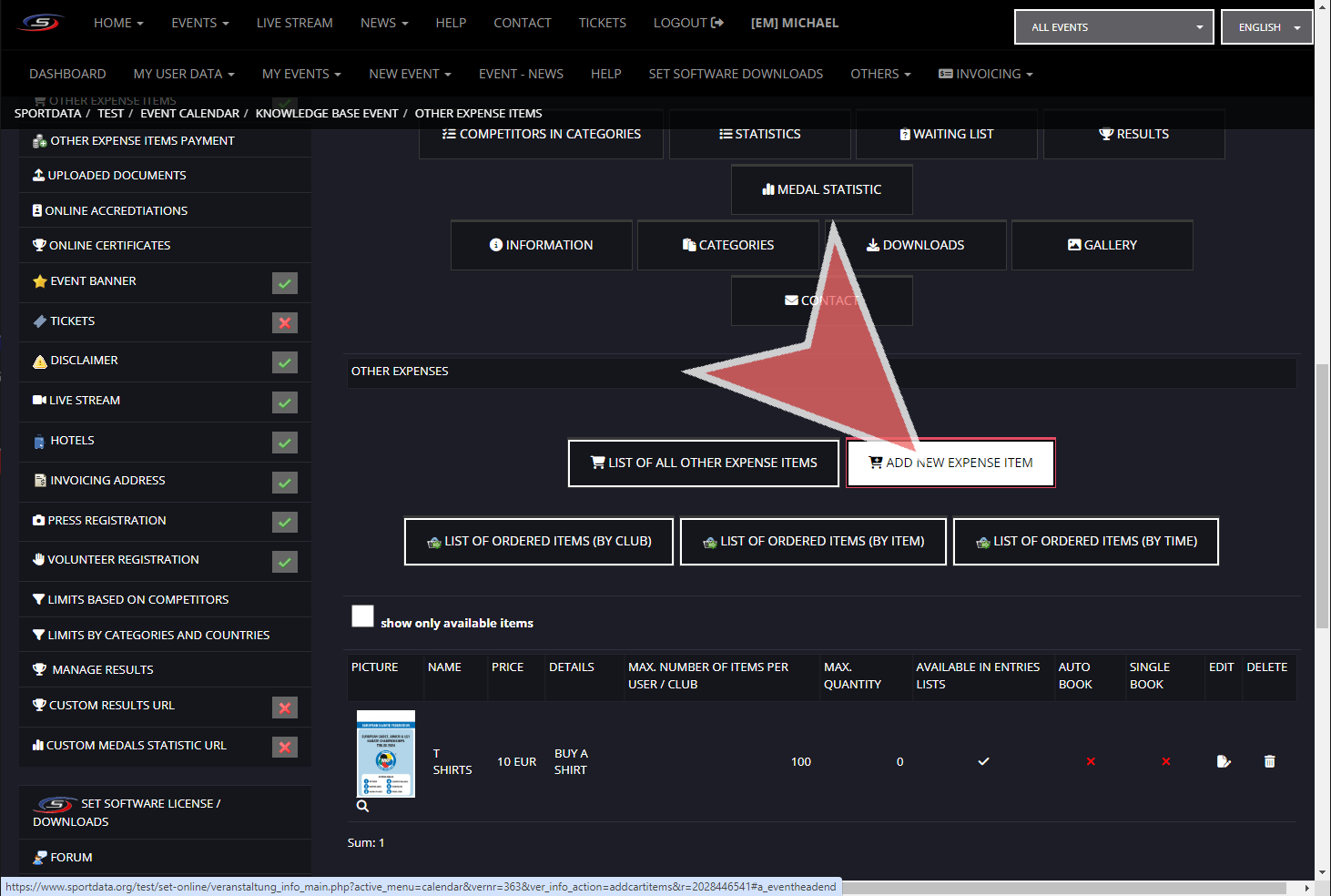
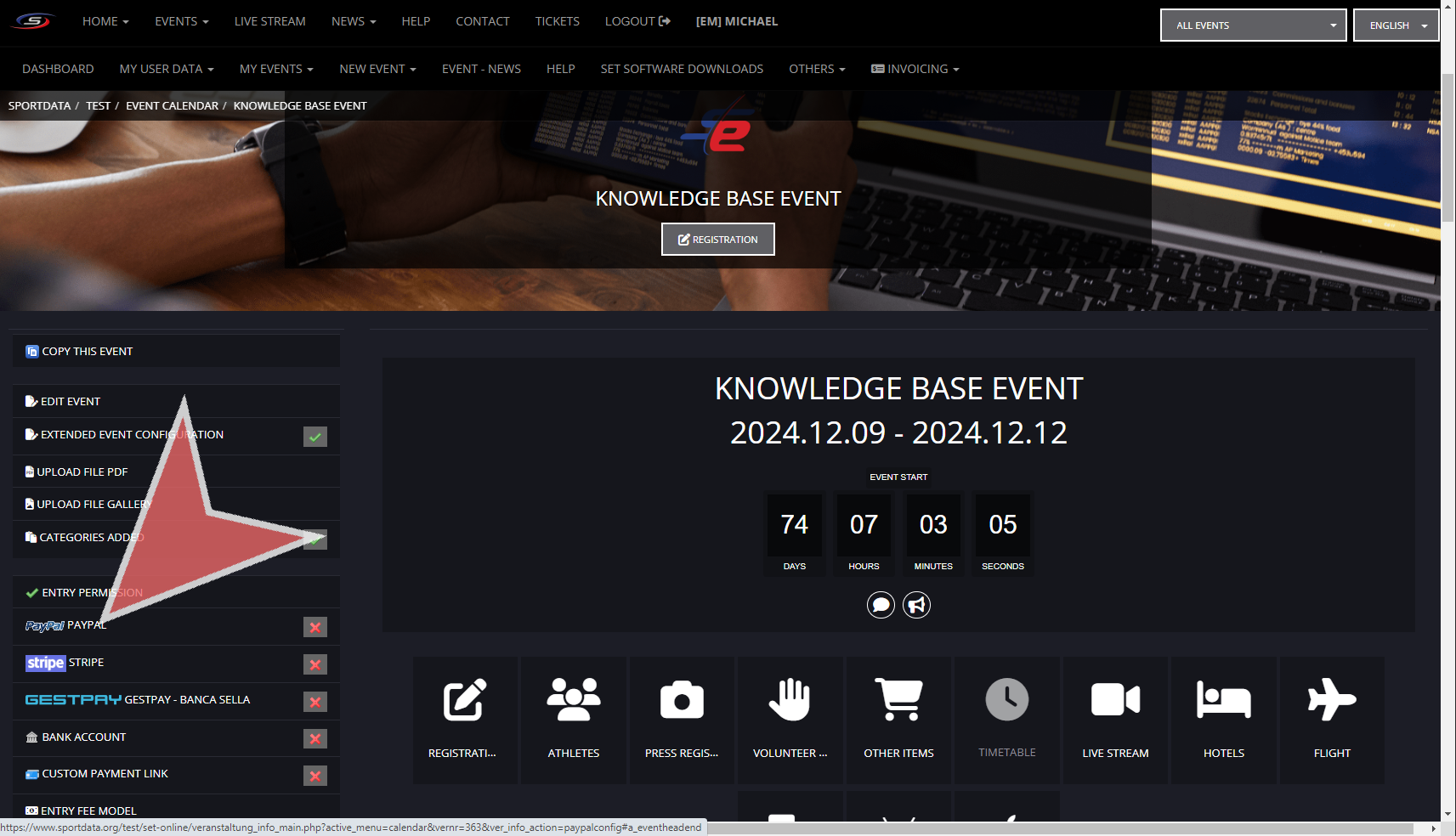
To add merchandising and products that you would either like your attendees to reserve and or purchase online go to the panel on the left side of you event page while signed in on your event manager account and select Other Expense Items.


Add New Expense Item

On the other expenses page, you are immediately brought to the list of all items where you can review the currently listed items, download the list of ordered items (by club, item, or time) and ad new items.


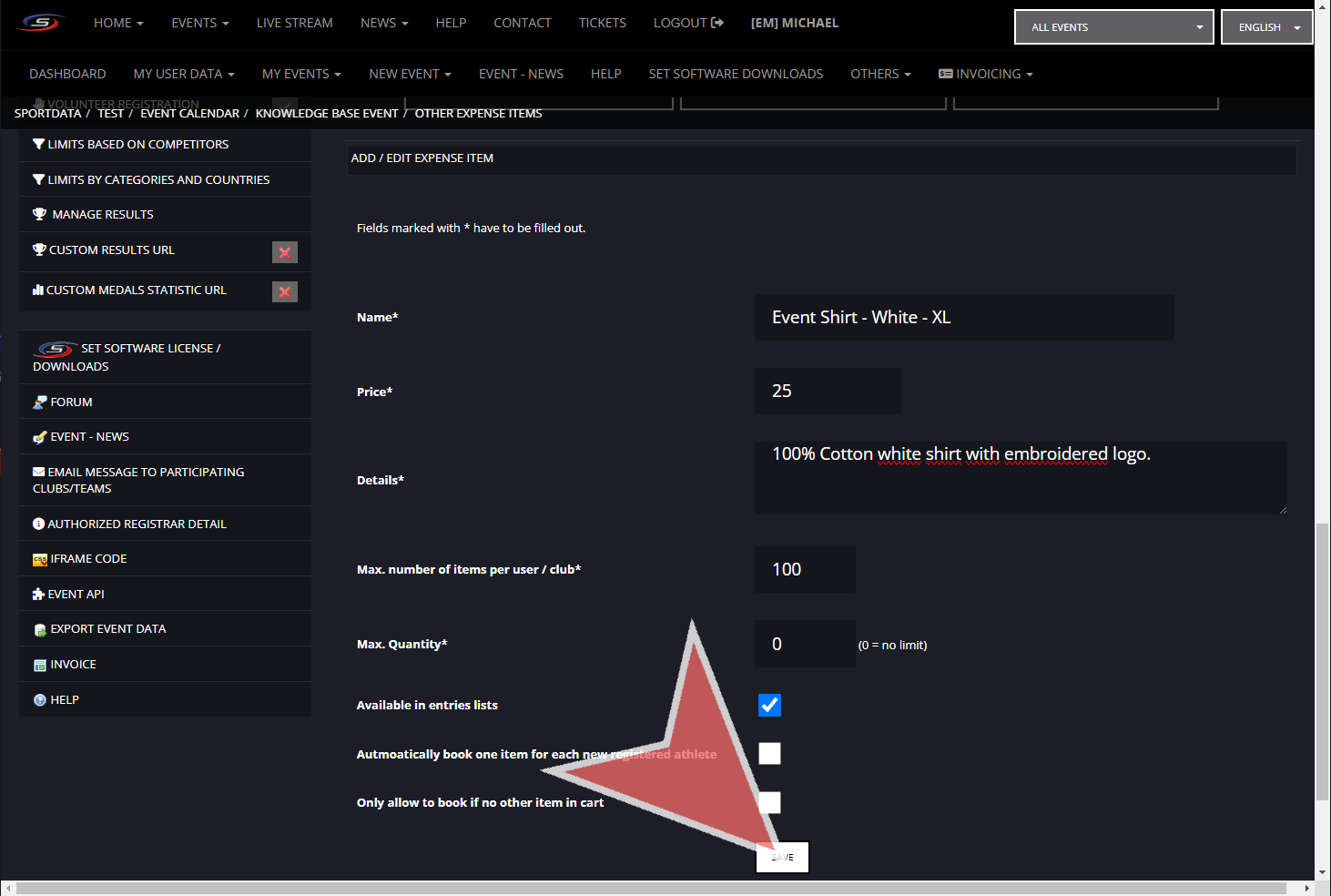
When adding a new item, the


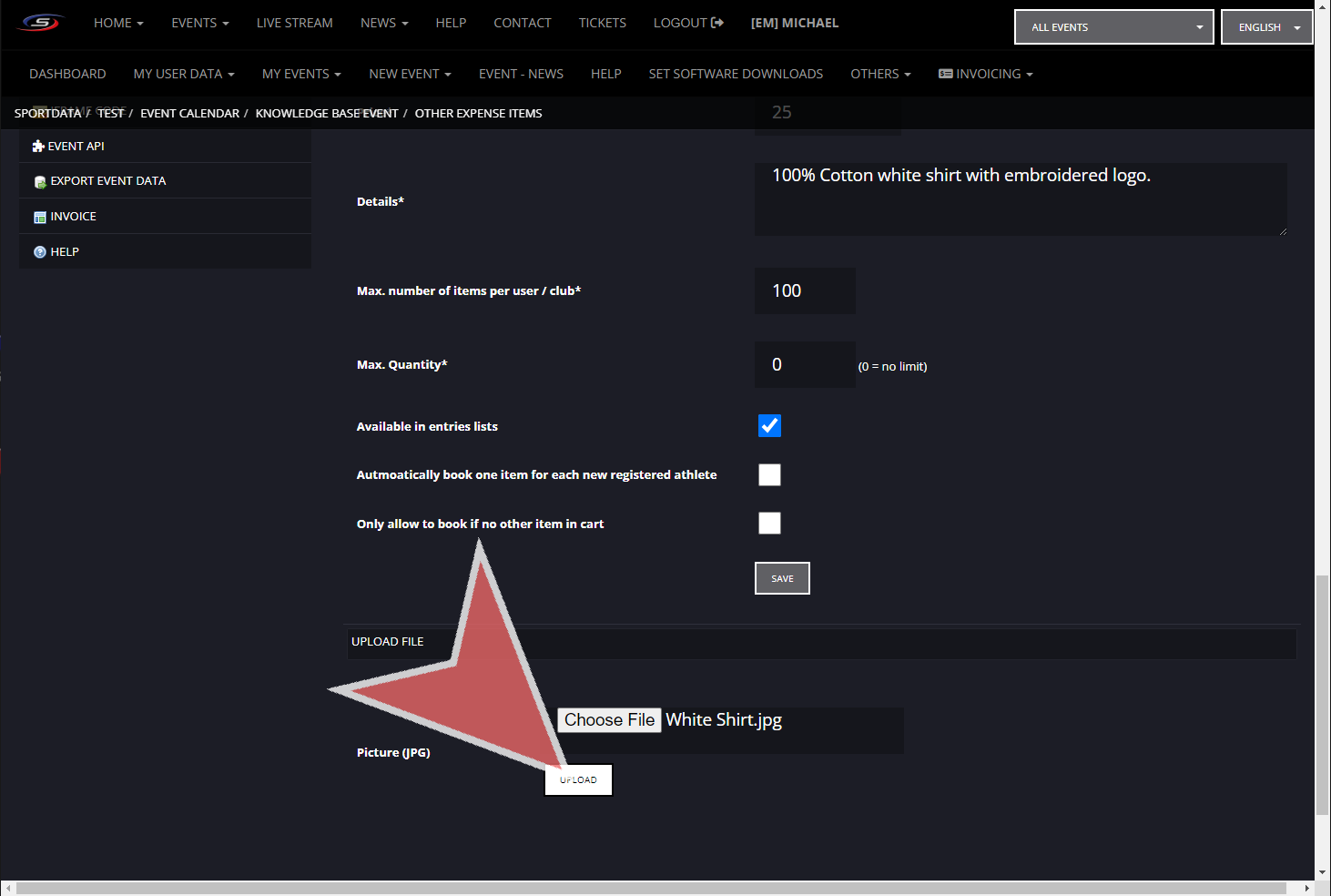
Once you have saved the the settings and description of the product upload a photo by choosing a file


Once you have saved the the settings and description of the product upload, the option to select a photo file will appear, and then you will click the upload button.


You will see your item uploaded in the main lists.


Set up Payment Methods

Interactive Demo


Event Manager – Event Page

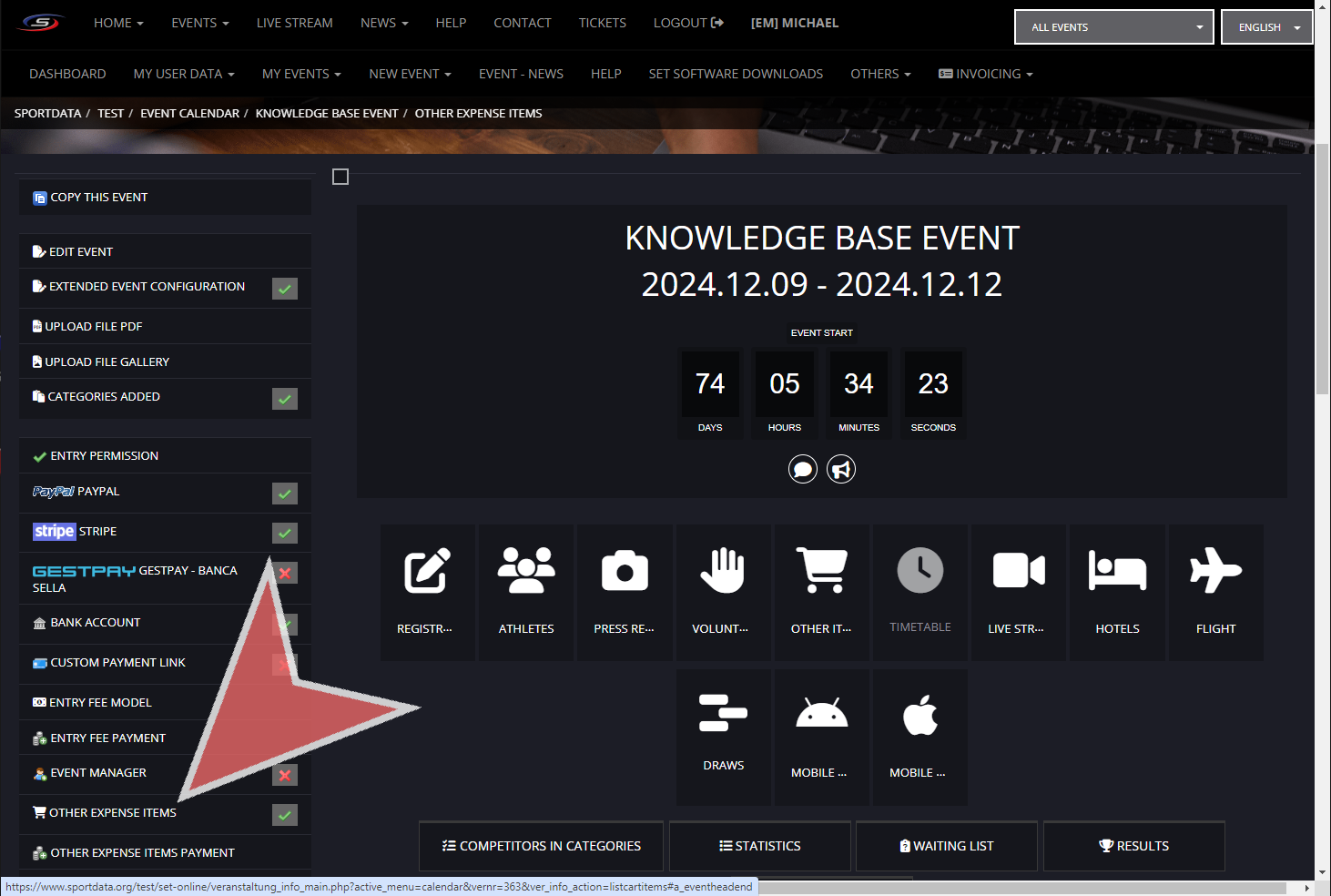
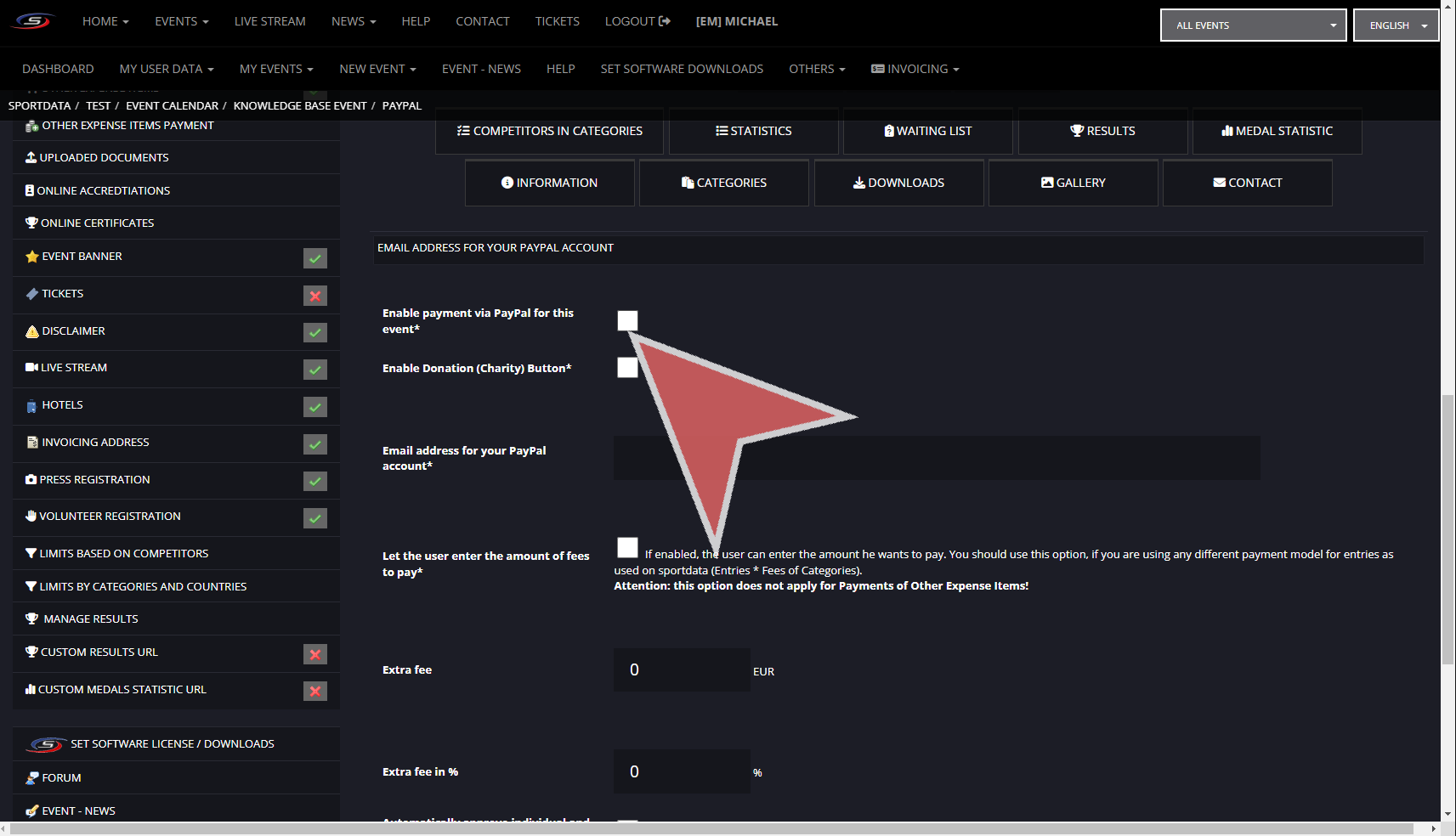
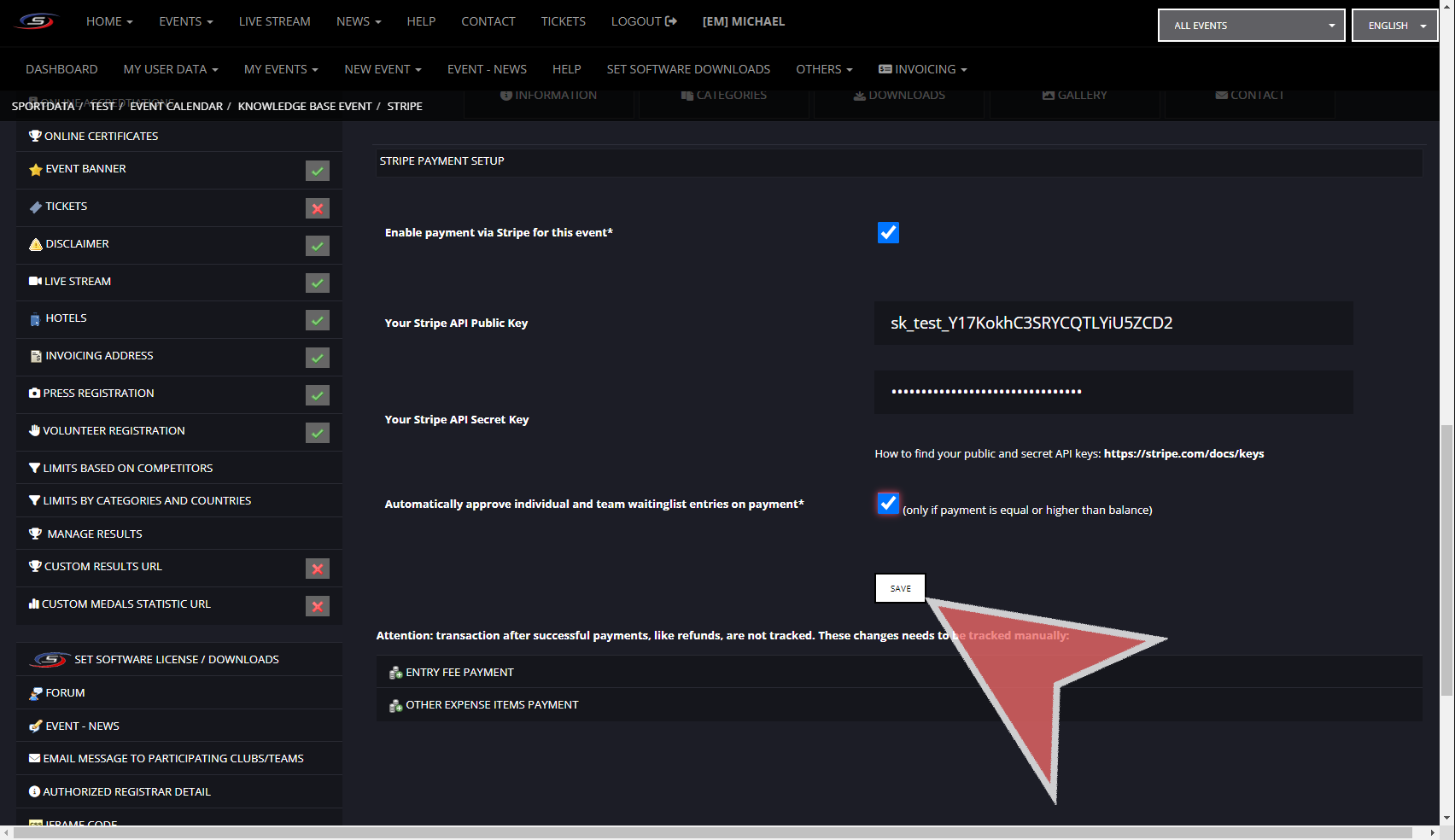
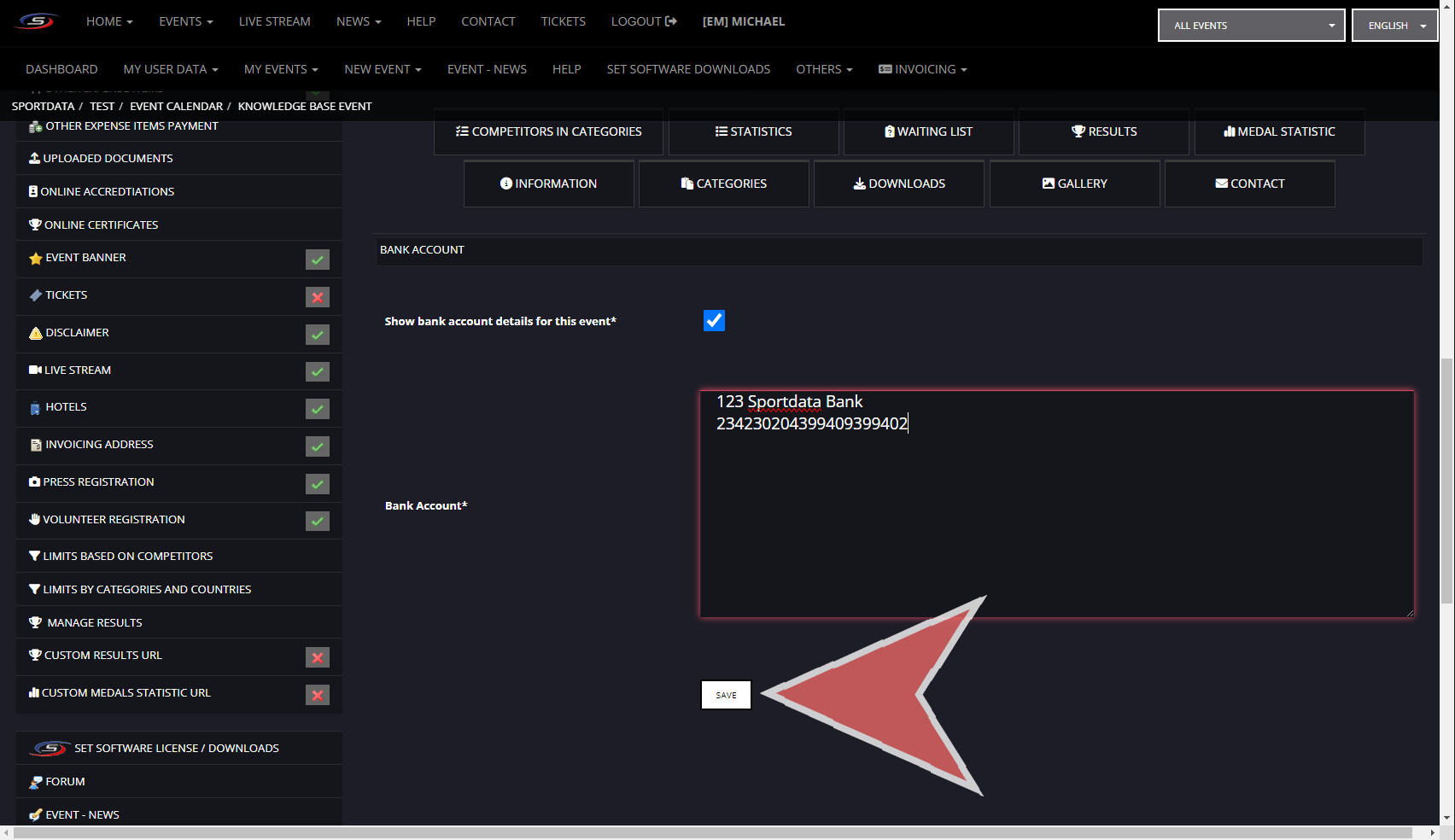
In order to set up your payment options, you will need to sign in to you event manager account, and go to the specific event you would like to include your payment options. You will see the different options on the left hand panel with the option to use Paypal, Stripe, Gestpay, Bank Account, or a Custom Payment Link. Once you have enabled the settings, you will notice that the red x turns to a green check mark.


Paypal

Tick the boxes to enable Paypal for the event, donations, or allow the user to enter the amount of fees to pay. Ensure to add the email address for your PayPal account. If you have extra fees you can either put it either in absolute (euro) or relative terms (%)

If no additional checks are required to approve an entry, then tick the box to automatically approve the waiting list entries on payment. To save all settings click save. Notifications of complete payment will be recorded and can be reviewed in entry fee payments, however refunds are not tracked.


Stripe

With Stripe, you will have multiple Stripe API keys, both the Public and Secret key that you will need to add in order to link your account. Ensure to tick enable payment via Stripe. Notifications of complete payment will be received by Sportdata and will be tracked and can be reviewed in entry fee payments, however refunds are not tracked.


Bank Account

For bank accounts transfers, you will need to provide your bank account information, and show bank account details for this event. Note, that the following Sportdata does not get any notifications from your bank and will not be able to track payments.


Custom Payment System

If you have another payment system, you can include the link in the field below and save. Note, that the following Sportdata does not get any notifications from your bank and will not be able to track payments.

Send an Email Message to Participants

Interactive Demo

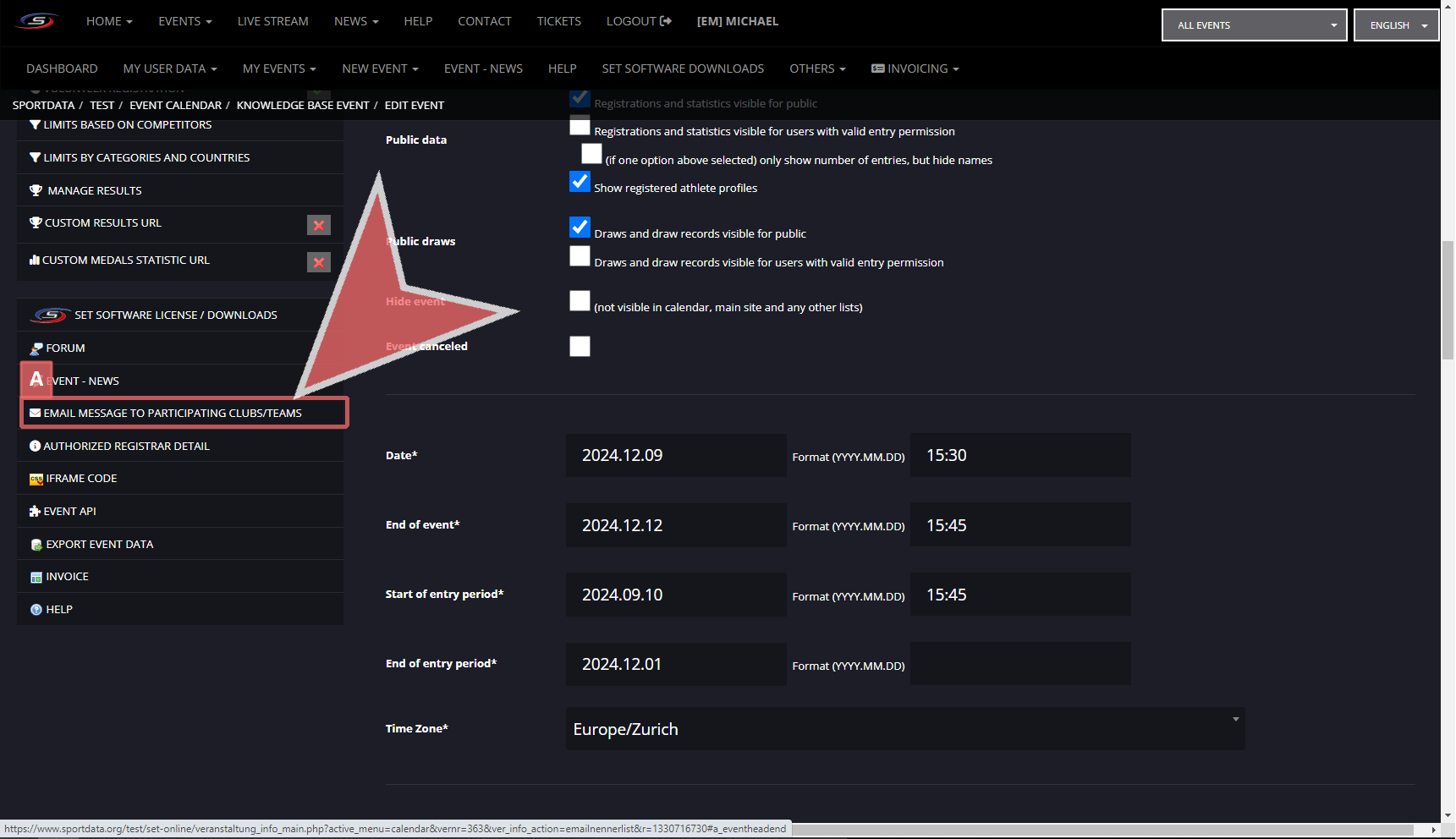
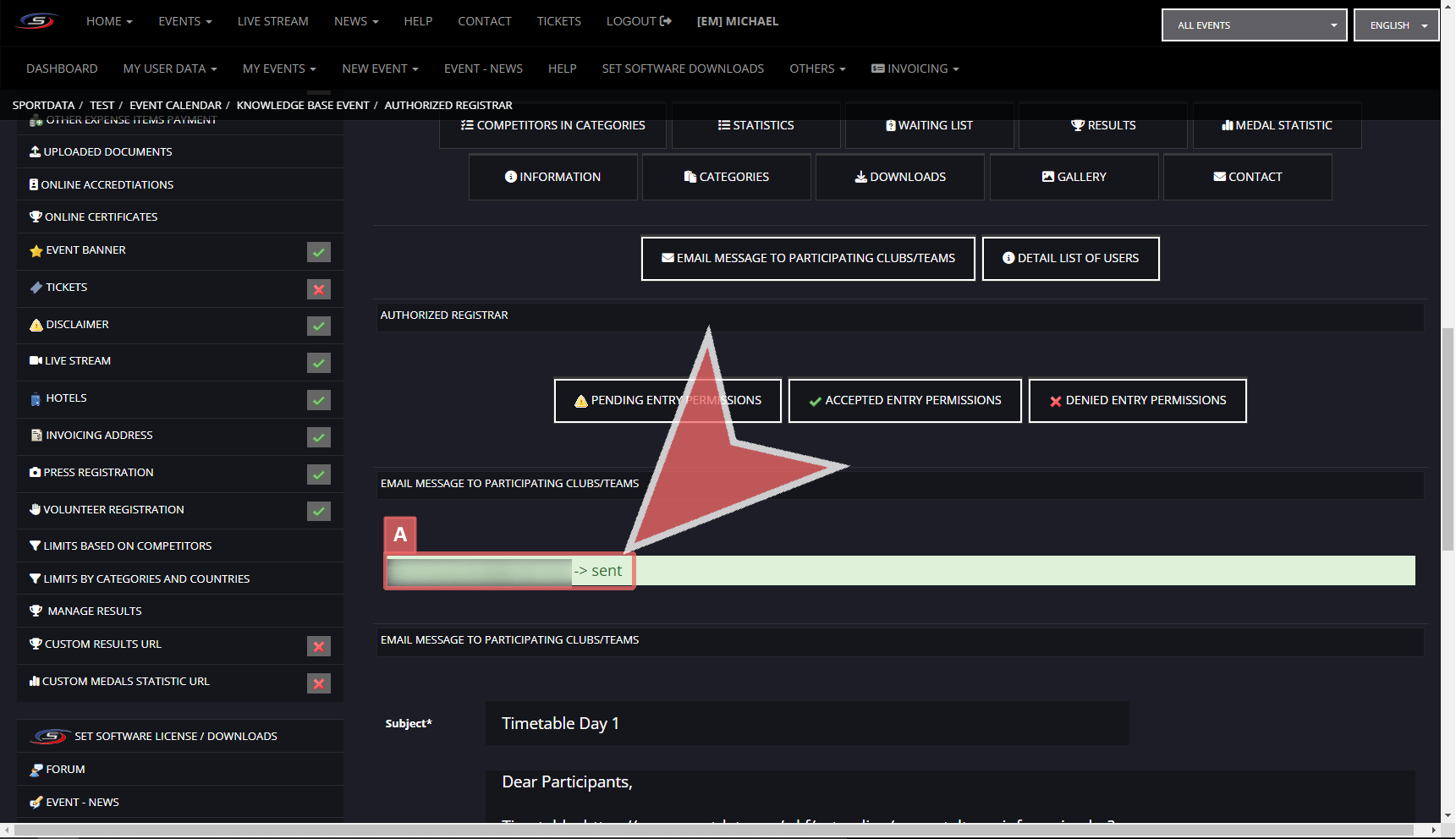
After logging in to your Event Manager Account, go to My Events, and selecting the event you would like to use the email messaging, and scroll down.

Click on the Email Message to Participating Clubs/Teams.

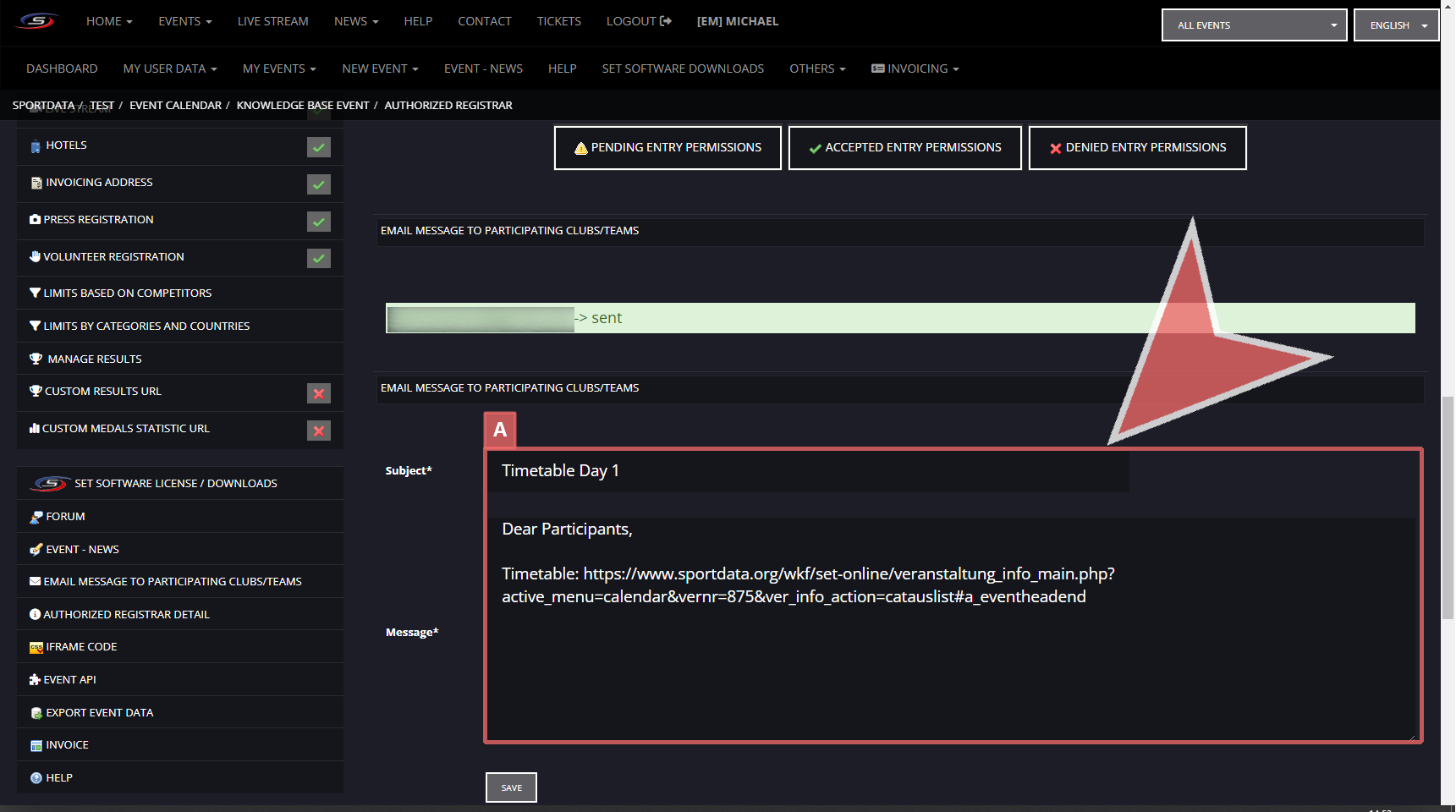
Write your Title & Message.

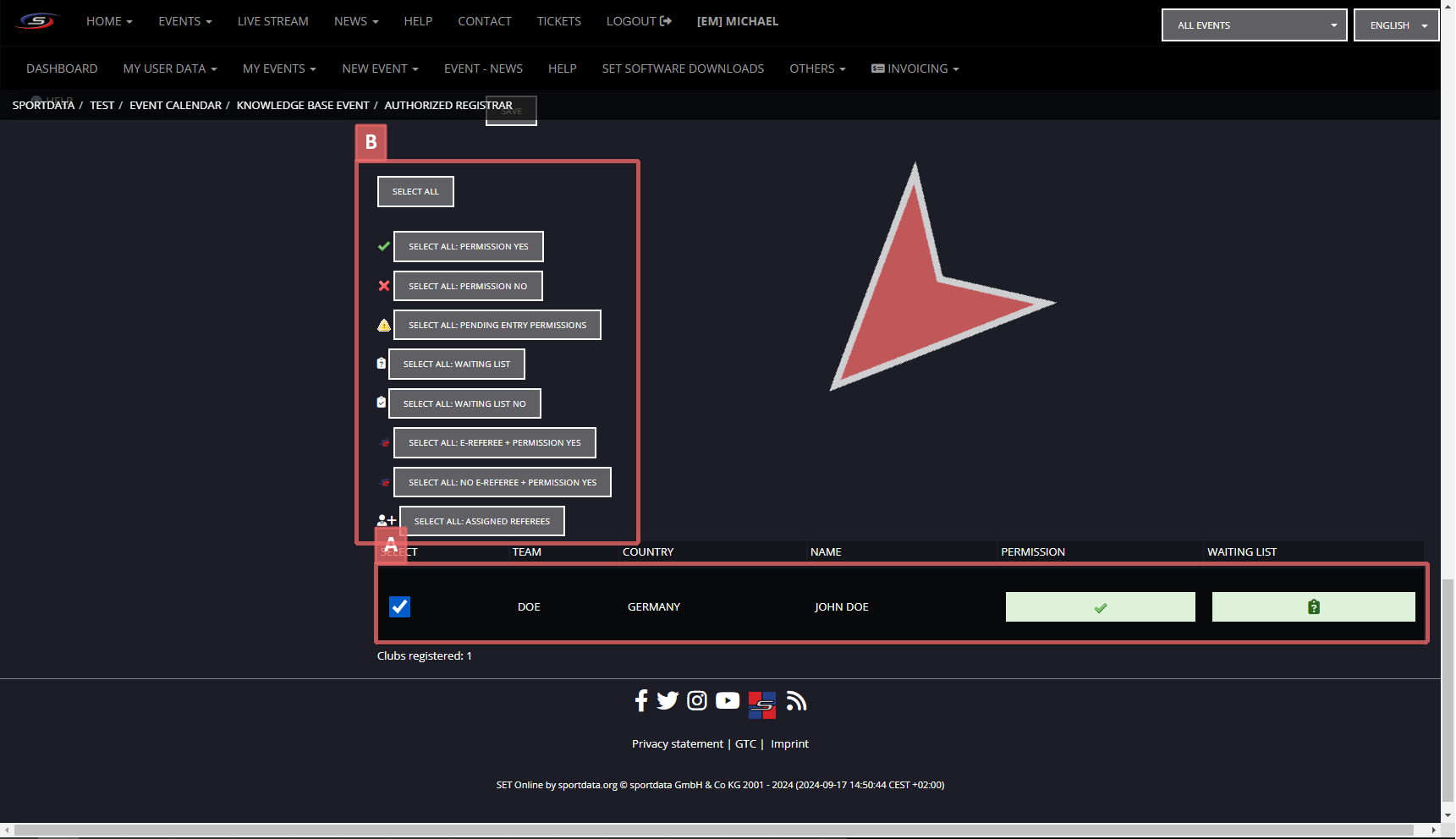
Select to whom you want to send your message from one of the following options;

  • all entries,
  • select a specific group,
  • or select them individually.

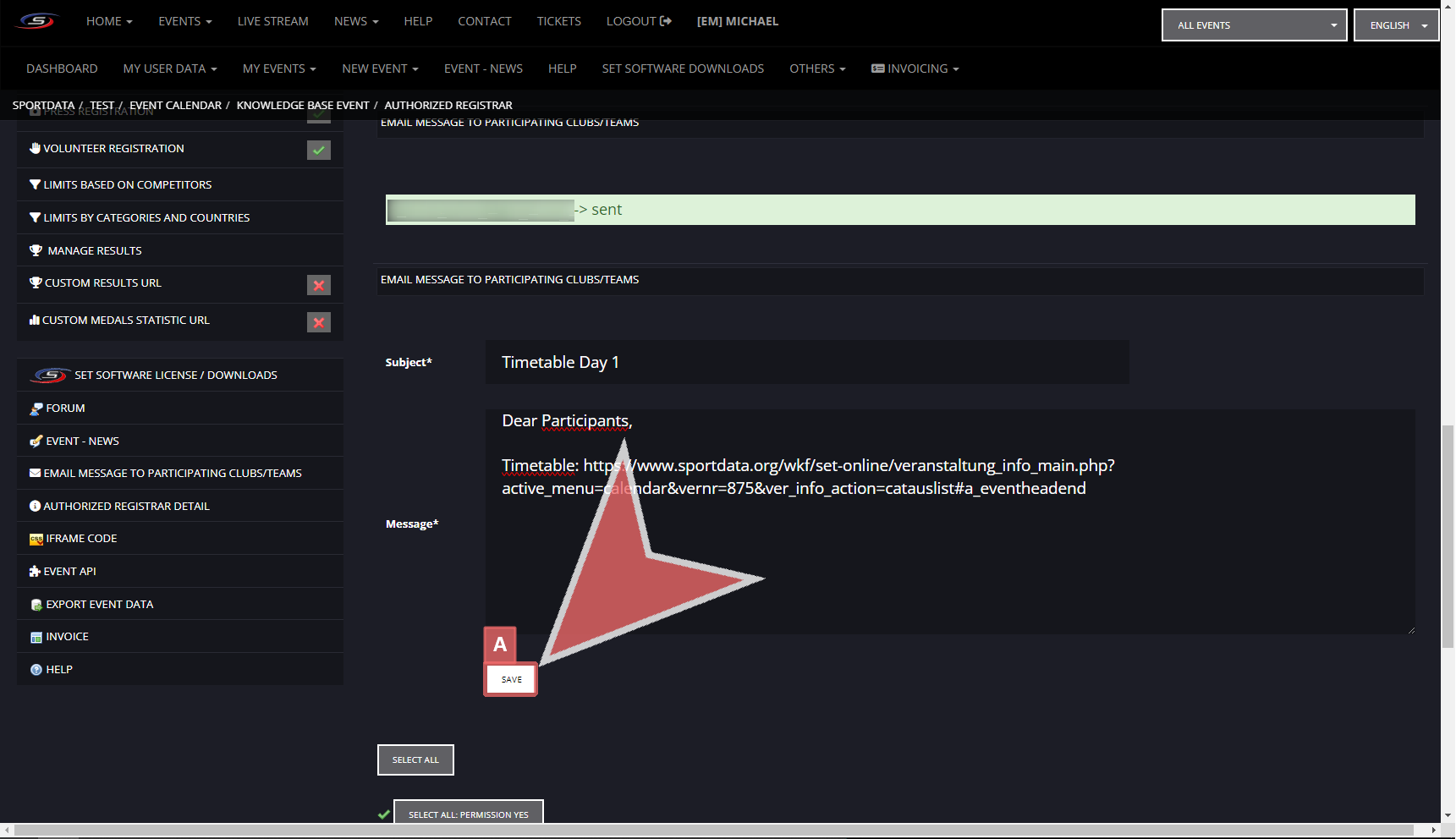
After selecting the recipients you can click on the Save button to send the message.

Wait until the confirmation of the emails that received the message in green appear before changing the page.

Below you can find an Example email.

Compute Pool Winners in the Draw Records

Interactive Demo

How to compute pool winners in the draw records

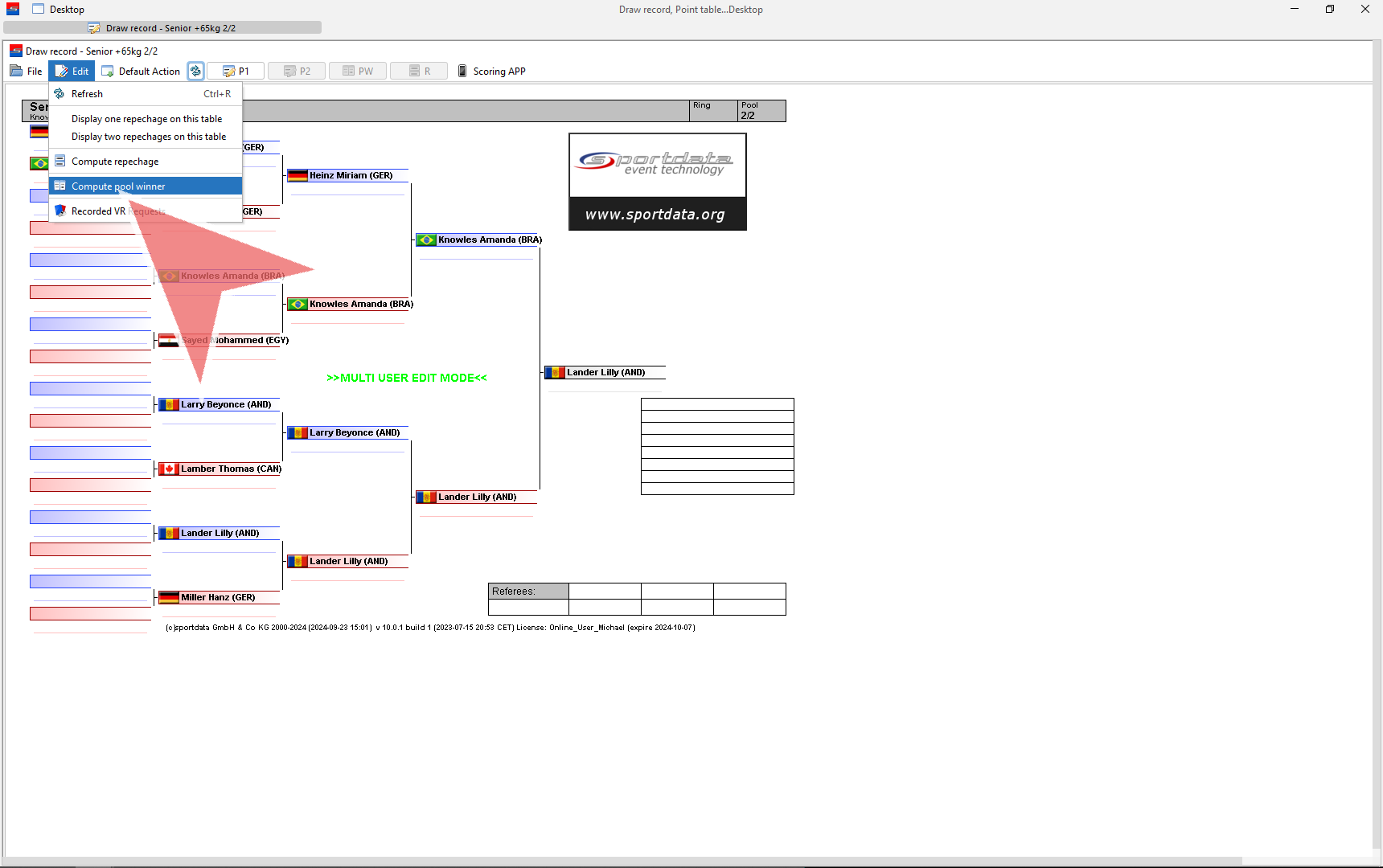
With at least 2 pools, you will have the winners of each pool face off at a later stage and this is called the pool winner table.


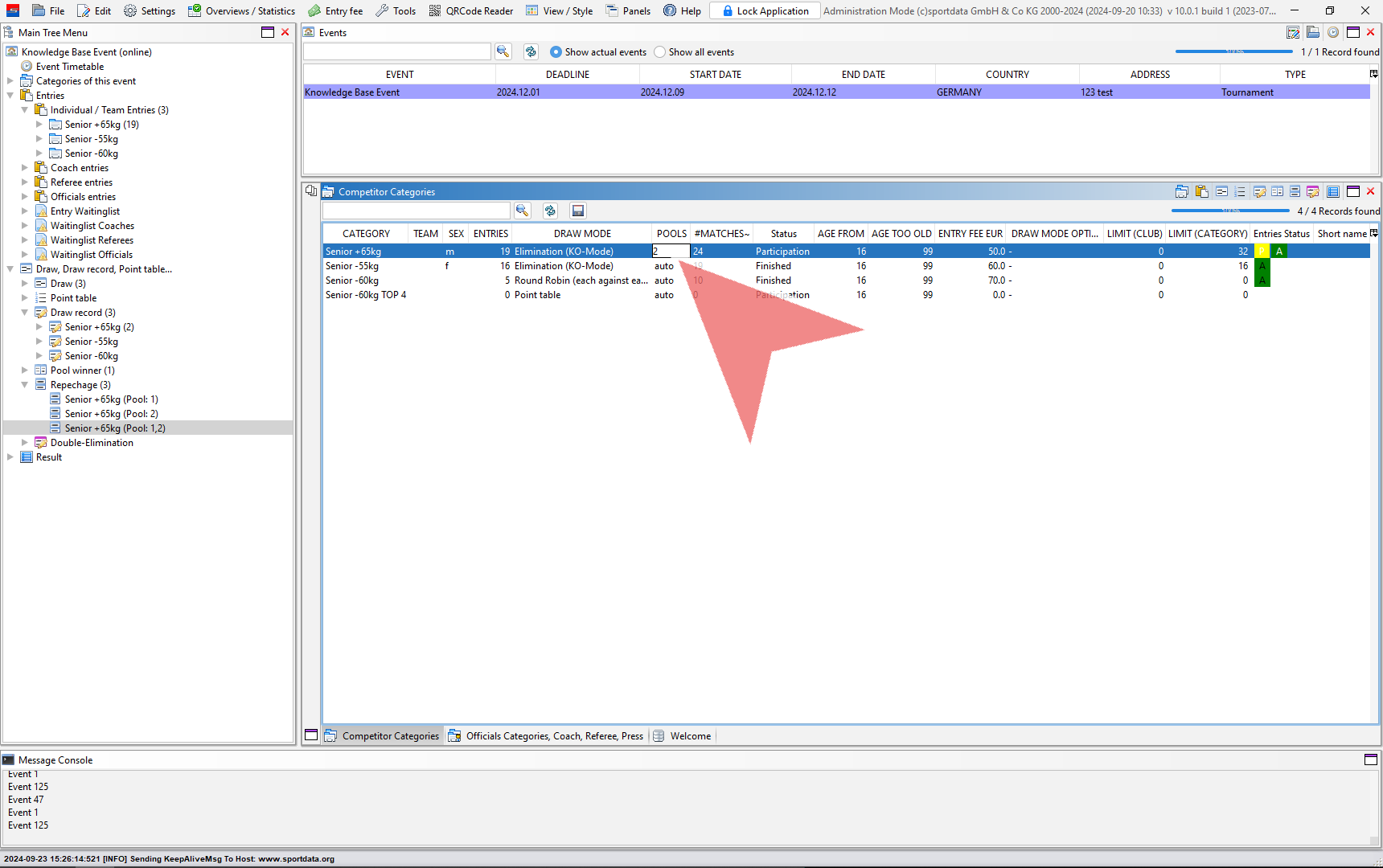
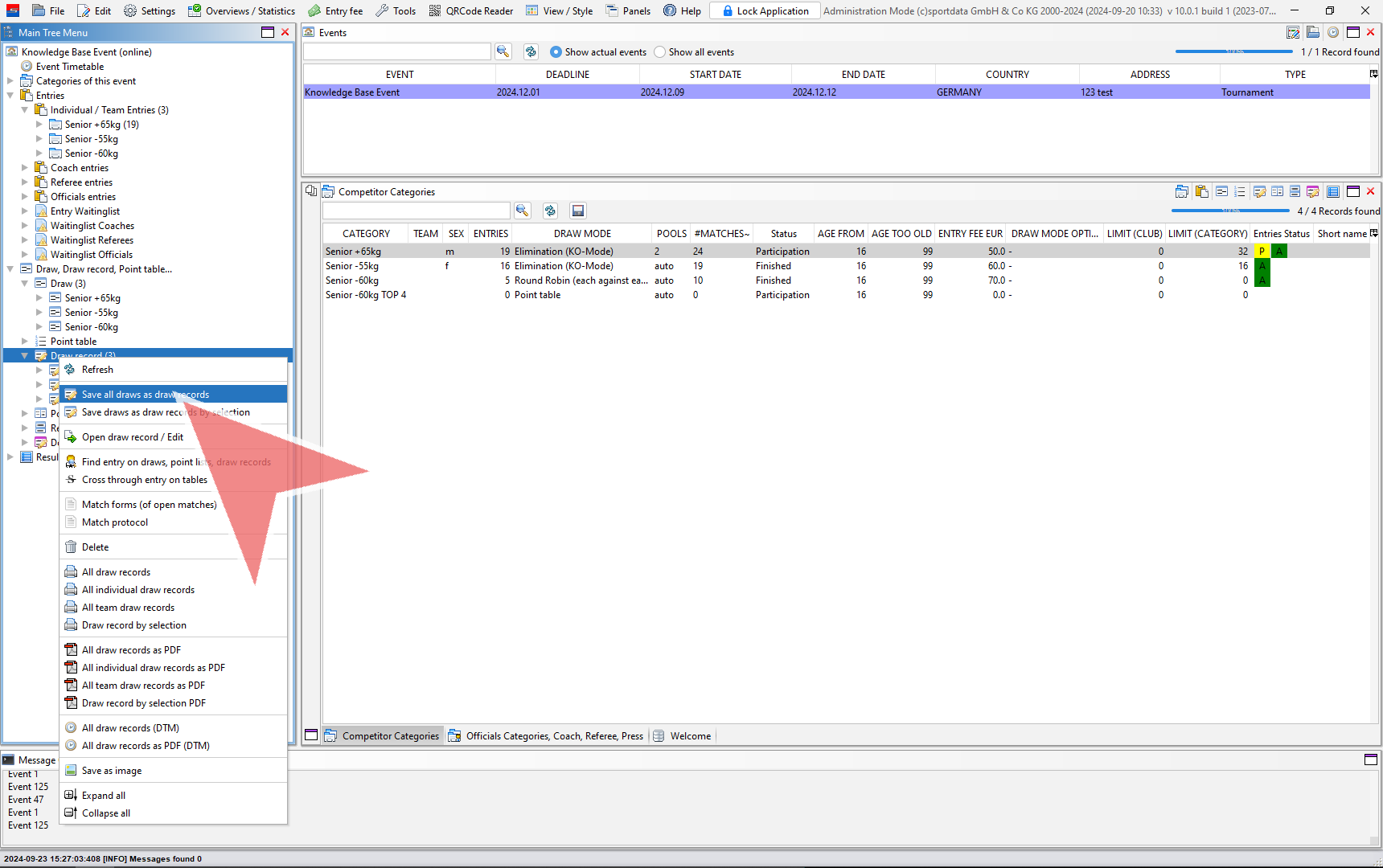
A reminder to generate the draws, save them, and saving them as draw records.


By opening the draw records, you will be able to see the progression of the pools.


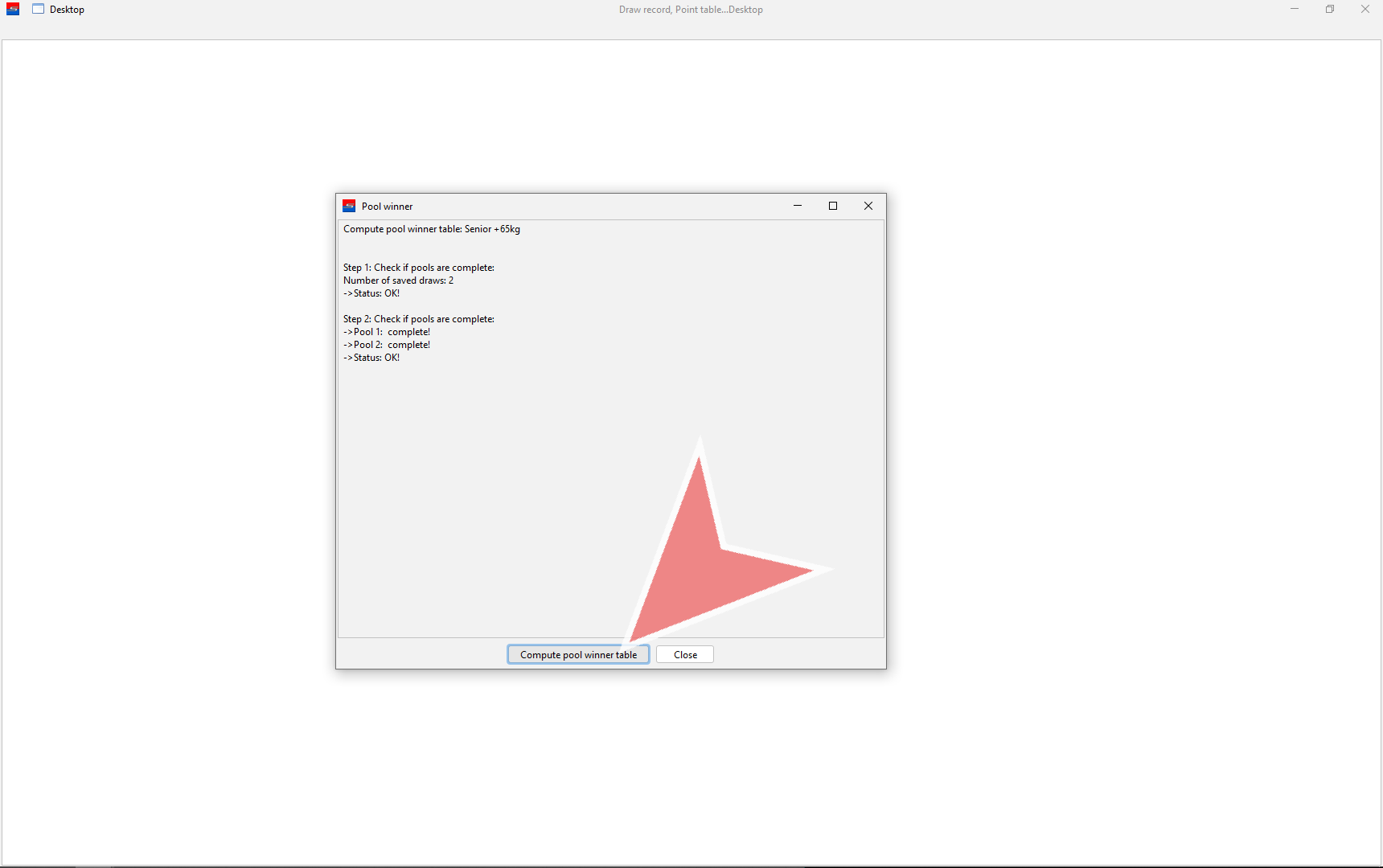
When 2 pools have finished, then you can compute the pool winner in the edit tab in the menu bar.


The system will perform a status check to see how many pools have ben completed with a minimum of 2 being the minimum requirement. Click compute pool winner table to proceed.


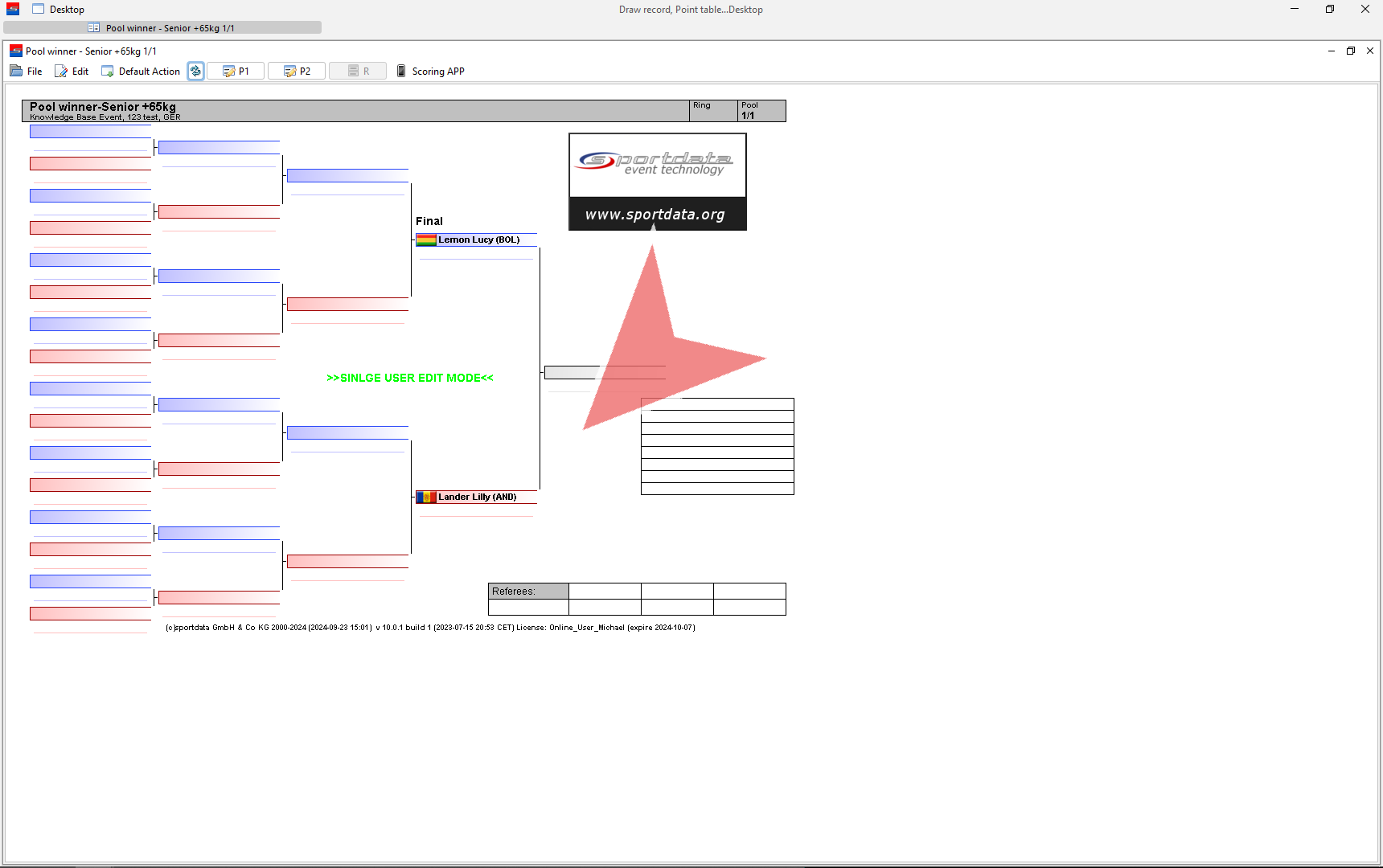
Once the pool winner is generated it will be in a single user edit mode which means only you can see this pool winner table.


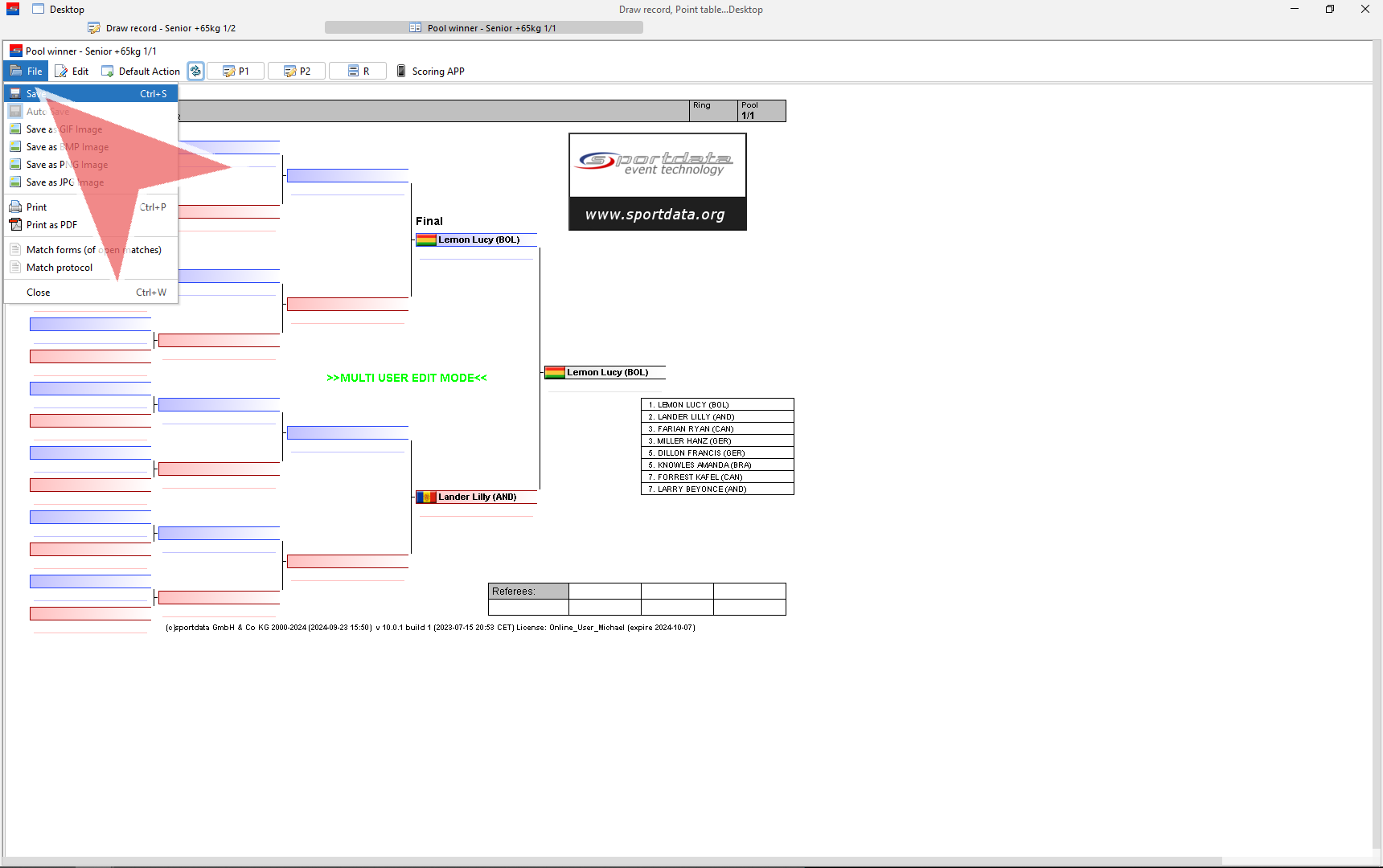
To change the single edit user mode, go to file and save the pool winner table. You will then see the multi user edit mode in green which means it can be seen at any computer in the network.


Upload Documents to Your Event Page

Interactive Demo

Make it easy for your participants to find all the relevant documention required for the event by uploading them to the event page. This may include documents like the event bulletin, shuttle pick-up times, competition timetable, waivers, and the result book. The format is either a PDF or a URL.

Go to Event Page

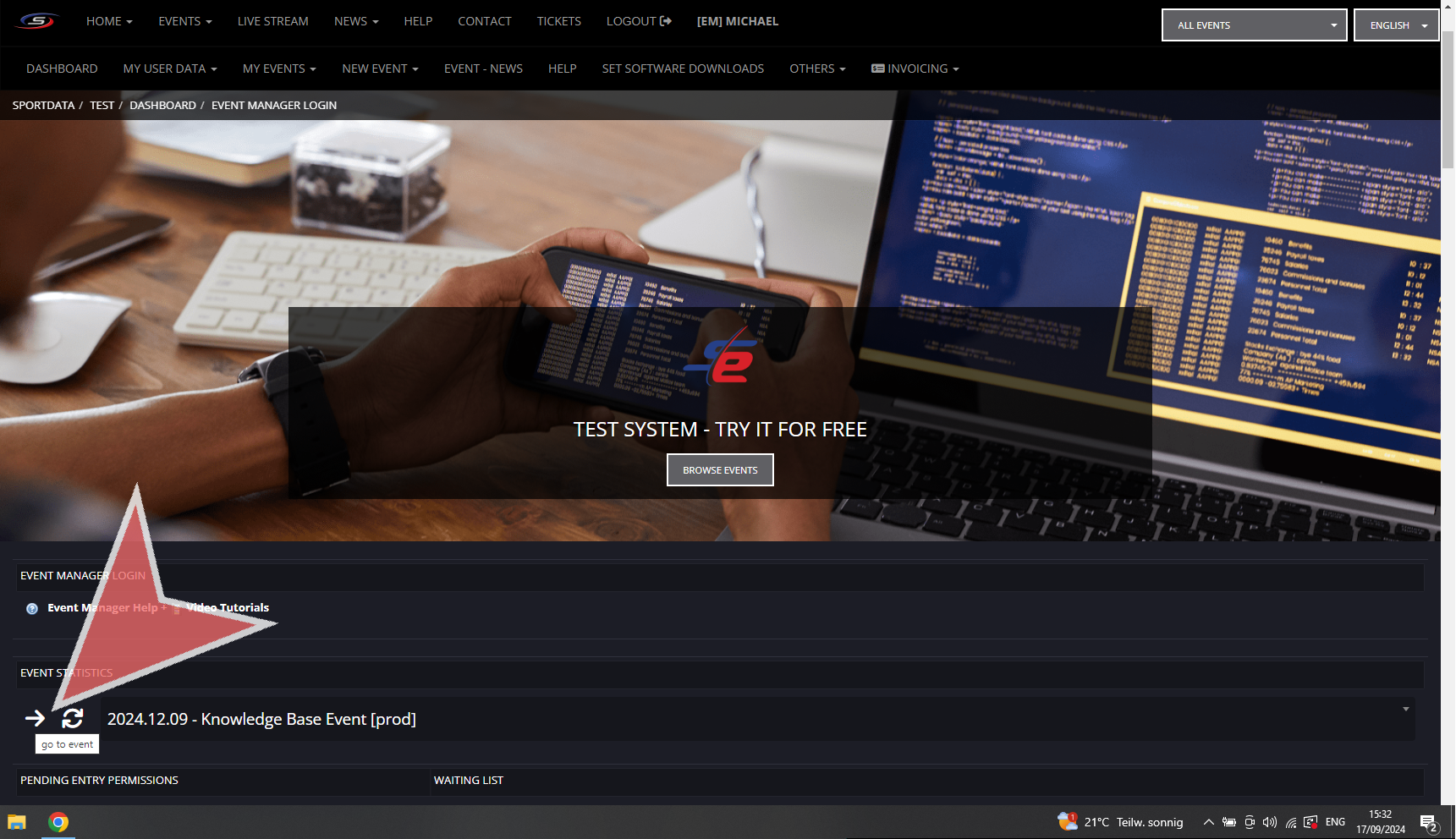
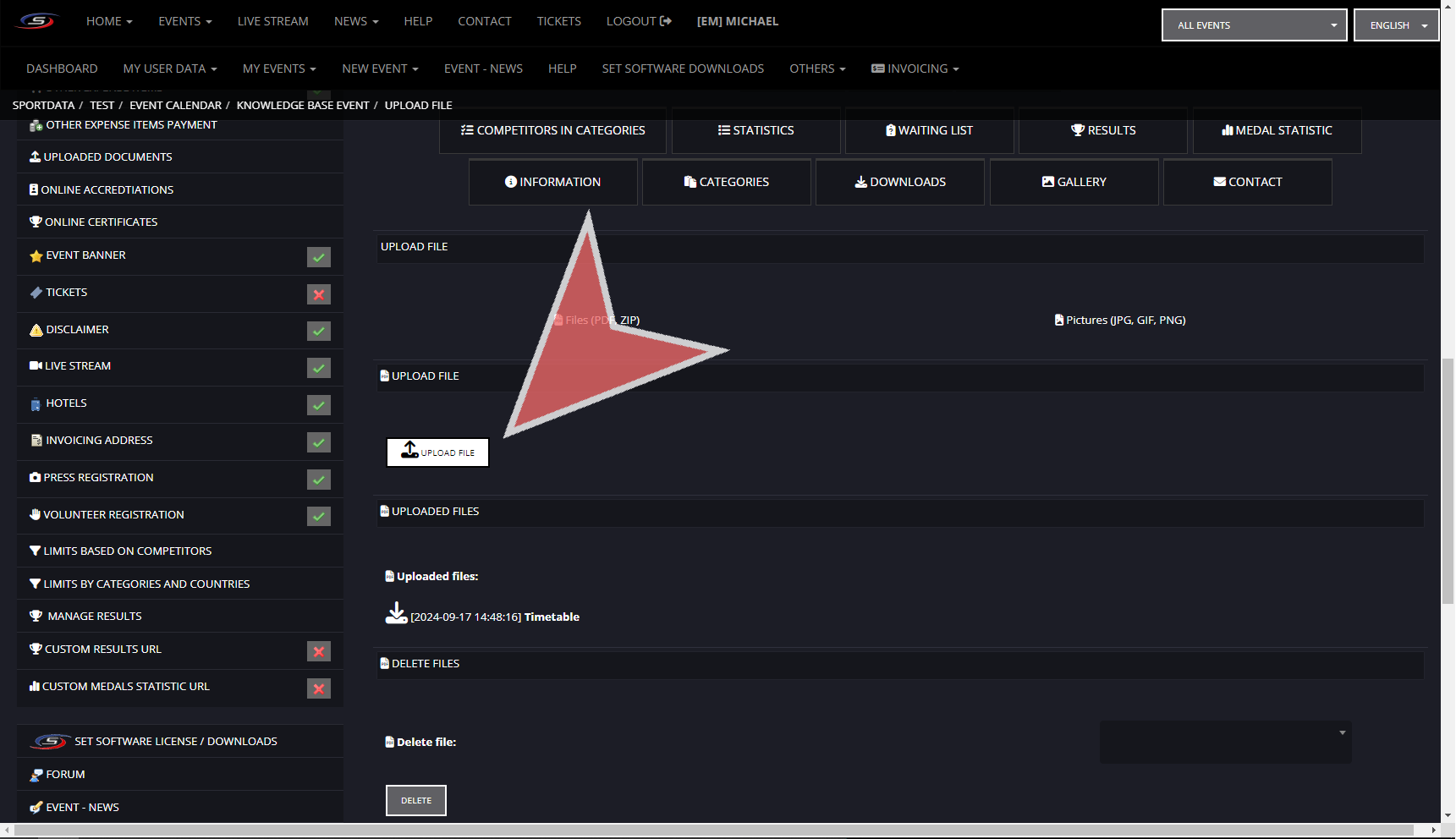
After logging in to your event manager account, select your event and click on the arrow button

Upload File

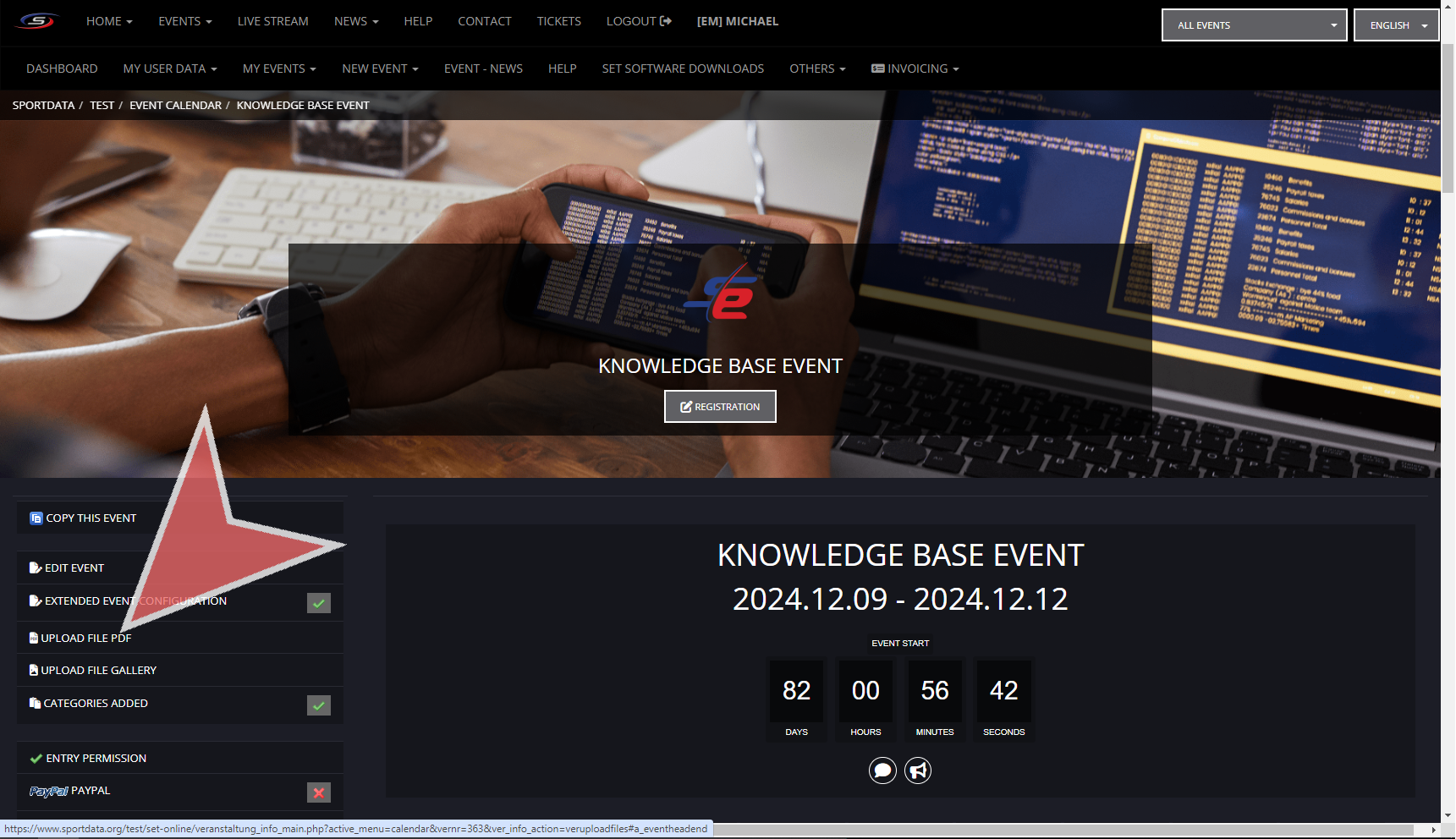
On the left hand side, you will find the event page settings. Click on the “UPLOAD FILE PDF” button.

Click on the “UPLOAD FILE” button.

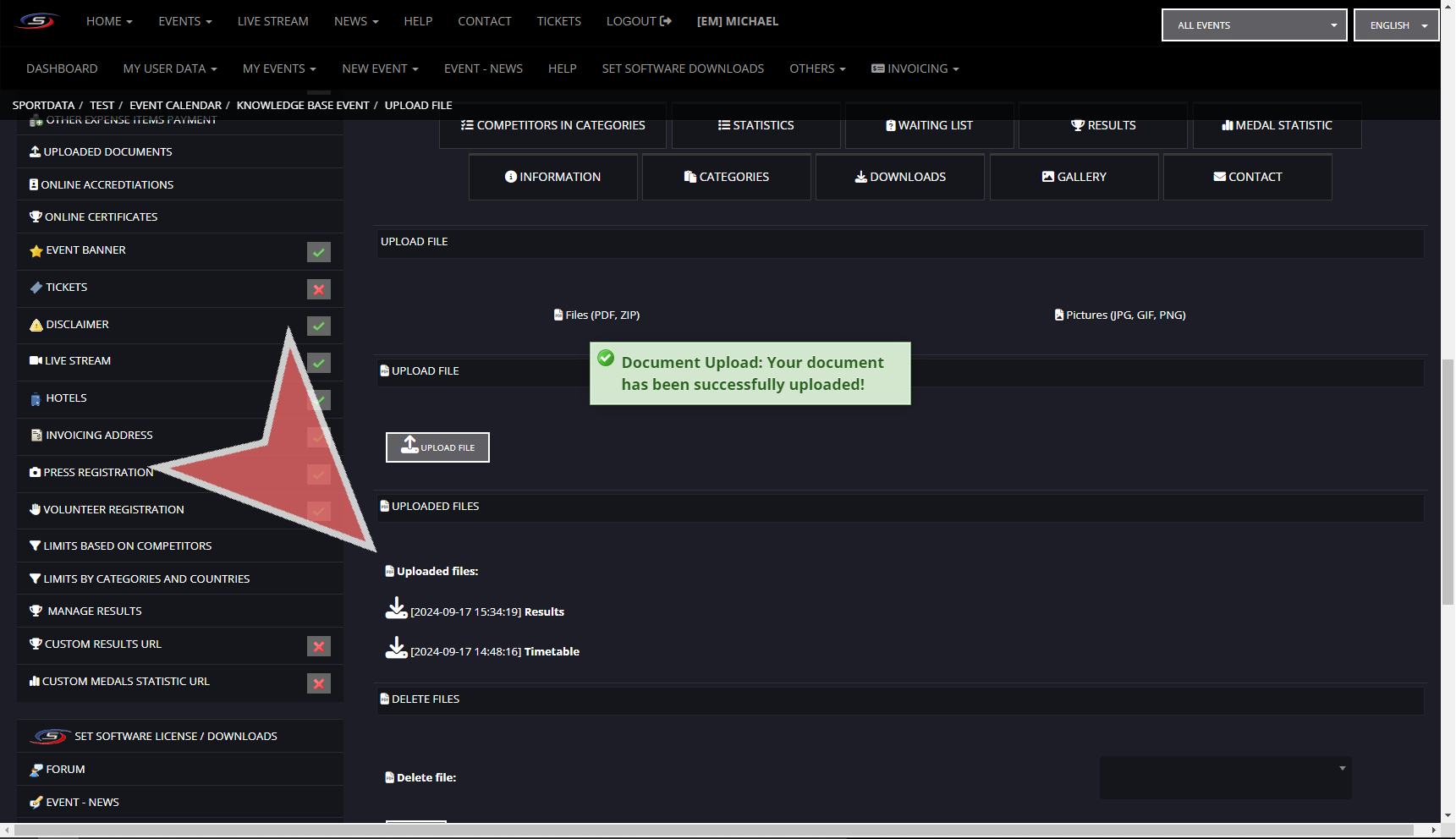
Give the file a name and either upload a file by clicking choose a file or enter a URL link. Afterwards, click submit to upload the file to the document page of the event page.

Confirmation will appear after completion and you can now see it under the uploaded files section.

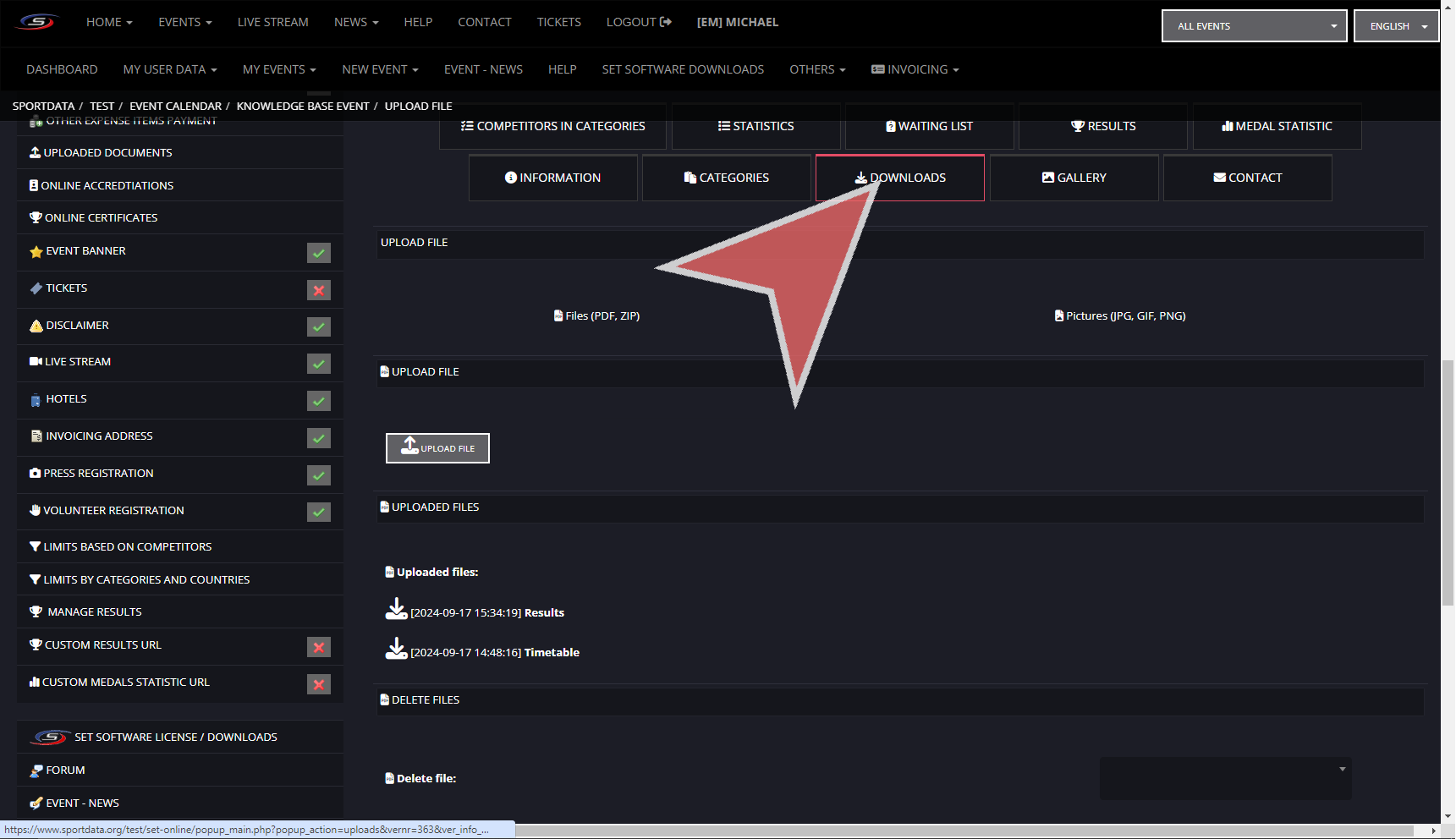
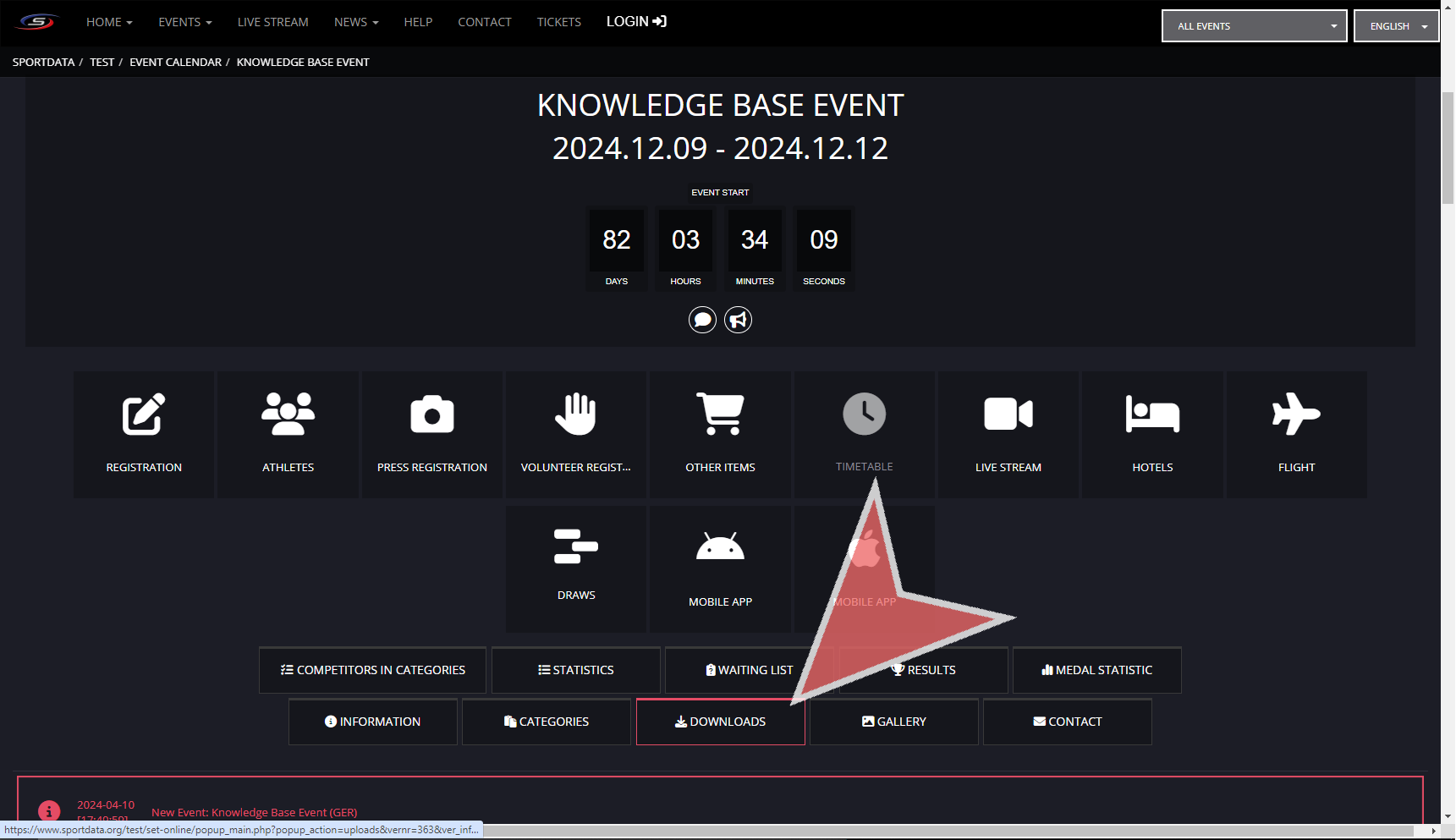
To see the document as seen on your event page, you can click on the “DOWNLOADS” button.

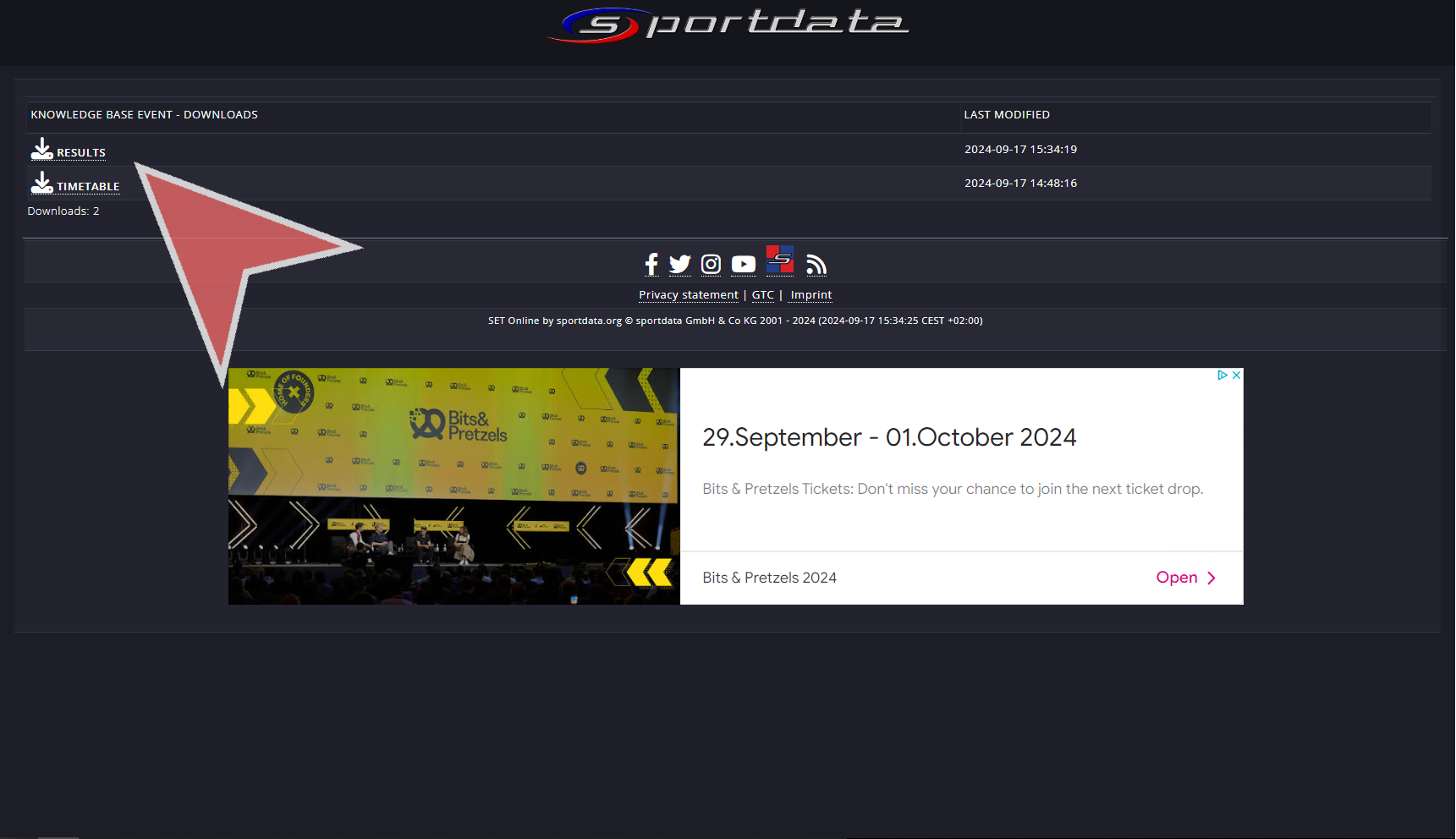
Click on the document to see what you have just uploaded.

Generate an Entry Fee Report and Upload Online

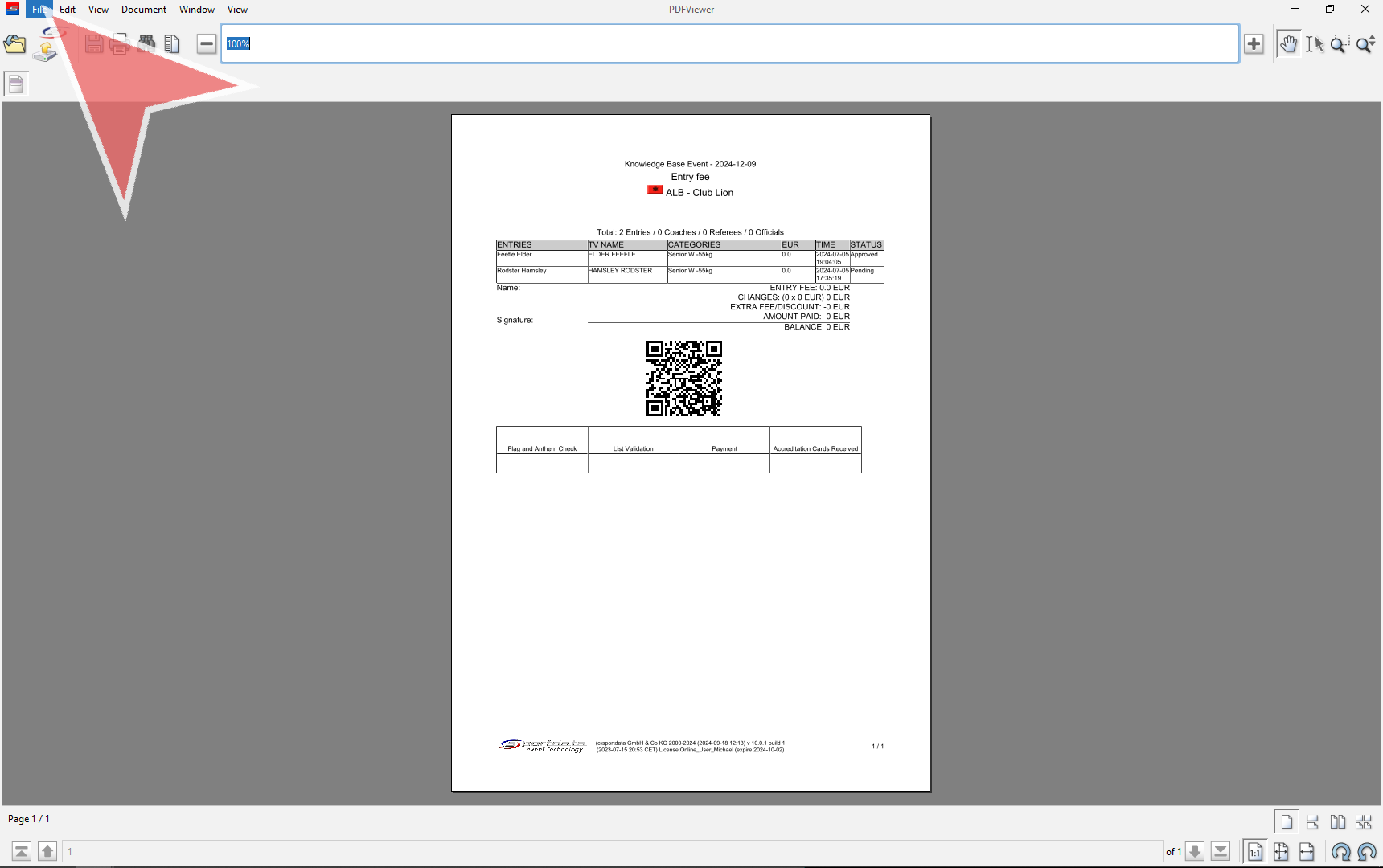
This essential document provides a detailed overview of club entries, payments, and any additional verifications needed at an event. It lists each participant’s name, preferred name, categories, payment amount, time of payment, and current status in the event database, with “pending” as the default.

For faster onsite registration, simply connect a barcode scanner to SET OVR and scan the club’s Entry Fee Report QR code, instantly approving the status of their athletes within seconds. Additionally, you can display flags, play anthems, issue accreditation badges, and collect signatures to confirm the accuracy of all details.

Interactive Demo

How to generate an entry fee report

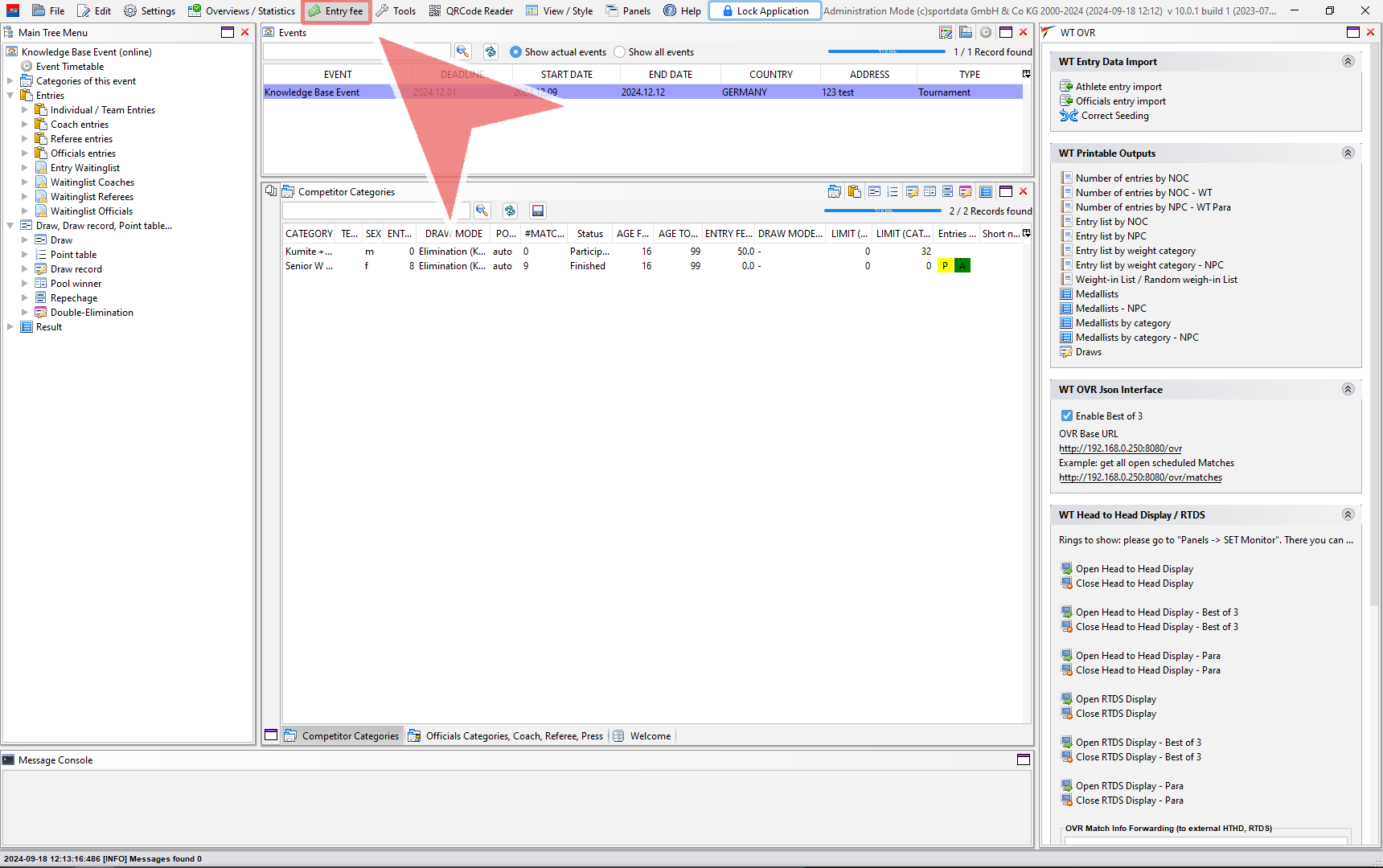
In the menu bar, you can find the entry fee tab.

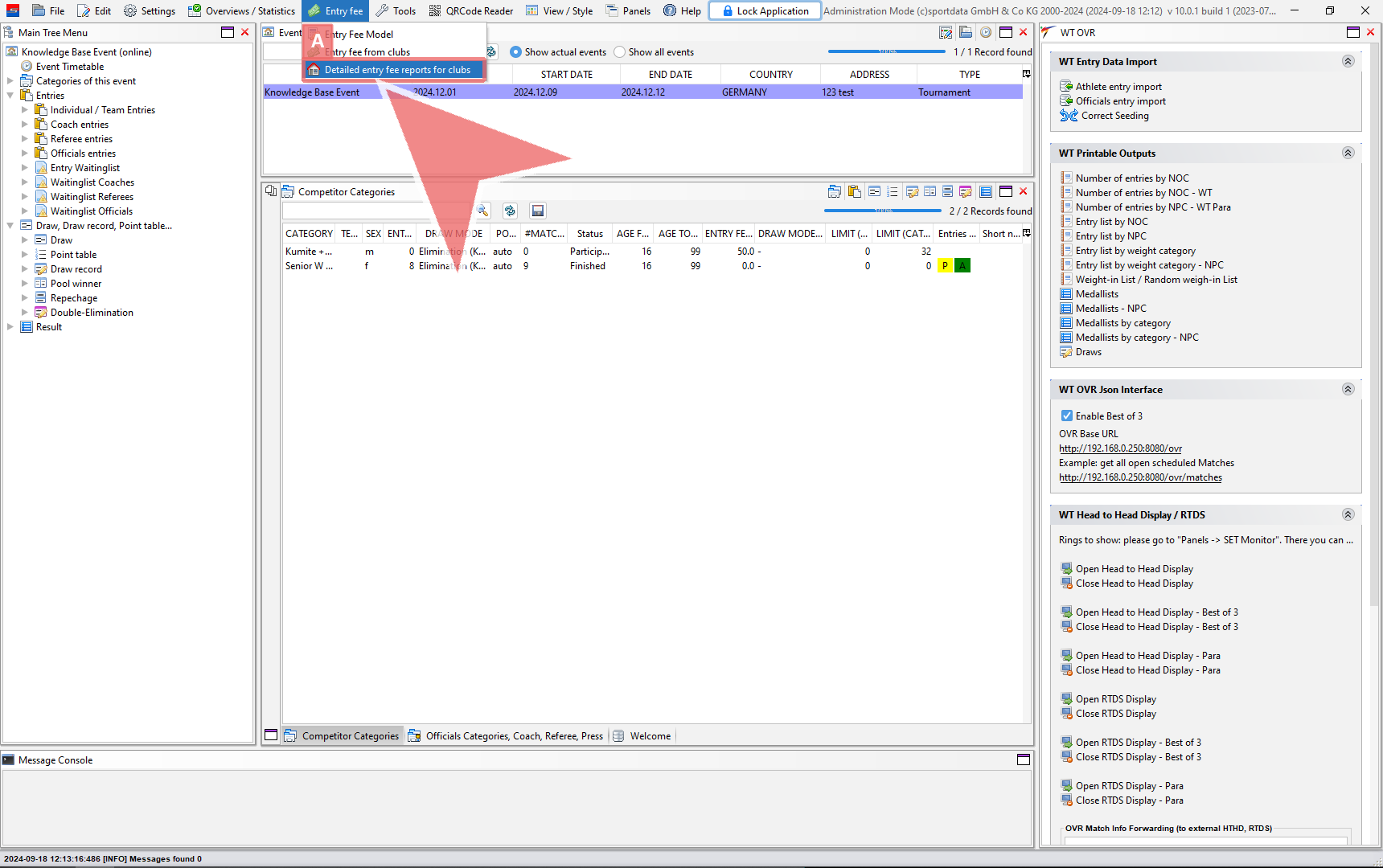
Click on the ”Detailed entry fee reports for clubs“.

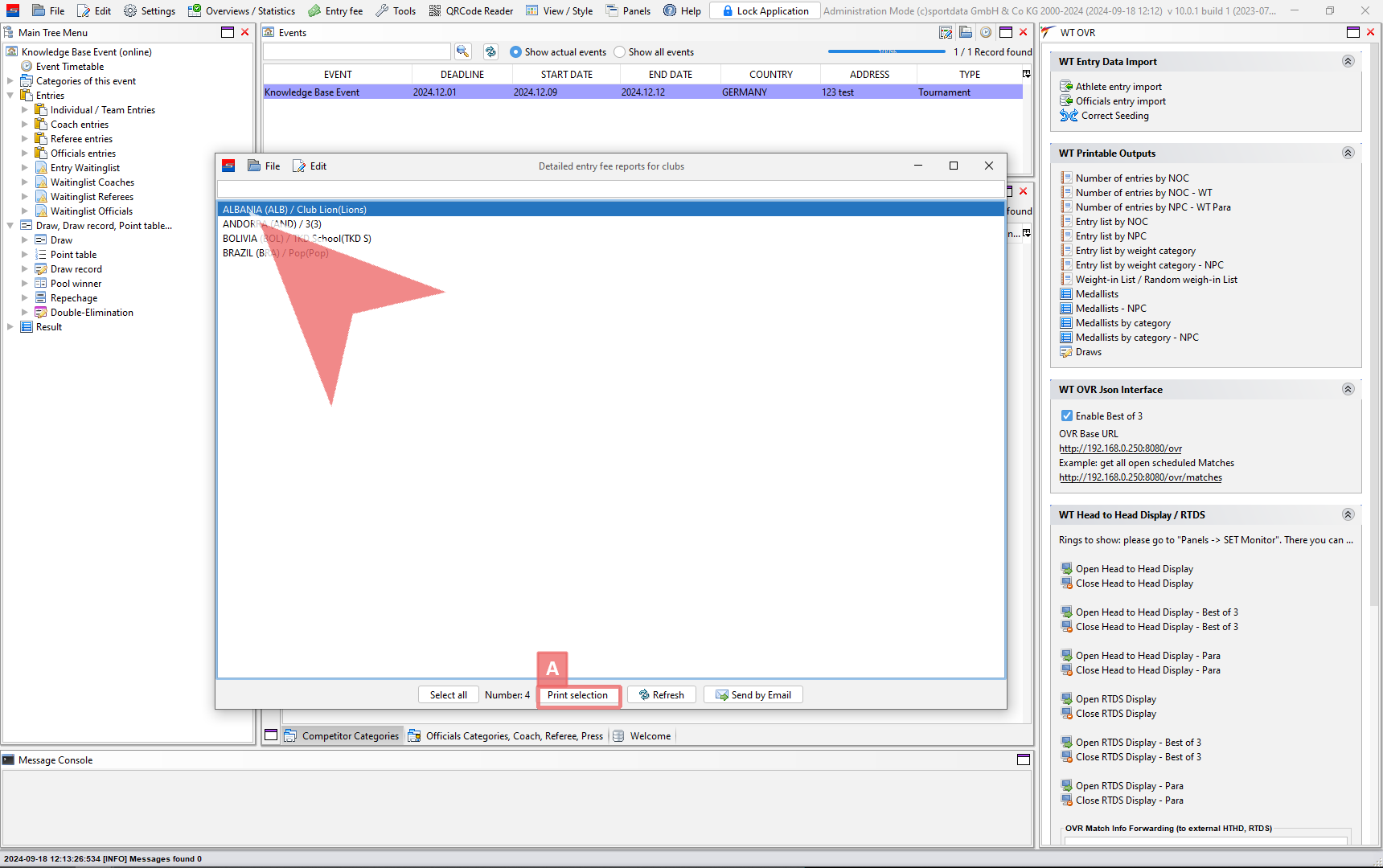
Select the desire club by double clicking the club name, or click print selection.

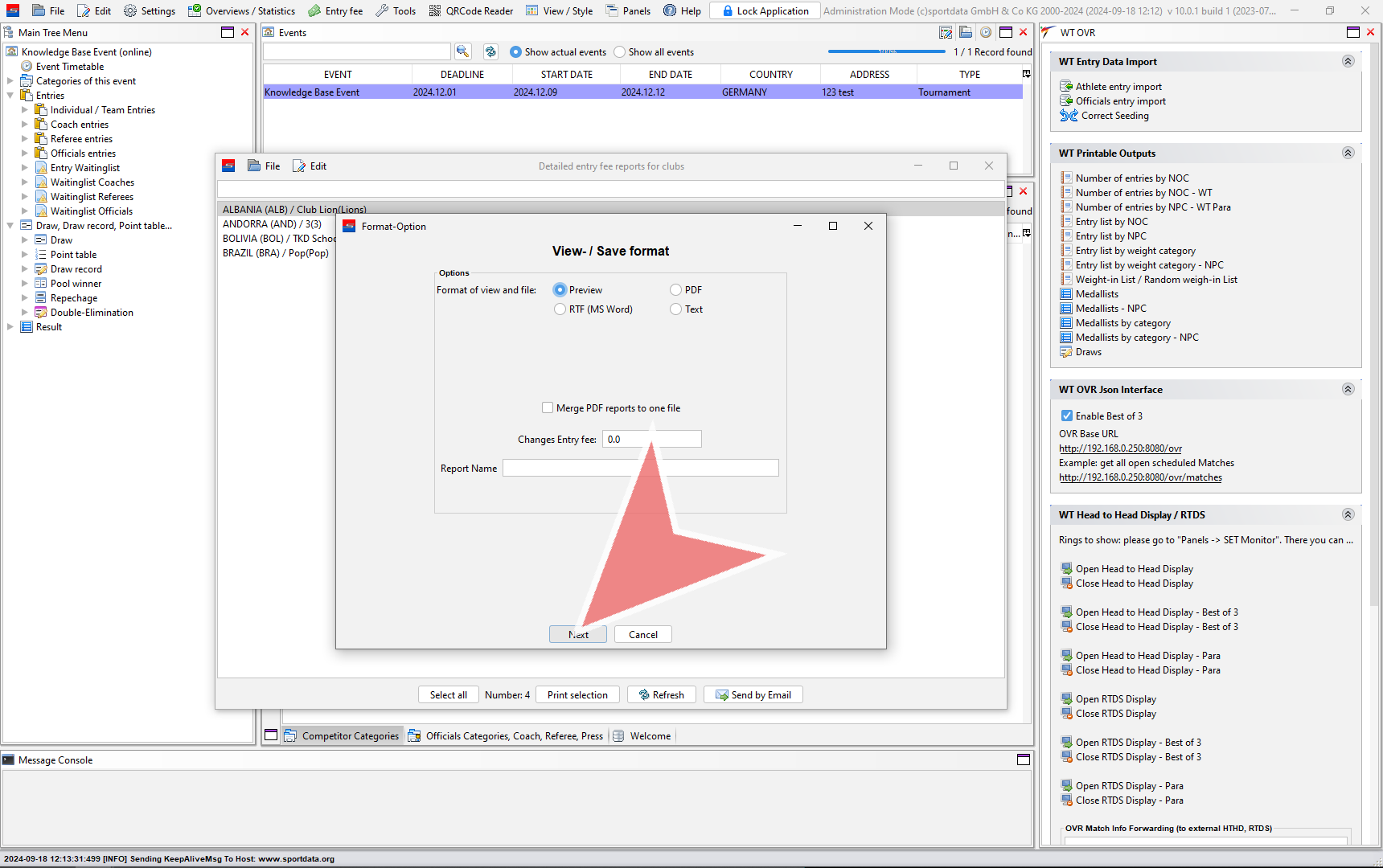
Now, select the “Format-Option”, if you have multiple clubs you can choose to merge them into one file by clicking the “merge PDF reports to one file”.

To print the entry fee report or export it as a PDF by going to the file tab in the menu bar.

How to upload an Entry Fee report

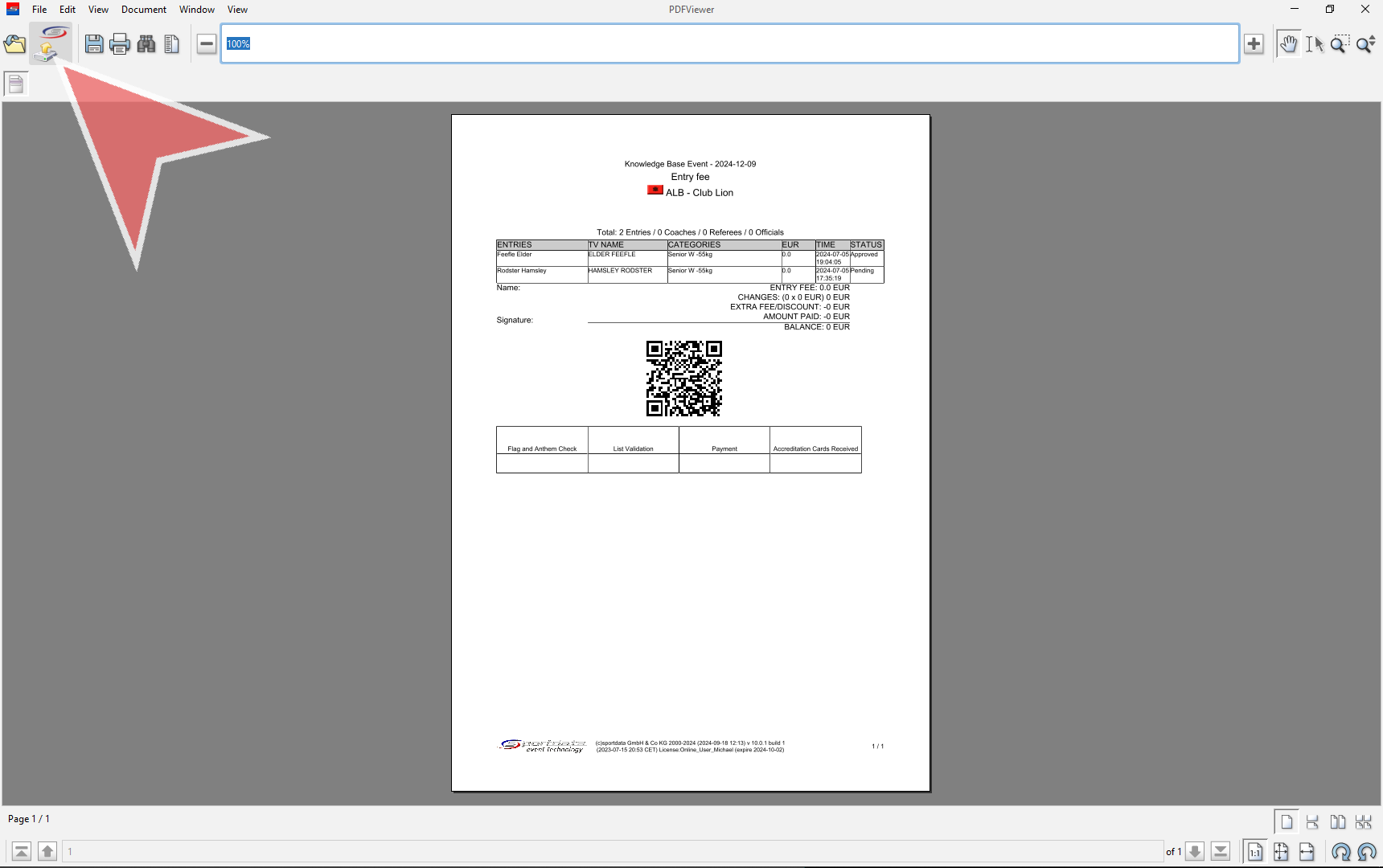
To upload the Entry Fee report online in the download section, click the button with the Sportdata logo.

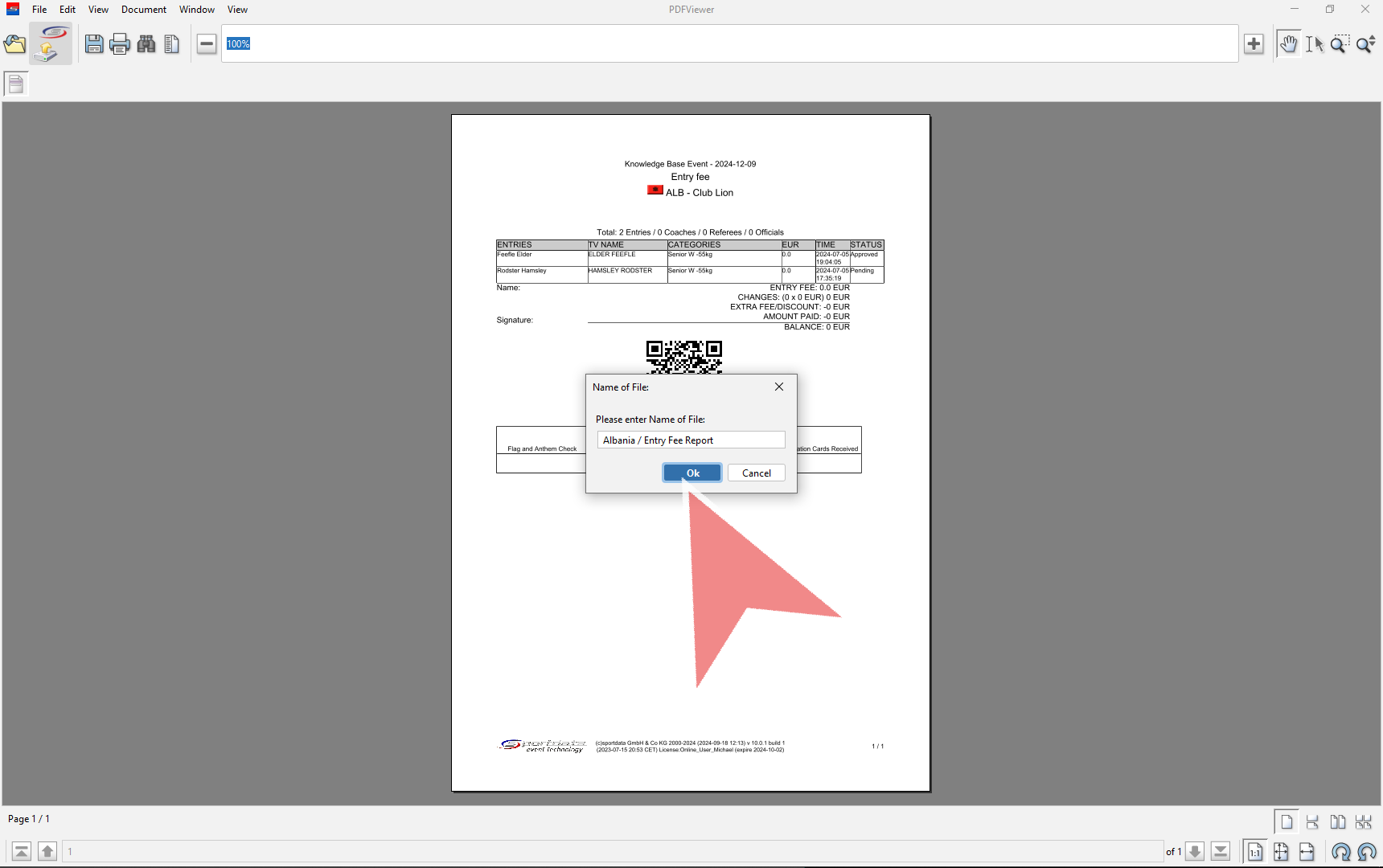
Fill out the field labeled “Name of File” and press okay.

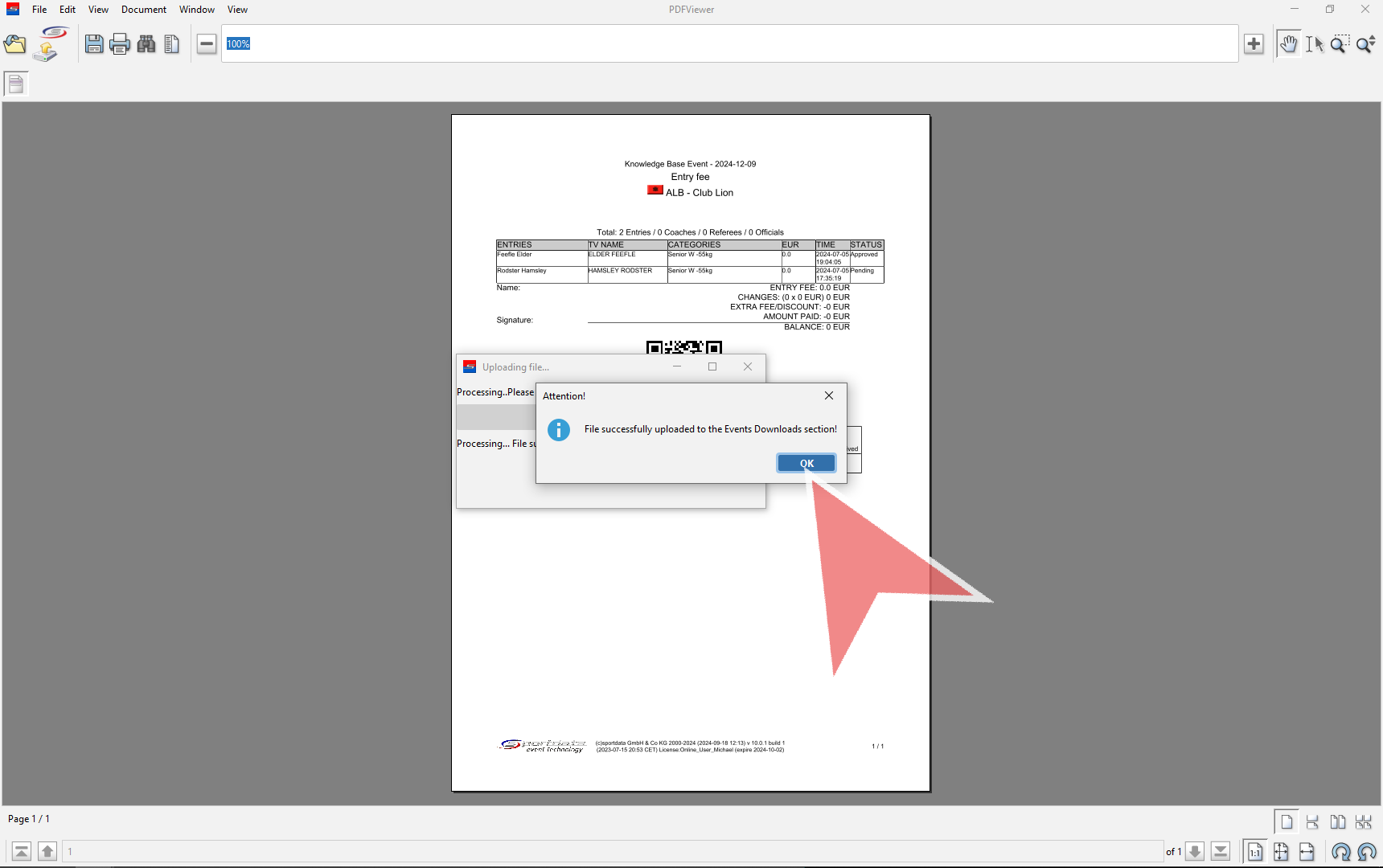
The “Attention!” pop up will appear to confirm that the file was successfully uploaded. You can now check the event page online.

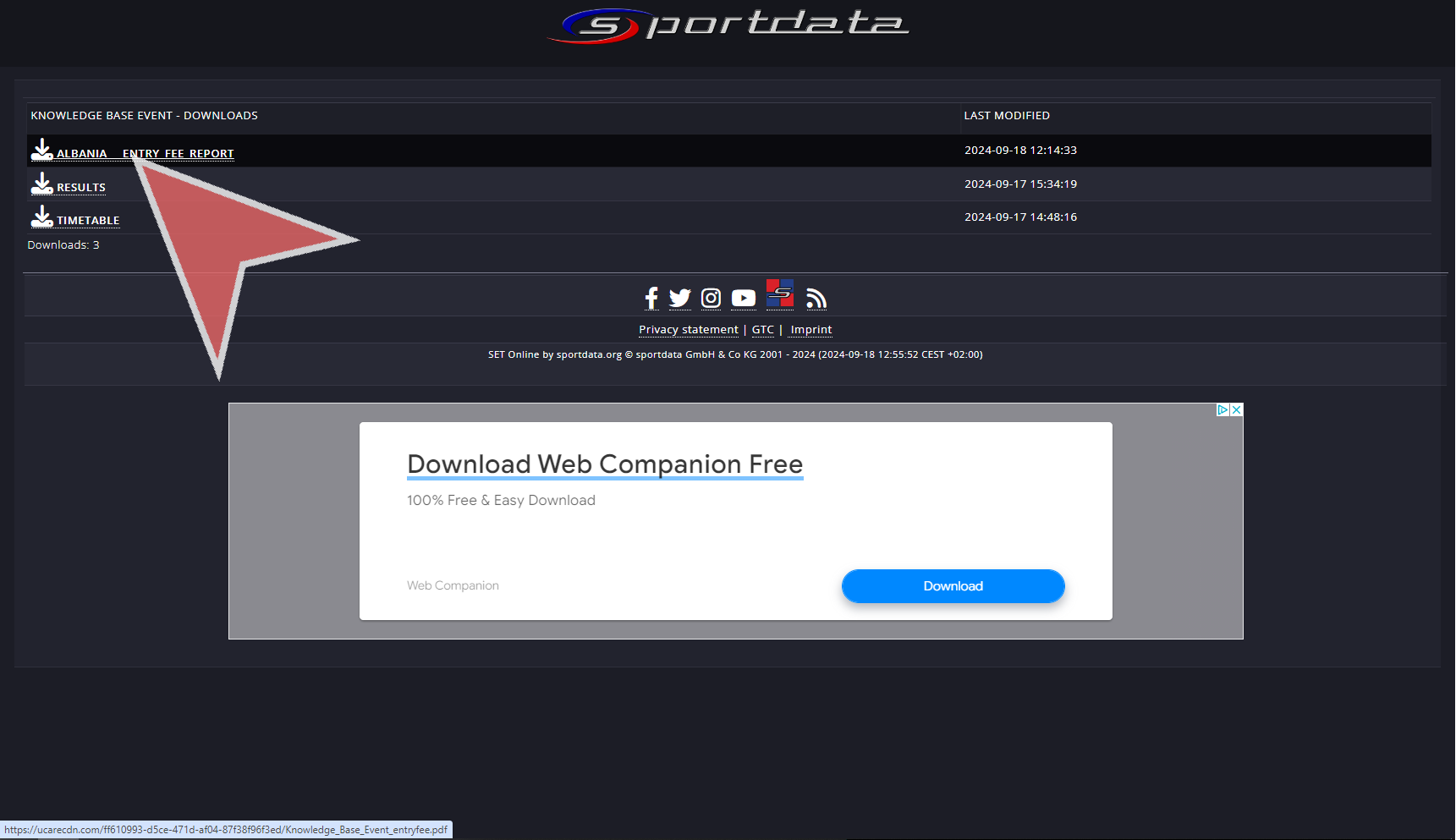
Navigate to the “DOWNLOADS” section on your event website.

Find the entry fee report name and click on the file named “ALBANIA_ENTRY_FEE_REPORT”.

Create an Event Manager Account

Interactive Demo

 
How to use an Event Manager Account in the Test System

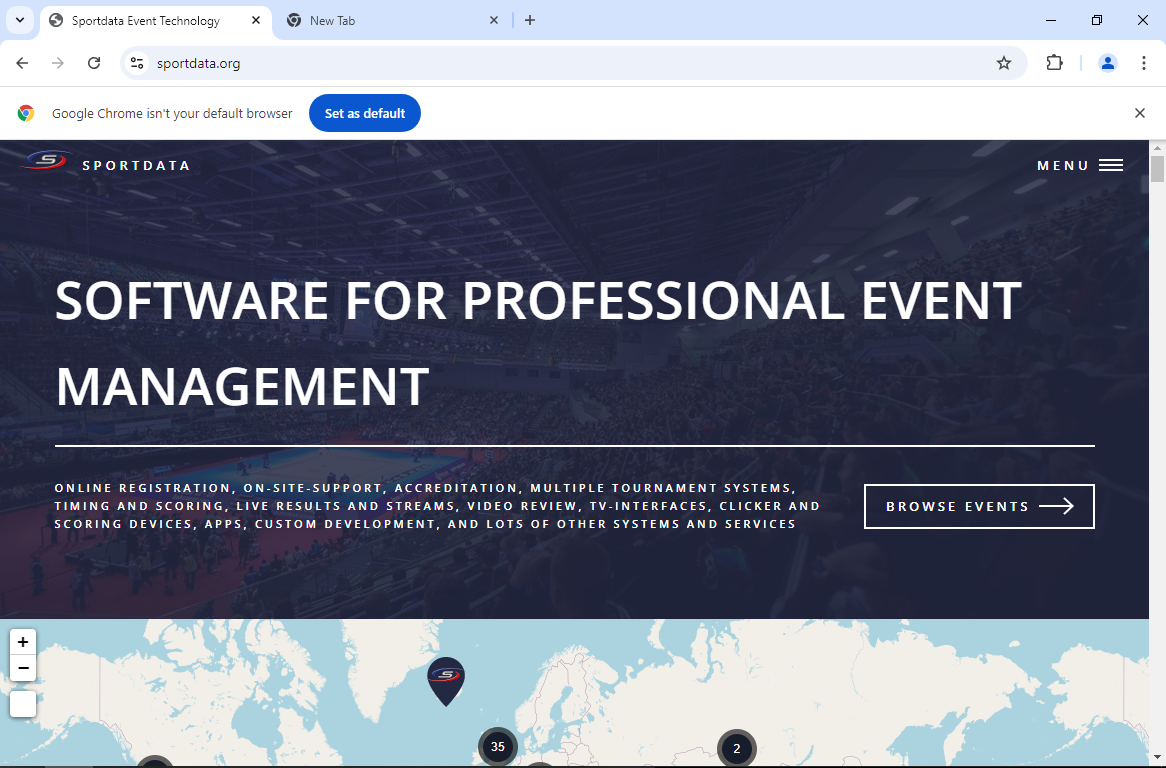
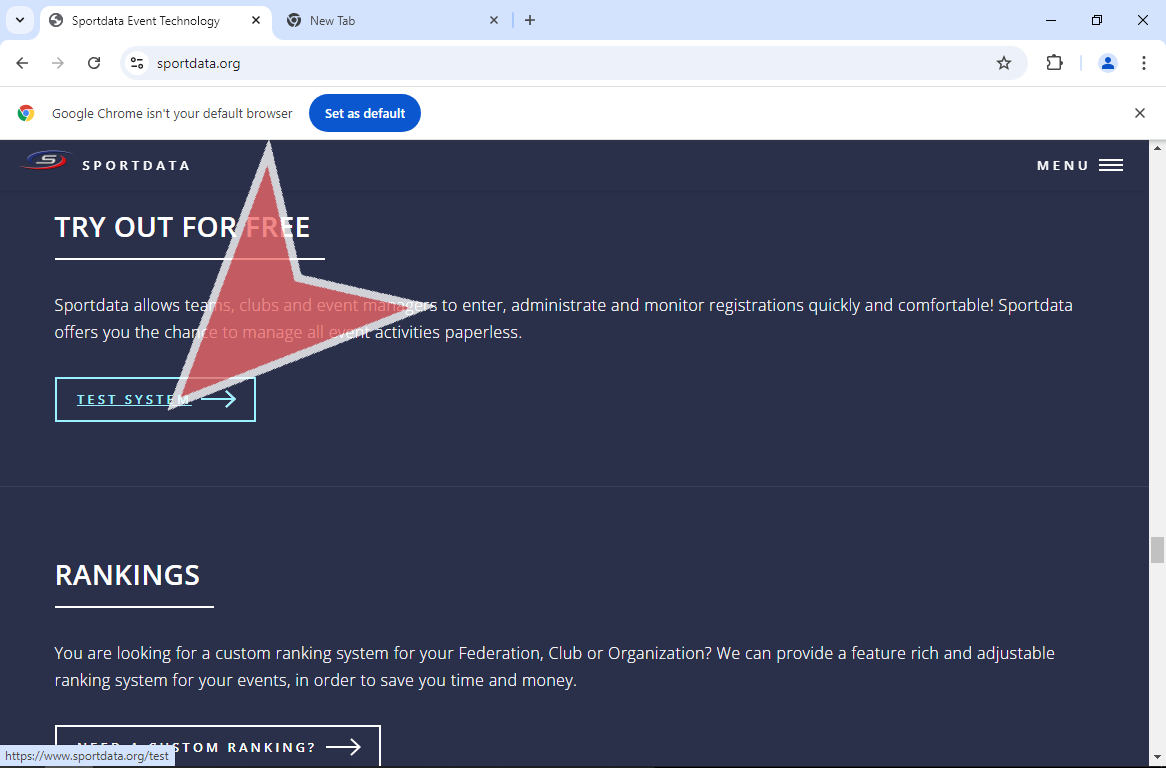
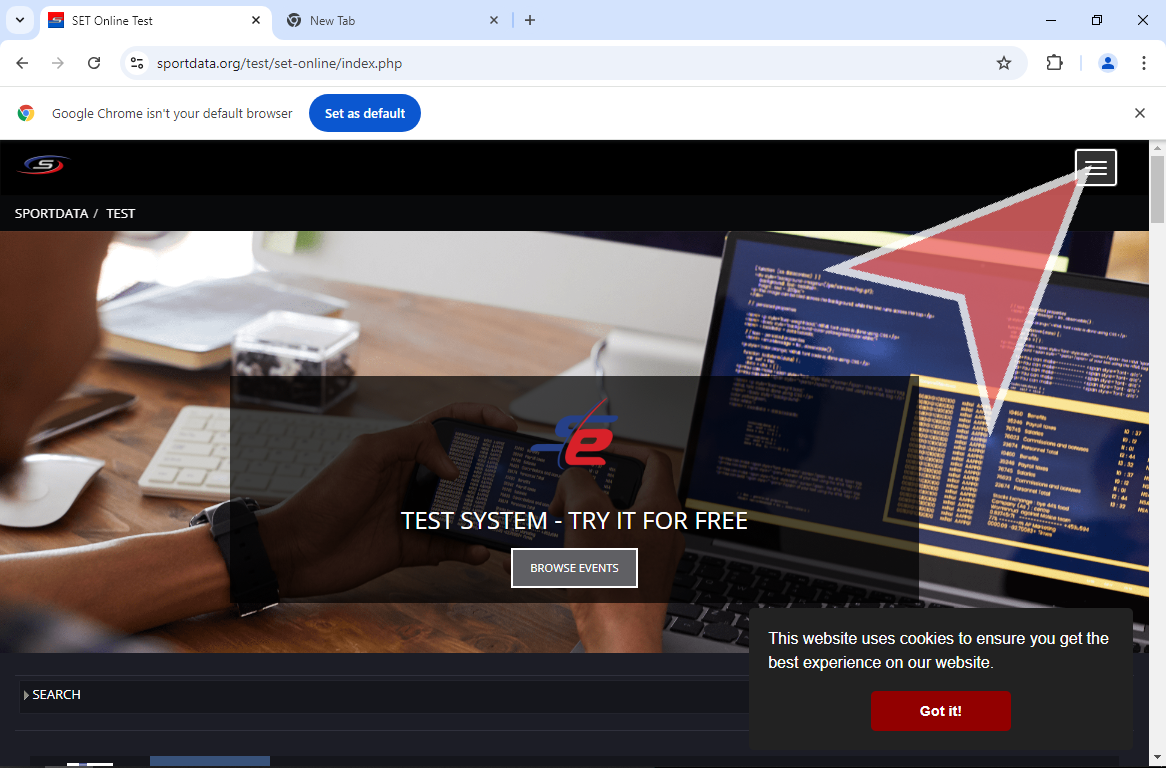
To get started, go to sportdata.org and scroll down to Test System


In the next page, follow the link that says “TEST SYSTEM”.


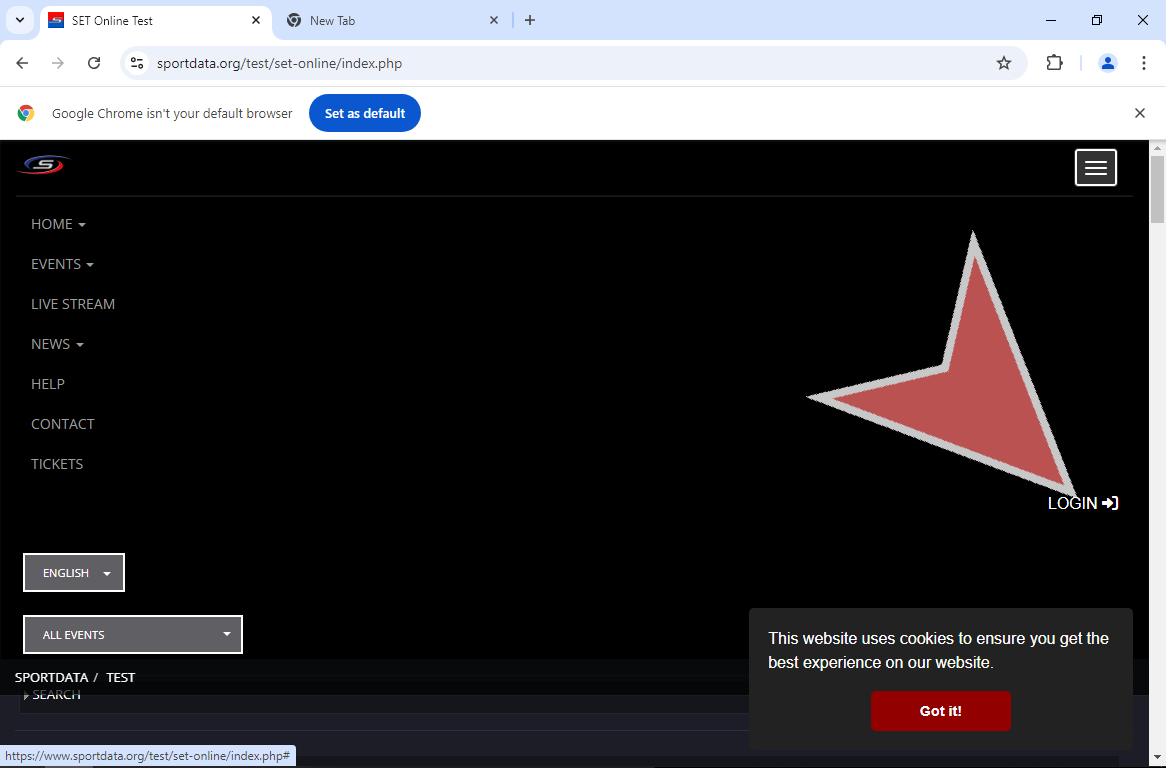
Find, the Login button in the nav bar or in the drop down menu depending on the size of your window.


Now, click on the “LOGIN” button.

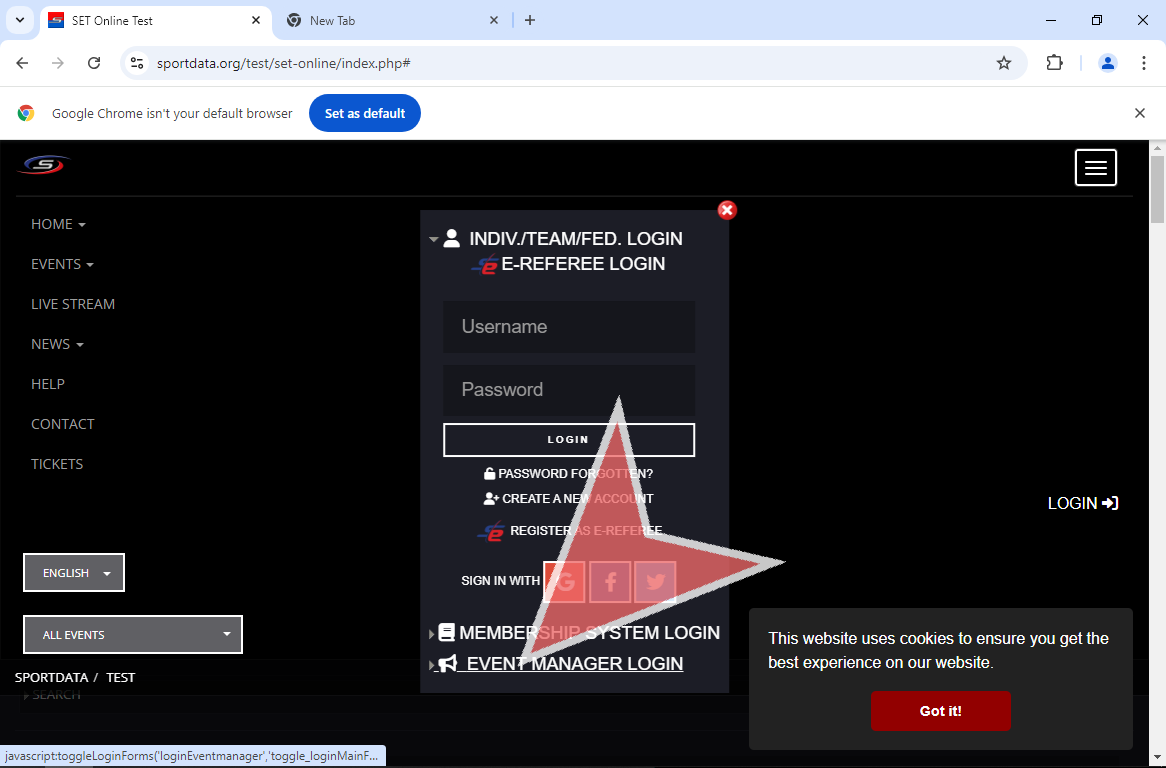
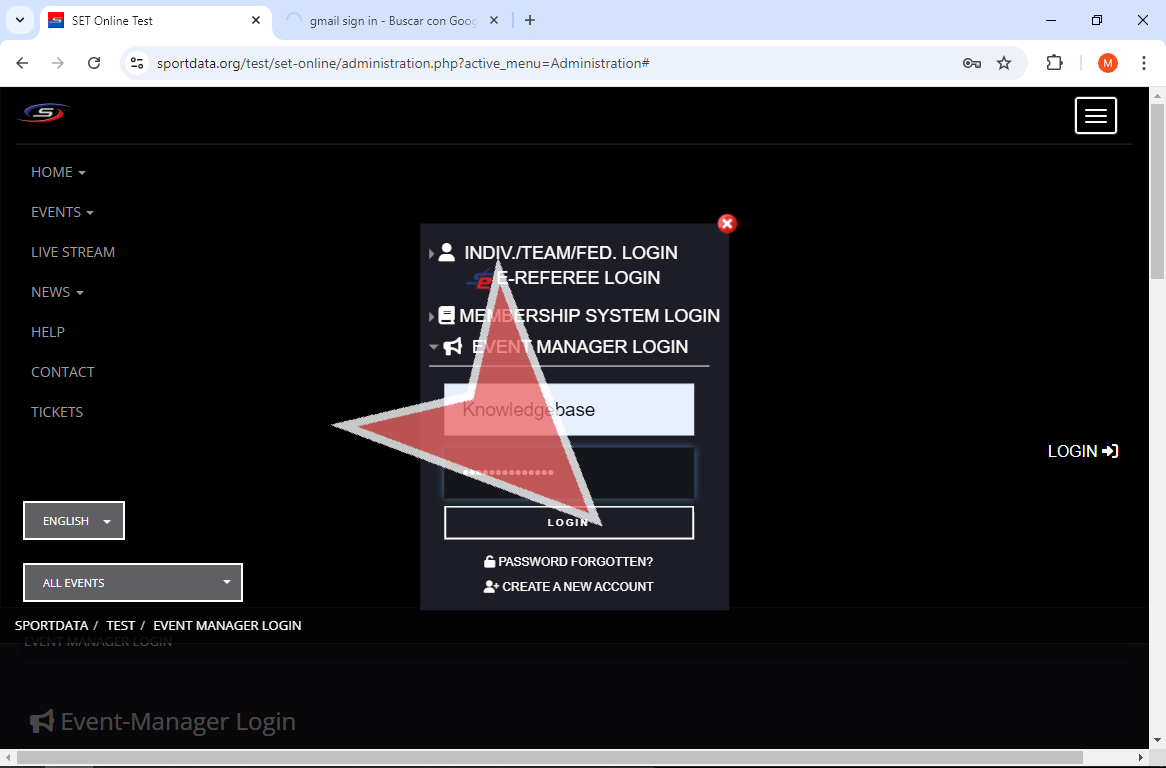
From there, click on “EVENT MANAGER LOGIN”.


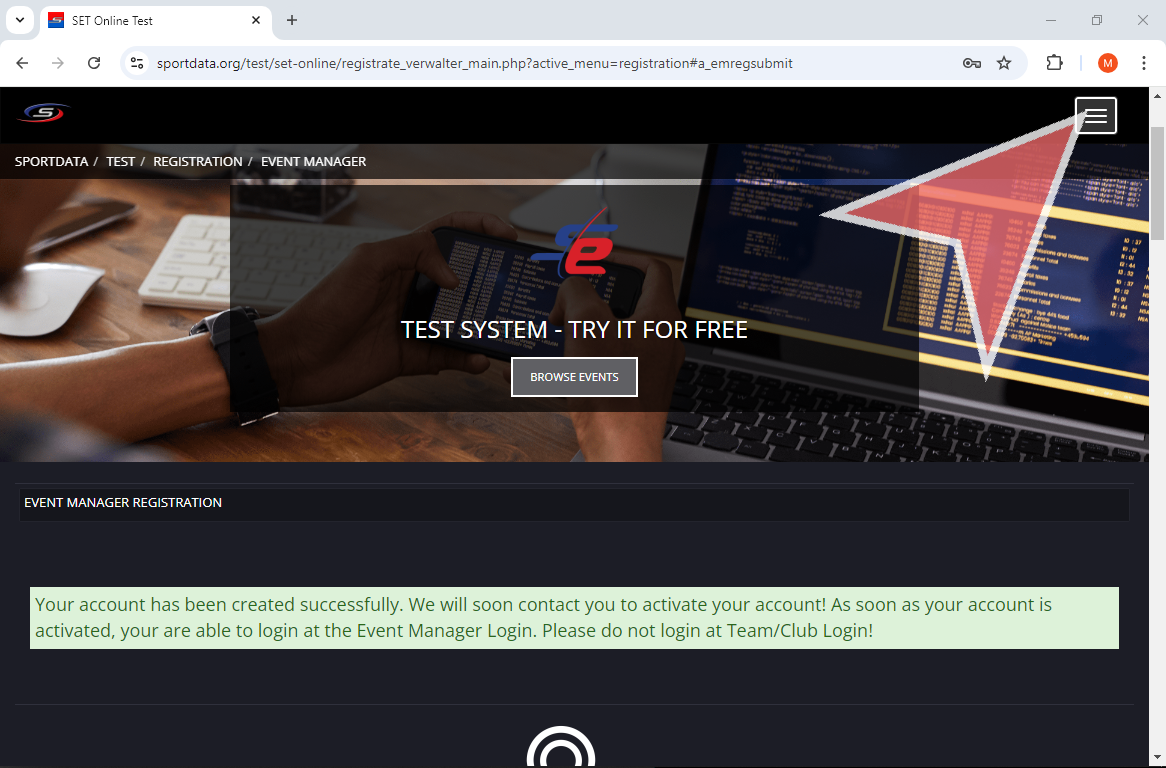
Next, click on “Create a New Account”.


Fill in the fields with the relevant information, and ensure to remember your password as you will need it to Login to your account.


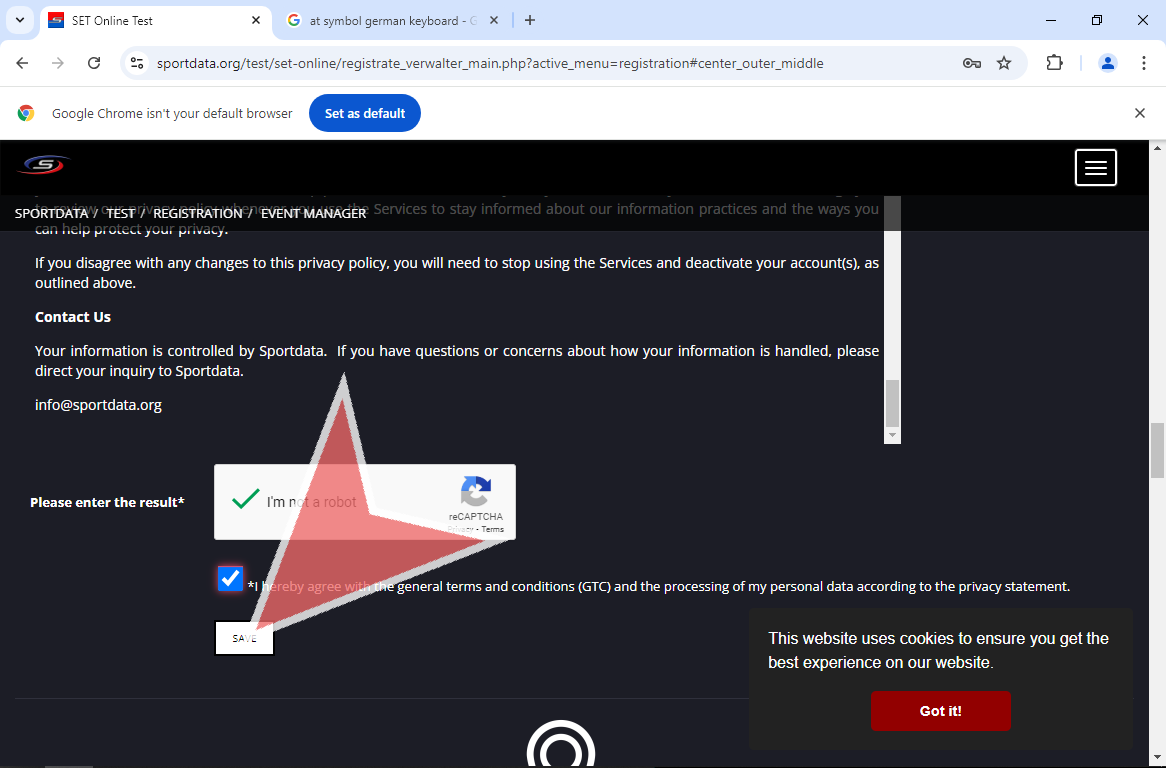
Read the “General Terms and Conditions & Privacy Policy”.


Click on the “Save” button to agree to the conditions.


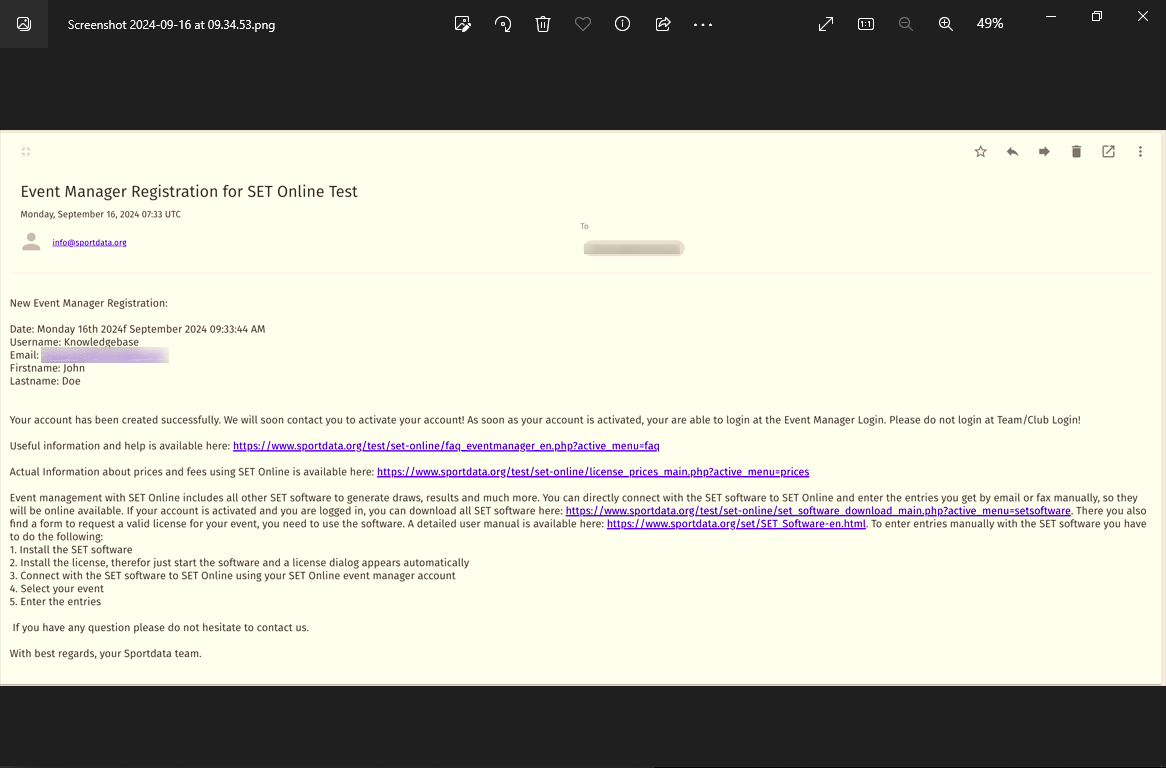
An email will be sent to with your account information. Additionally, a second email will be sent confirming the activation of your account. Then, you will be able to Login to your Event Manager Account for the specific system for which you created it.


Example of the account confirmation email where you have general account information, prices, and instructions to download and install the SET OVR to your computer.


Example of activation email. Once you have received this email, you may login to the system for which you created this event manager account.


Now, go back to sportdata.org, click the drop down button that appears to go to the login.


Now, click on the “LOGIN” button.


Click on “EVENT MANAGER LOGIN”.

Now, go back to the previous page and click the “Login” button.


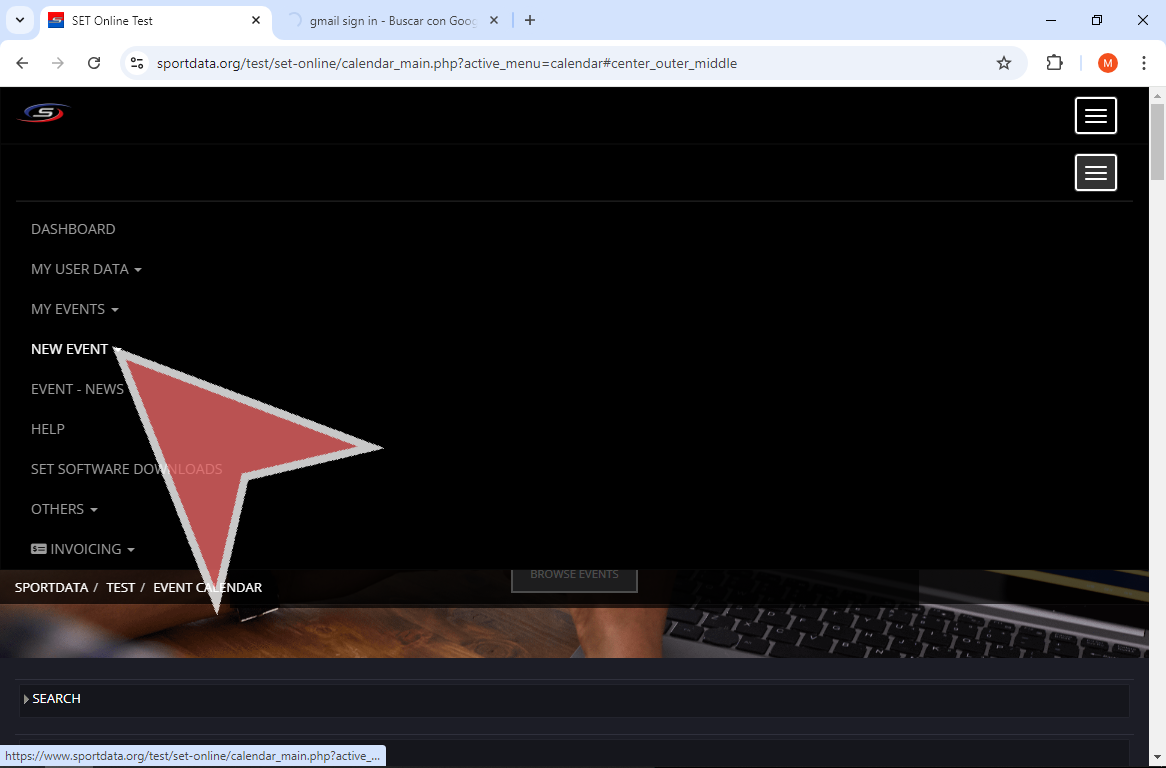
Select “NEW EVENT ” from the menu options to begin your first event.


Fill in the required information and confirm the settings to customize your event. For more information, check out our article about creating events on our online cloud.