Ju-Jitsu is a versatile martial art and combat sport that combines striking, grappling, throwing, and submission techniques. Governed by the official Ju-Jitsu International Federation (JJIF) rules, competitions require accurate scoring, penalty management, and precise timekeeping to ensure fair and efficient match management.
The JJIF Ju-Jitsu Scoreboard and Point Panel is a digital scoring solution designed to help operators manage all aspects of a Ju-Jitsu match. The software allows operators to control the scoreboard, update points, record penalties, manage match time, display athlete information, and ensure that official match data is accurately presented to referees, athletes, coaches, and spectators.
This guide provides an overview of the Ju-Jitsu Scoreboard features and explains the key functions required to successfully manage professional JJIF competitions, including match setup, scoring inputs, time management, penalty recording, and result confirmation.
Download Software -Interactive Demo
Download the SET OVR to get the free scoreboard or use our interactive demo to follow along with the article . First, select your operating system, then download the installer, and during the set up you can select SET Point Panel for just the scoreboard. Also try our SET OVR click it as well to learn how to create entries, draws, draw records, timetables and more for free.
How to operate JJIF Duo Scoreboard
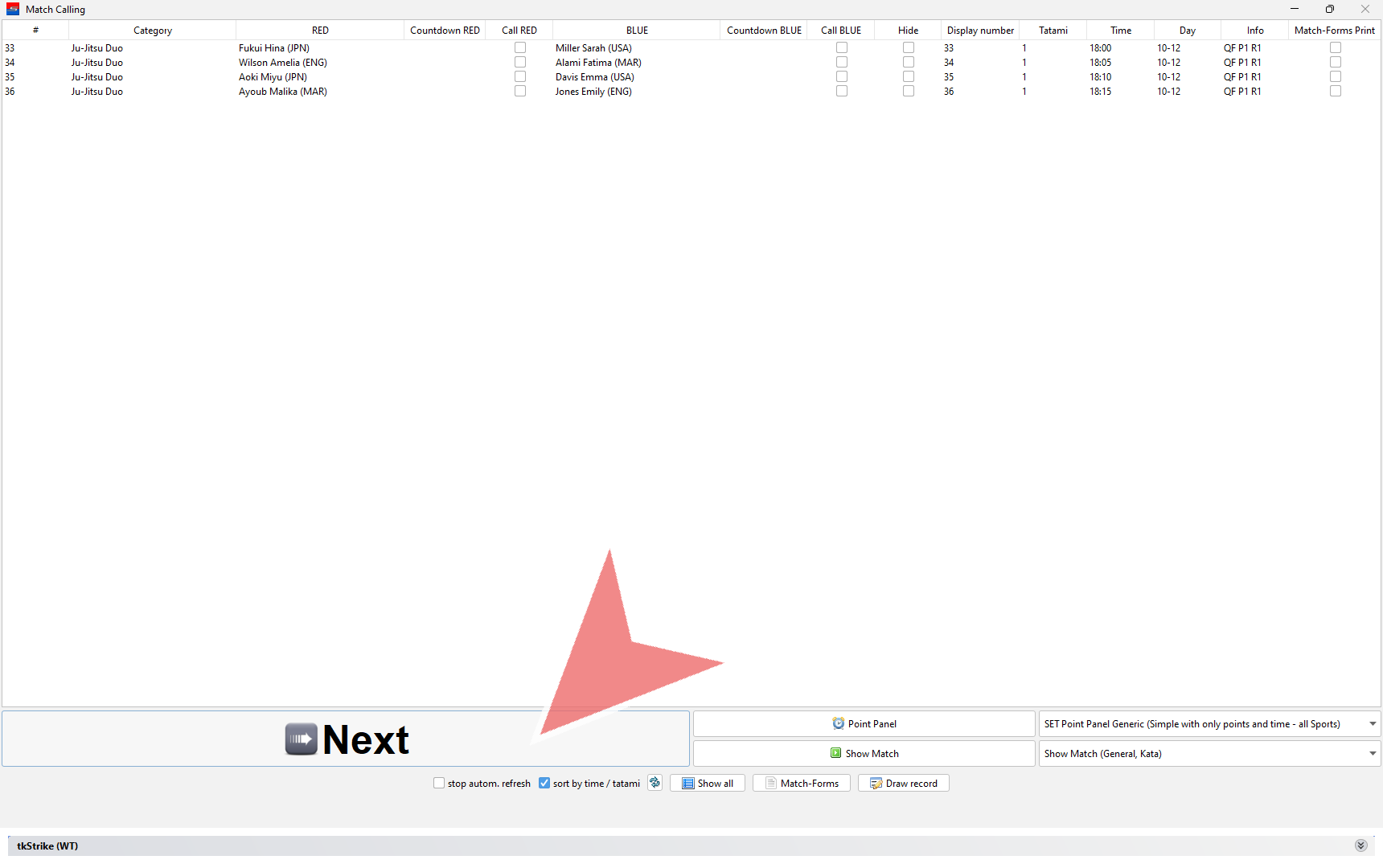
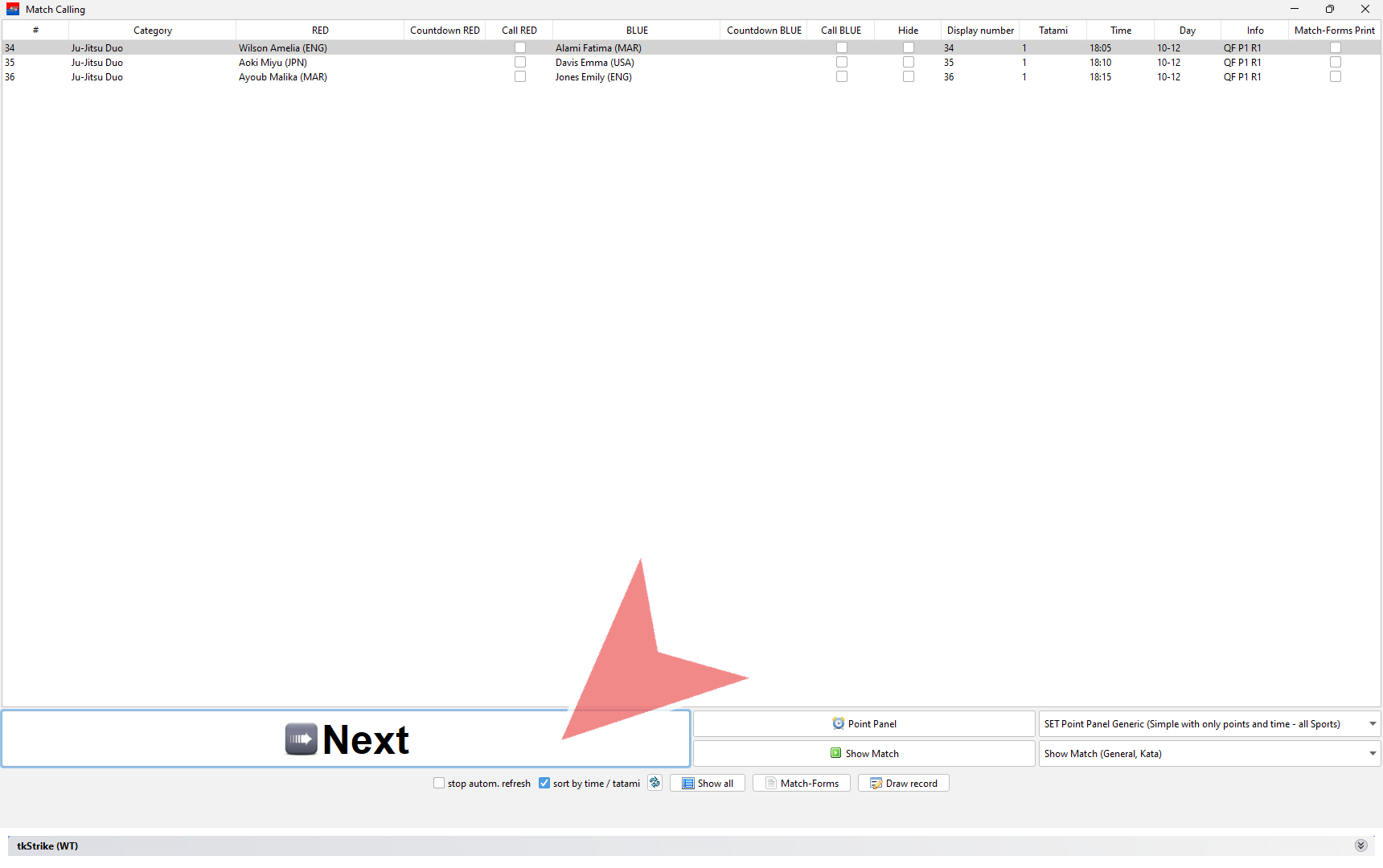
In the match caller you find all matches that are scheduled for your Mat. Click on the „Next“-button to open the next match.
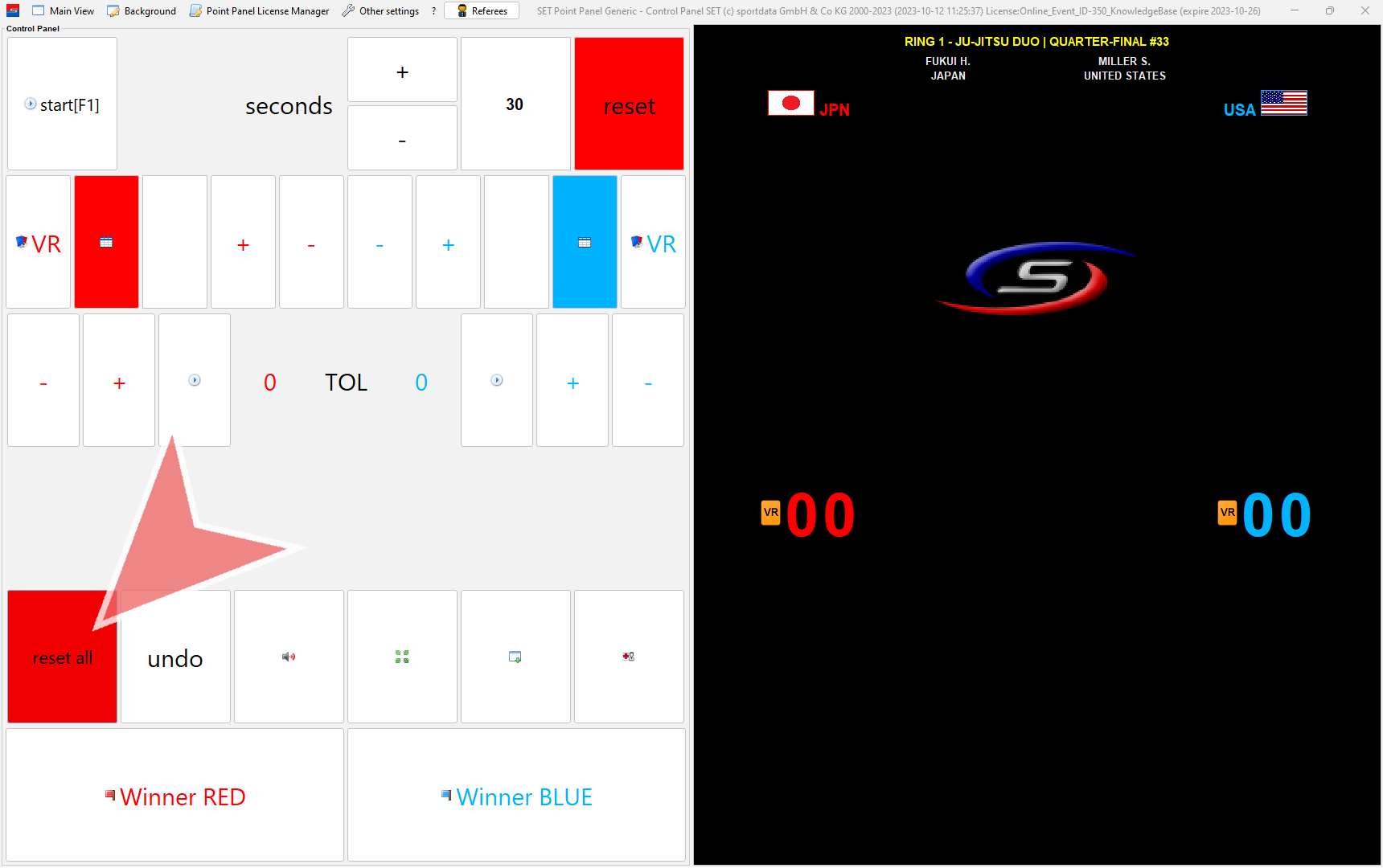
This is the view of the scoreboard. Before each fight click on „reset all“.
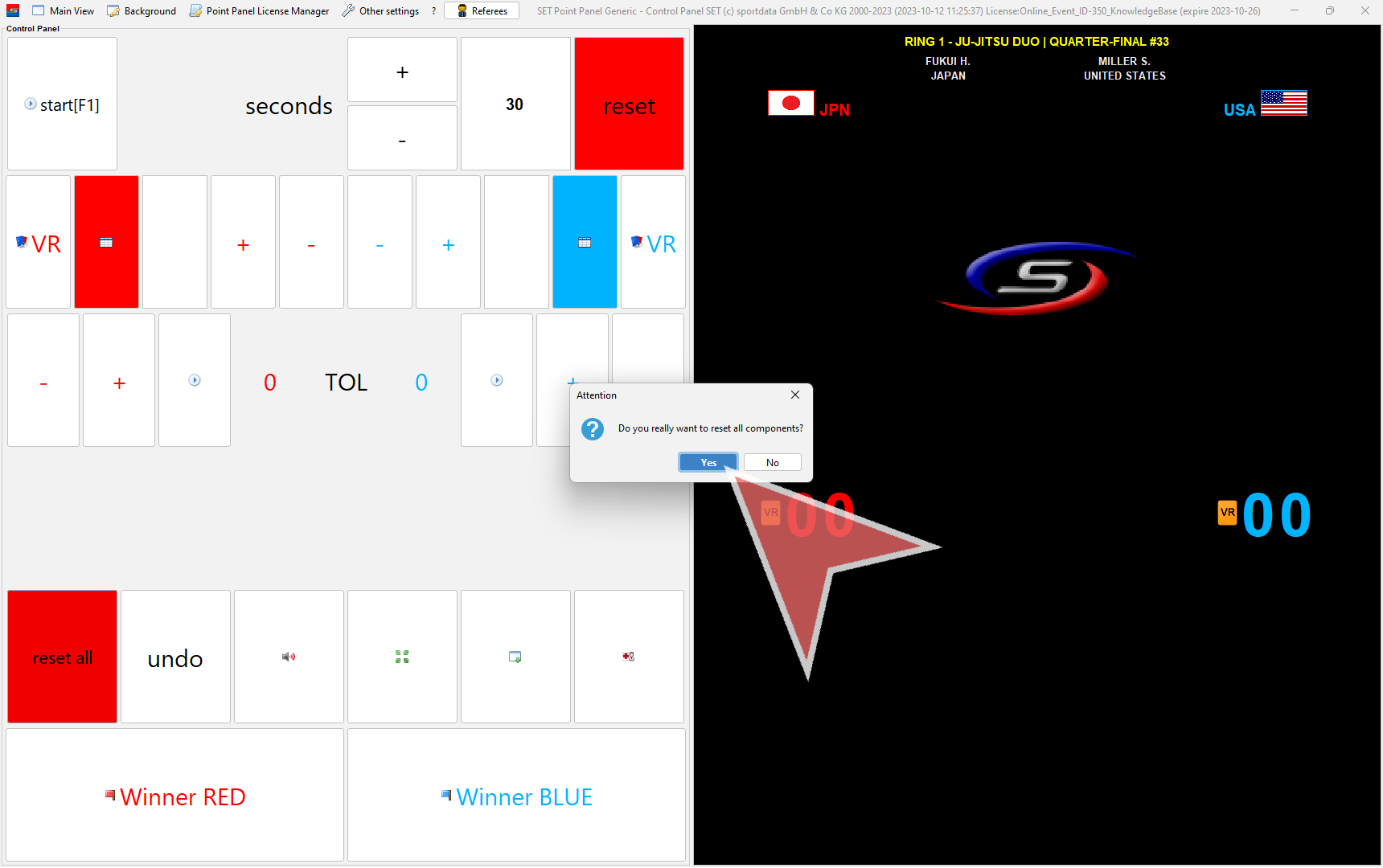
Confirm to reset all components with „Yes“.
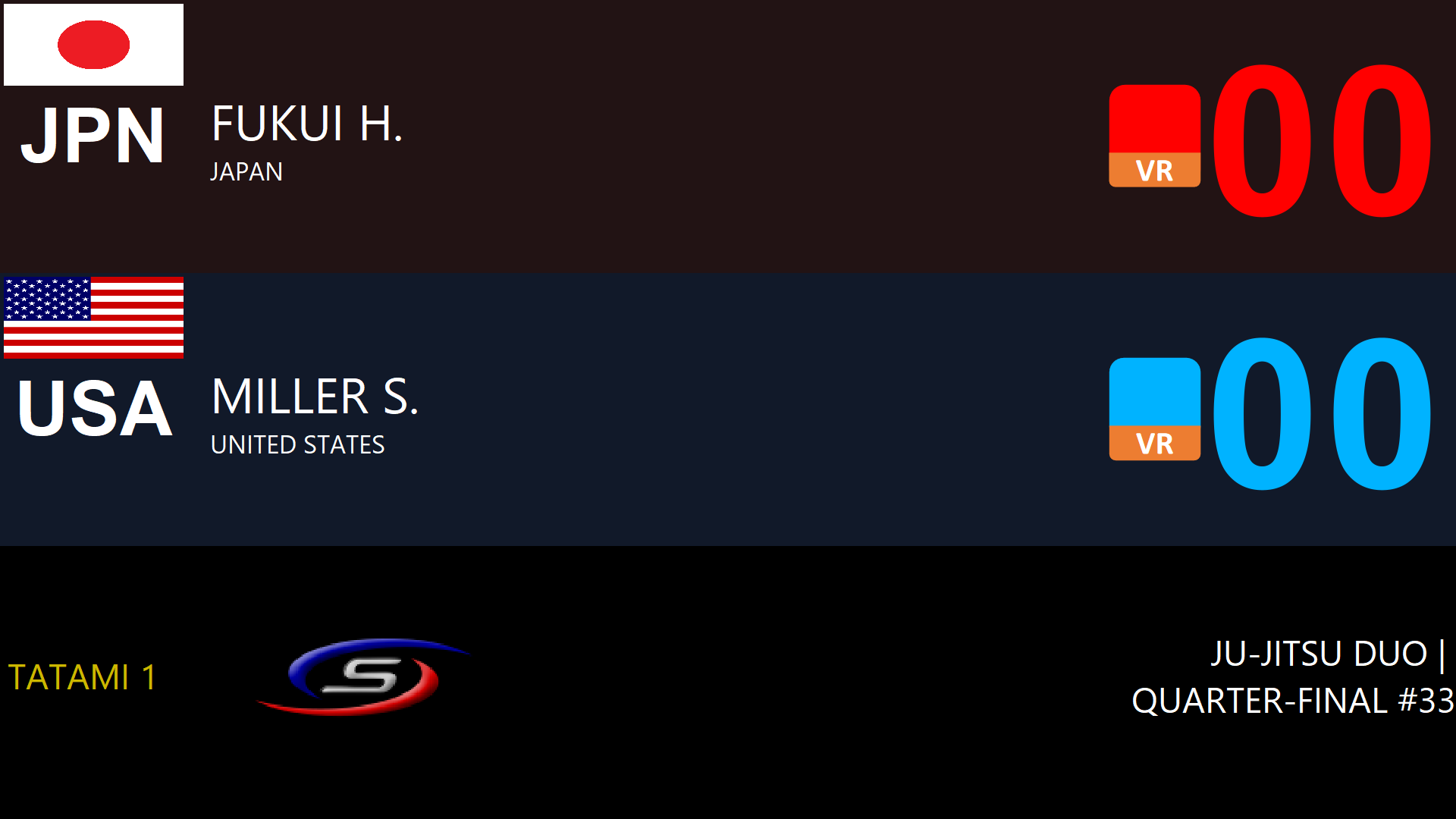
This is the view of the scoreboard displayed on the screens.
Scoring
To open the point list for red, click on the red table icon.
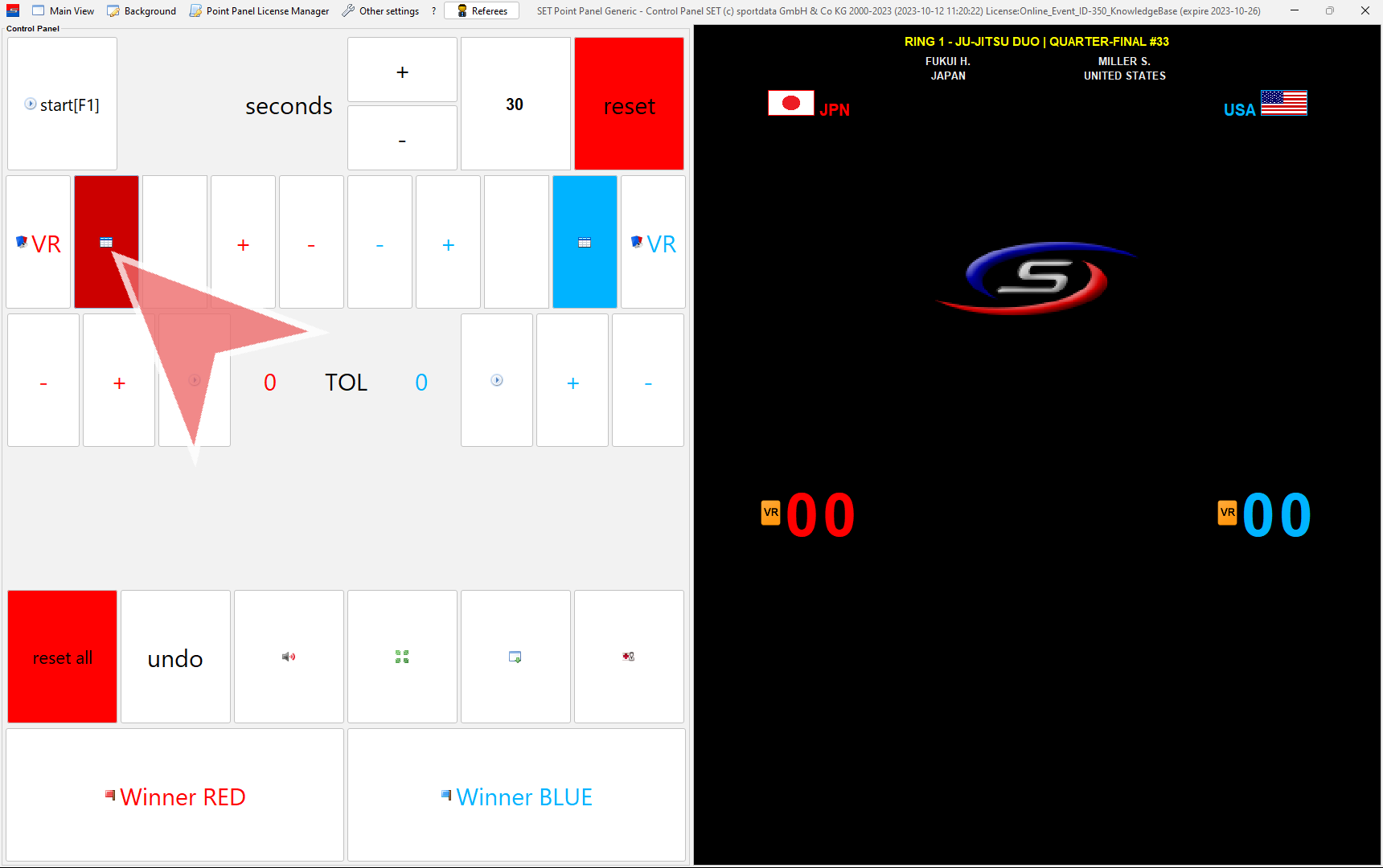
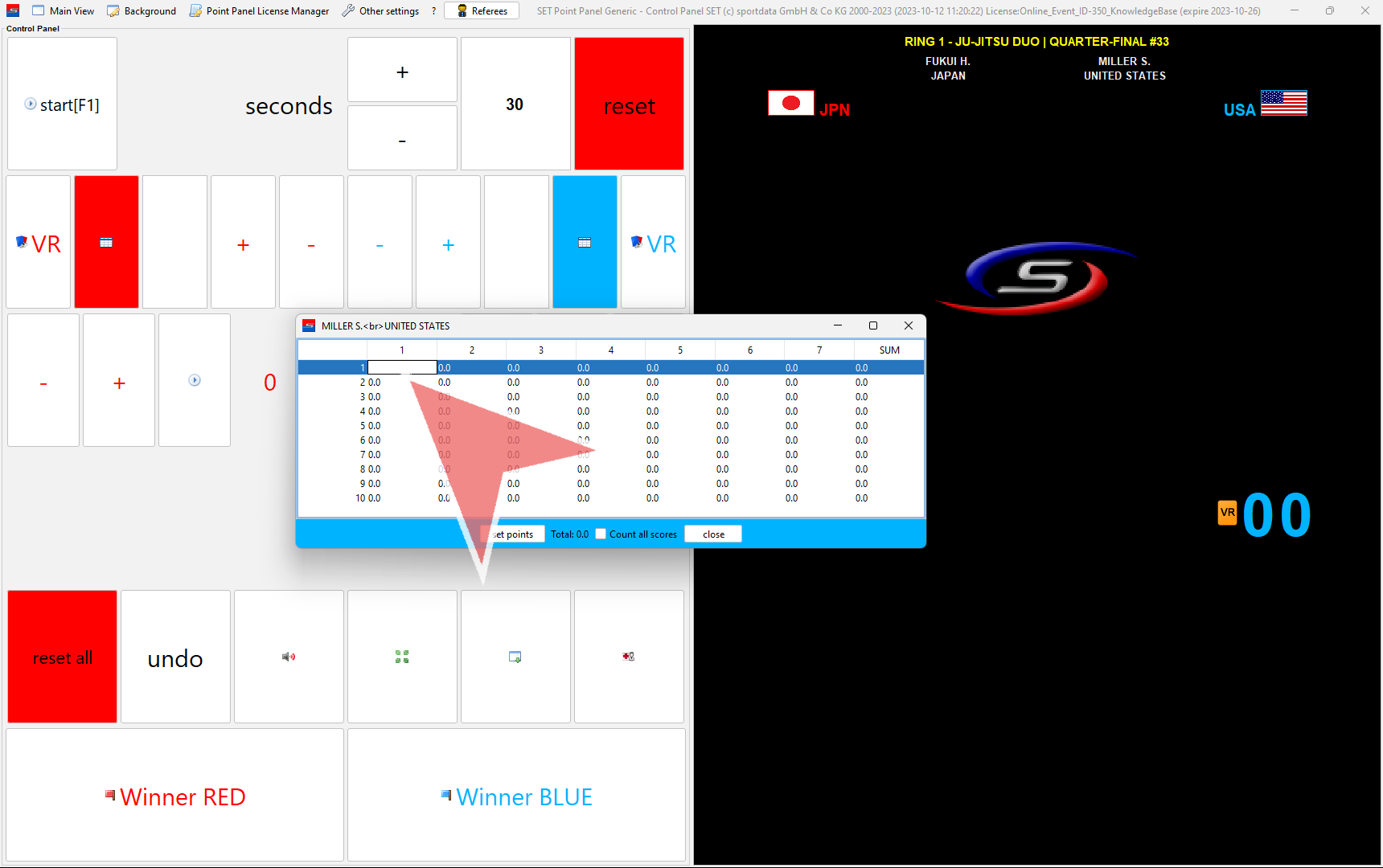
A table shows up, with one line per round and one column per judge. Double click on the first judge to enter his score manually. To move to the next judge, press on the „tab“ button on your keyboard. Dots in the score can be ignored (enter 75 instead of 7.5).
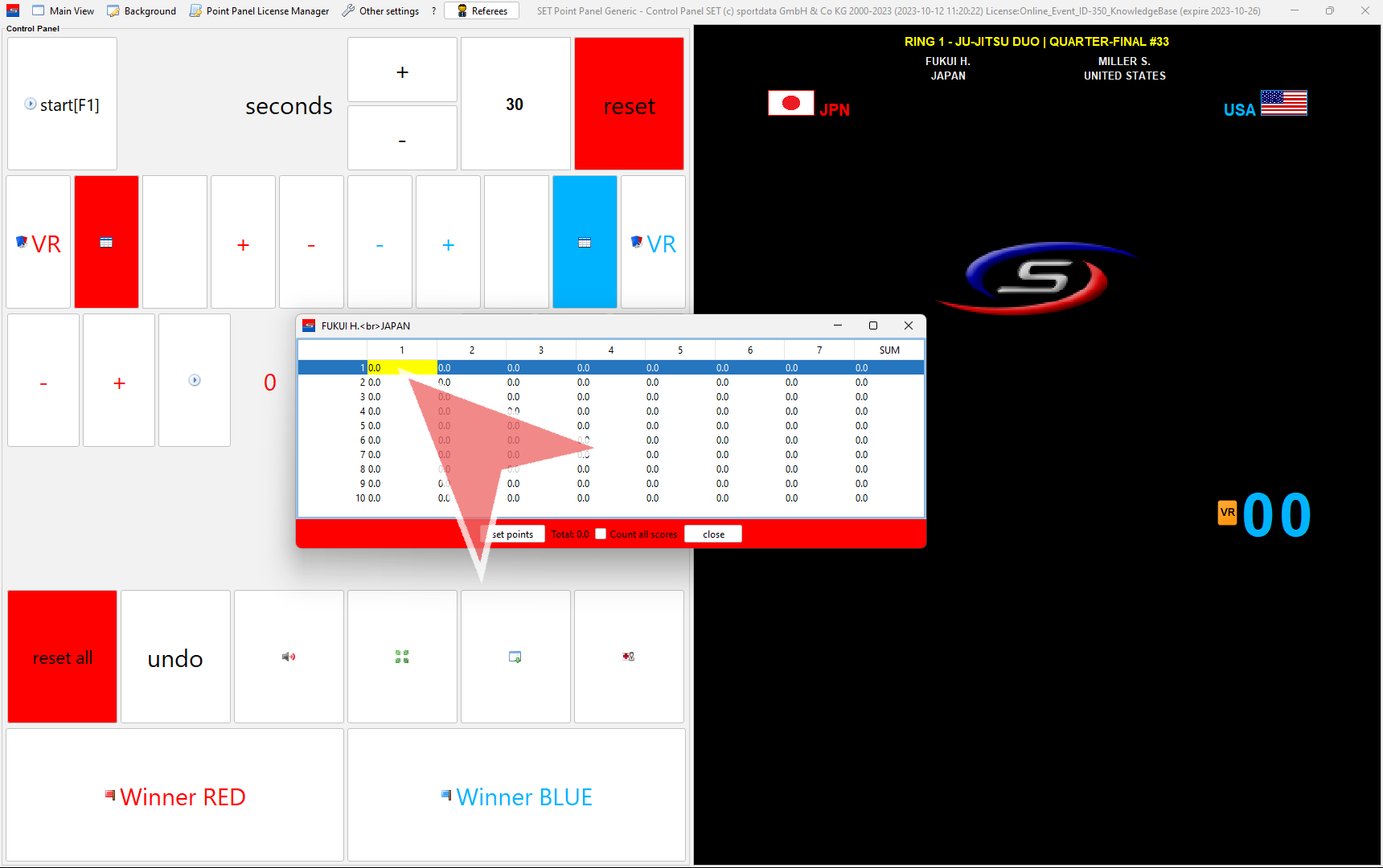
Once all 5 scores are entered, click on „set points“ to save the scores. The highest and lowest are automatically removed.
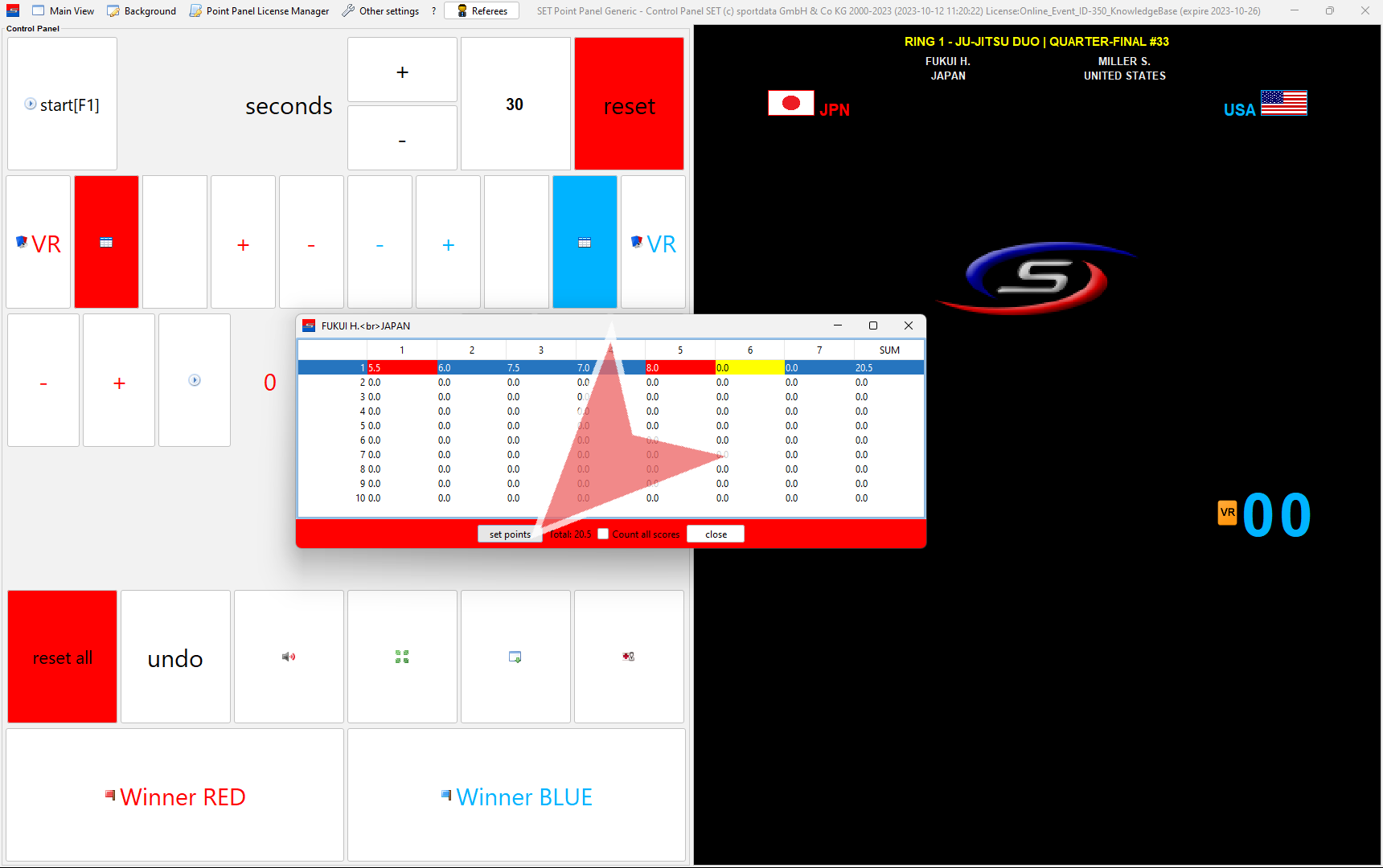
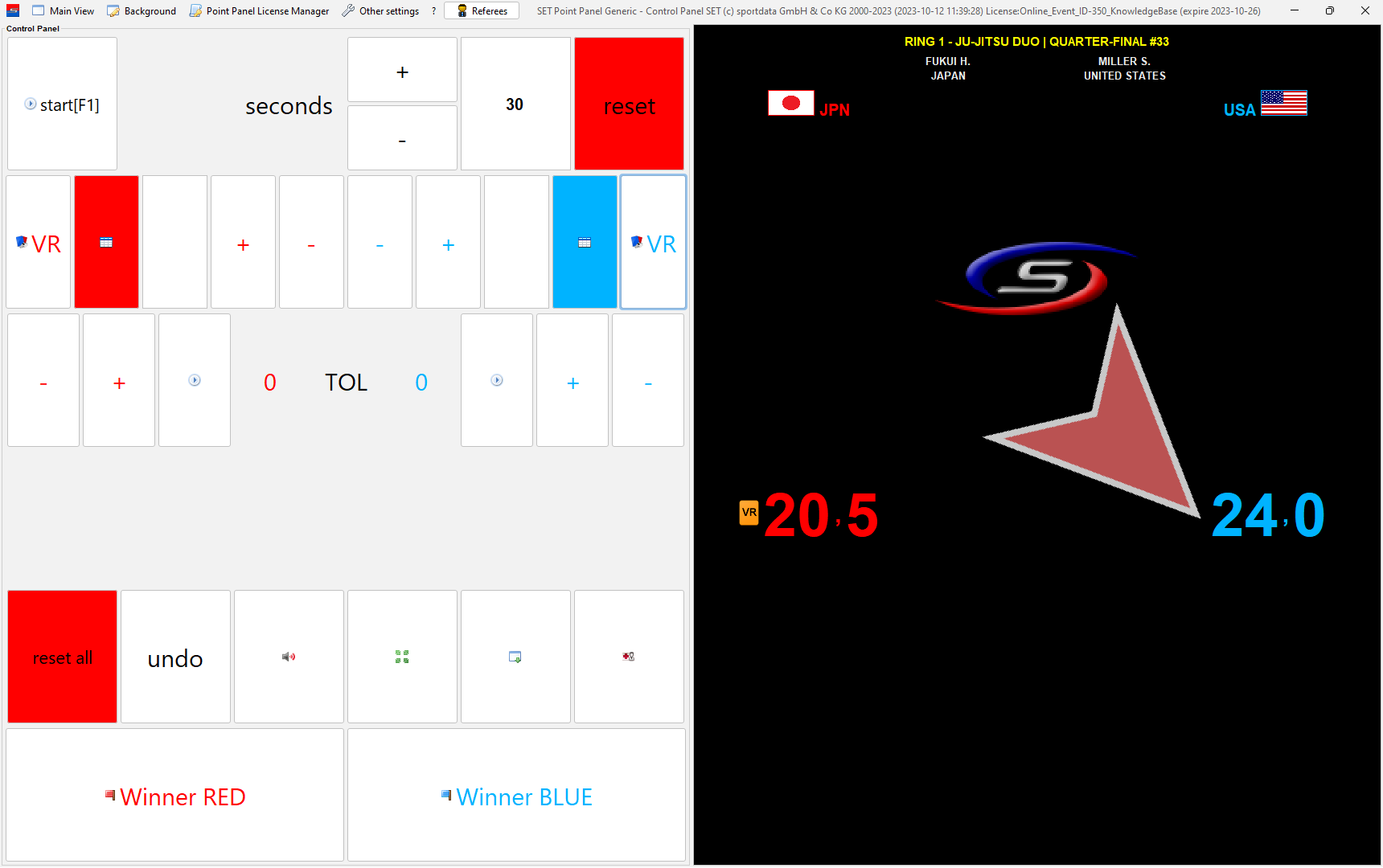
The current points is displayed on the scoreboard.
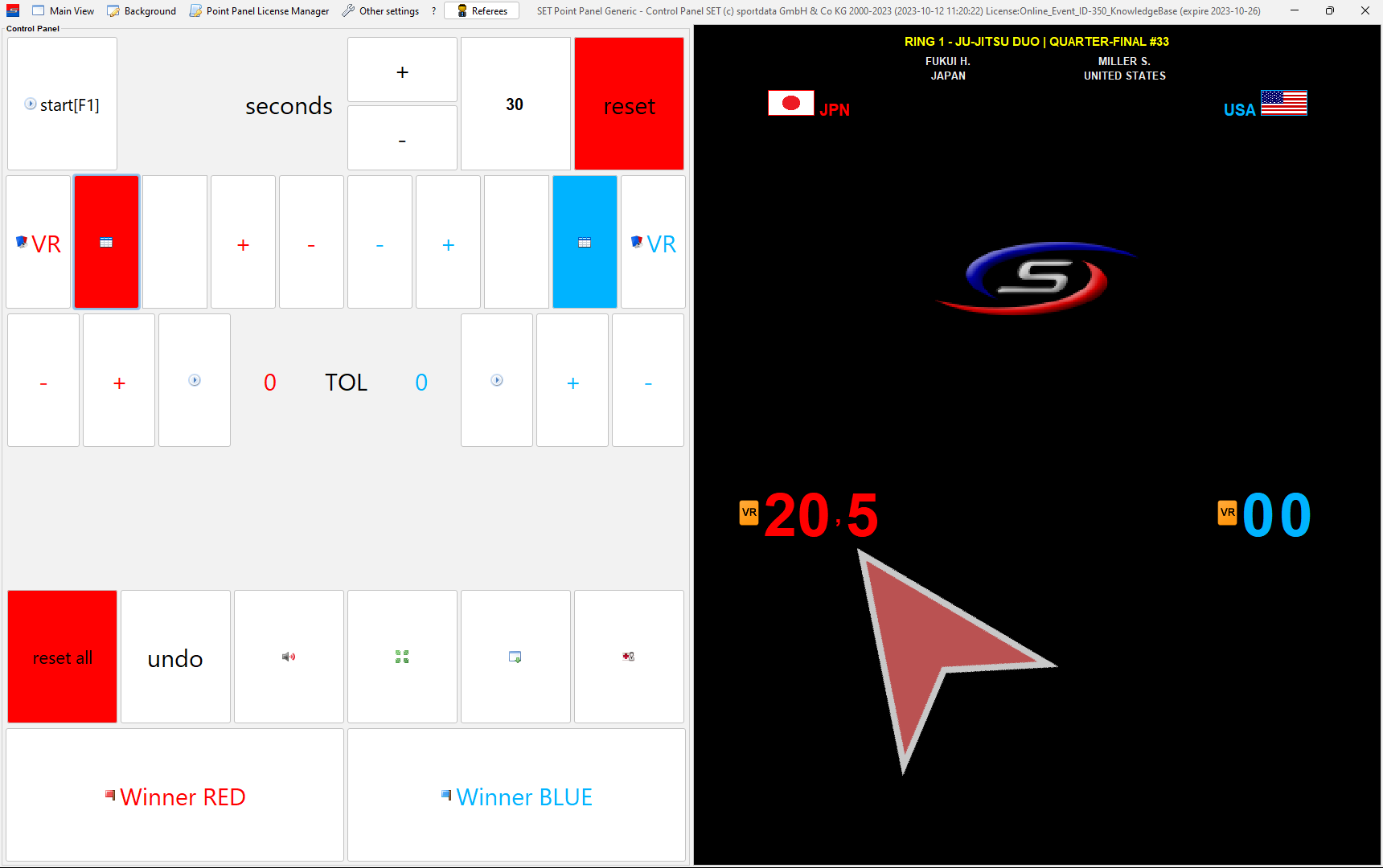
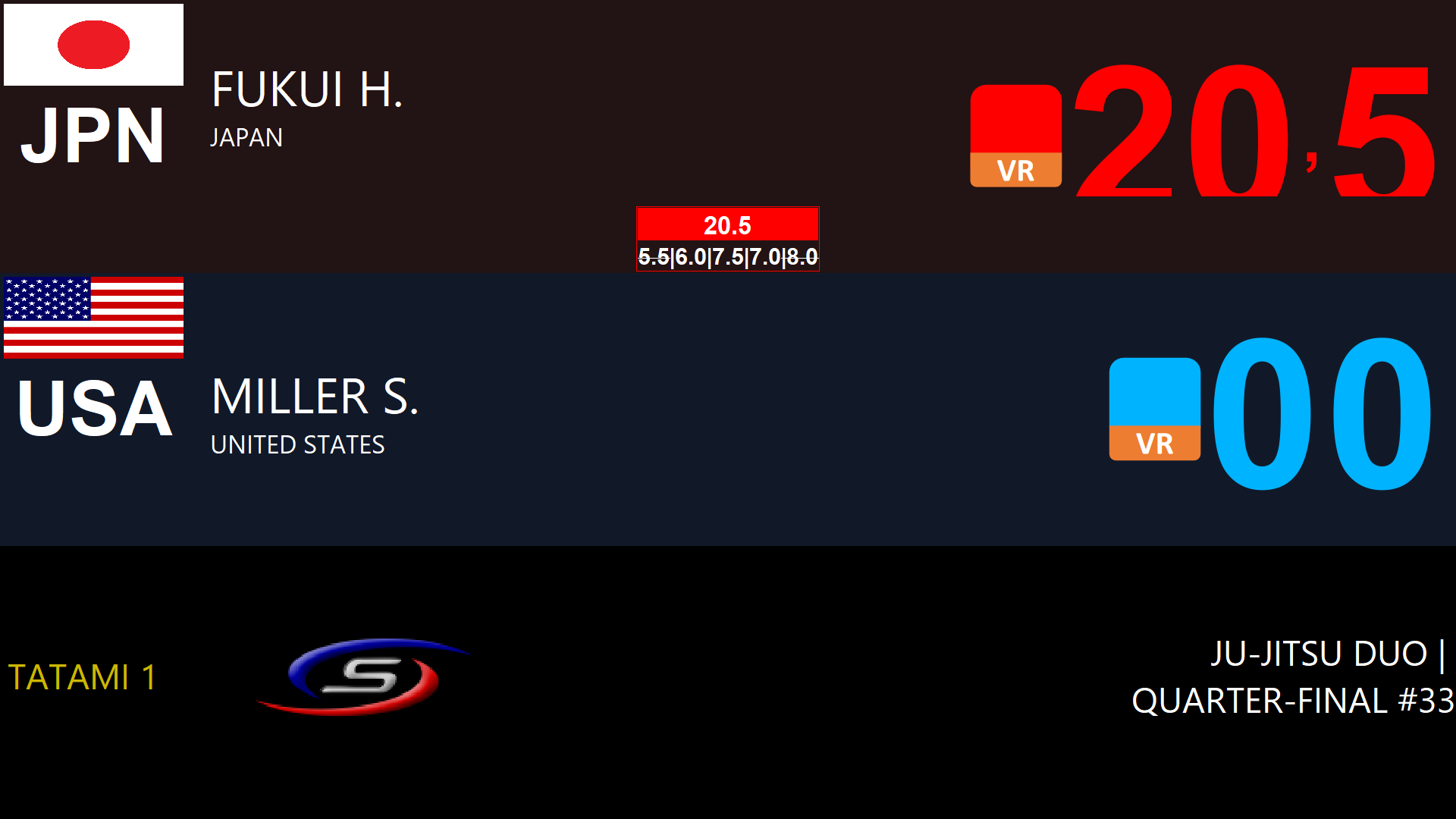
This is the view displayed on the screen after the points are set.
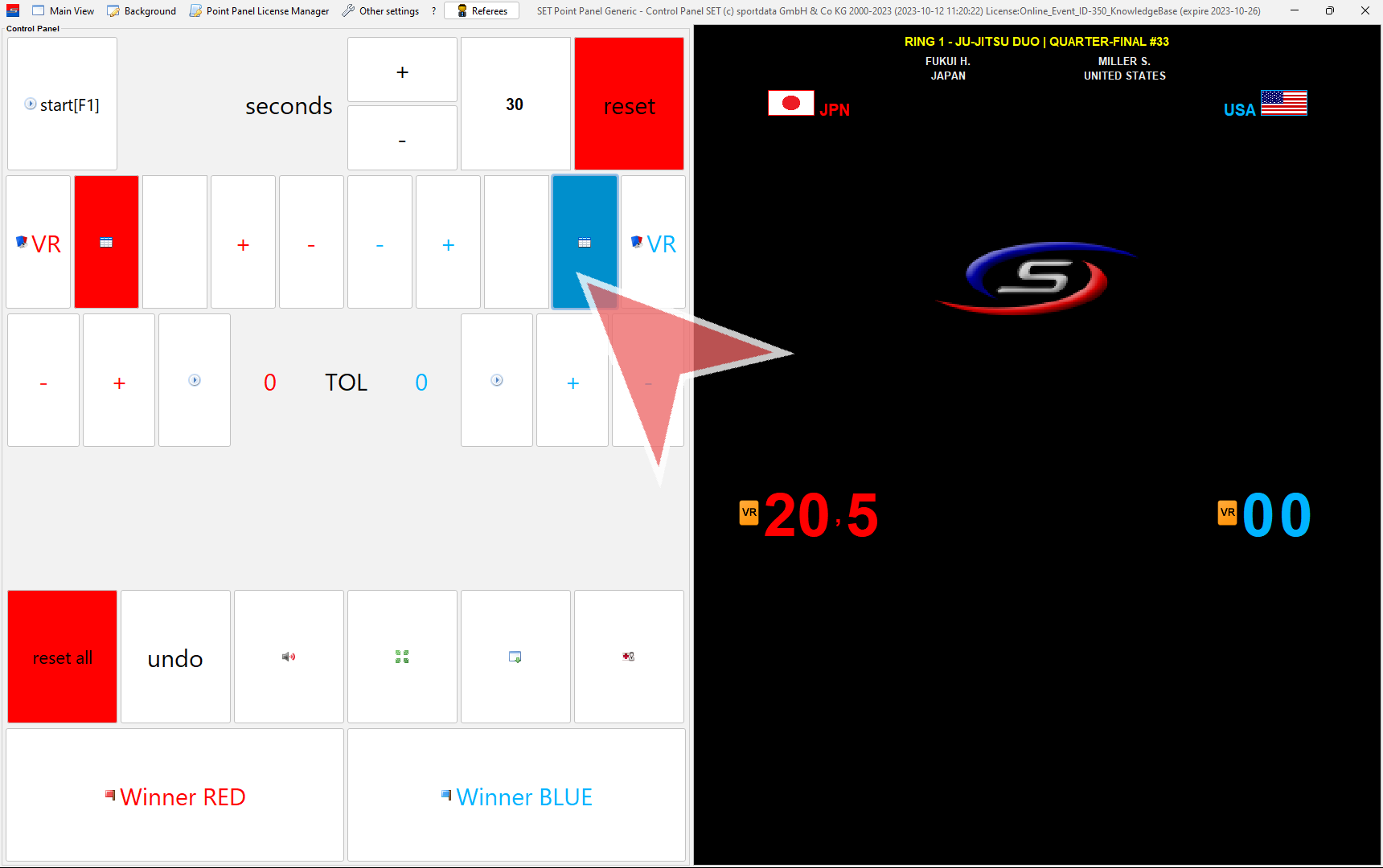
To open the point table for blue, click on the blue table icon.
Continue like before until each team finished 3 rounds. The order is: 1 times red, 2 times blue, 2 times red and 1 time blue.
Match Winner
The winner is the team with more points after 3 rounds. Click on the „Winner RED“ or „Winner BLUE“-button to save the match winner. In case of a tie after 3 round add another round until you find a winner.
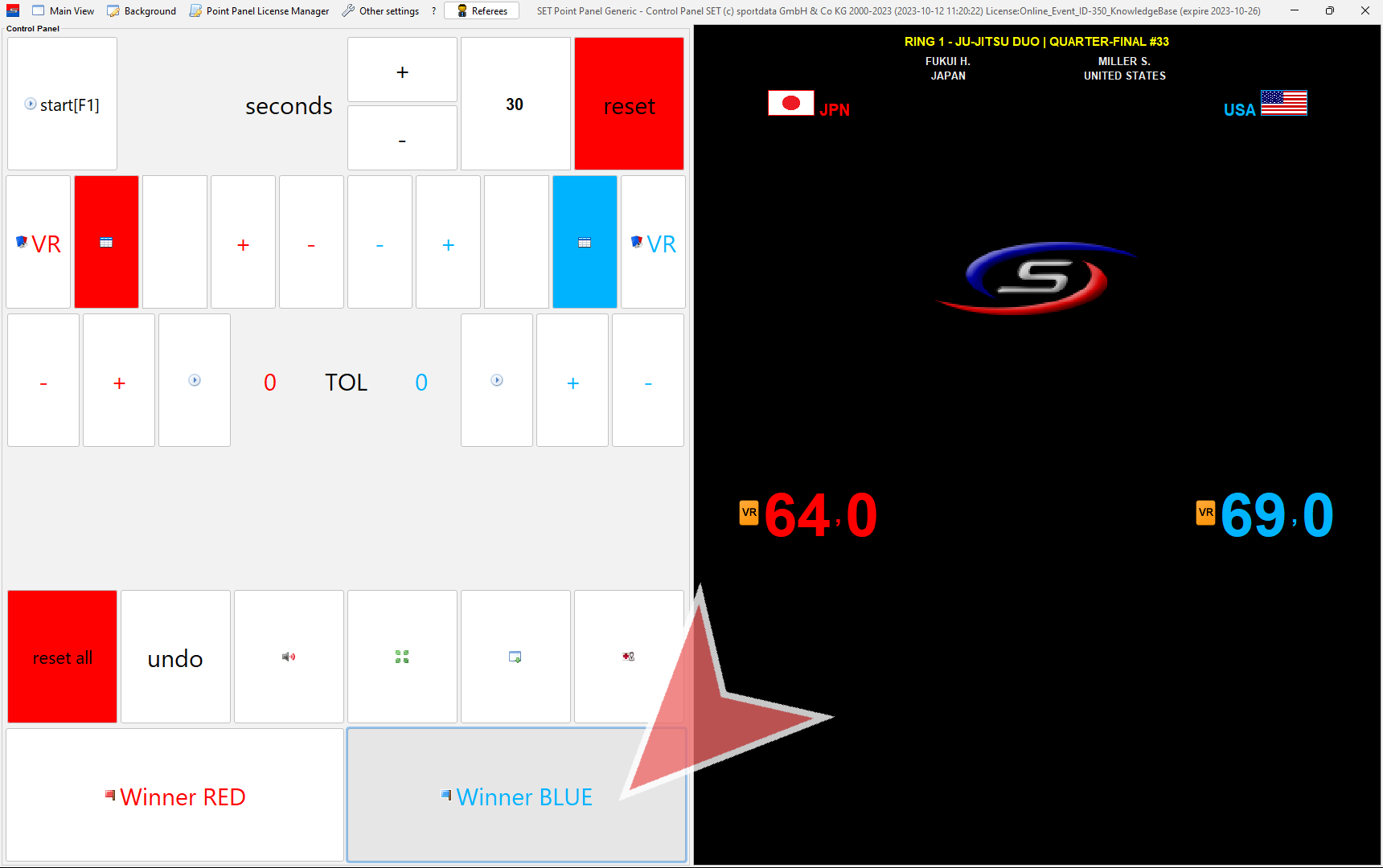
This is the match winner displayed on the screens.

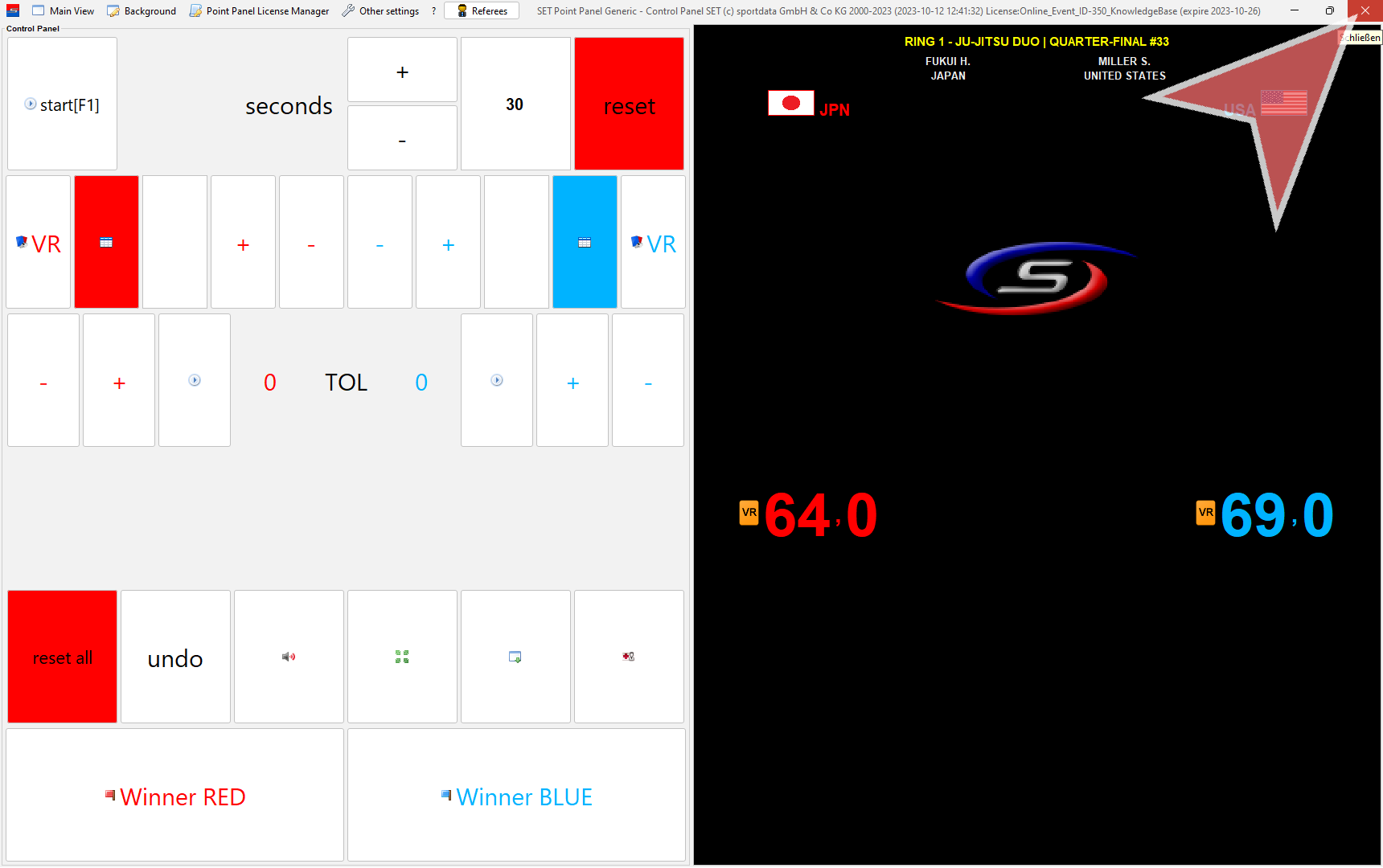
Close the scoreboard without resetting anything.
The finished match is automatically removed. To open the next match, click on „Next“.
Video Review
In case a coach challenges a decision, click on the „VR“-button in red (left) or blue (right).
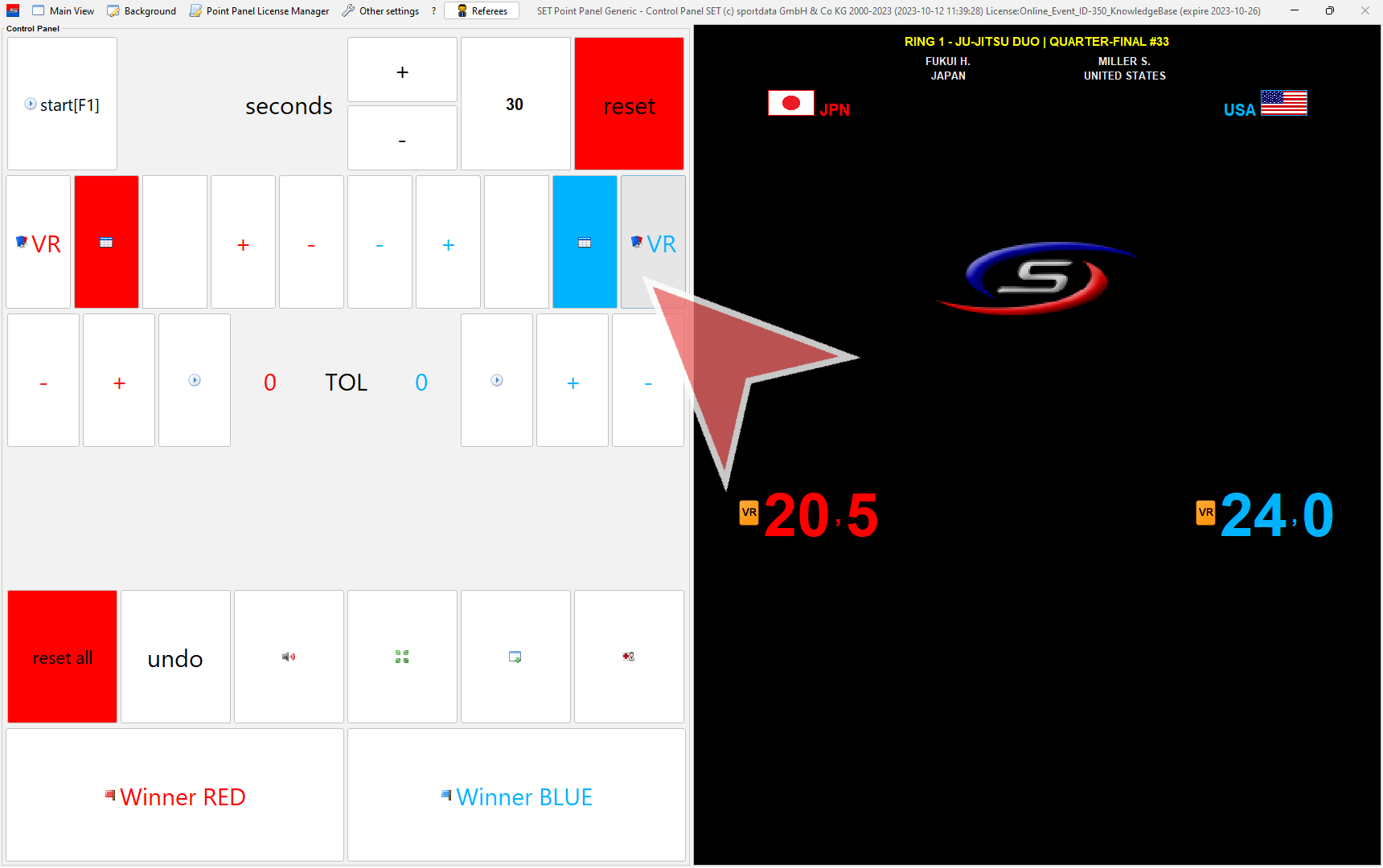
This is the view displayed on the screens during the video review request.

If the video review is accepted, click on the green check, otherwise on the red cross and close the pop-up window afterwards.
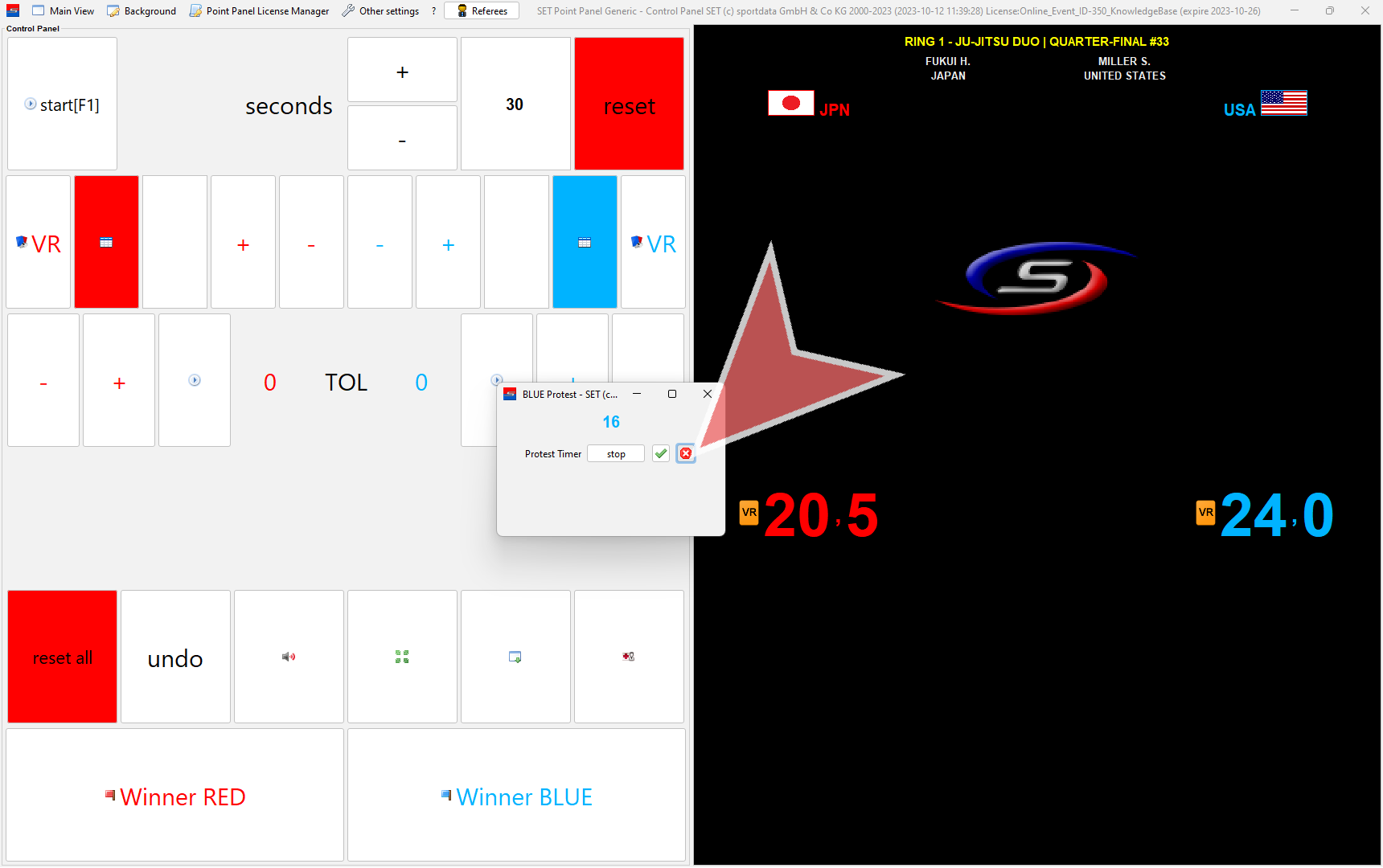
In case of a denied video review, the video review card is automatically removed.