


Learn how to configure and connect an electronic scale to use it with the SET software. If you connect a barcode scanner as well, it is the fastest way to perform and document weight controls.
Recommended Scales
Any serial USB connectable scale can be used, which supports to send a stable weight with CR+LF (CR = Carriage Return and LF = Line Feed) at the end of each transmission. SET uses the CR+LF commands at the end of data transmission to detected the End of Transmission (EOT).
Here are some recommended and tested scales:
Configure your Scale
Make sure your scale has the correct configuration:
PCE-PB 150N
1. SEnd -> – STAb (means the scale will send only the stable weight)
2. bAUD -> 9600
3. Au-PO -> – oFF
ZOT 3
1. F2 -> S U (means the scale will send only the stable weight)
2. F3 -> P2
3. F4 -> 9600 bauds, n81
Interactive Demo
Connect to the SET software
Follow these steps below to connect your scale to the SET software and use the automatic weight control function of SET.
Category settings
To use the full power of the electronic scale, the weight limits need to be configured in the category settings. Therefore open the “Competitor Categories”.
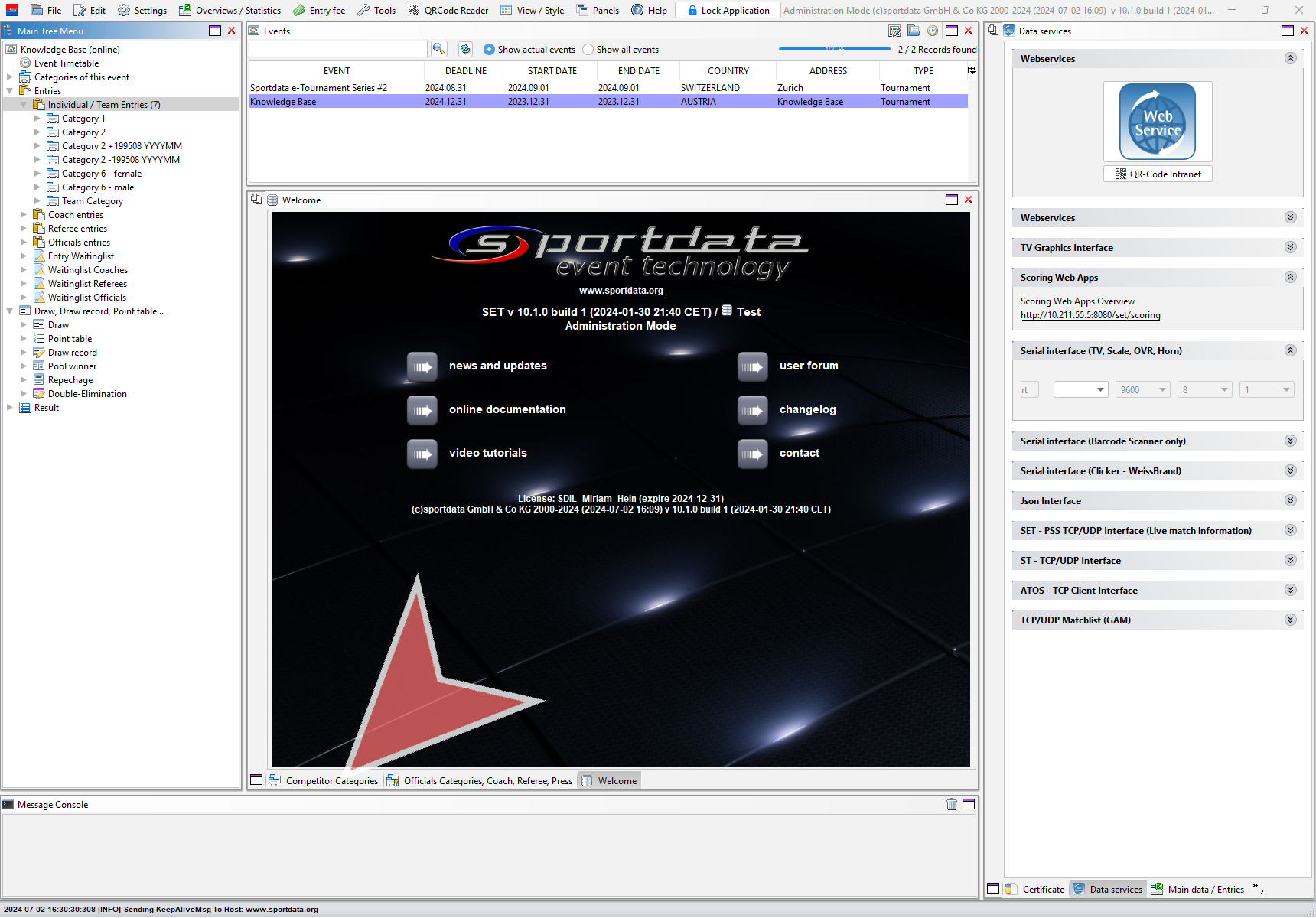
Double click on the icon bar to extend the view to full screen. Click on the small icon on the right, to add more information about the shown categories.
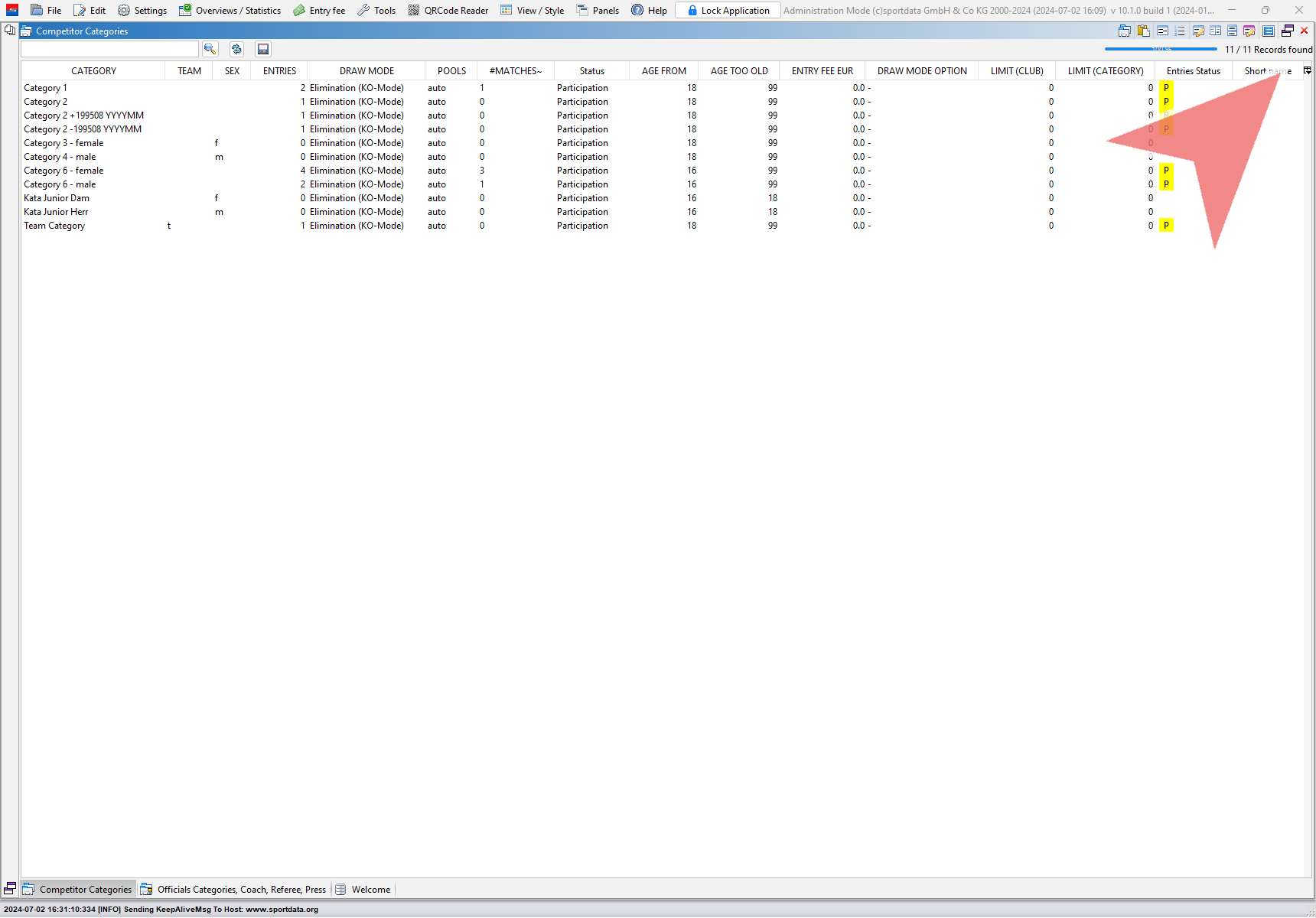
Select “Min. Weight (KG)” and “Max. Weight (KG)” from the list.
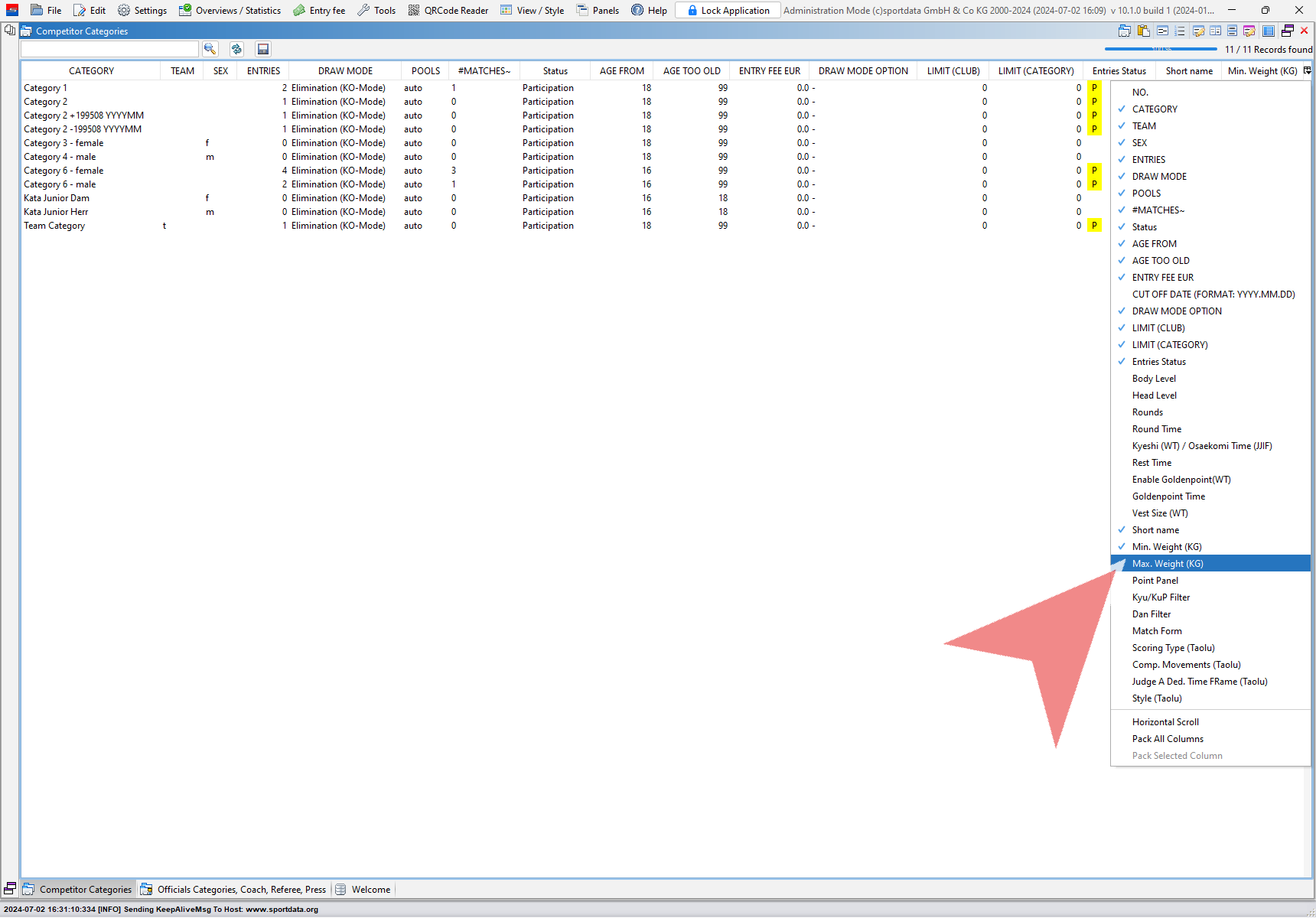
By double clicking on a field it gets editable. Put in the weight limits including potential tolerances.

Make sure that the “Min. Weight” differs from zero and decimal numbers are separated by a dot.
Connect the scale
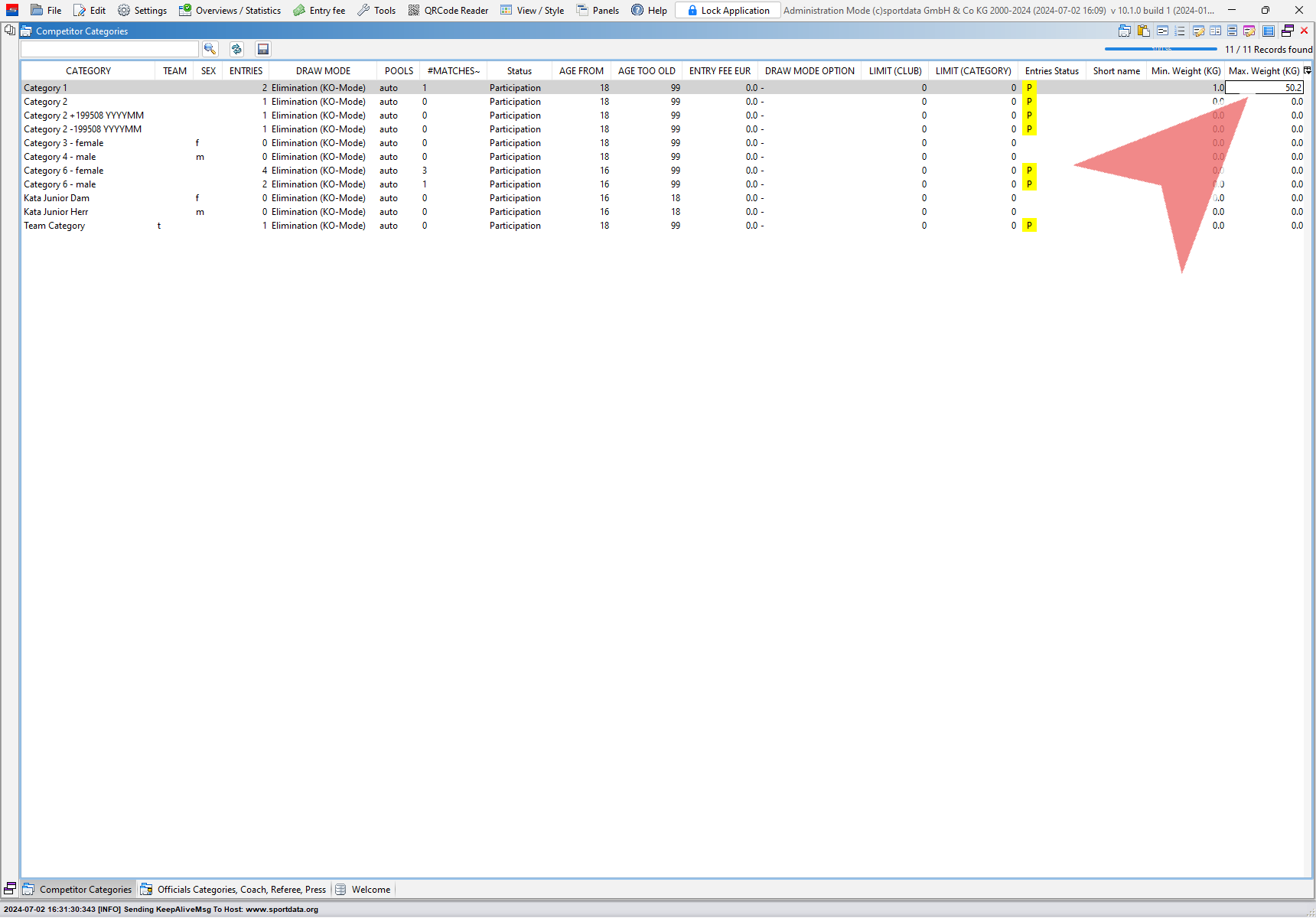
To connect an elctronic scale, open the “Data service” panel and extend the “Serial Interface (TV, Scale, OVR, Horn)”. Make sure to use the same settings as the scale: “9600, 8, 1, none”, select the correct COM port of the scale and click on “Open port”. The scale will now send stable weight. You can see in the message console the transmitted weigh, and if SET detects it the right way (EOT Found)
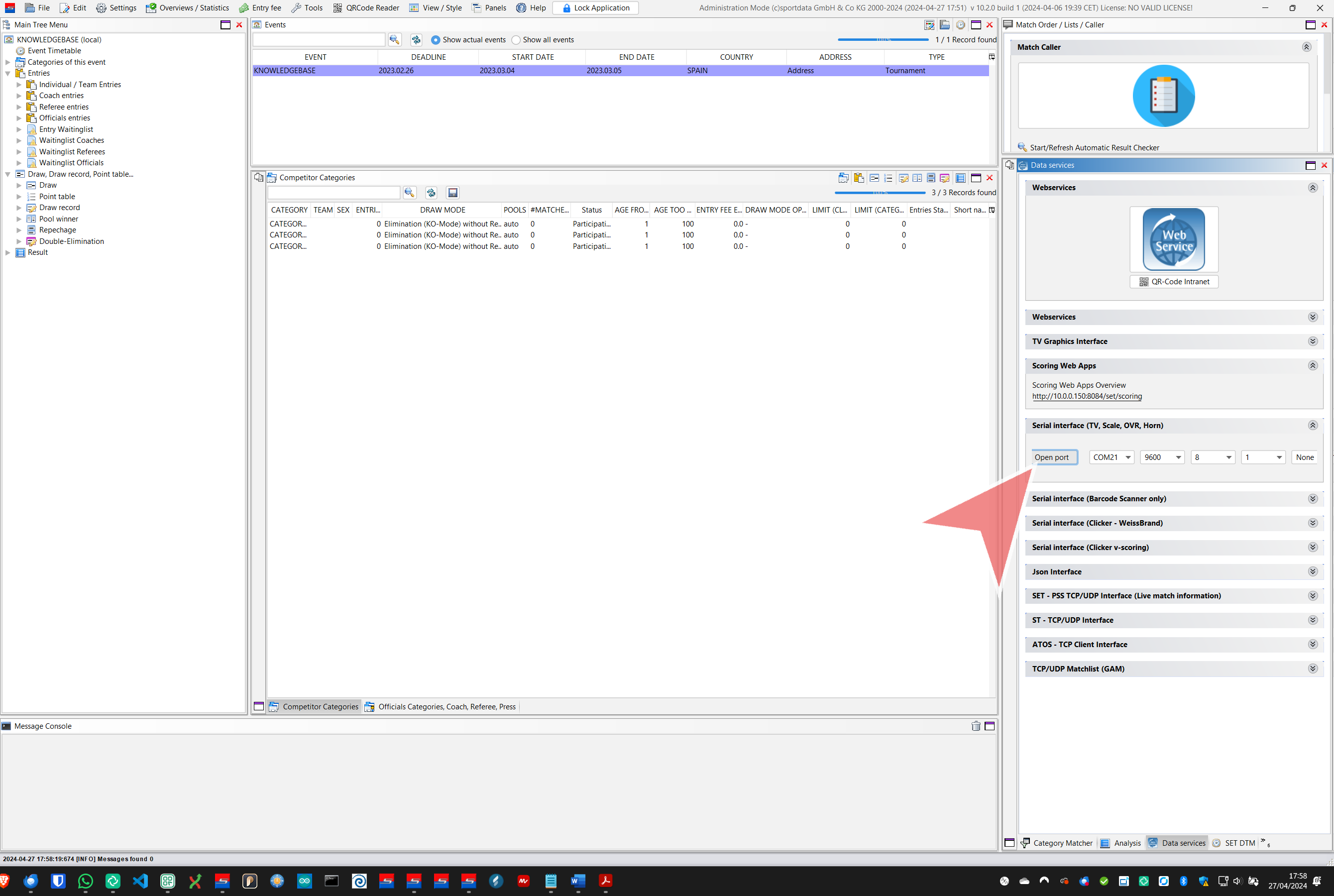
In case multiple COM ports show up, disconnect the scale to identify which one is missing – that one is the scale. In case you can’t see the COM port, the driver might not be correctly installed.
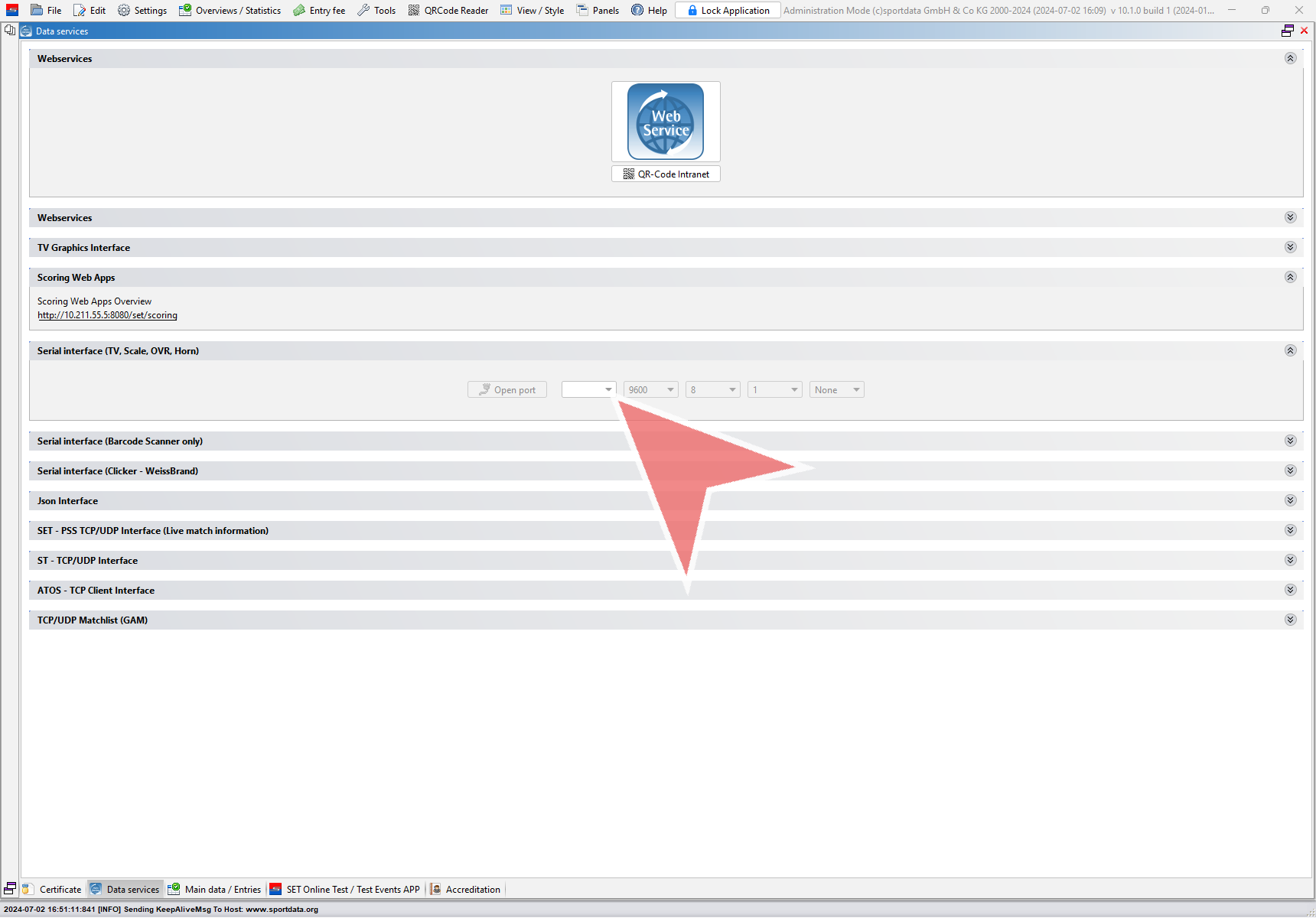
Use the scale without a Barcode scanner
To use the scale without a barcode scanner, right-click on the “Individual / Team Entries” option and select “Weight / size control” from the menu.
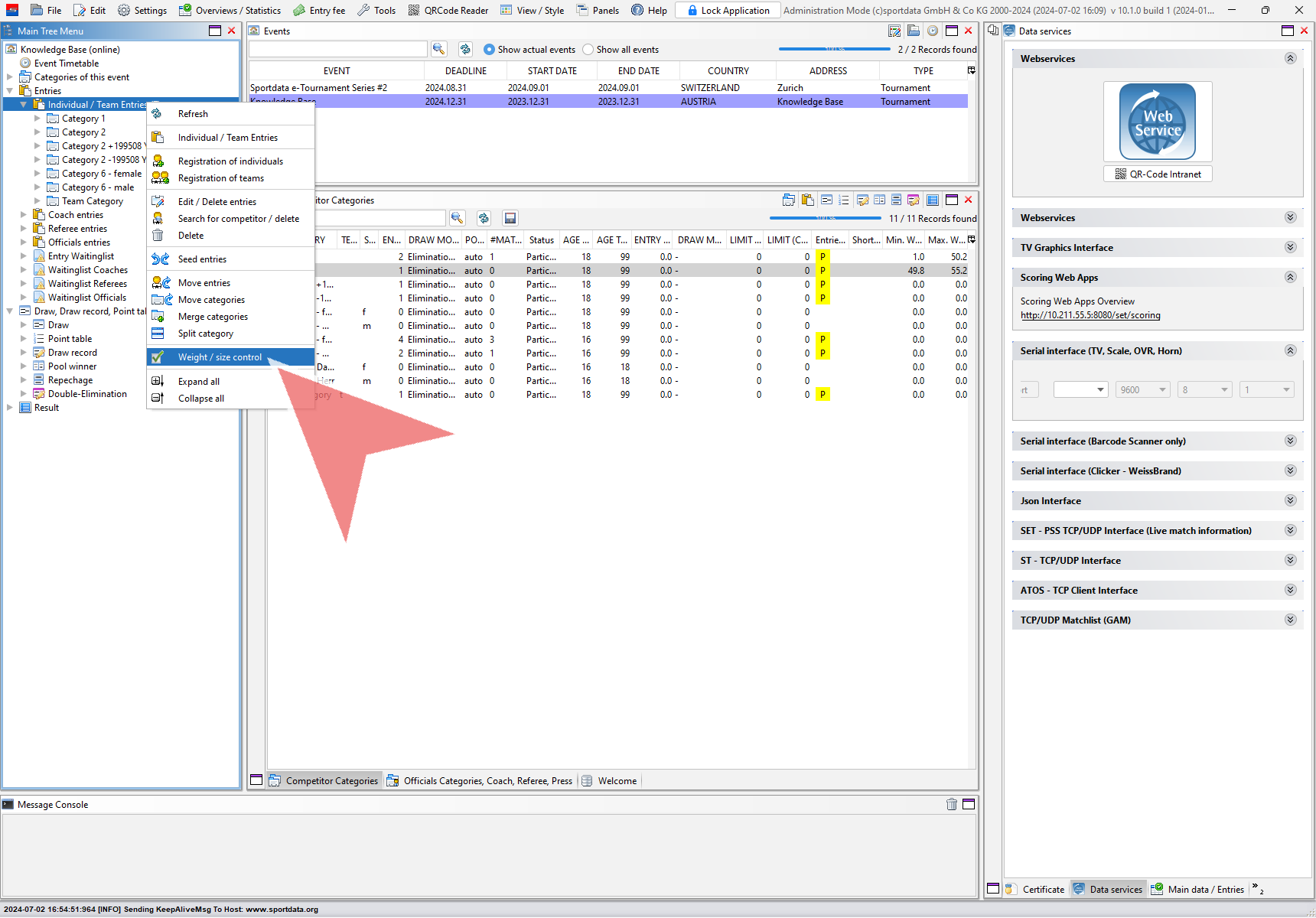
To start the weight control for a specific athlete, double click on the name. You can use the filters at the top to search for an athlete.
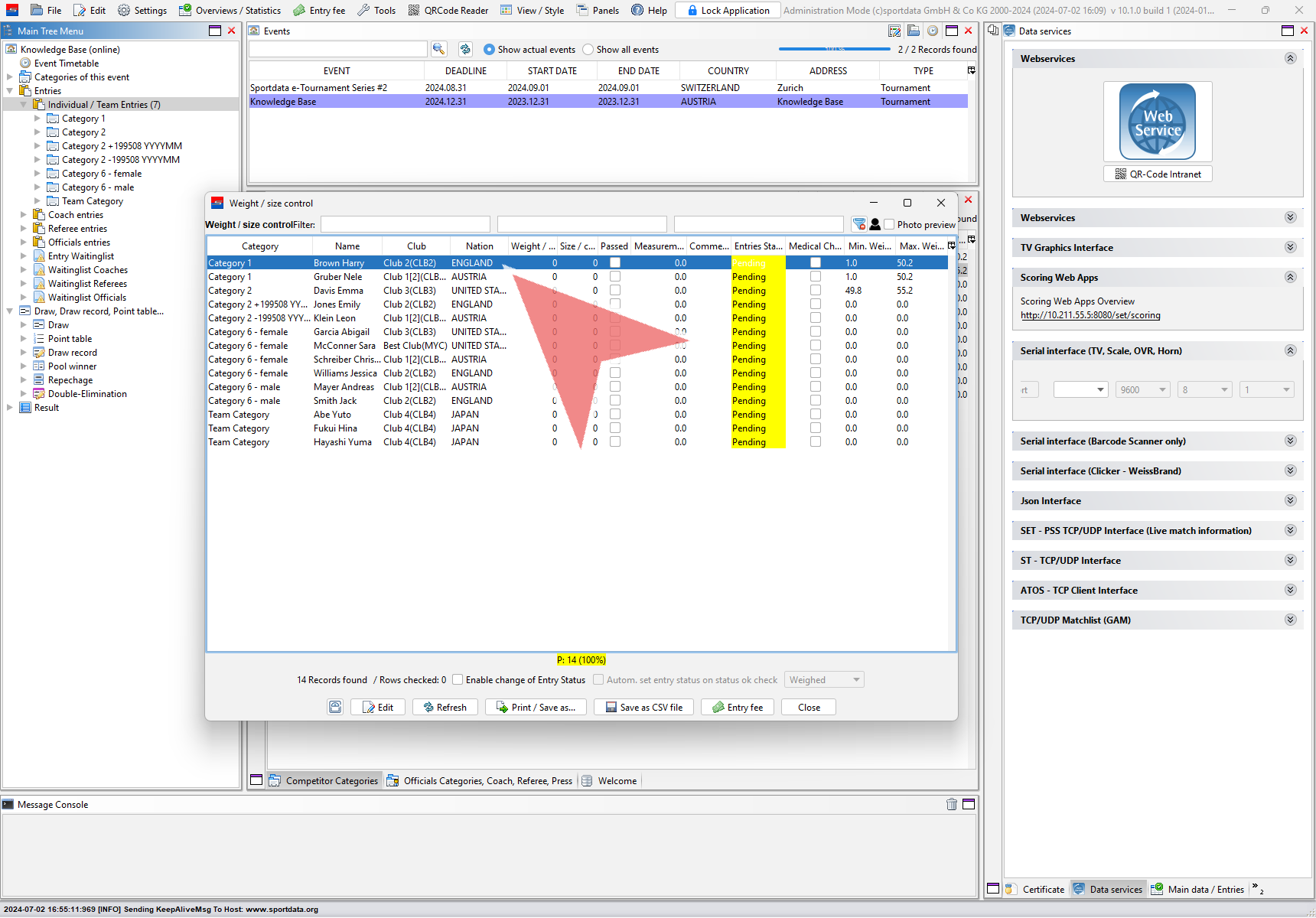
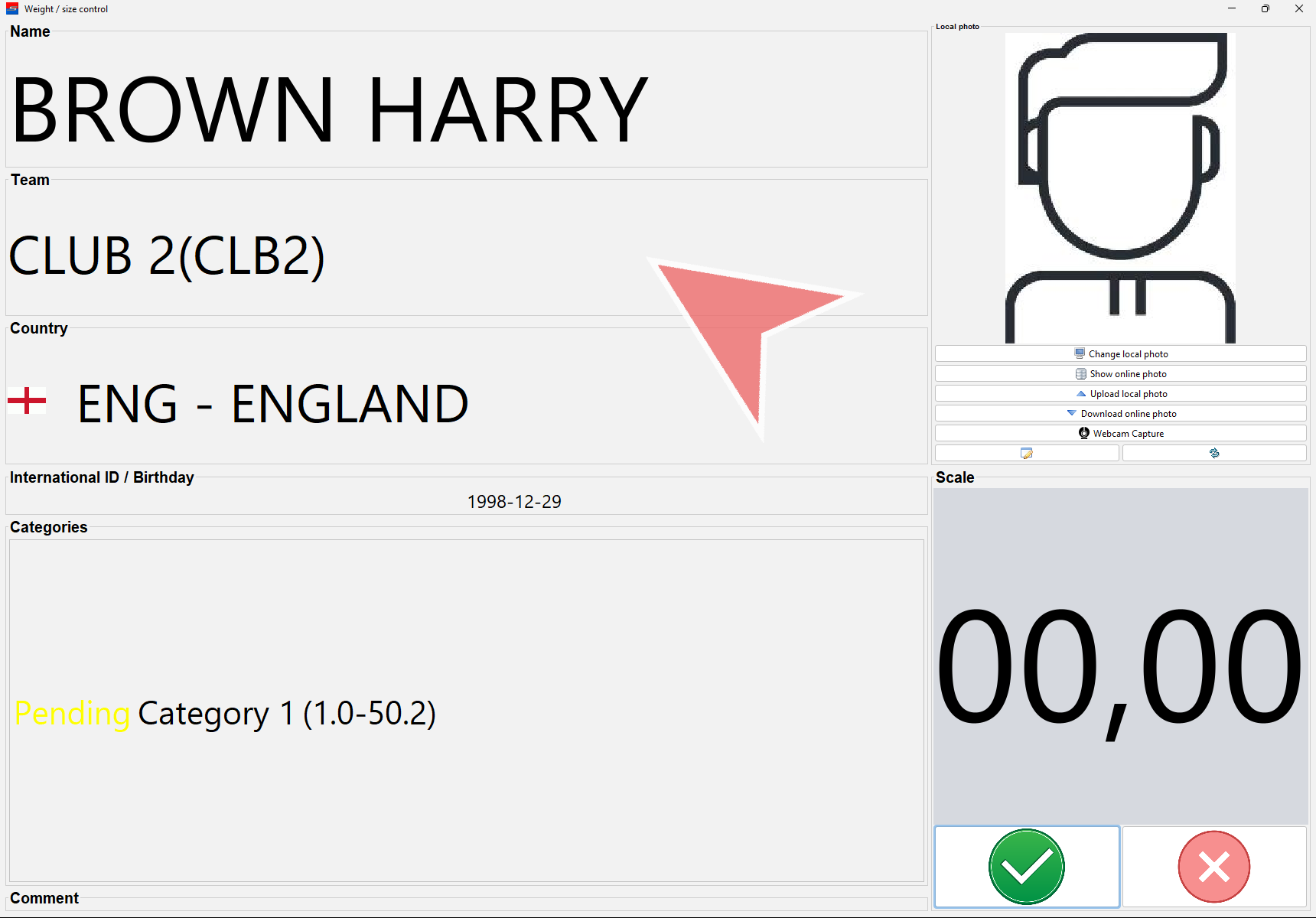
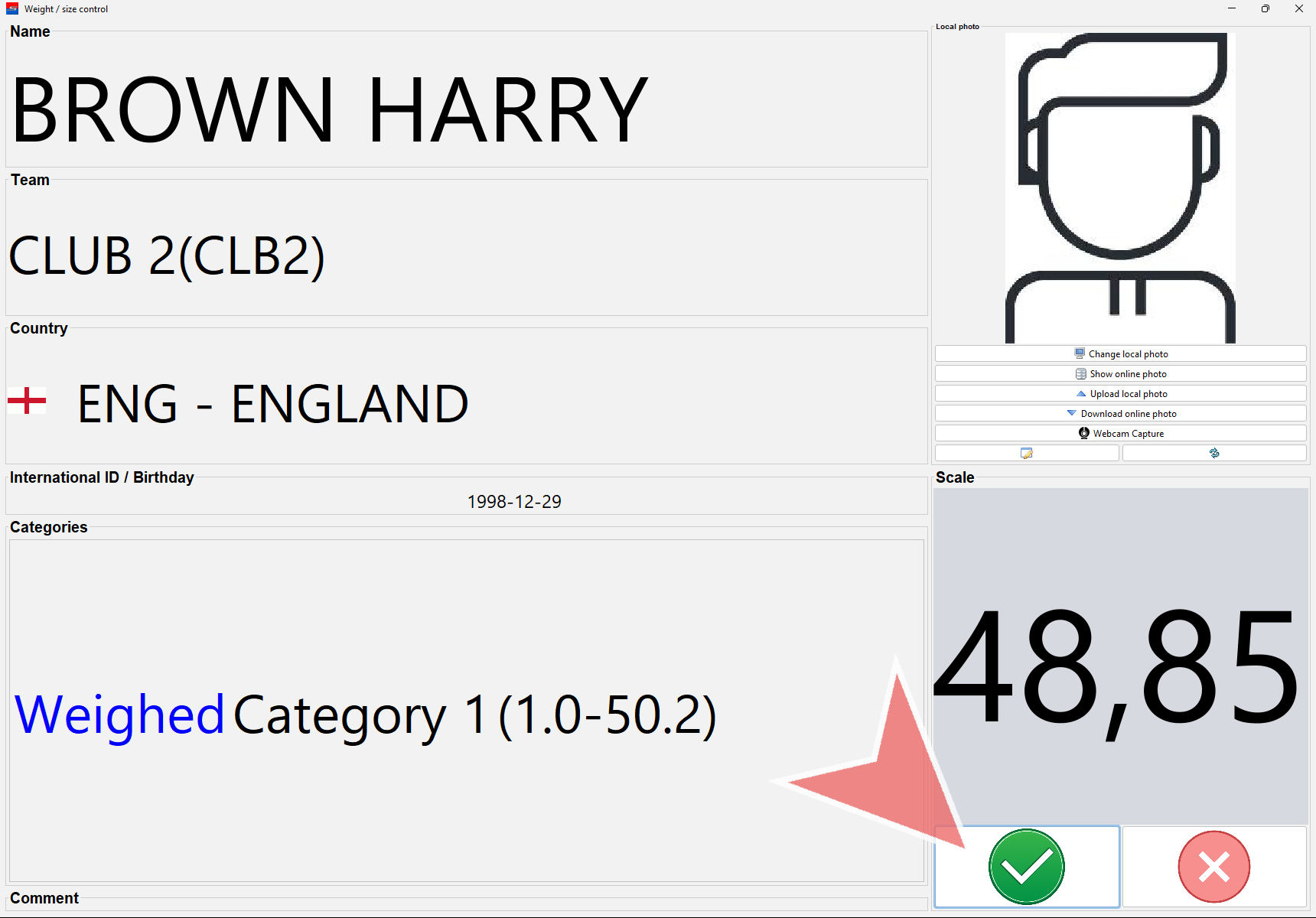
The “Weight / size control” window will open, displaying all the information about the athlete. If you want the athletes’ pictures to be shown, you need to download them to your local device first.
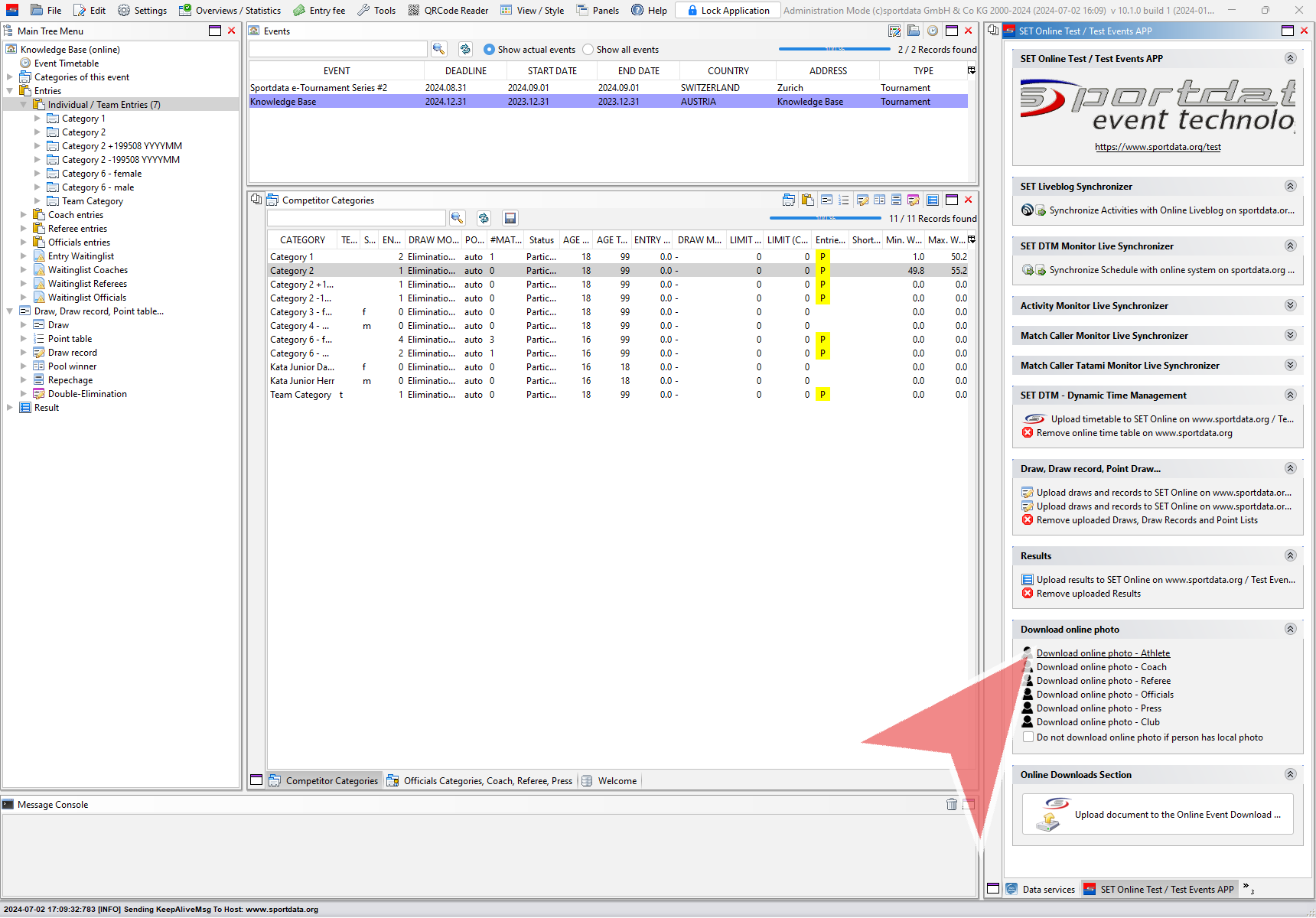
You find this option under Panels → “SET Online…” and then click on “Download online photo – Athlete”. Please note that internet connection is required for this option.
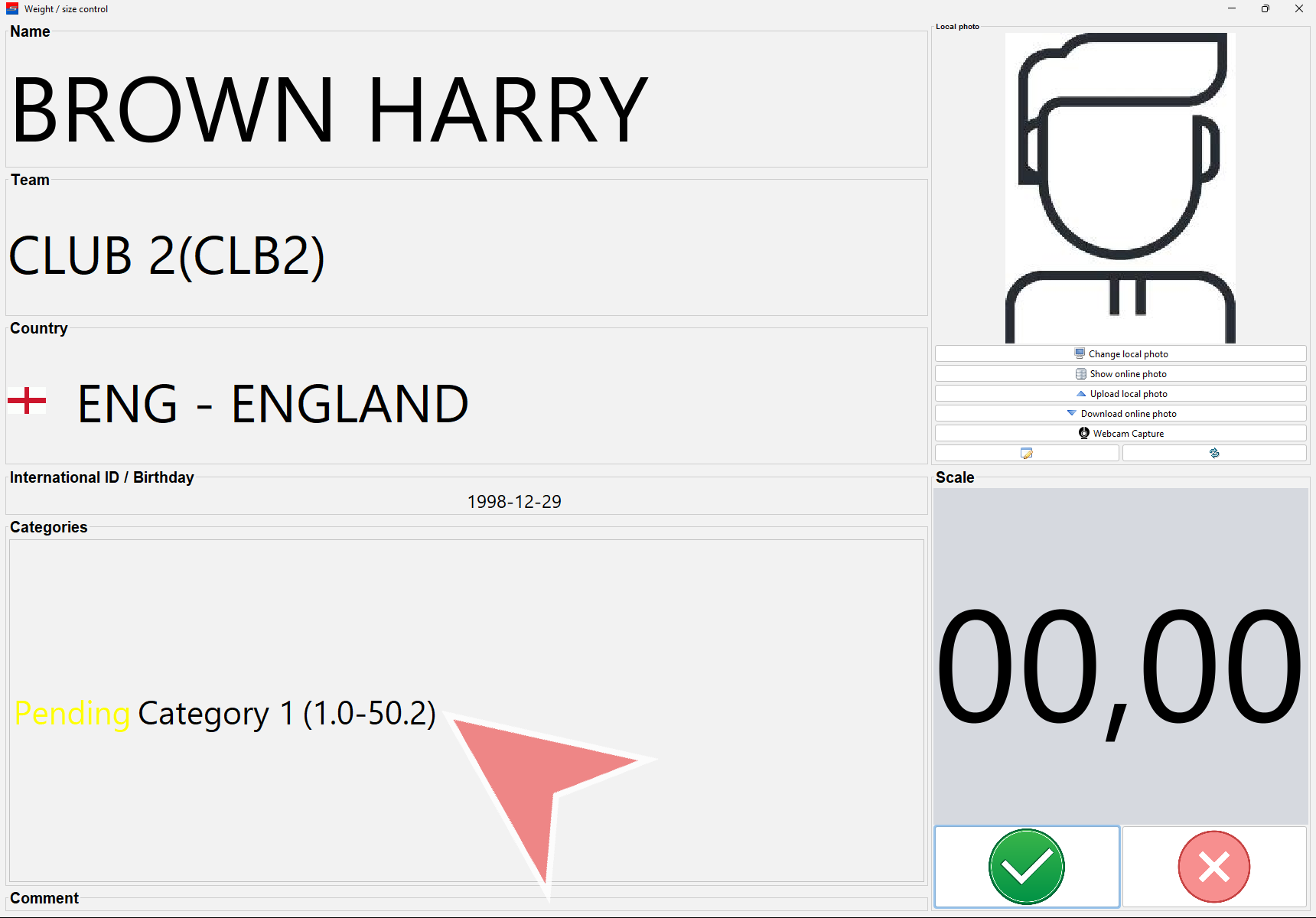
You find the category information of the shown athlete in the bottom field including the min. and max. weight.
Once the weight is stable, the scale the information sends it to this window. An acoustic signal informs you, if the weight is valid for this registered category. In case it is within the weight range, the status automatically changes to “Weighted”. Otherwise the status will change to “Rejected” combined with an error sound.
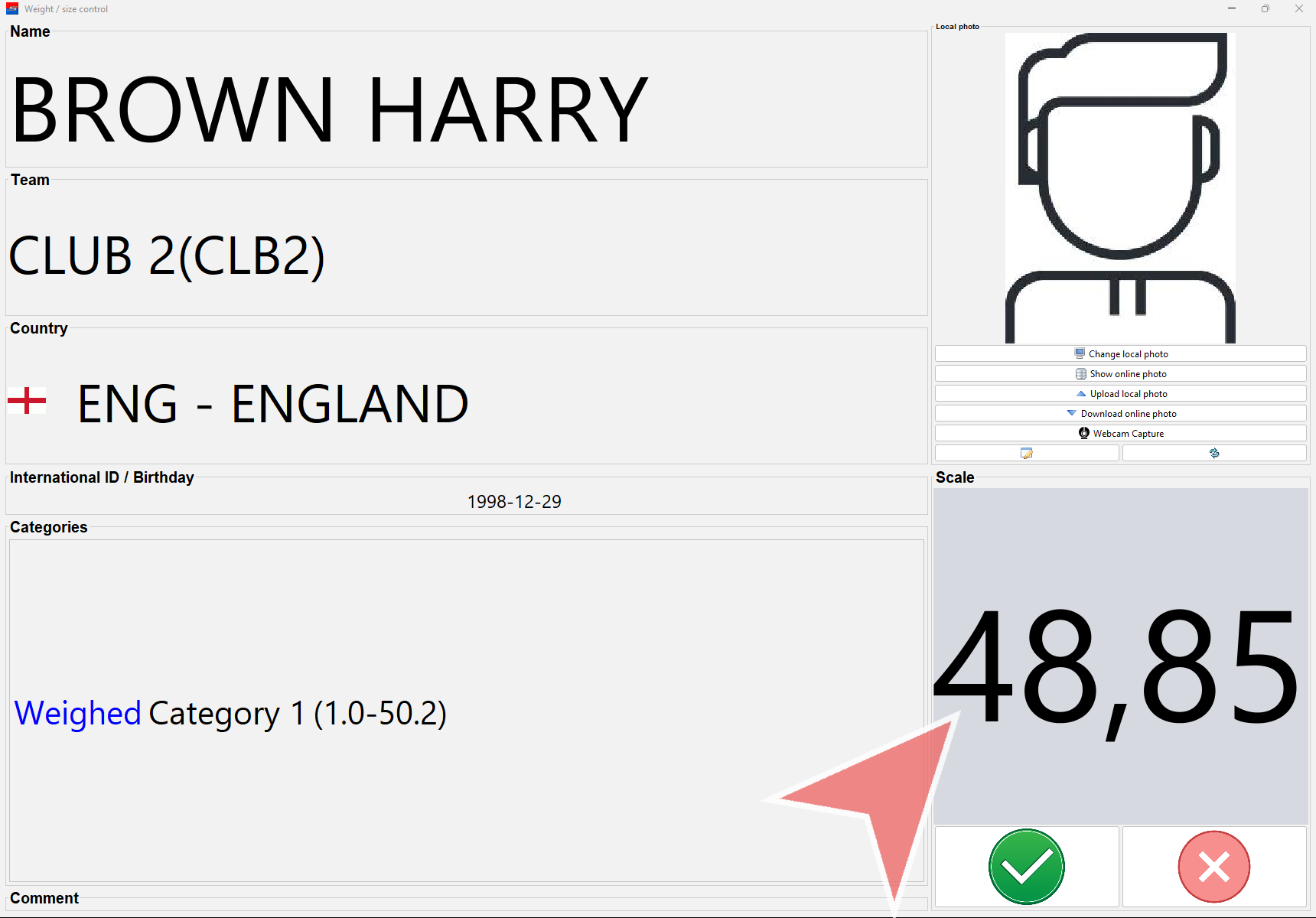
In case the automatic approval/rejection should be manually overwritten, use the green (valid) and red (not valid) button.
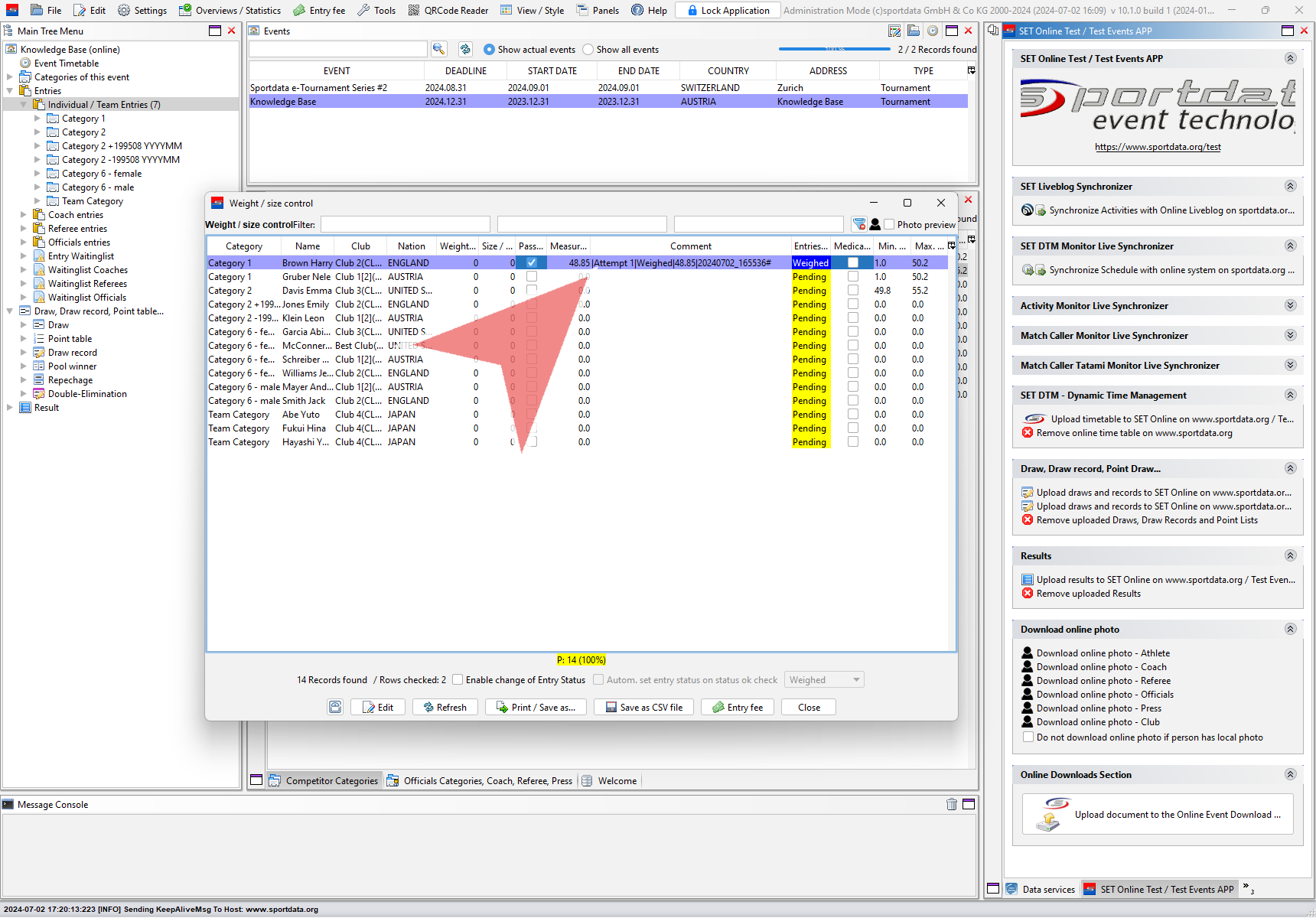
You find the log of all attempts in the “Weight / size control” list in the comment field. The measurement column contains the most recent weight.
Use the scale with a Barcode scanner
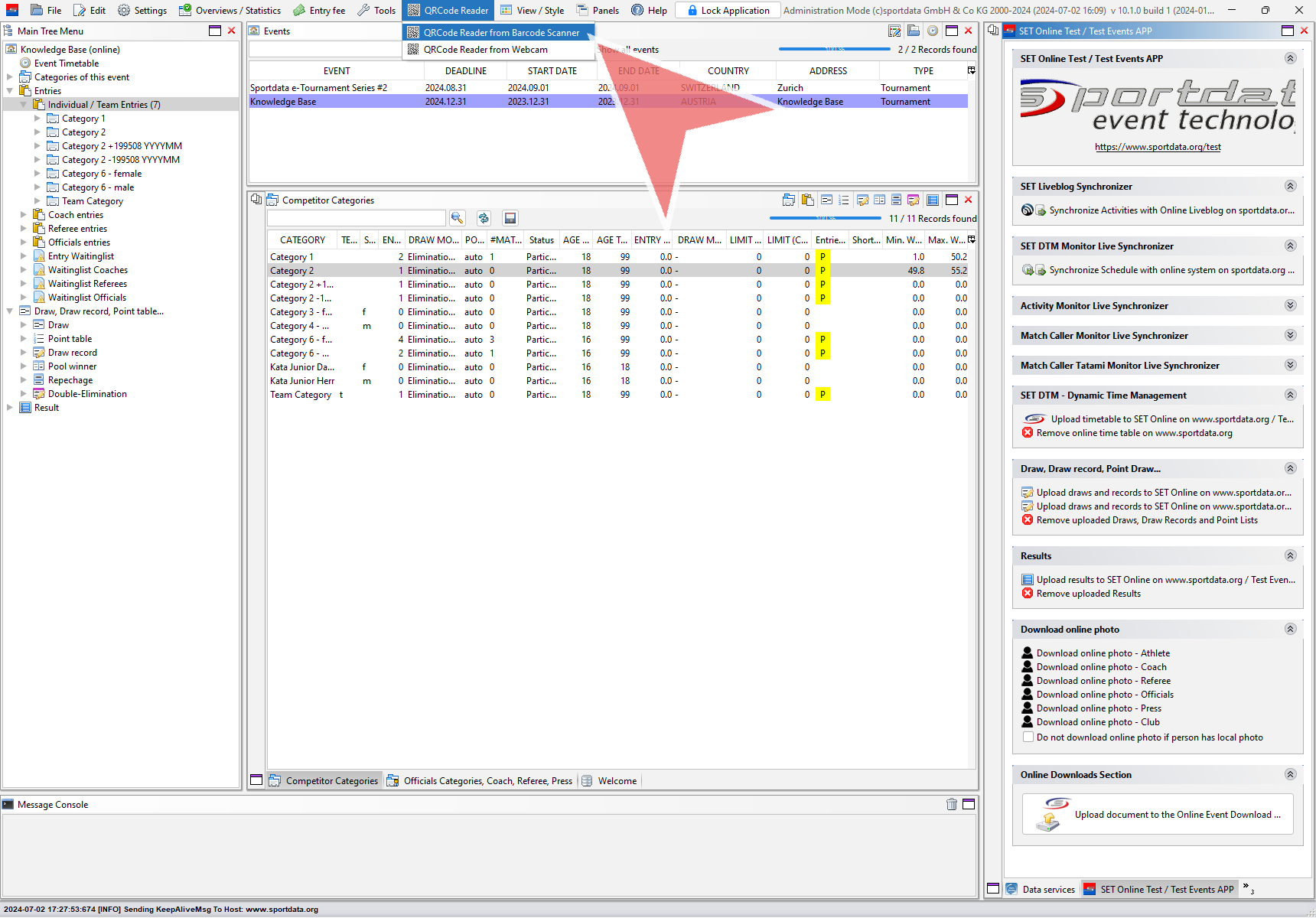
If you use a Barcode scanner during weight control, you don’t have to search for the athletes in the “weight / size control” list. First connect the Barcode scanner and then select the option “QRCode Reader from Barcode Scanner”.
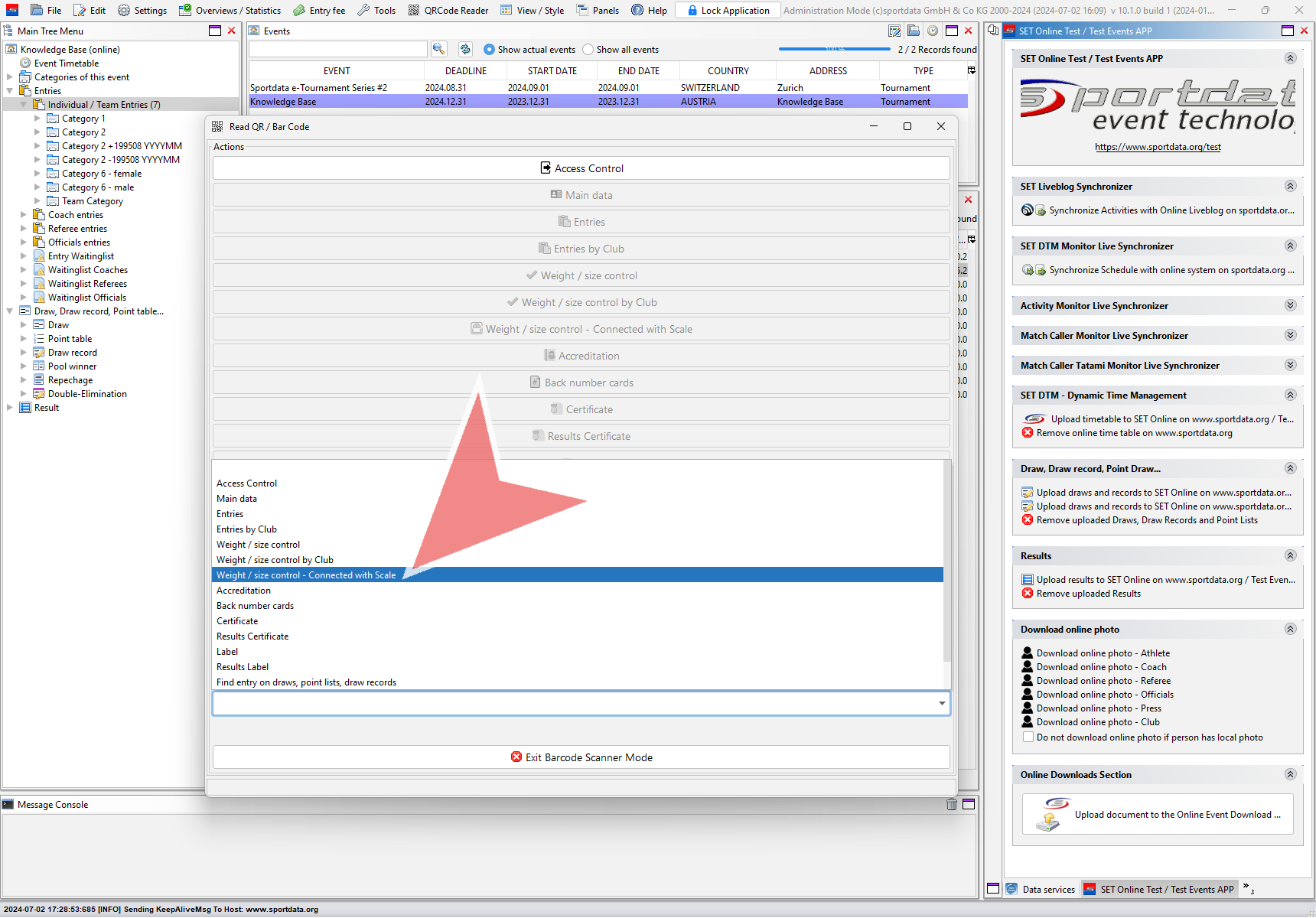
Select “Weight / size control – Connected with Scale” from the list of default function. Keep this window always open while using the barcode scanner. The “Weight / size control” window of an athlete will now open automatically, when you scan the QR code on an athlete’s accreditation card.
Troubleshooting
If you are facing any issues with the connection to the scale or barcode scanner even though all settings are correct, the most successfull way is to close and open the port in the «Data Service» panel. If that doesn’t help disconnect and reconnect the USB port or use a different USB port. Open the COM port afterwards again in the software.