WKF Karate Kumite is a fast-paced combat sport where two athletes compete using controlled punches, kicks, and tactical movement to score points under strict refereeing criteria. Governed by the official World Karate Federation (WKF) rules, matches require precise scoring, penalty tracking, and real-time timekeeping to ensure fair and accurate competition outcomes.
The WKF Karate Kumite Scoreboard and Point Panel is a digital scoring solution designed to help operators manage all aspects of a Kumite match. The software allows operators to control the scoreboard, register scoring techniques (Yuko, Waza-ari, and Ippon), record penalties (Hansoku, Shido, and warnings), manage match time and stoppages, and display official match data clearly for referees, athletes, coaches, and spectators.
This guide provides an overview of the WKF Kumite Scoreboard features and explains the key functions required to successfully manage professional WKF Karate competitions, including match setup, scoring input, penalty management, time control, and final result confirmation.
Software download – Interactive Demo
Download the SET OVR to get the free scoreboard or use our interactive demo to follow along with the article . First, select your operating system, then download the installer, and during the set up you can select SET Point Panel for just the scoreboard. Also try our SET OVR click it as well to learn how to create entries, draws, draw records, timetables and more for free.
How to operate WKF Karate Kumite (Round Robin)
Open Match
You find all categories in the «Draw Record» drop down menu. Find the right category and klick on the arrow next to it.

All pools of the category will show up. Double click on the correct pool to open it.

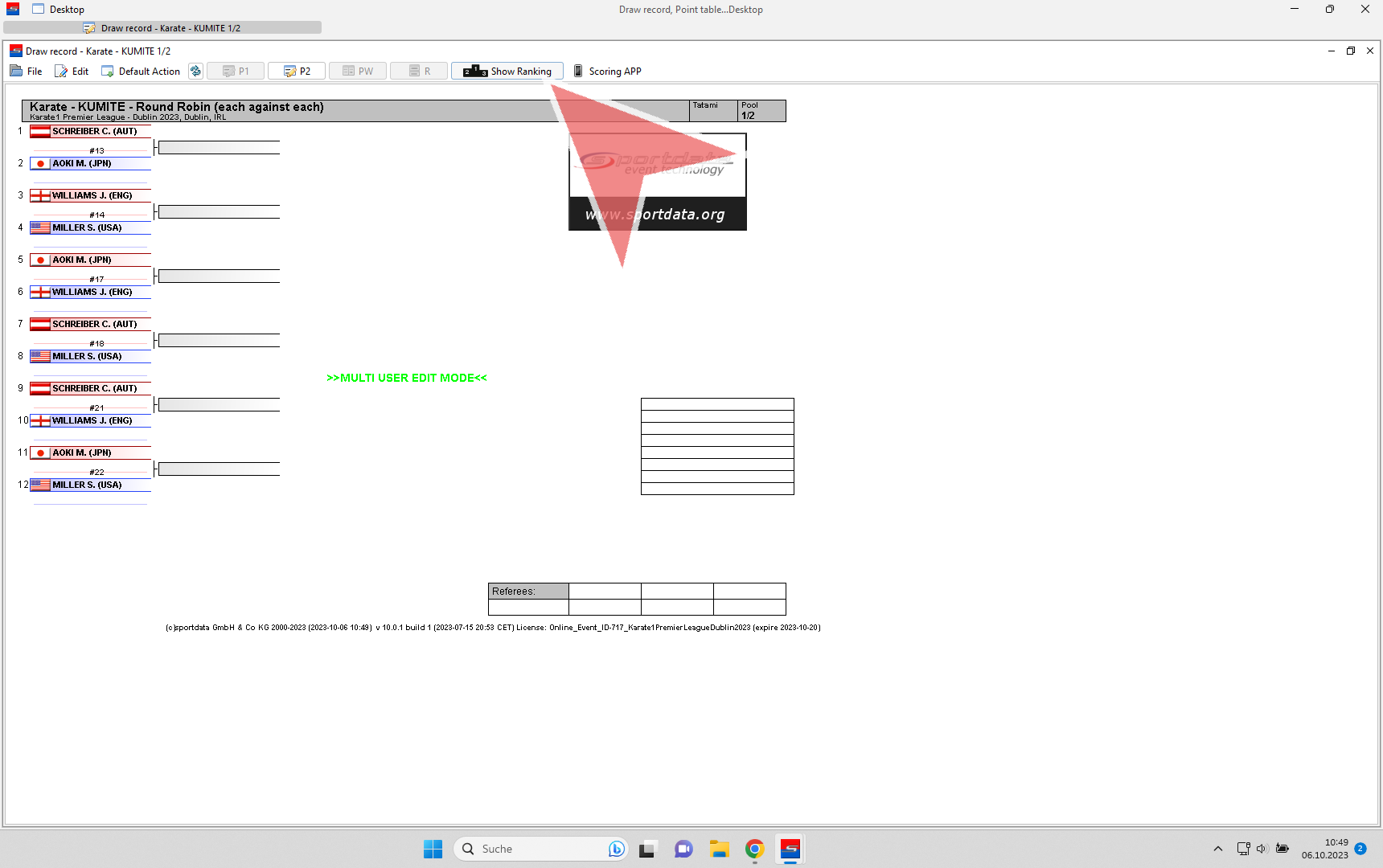
The single bouts of the pool including the matchnumbers are shown on the left. For the line-up of all competitors of the pool, click on the button «Show Ranking» to display all athletes on the screens.
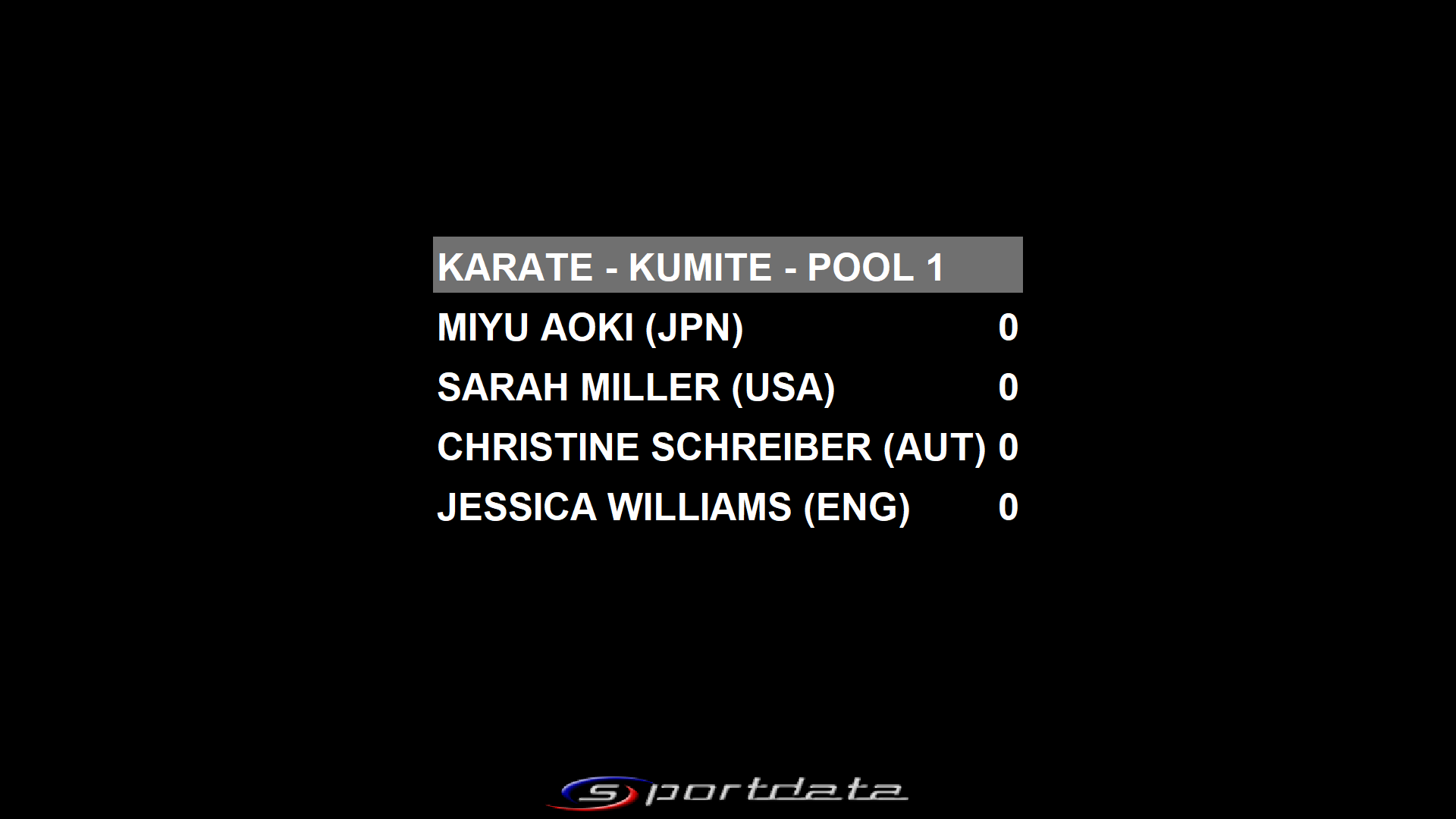
This is the view shown on the screen during the line-up.
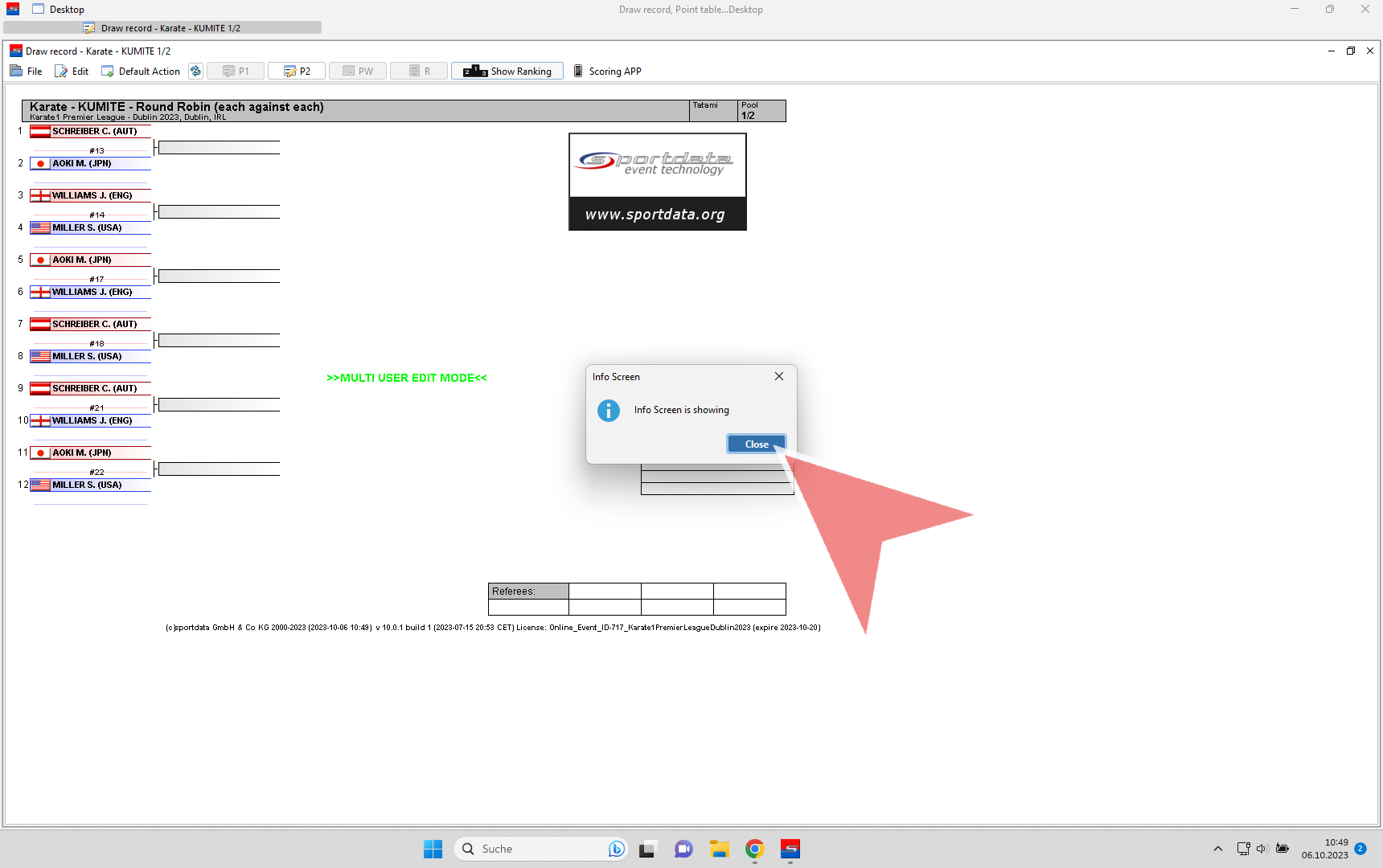
When the athletes leave the tatami, you can close the info screen.
To open a match, just click on one of the competitor’s names.
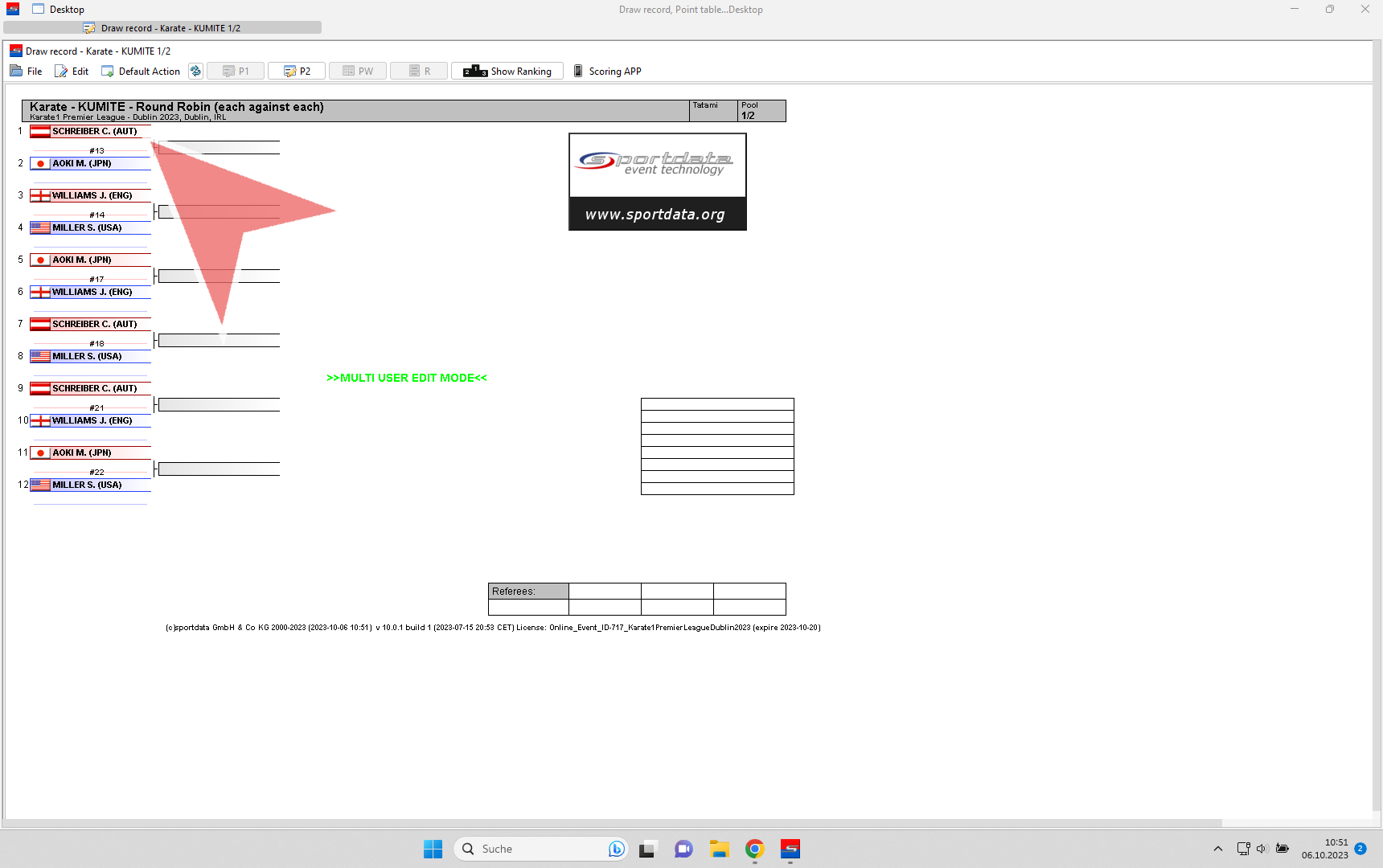
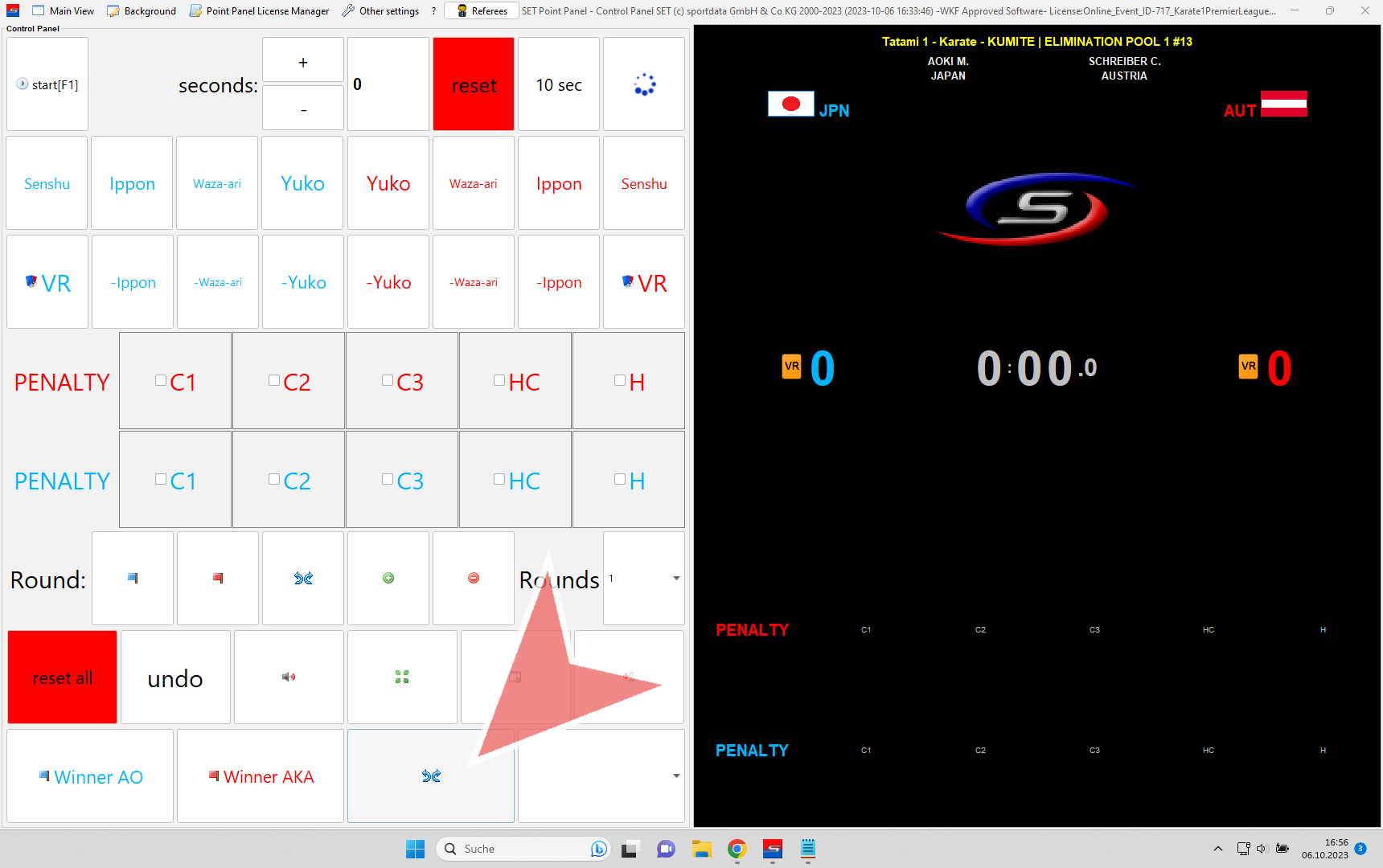
This is the view of the scoreboard. First always click on «reset all» before the matches starts.

Confirm that you really want to reset all components
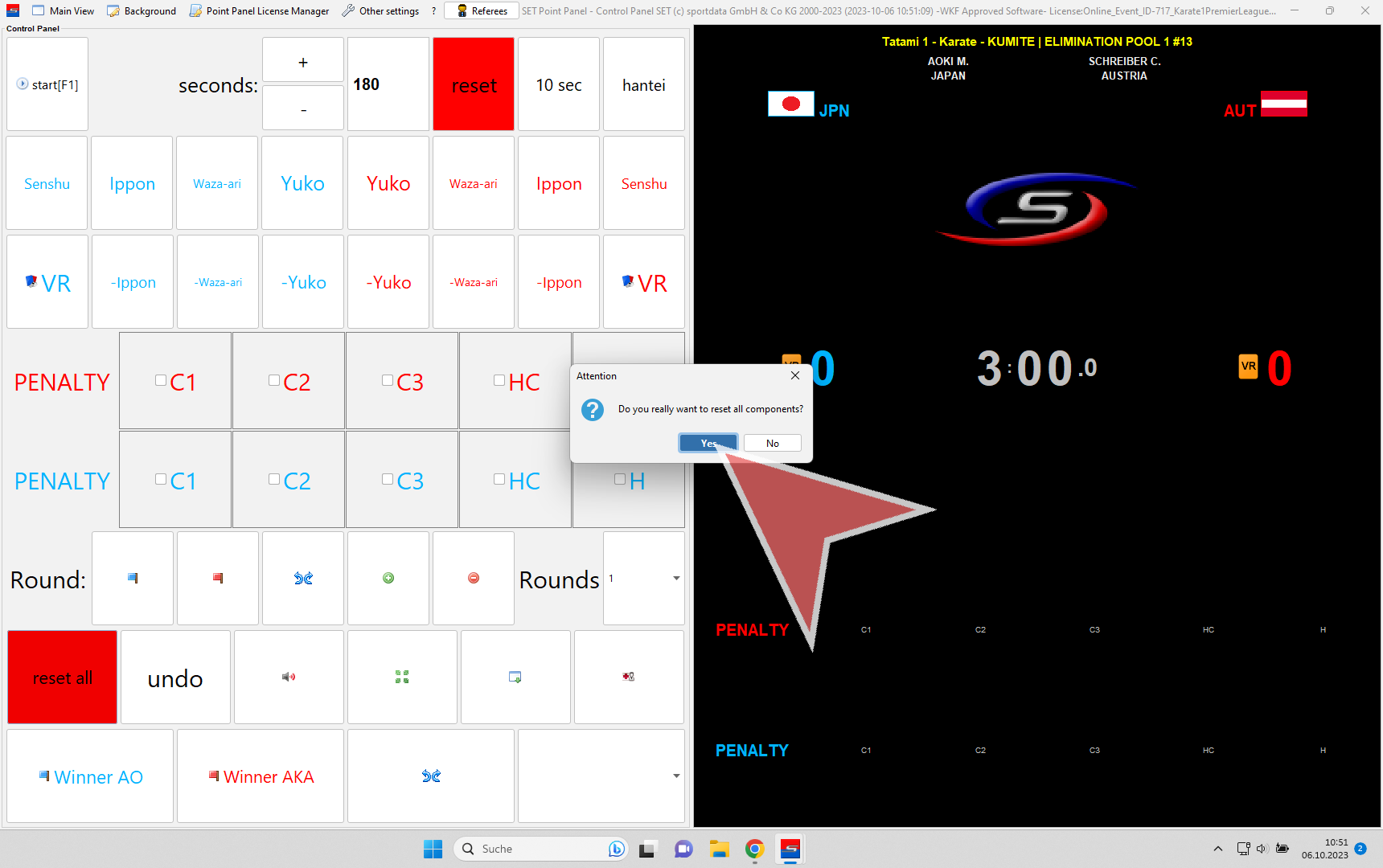
This is the view of the scorebaord displayed on the screens.
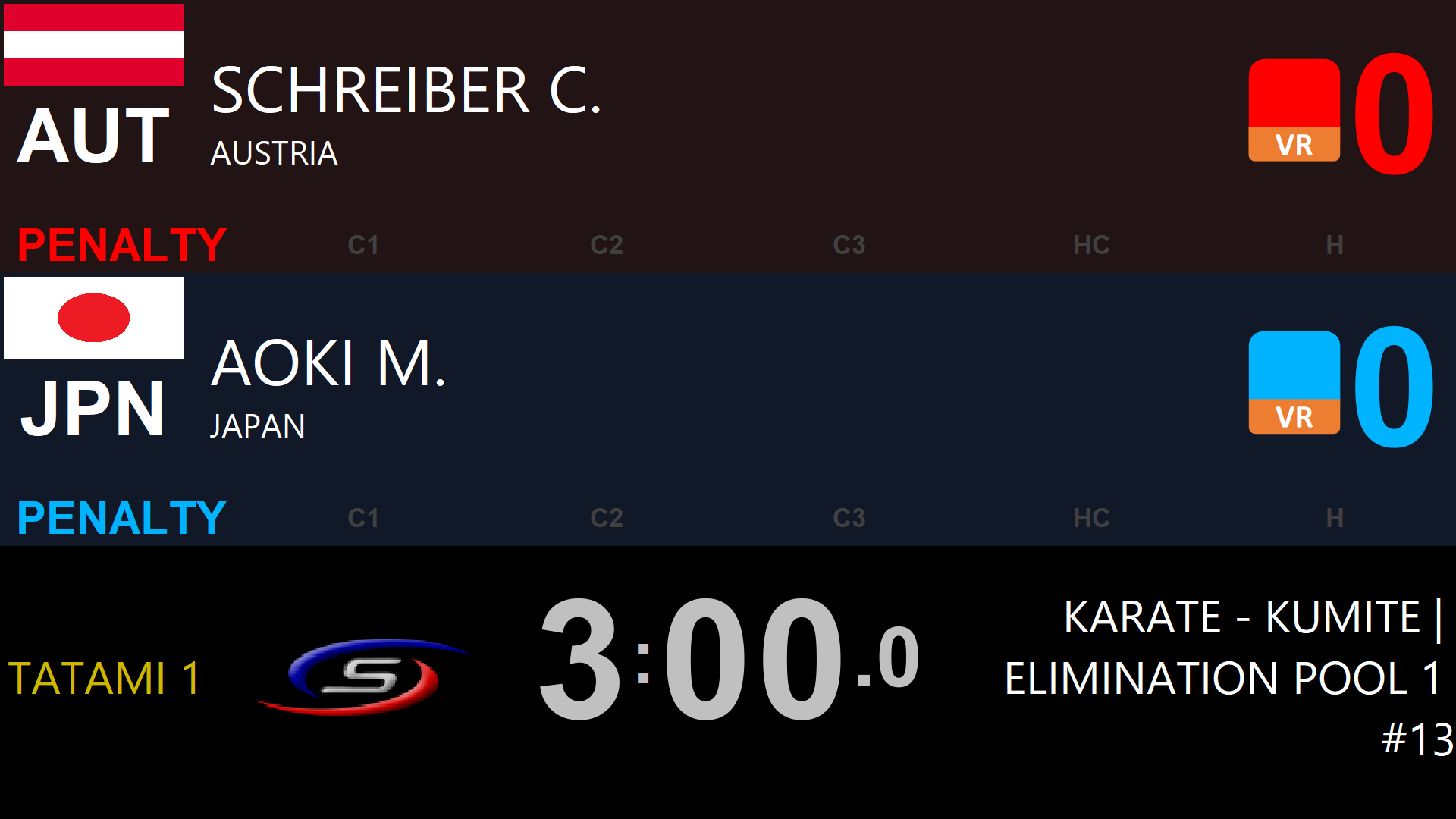
Timing
To start the time click on the «Start»-button.
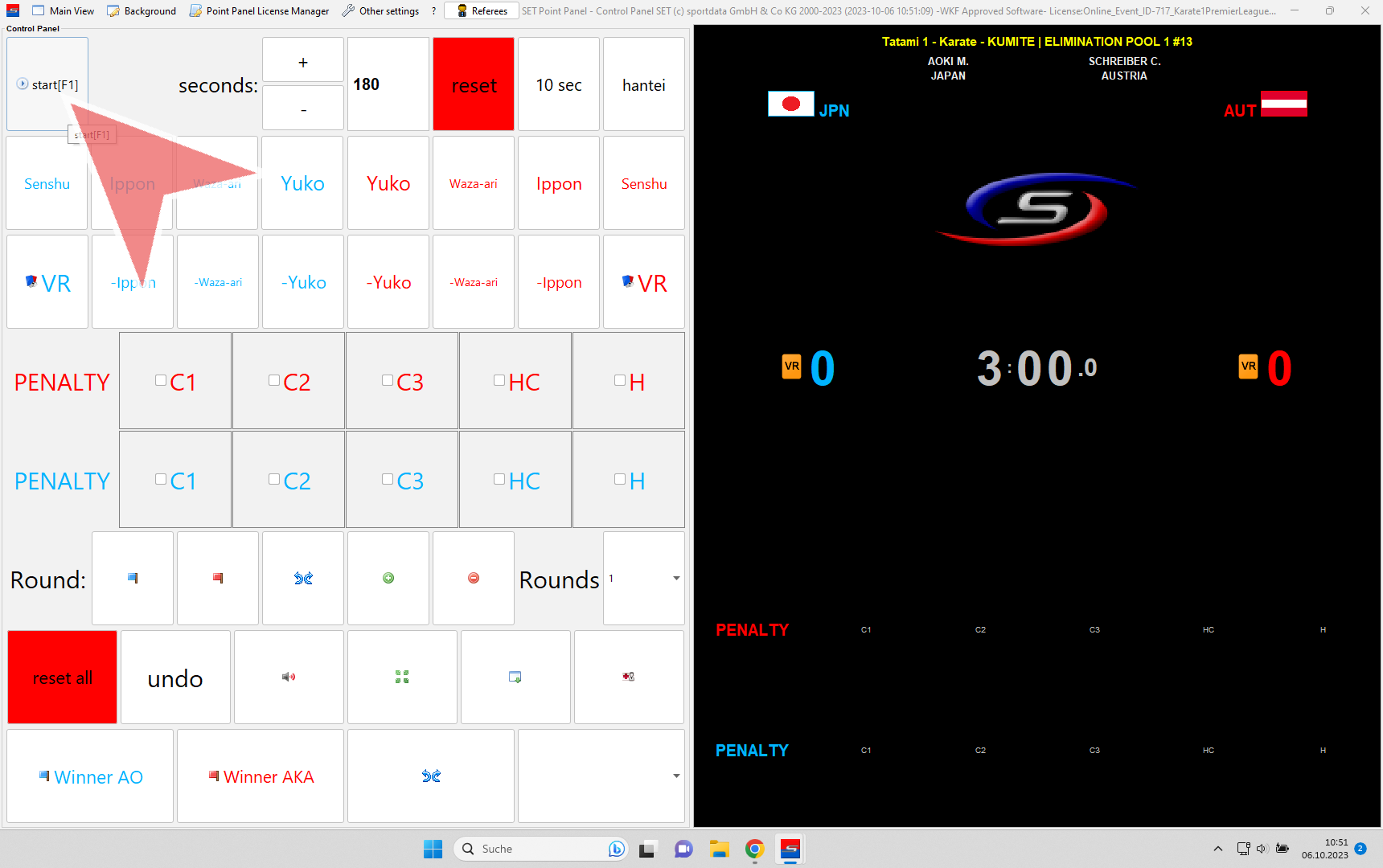
To stop the time click on the same button again.
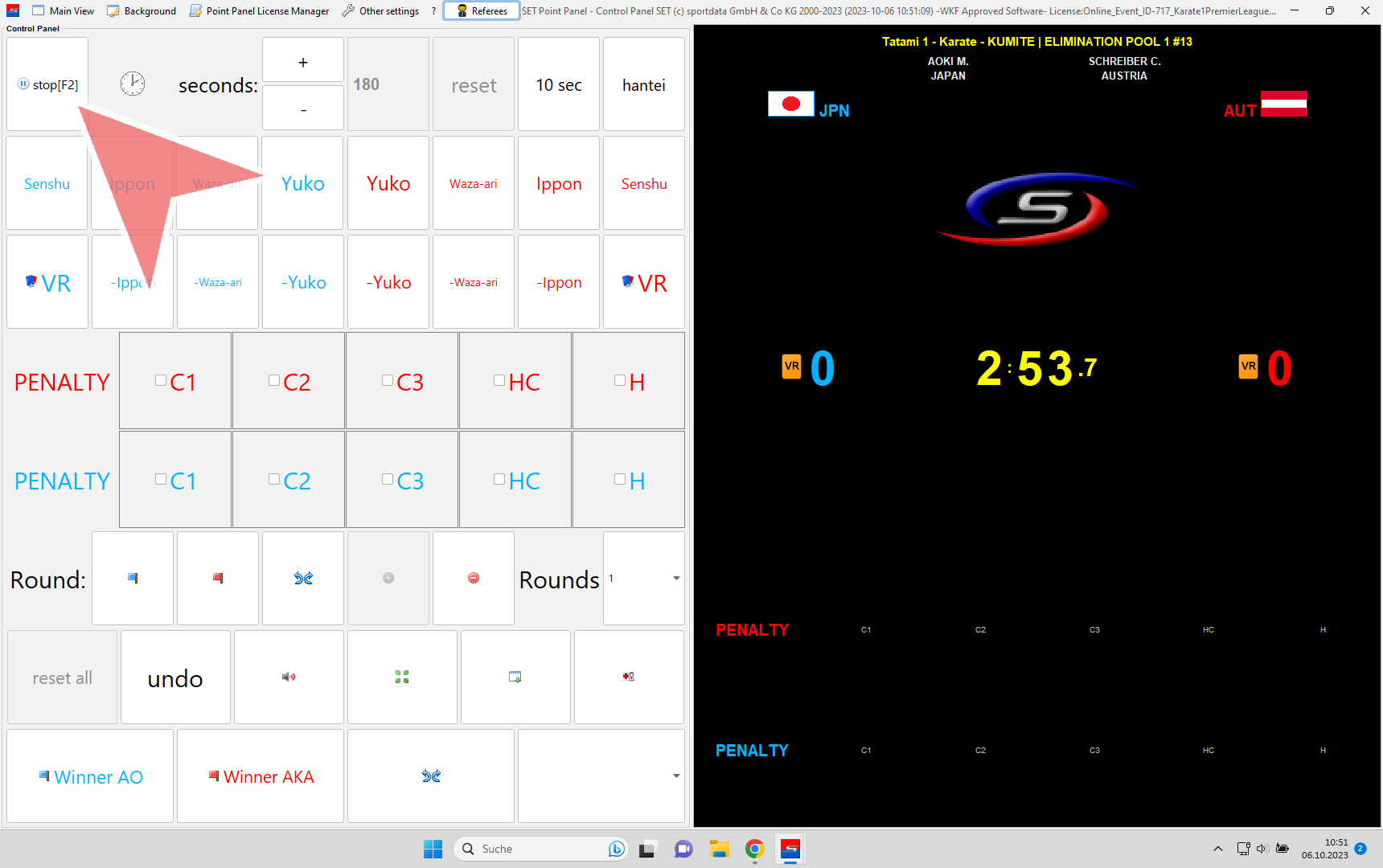
In case the referee tells you to add or subtract some seconds, use the «plus» and «minus»-buttons.
Scoring
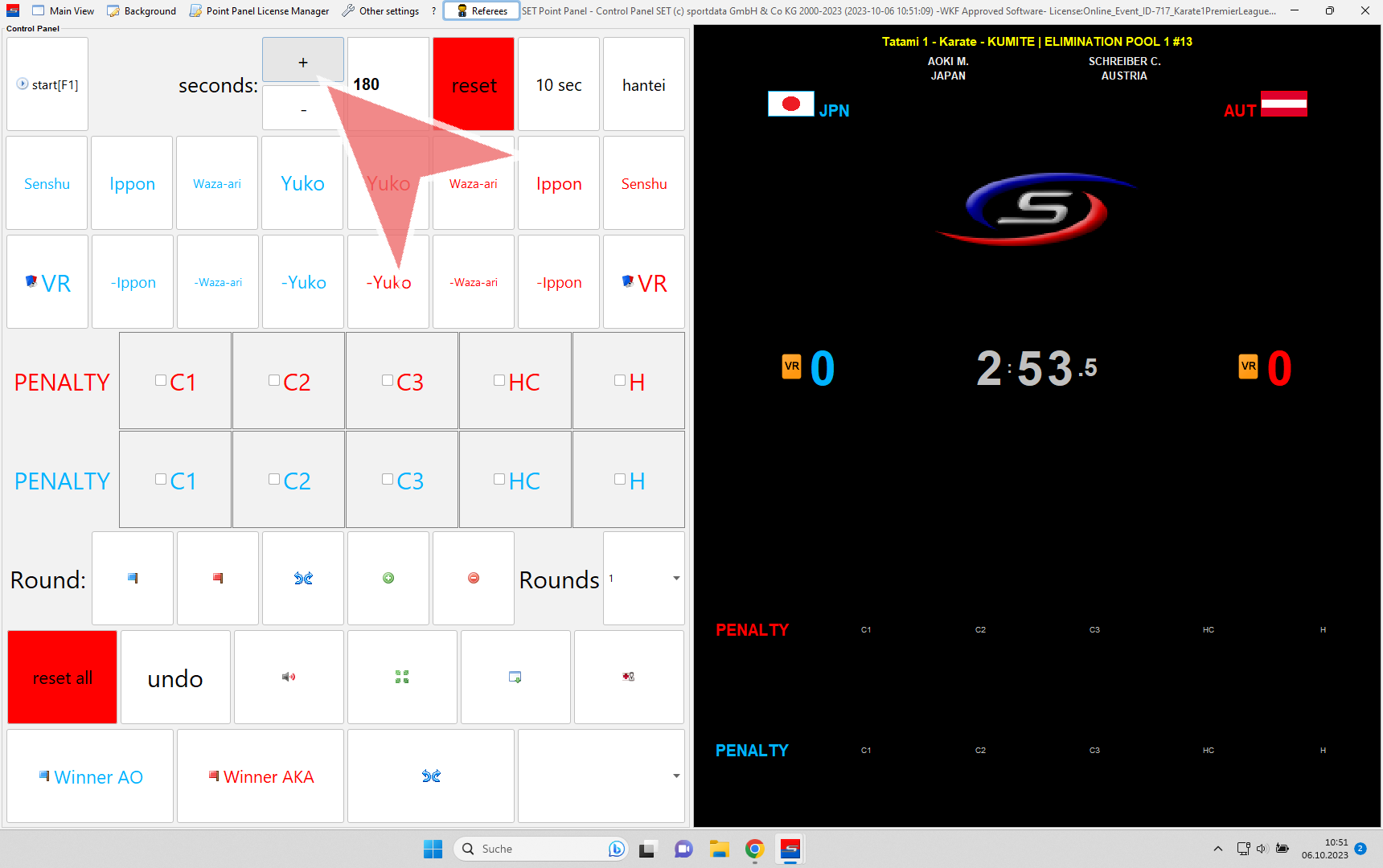
To give a score for AKA (red) or AO (blue) use the buttons «Yuko» (1 Point), «Waza-Ari» (2 Points) or «Ippon» (3 Points) in the correct color.
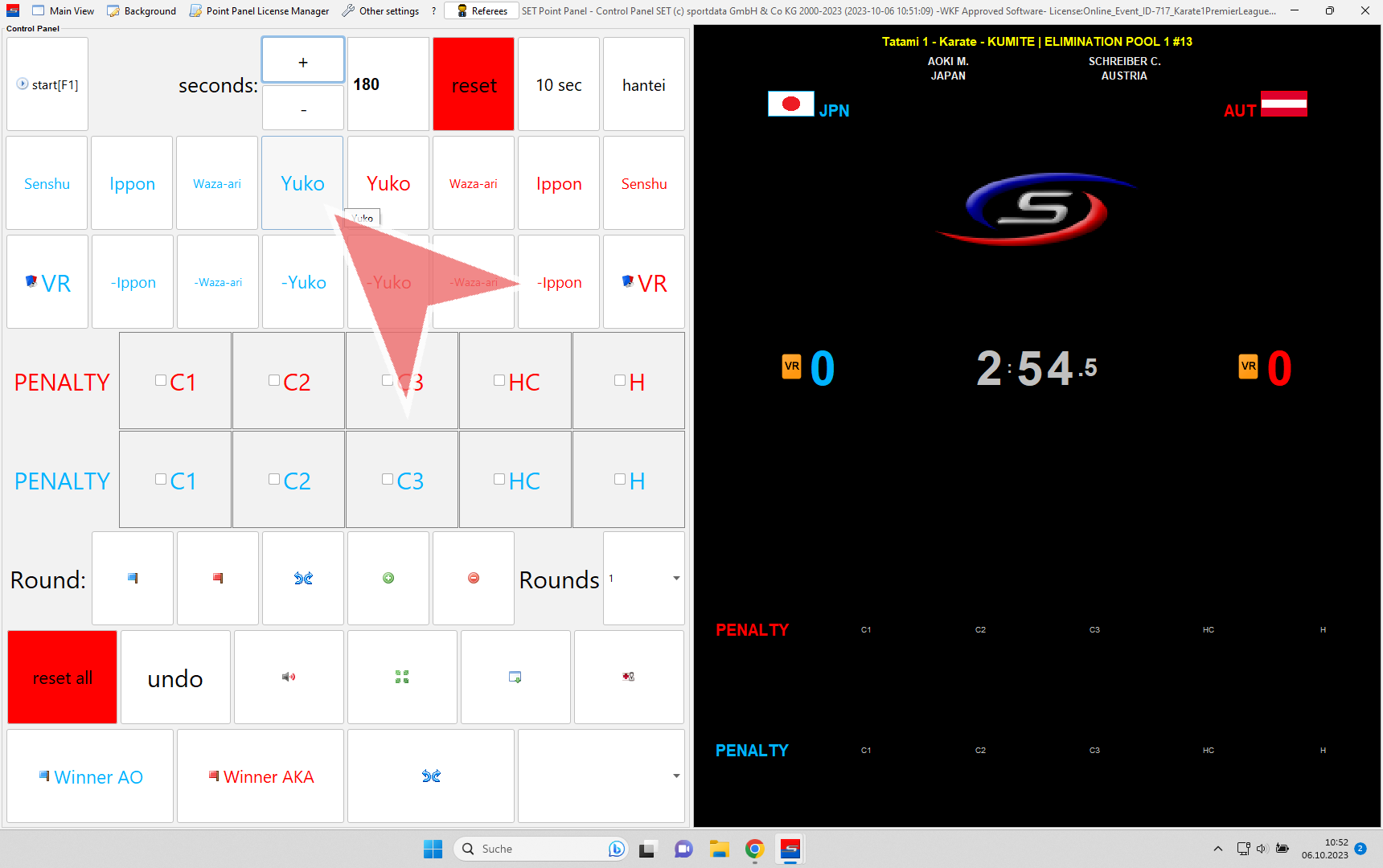
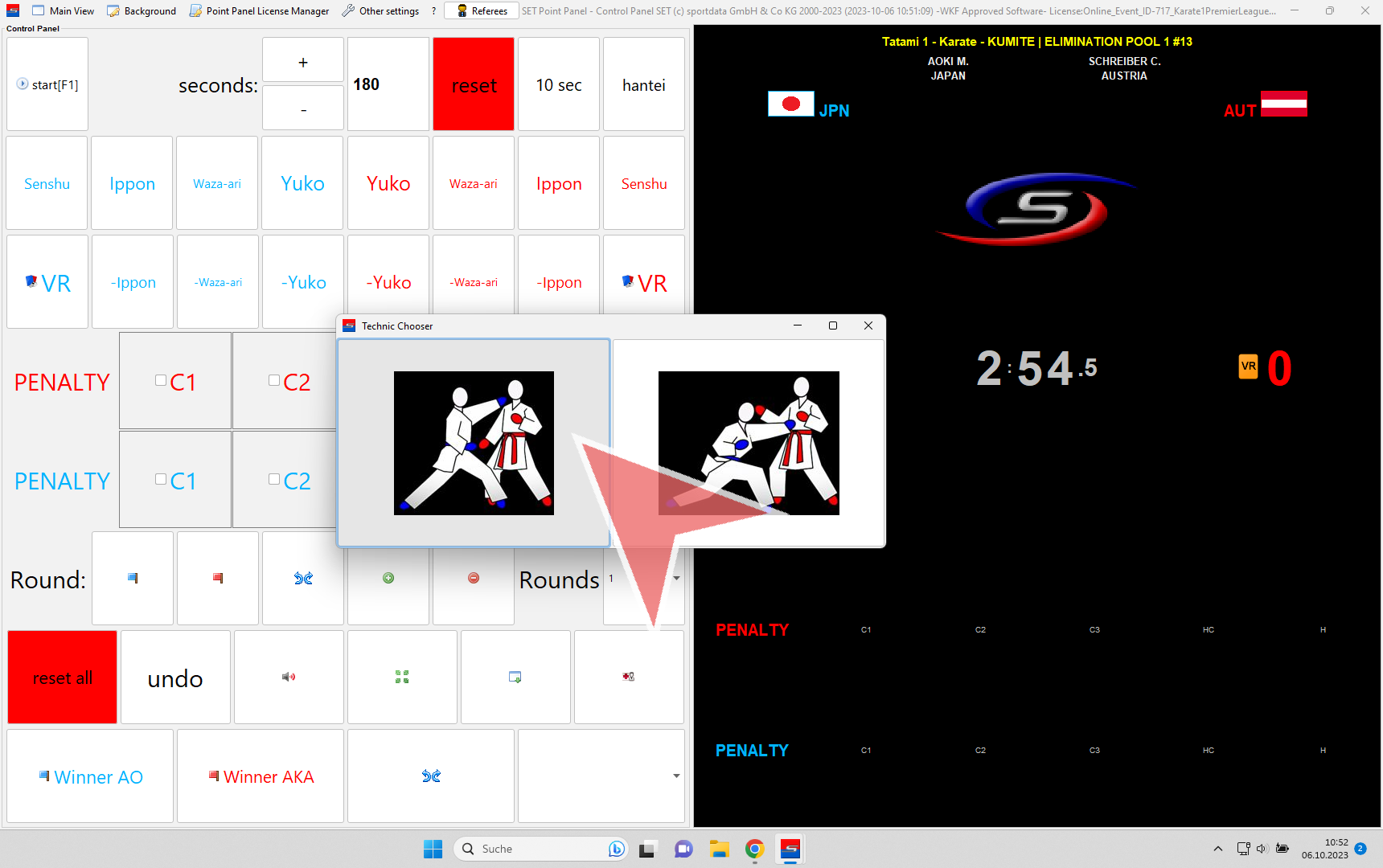
For Yuko and Ippon you have to select which technique was used by clicking on the correct image.
An animation of the scored point will be shown on the screens.
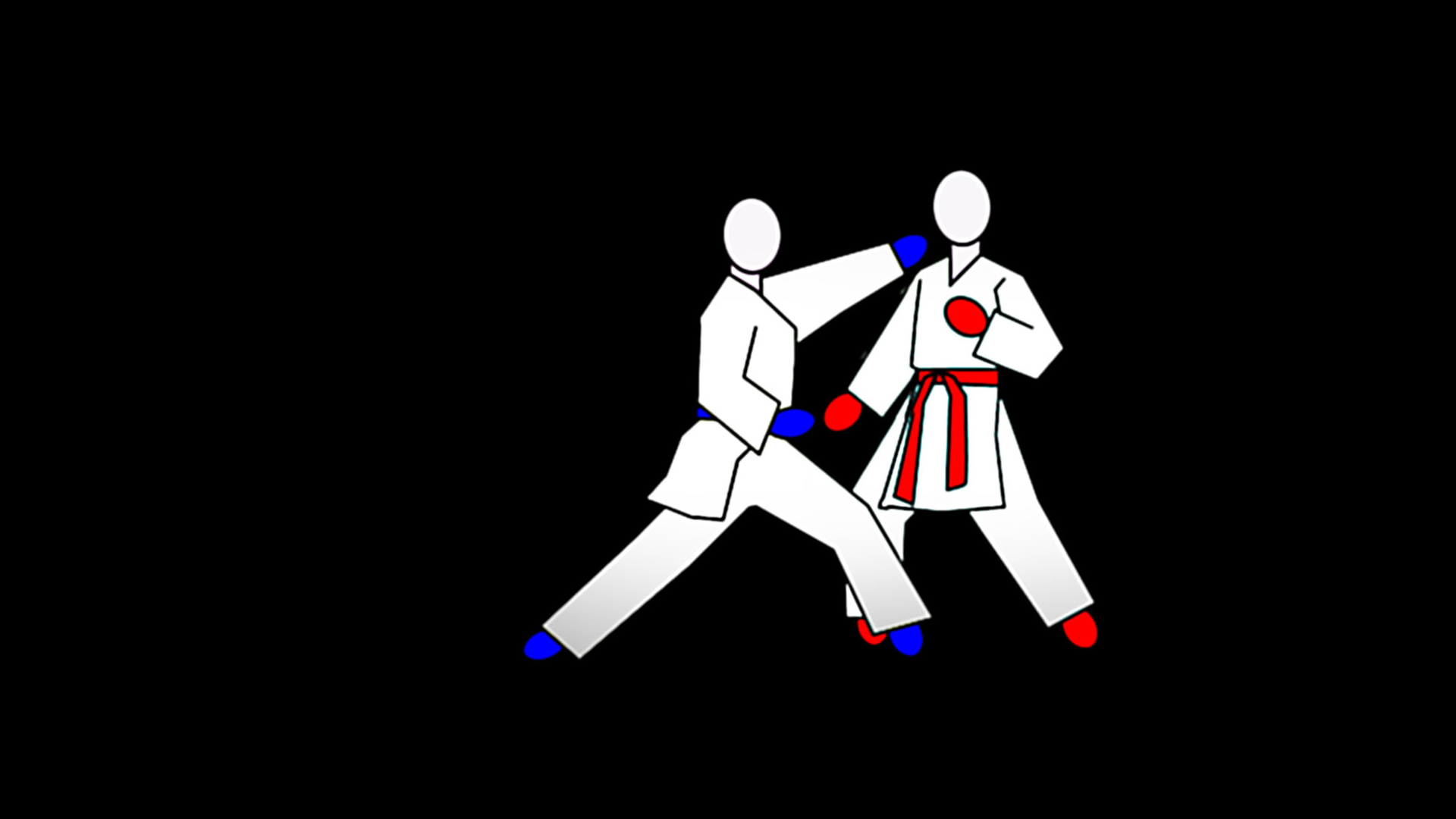
To give Senshu (first point scored) click on the «Senshu»-button for blue (left) or red (right). To remove senshu just click again on the same button.
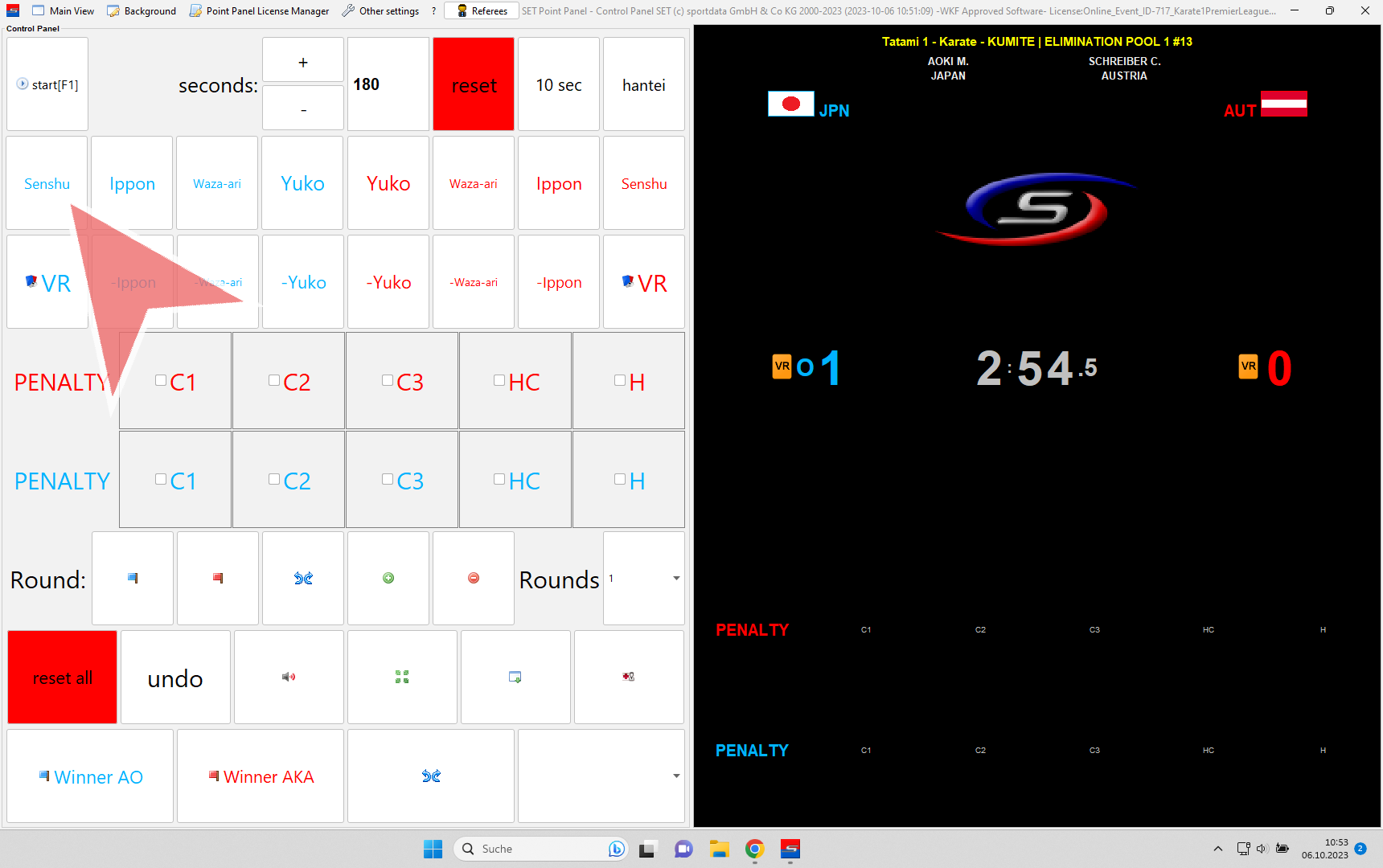
In case you did a mistake and gave the wrong score, you can take points back with the minus scores (e.g. minus Waza-ari red).

The displayed scores will be adjusted accordingly.
Penalties
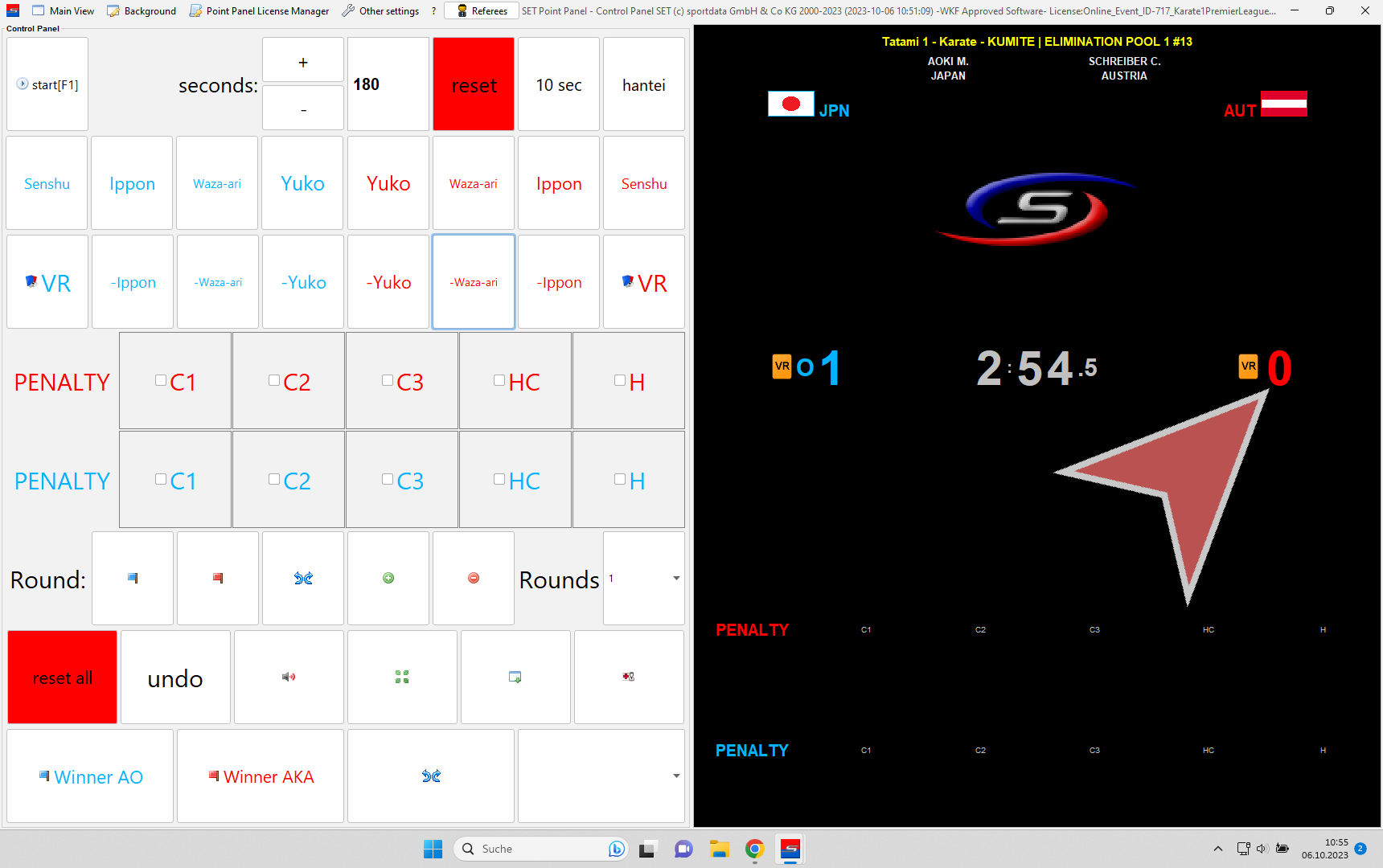
To give a penalty for AKA (red) or AO (blue), click on the corresponding Penalty button. If you accidently gave the wrong penalty, just click again on the same button to remove it.
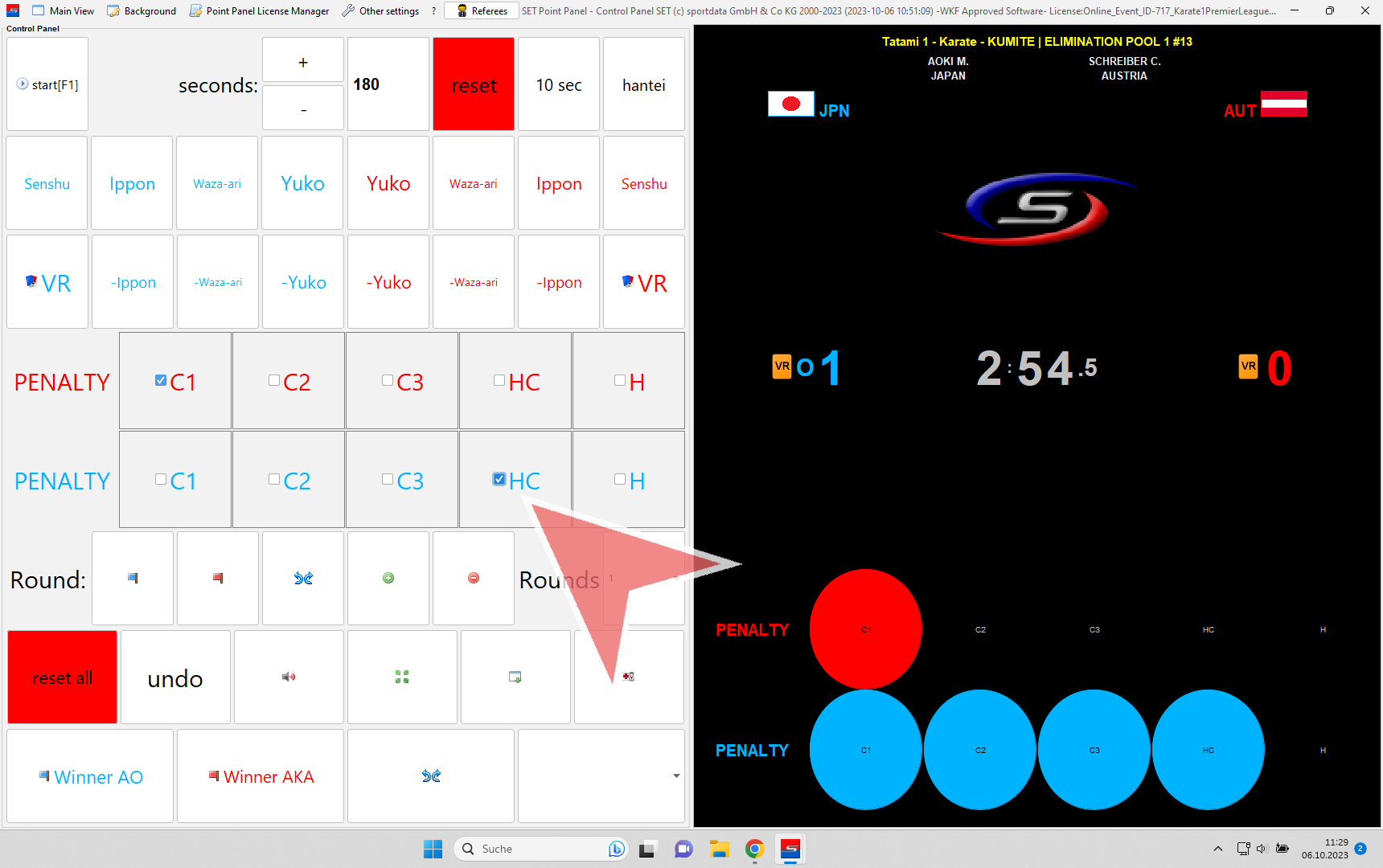
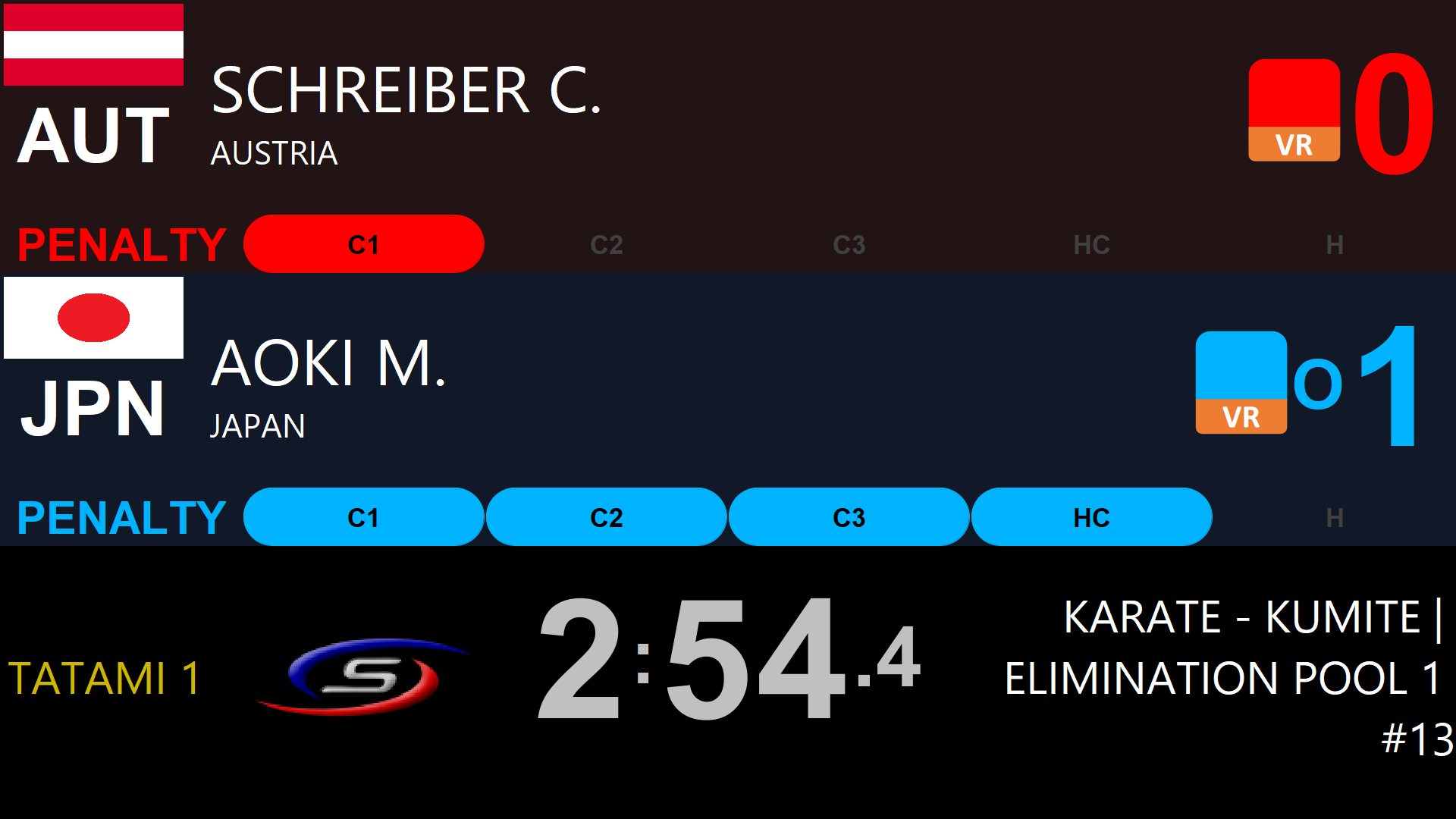
This is the view of the scoreboard with Penalty C1 for AKA (red) and 1 Point, Senshu and Hansoku Choui (HC) for AO (blue).
Video Review
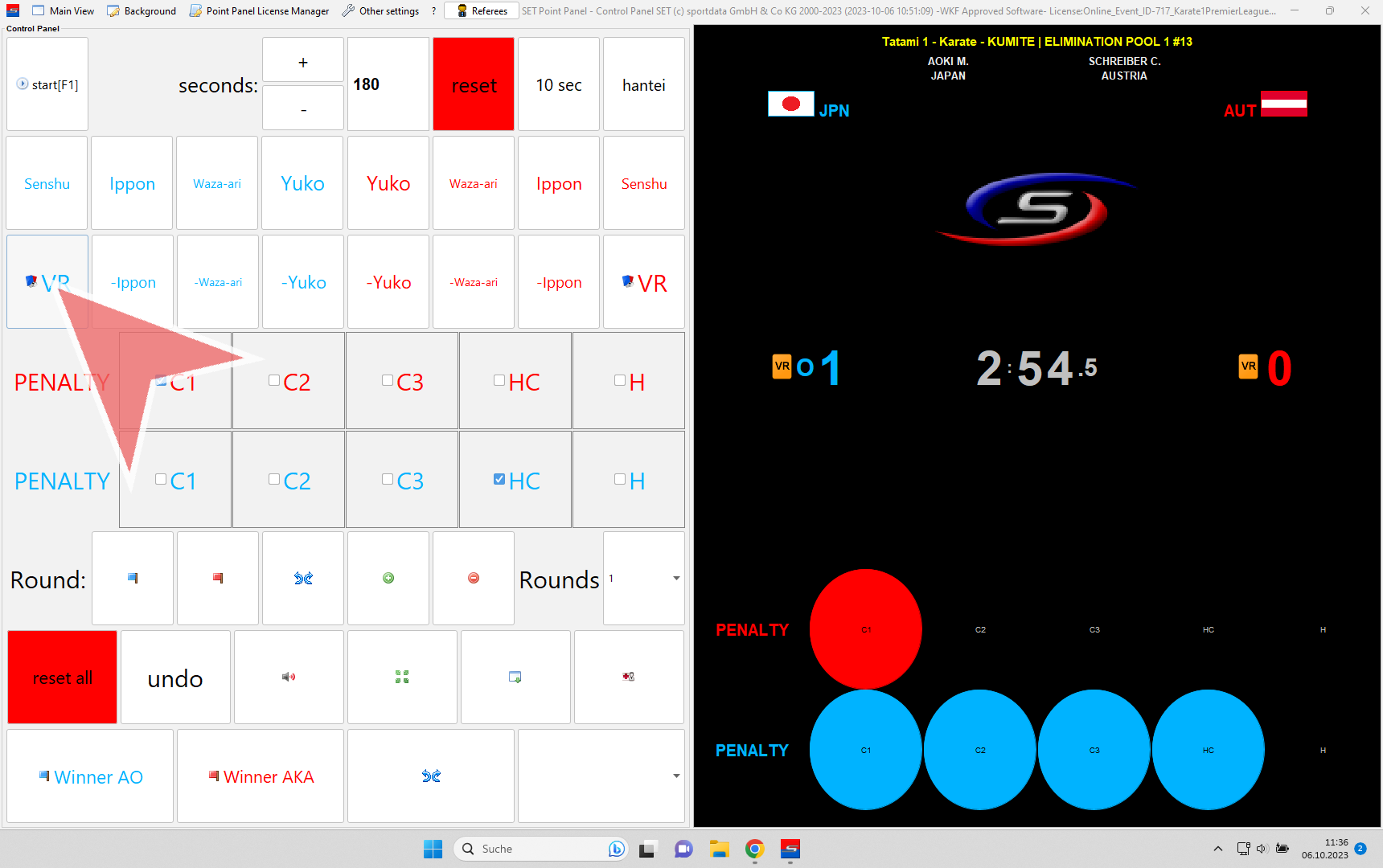
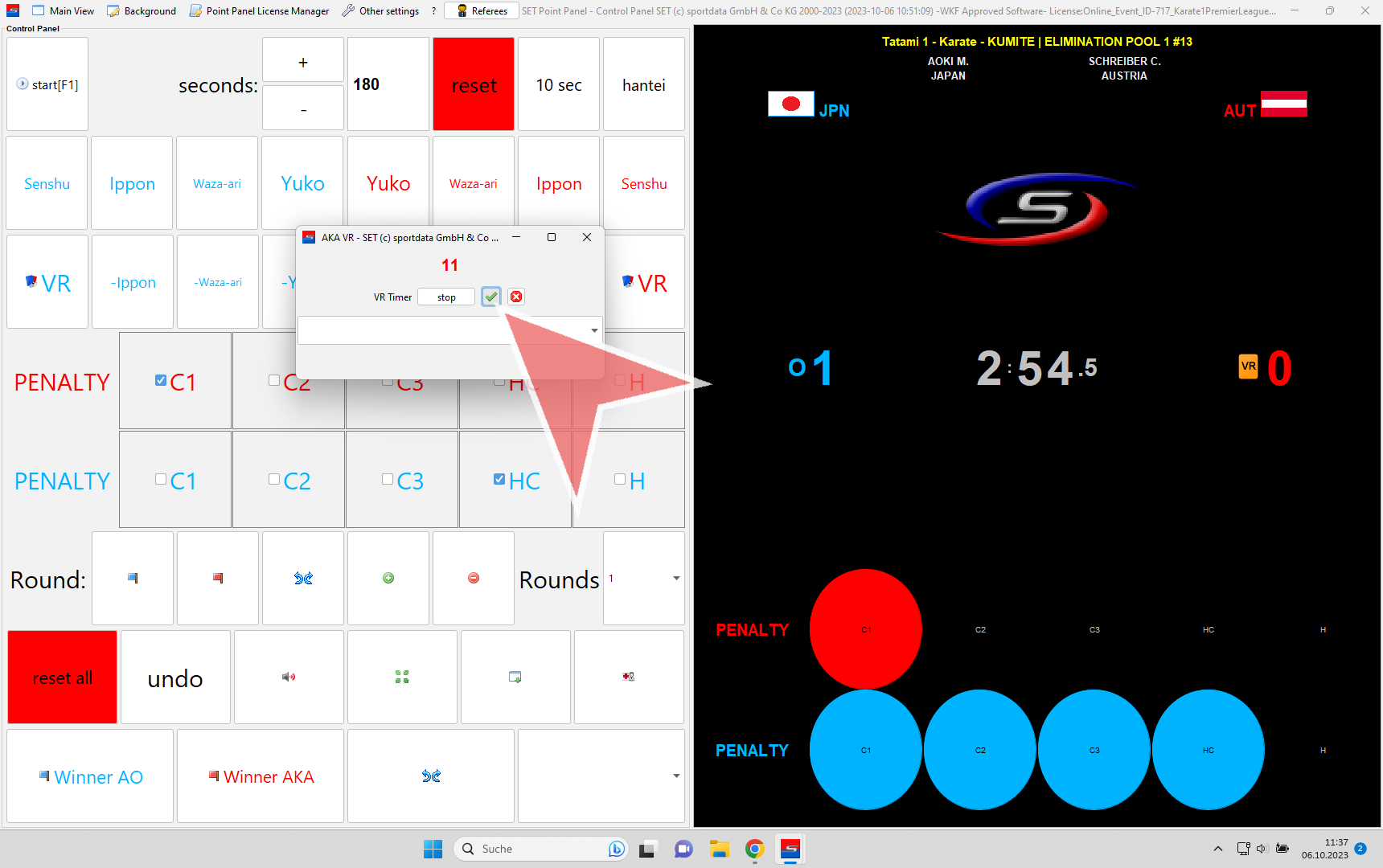
If the referee indicates the request of video review, click on the «VR»-button for AKA (red) or AO (blue).
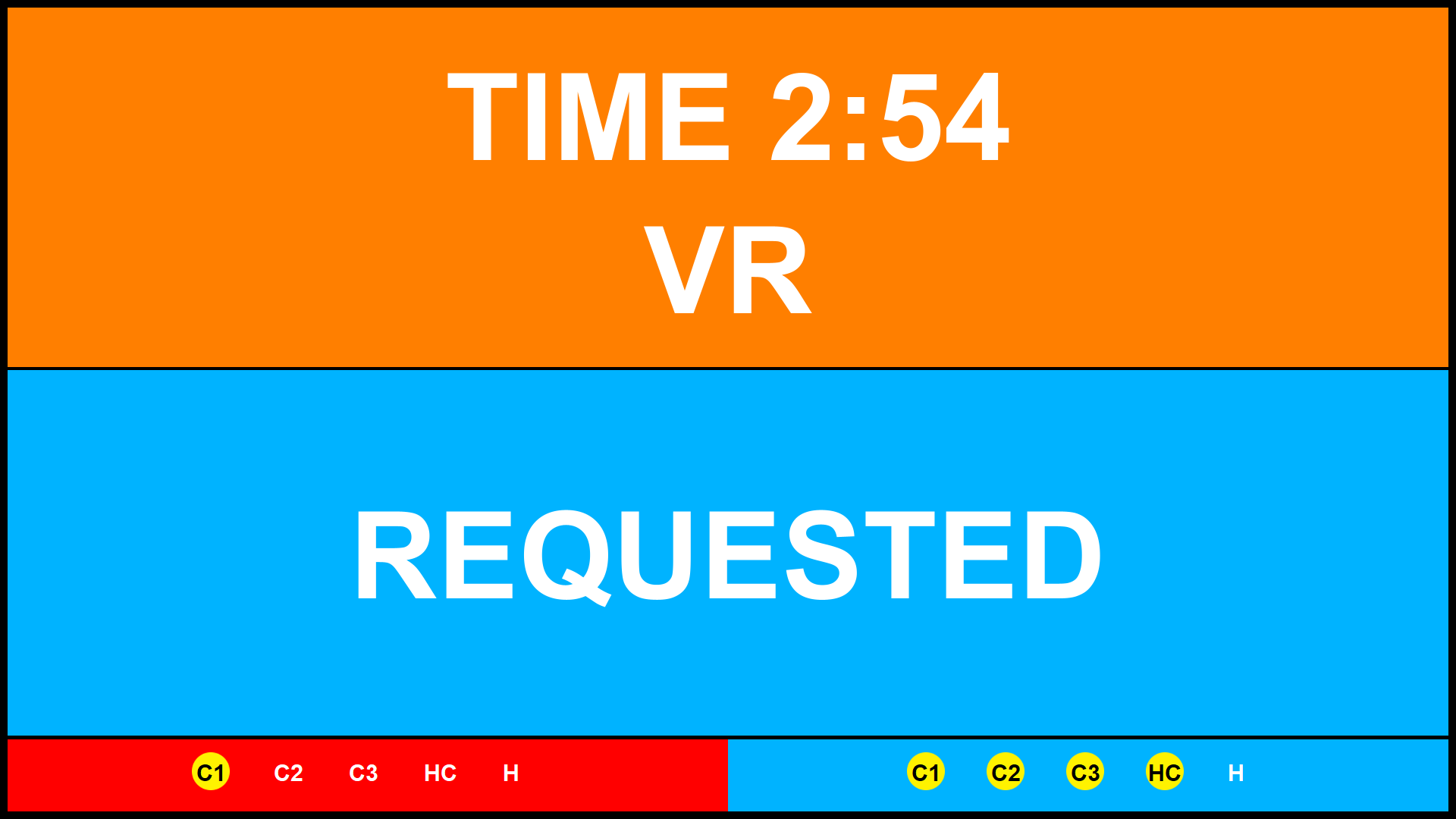
This is the view shown on the screens during a video review request with the current match time left and the given penalties.
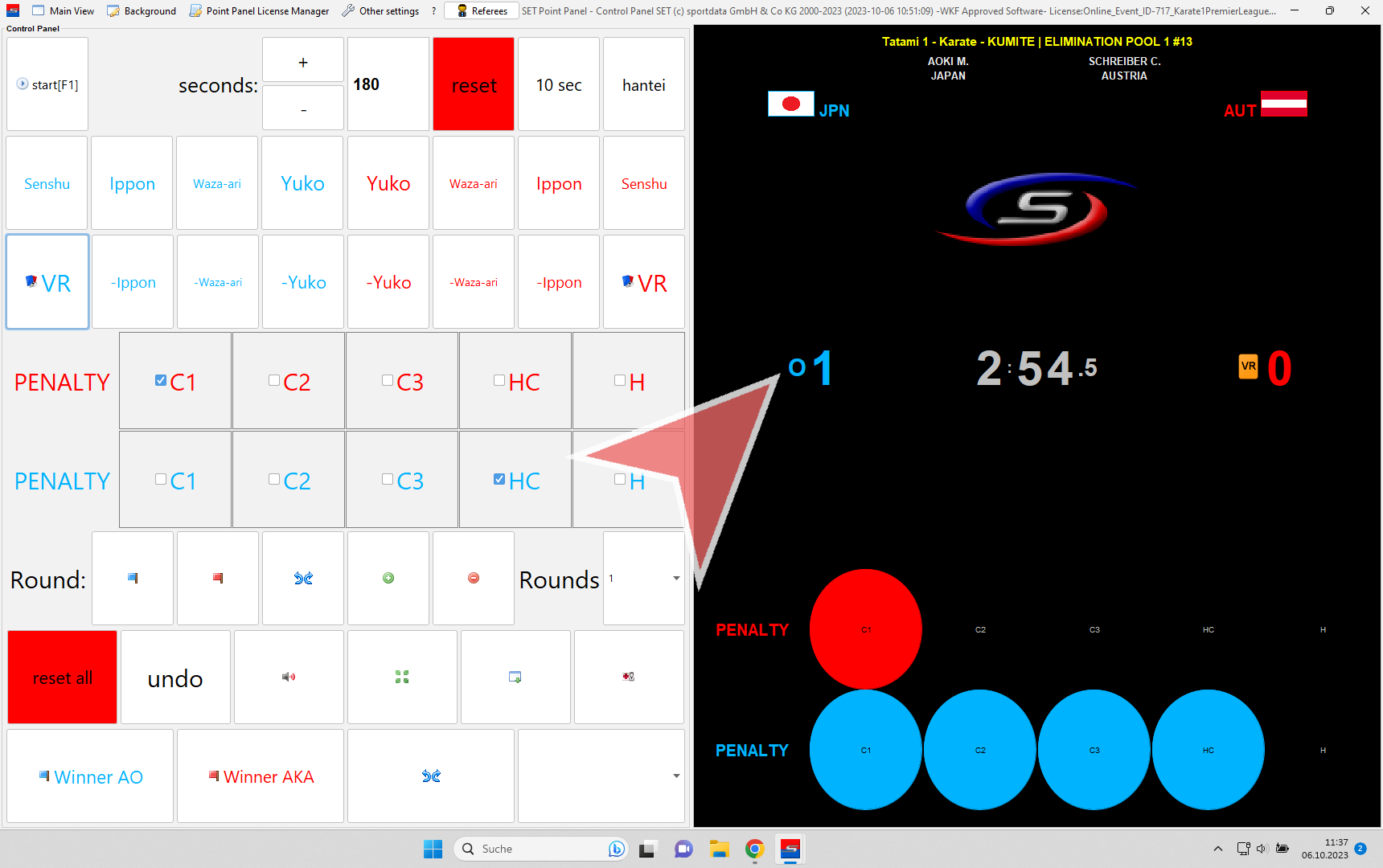
If the video review is denied, click on the red cross and close the pop-up window afterwards.

In this case the video review card of the athlete is removed automatically.
If a video review is accepted, click on the green check and close the pop-up window. Afterwards give the according score like usually.
Match Winner
Once the time is up or one athlete won due to other reasons (difference more than 8 points, opponent disqualified) his score starts blinking. When the referee anounces the winner, click on «Winner AO» or «Winner AKA».

A pop-up window with a drop-down menu shows up.
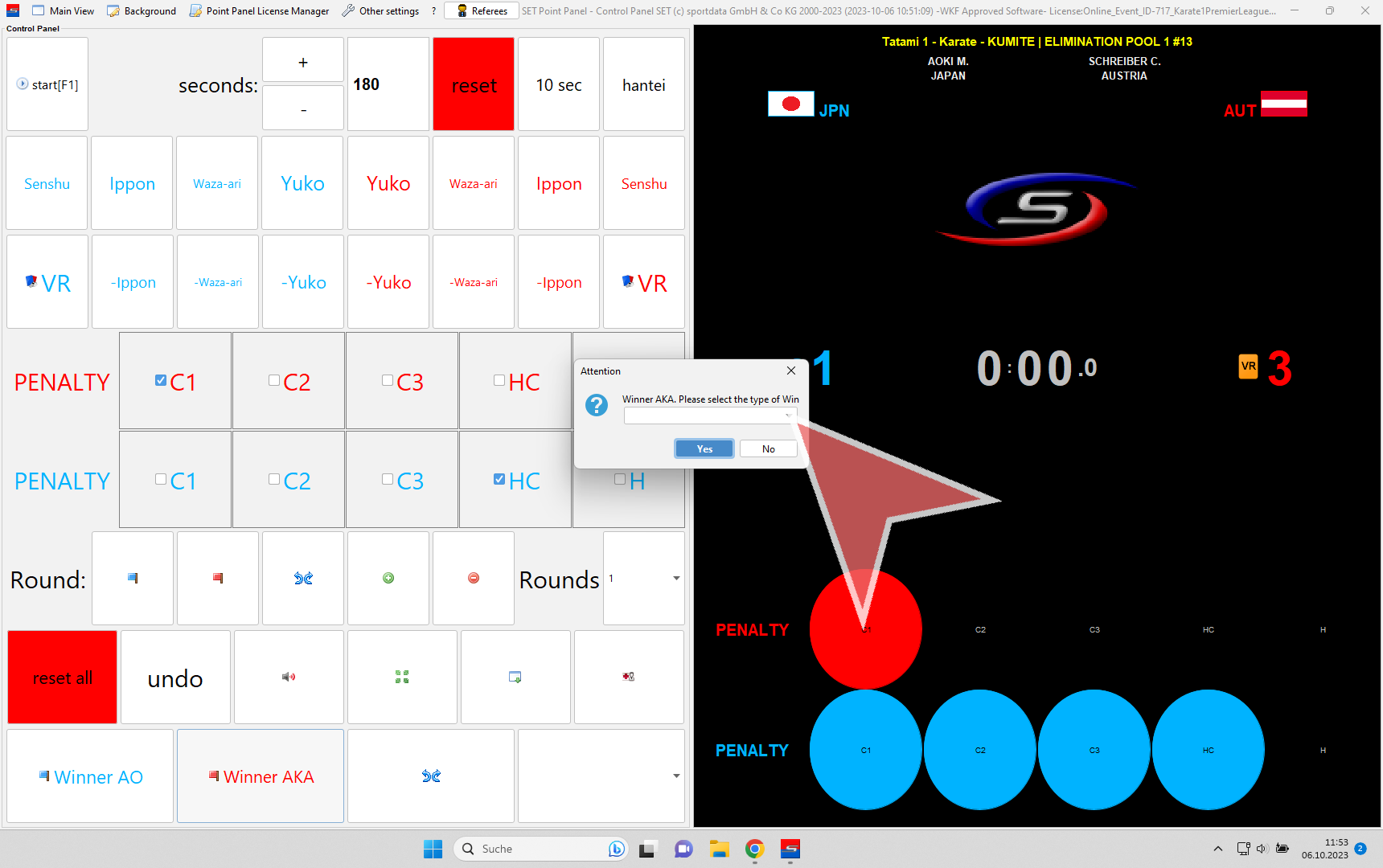
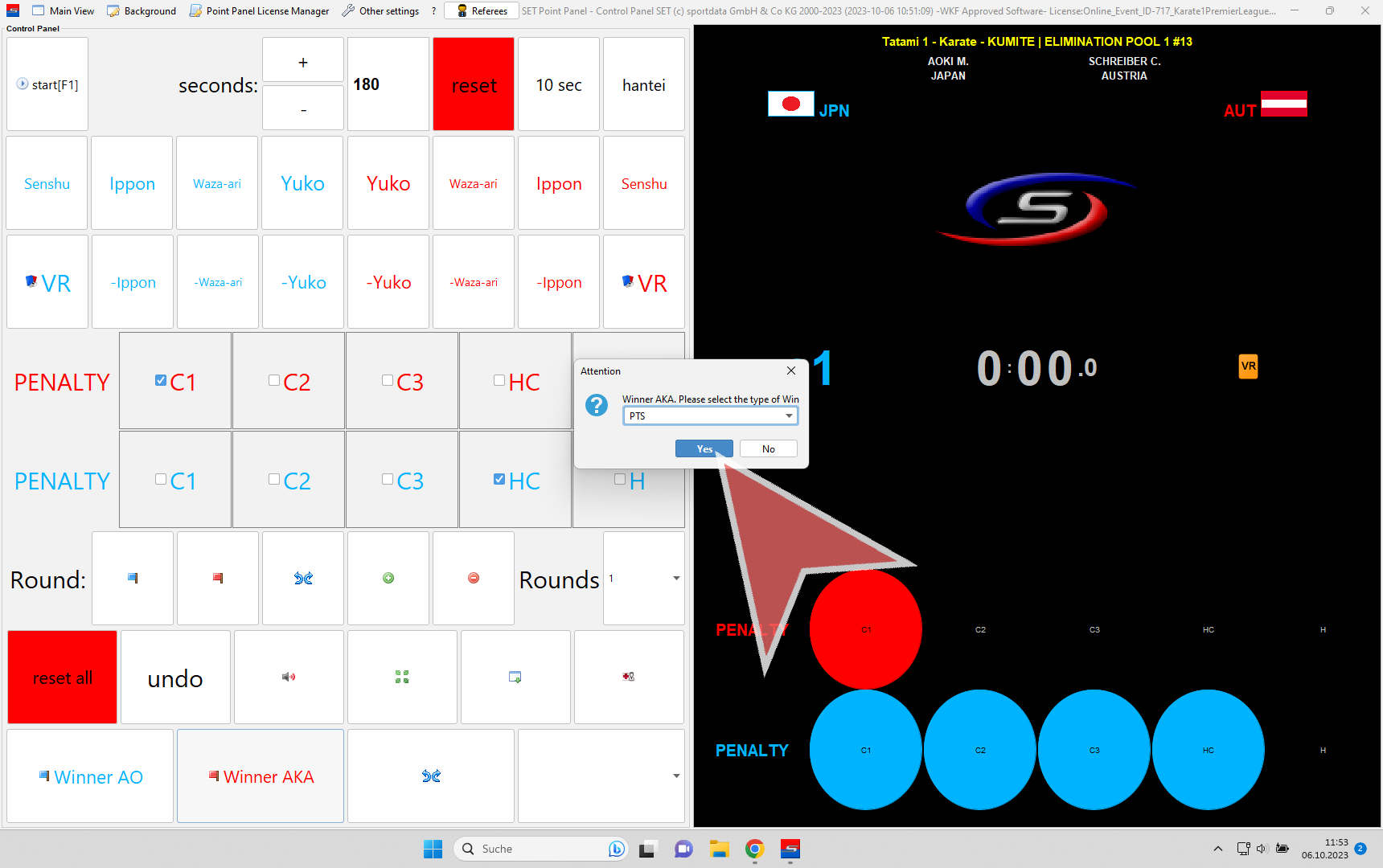
Open the drop-down menu, select the correct wintype and confirm with «Yes».
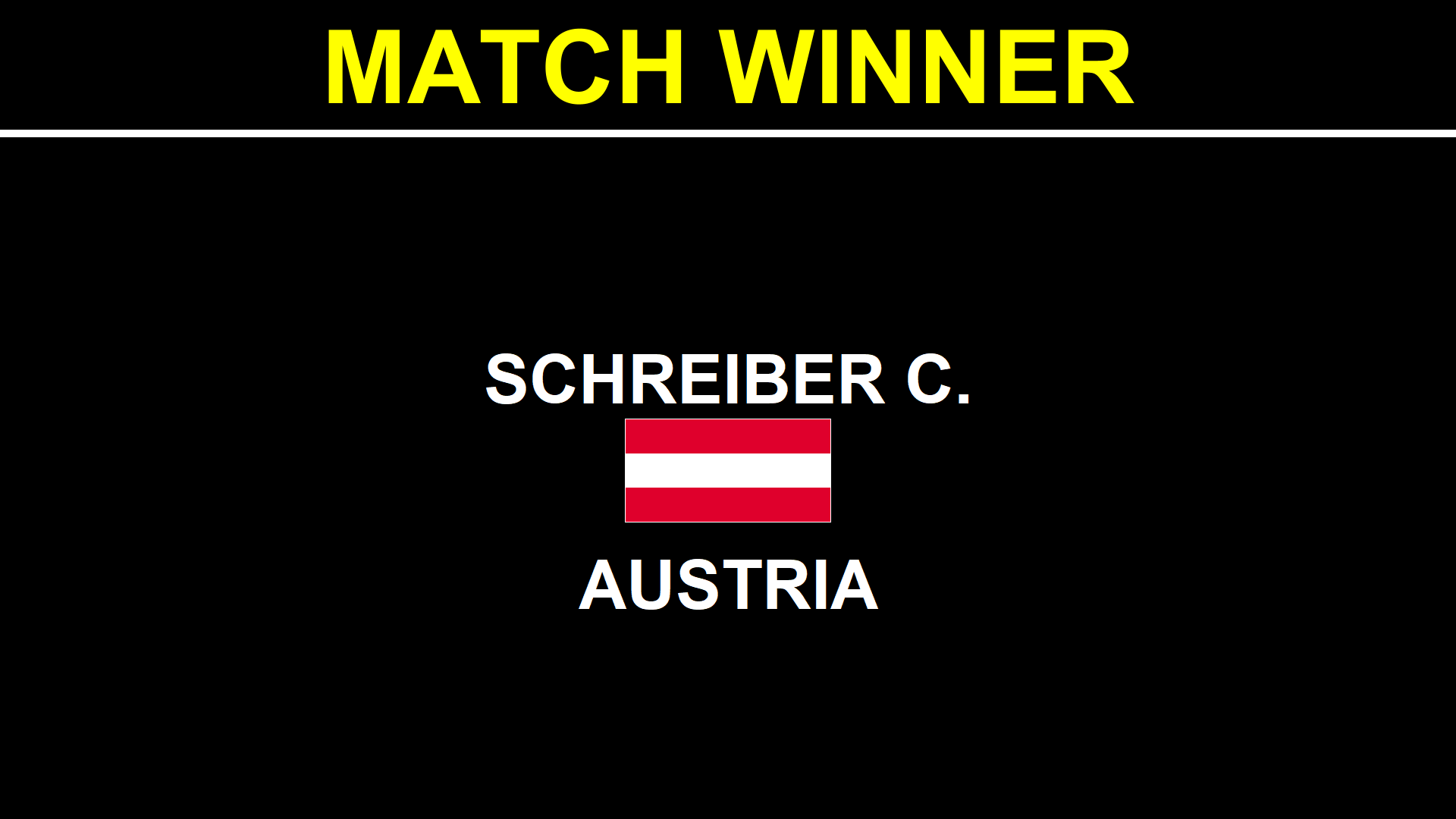
The match winner is shown on the screens.
Afterwards close the window without resetting.

You return automatically to the pool which is now updated with the previous result including points and the wintype.
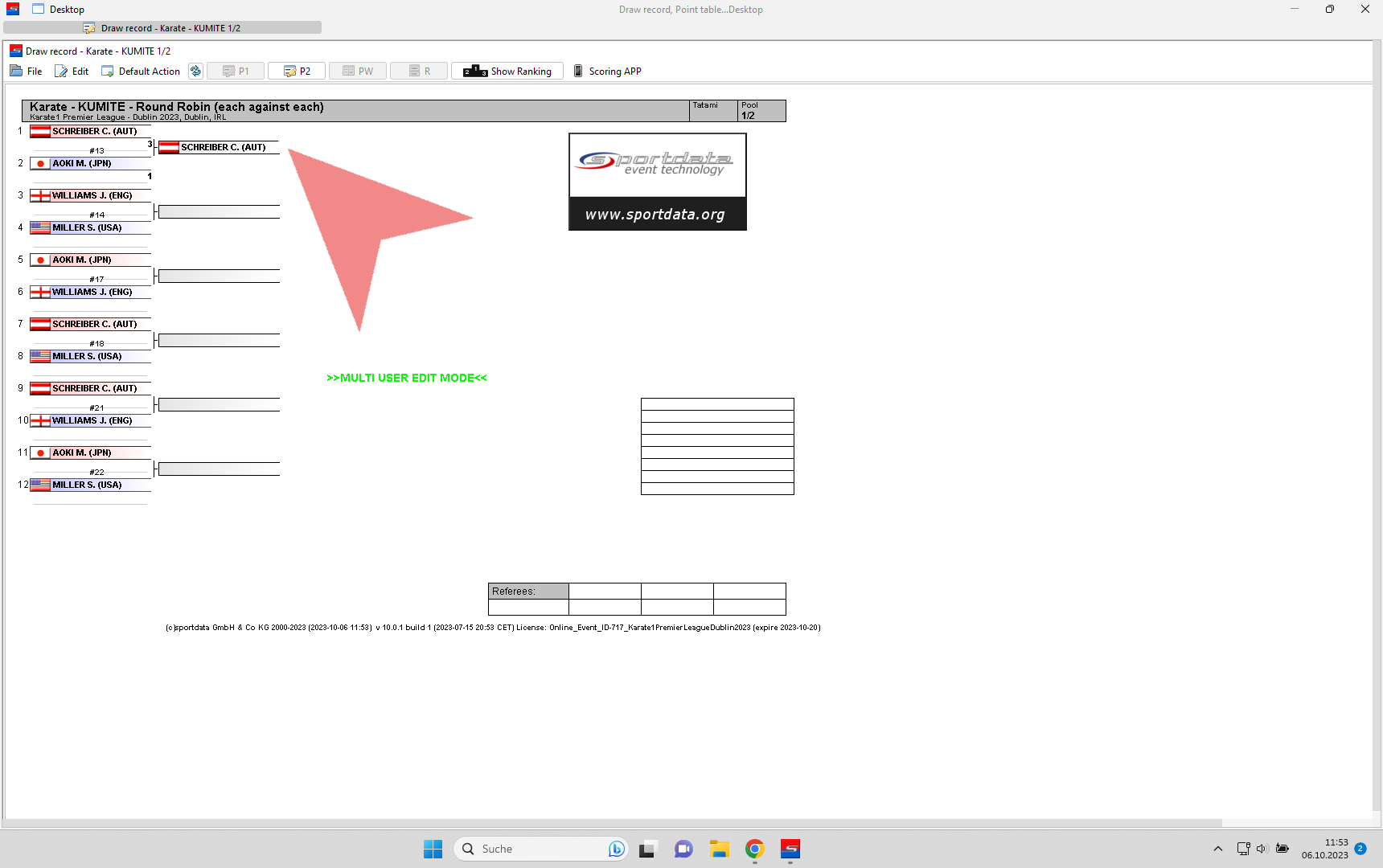
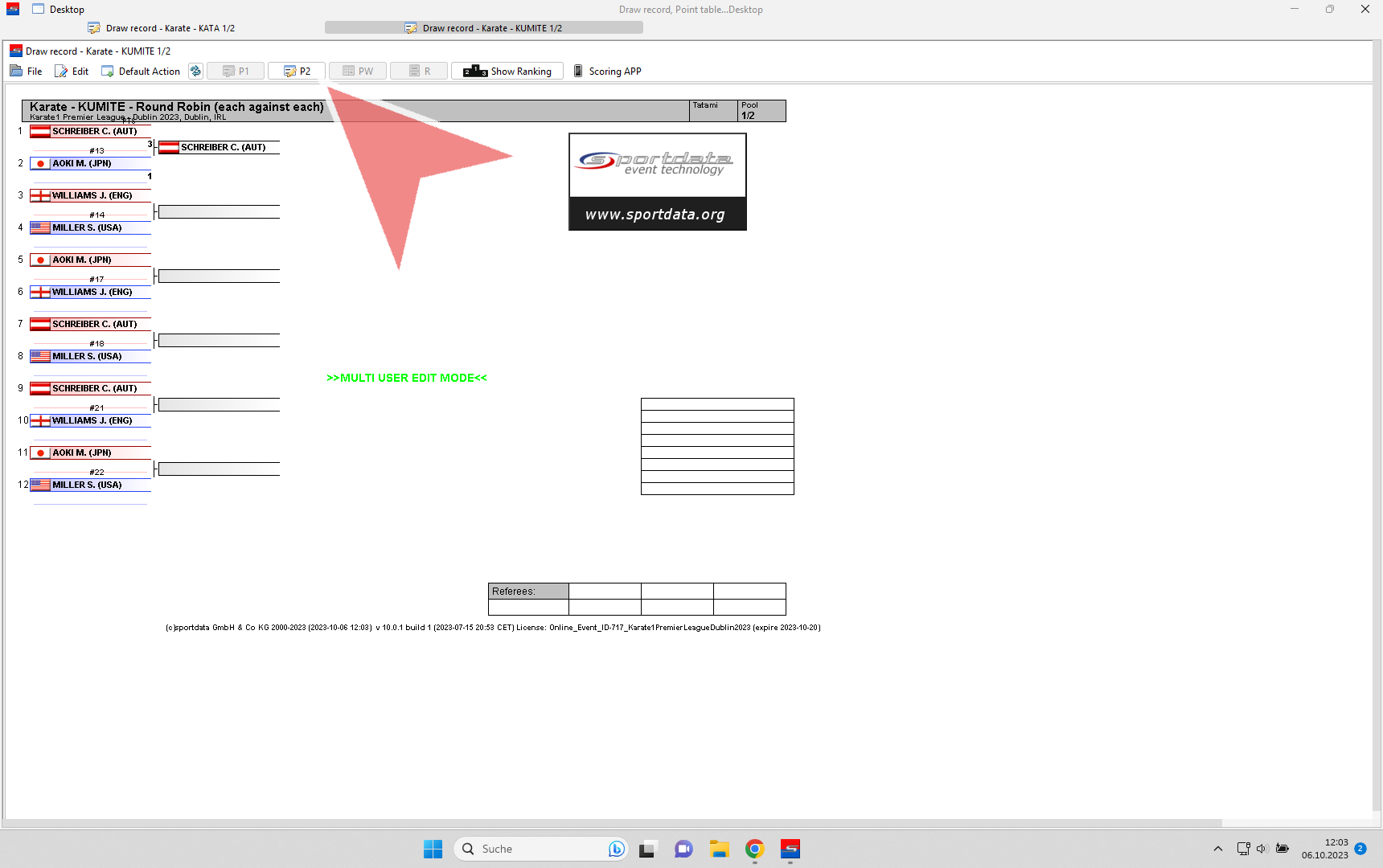
To navigate between different pools or the elimination phase of the same category, use the «P1/P2/PW»-buttons. If different categories are open at the same time, they are shown in different tabs between which you can switch.
Hantei & Hiki Wake
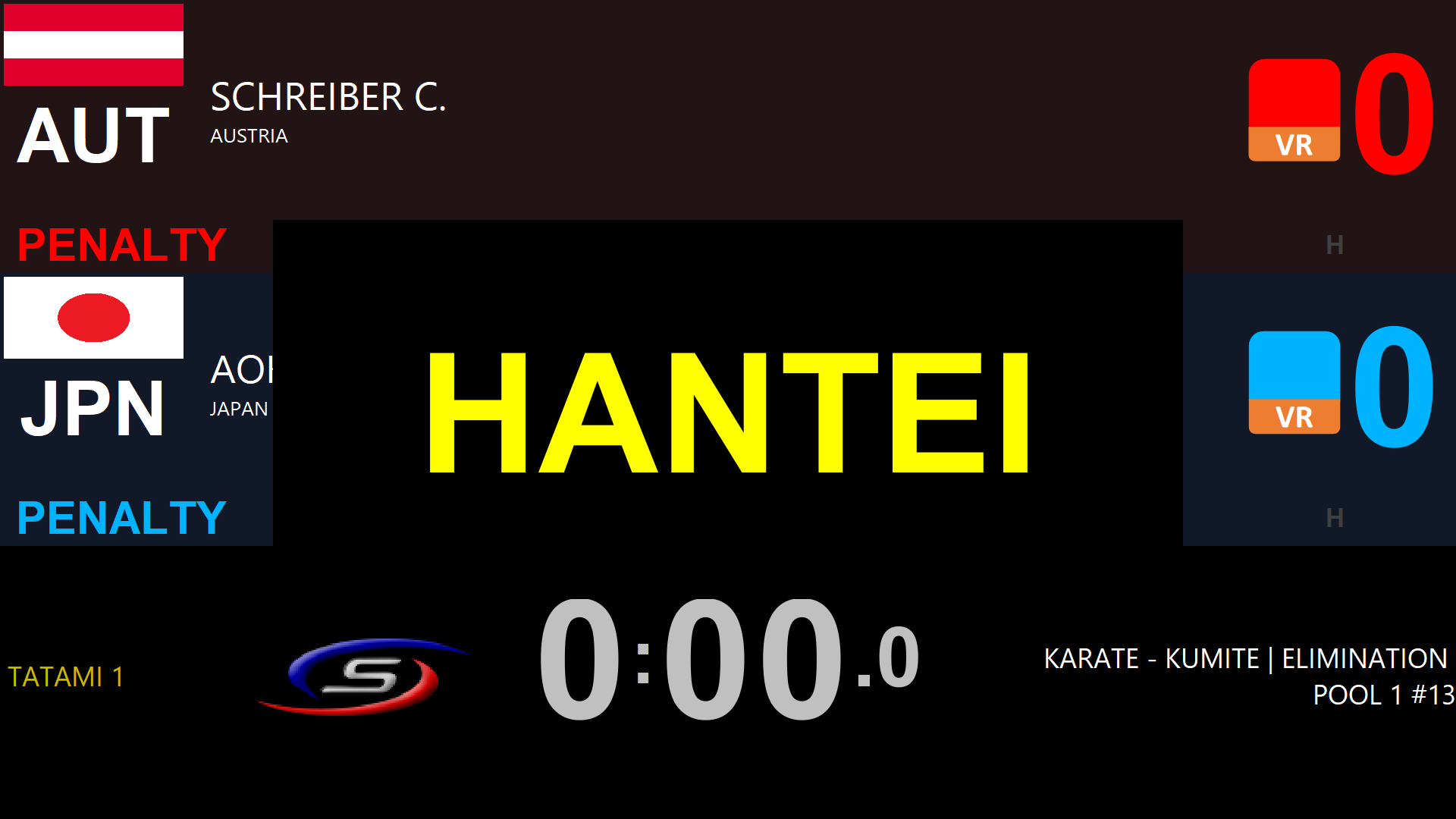
In case the main referee indicates the decision by hantei, click on the «hantei»-button. After the winner is announced, click again on the same button and select the winner with the wintype «HT» (Hantei).

This is the view shown on the screens during the hantei decision.
In round robin draws are allowed and are not solved by Hantei (Hiki Wake). In that case click on the arrows-button instead of a Winner AO/AKA and close the scoreboard afterwards.