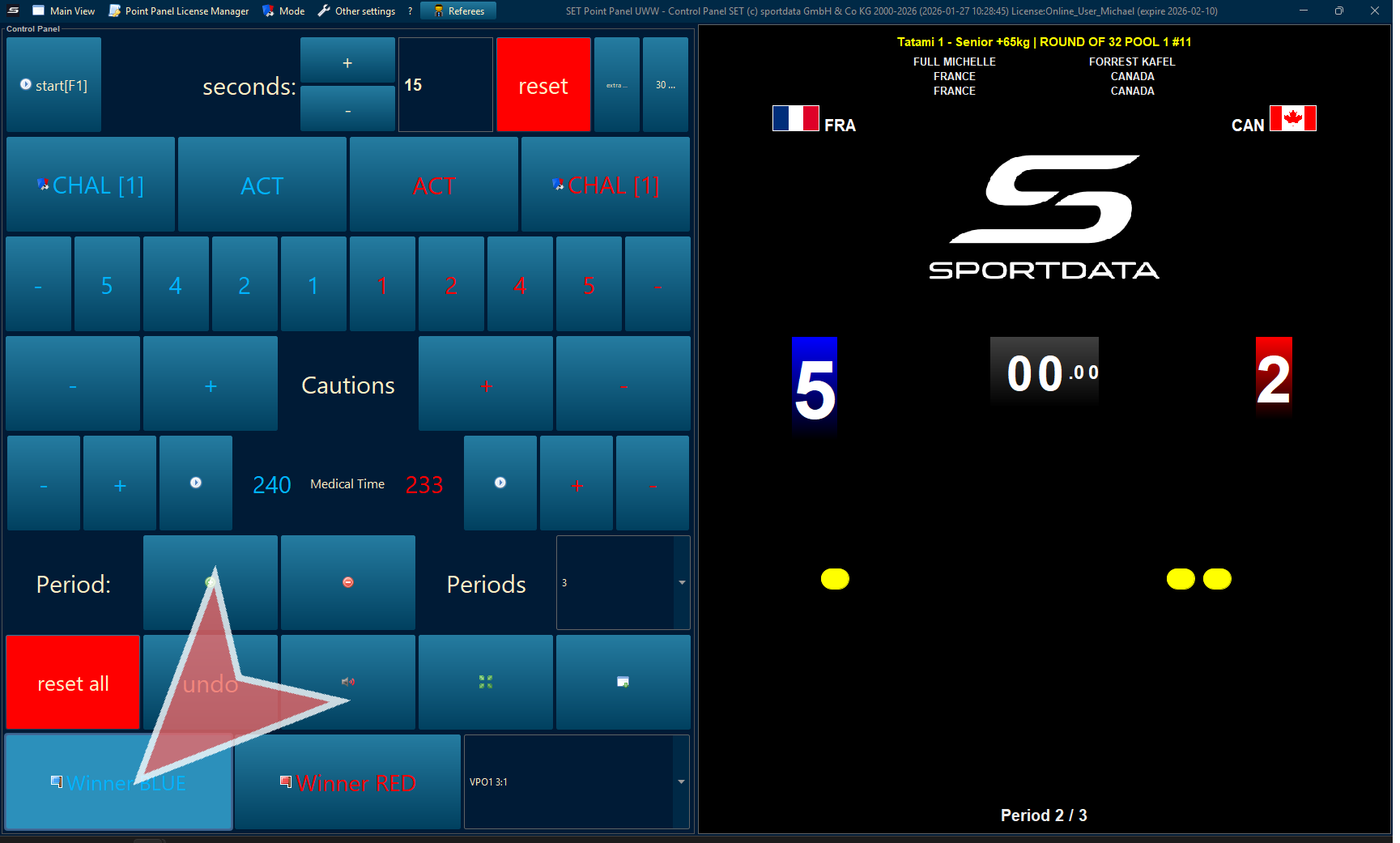
Right click to select the scoreboard.
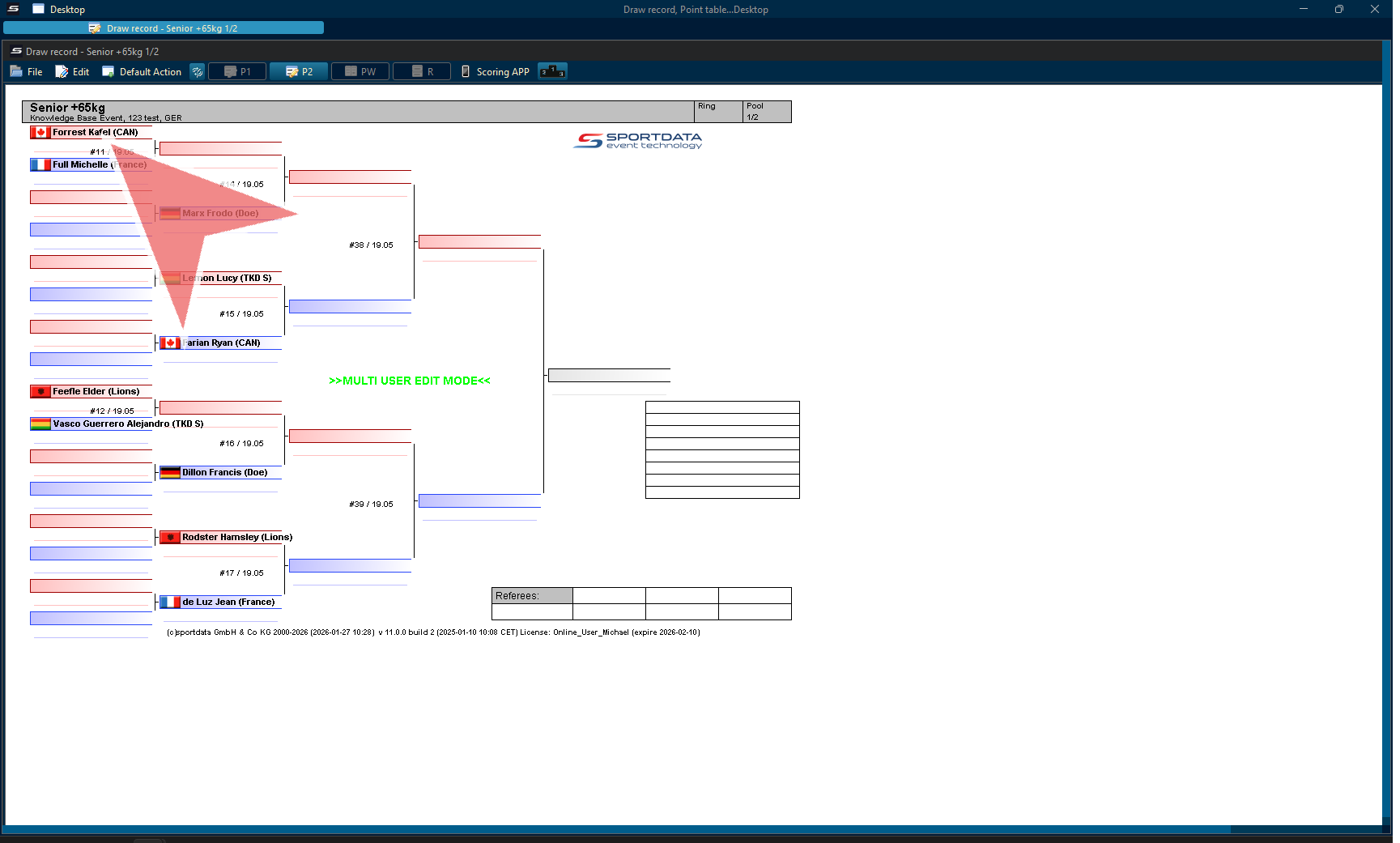
Select United World Wrestling scoreboard.
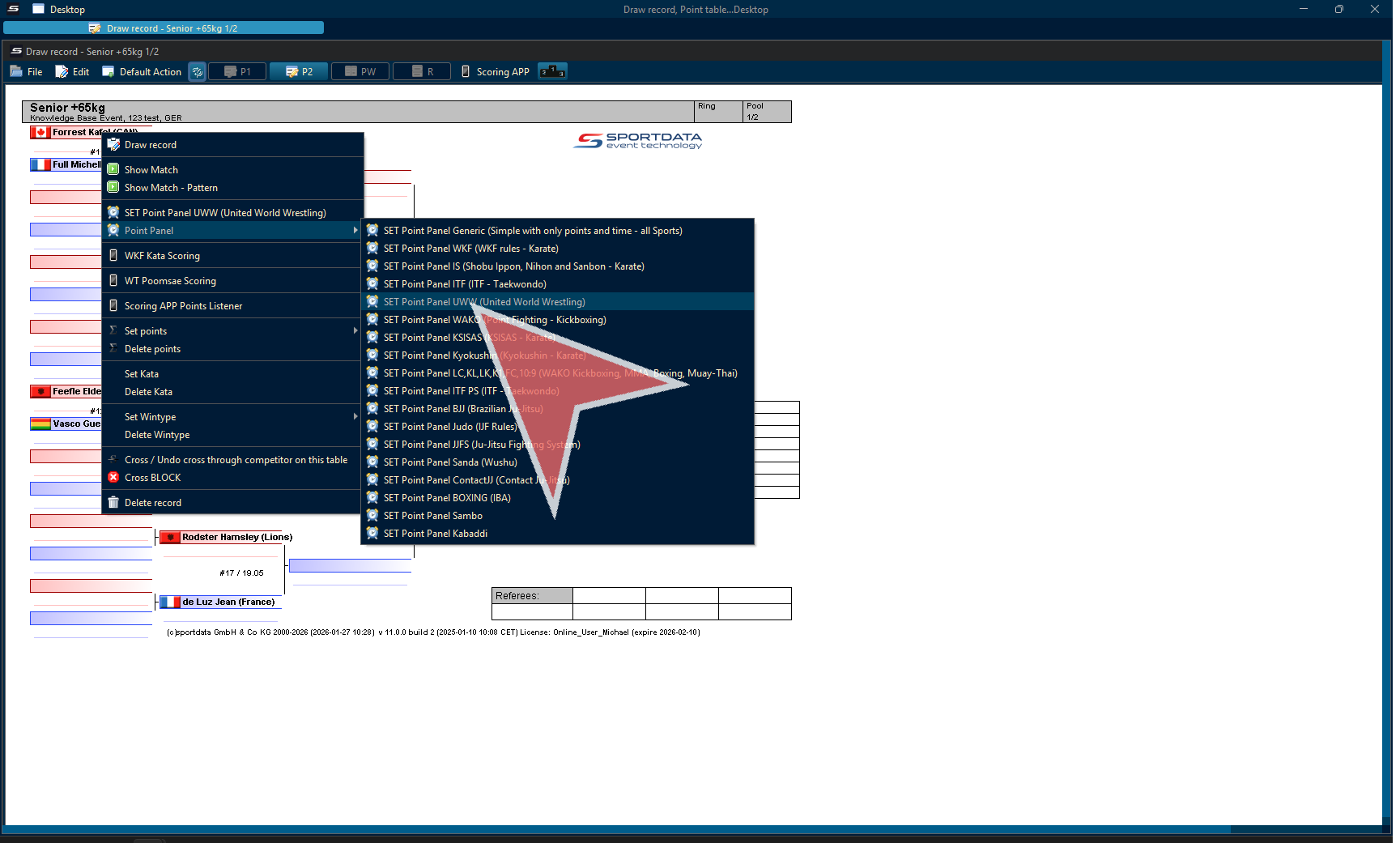
Settings
Review screen resolution, font size, and match sure the red and blue sides on the scoreboard are as desired.
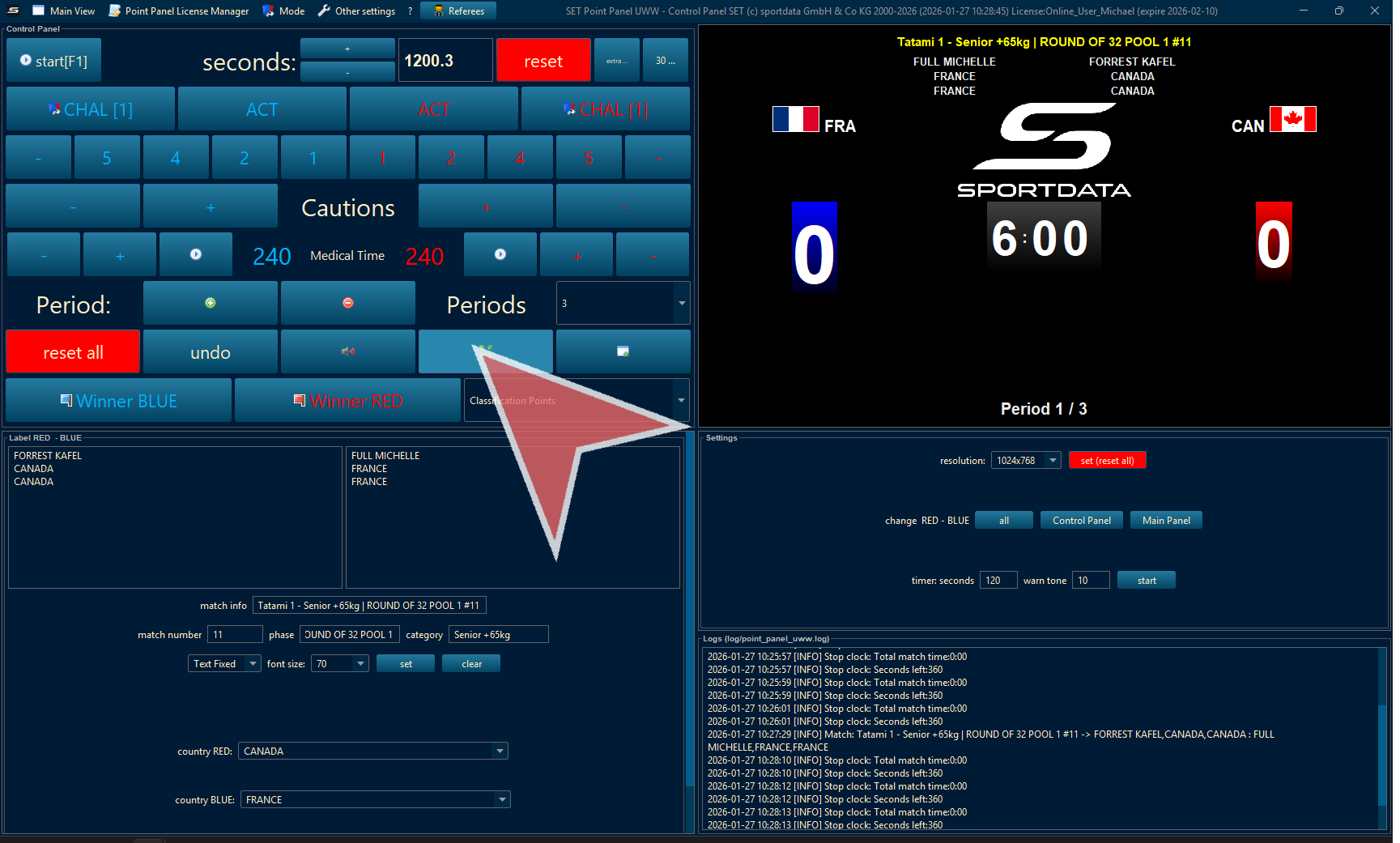
Warning if external monitor is not connected. Check the cable is working, and is connected.
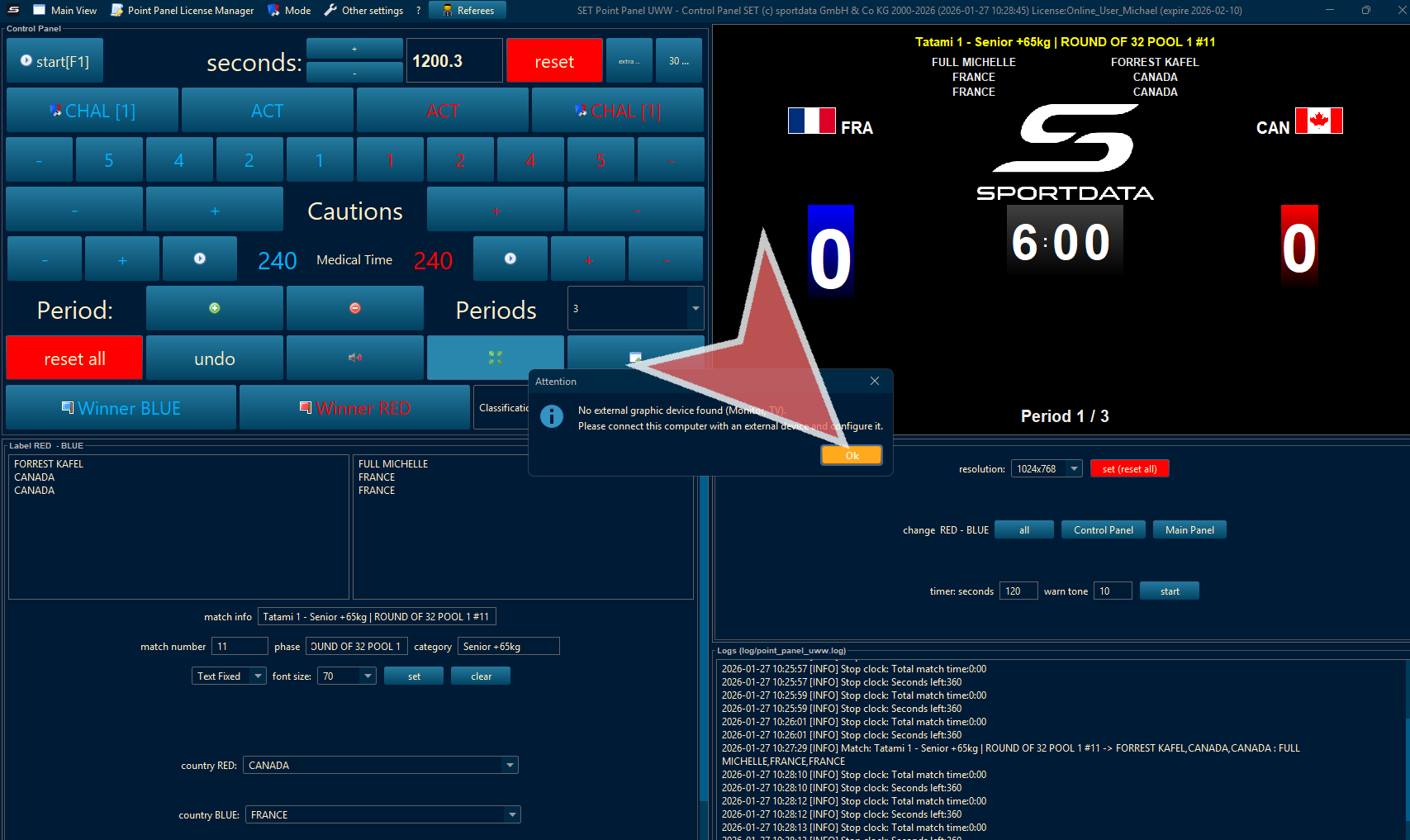
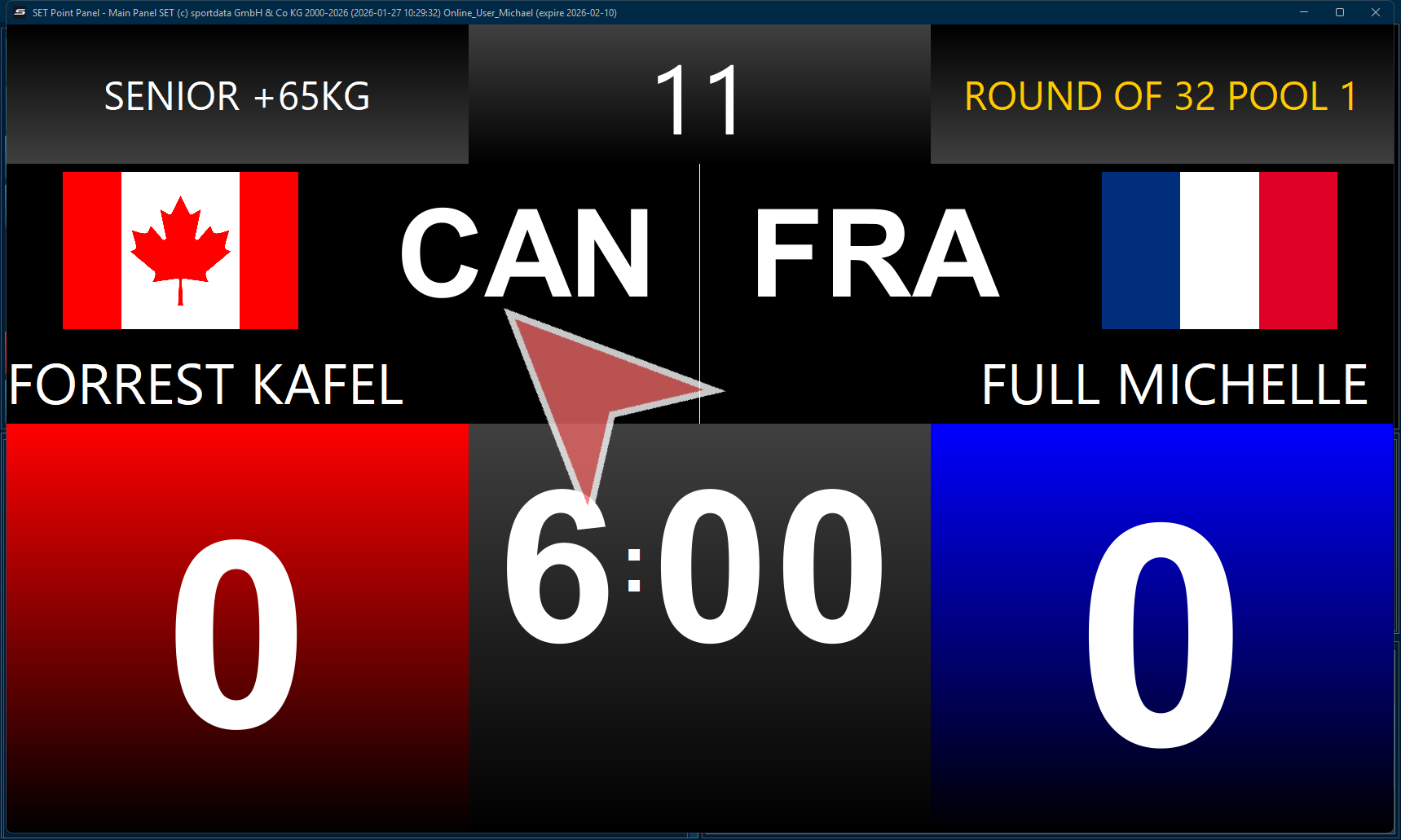
Scoreboard
The scoreboard has the phase, category, match number, country, name, points and match time. It will also show video review (replay), medical or bleeding time, and break time.
When connect to devices, the video review can be initiated by the coaches.
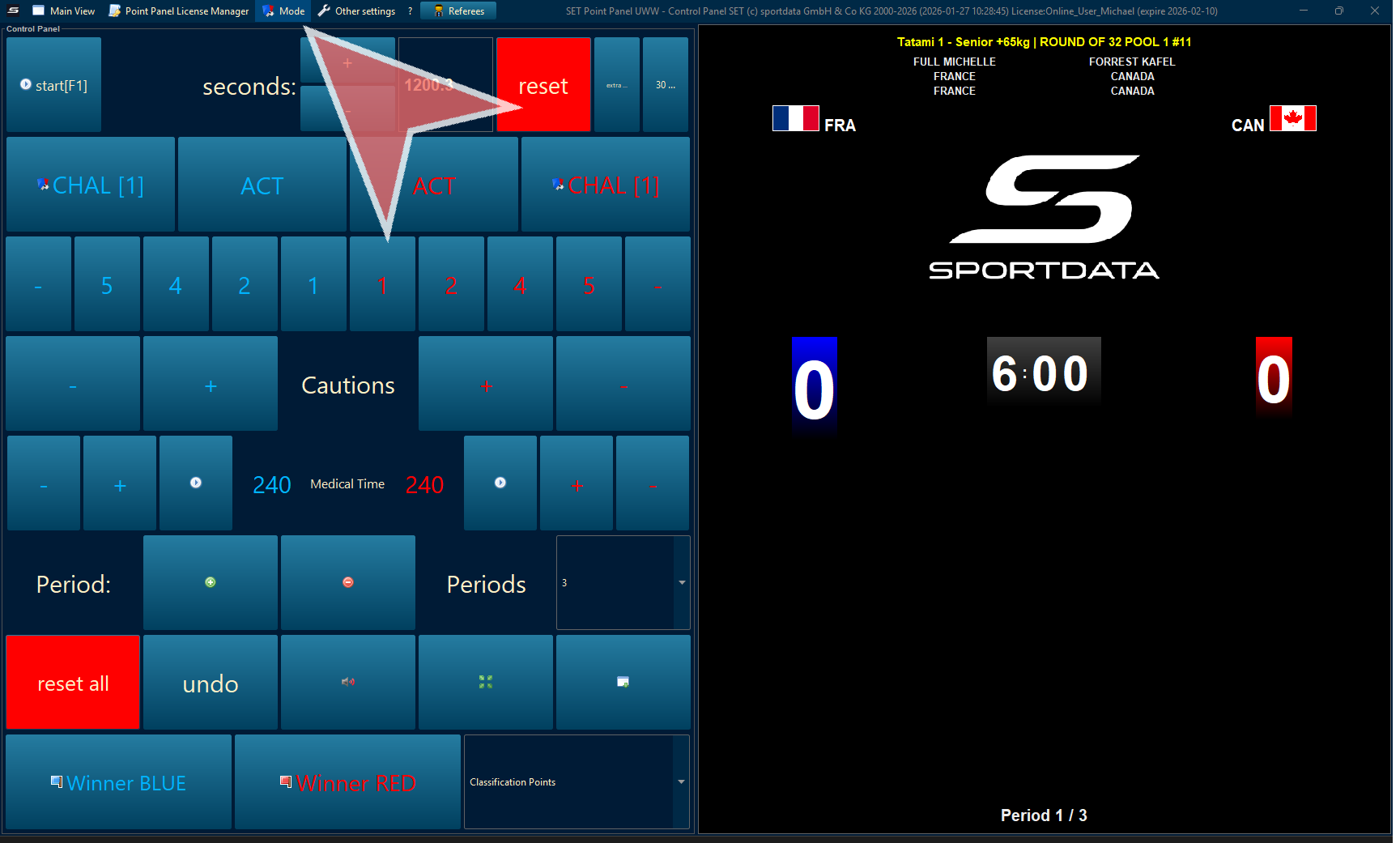
Greco-roman Mode
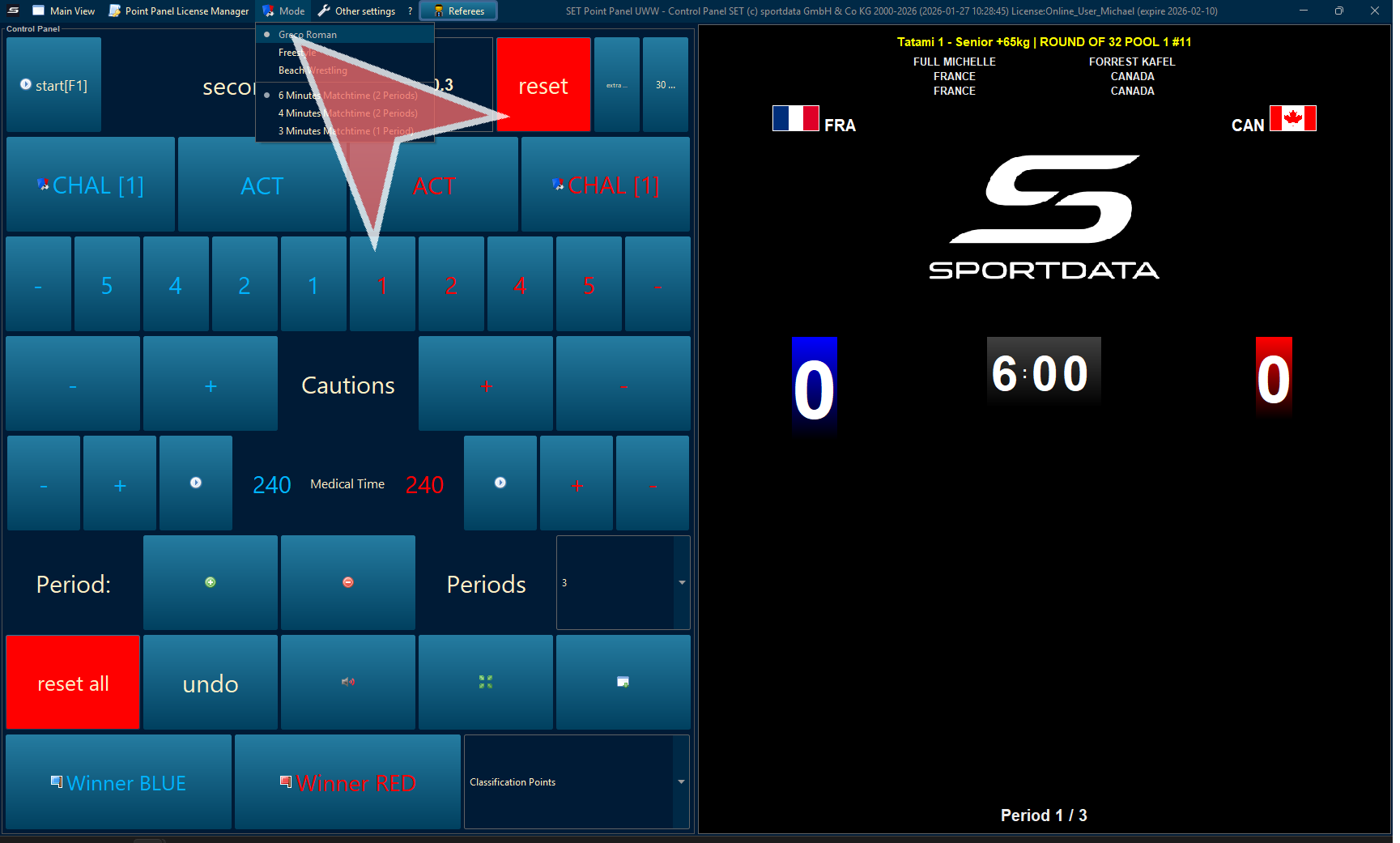
Double check that the point panel type is set to greco-roman in mode setting. This can be preset during the creation of each category for the event in category settings.
If the settings are correct, there is no need to do anything. If you need to change the settings, and a pop up window will appear informing you to restart the software.
Start the Match
Click the restart all button before a new match.
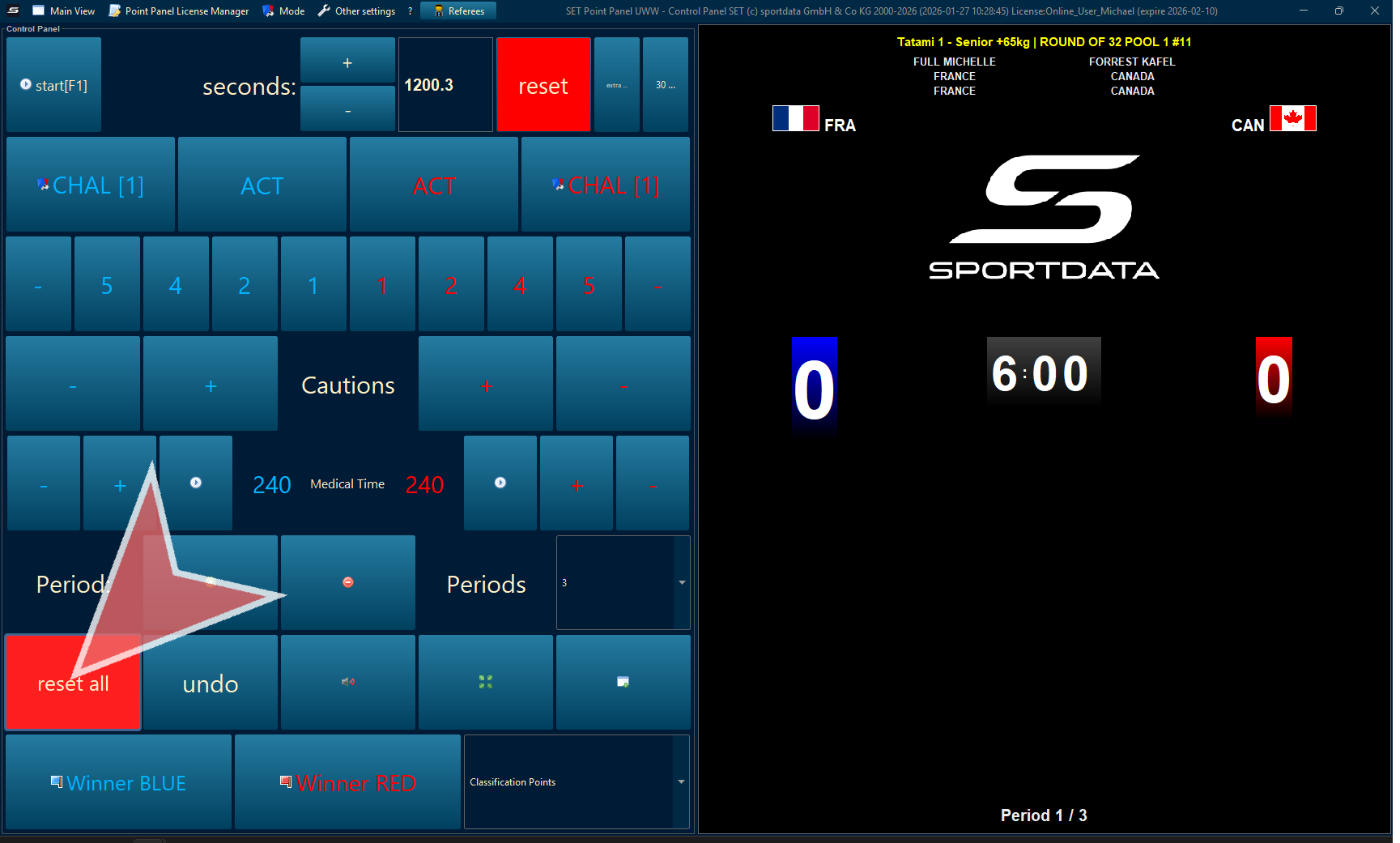
Click start or use the space bar on your keyboard to start and stop the match time.
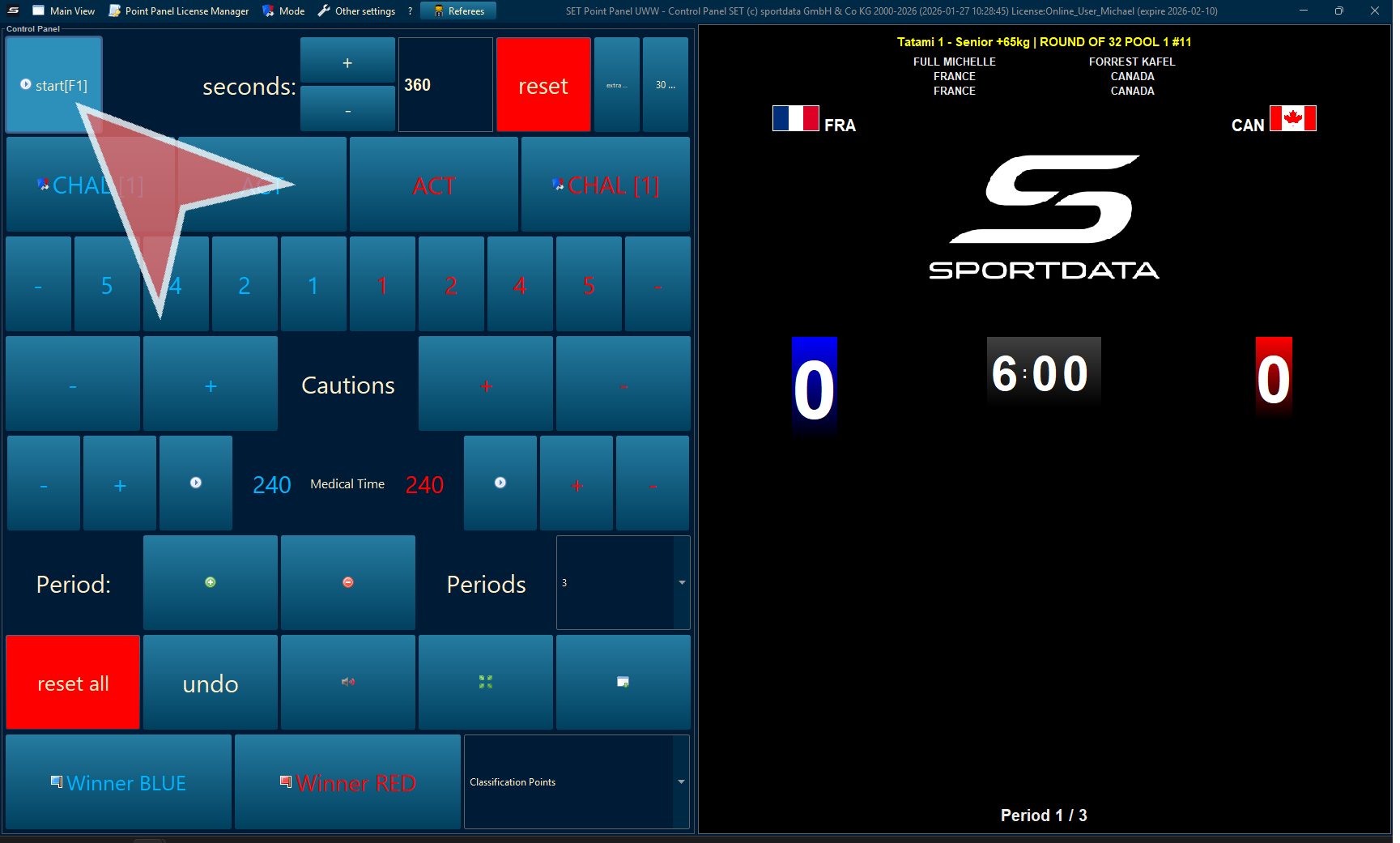
Activity Time
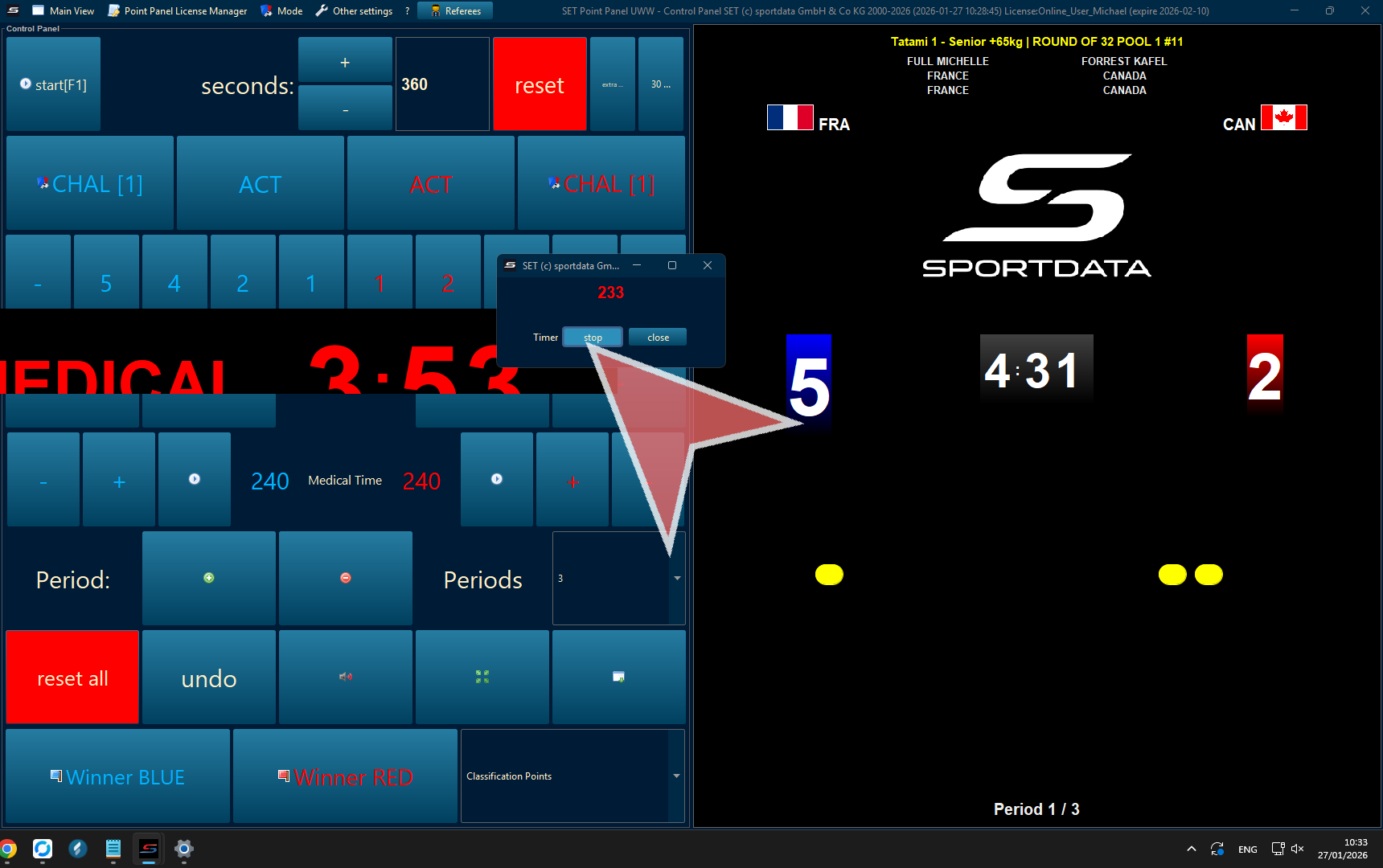
First stop the match time, then pres the ACT button. A window pop-up will appear.
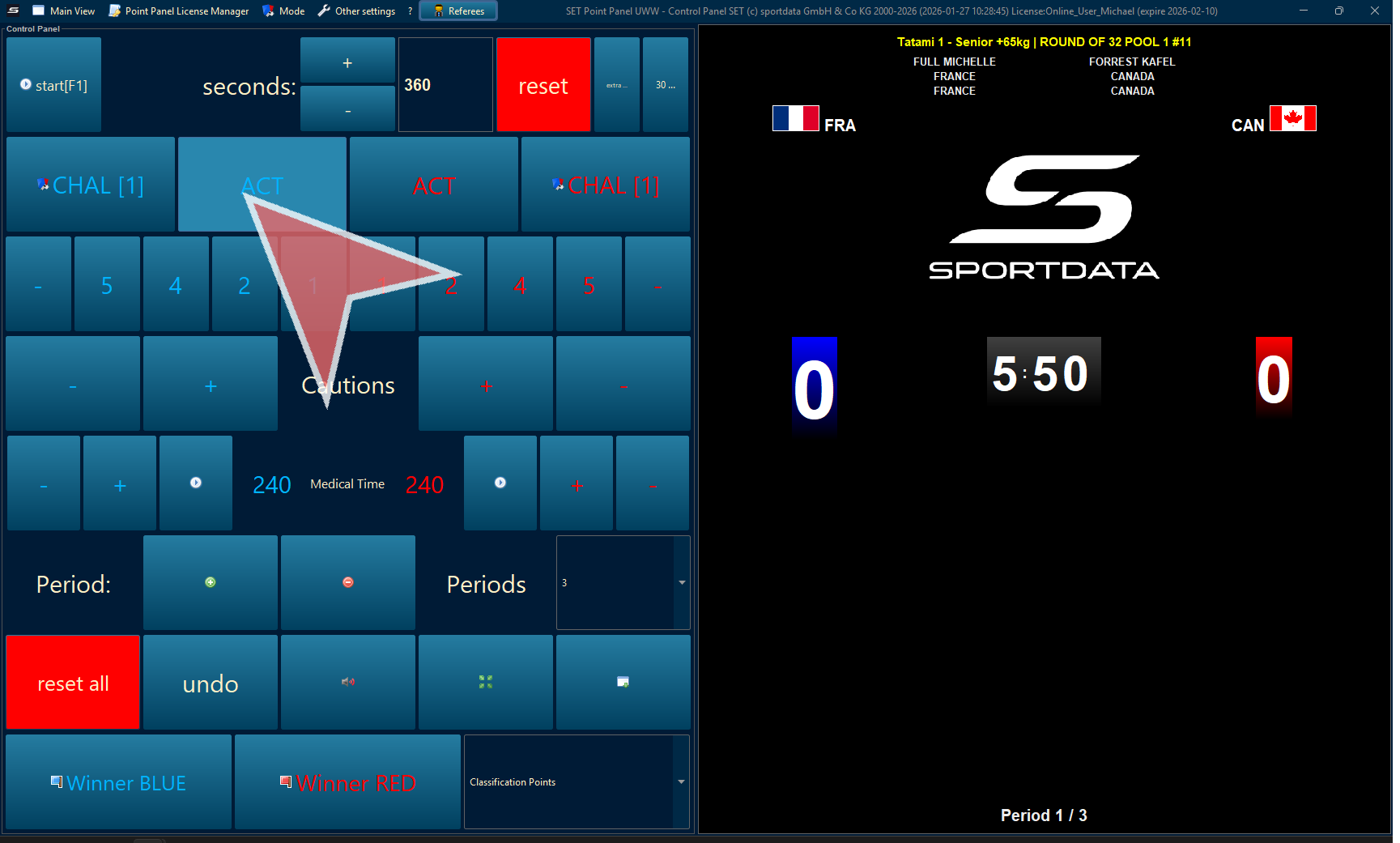
In the window pop-up press the start button to start both the activity time and match time. Then, when activity, press stop or close the window pop-up. The match time will continue and only the activity time will be removed.
* IMPORTANT the match time must be stopped before starting the activity time
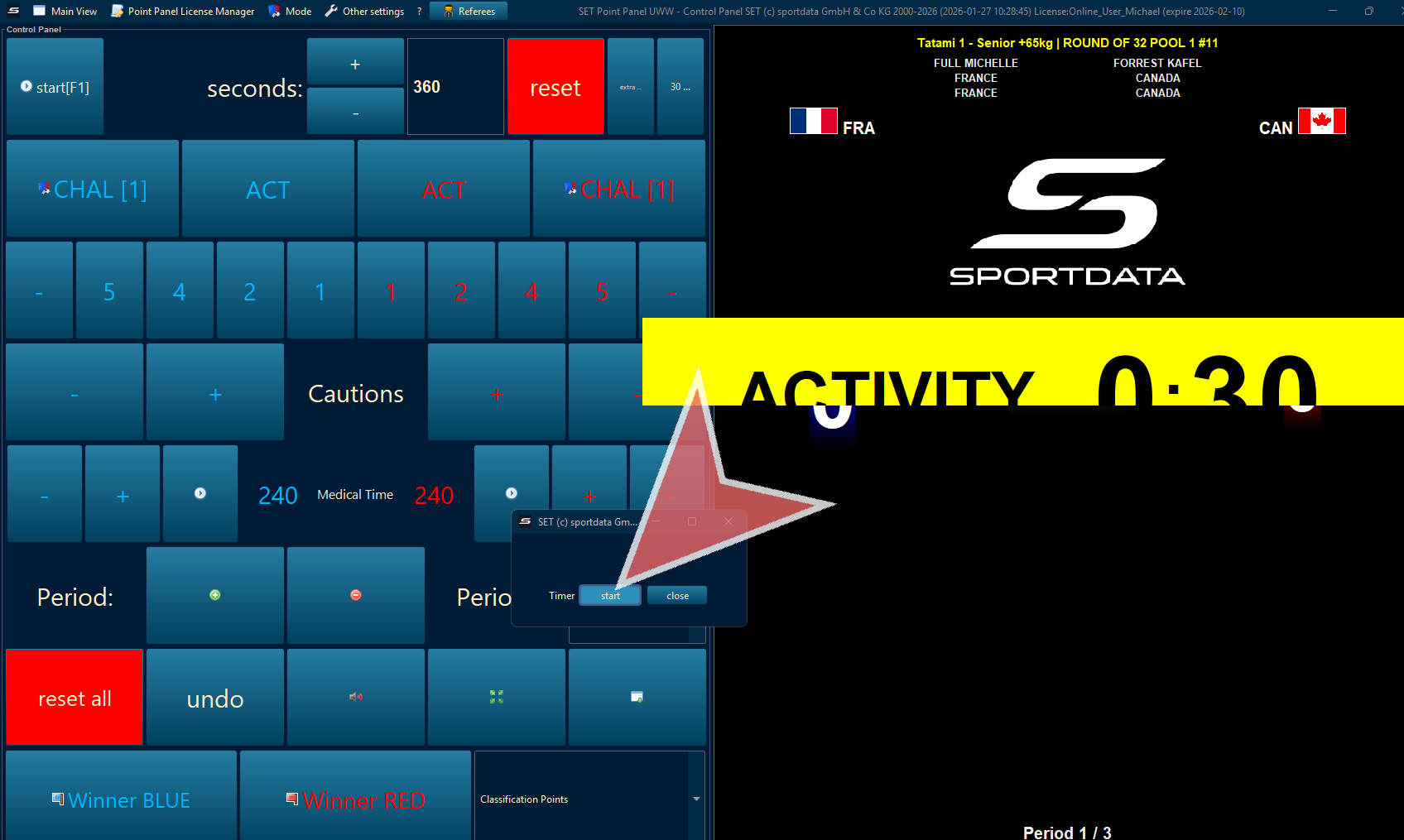
Points
To give point select the amount of points to the correct colour.
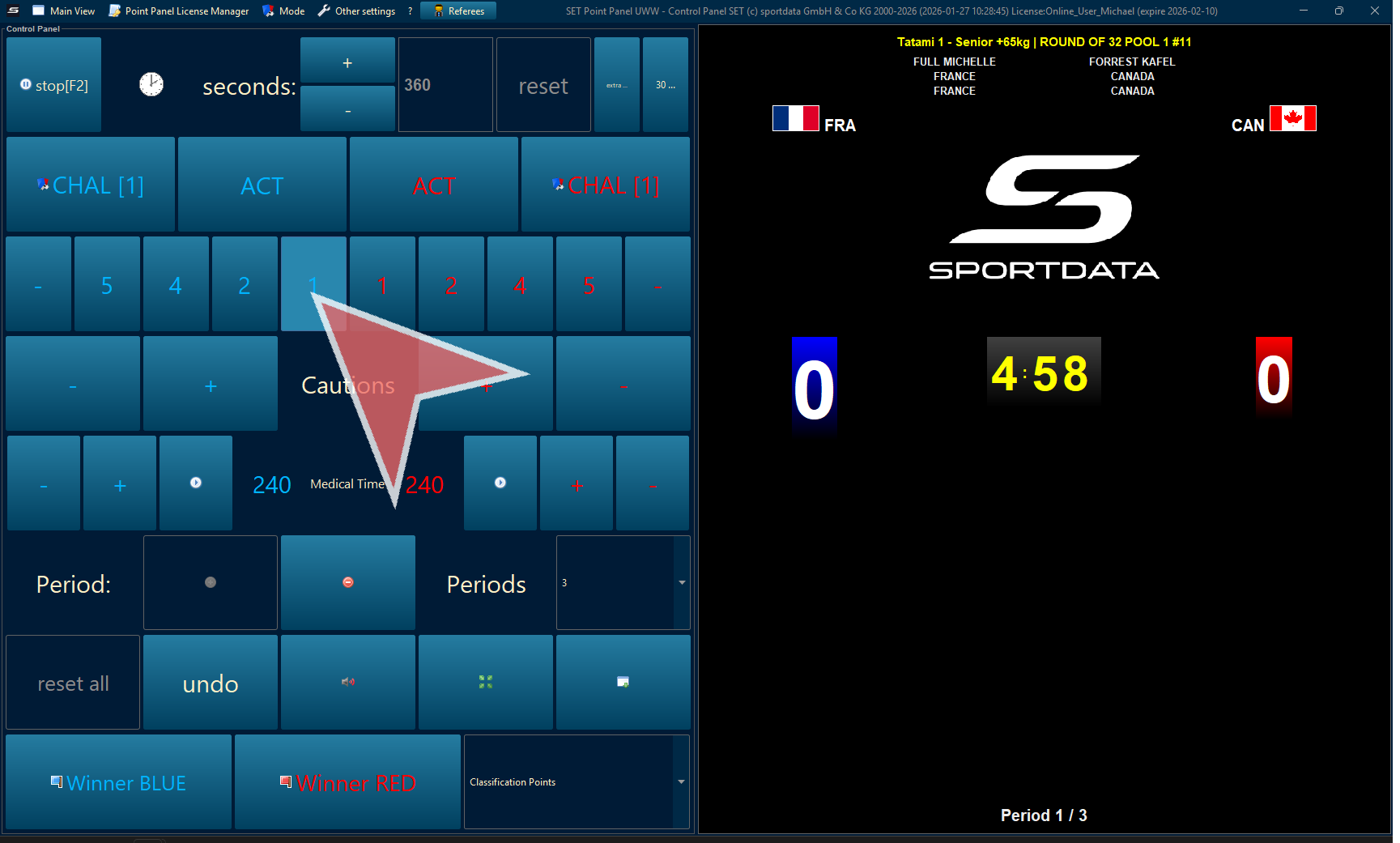
Remove Points
To remove points, click the minus (-) button.
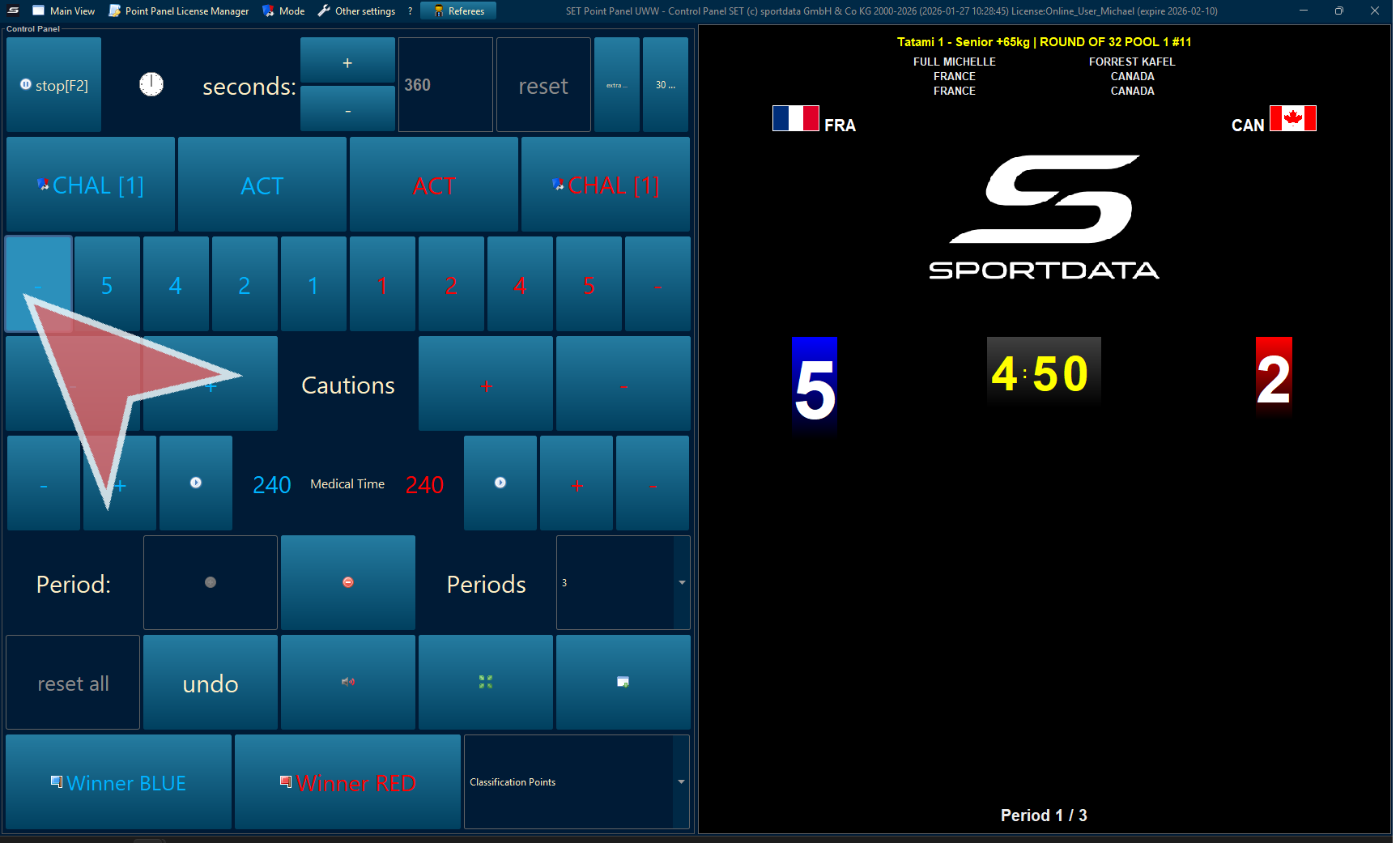
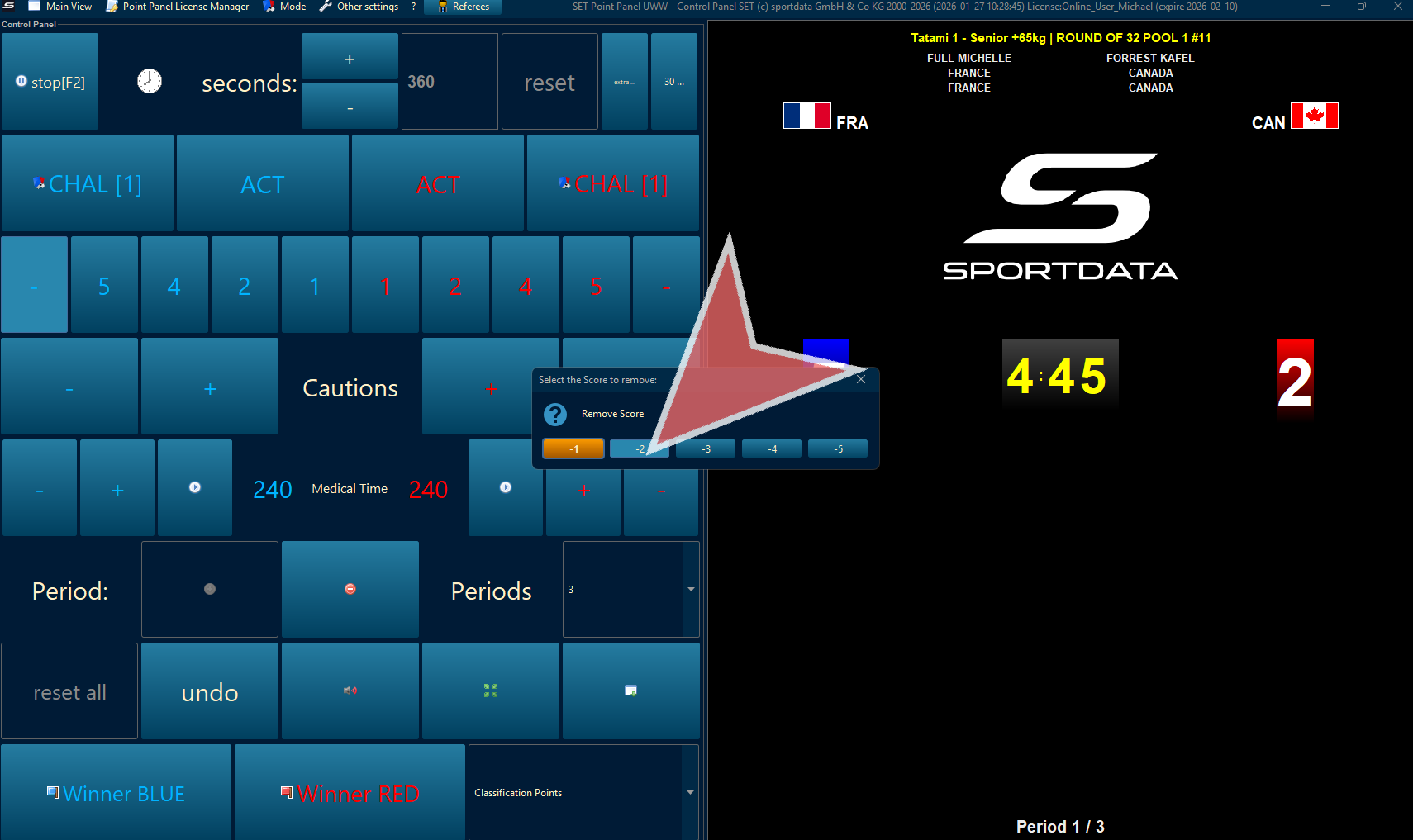
Select the points you would like to remove. Remember that the order of points is important.
Ties
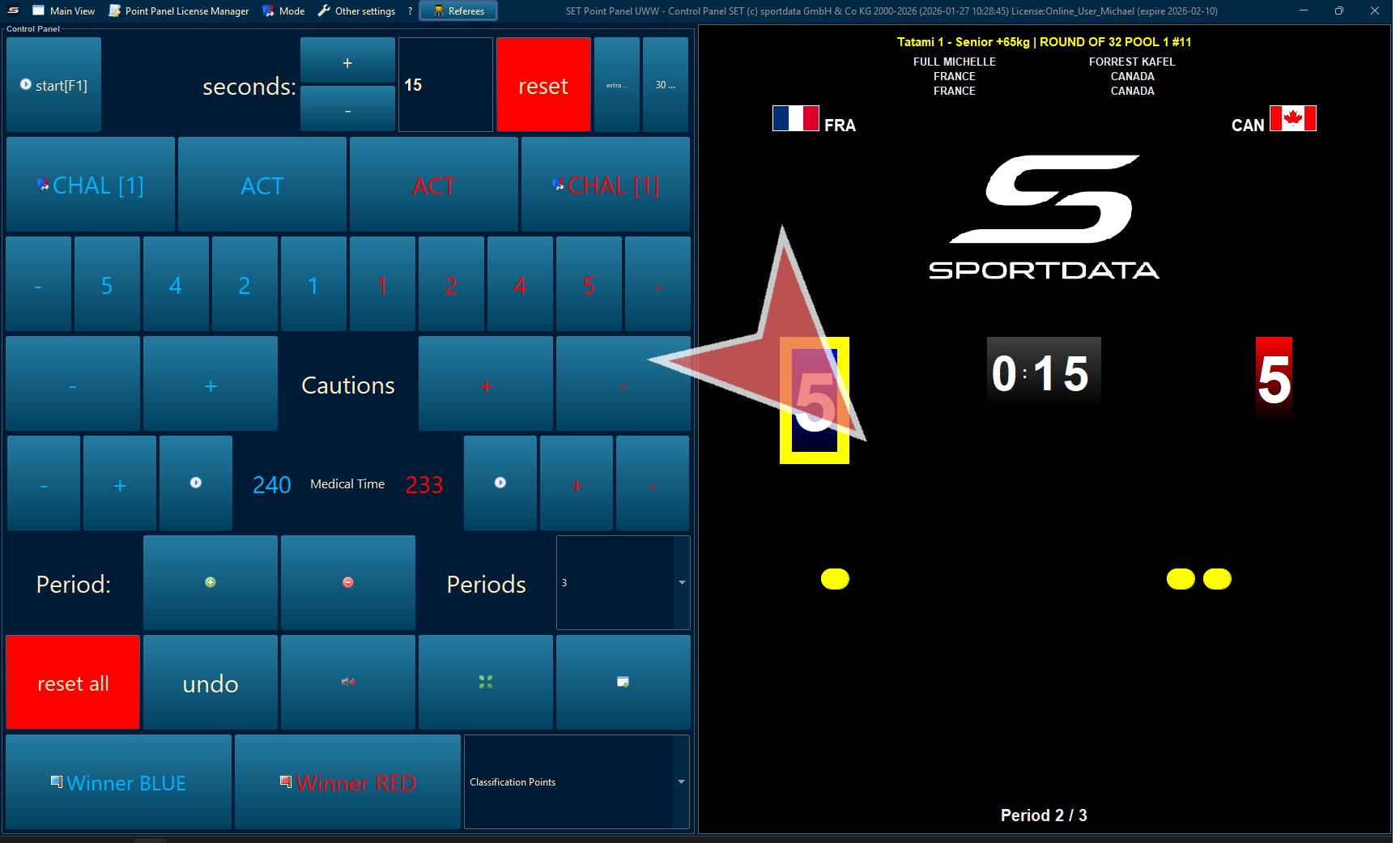
When there is a tie, it will determine the current leader by the tie-breaking rules.
Cautions
Add and remove cautions. After three cautions, the winner will be declared automatically.
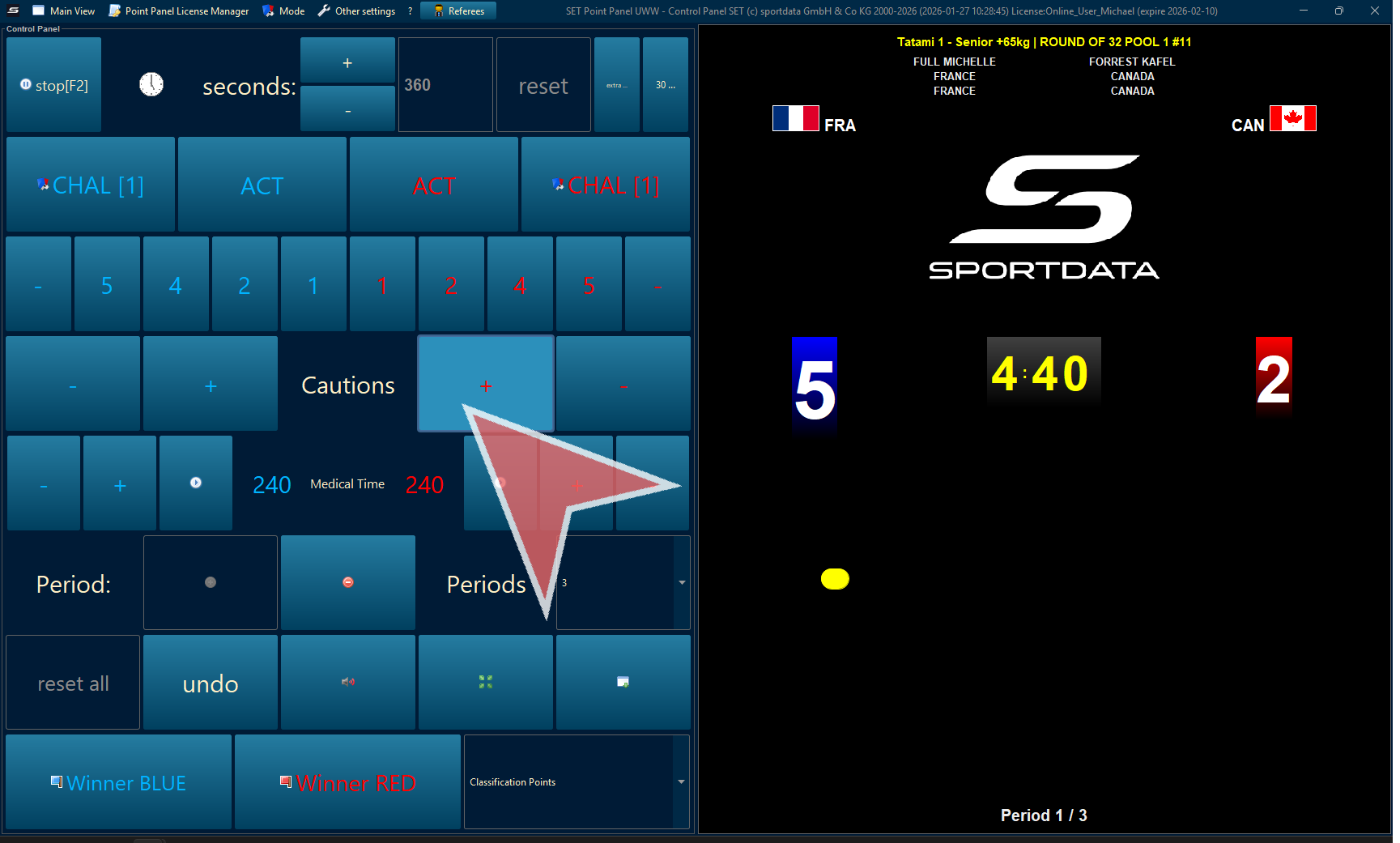
Medical Time
Click the play sign to start the medical time.
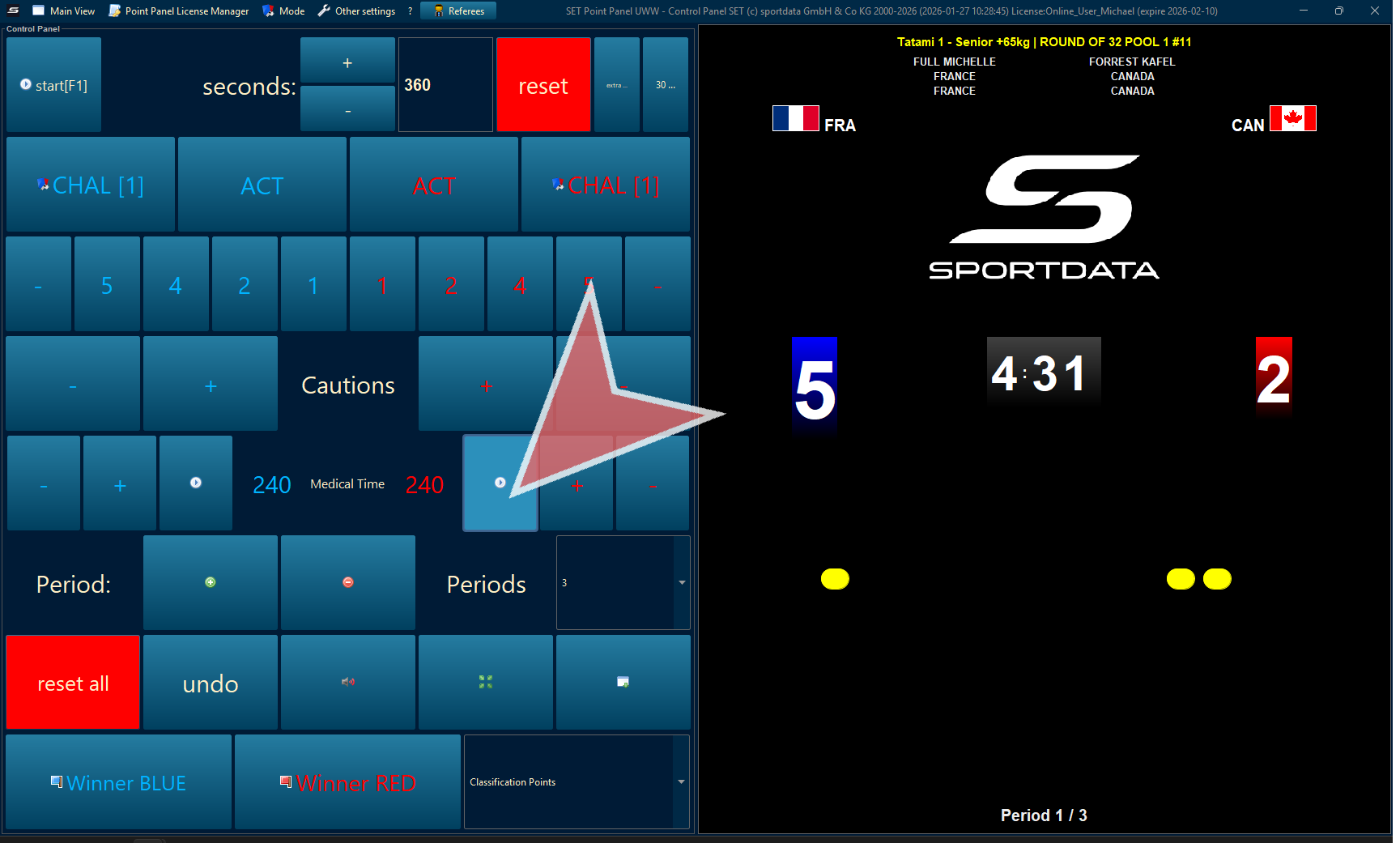
Start and stop time
Challenges
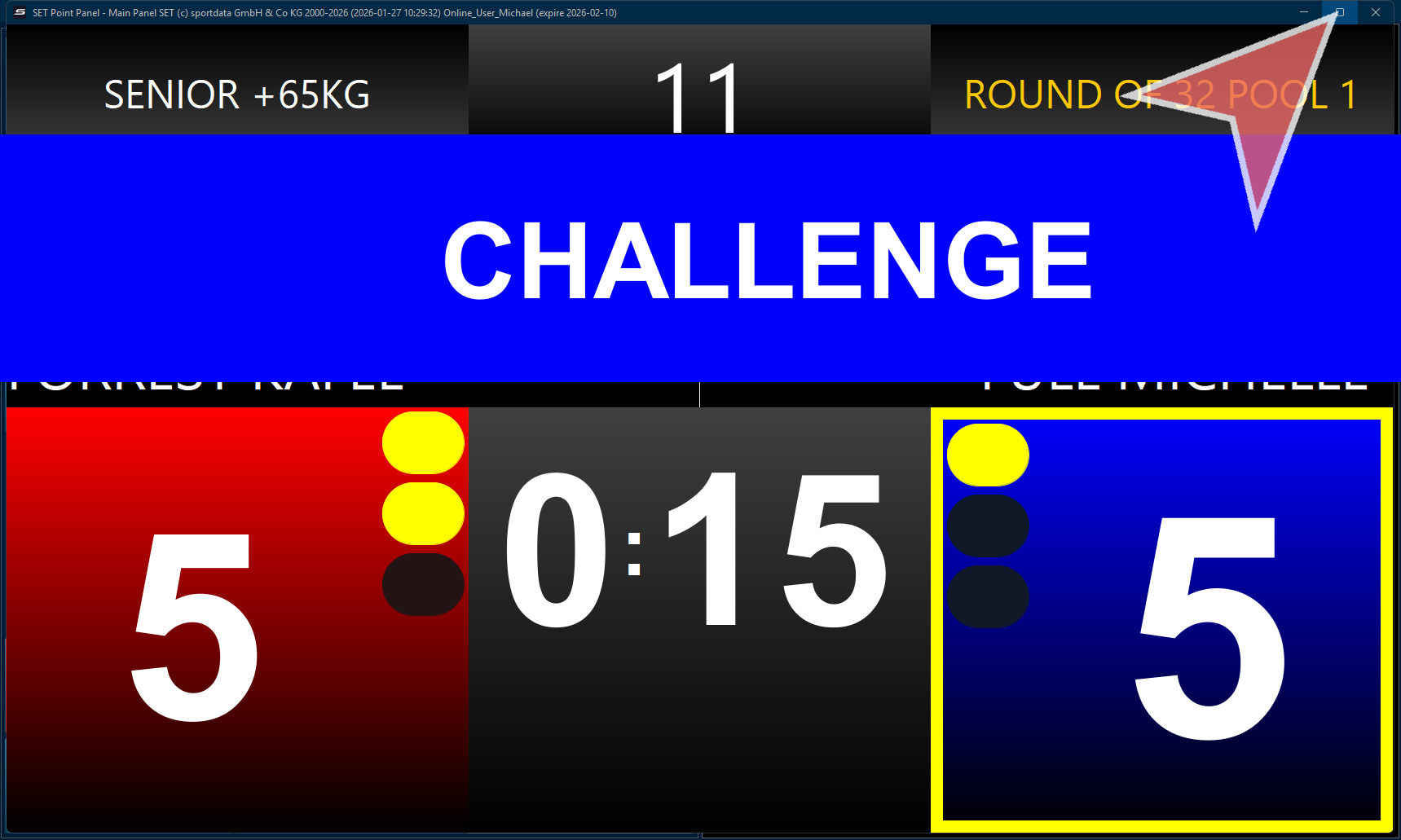
Click the challenge according to the colour. This can be automatically triggered by coaches when connecting it to a device.
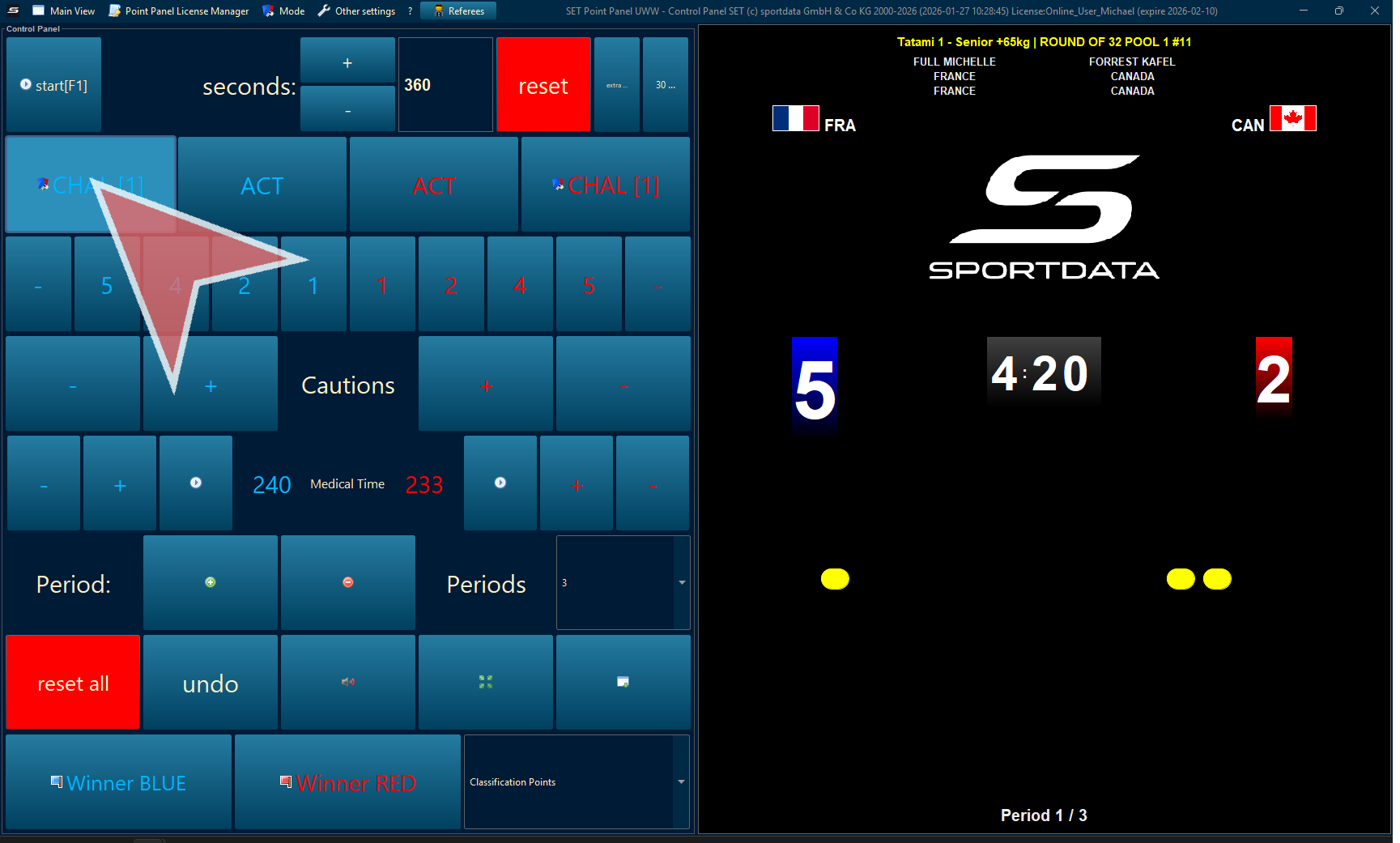
Click.
Break Time
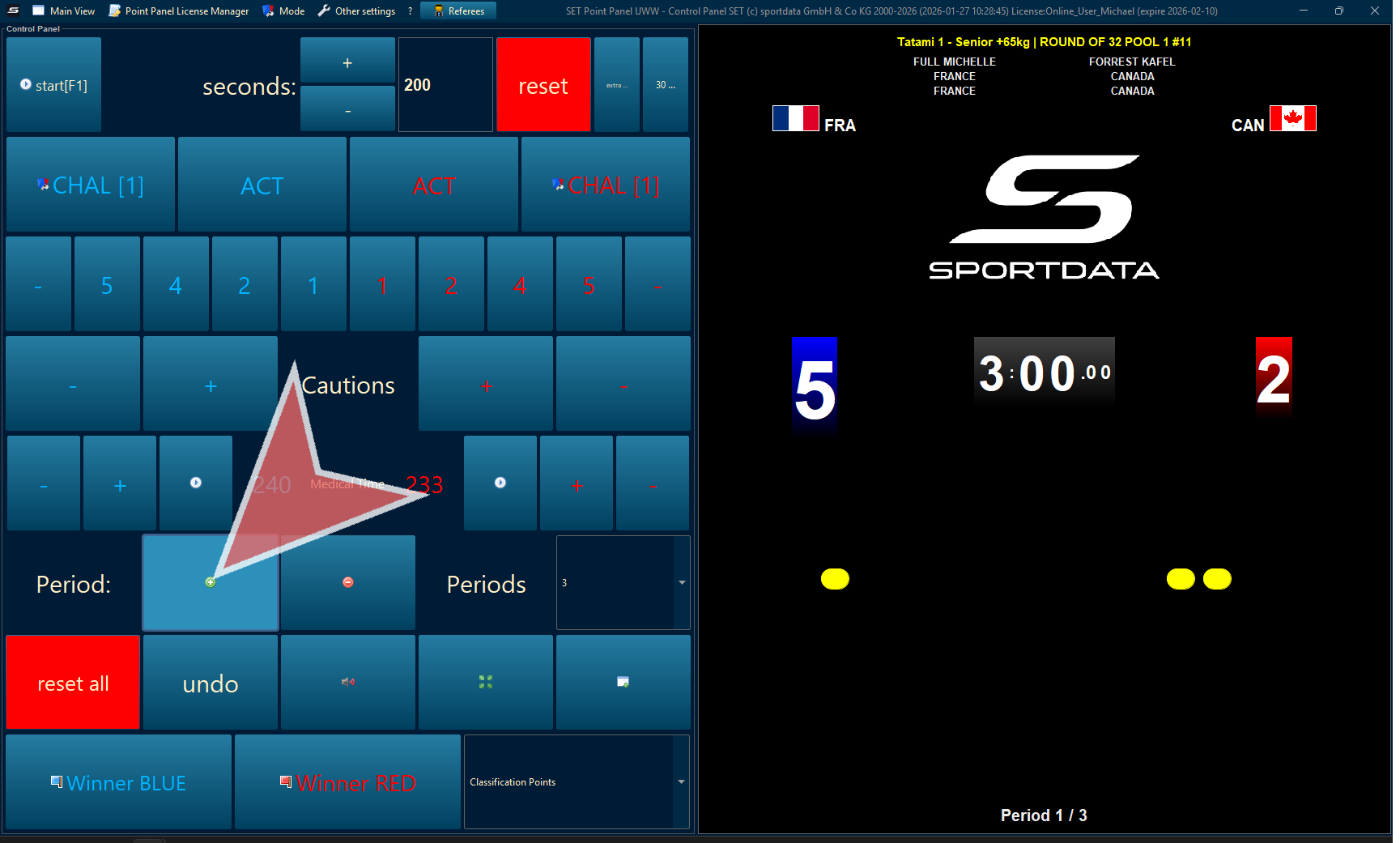
When the first half finishes the time will stop, immediately press the green plus (+) sign to move to the second half. Remember to check that the periods are set to 2. The break time will appear on the score board.
Classification Points
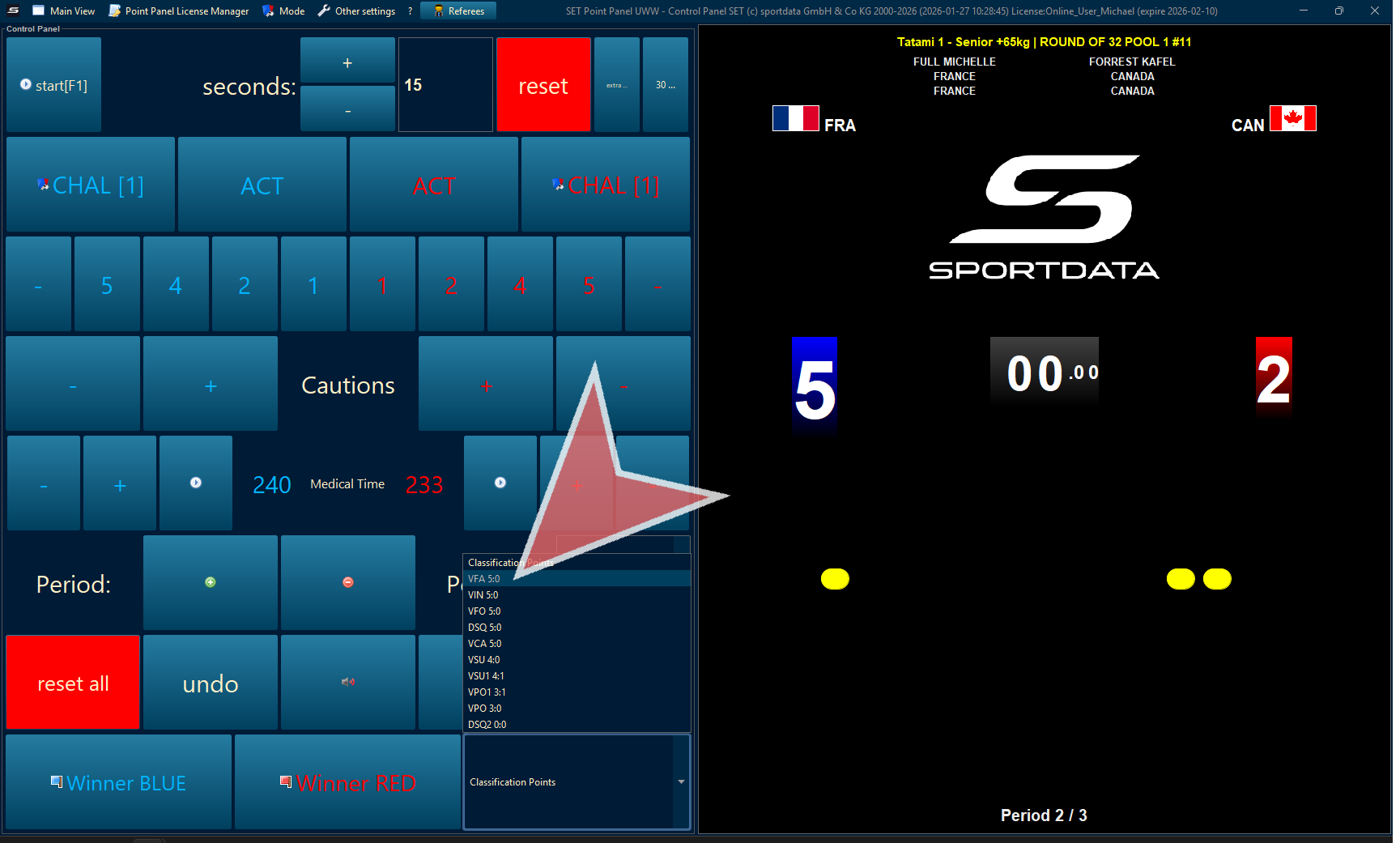
Select the classification point for this match.
Declare Winner
Declare the winner, either red or blue.