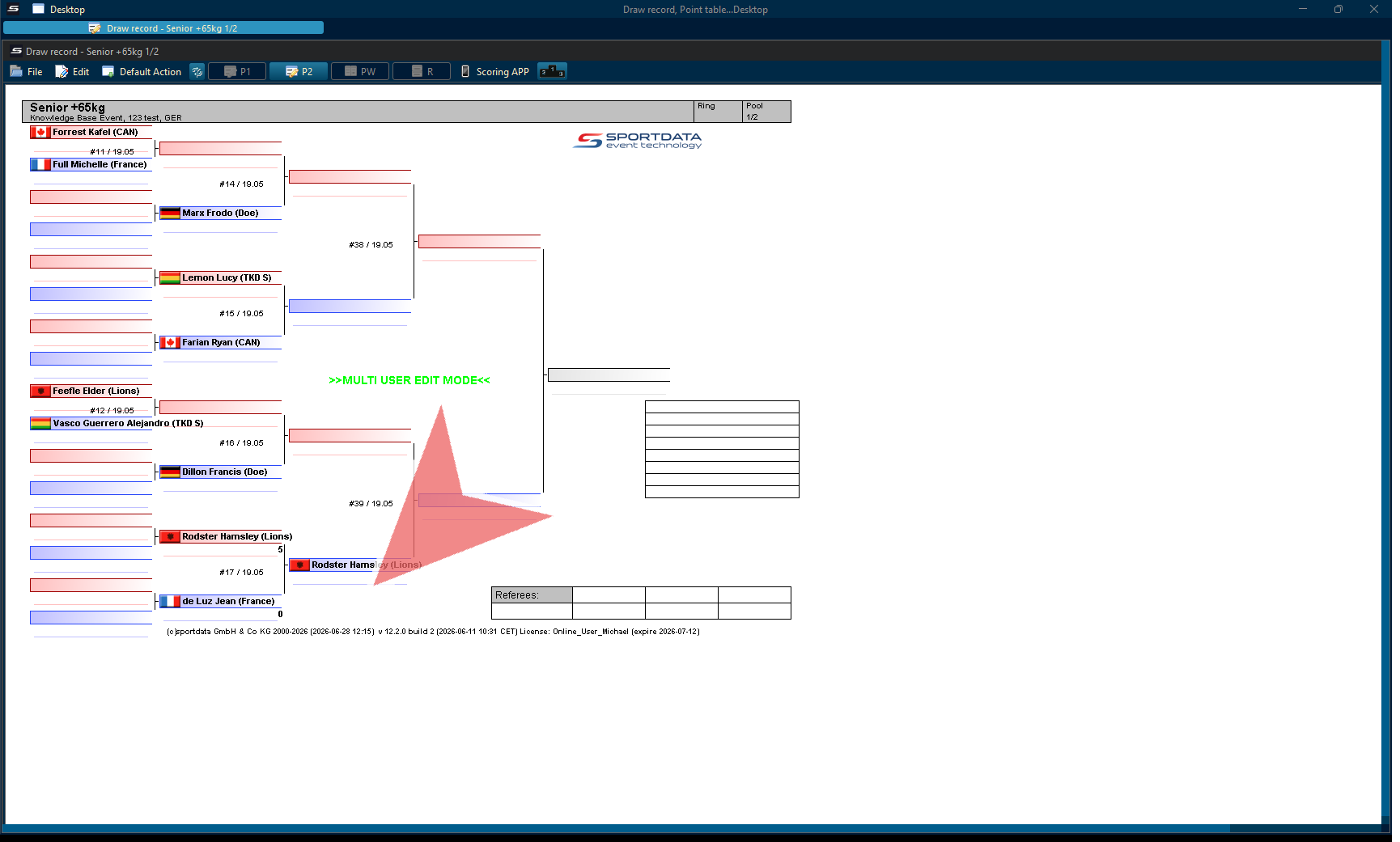

The Boxing Scoreboard and Point Panel is a digital scoring solution designed to help operators manage all aspects of a boxing match. The software allows operators to control the scoreboard, record judges’ scores, manage round timers, track warnings and penalties, display athlete information, and ensure that official match data is accurately presented throughout the competition.
This guide provides an overview of the Boxing Scoreboard features and explains the key functions required to successfully manage professional boxing events, including match setup, scoring input, round management, referee decisions, and final result confirmation.
Download the SET OVR to get the free scoreboard or use our interactive demo to follow along with the article . First, select your operating system, then download the installer, and during the set up you can select SET Point Panel for just the scoreboard. If you want to also try our SET OVR click it as well and learn how to create entries, draws, draw records, timetables and more for free.
How to Operate Boxing Scoreboard
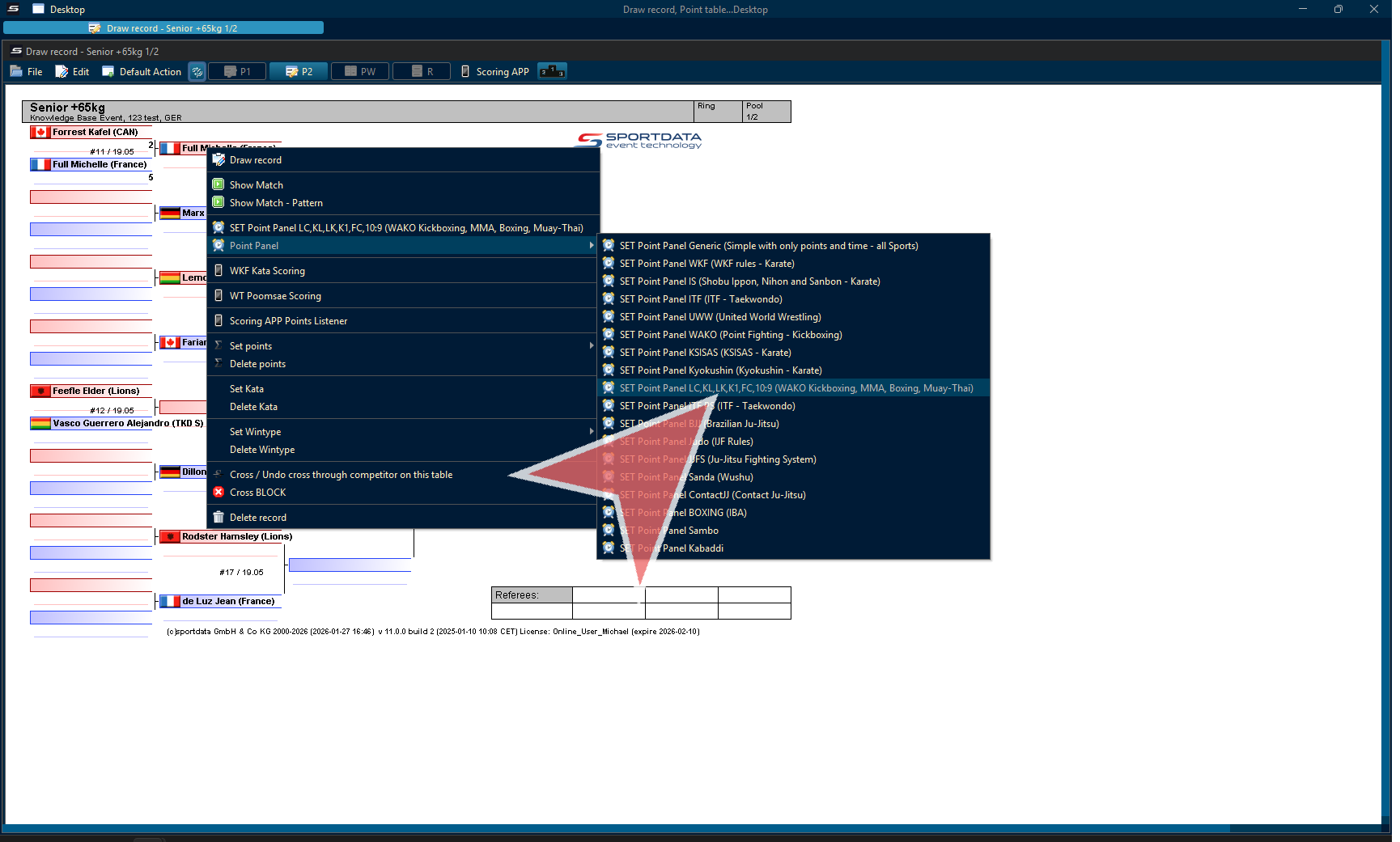
To open the match from the draw record, right-click on the match to open a context menu.

Go to point panel, and select the boxing point panel.
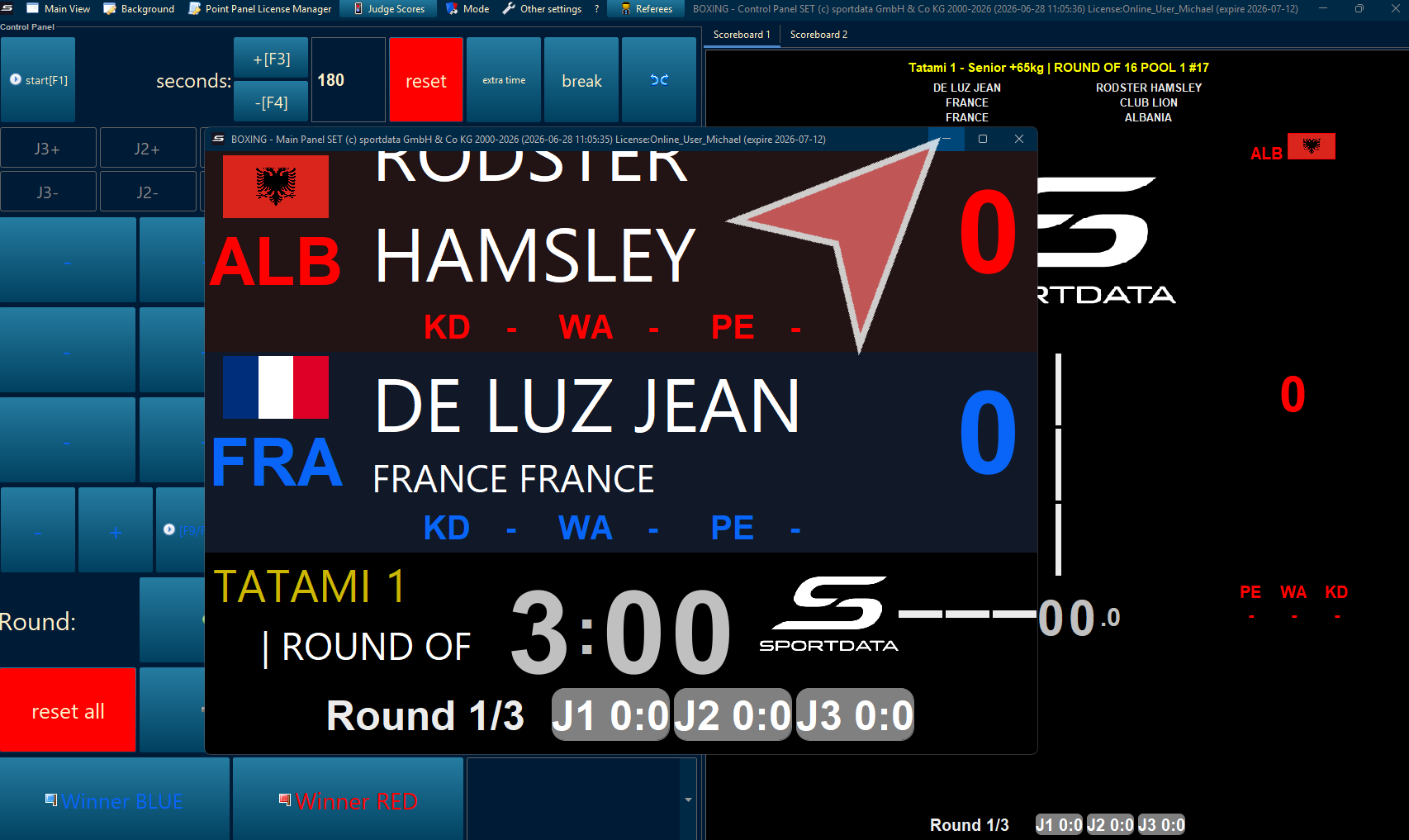
Before beginning the event, the scoreboard needs to be prepared. First, minimize scoreboard 1.
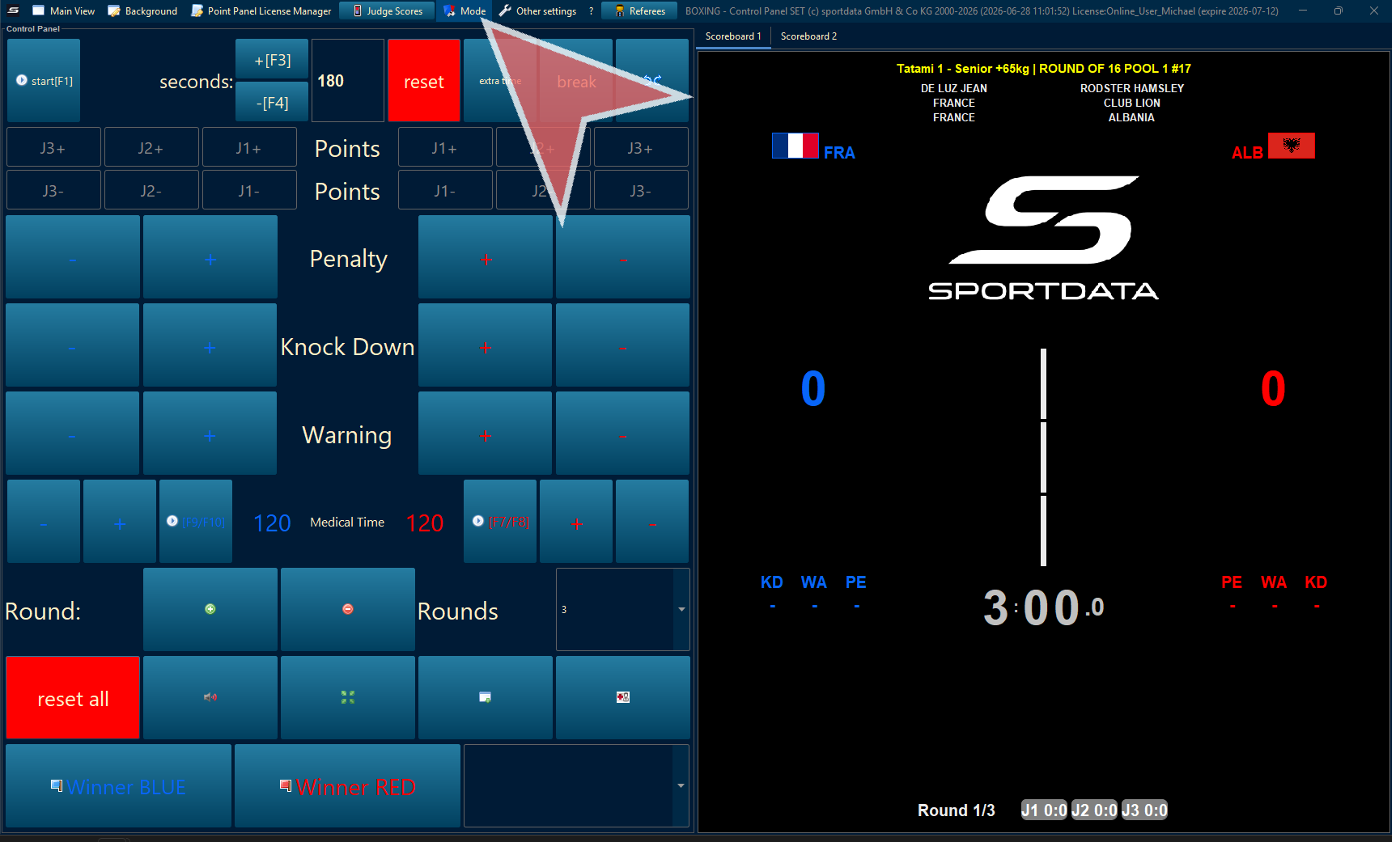
Mode
Click on mode
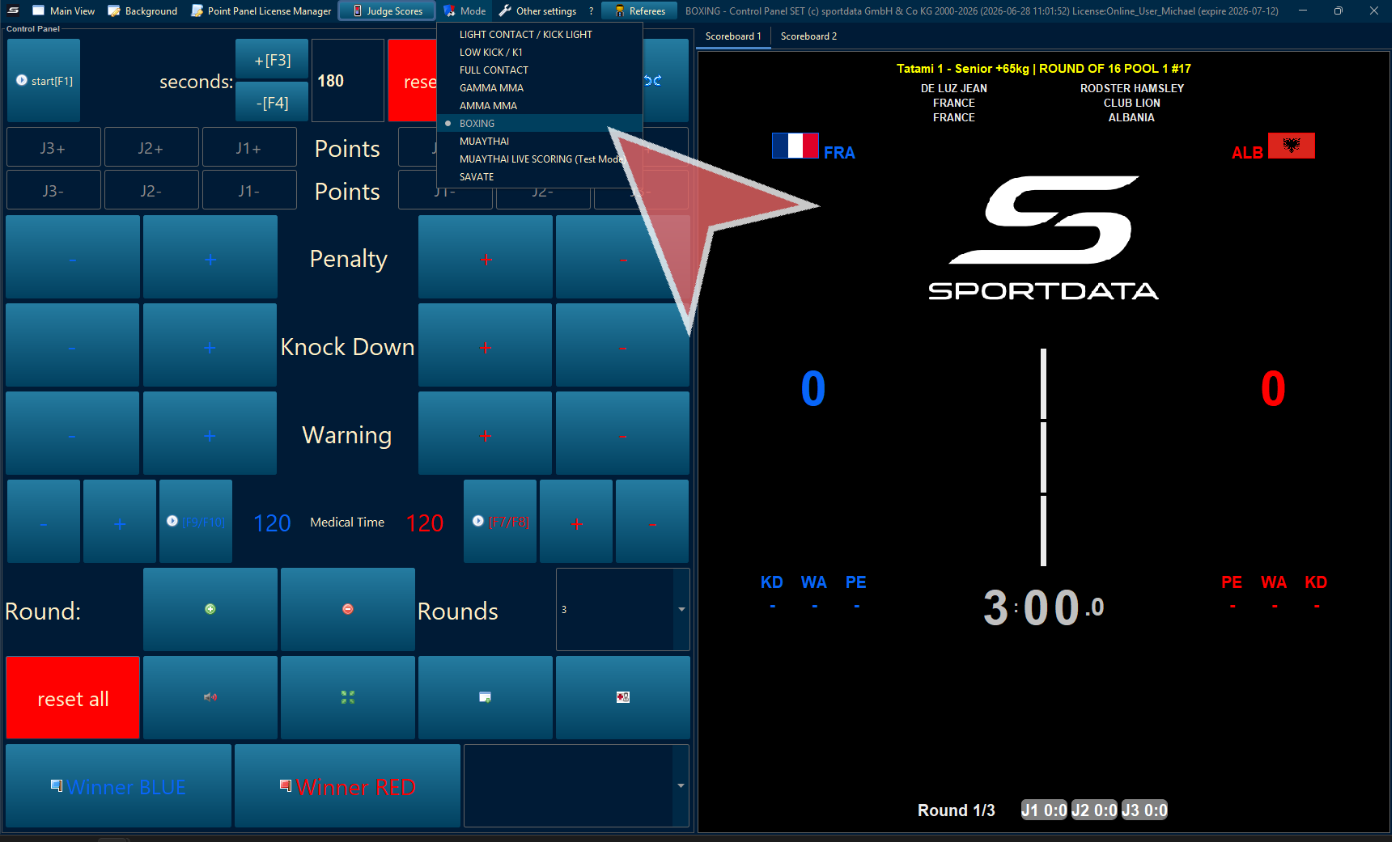
Select Boxing
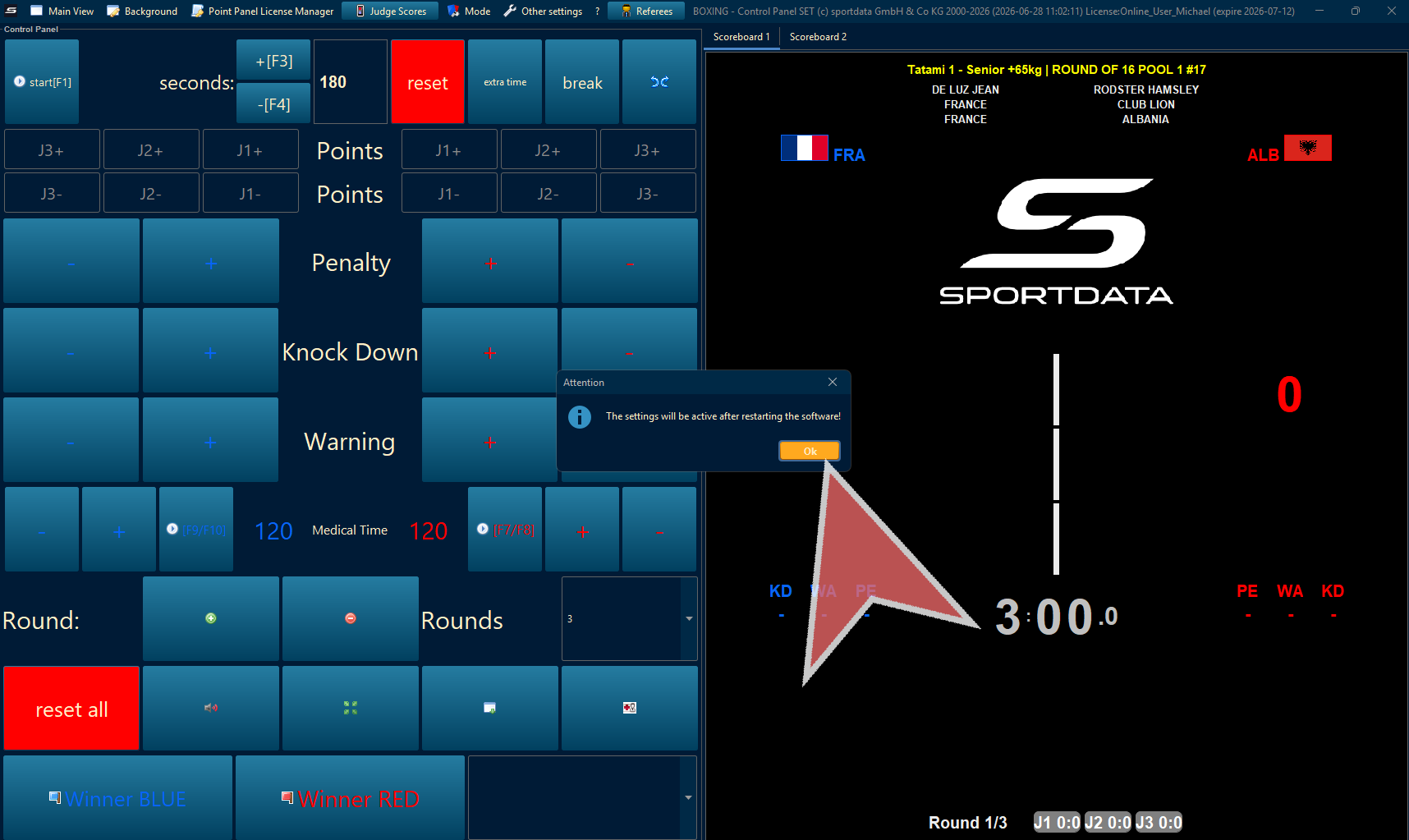
Follow the instructions, close the software and restart it. This will only need to be done once.
Other Settings
Click the next button or field as required by the software instructions.
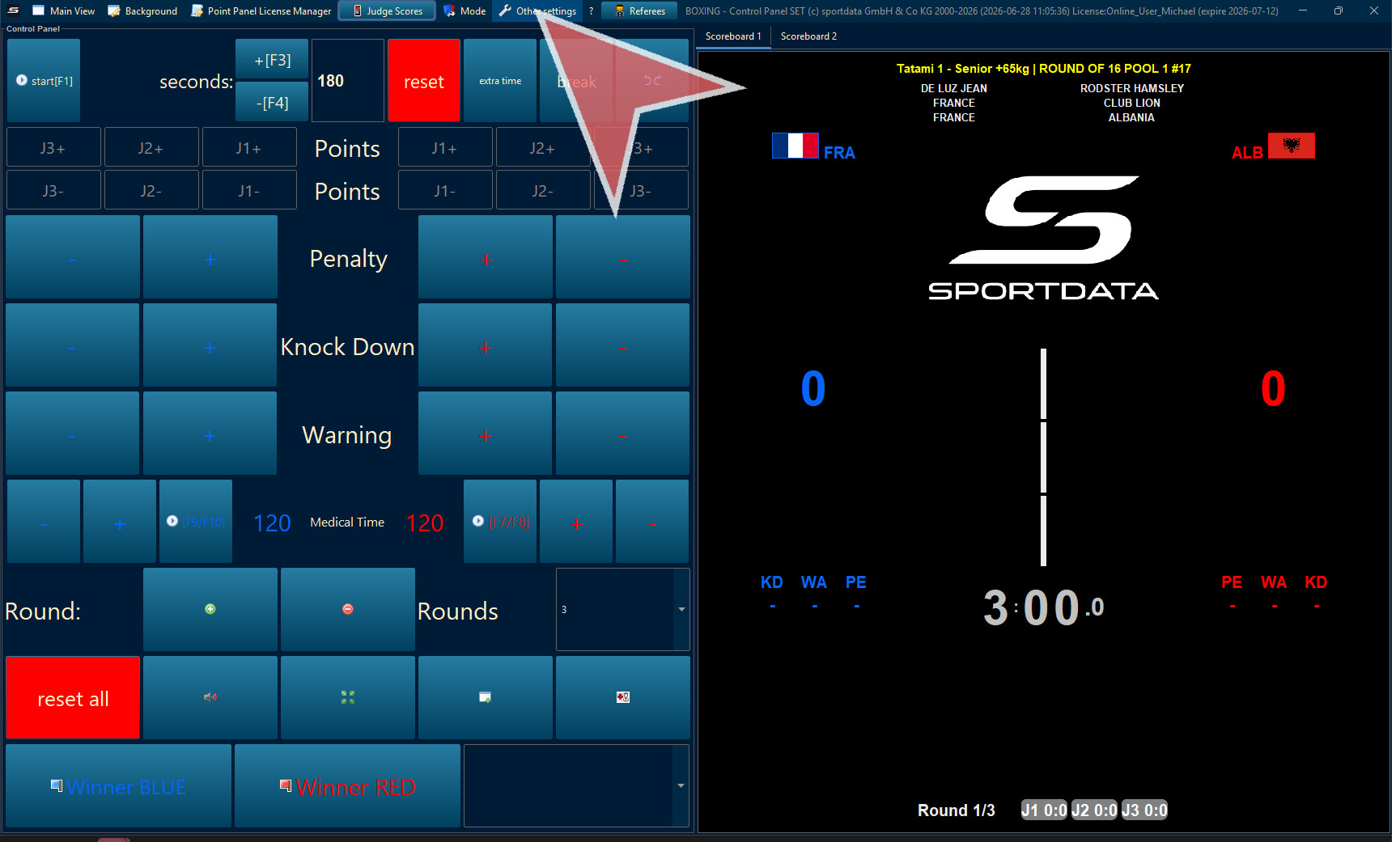
Adjust settings as required, for amateur boxing, use 5 referees, enable decision mode for referee draws, disqualifications after 3 knockdowns and 3Minus points.
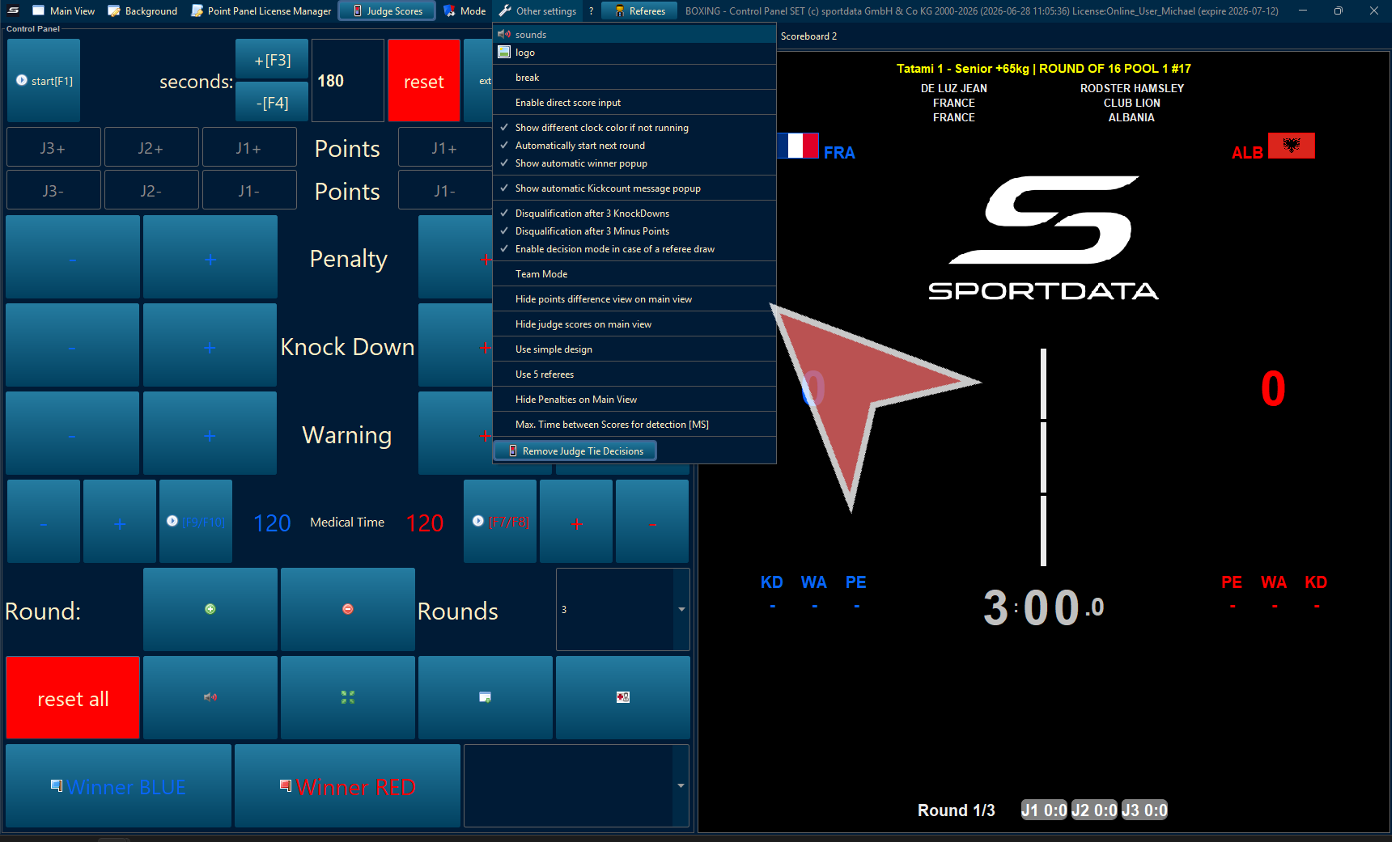
Open Subpanel
Click the specified element in the interface to continue.
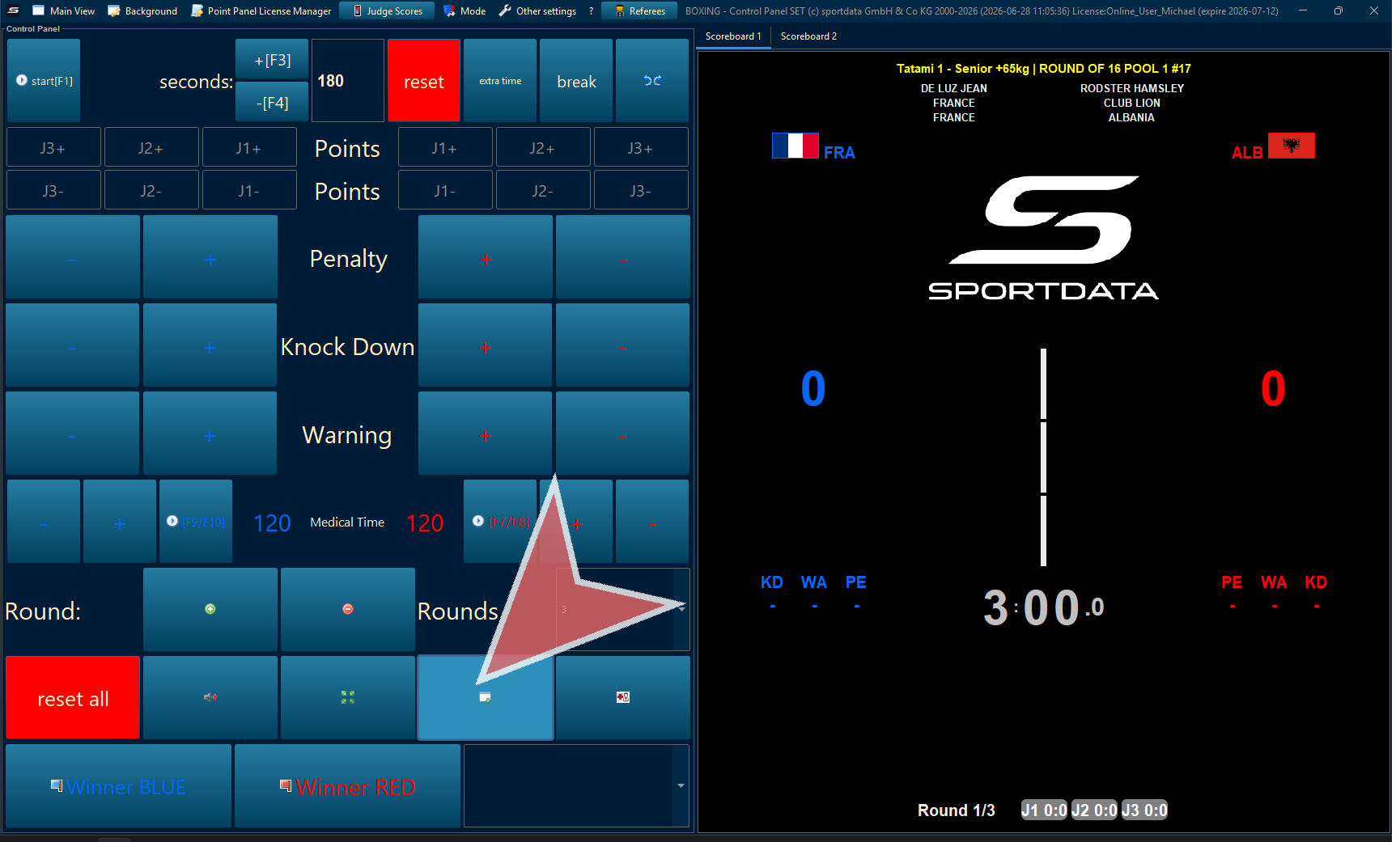
Display Scoreboard
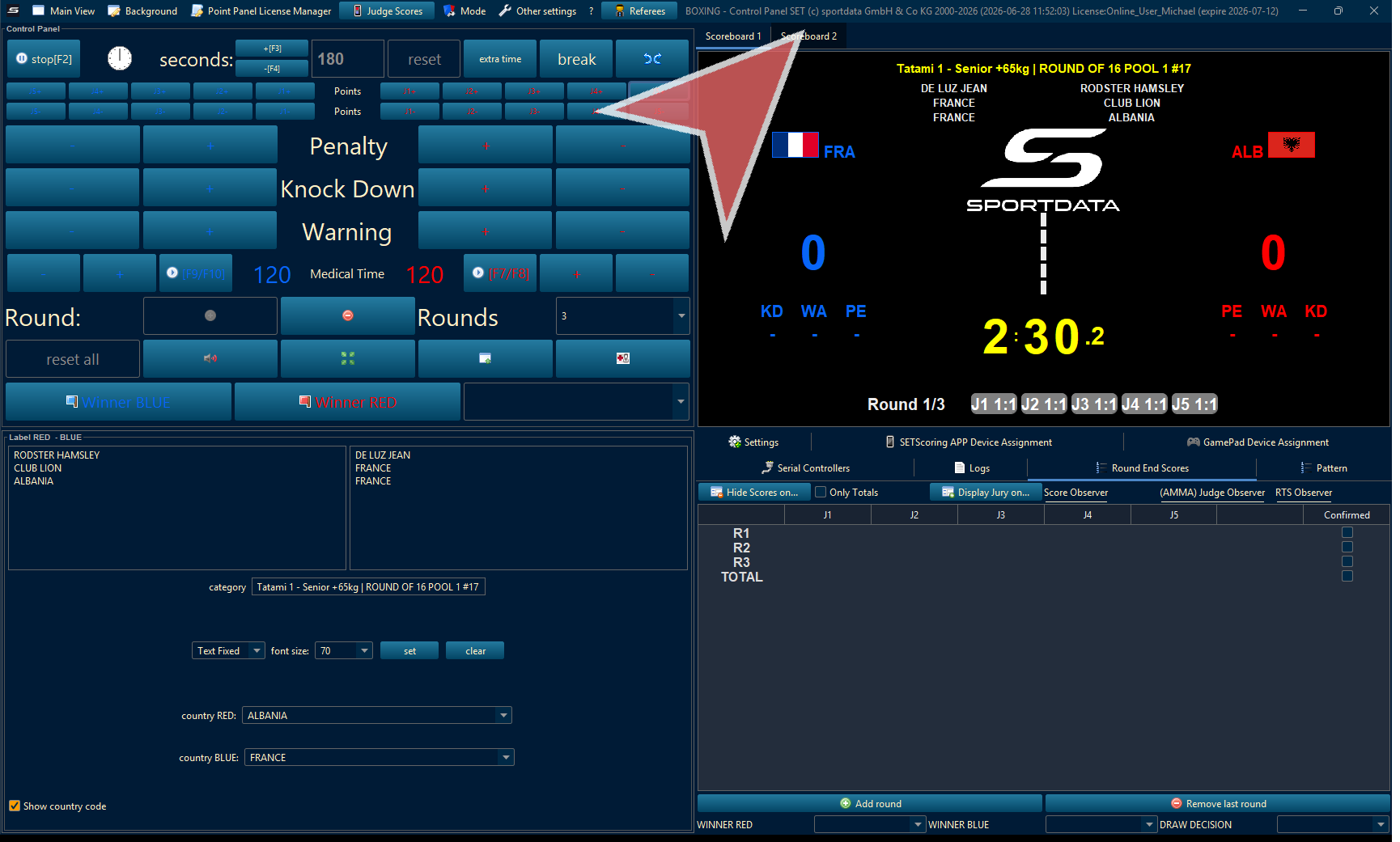
Click the Display Score button to open Display Scoreboard 2 on the external monitor.
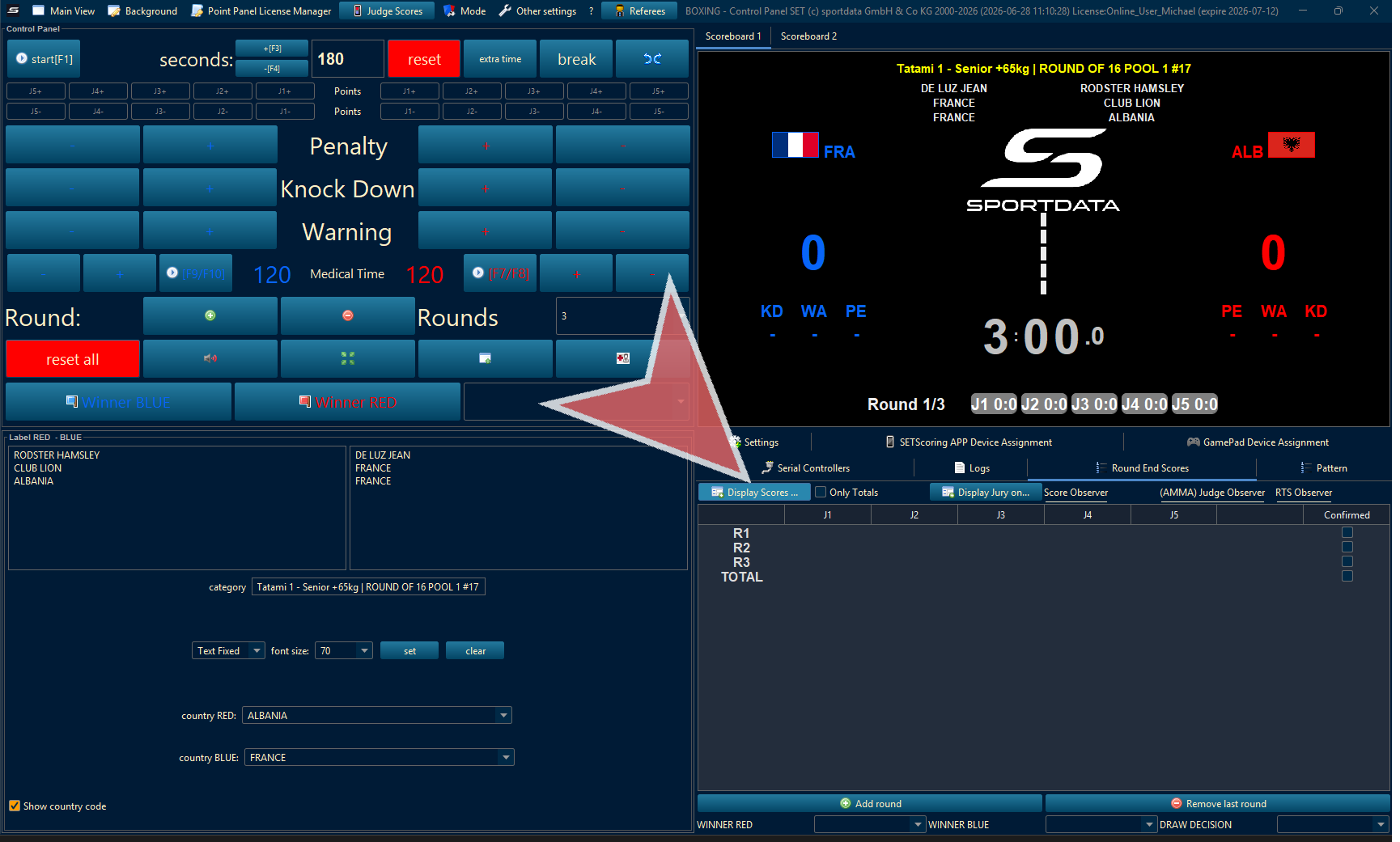
Scoreboard Settings
Click the specified button or field as indicated by the application.
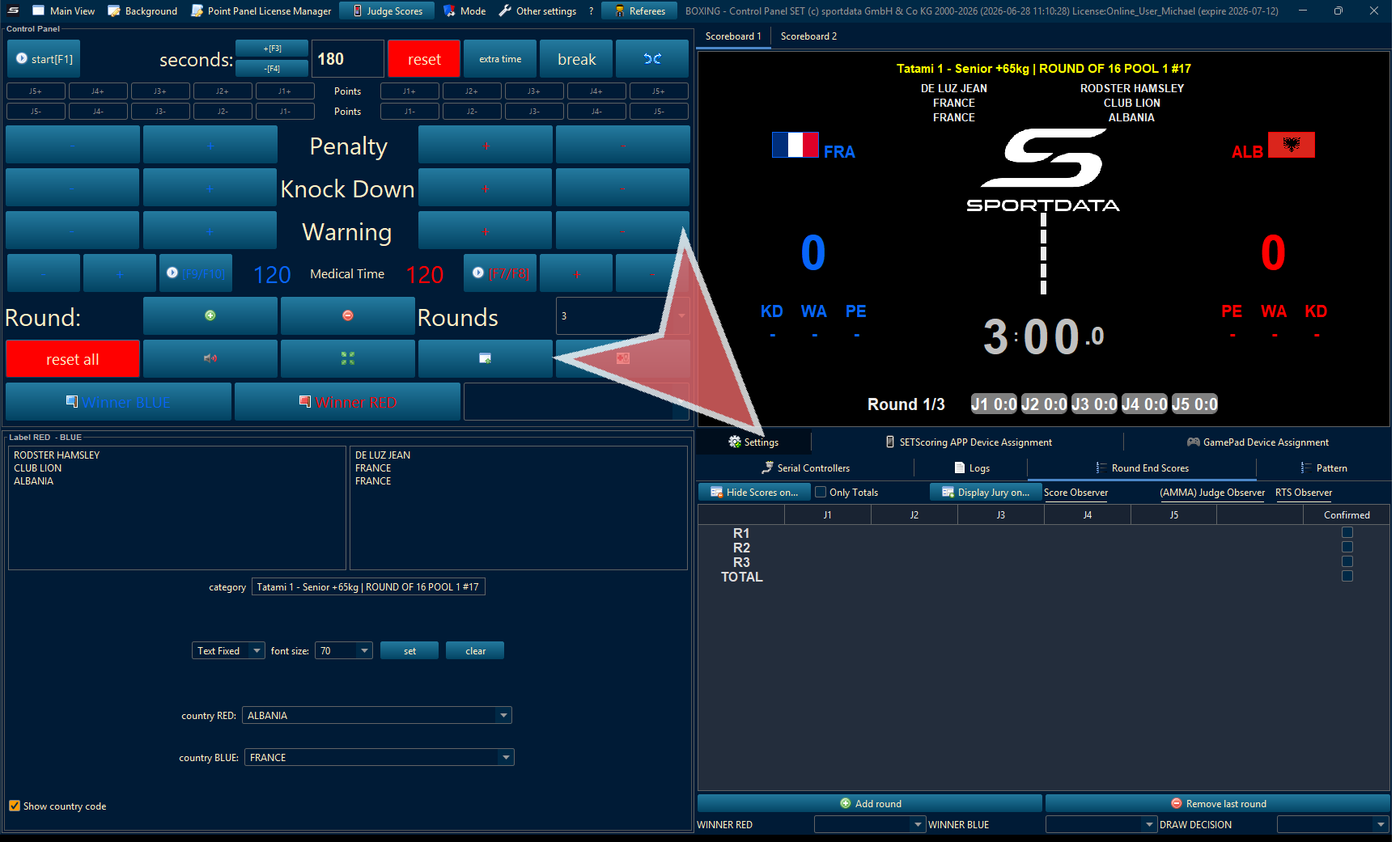
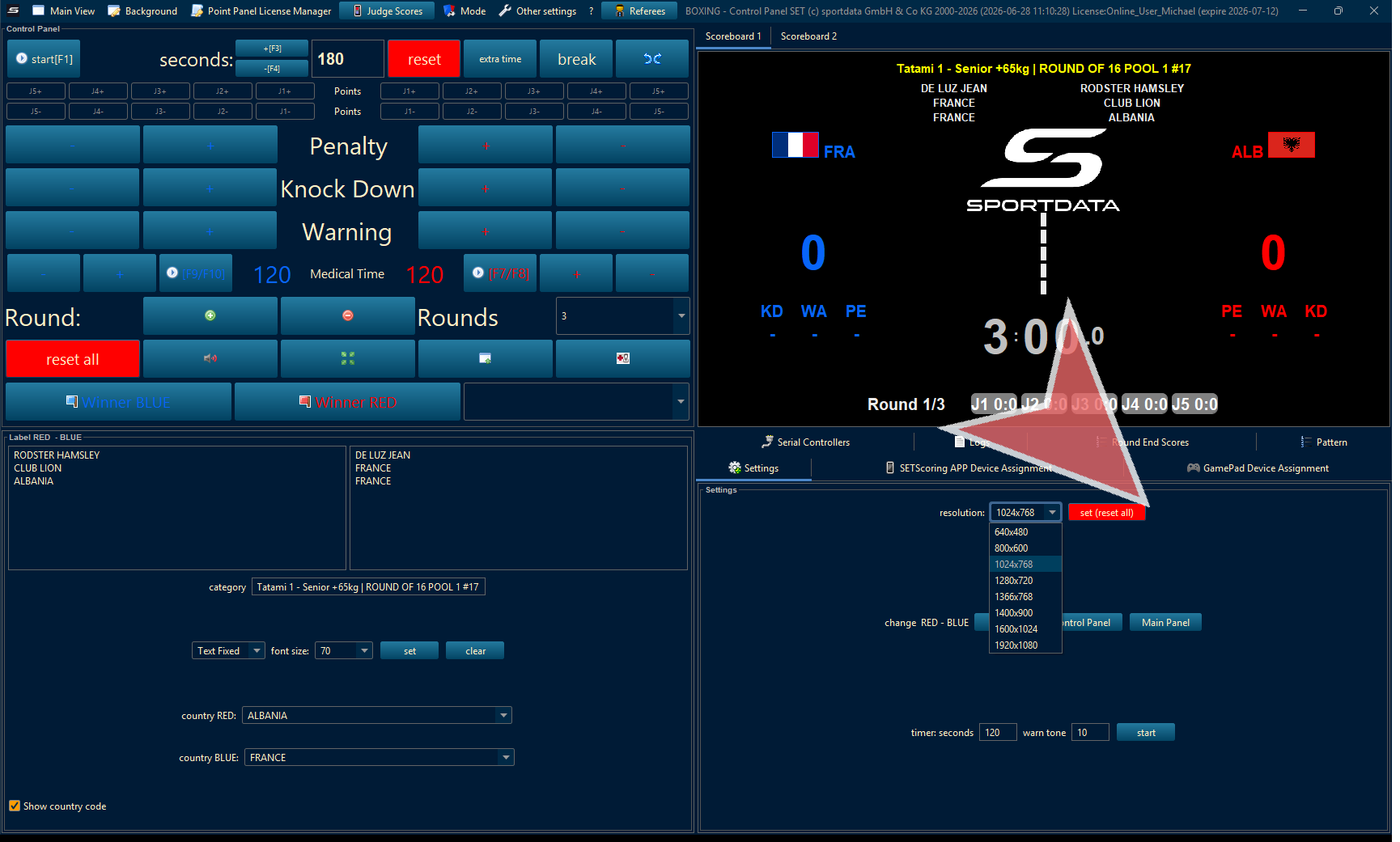
Screen Resolution
Select the screen resolution, and press reset.
Scoring App Authentication
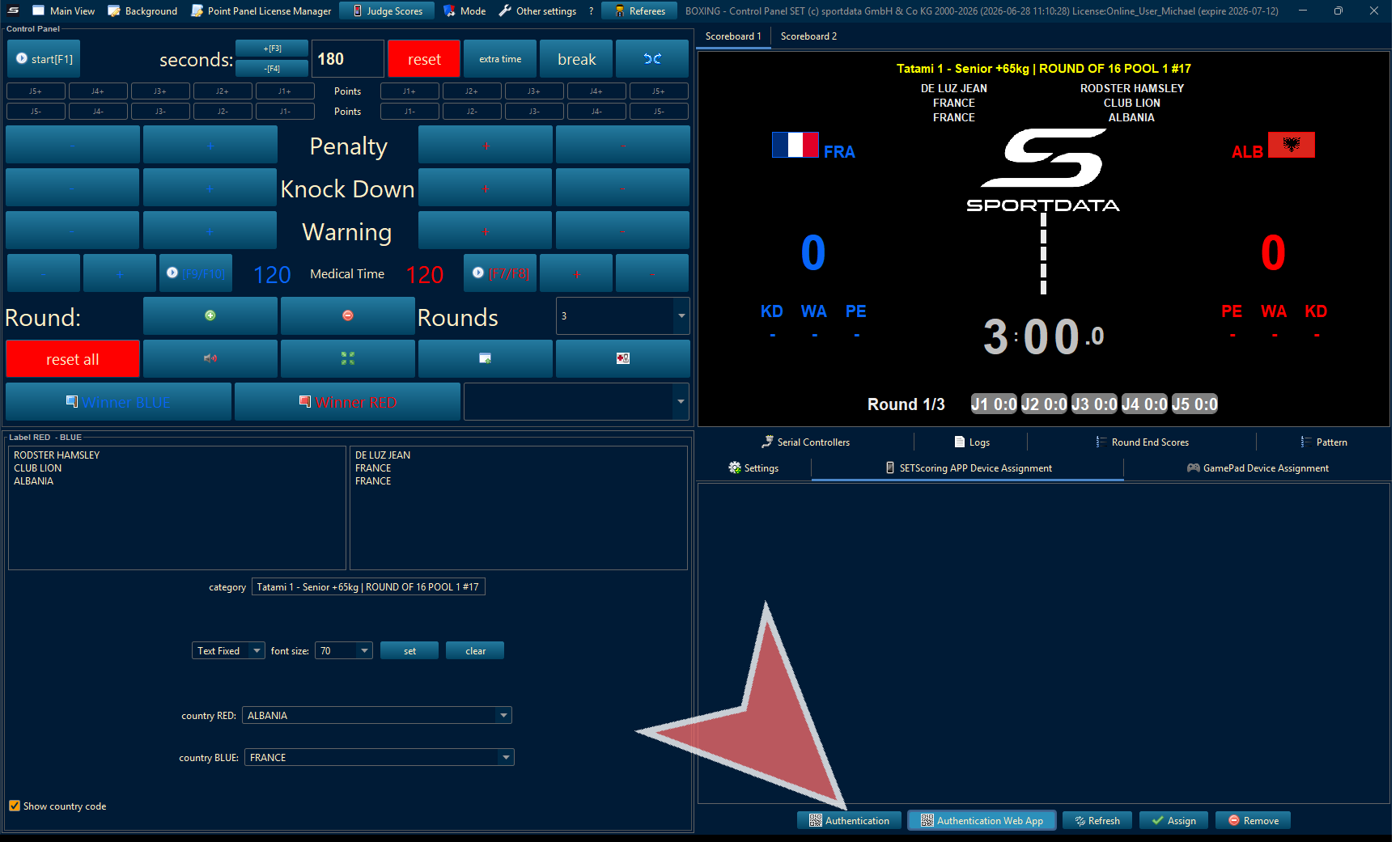
If using a SET Scoring app click on the the SET ScoringApp Device Assignment tab. This is to assign a number to the scoring device.
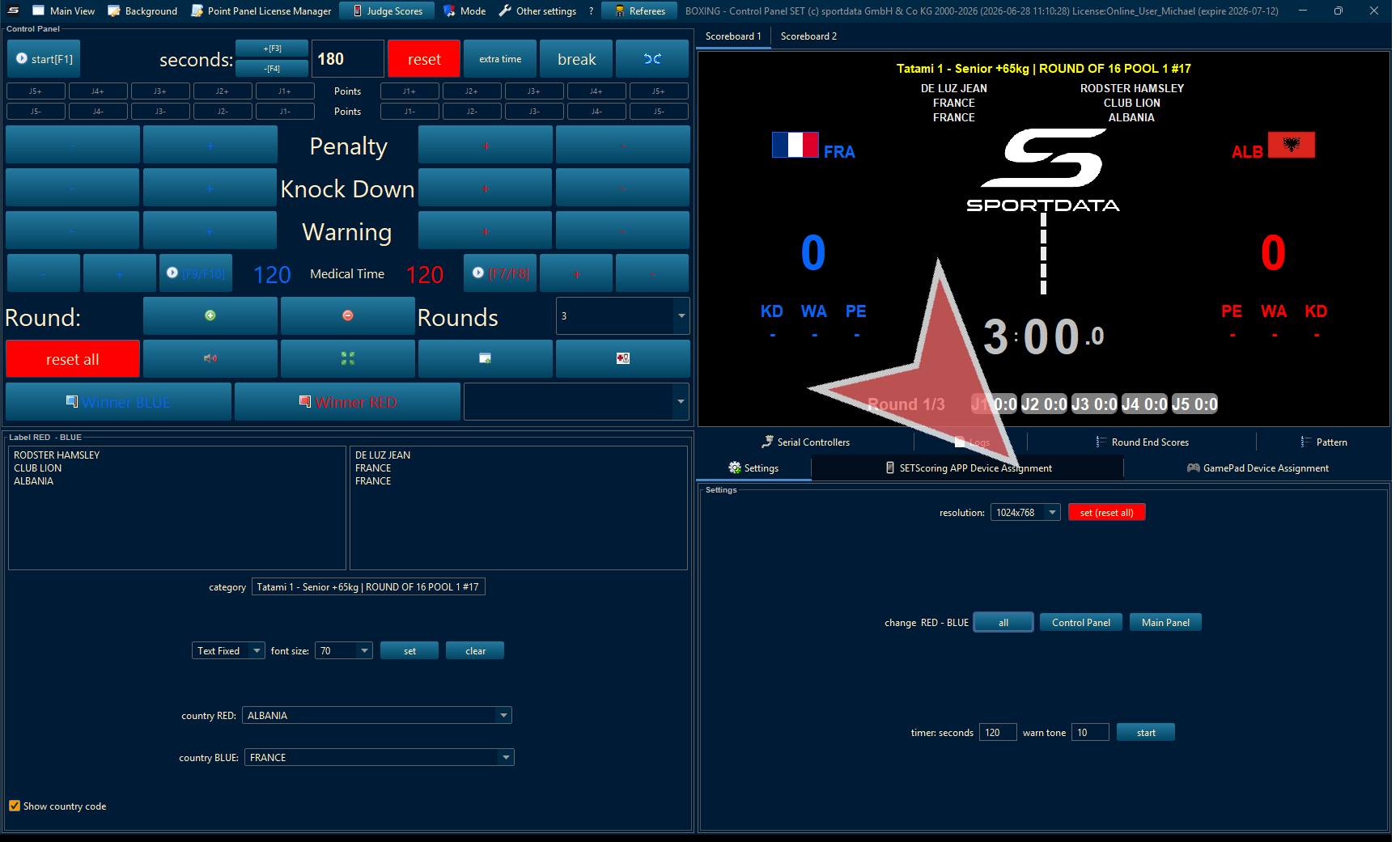
Select authentication, Scan the QR code into the SET Scoring app, download available on the Sportdata website. Assign referee number, refresh the authentication tab and press assign to confirm. Do this for all judges.
Assigning Referees
To assign referees to a number which will correspond to the device number click the referee tab above.
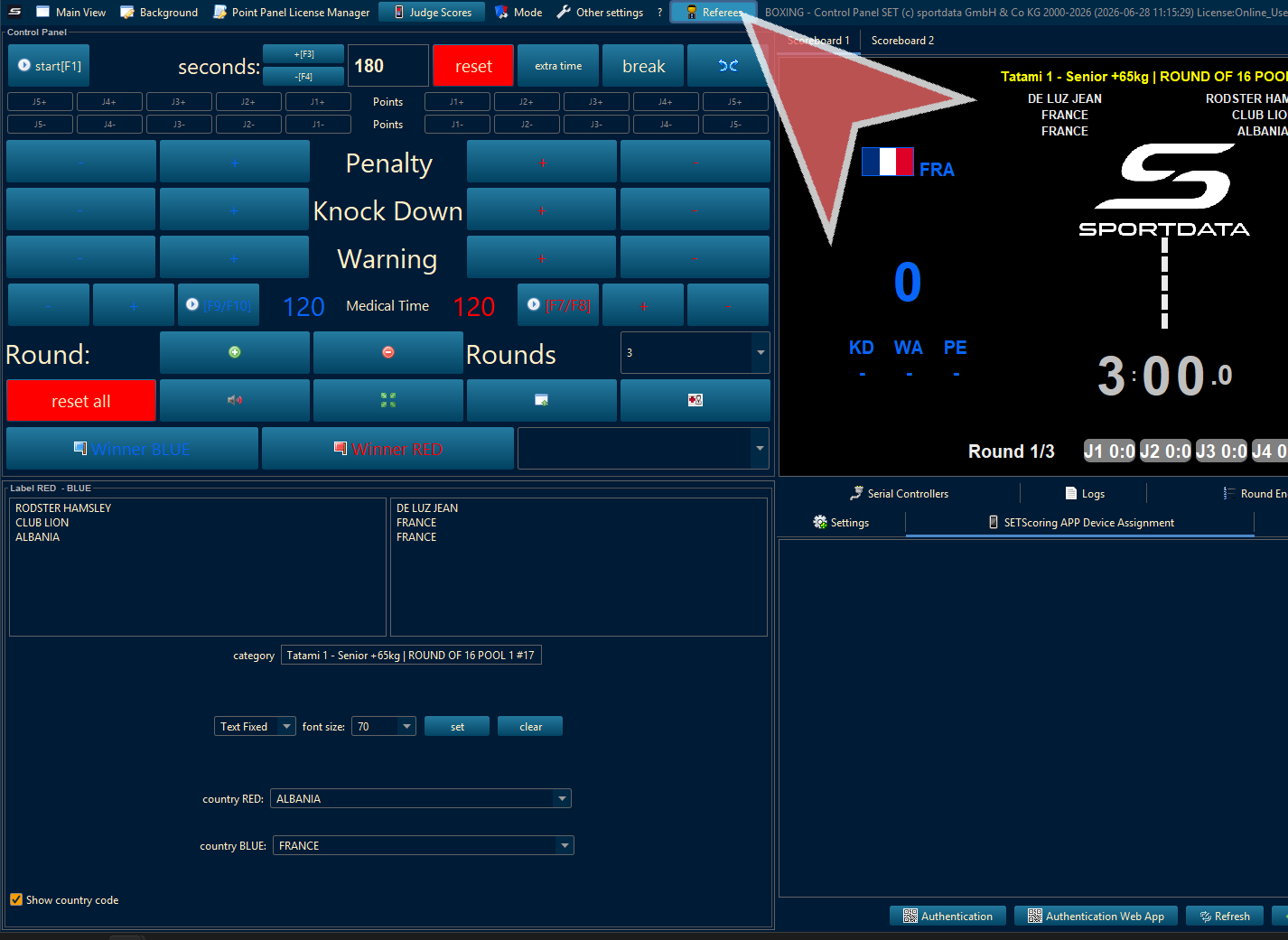
Double click the referee to assign a number.
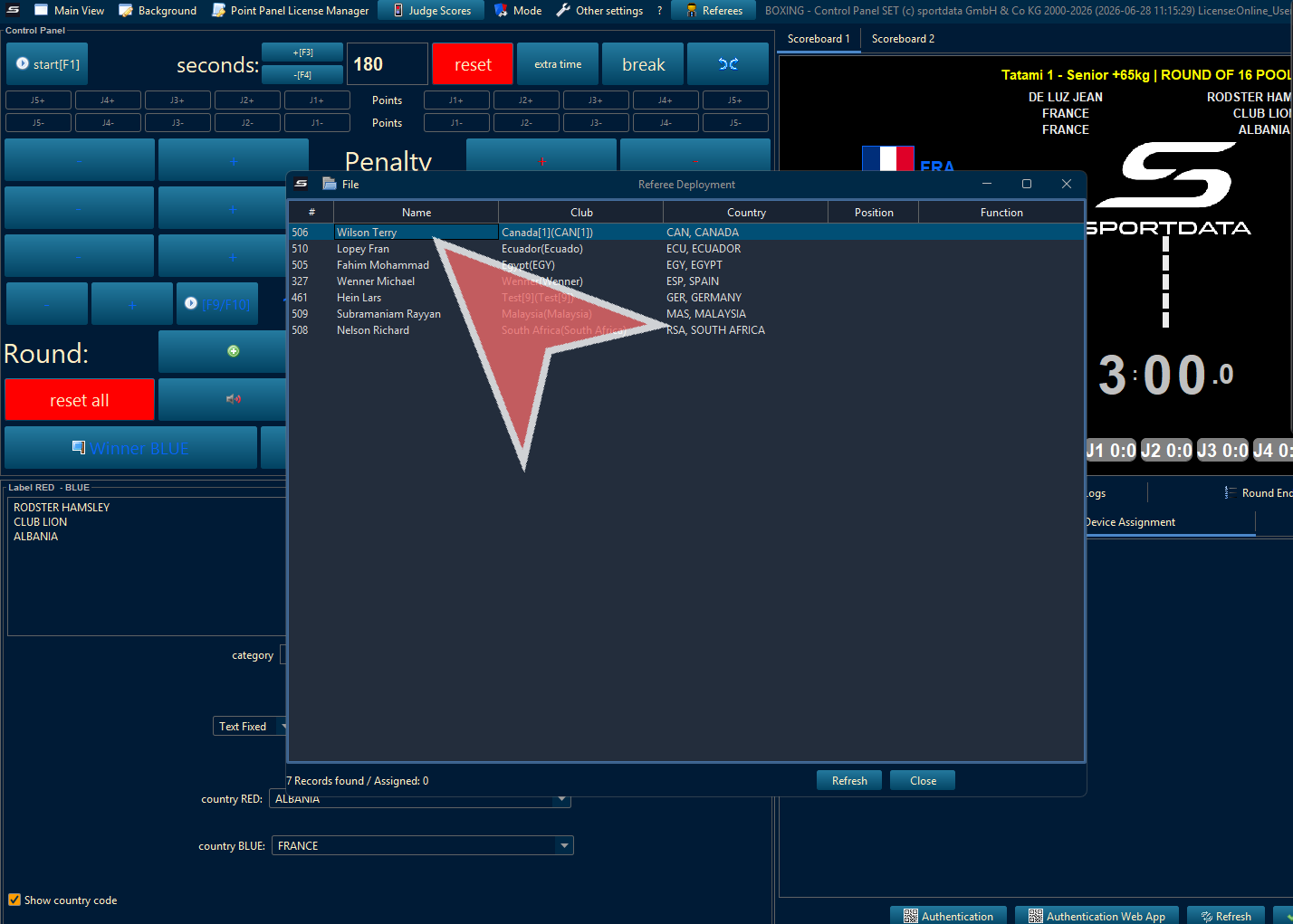
Now, click on the “Referee Deployment” button to highlight and select this deployment option.
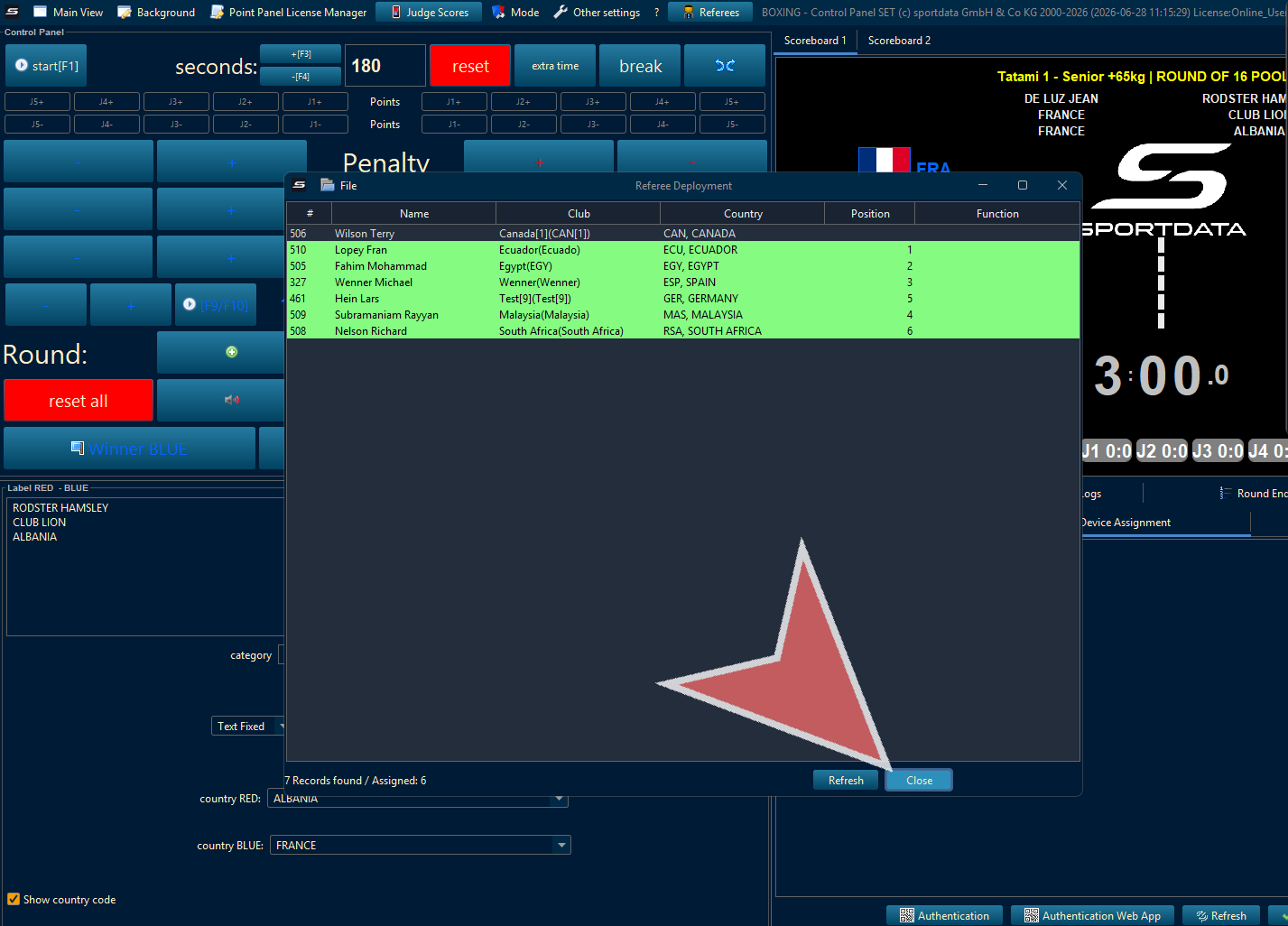
Change scoreboard view in point panel to scoreboard 2.
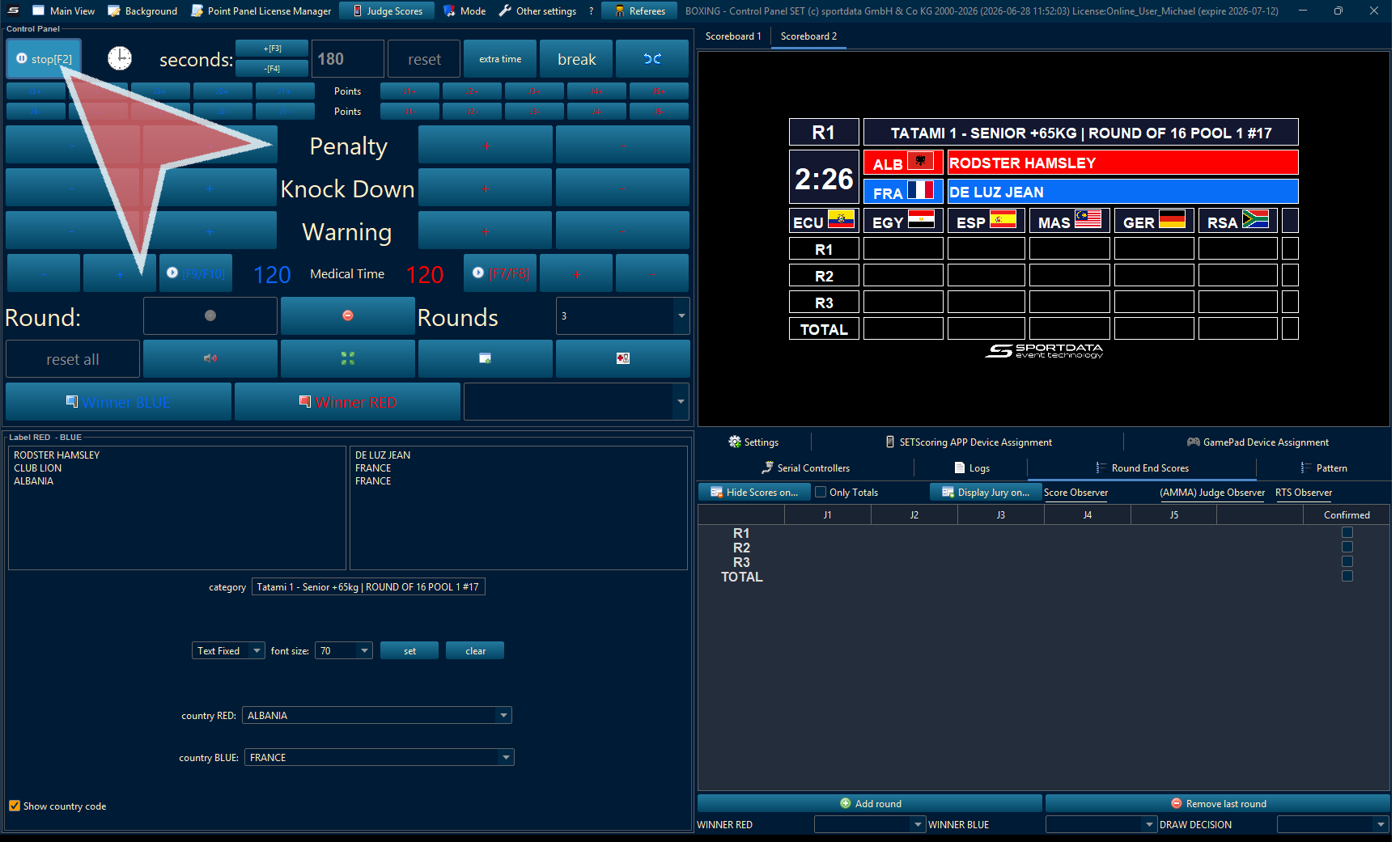
Time
You can either start time manually, or connect a tablet with the timekeeper web app or use external devices.
Add Rounds
To add scores manually, press add round.
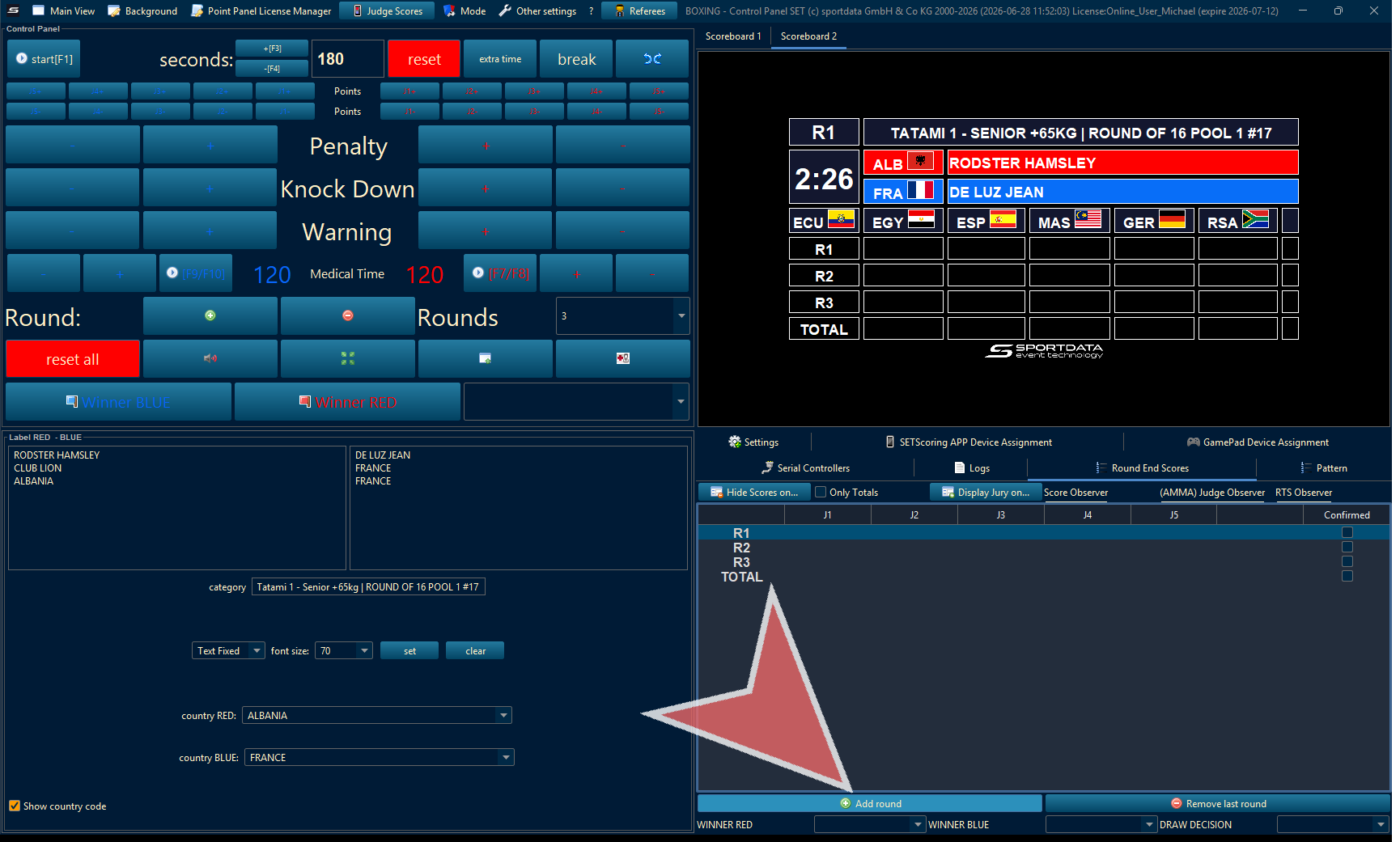
Add Scores Manually
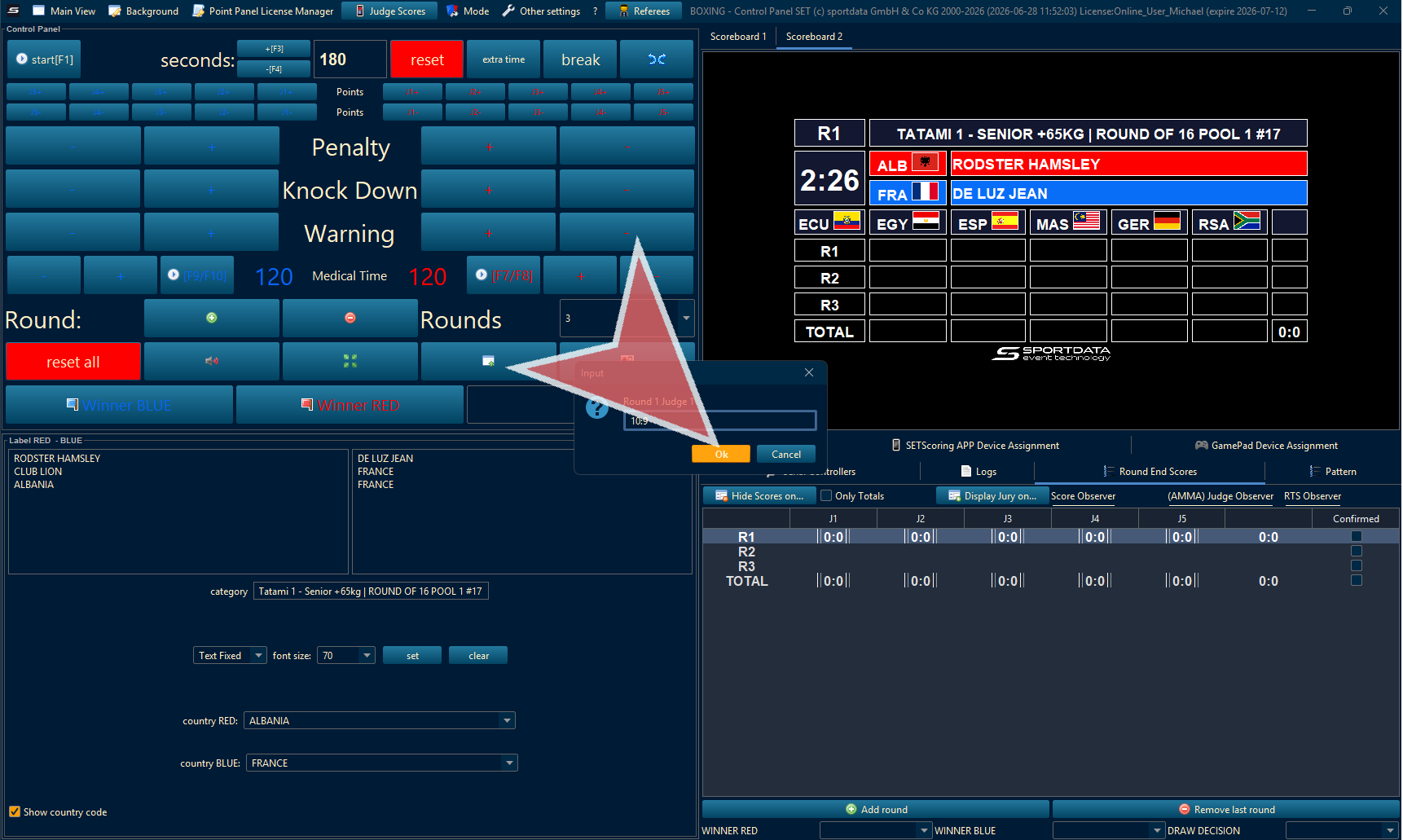
Double-click each judge
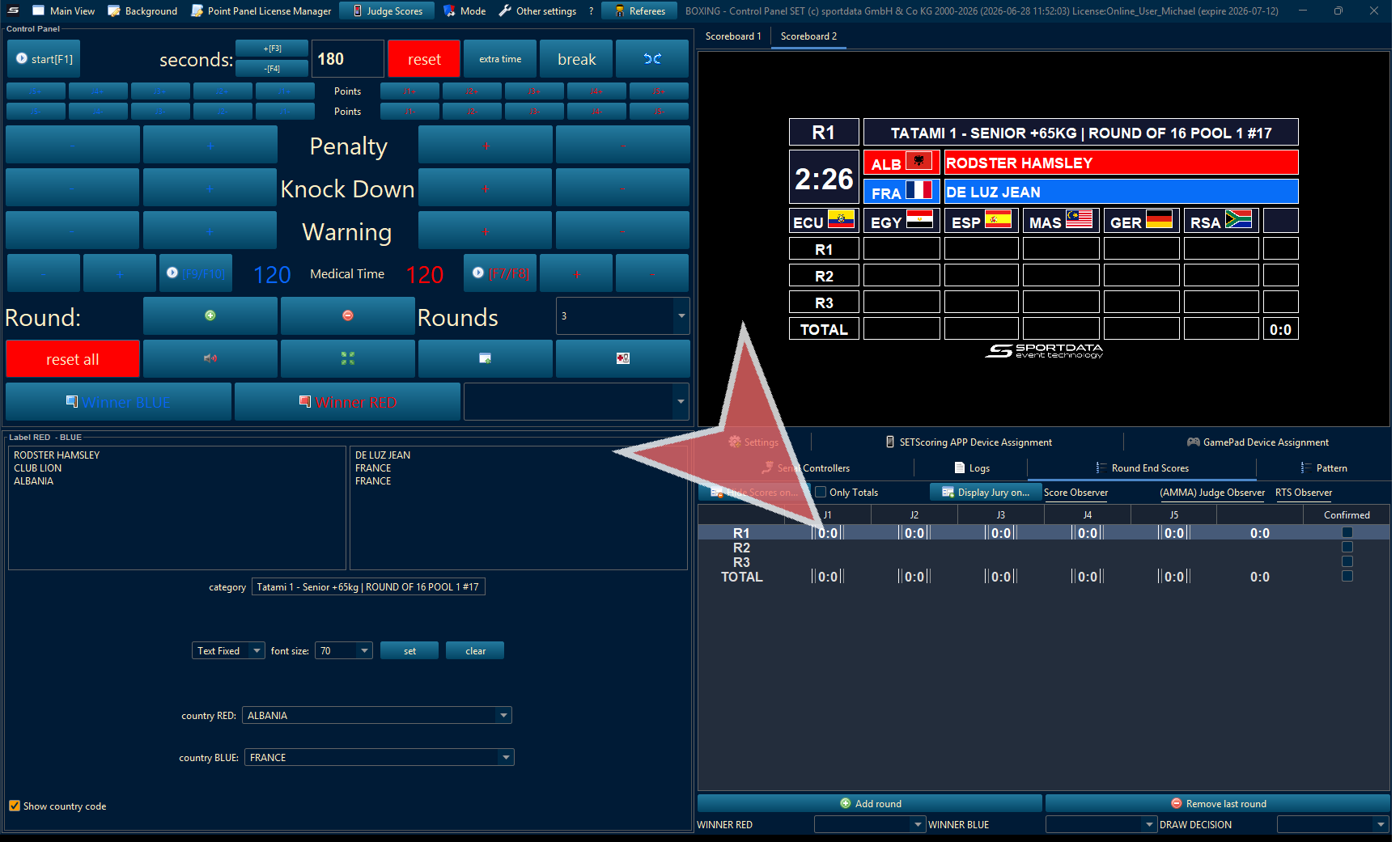
Click the “Input” option to provide necessary data or select input options as required.
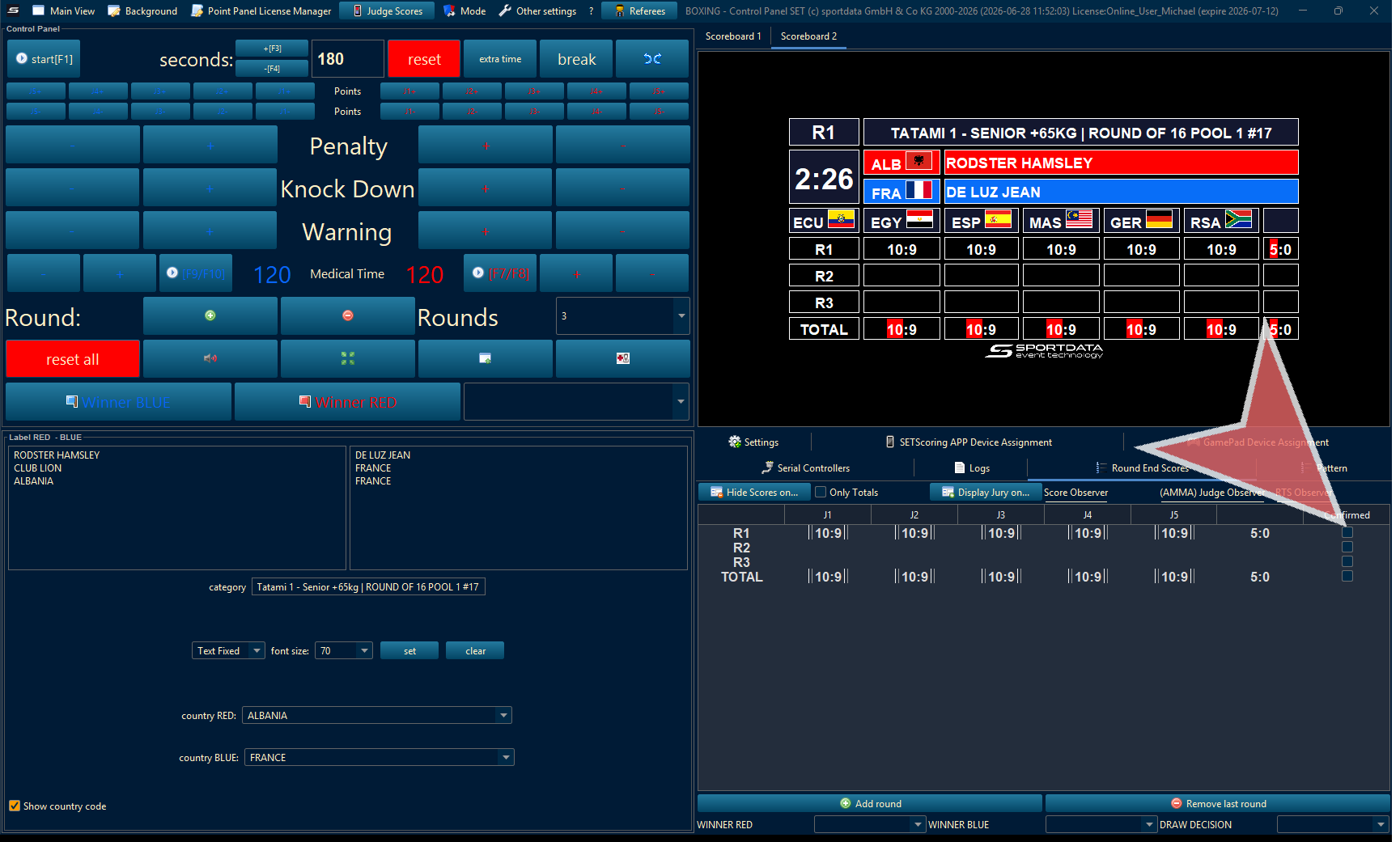
Show Scores
All scores are first registered on the point panel and not on the scoreboard. To show the scores on the scoreboard, click confirmed next to the round to show them.
Next Round
Click Add round to prepare the next round of scoring.
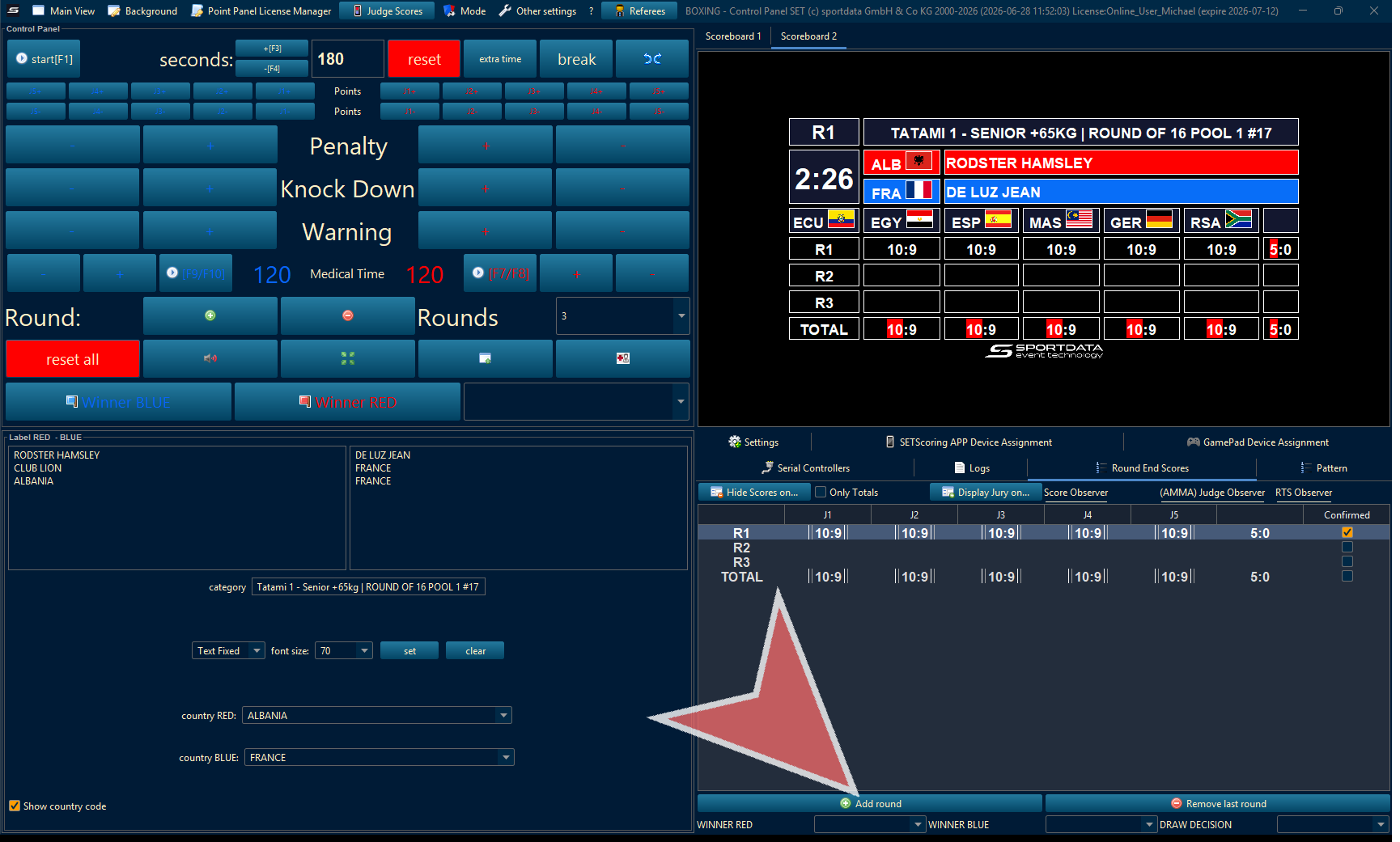
Then, click on + green symbol to move to scoreboard to the next round.
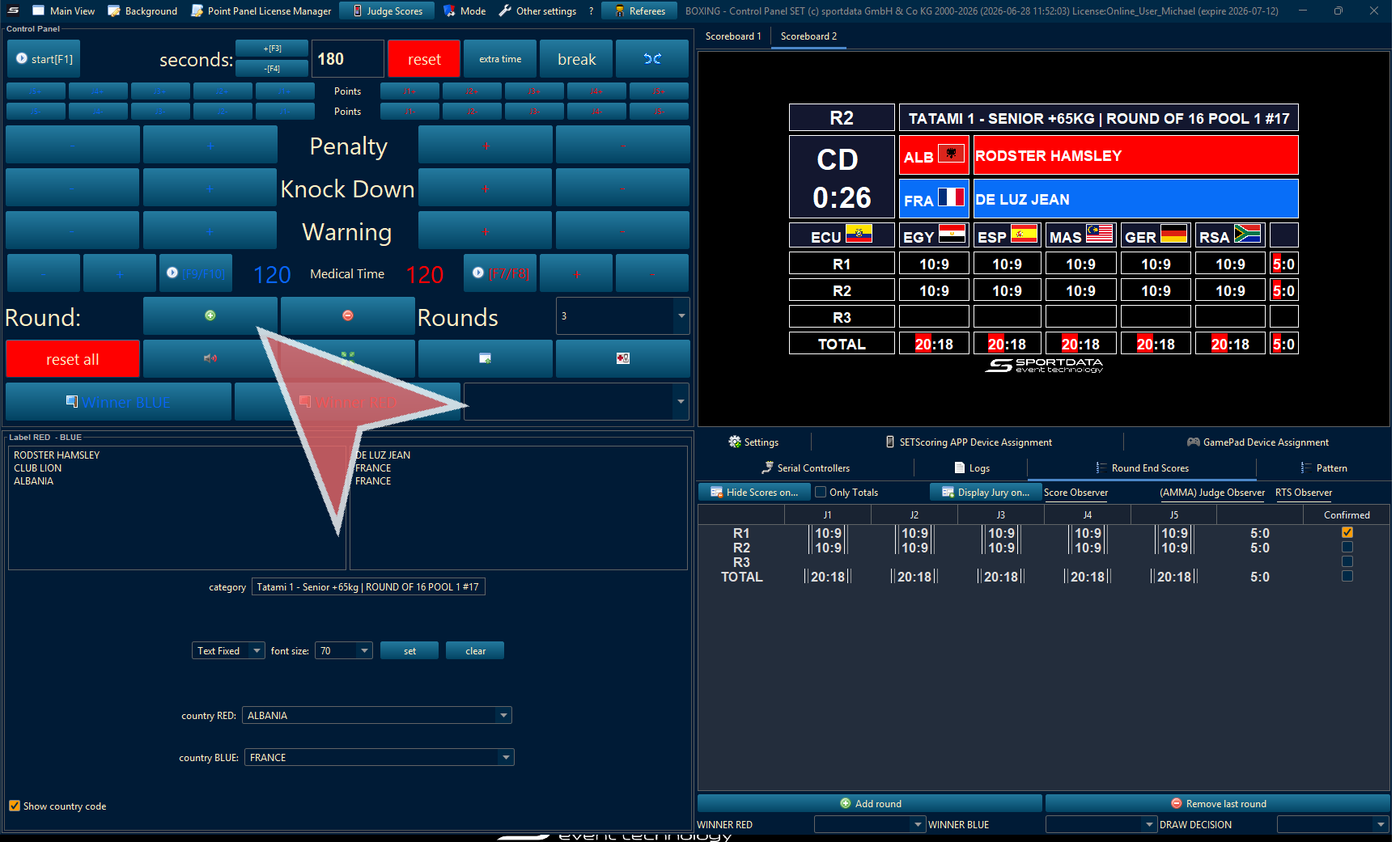
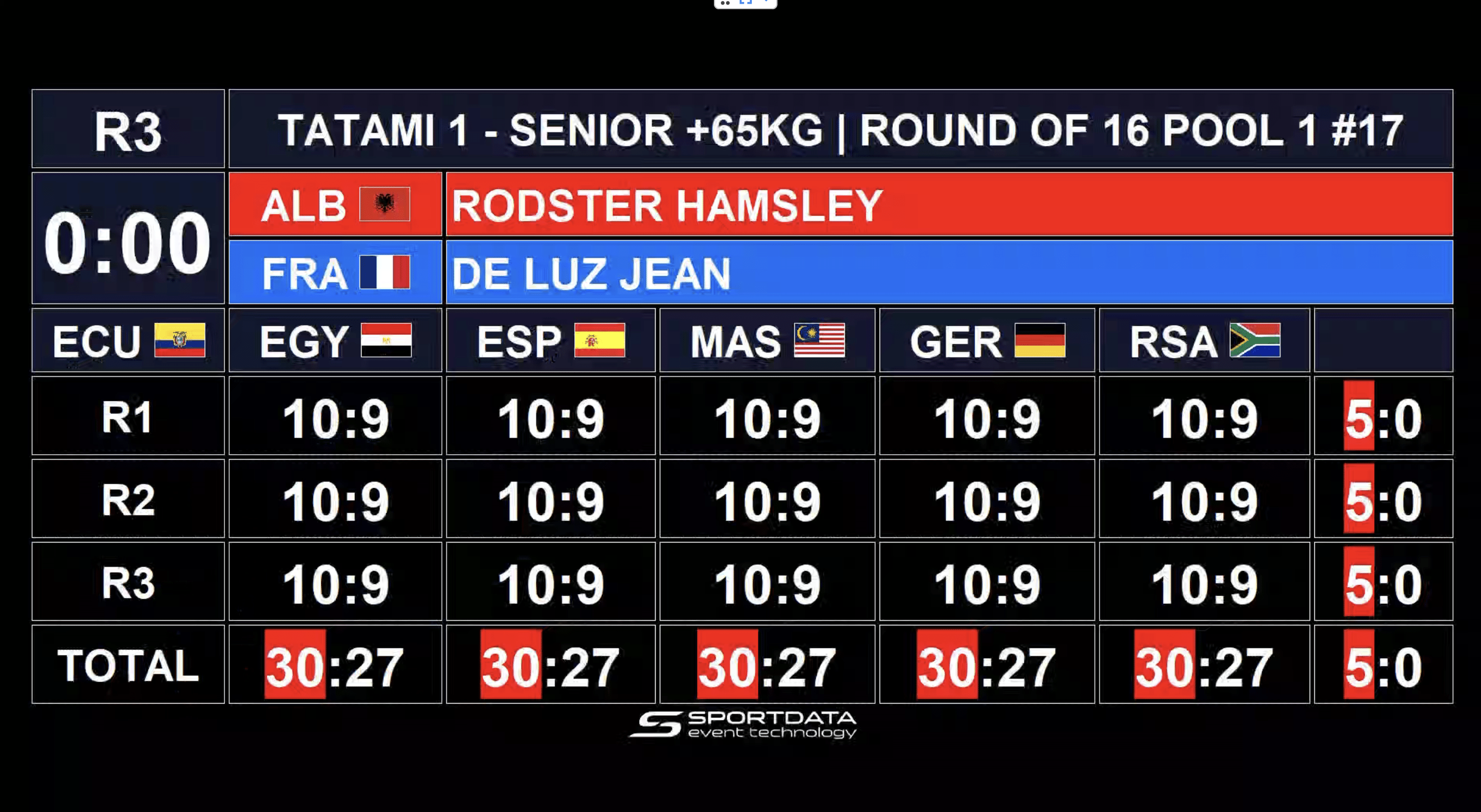
Scoreboard
View of scoreboard with all scores.
Penalties, Knock Down, Warning
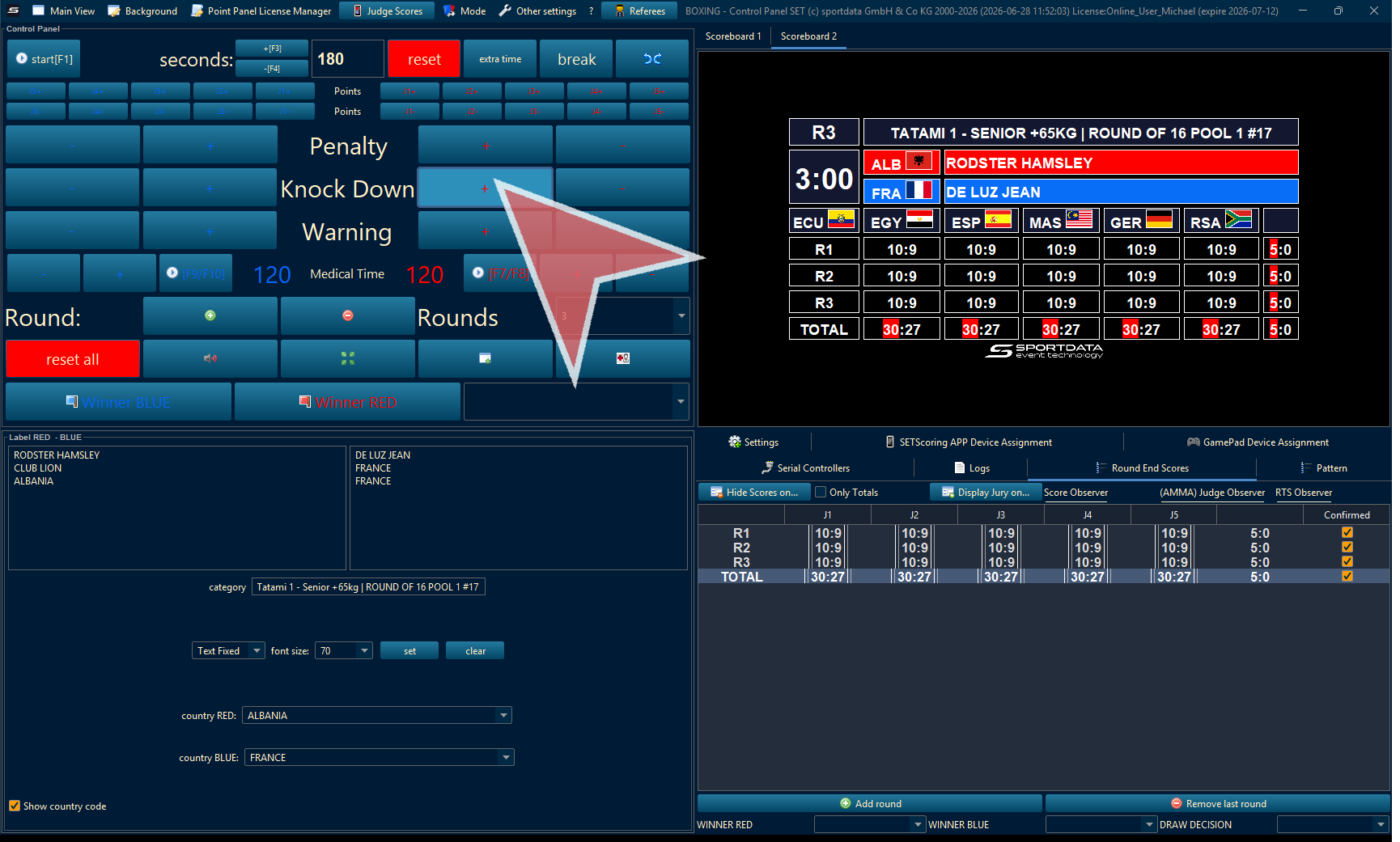
Match Winner
Click again to stay in sequence and complete all necessary actions.
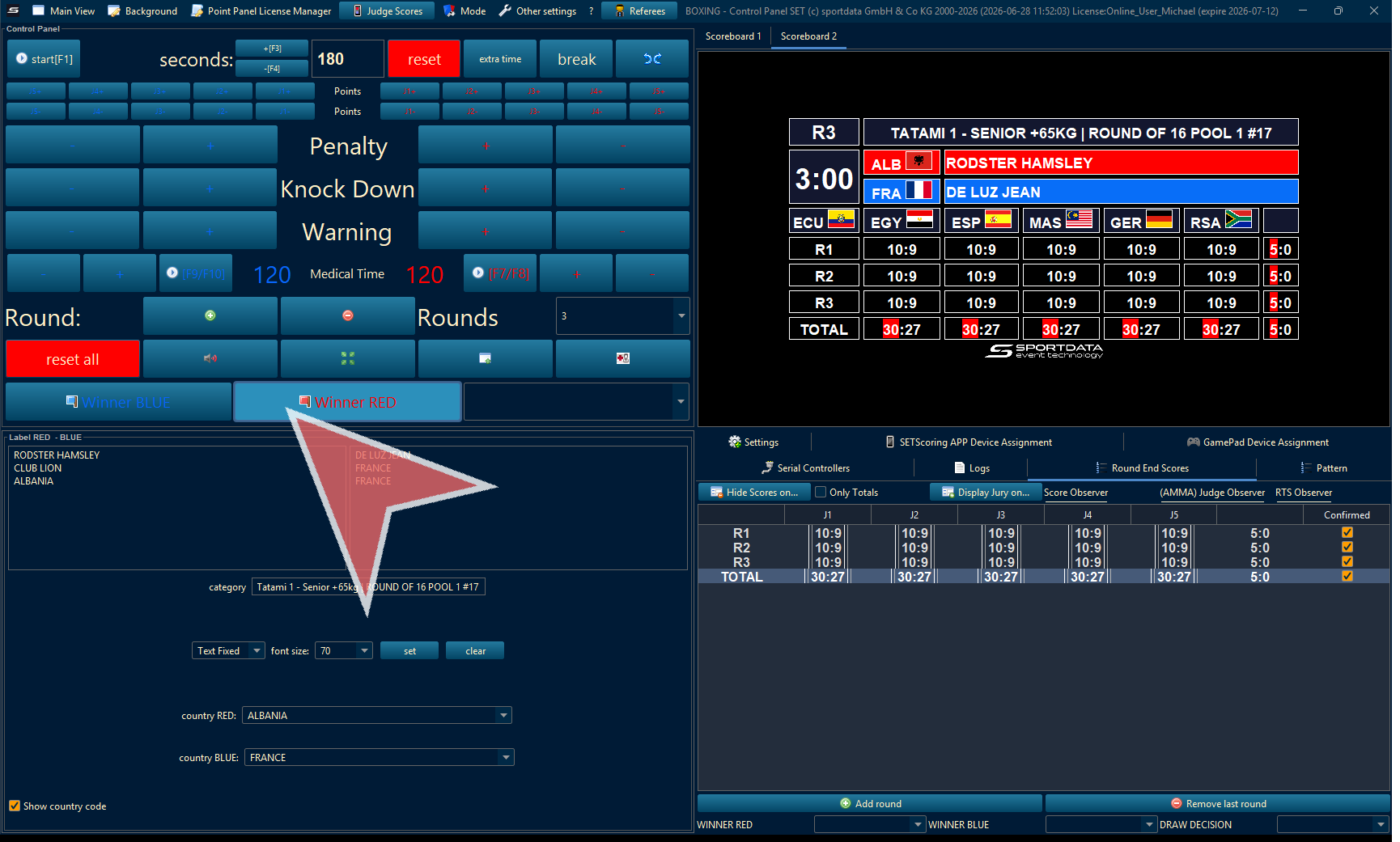
Select the wintype and confirm.
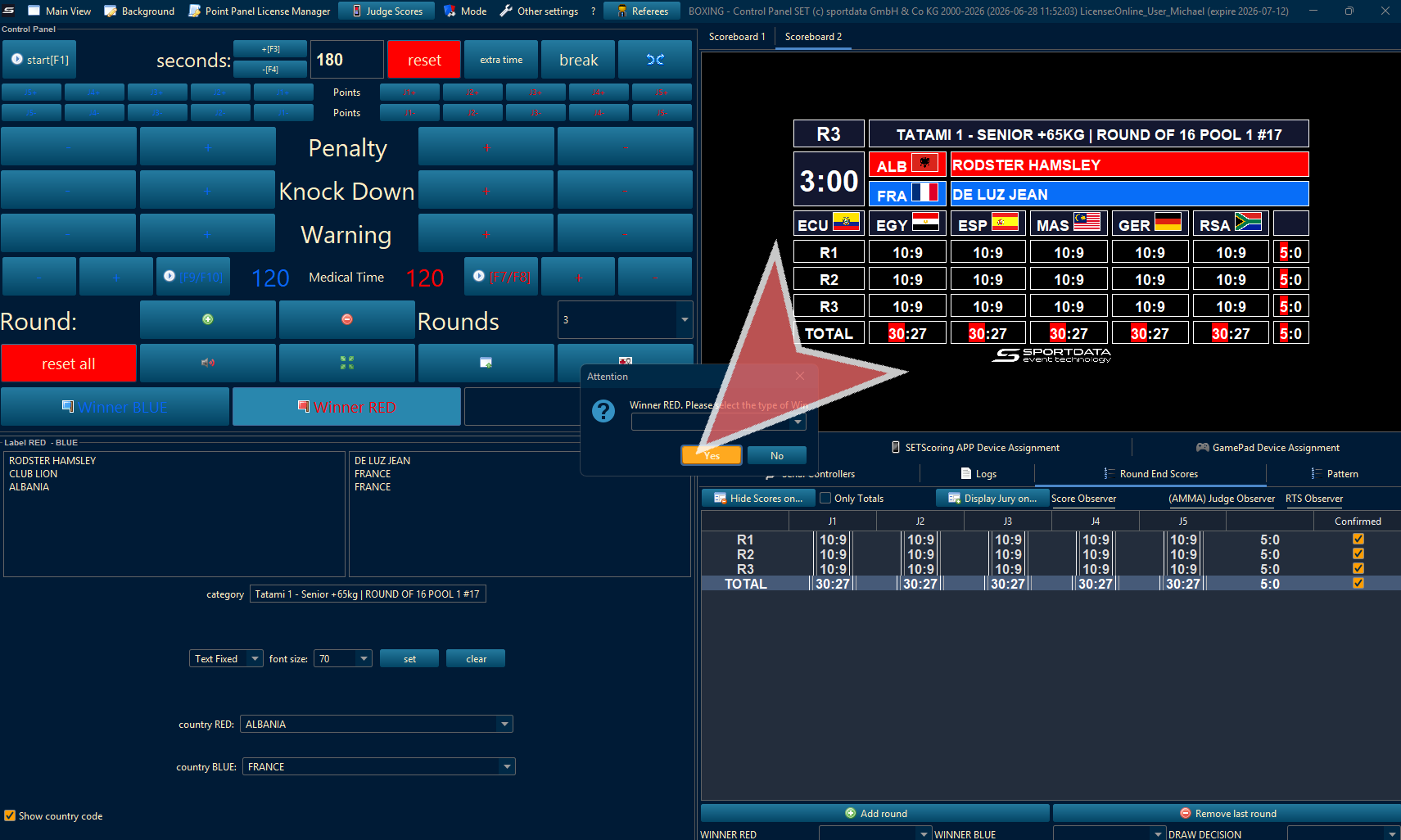
Results automatically updated on the draw records. You can now move to next match without having to adjust the settings.