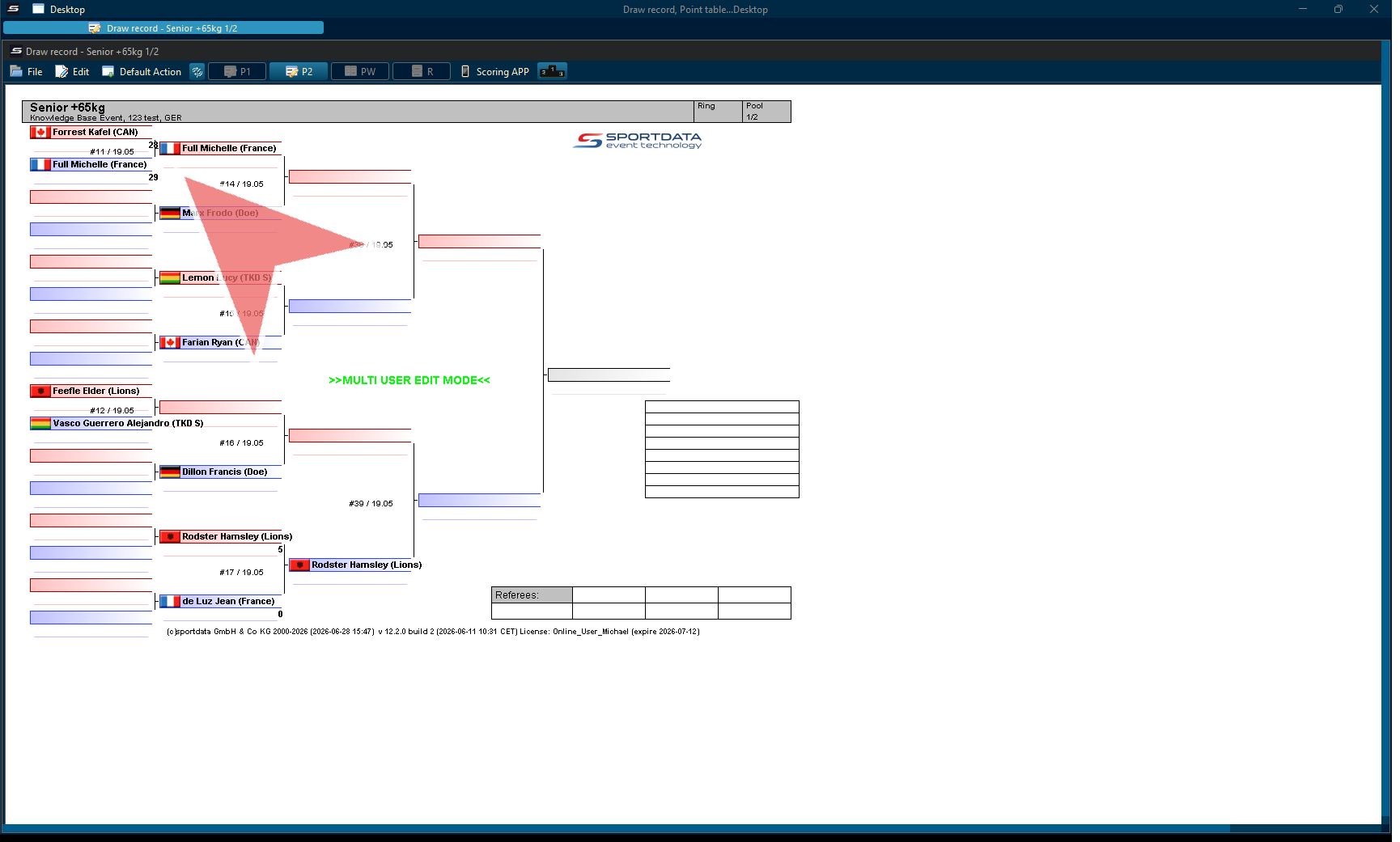
Governed by the official International Federation of Muaythai Associations (IFMA) rules, accurate scoring, round timekeeping, and penalty management are essential for ensuring fair and professional competition.
The IFMA Muay Thai Scoreboard and Point Panel is a digital scoring solution designed to help operators manage all aspects of a Muay Thai match. The software allows operators to control the scoreboard, record scoring actions, manage round timers, track warnings and penalties, display athlete information, and ensure that official match data is accurately presented to referees, fighters, coaches, and spectators.
This guide provides an overview of the Muay Thai Scoreboard features and explains the key functions required to successfully manage professional IFMA Muay Thai competitions, including match setup, scoring inputs, round management, penalty recording, and final result confirmation.
Download the SET OVR to get the free scoreboard or use our interactive demo to follow along with the article . First, select your operating system, then download the installer, and during the set up you can select SET Point Panel for just the scoreboard. If you want to also try our SET OVR click it as well and learn how to create entries, draws, draw records, timetables and more for free.
How to Operate IFMA Muay Thai Scoreboard
Open Match
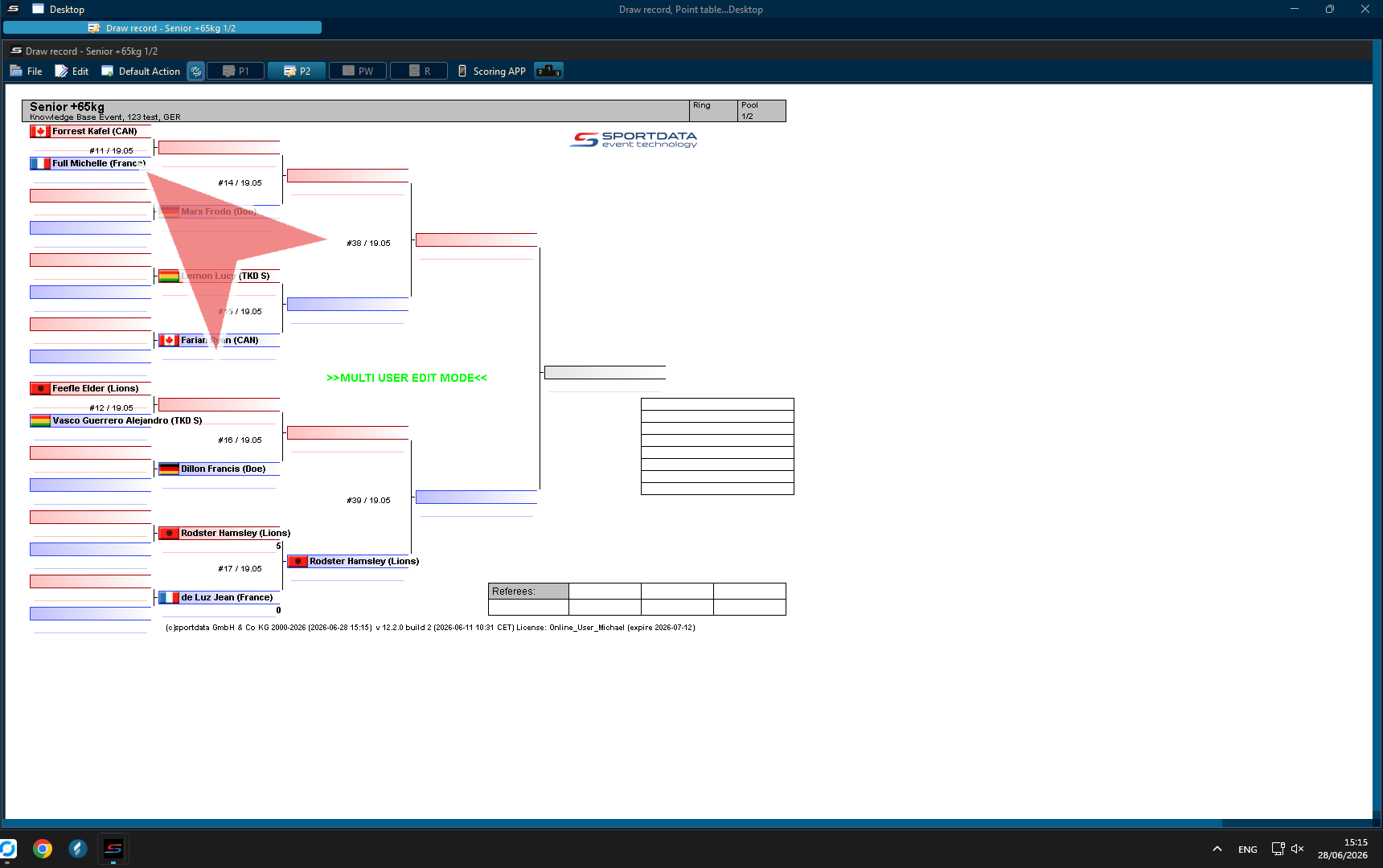
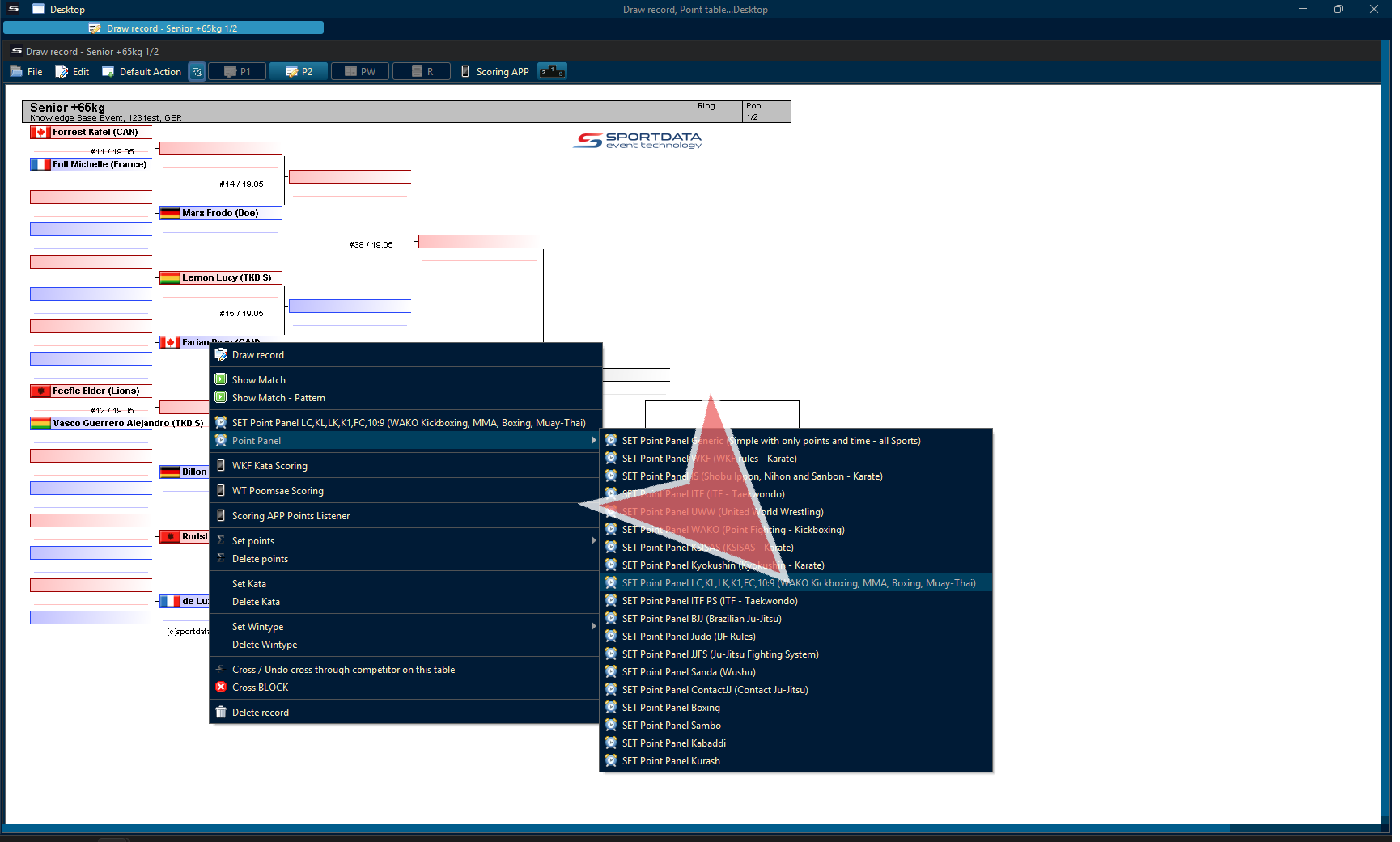
From the draw record, right click on the match.
Go to point panels, and select Muay Thai point panel.
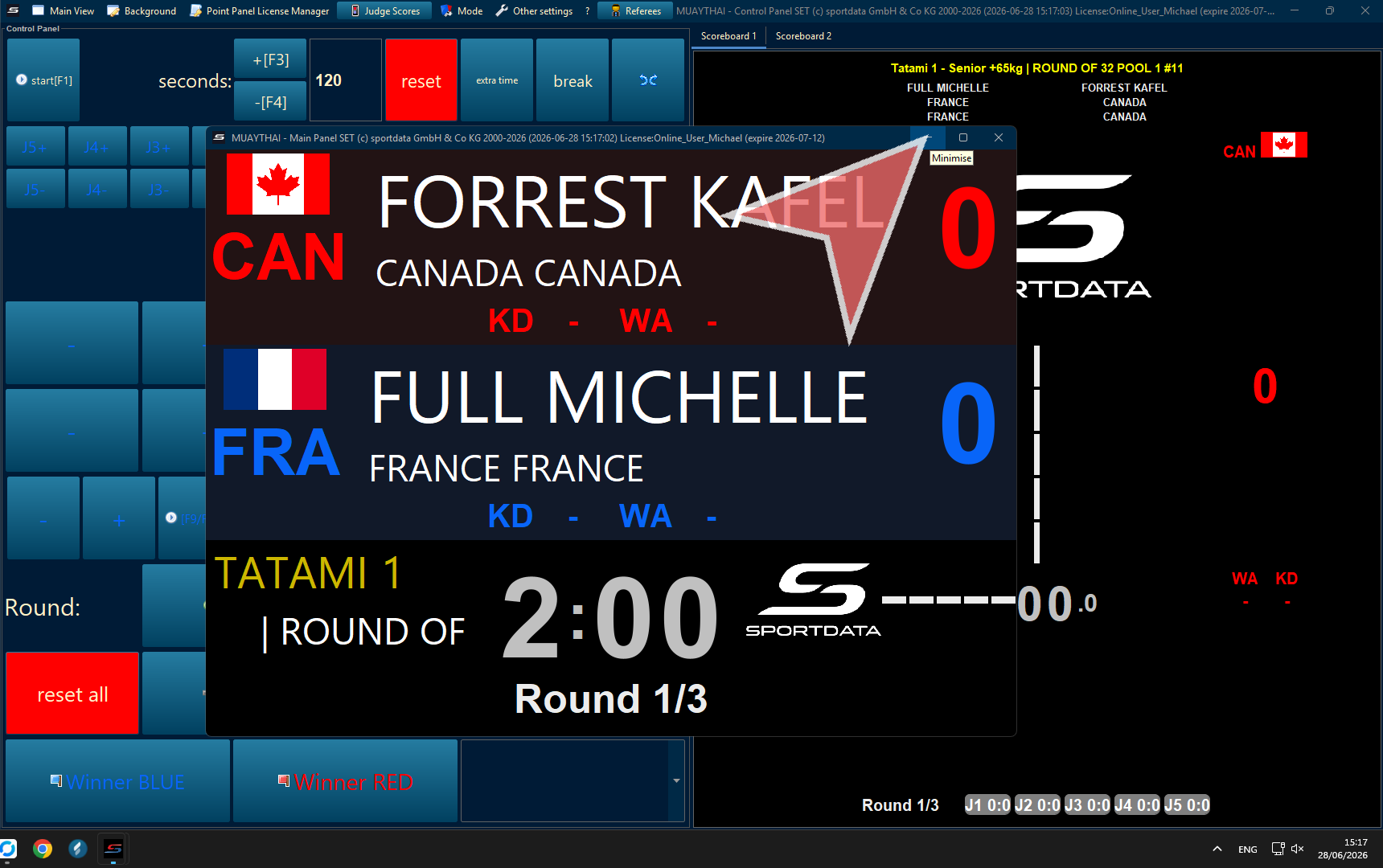
Minimize in scoreboard 1.
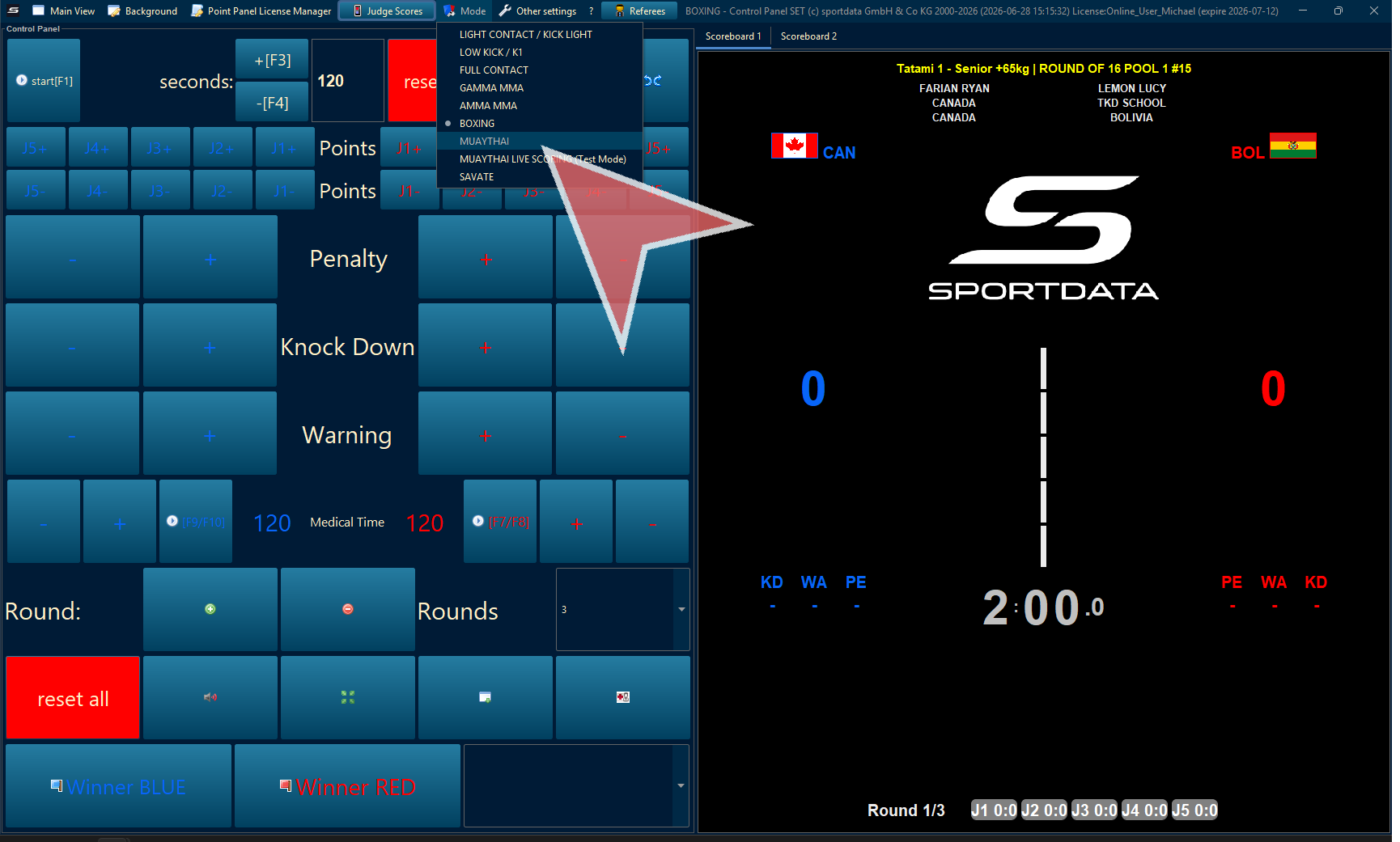
Mode
Go to mode, and select Muay Thai. You will have to restart the software to put this mode into effect.
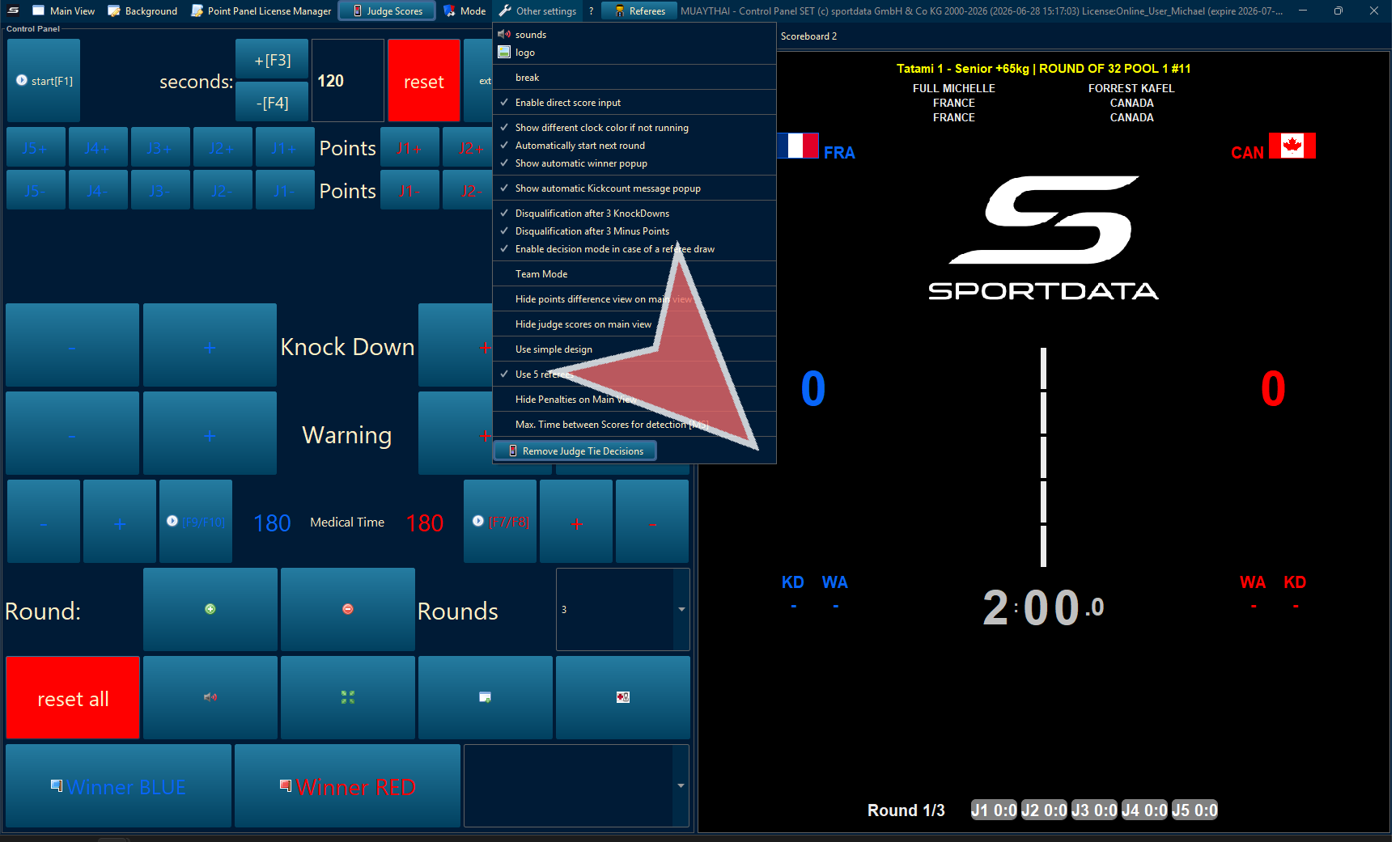
Other settings
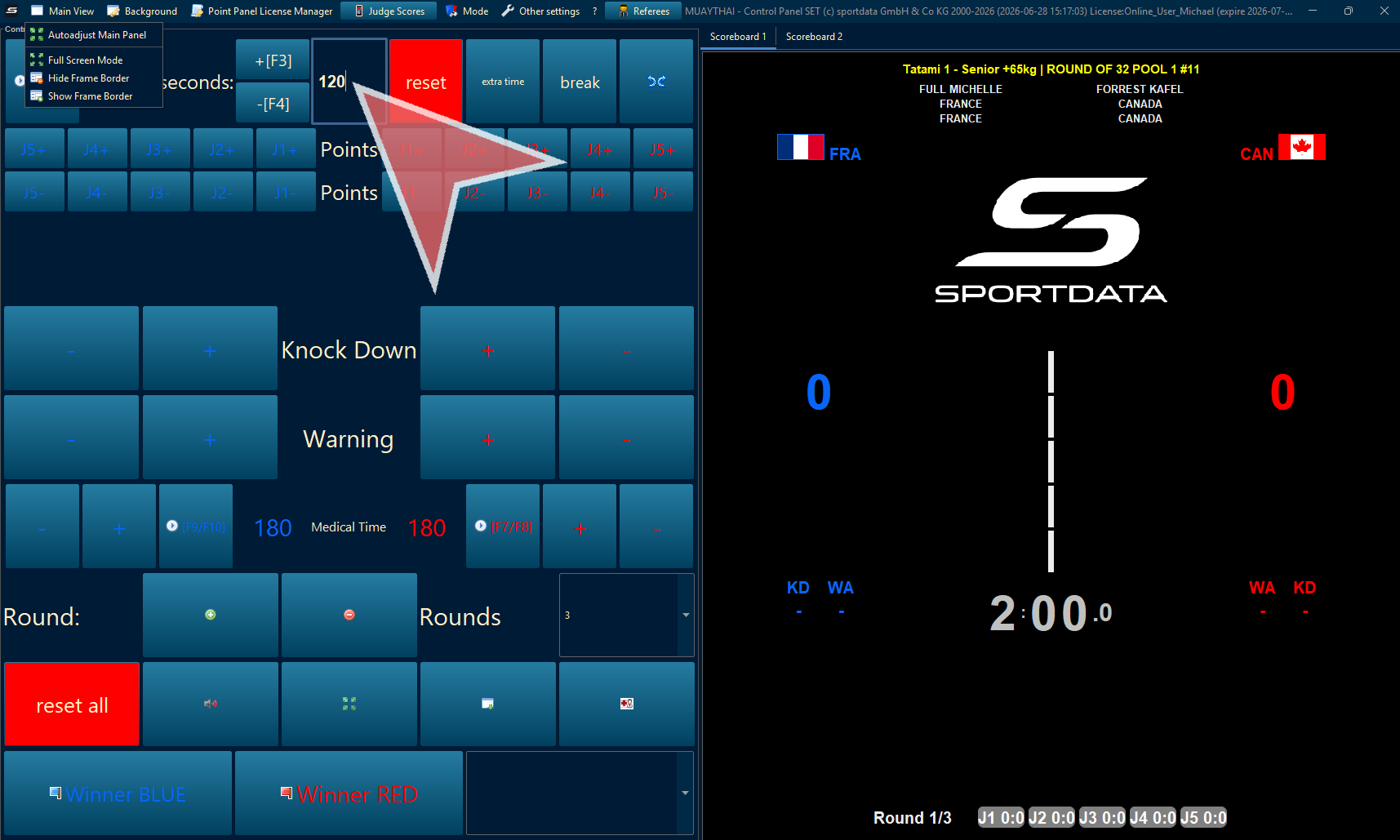
Adjust Time
Click to continue with the required actions for the configuration.
Set Rounds
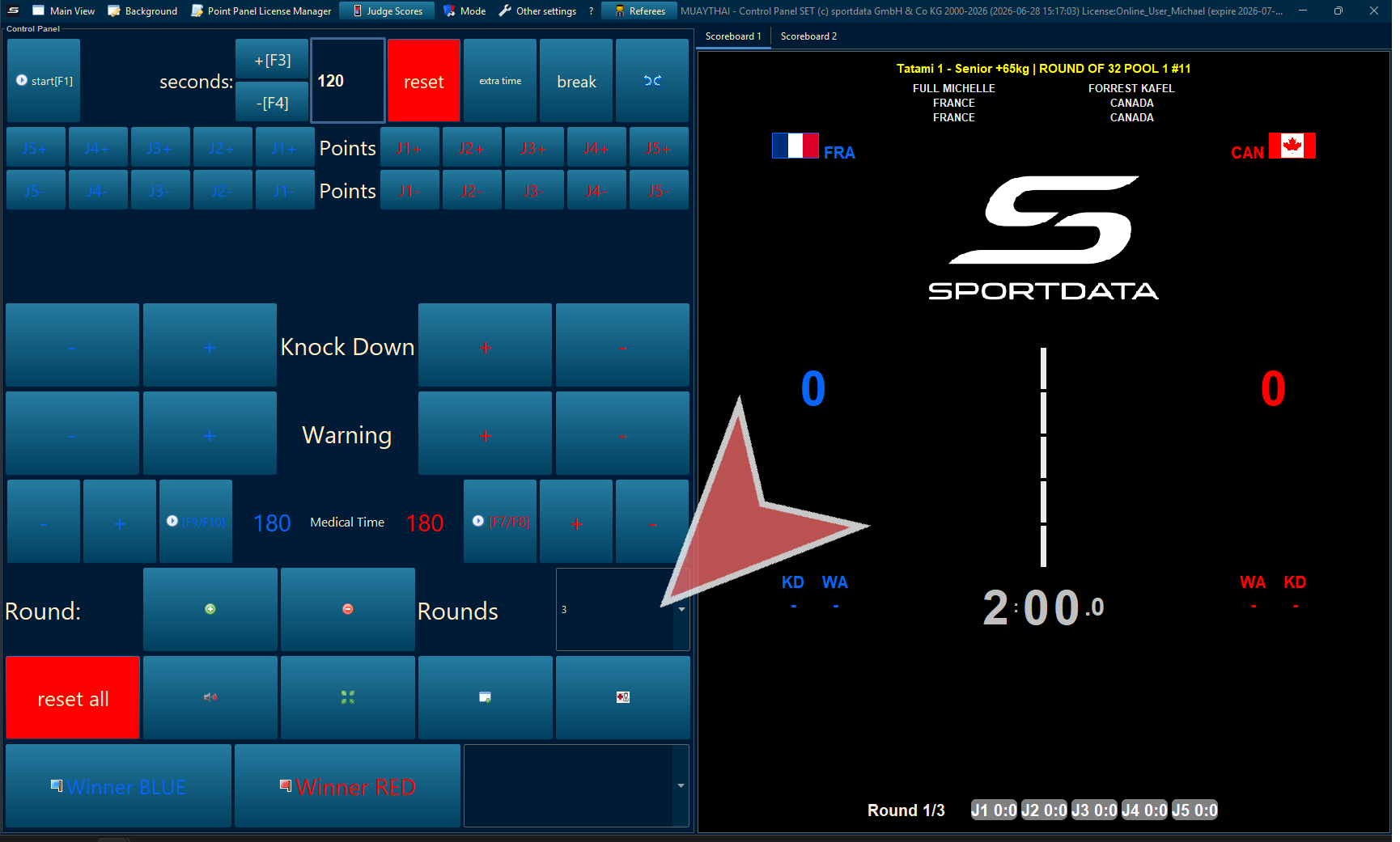
Referee Assignment
Click to ensure you proceed through all necessary stages.
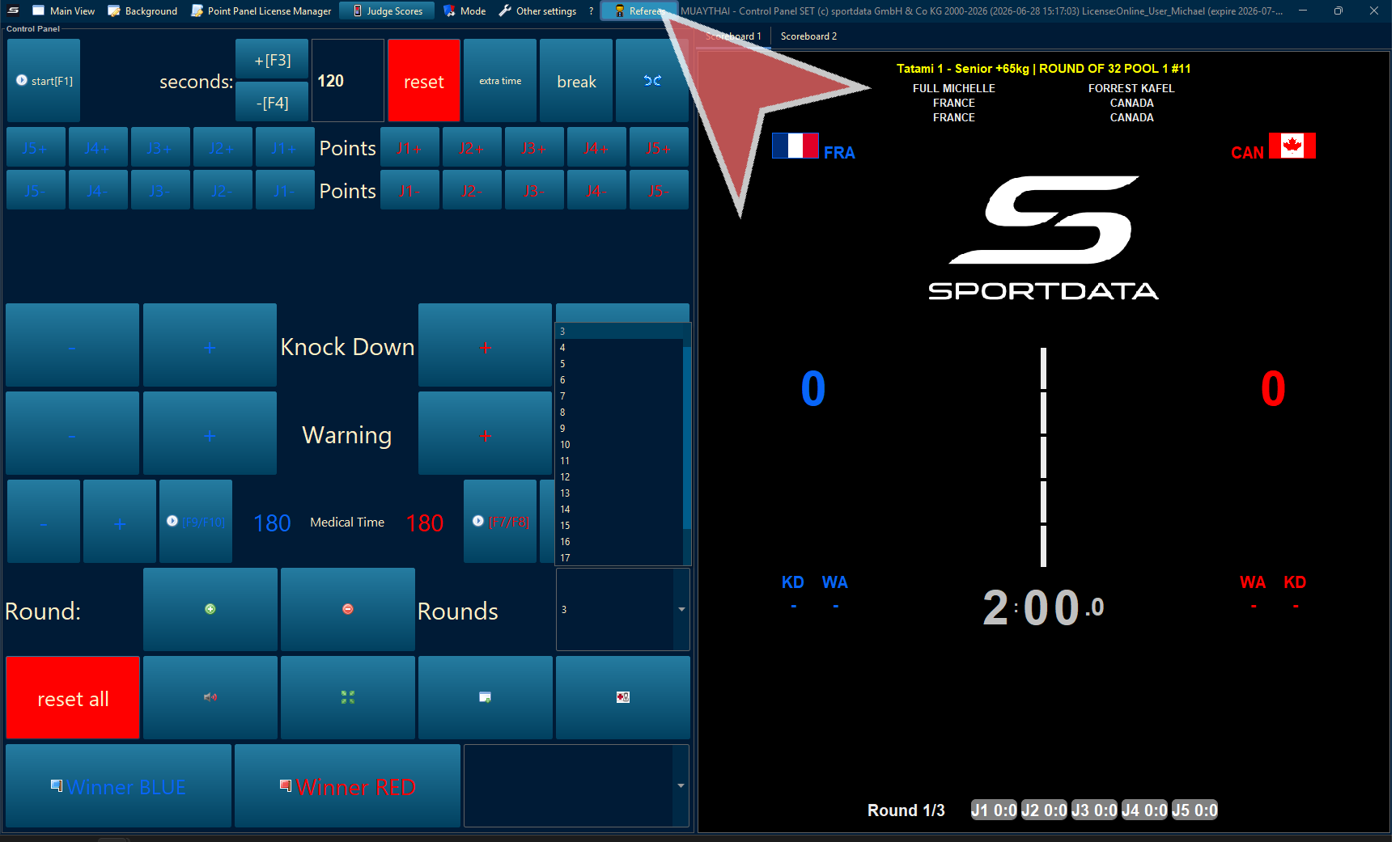
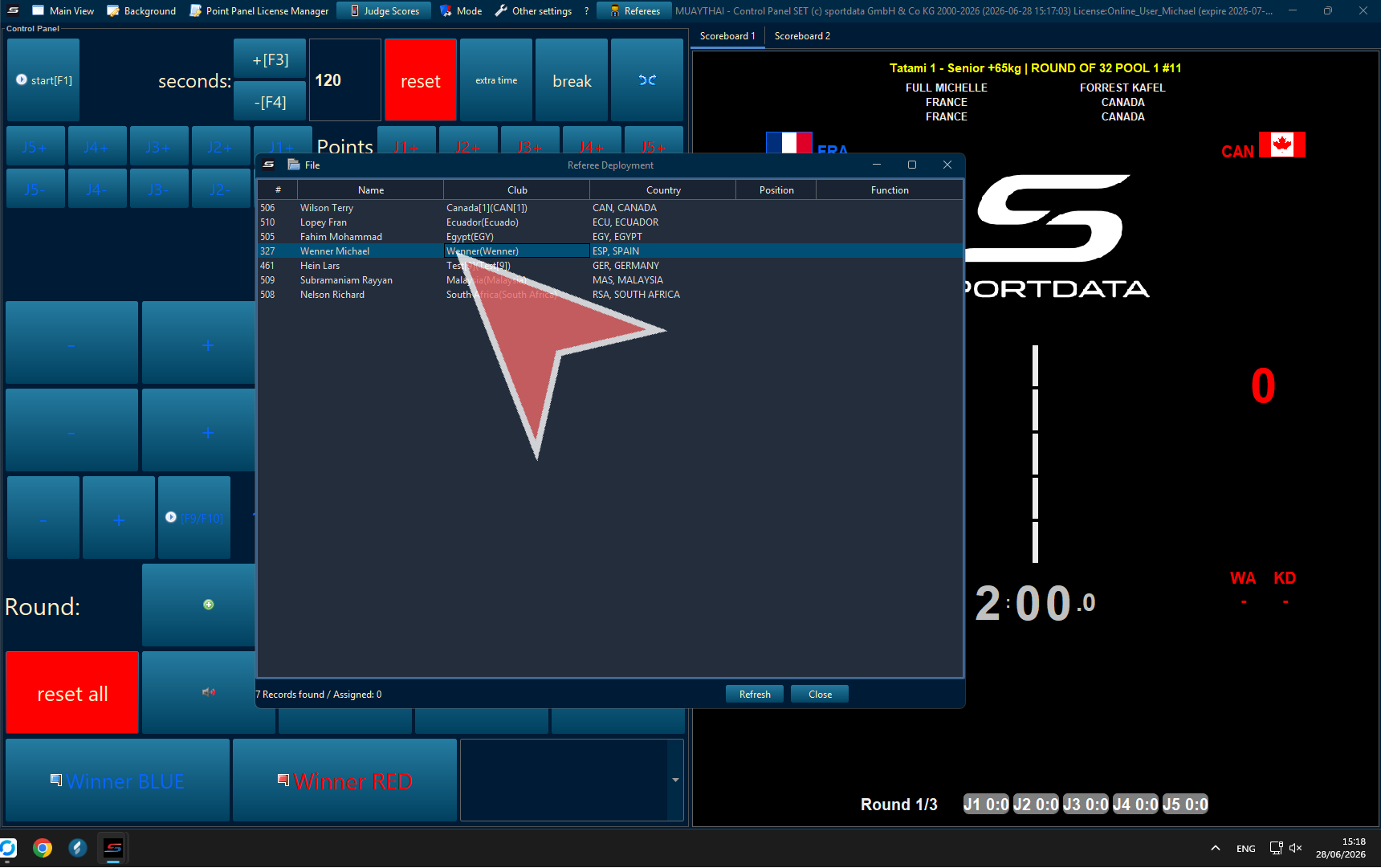
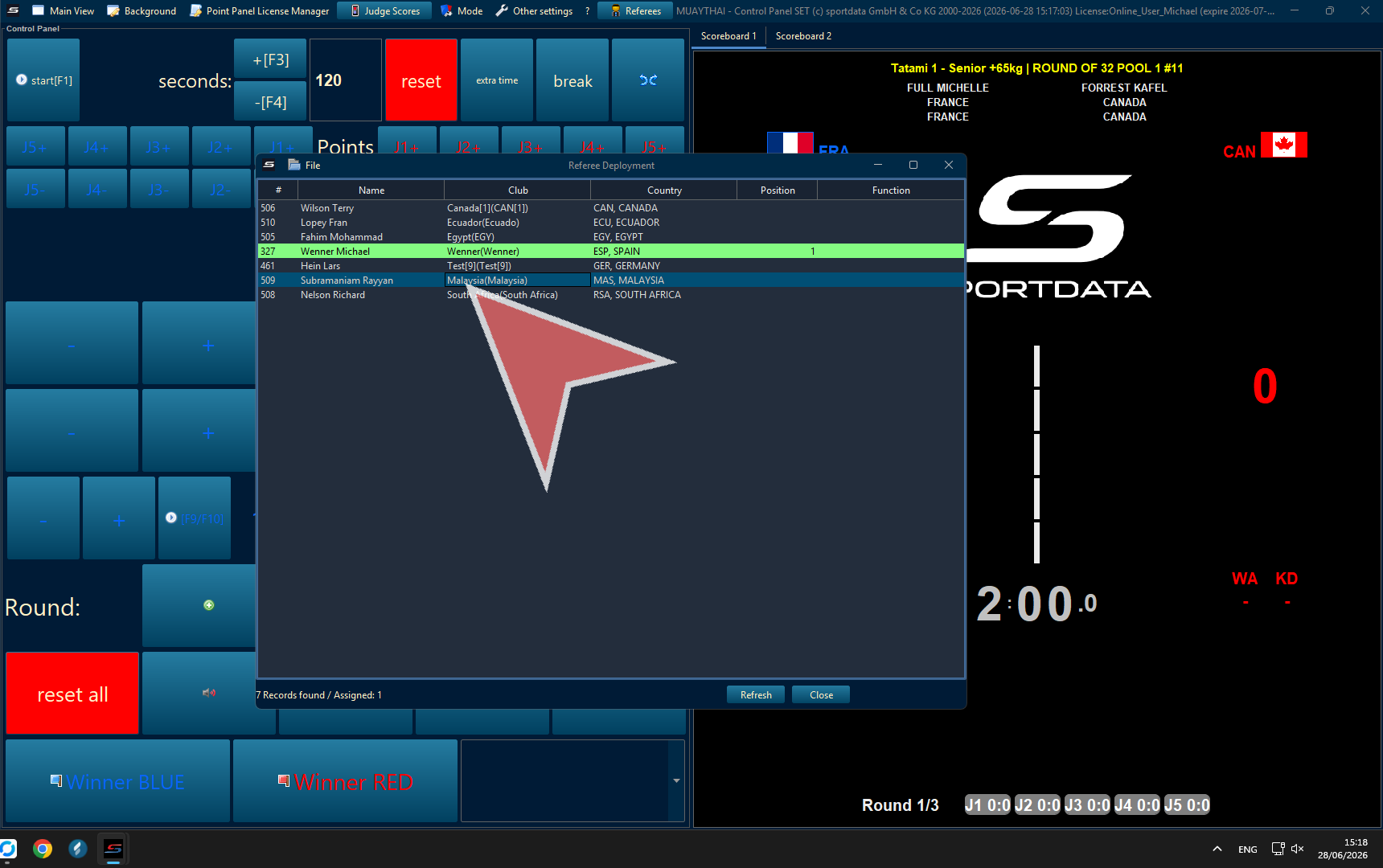
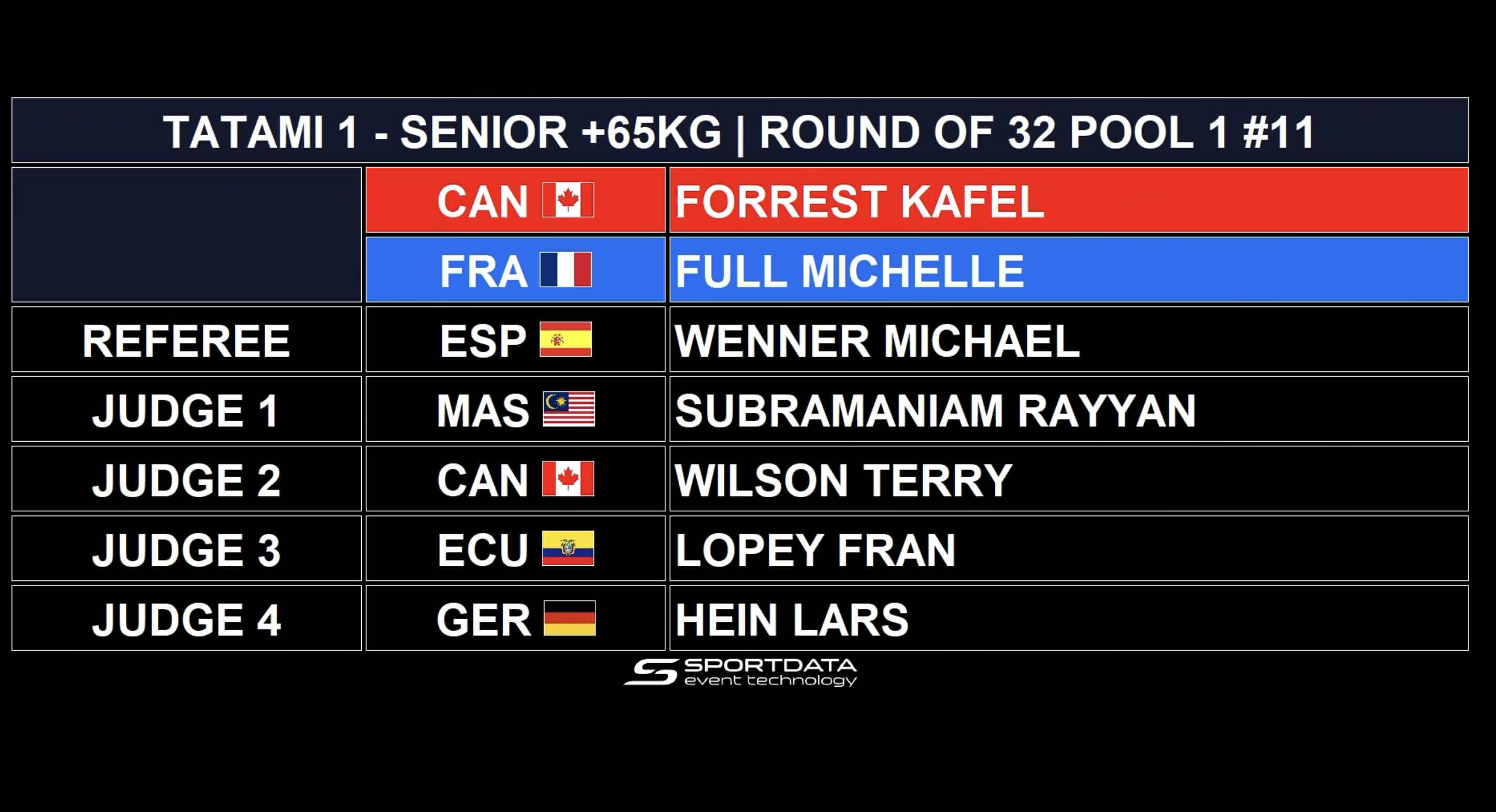
Double-click on referee name to give them a number.
Subpanel
Click to proceed to the next interface or action.
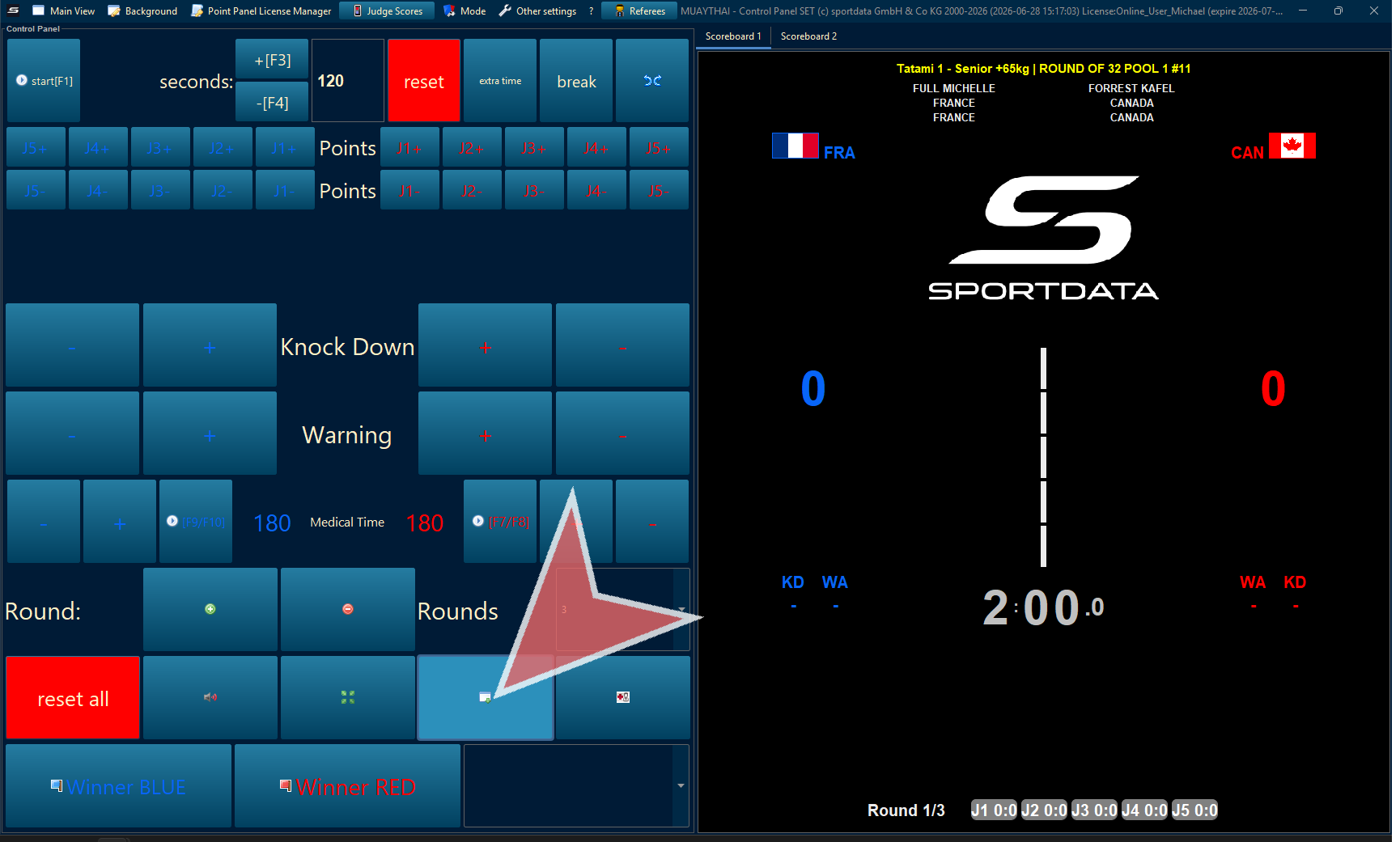
Only Totals
To show the Muay Thai scoreboard, click on Only Totals.
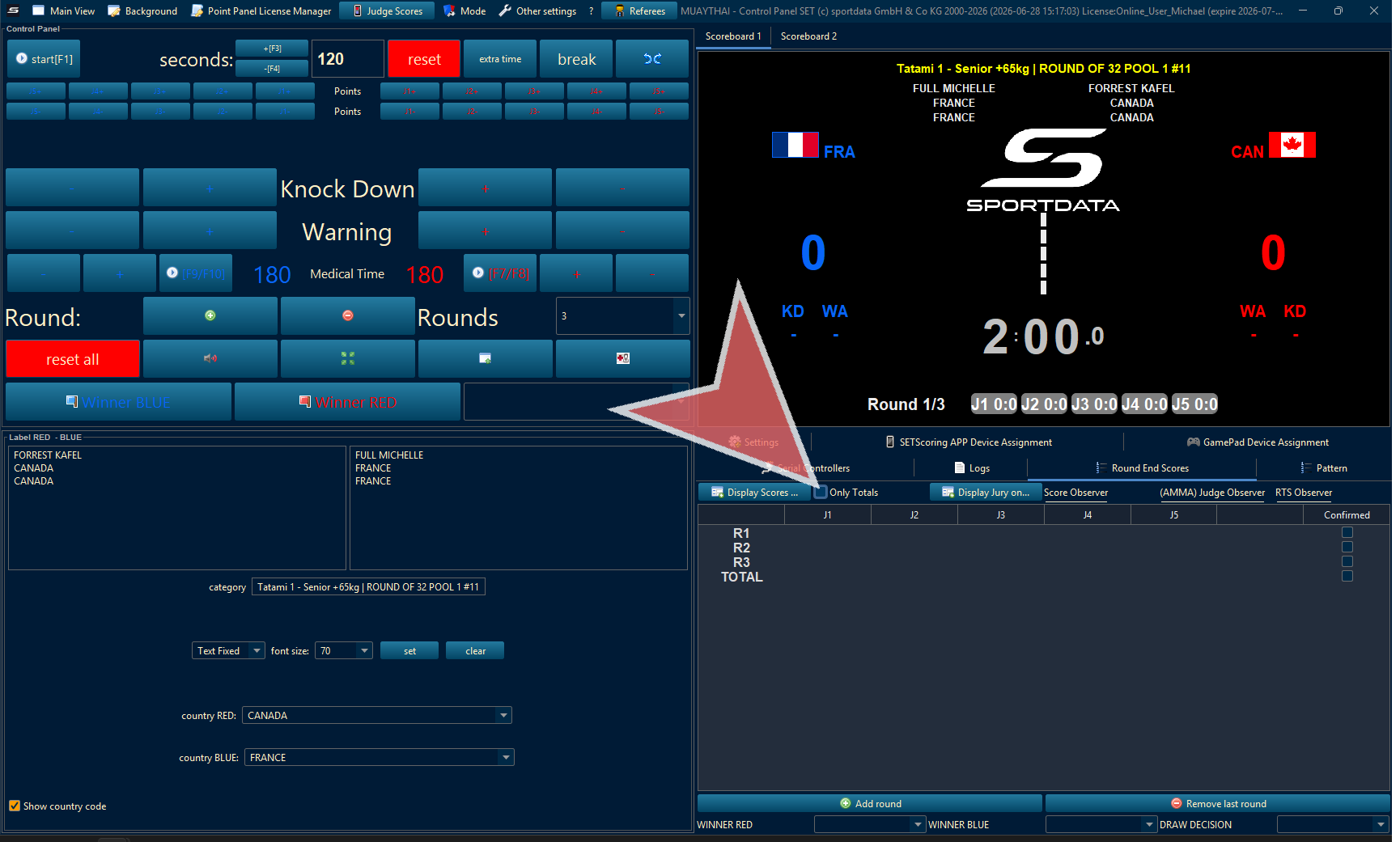
Scoreboard 2
Select Scoreboard 2 for the point panel.
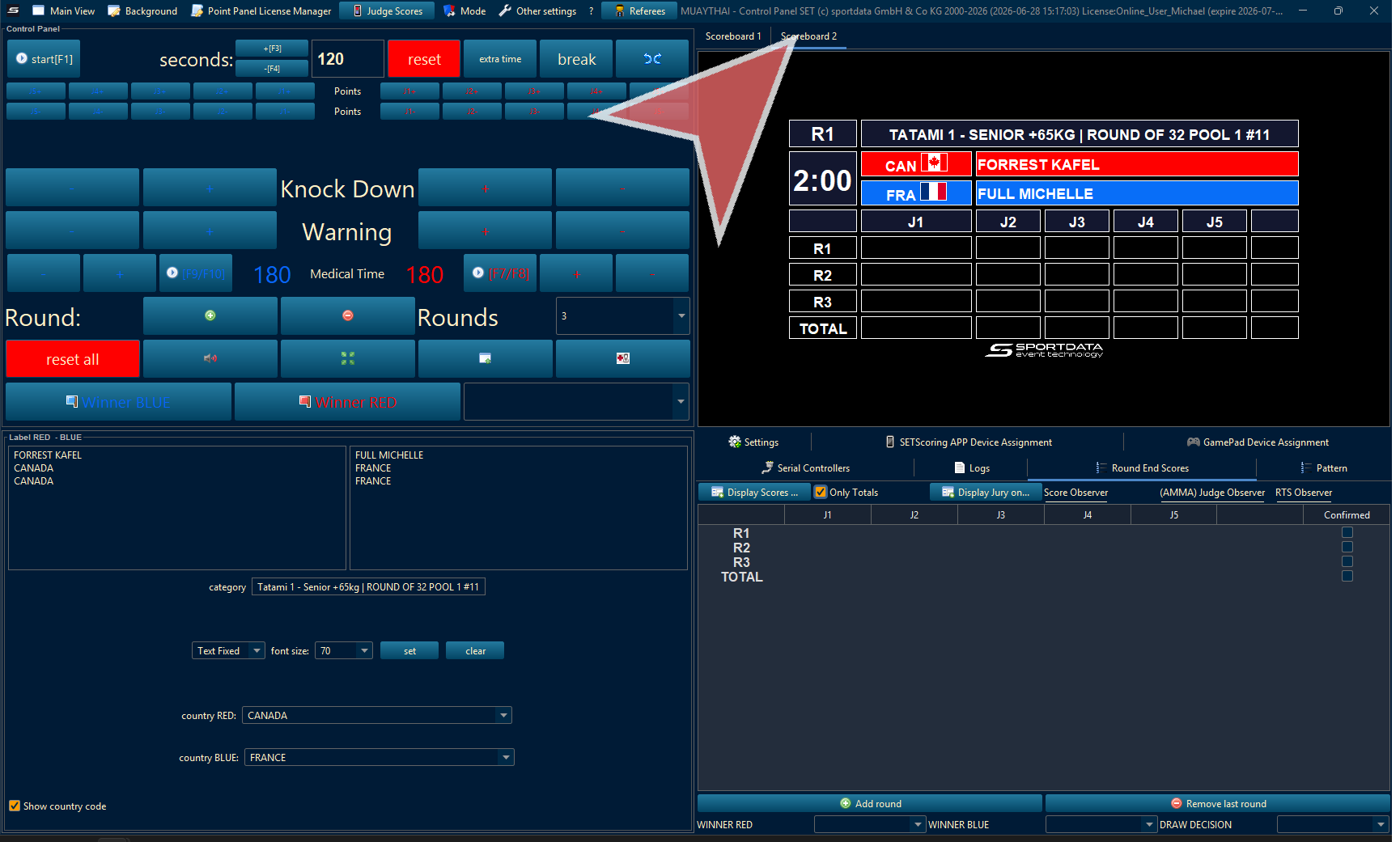
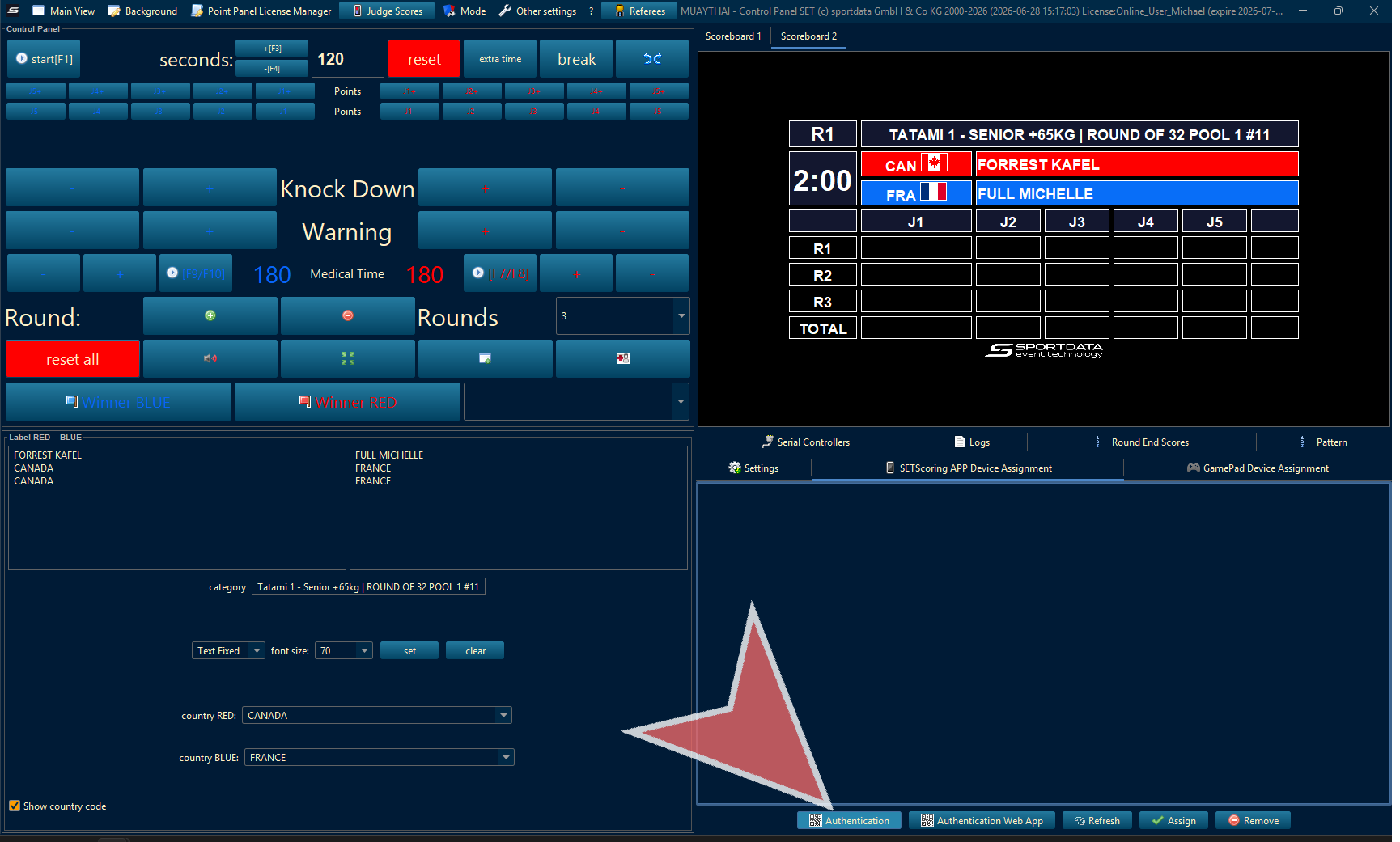
Scoring App Authorization
Select the Set Scoring App Device Assignment app to assigned judges to devices.
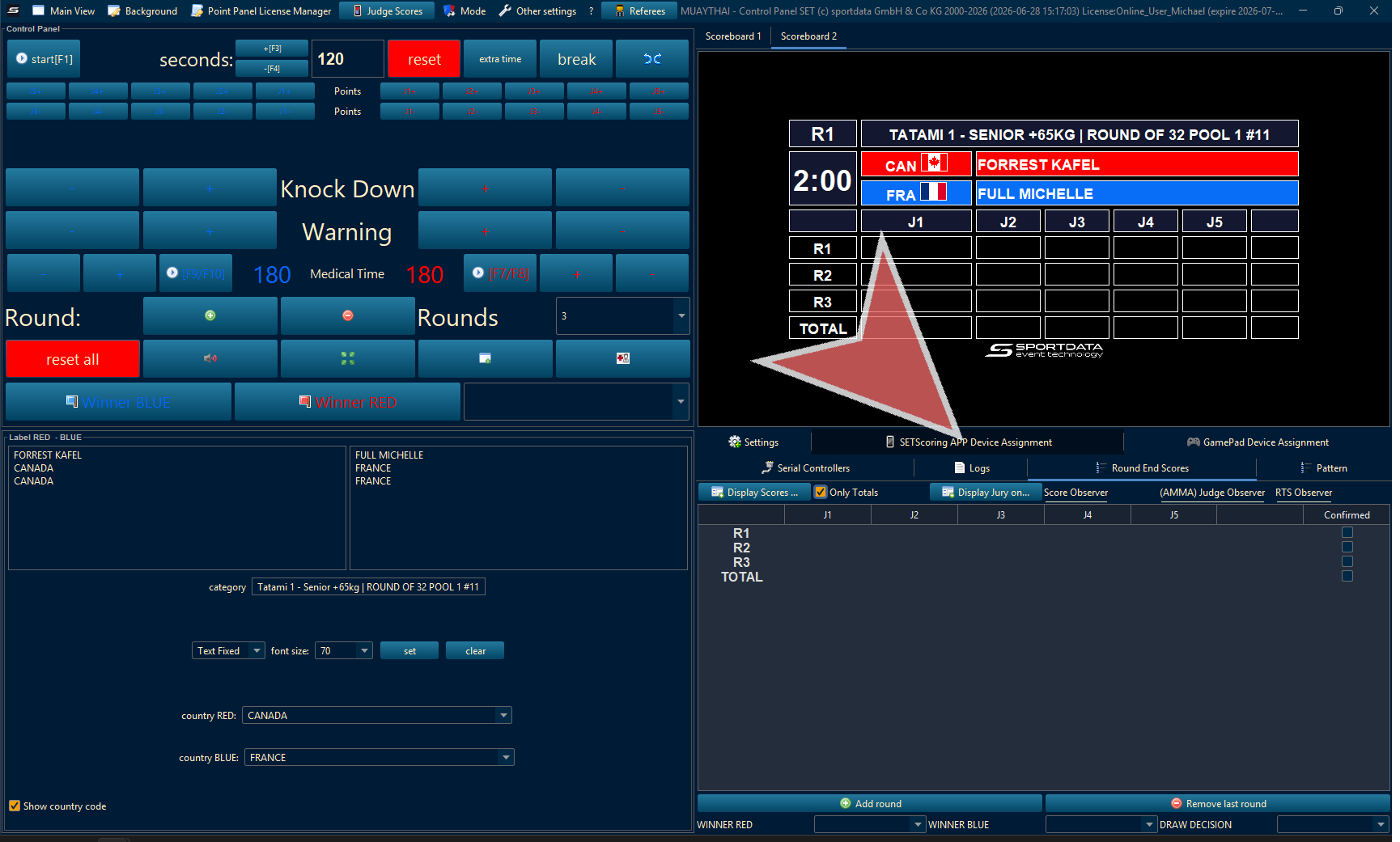
Scoring App Authentication
Click on authentication, scan the QR code with the SET Scoring app on your tablet or phone, select judge number, enter pin, and then refresh the authentication window, select the device and press assign.
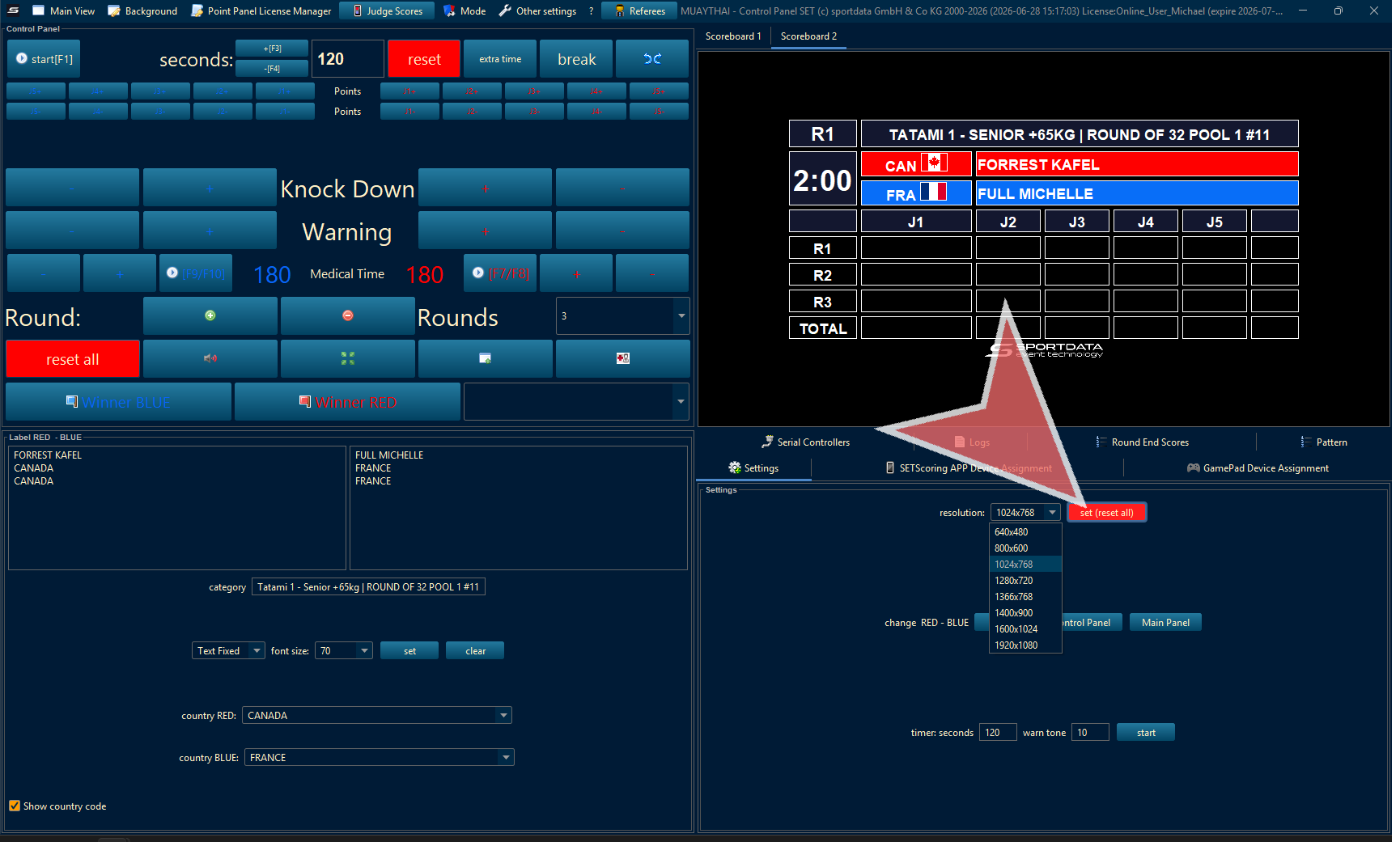
Screen Resolution
You may need to adjust the screen resolution
Jury Display
Click once to maintain the workflow sequence.
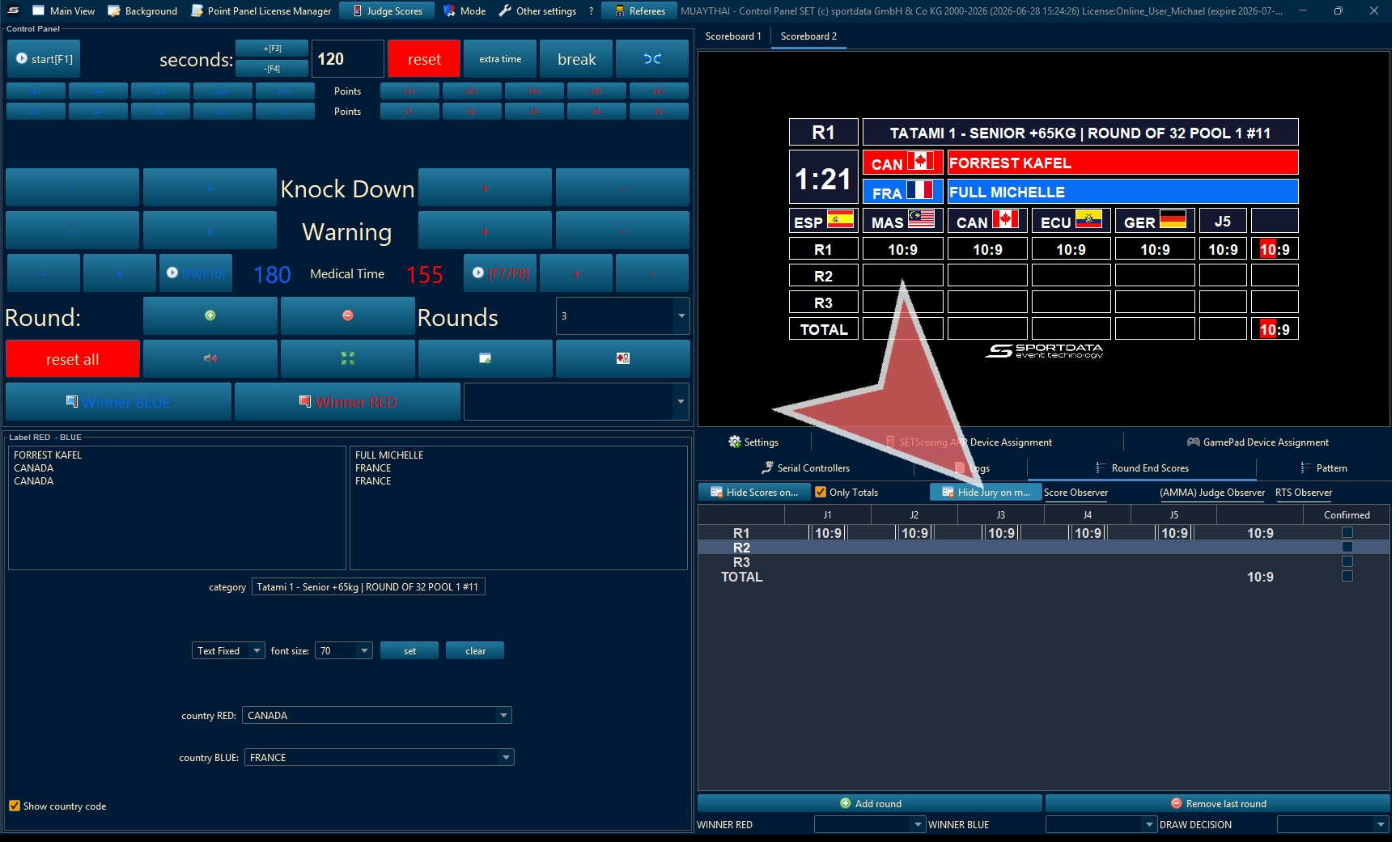
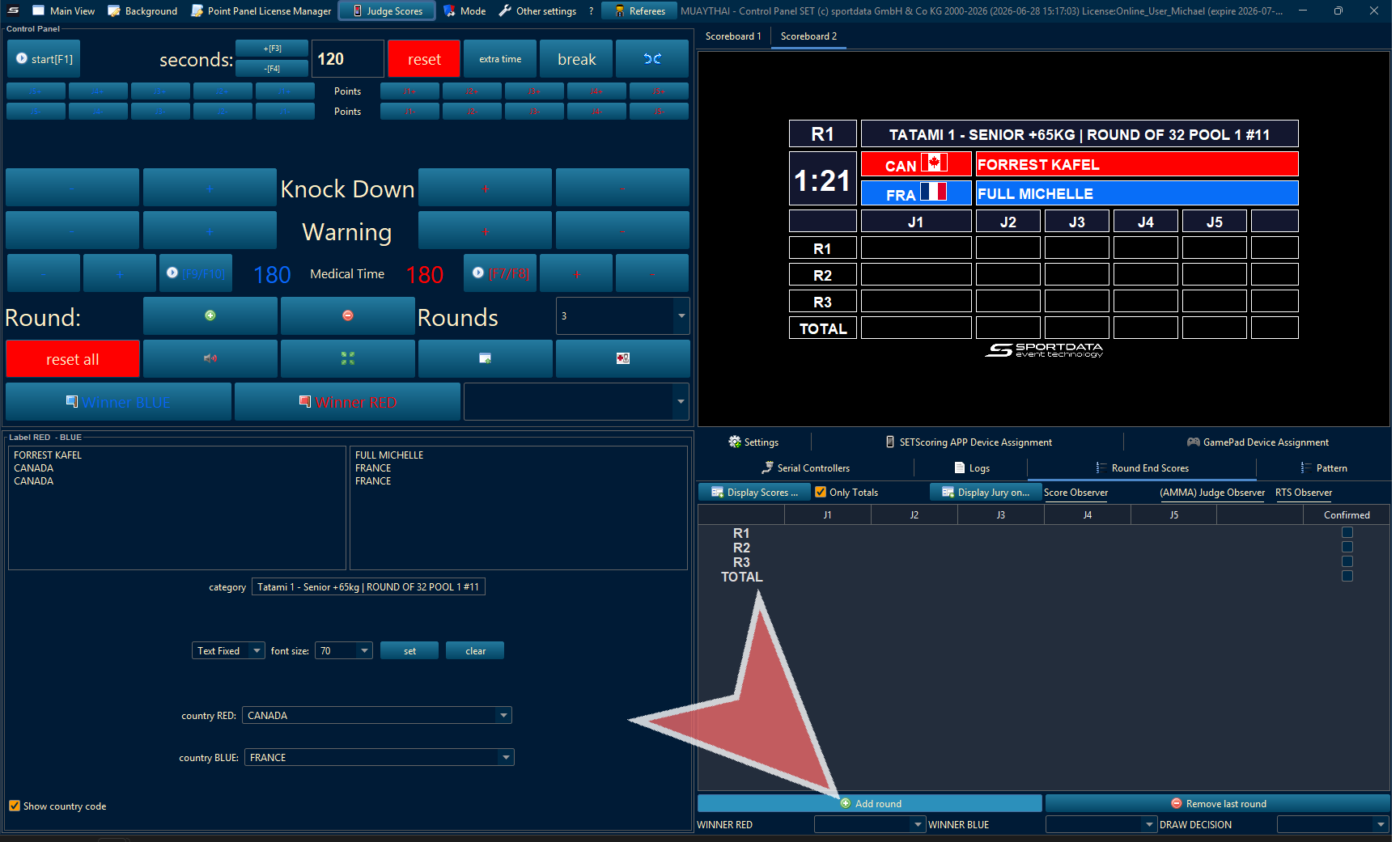
Add Round
Add round to allow judges a location to send their scores.
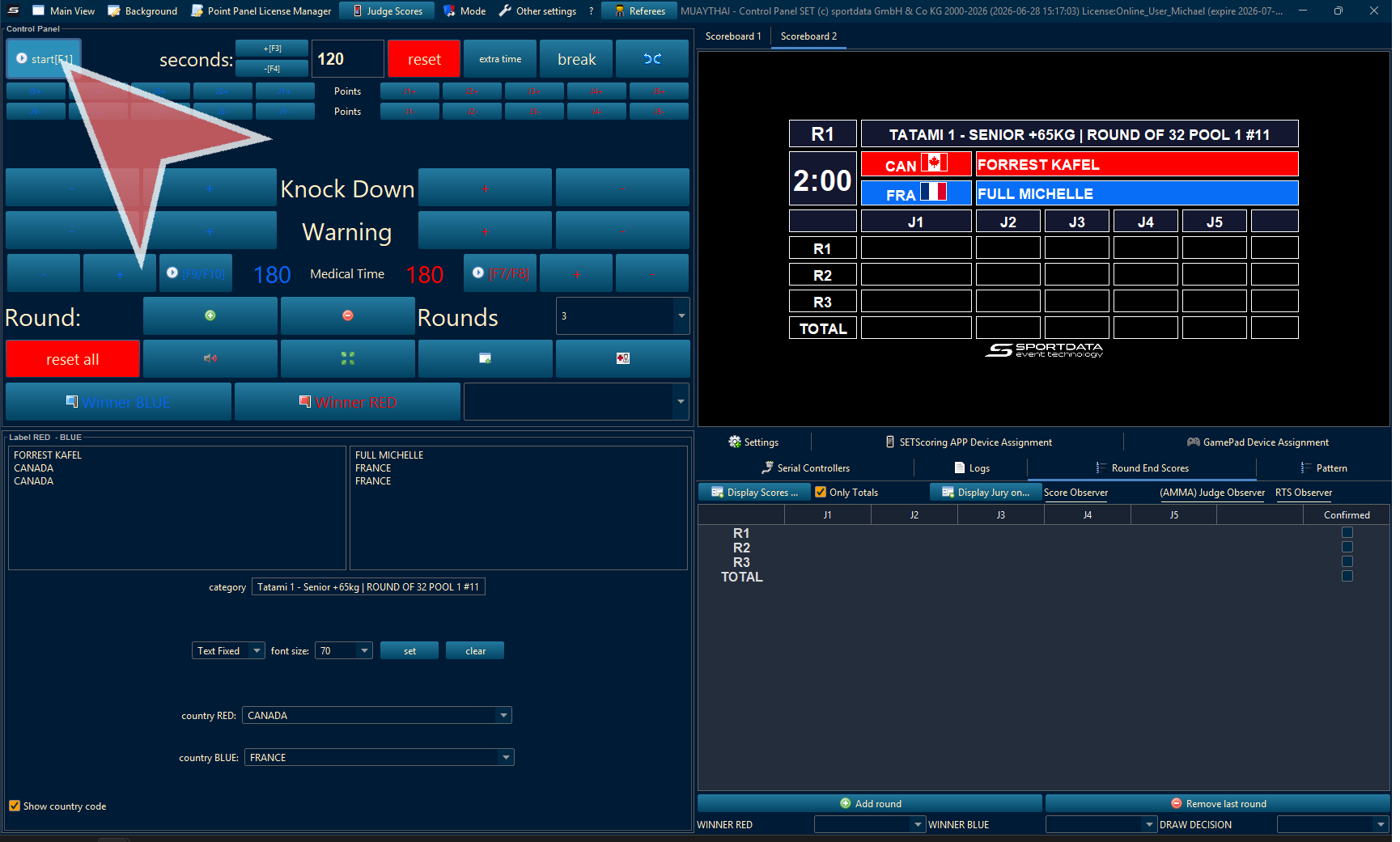
Begin Match
Click the start button or the space button to start the time manually. Alternatively, while in the same network, you connect to the timekeeper webapp or other devices to start the time.
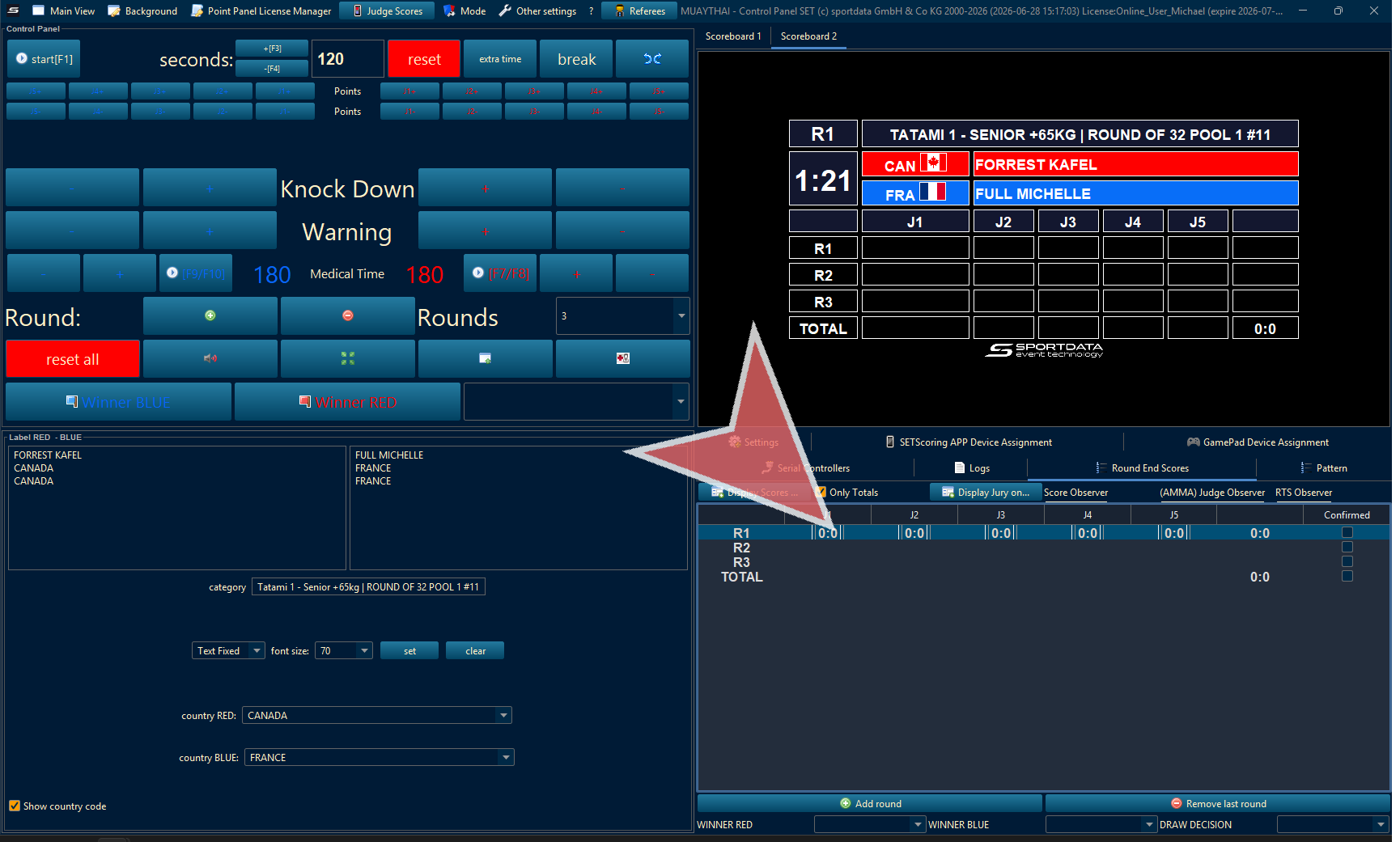
Add Scores Manually
Double-click to select or open the required item in order to move forward.
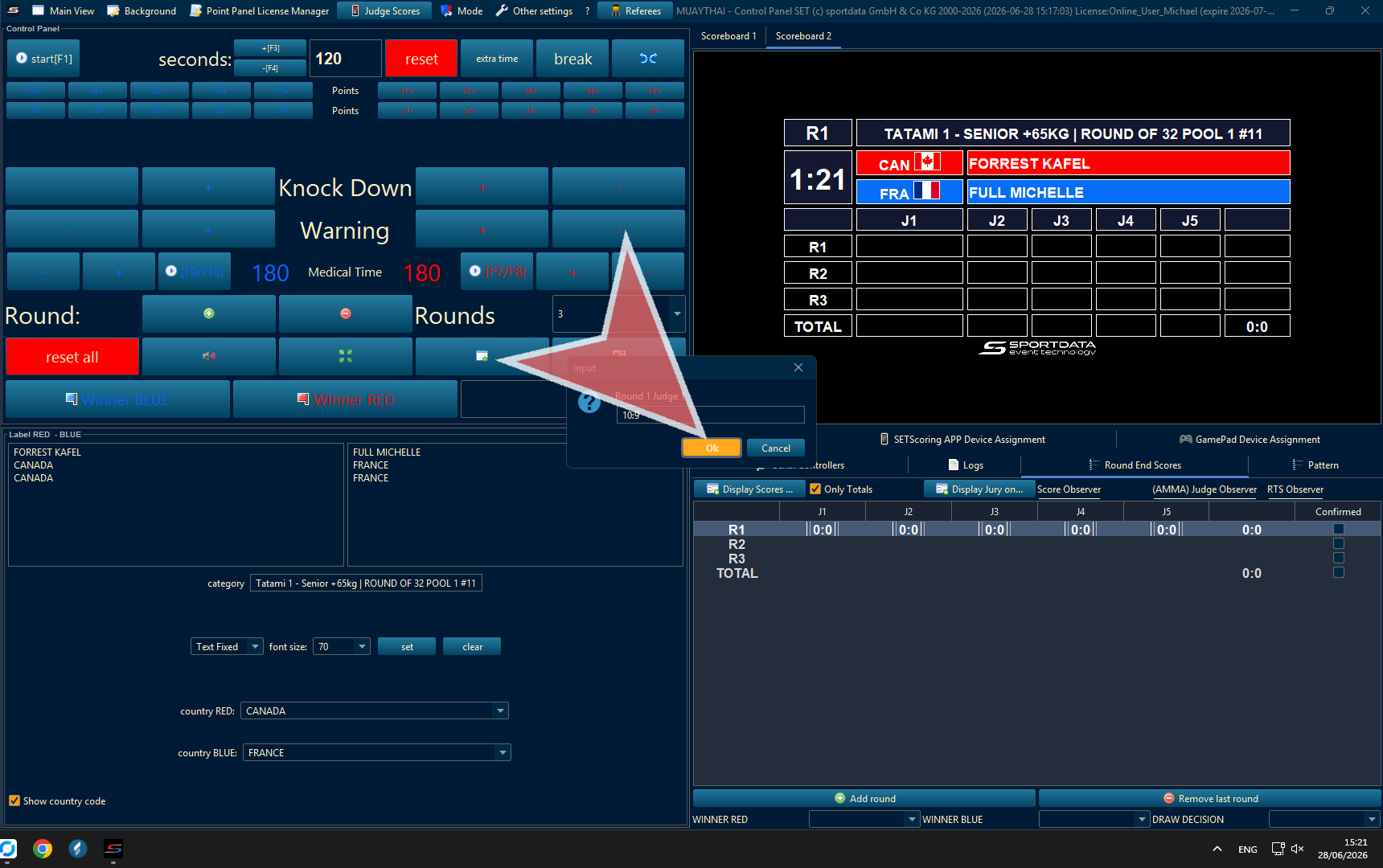
Type in the score 10:9 or as needed.
Knockout Down, Warning
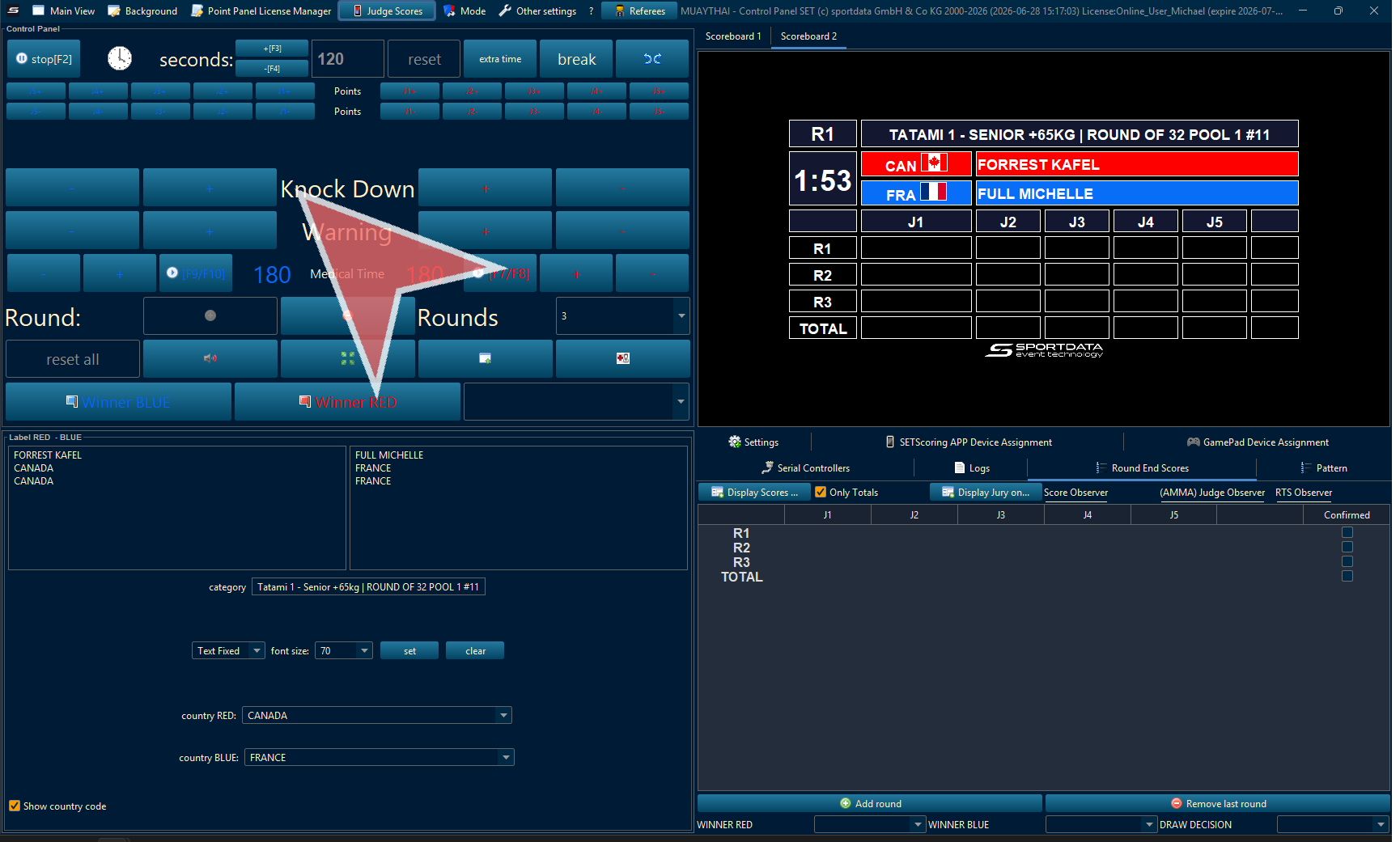
Medical Time
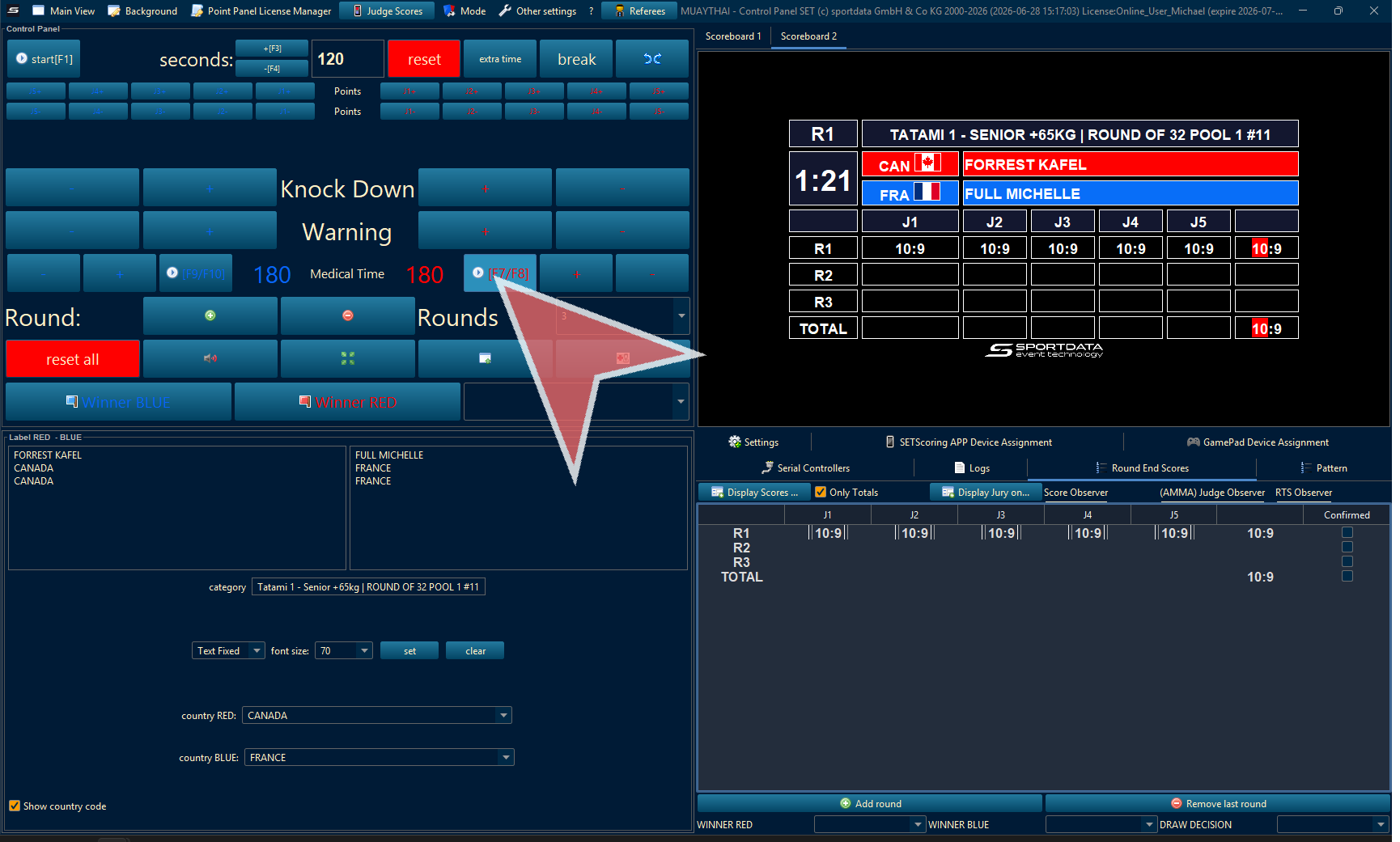
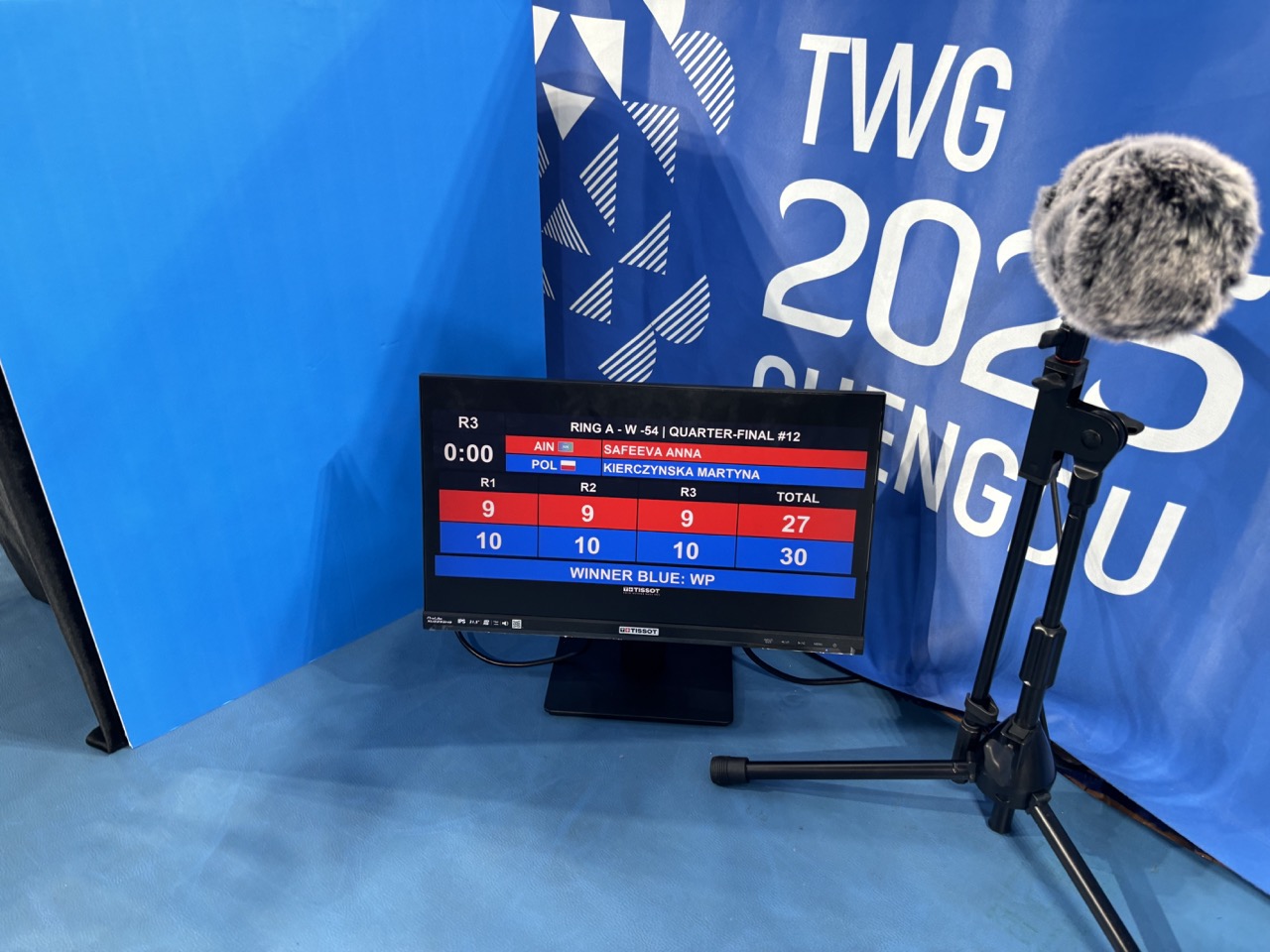
Display Scoreboard
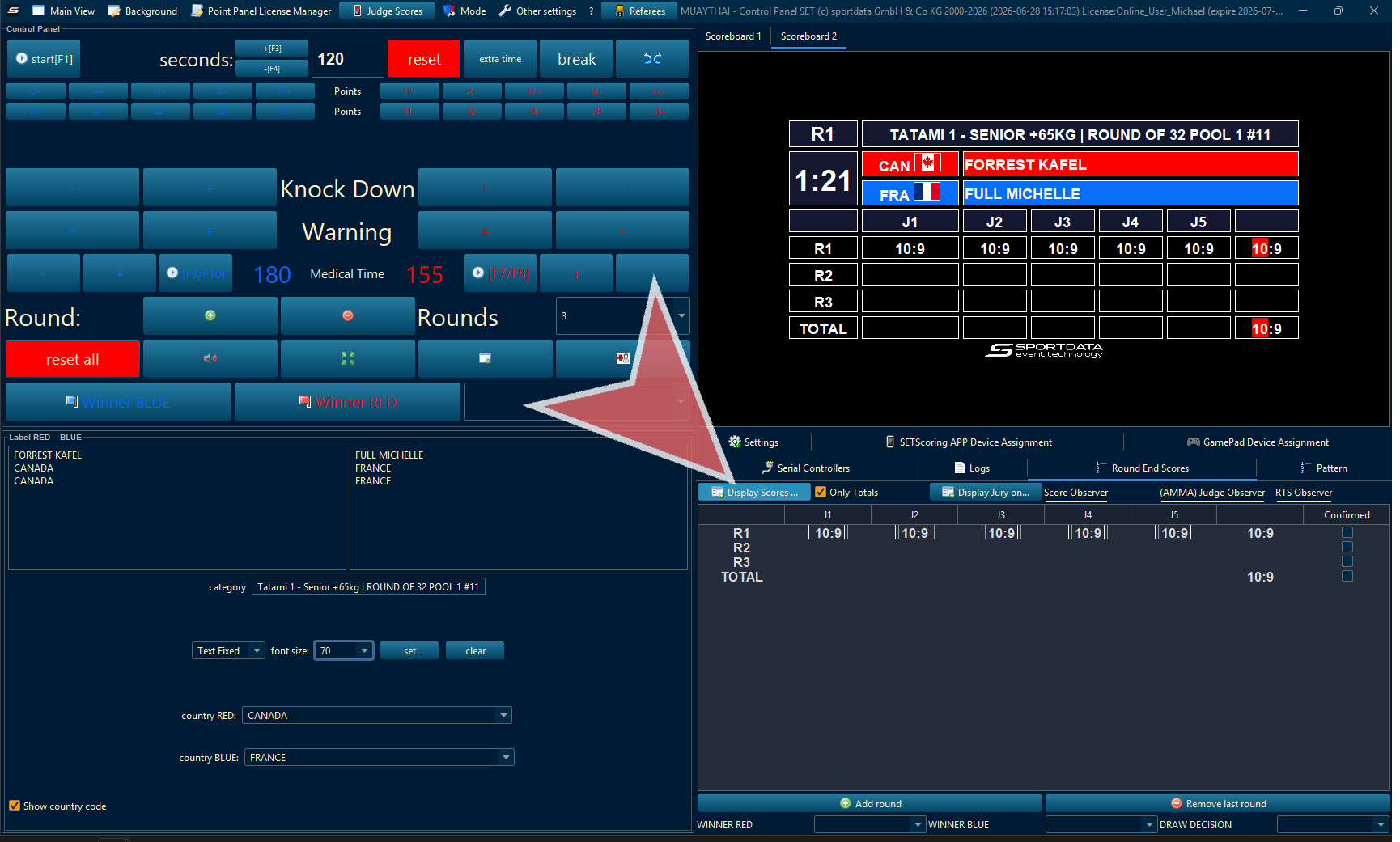
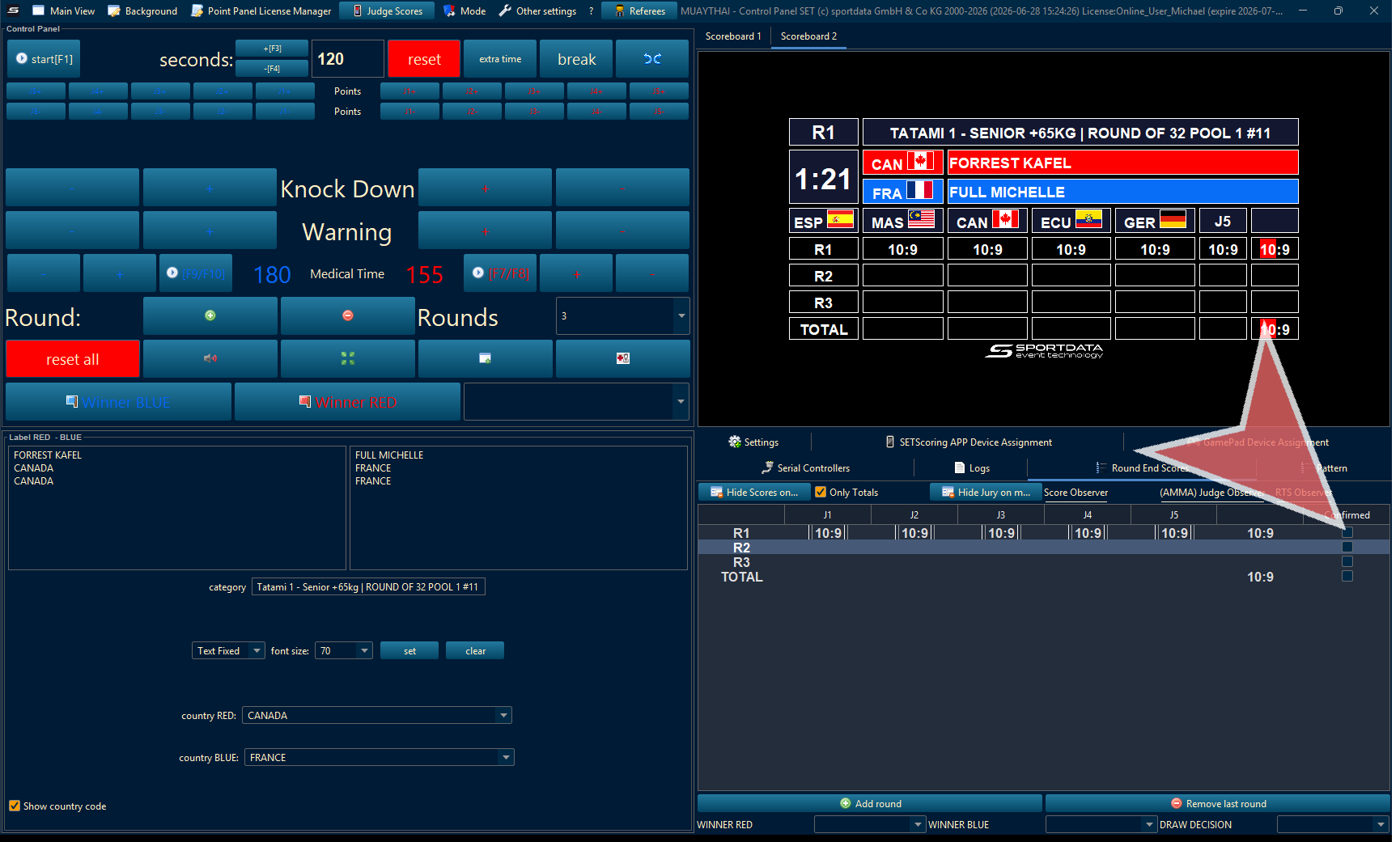
Show Scores
The scores only appear on the scoreboard once you click confirmed.
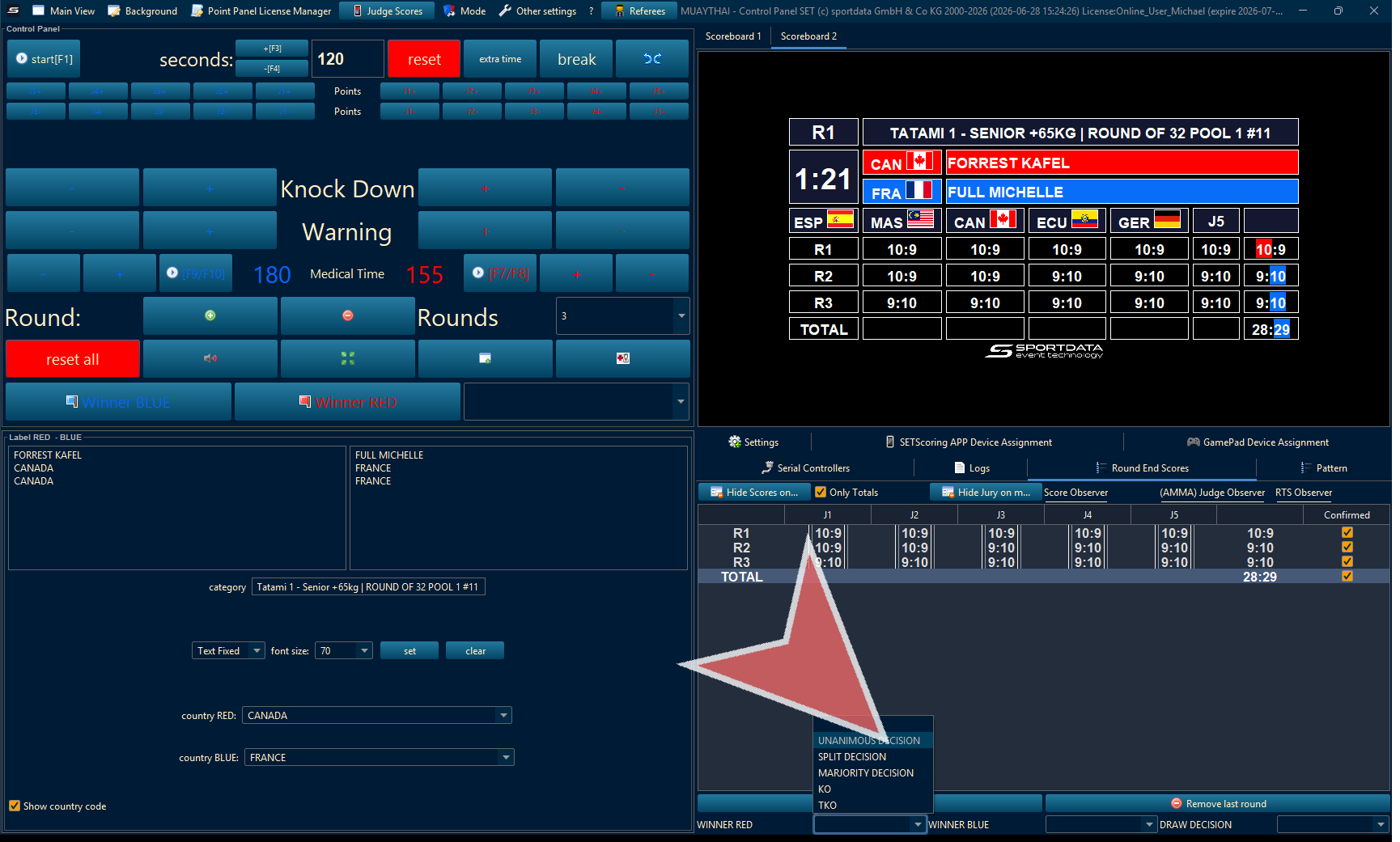
Wintype
When the match has been decided, first confirm the wintype.
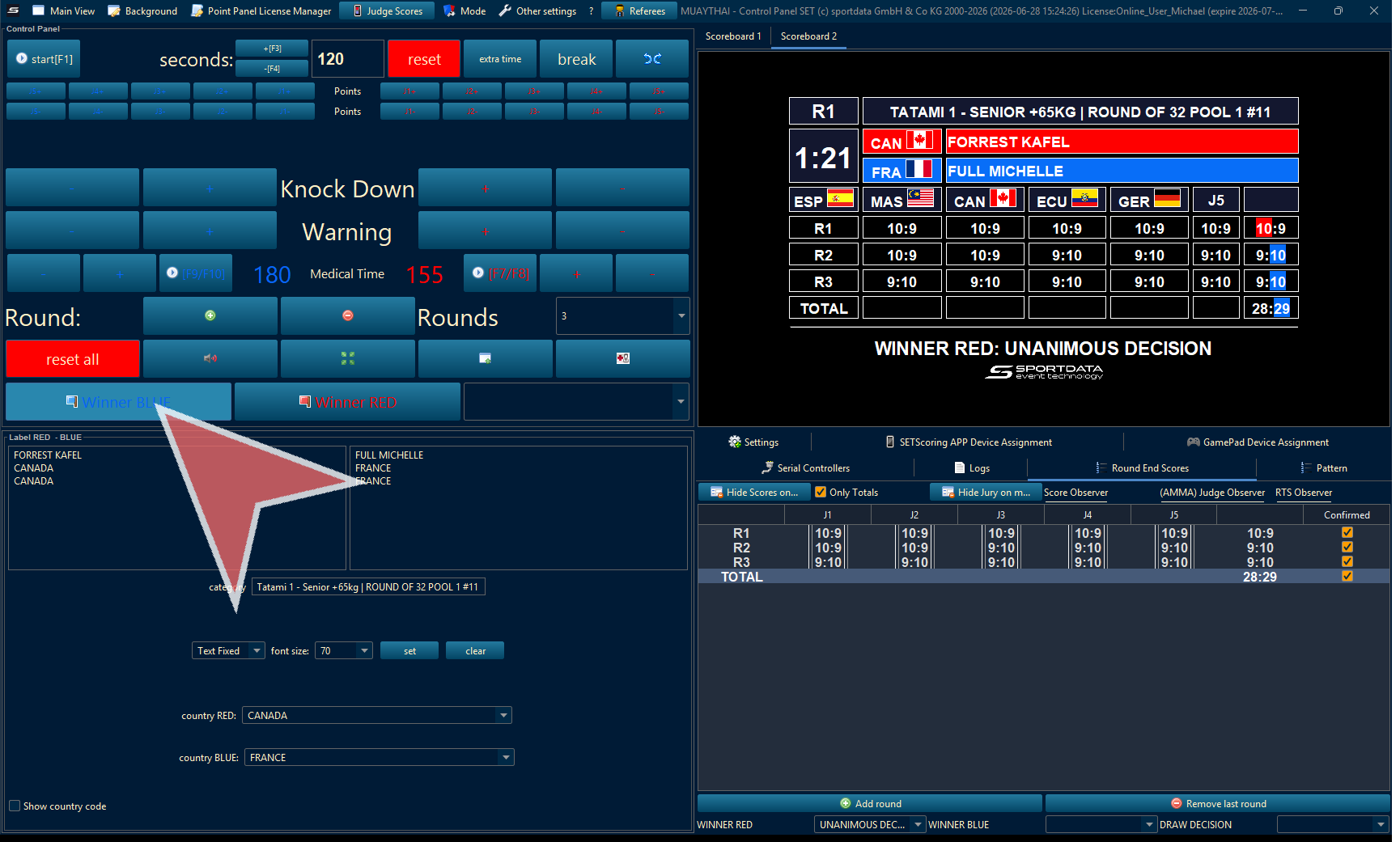
Declare the Winner
Select and declare the winner to save the results.
Draw Record