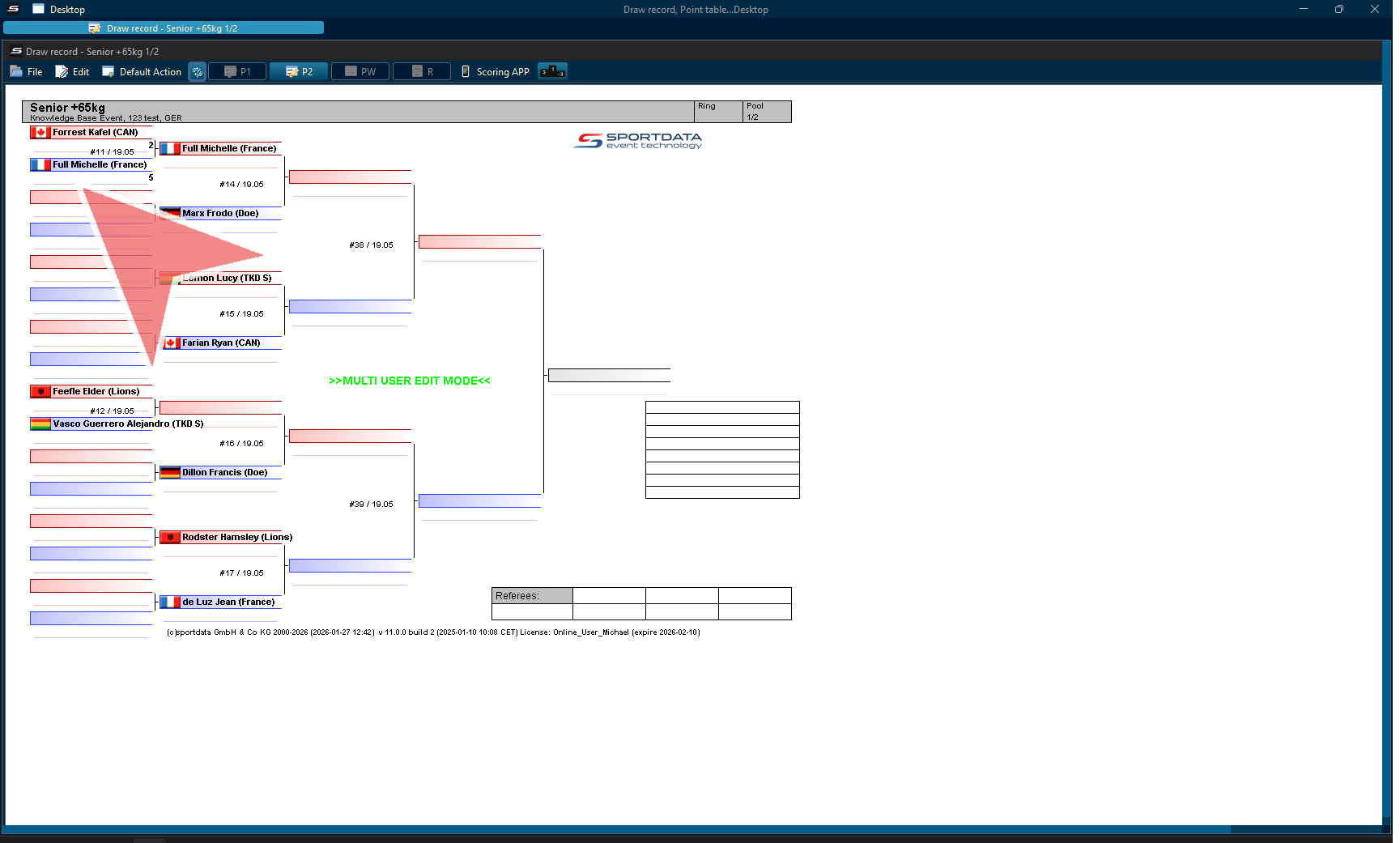

Wrestling is a fast-paced combat sport where accurate scoring, period timekeeping, and real-time match management are essential. Based on the official United World Wrestling (UWW) rules, this guide explains how to operate the wrestling scoreboard and point panel for Freestyle and Greco-Roman wrestling matches.
The UWW Wrestling Point Panel is a digital scoring solution designed to help operators manage every aspect of a wrestling match. From updating technical points and recording penalties to controlling the match clock and managing periods, the software ensures that all official scoring information is displayed accurately for referees, athletes, coaches, and spectators.
This quick-start tutorial provides an overview of the main functions of the wrestling scoreboard software, including digital console operation, official scoring inputs, period timekeeping, and the essential features required to run professional Freestyle and Greco-Roman wrestling competitions.
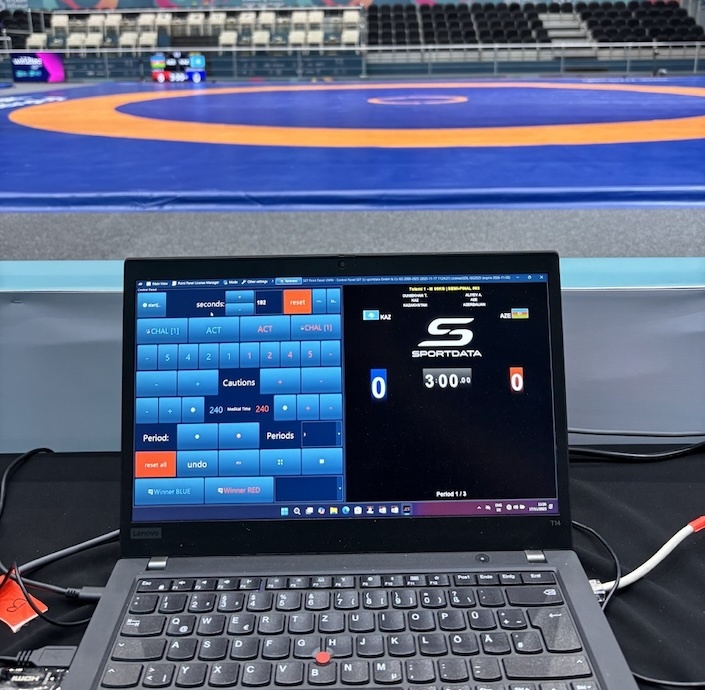
Free Scoreboard
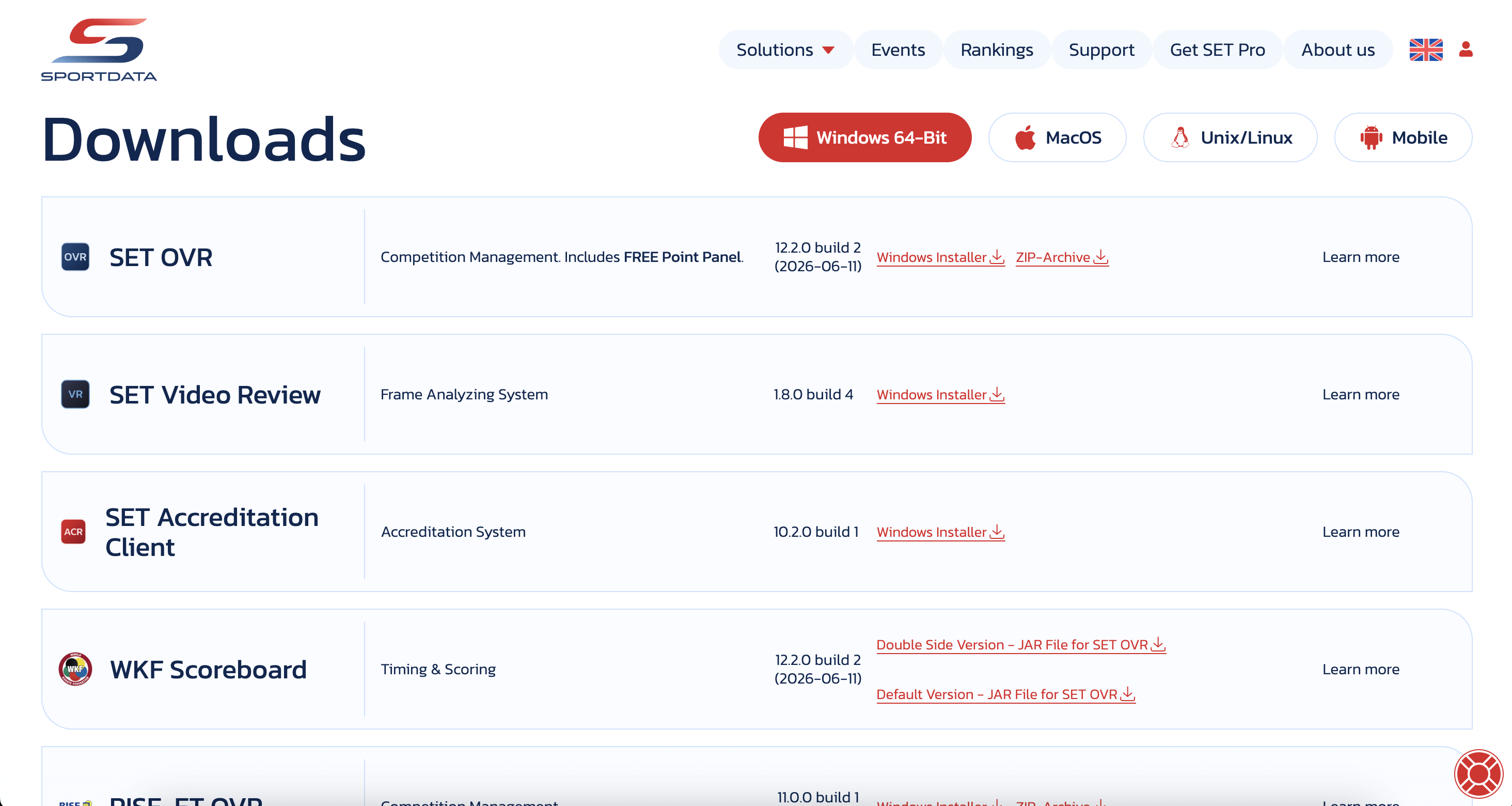
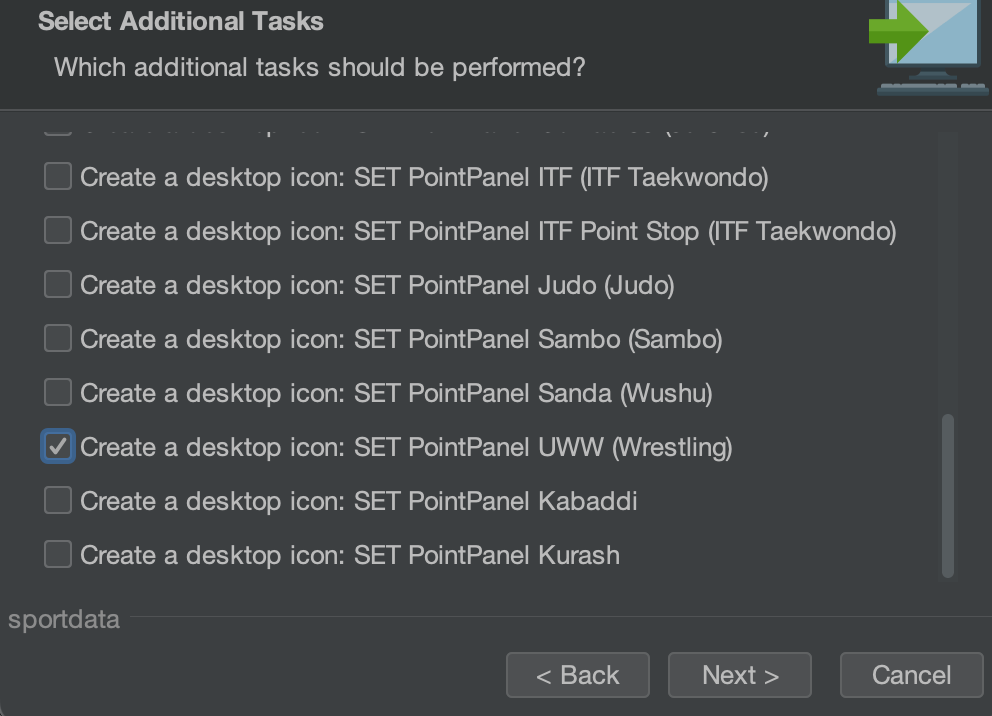
Download the SET OVR to get the free scoreboard to follow along with the article . First, select your operating system, then download the installer, and during the set up you can select SET Point Panel Kabaddi for just the scoreboard. If you want to also try our SET OVR click it as well and learn how to create entries, draws, draw records, timetables and more for free.
How to Operate the UWW Wrestling Point Panel
Open Match
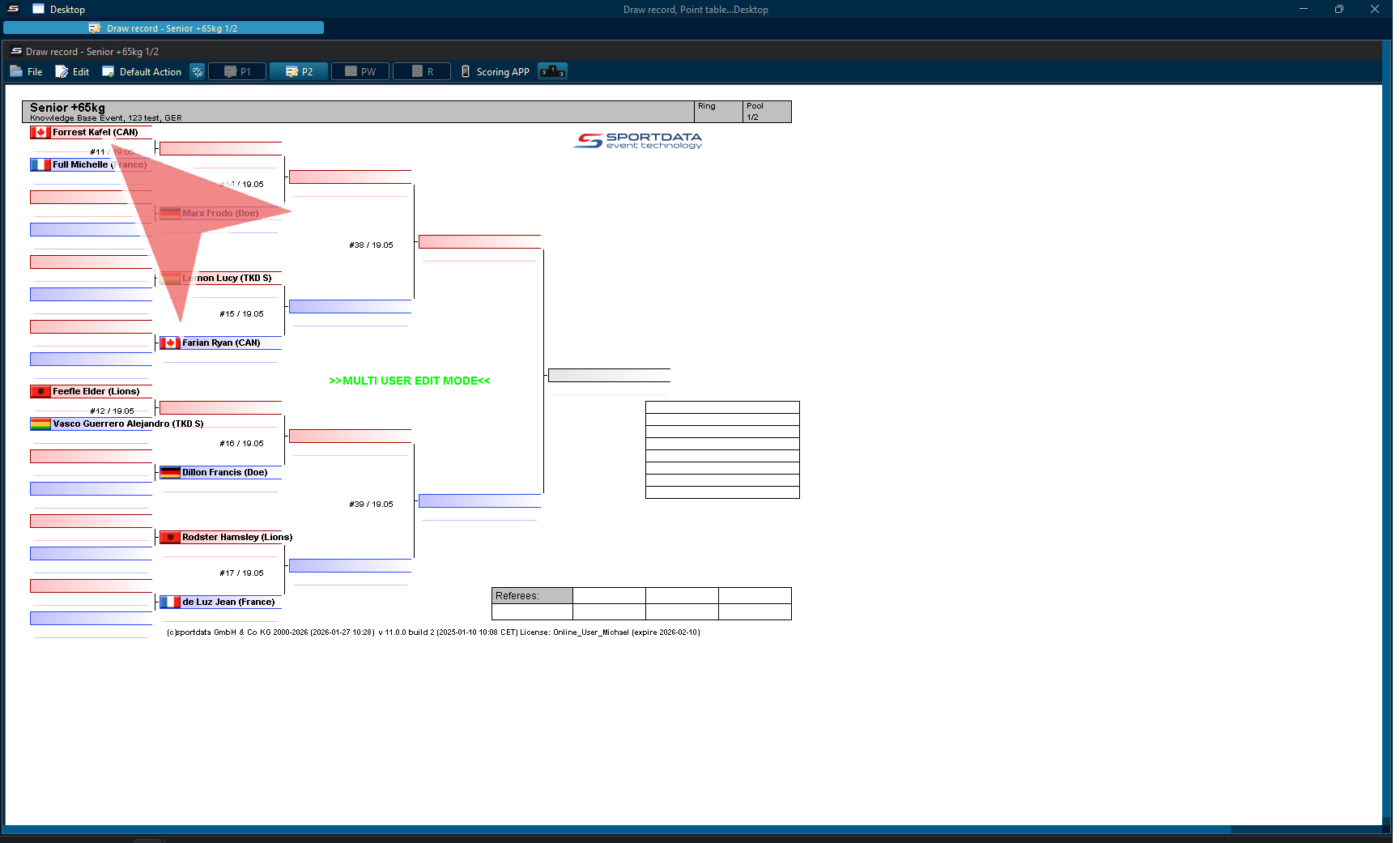
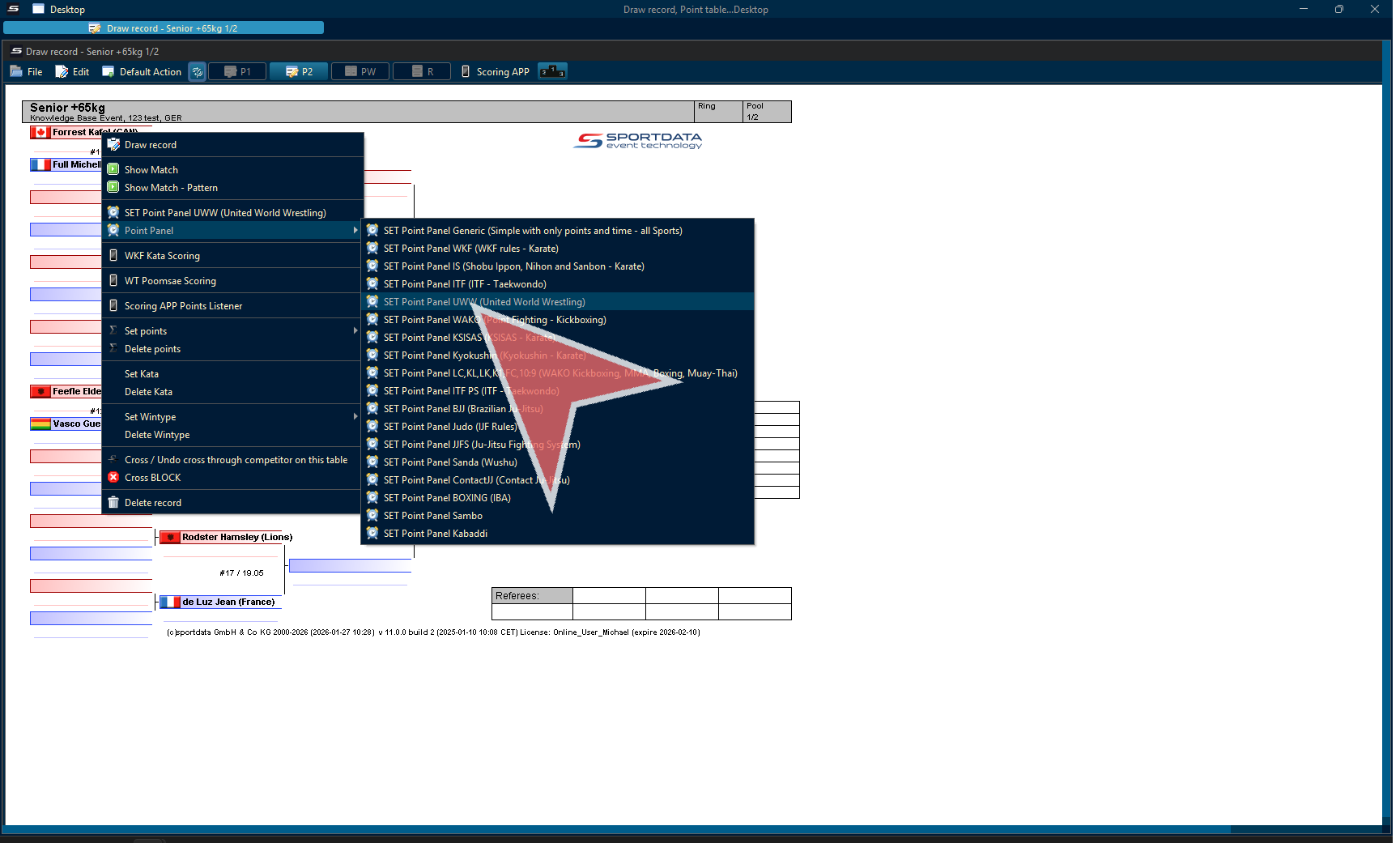
In SET OVR, open the draw records and perform a right click on the match, then select the UWW Wrestling point panel.
Choose the “United World Wrestling scoreboard” to use the official wrestling layout.
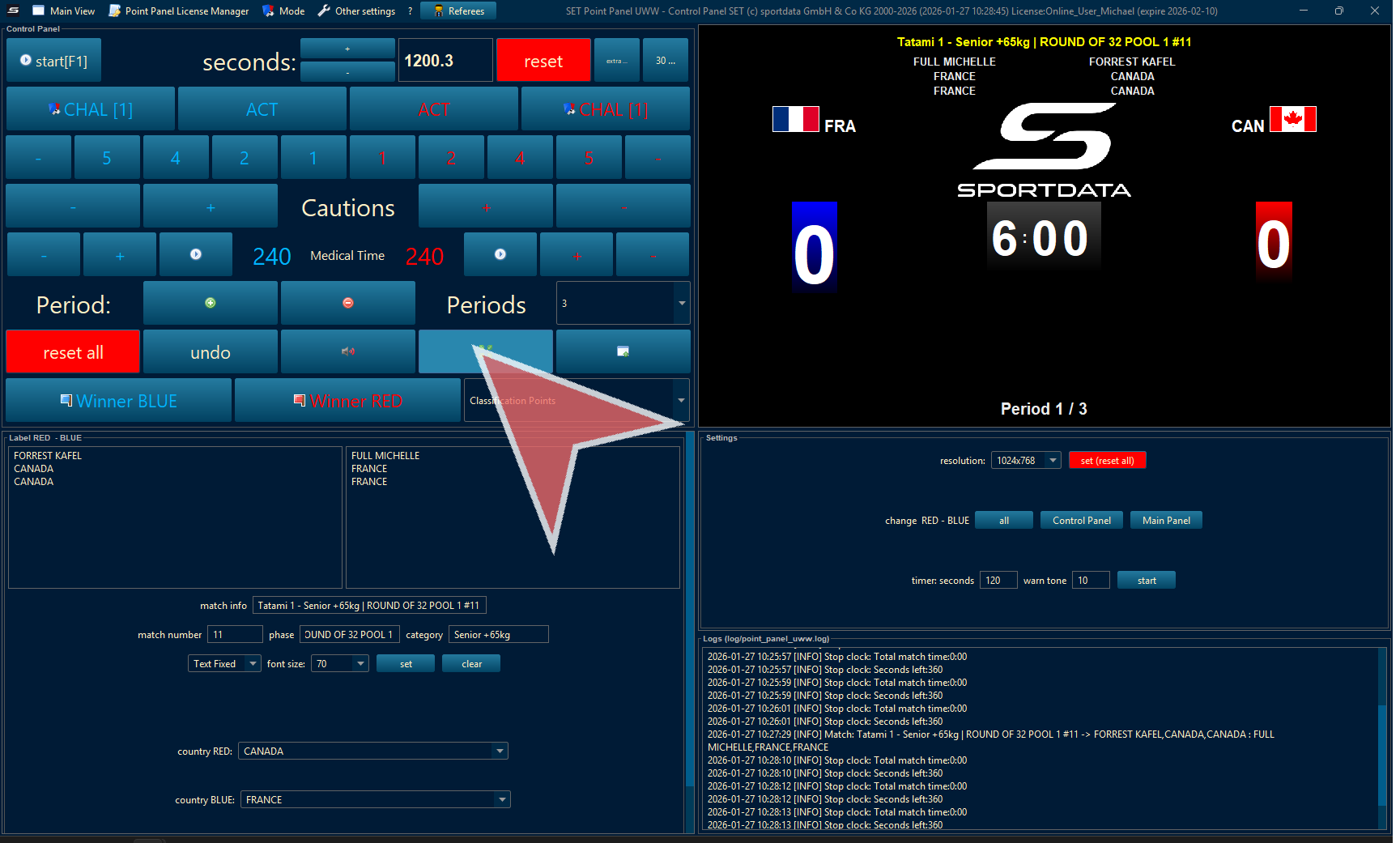
Settings
Take a moment to check your screen resolution and font size, and make sure you are happy with how the red and blue sides appear on the scoreboard.
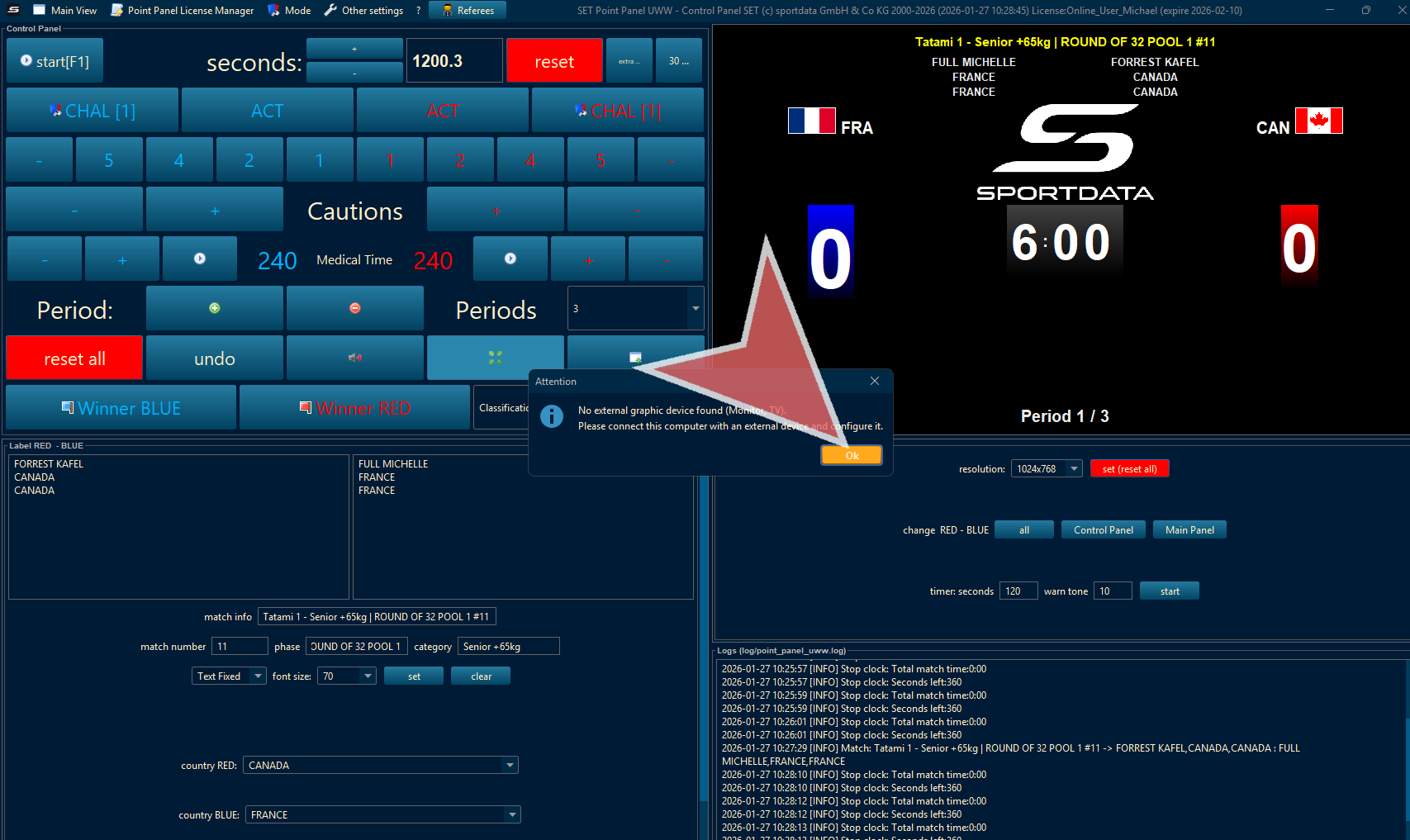
If you see a warning about no external monitor, make sure your cable is securely connected and working properly.
Scoreboard
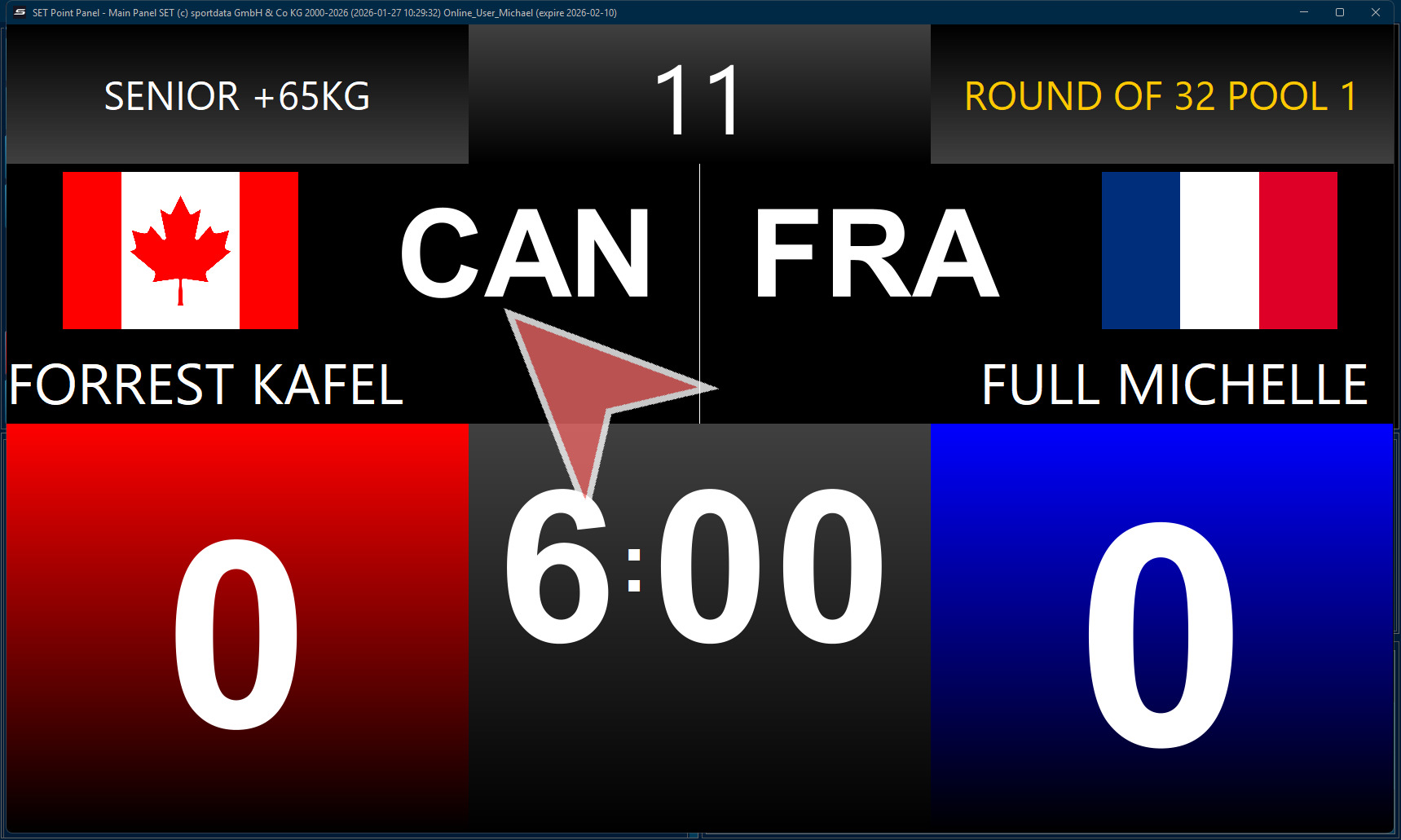
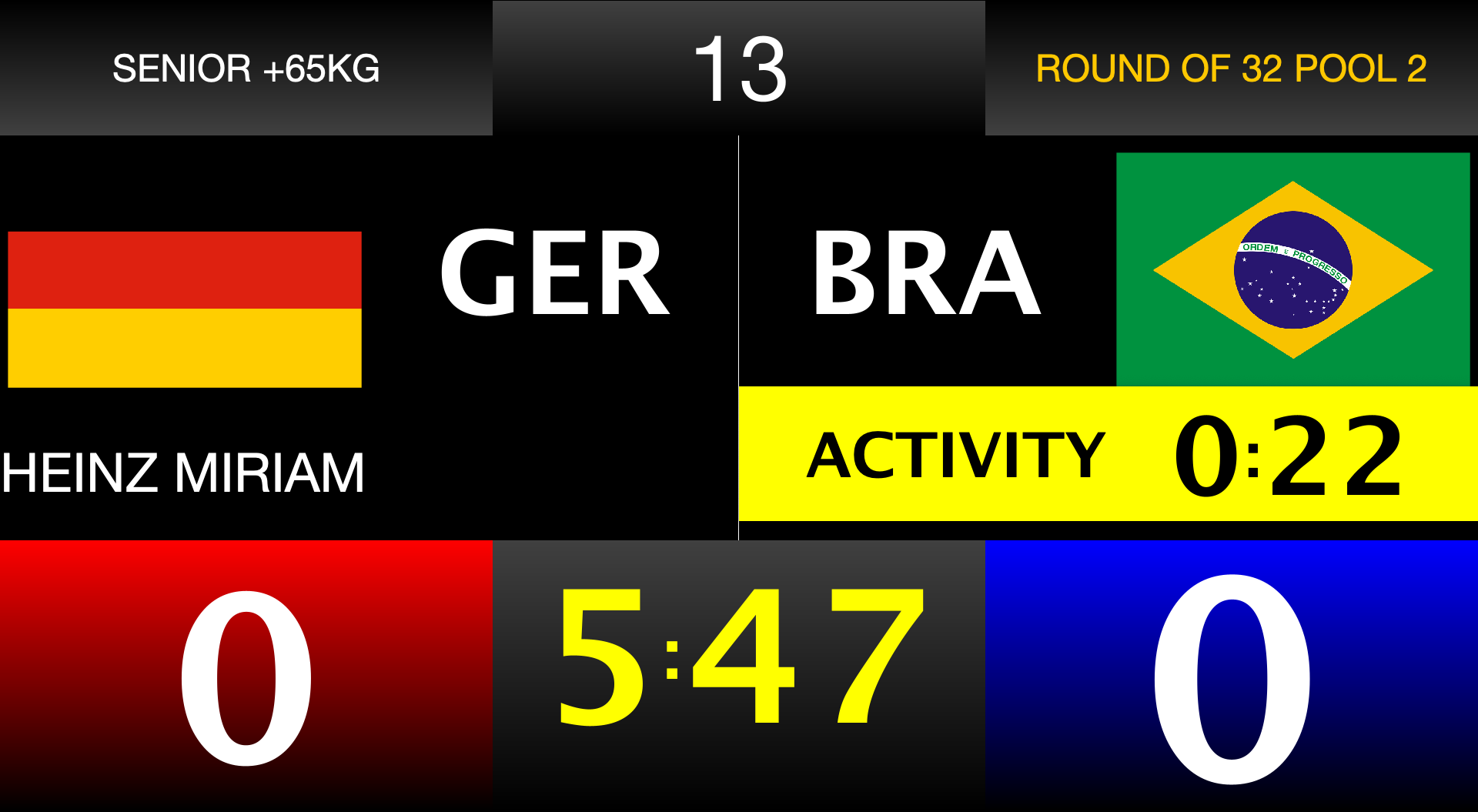
The scoreboard shows key match details like phase, category, match number, country, name, points, and match time. It also displays video review, medical or bleeding time, and break time. If devices are connected, coaches can start a video review.
Greco-roman Mode
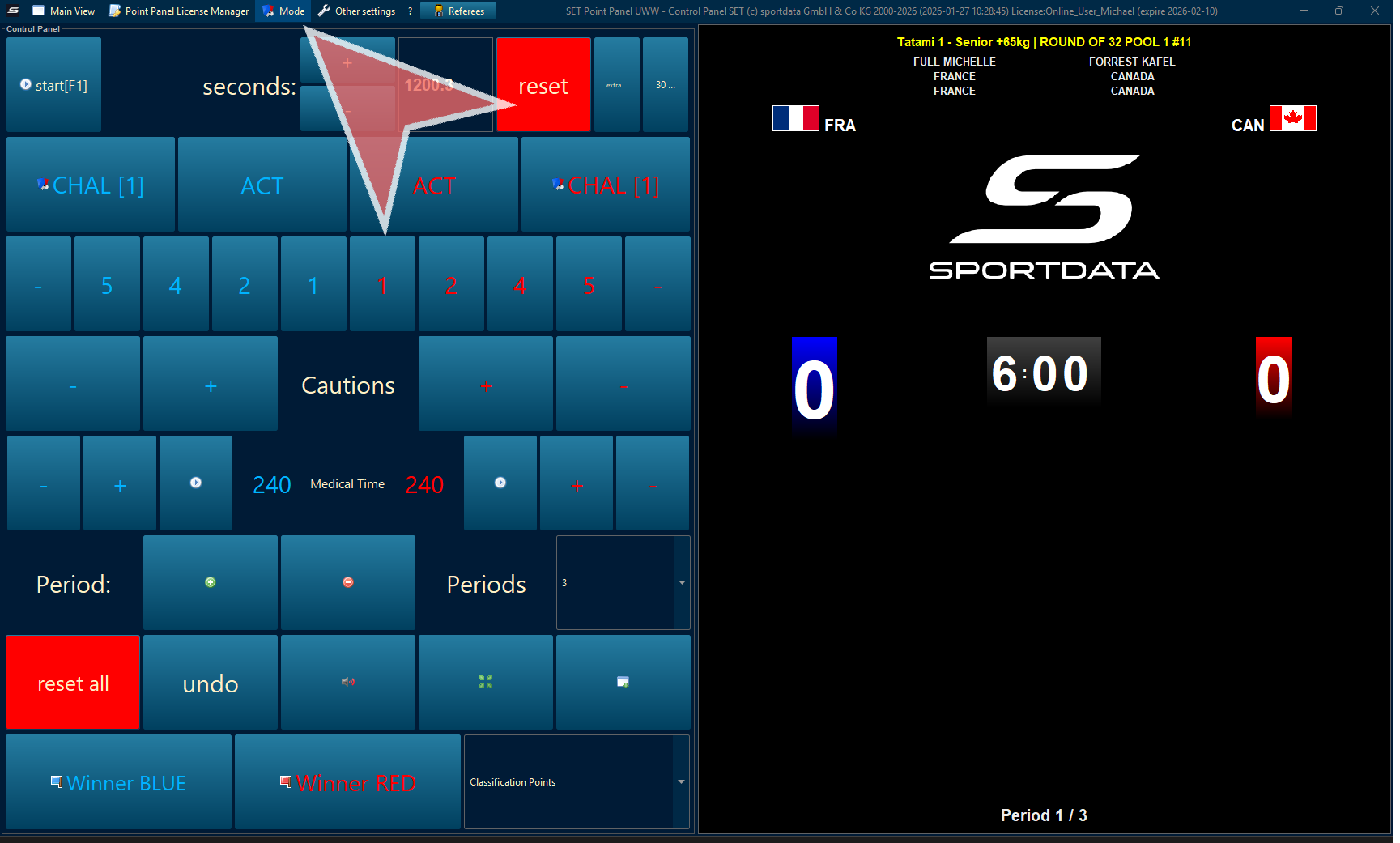
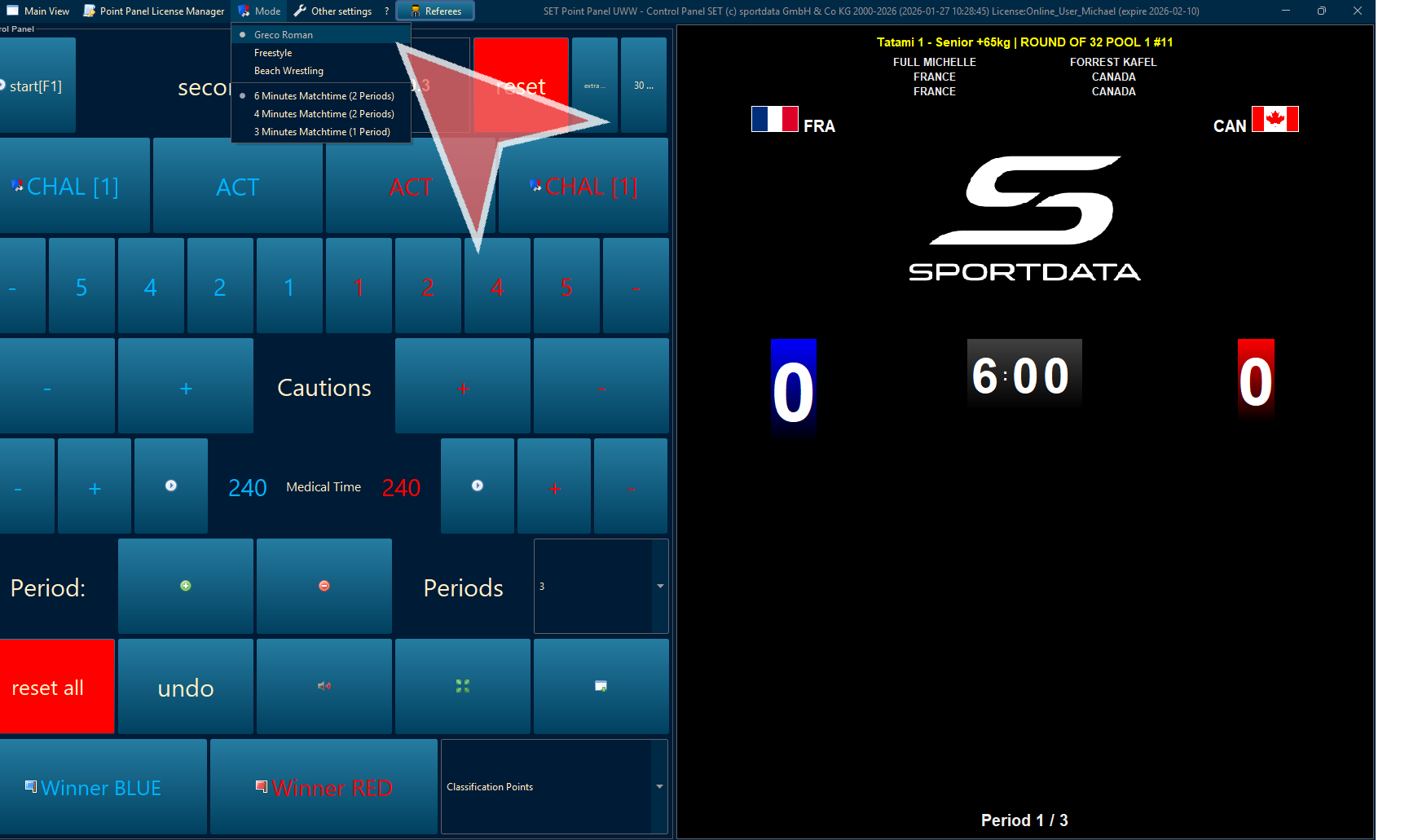
Check that the point panel type is set to greco-roman in the mode setting. This is important for accurate scoring and can be preset in category settings when creating event categories.
If everything looks correct, you do not have to change anything. If changes are needed, a notification will tell you to restart the software to apply updates.
Start the Match
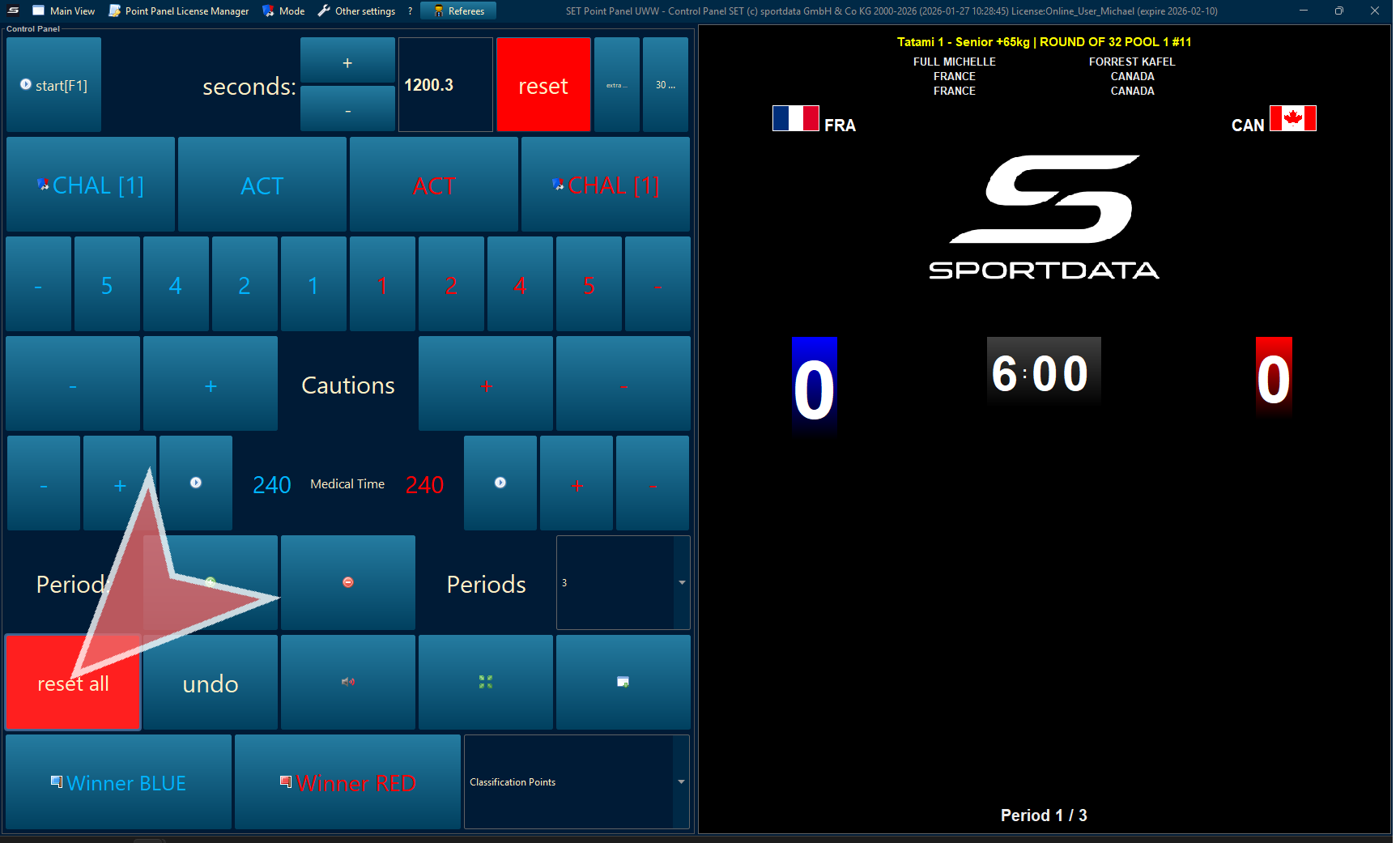
Before starting a new match, click the “Restart all button” to ensure the software is refreshed and ready.
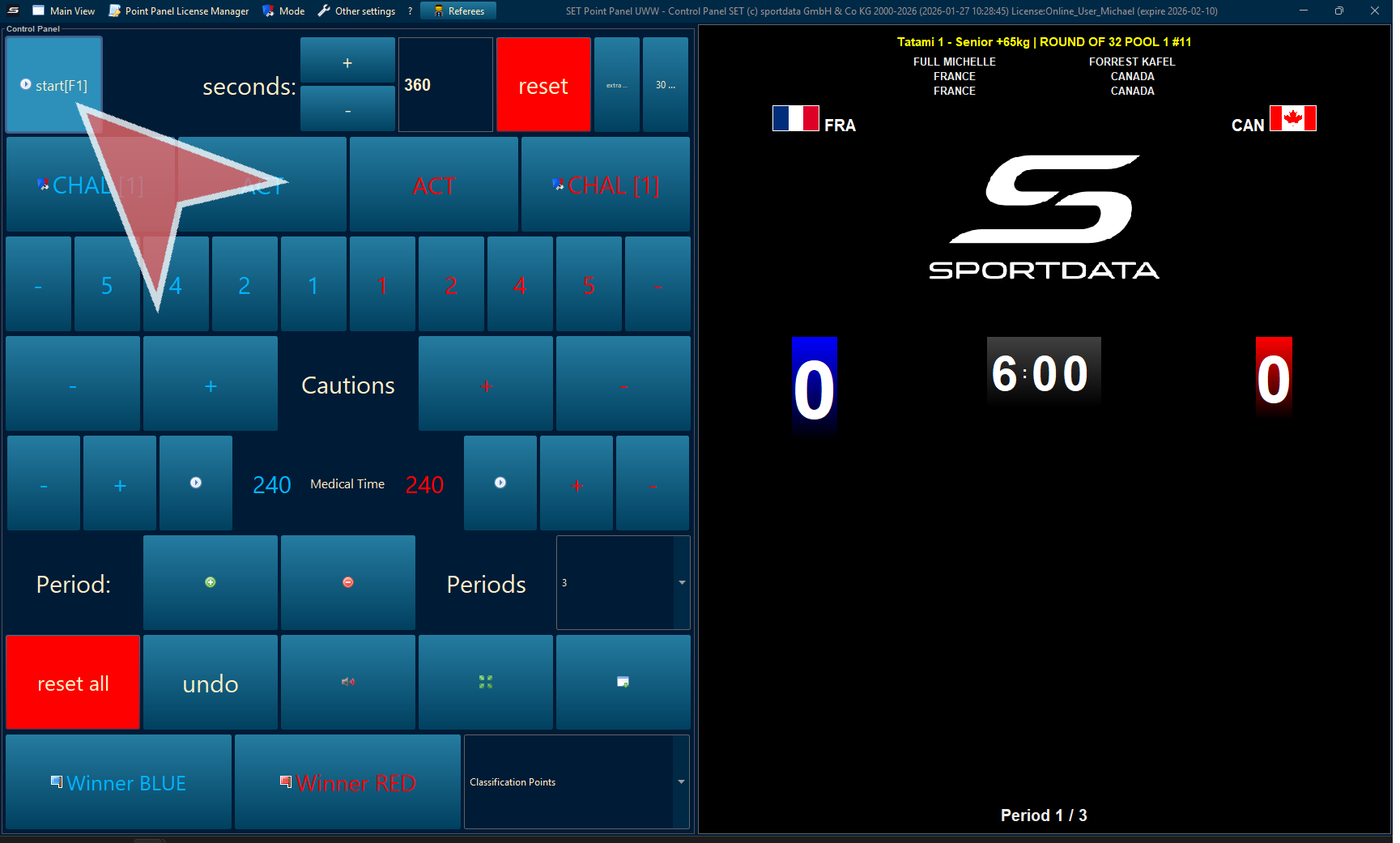
To begin or pause match time, click the “Start” button or press the space bar. This helps control time during the match.
Activity Time
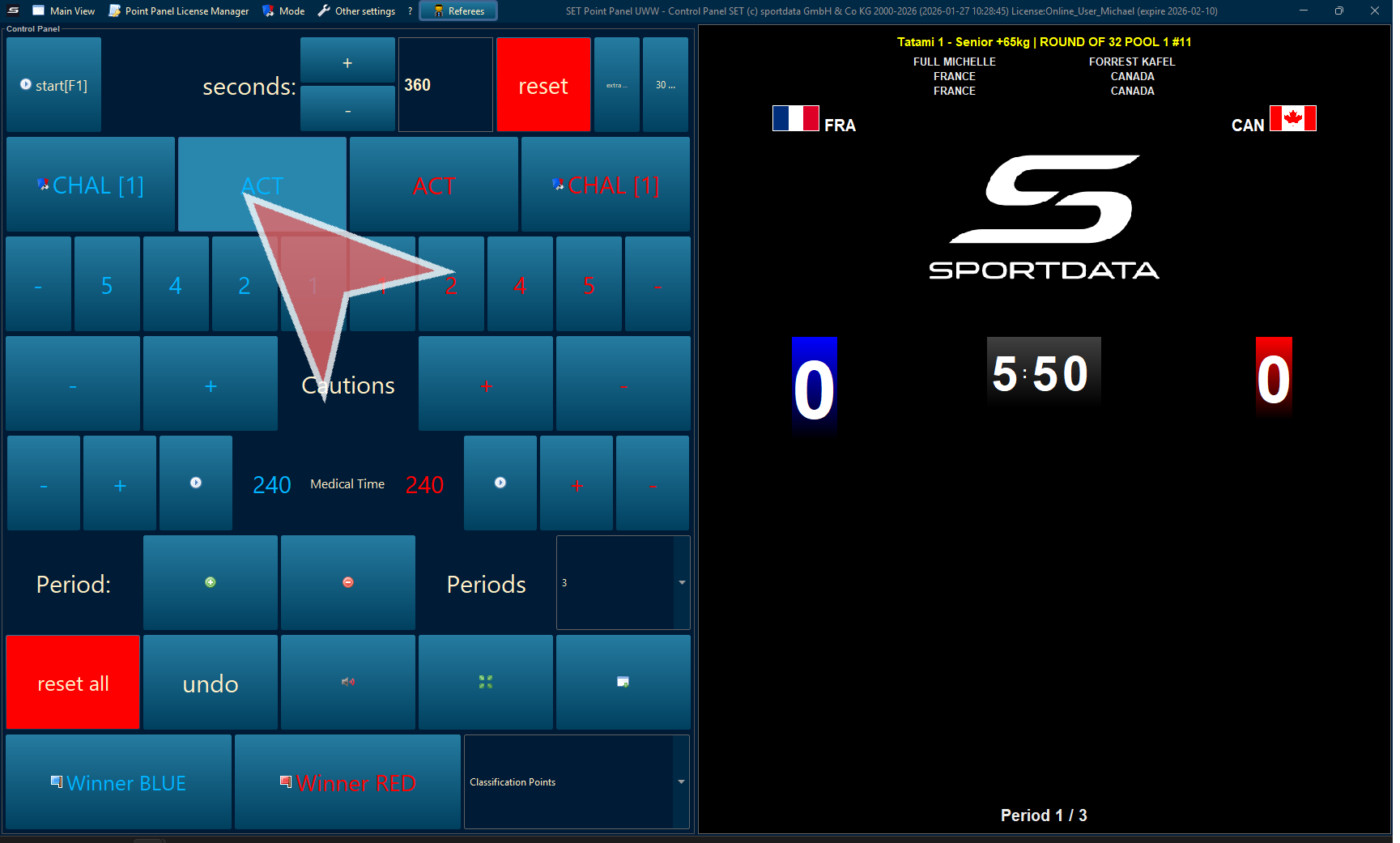
When you need to take action, first stop the match time, then press the “ACT button”. This will open a window for activity controls.
Points
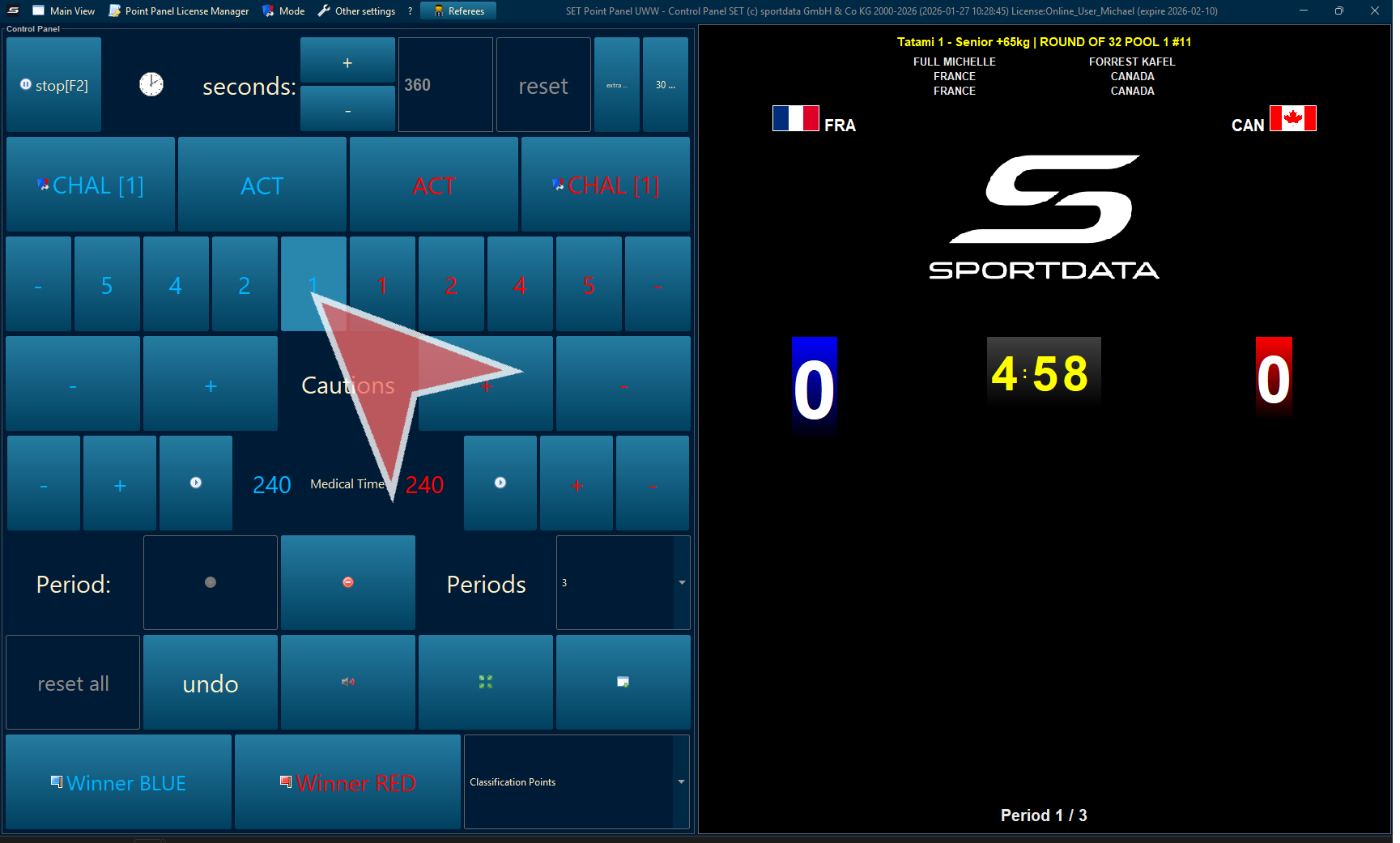
To give points to a wrestler, select the correct points for the color you want to award.
Remove Points
If you need to take points away, click the minus (“-”) button next to the score.
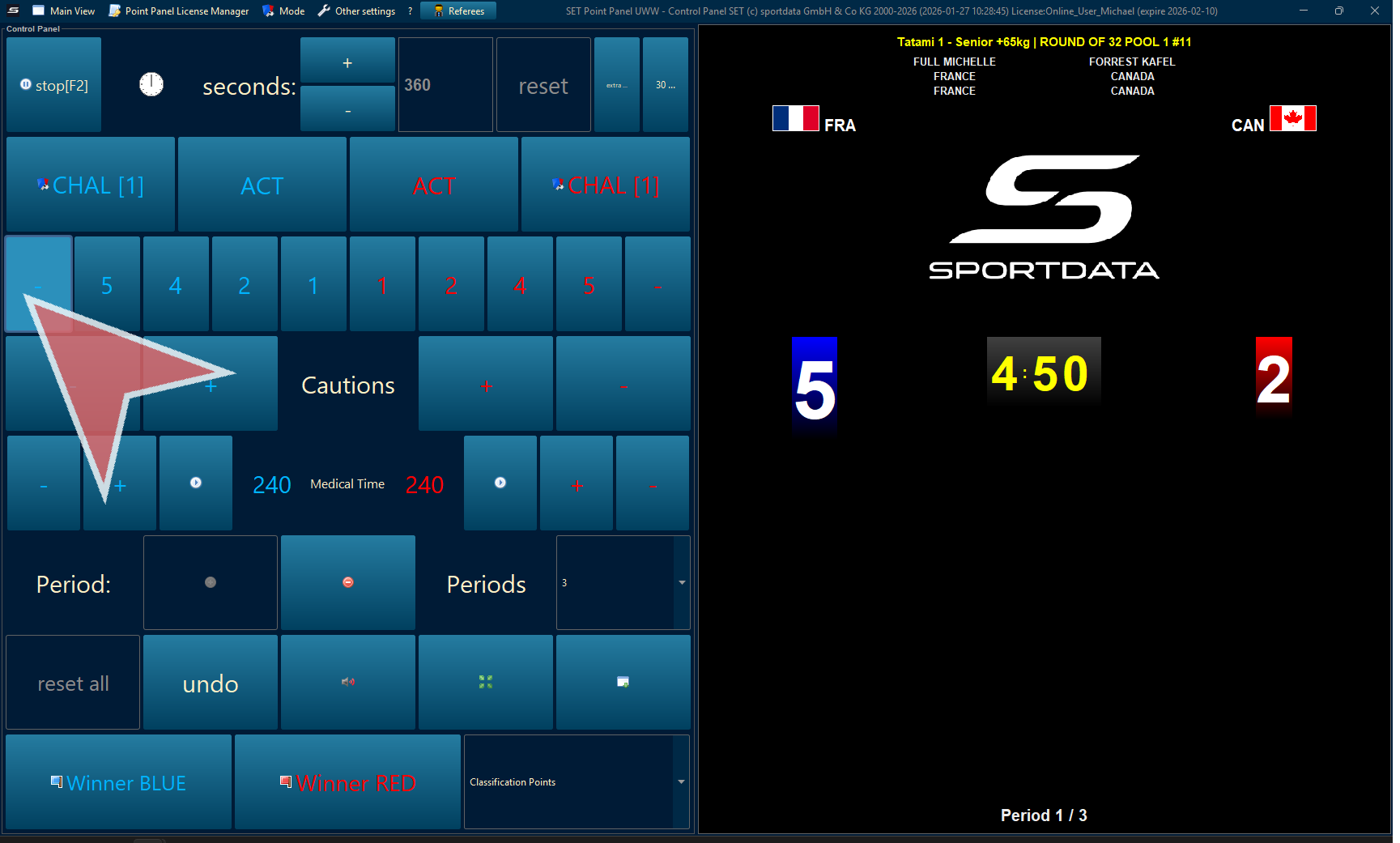
Choose which points you want to remove carefully, keeping in mind the order in which they were given.
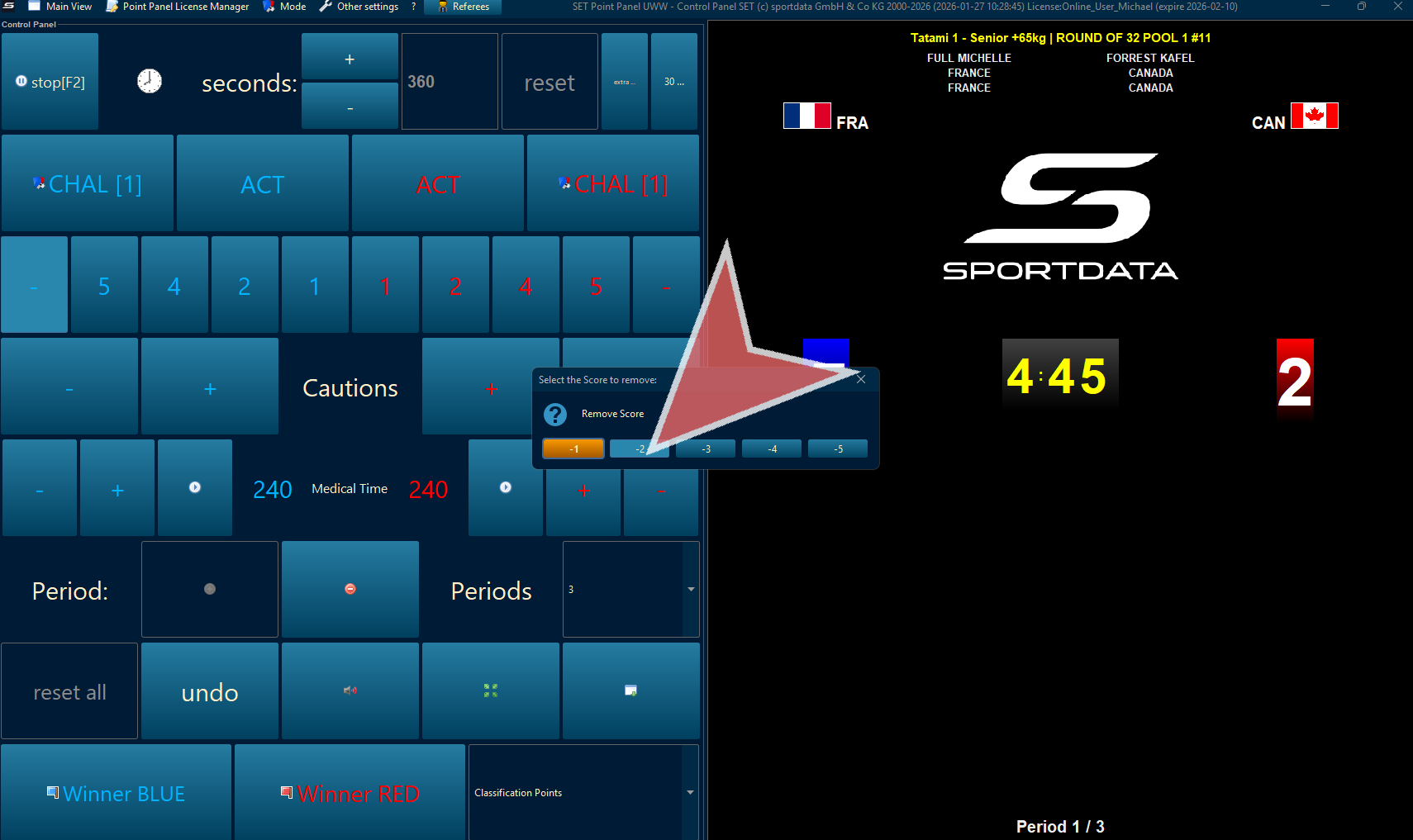
Ties
If the score is tied, the scoreboard will highlight the current winner based on tie-breaking rules, so you always know who is leading.
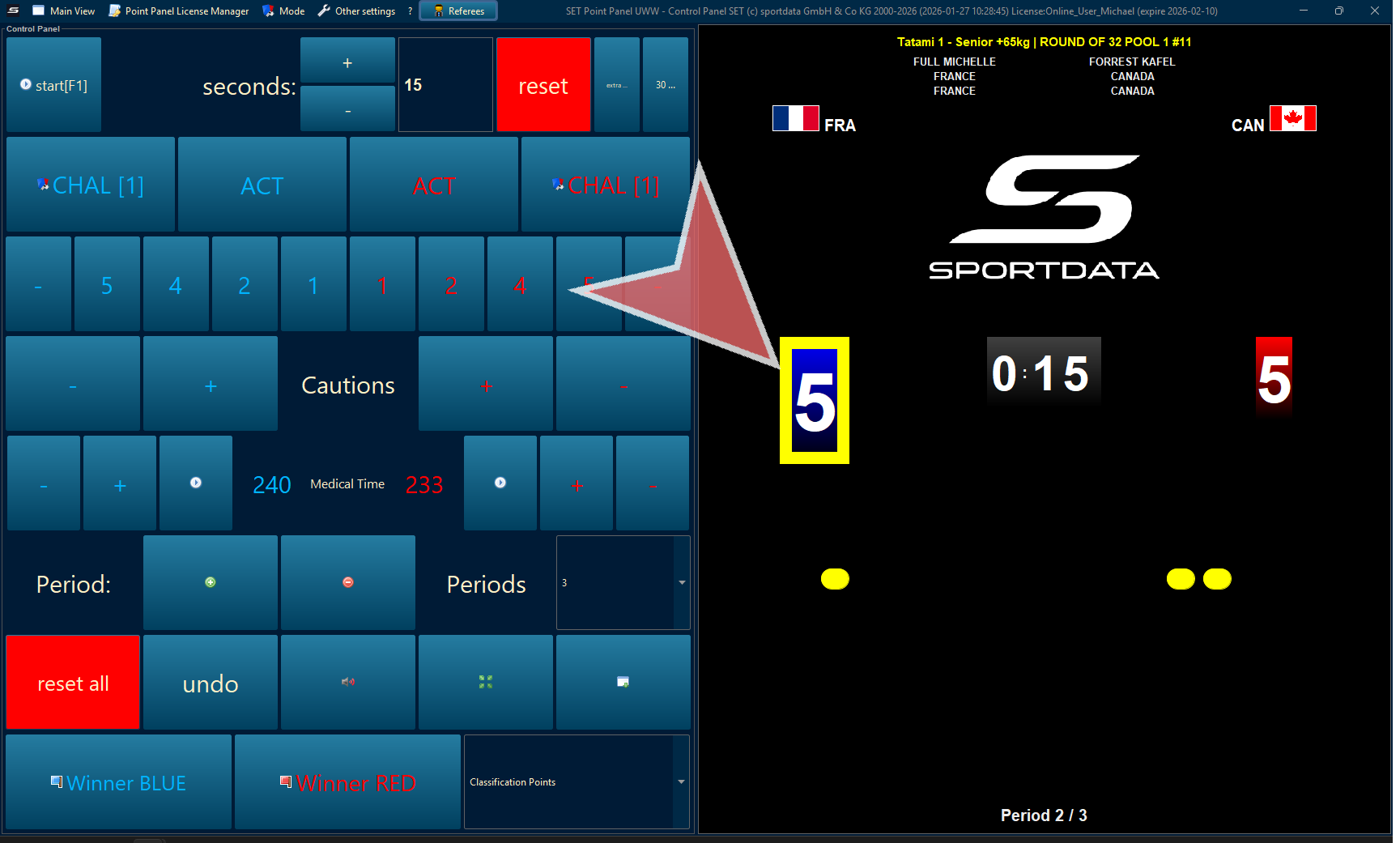
Cautions
You can add or remove cautions with the controls. If a wrestler gets three cautions, the system will automatically assign the win.
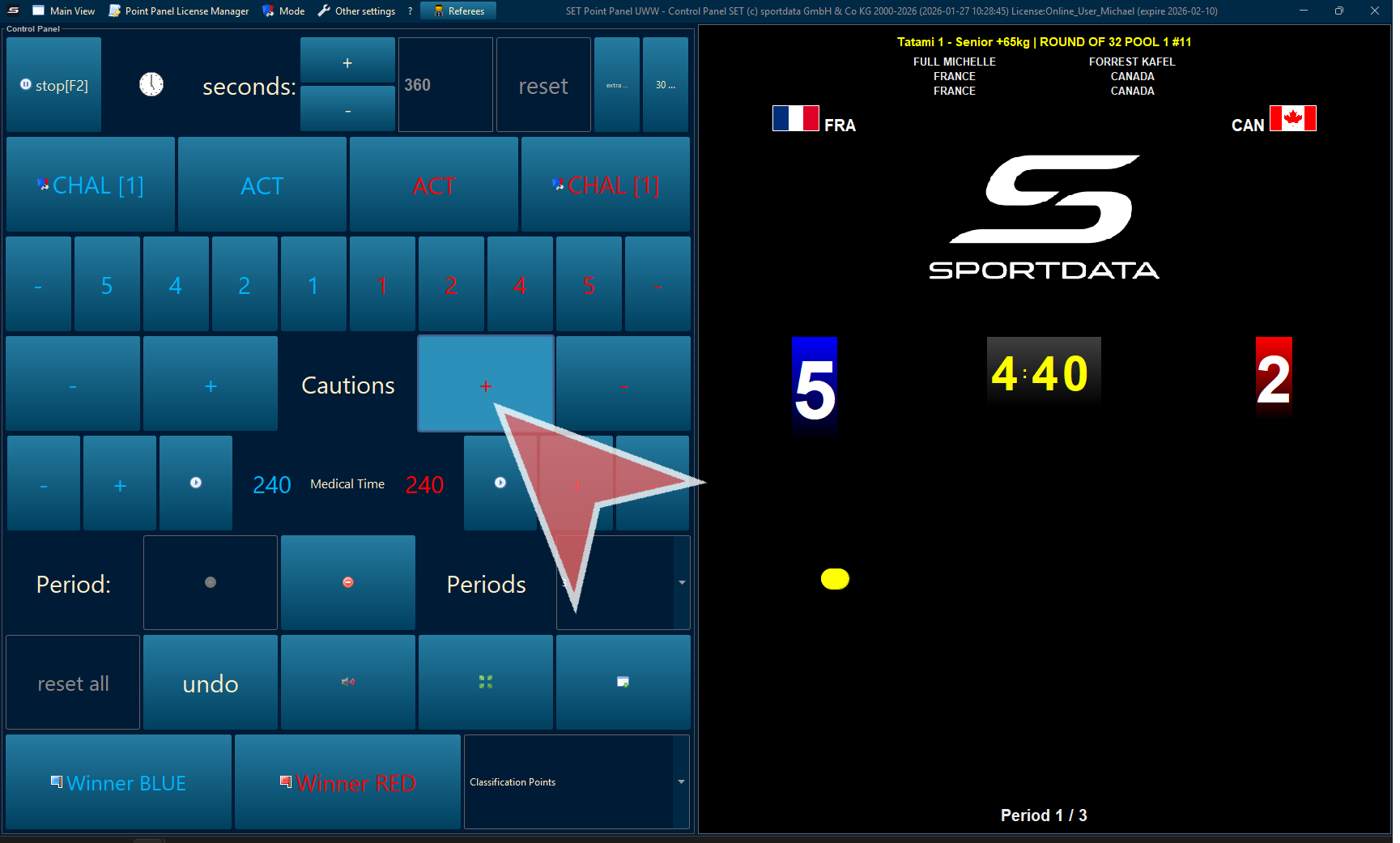
Medical Time
To start medical time, click the “Play sign” button. Use this to time official medical breaks.
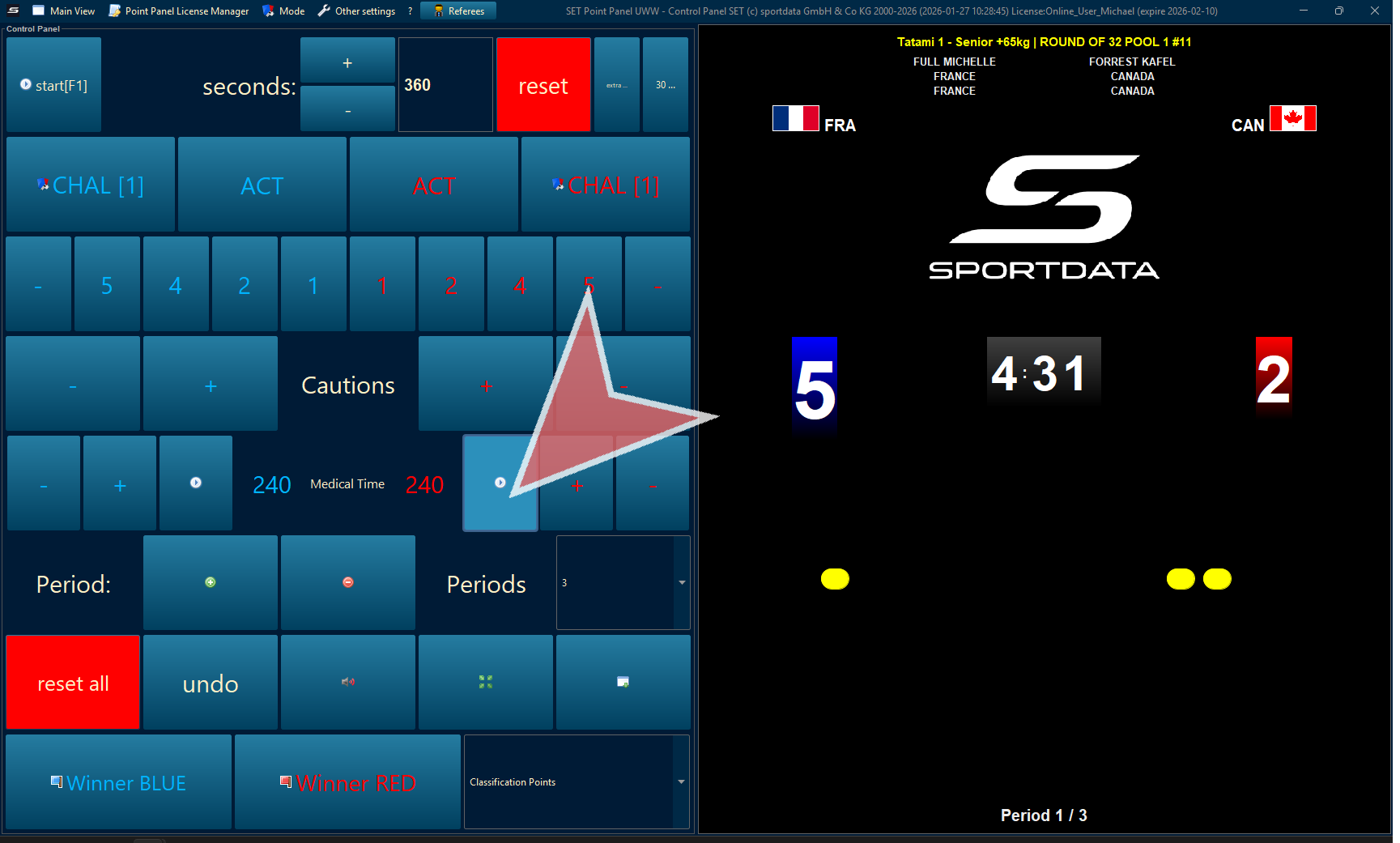
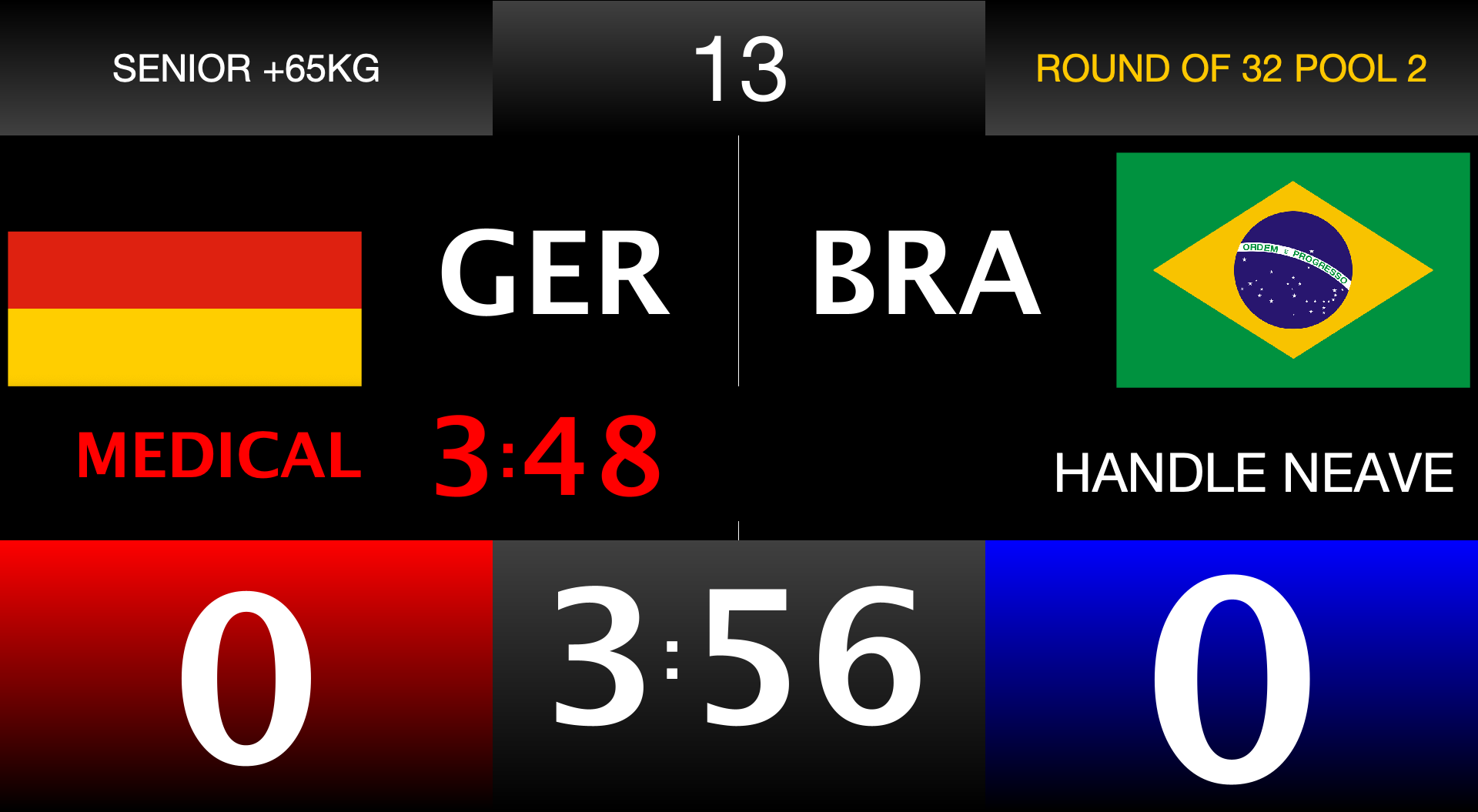
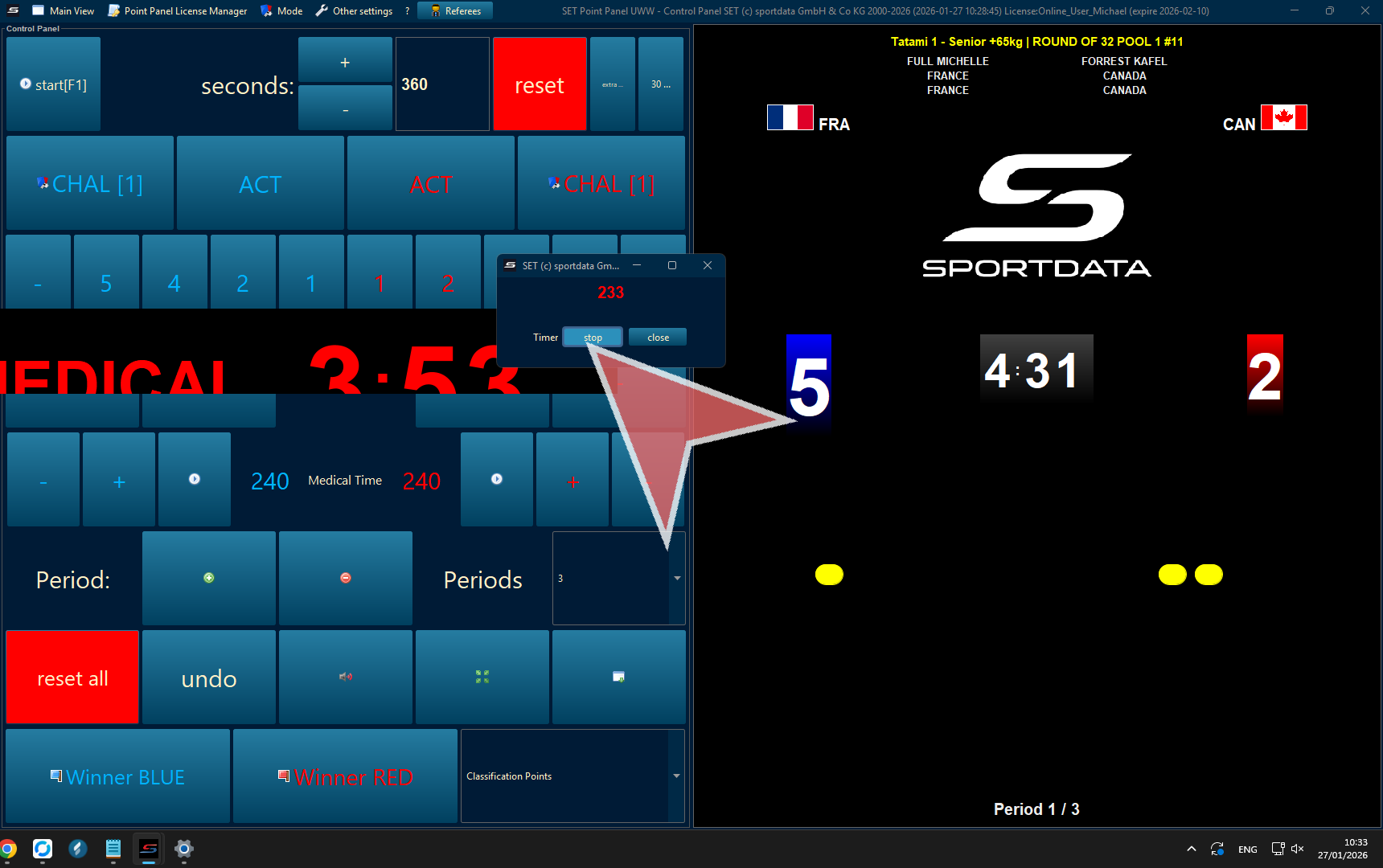
Use the time controls to start and stop timing as needed for medical breaks or other official pauses.
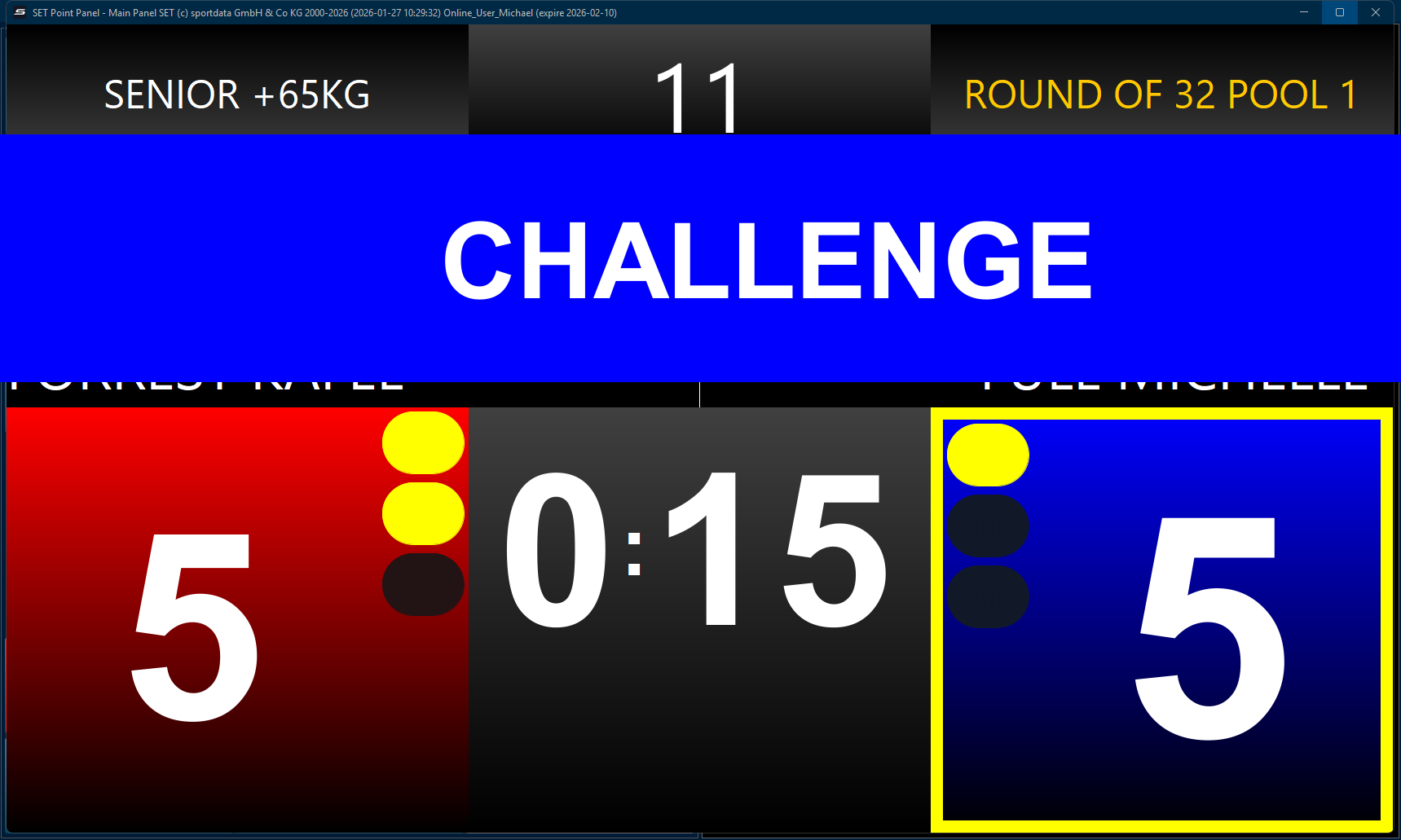
Challenges
To mark a challenge, click the appropriate color button. This can also be triggered automatically by coach devices if connected.
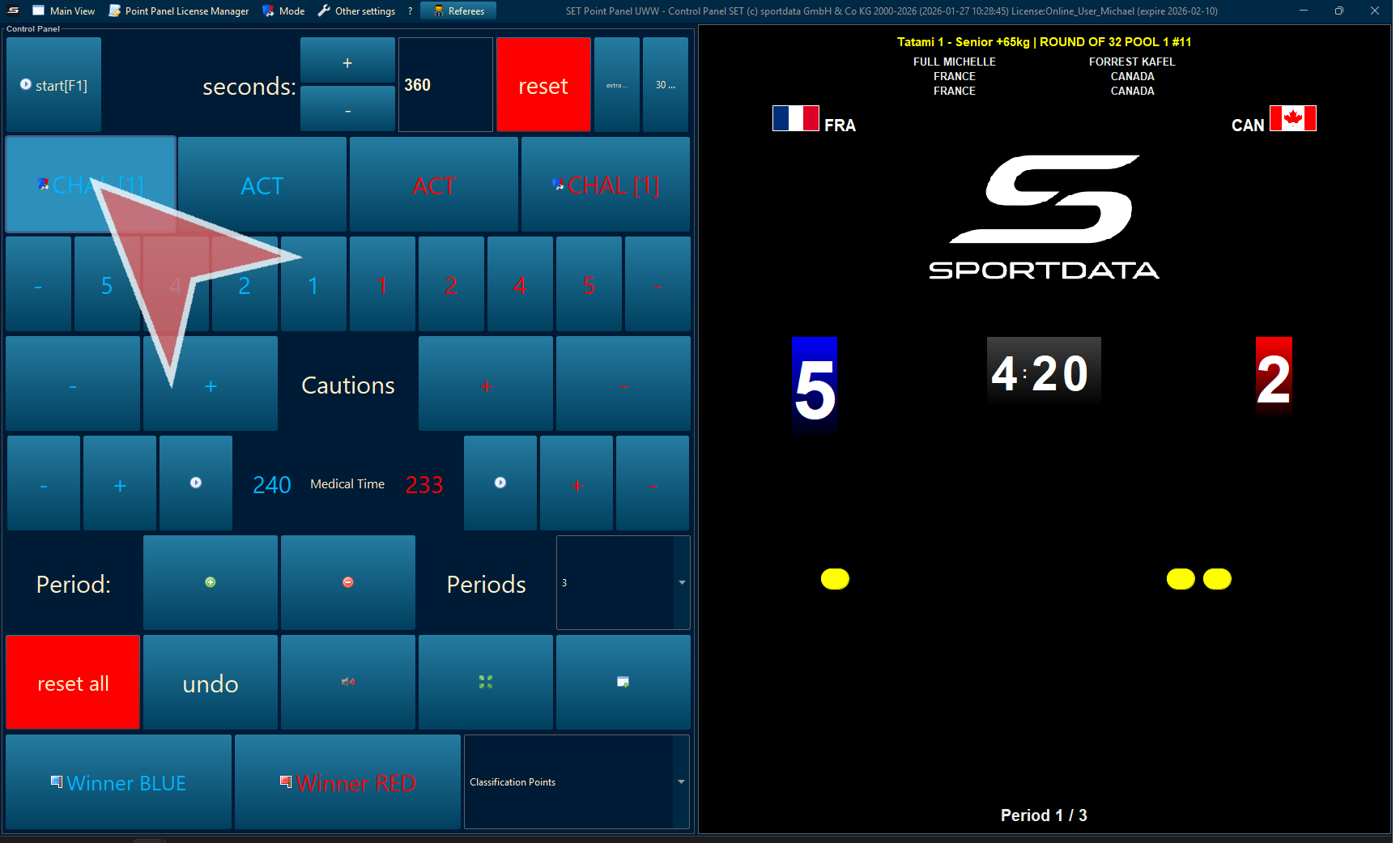
Click the appropriate button to confirm your actions in the interface.
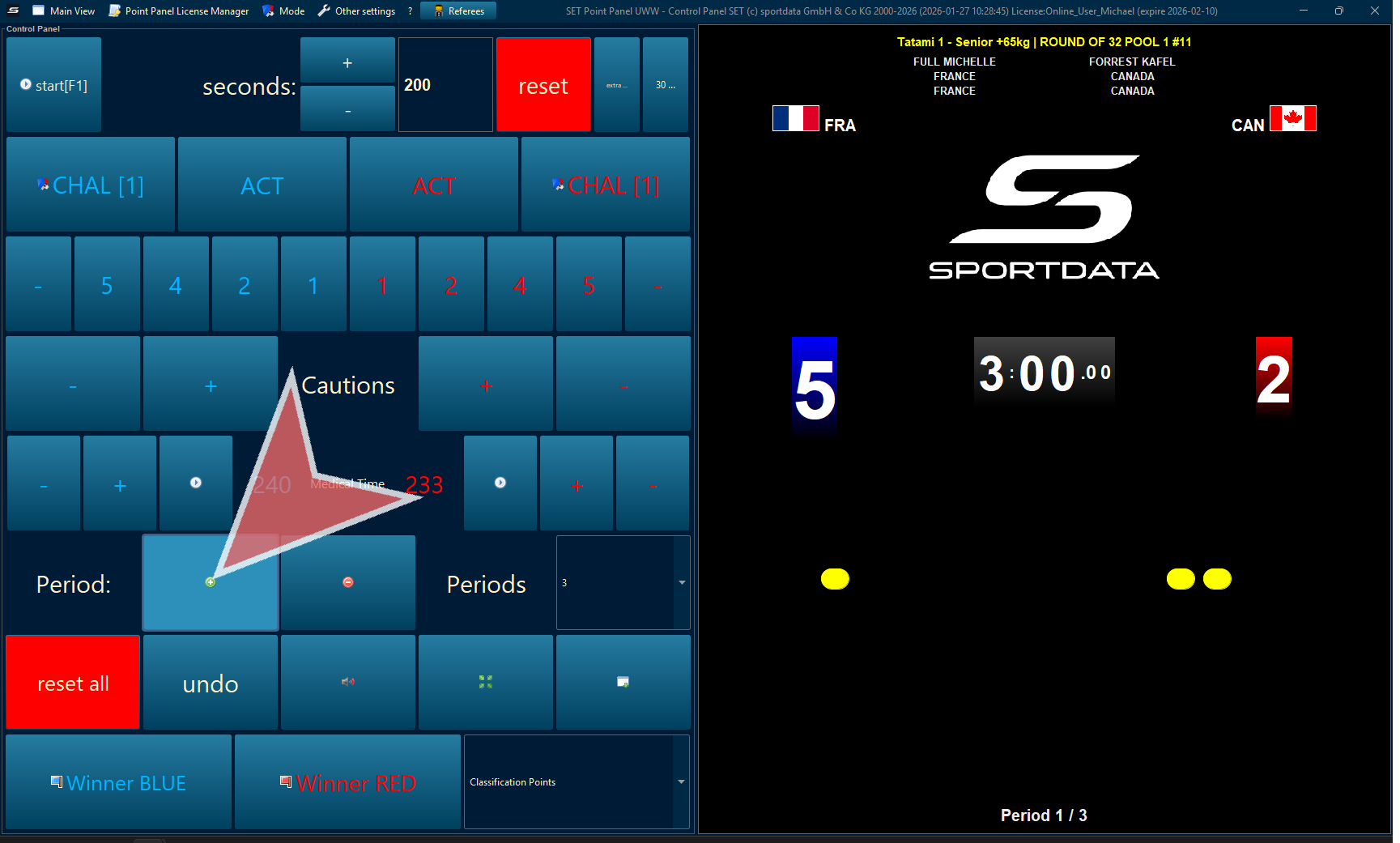
Break Time
At the end of the first half, the time will stop. Immediately press the green plus (“+”) sign to advance to the second half. Double check that the period count is set to 2. The scoreboard will now display break time.
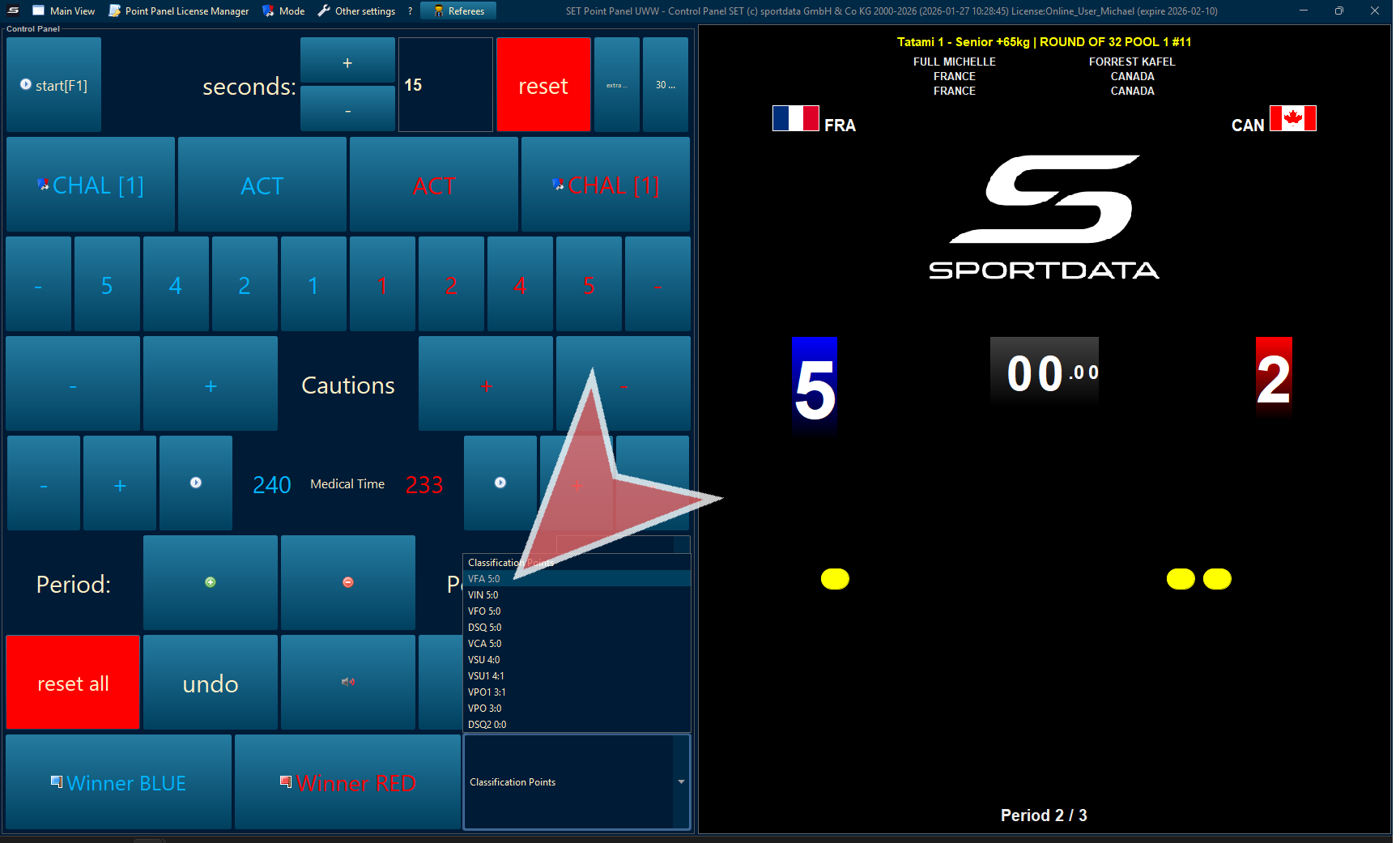
Classification Points
Select the classification points for this match based on the outcome.
Declare Winner
Declare the winner by choosing either the red or blue side.
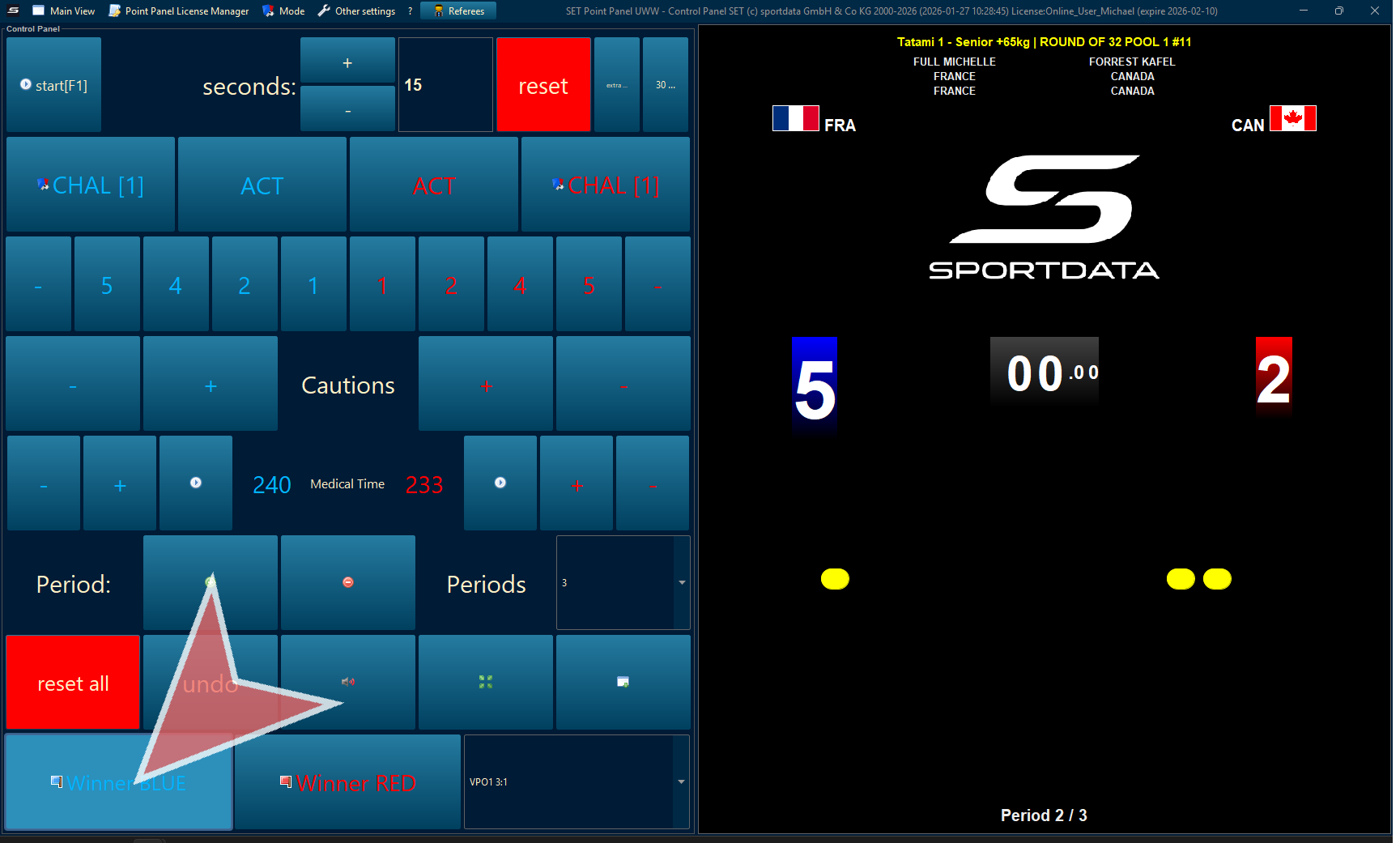
The results will then be record in the draw record.