Interactive Demo
Event Manager – Event Page
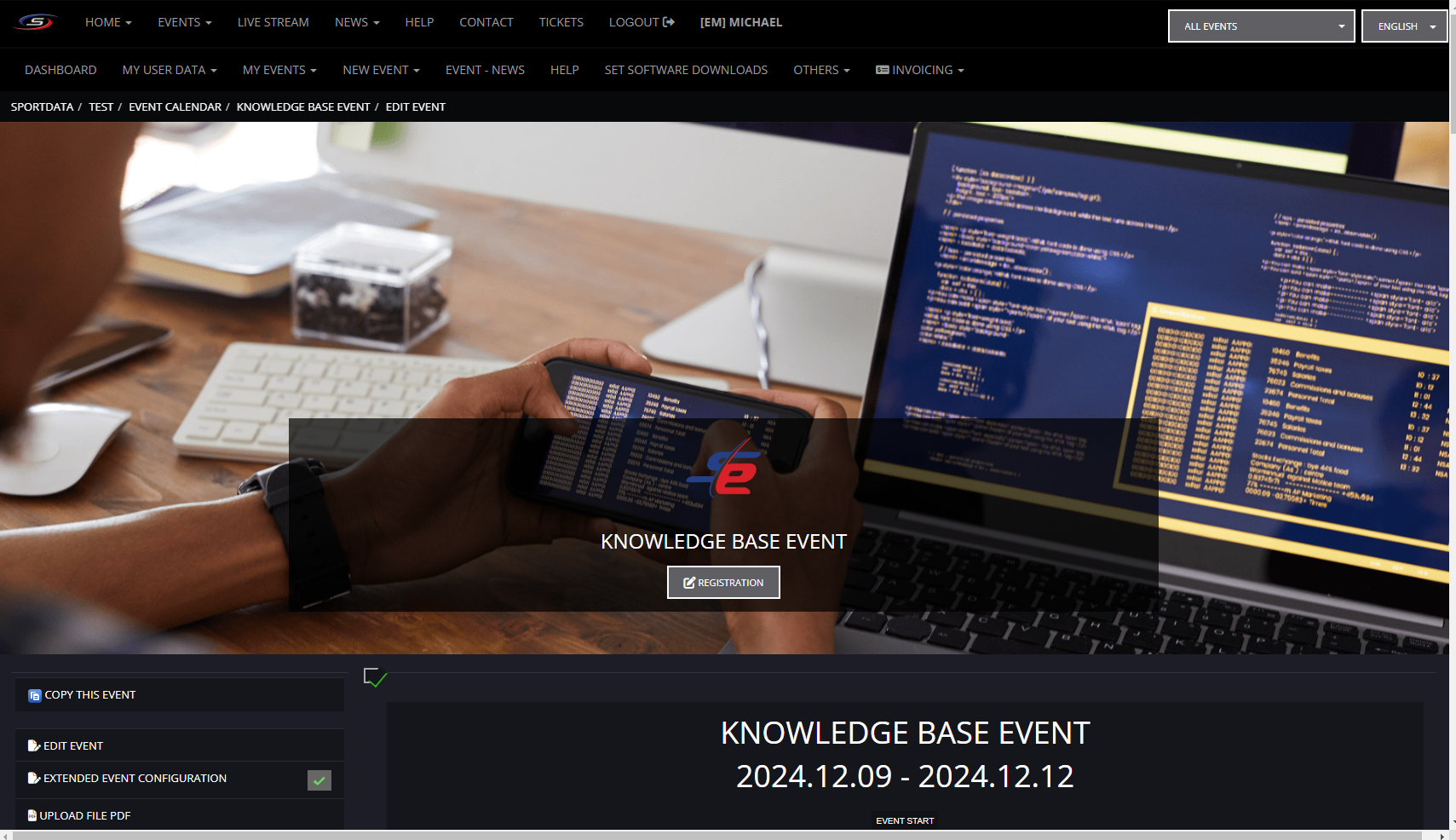
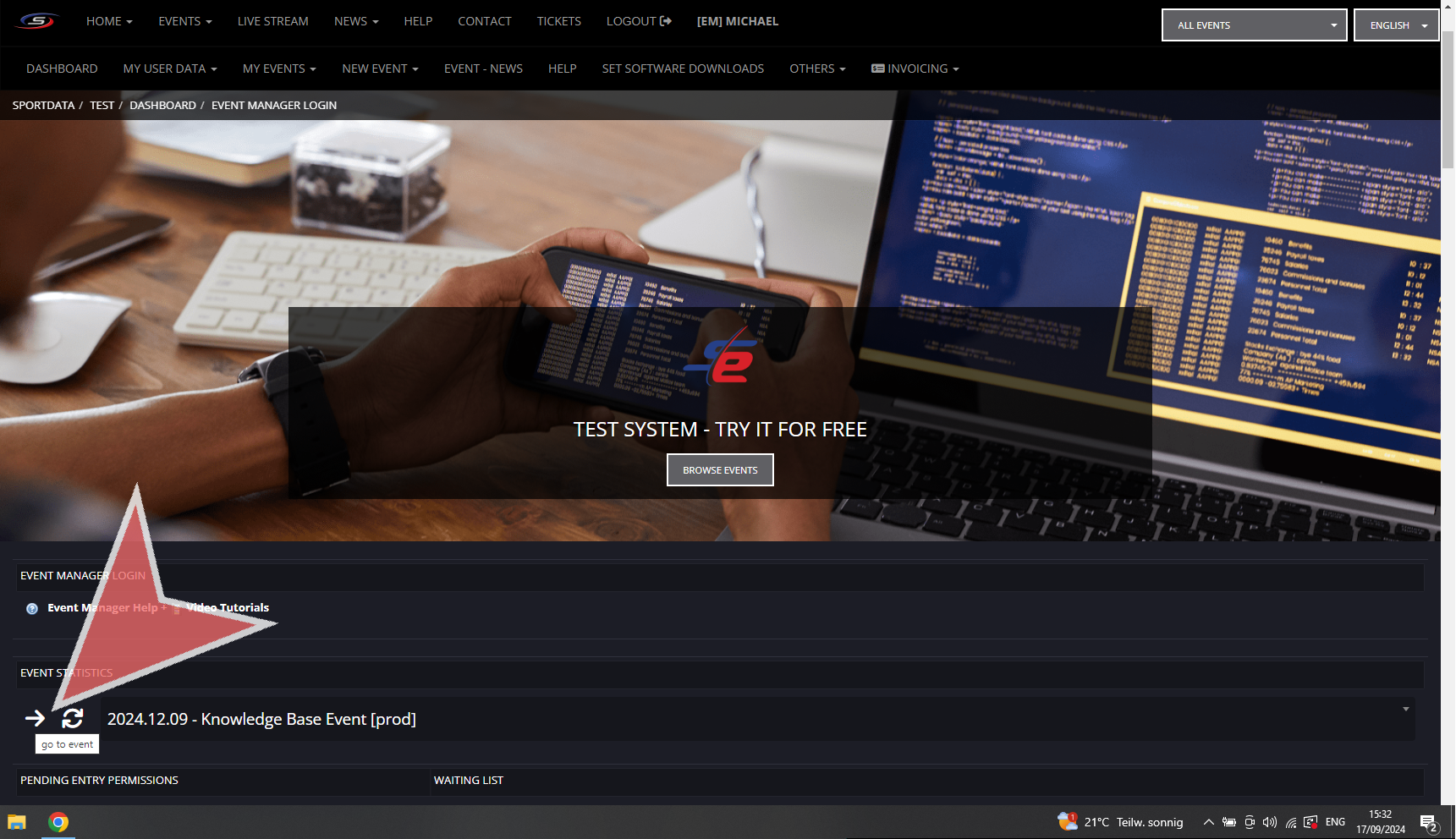
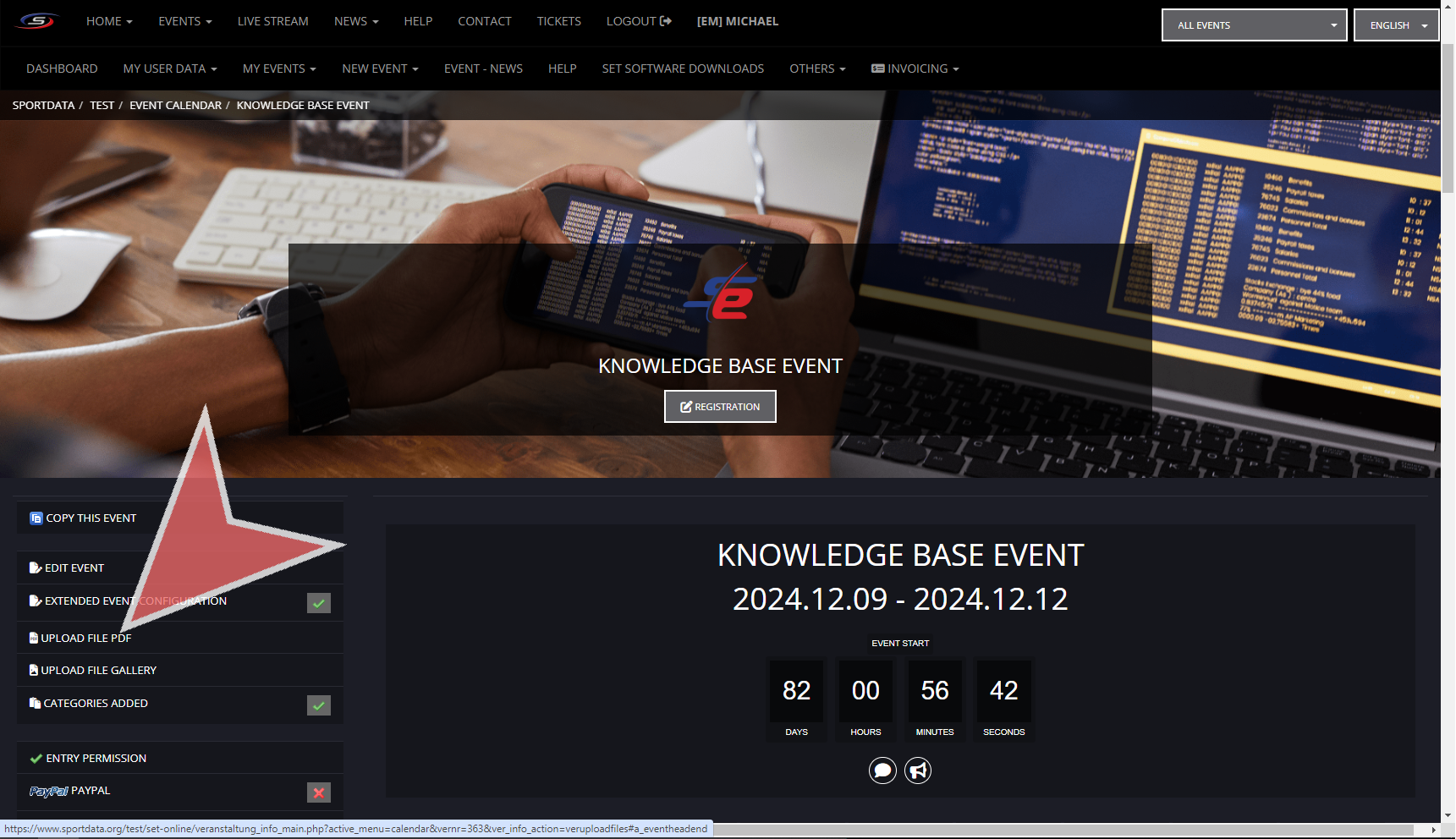
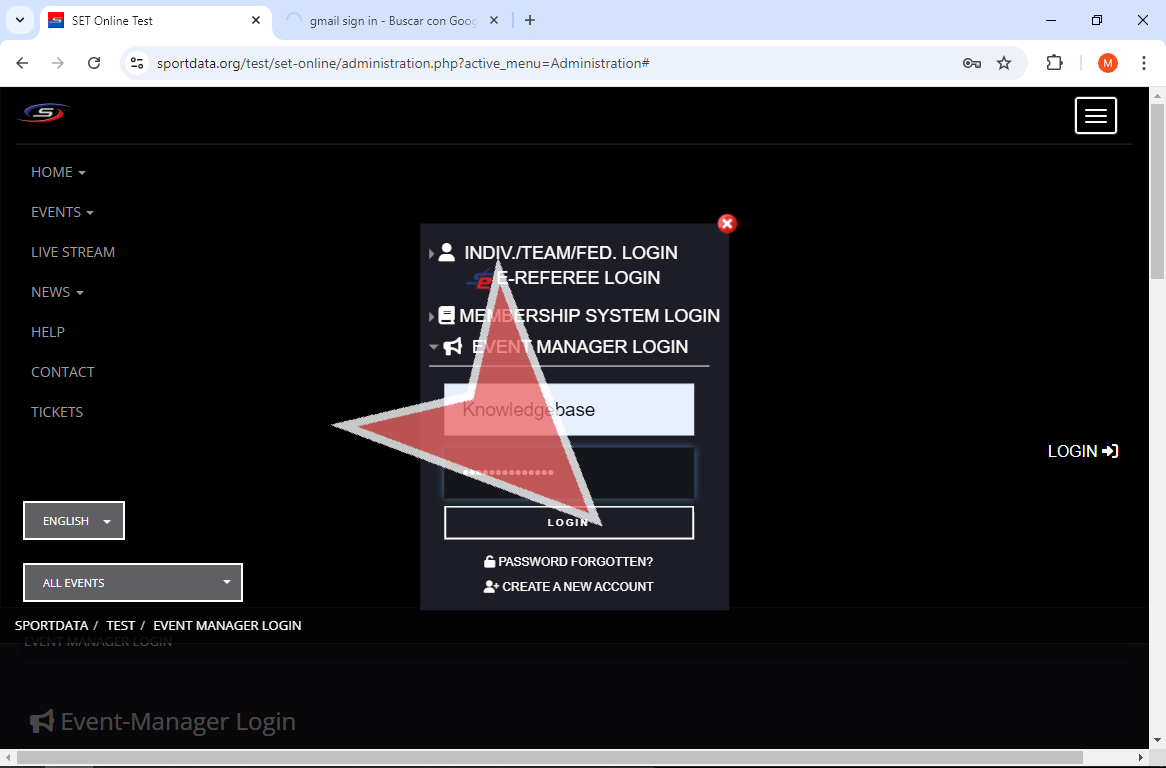
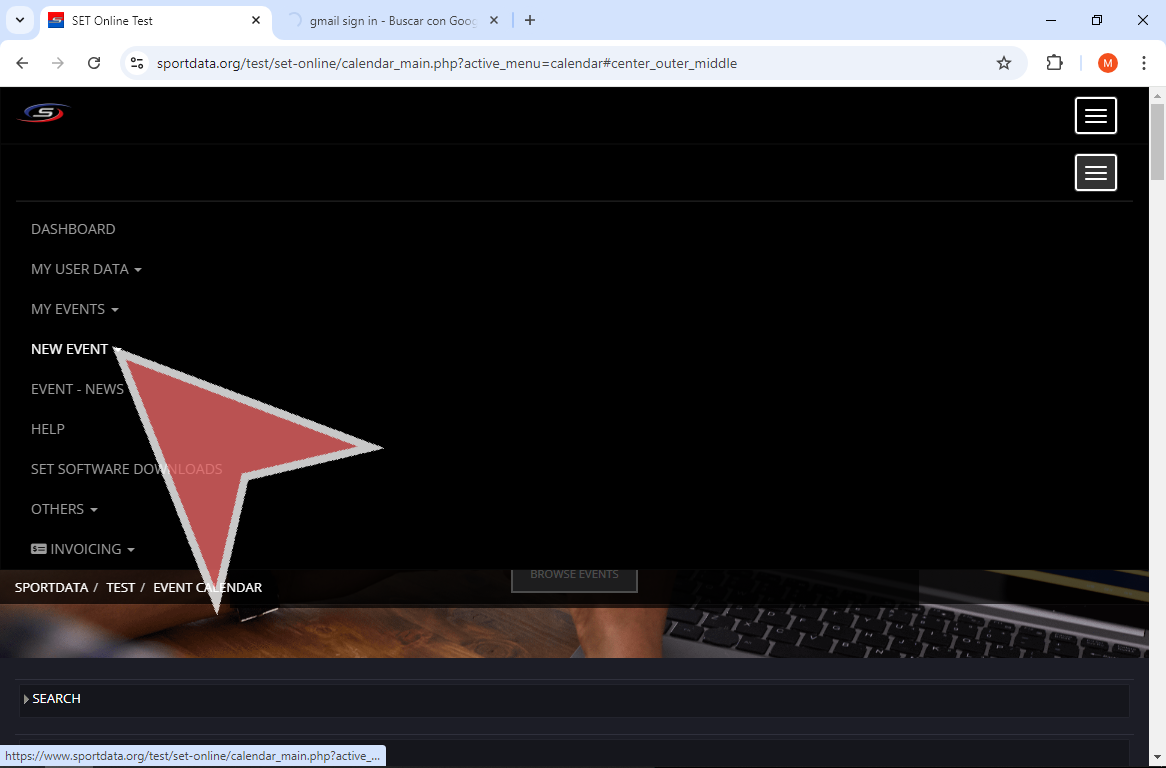
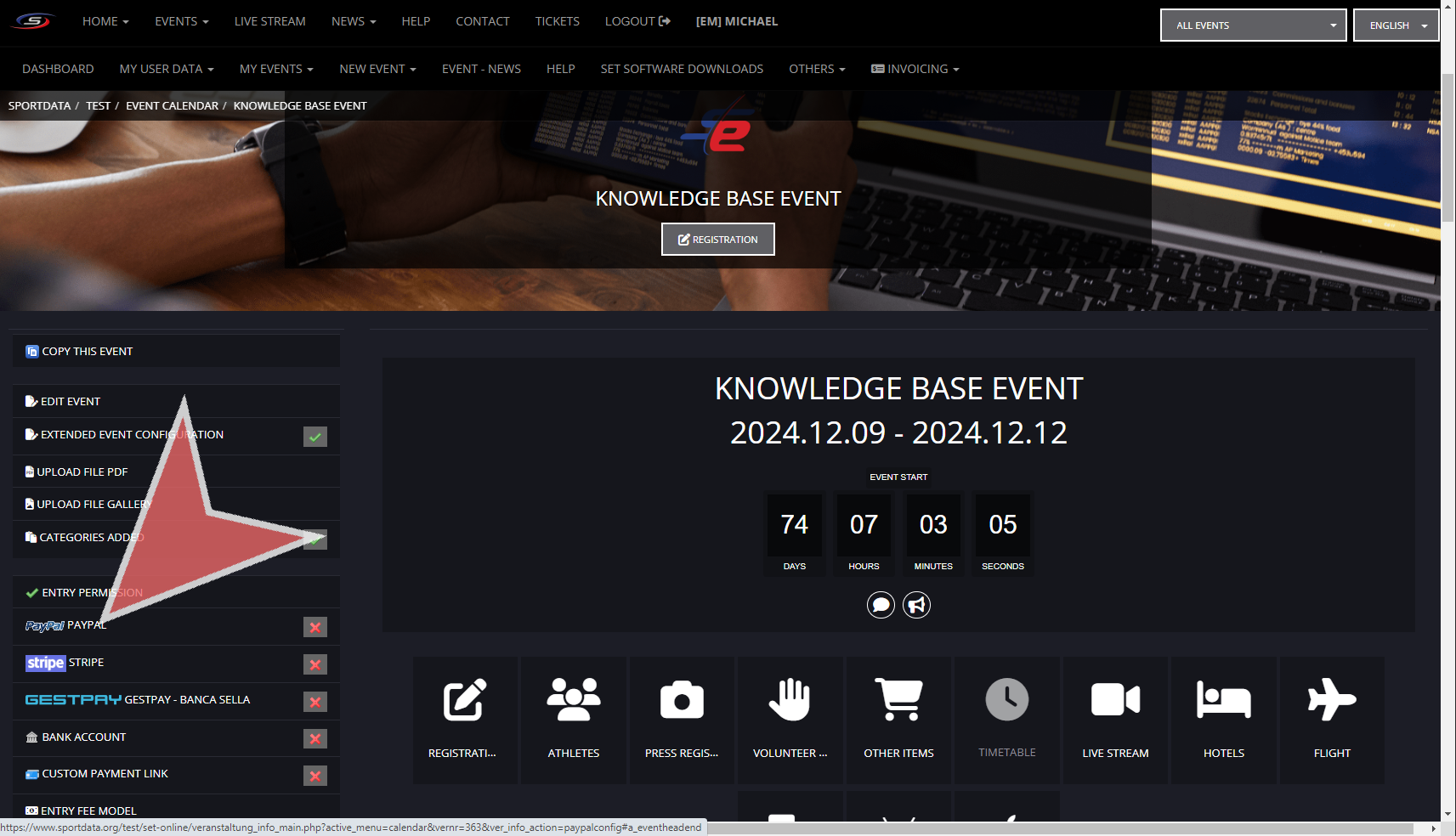
In order to set up your payment options, you will need to sign in to you event manager account, and go to the specific event you would like to include your payment options. You will see the different options on the left hand panel with the option to use Paypal, Stripe, Gestpay, Bank Account, or a Custom Payment Link. Once you have enabled the settings, you will notice that the red x turns to a green check mark.
Paypal
Tick the boxes to enable Paypal for the event, donations, or allow the user to enter the amount of fees to pay. Ensure to add the email address for your PayPal account. If you have extra fees you can either put it either in absolute (euro) or relative terms (%)
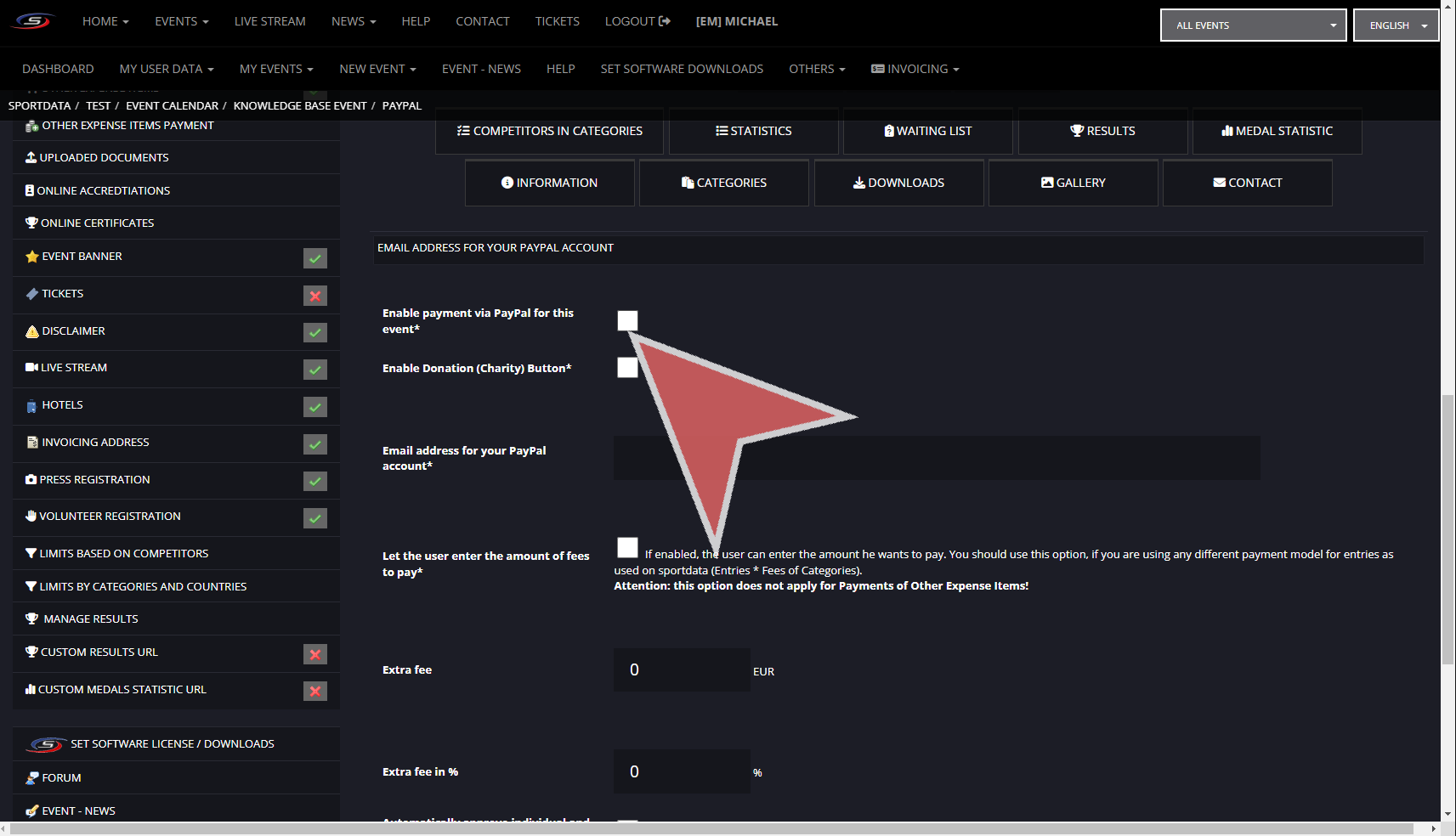
If no additional checks are required to approve an entry, then tick the box to automatically approve the waiting list entries on payment. To save all settings click save. Notifications of complete payment will be recorded and can be reviewed in entry fee payments, however refunds are not tracked.

Stripe
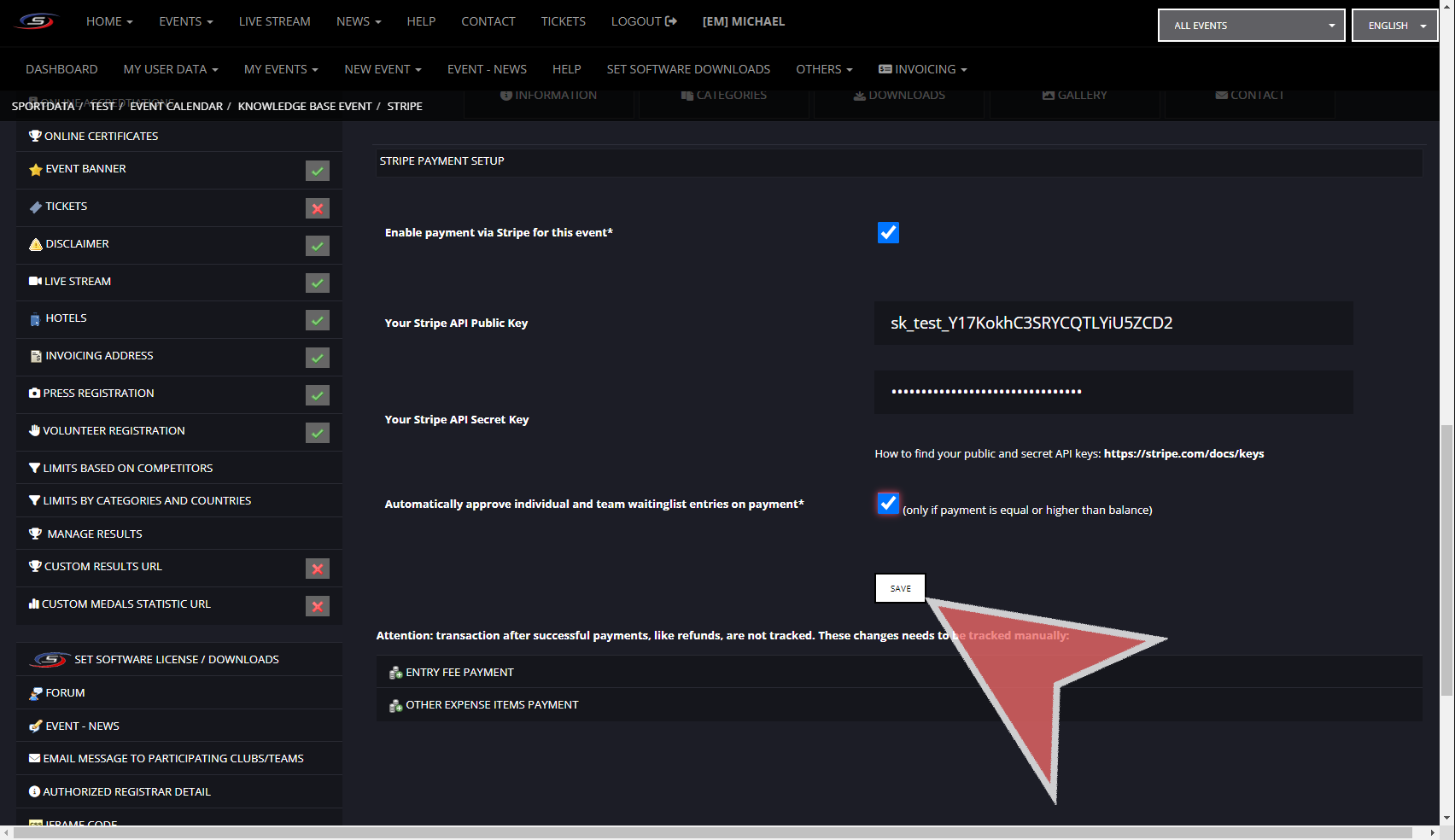
With Stripe, you will have multiple Stripe API keys, both the Public and Secret key that you will need to add in order to link your account. Ensure to tick enable payment via Stripe. Notifications of complete payment will be received by Sportdata and will be tracked and can be reviewed in entry fee payments, however refunds are not tracked.
Bank Account
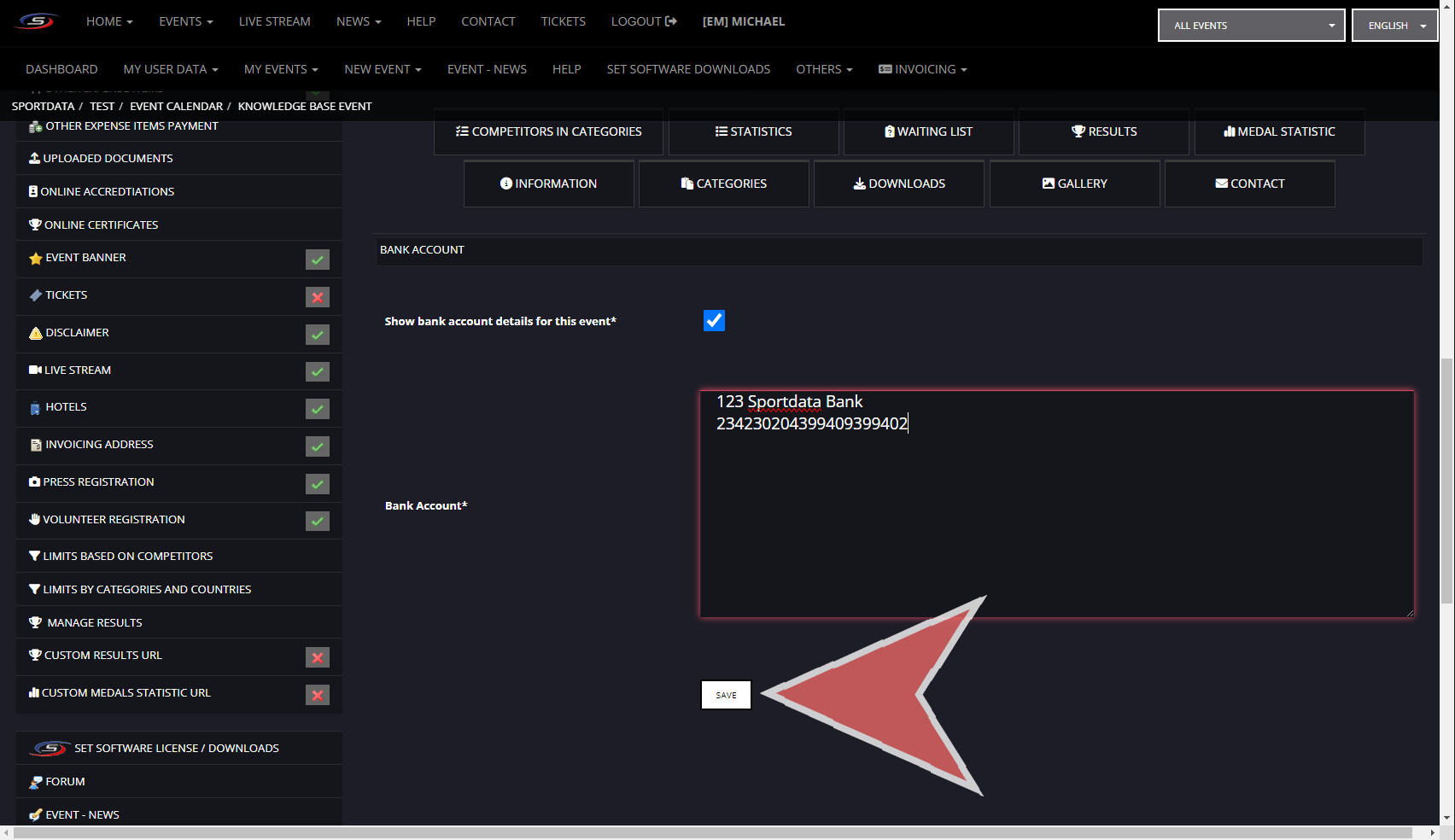
For bank accounts transfers, you will need to provide your bank account information, and show bank account details for this event. Note, that the following Sportdata does not get any notifications from your bank and will not be able to track payments.
Custom Payment System
If you have another payment system, you can include the link in the field below and save. Note, that the following Sportdata does not get any notifications from your bank and will not be able to track payments.