Introductory description: This is how you make and upload a
Add Subheadings as necessary
Select “FlowShare” to open the application and start using its features.
Introductory description: This is how you make and upload a
Select “FlowShare” to open the application and start using its features.

Make sure the Draw Mode of the Categories are set to “Point table” and the Draw Mode Option is set to “Points->IWUF TAOLU”.

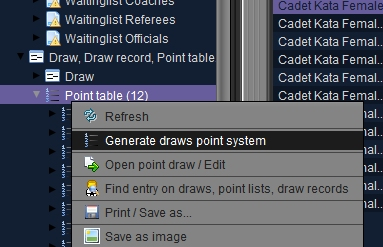
Right click on the Point table node in the Main Tree Menu and select “Generate draws point system”. Select the categories you want to generate the draws for from the list.
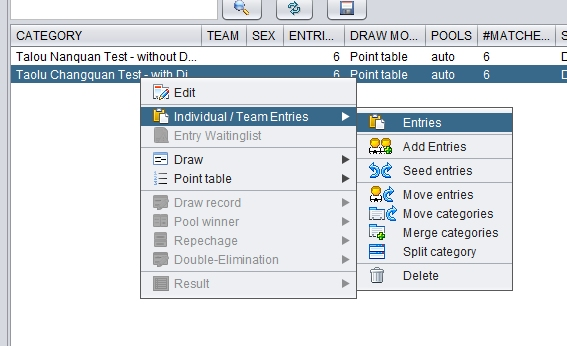
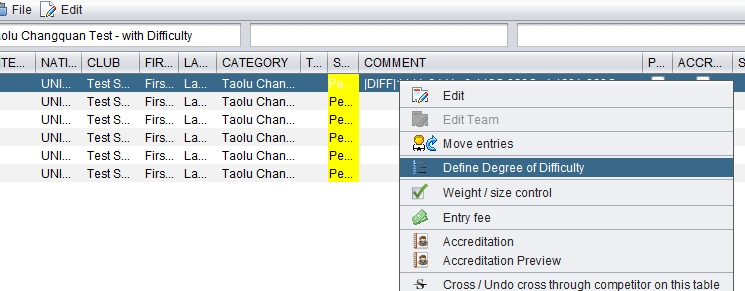
Open the list of Entries and right click on the Athlete you want to set the Difficulty and Connections information. Select the Diff. and Connection codes and save them.
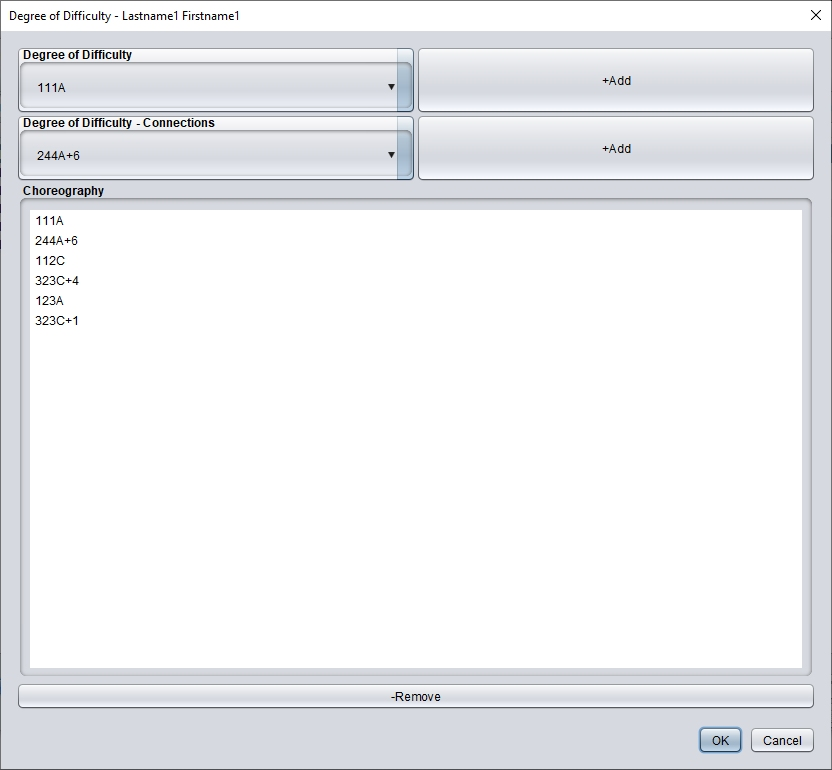
Open one generated and saved Pool/Group

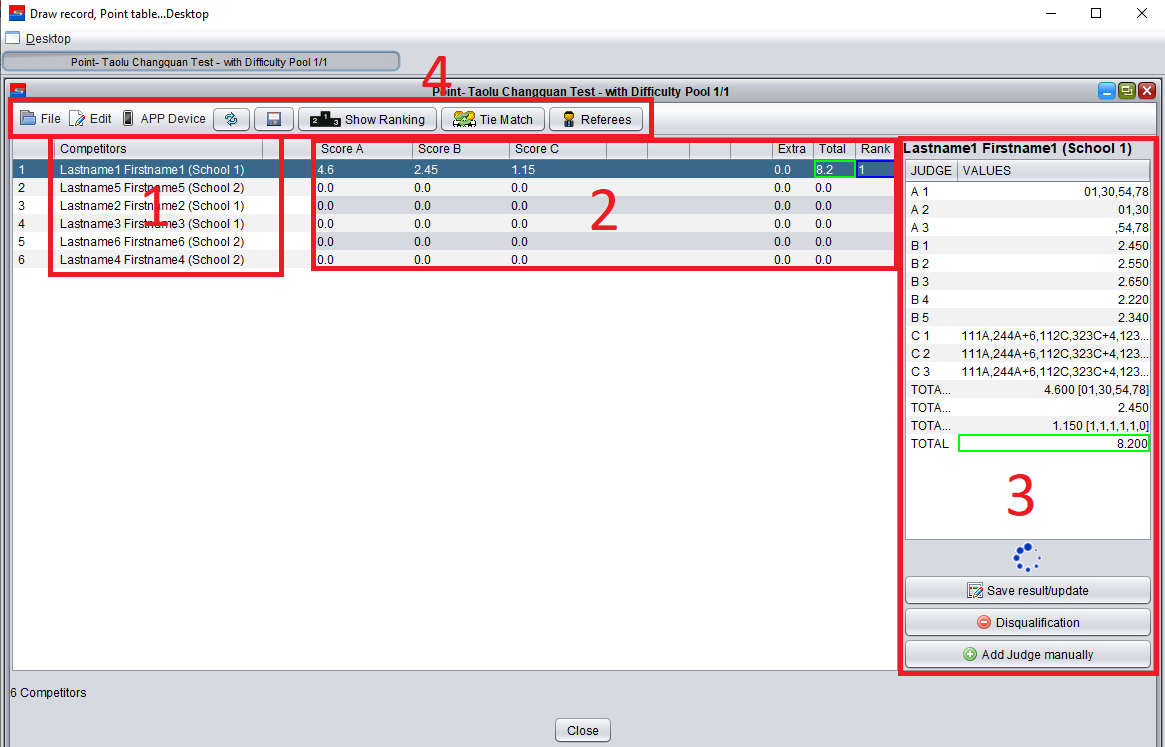
Manual and Electronic Score Calculation Panel

Scoreboard

Show results






Huawei MediaPad T3 Wifi Tablet-PC
In order to sync match and category information with the DAEDO-tkStrike and KPNP-TKDScoring PSS system, make sure to provide the following additional Category Configuration:
Related Video tutorials (see SET-Other category settings)

The next step is to generate the Draws and Draw Records in the system in order to continue with the Match planning and scheduling. See article here
Next step is to generate the Matches and Match numbering and connect them with the Schedule. see article here.
All WT OVR functions can be found in the SET WT OVR Panel.
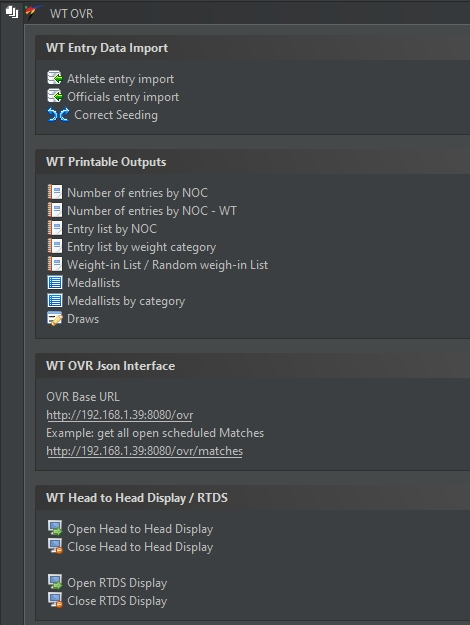
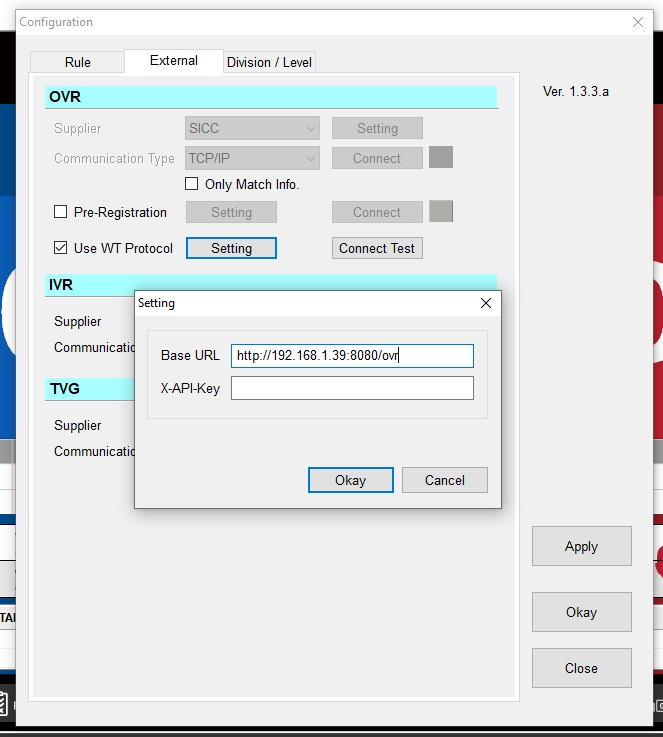
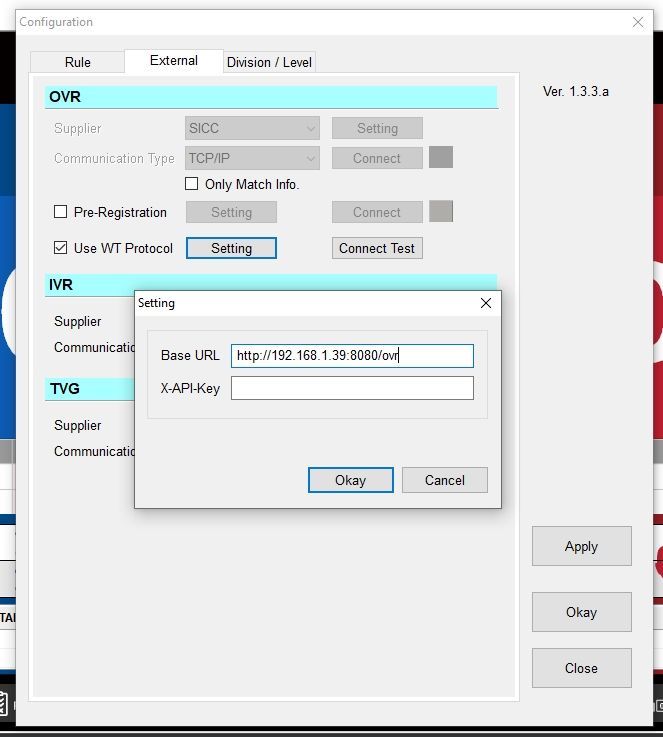
The SET clients starts an internal Webserver. The WT OVR Json Interface address can be found in the WT OVR Panel. E.g. in this example the OVR address is:
http://192.168.1.39:8080/ovr
In order to validate if the OVR Interface is enabled, just click on the link in the panel. The browser should open and show a “WT OVR Request GET 200” message.
In order to activate the Best of 3 mode, just make sure to check the checkbox “Best of 3 mode”.

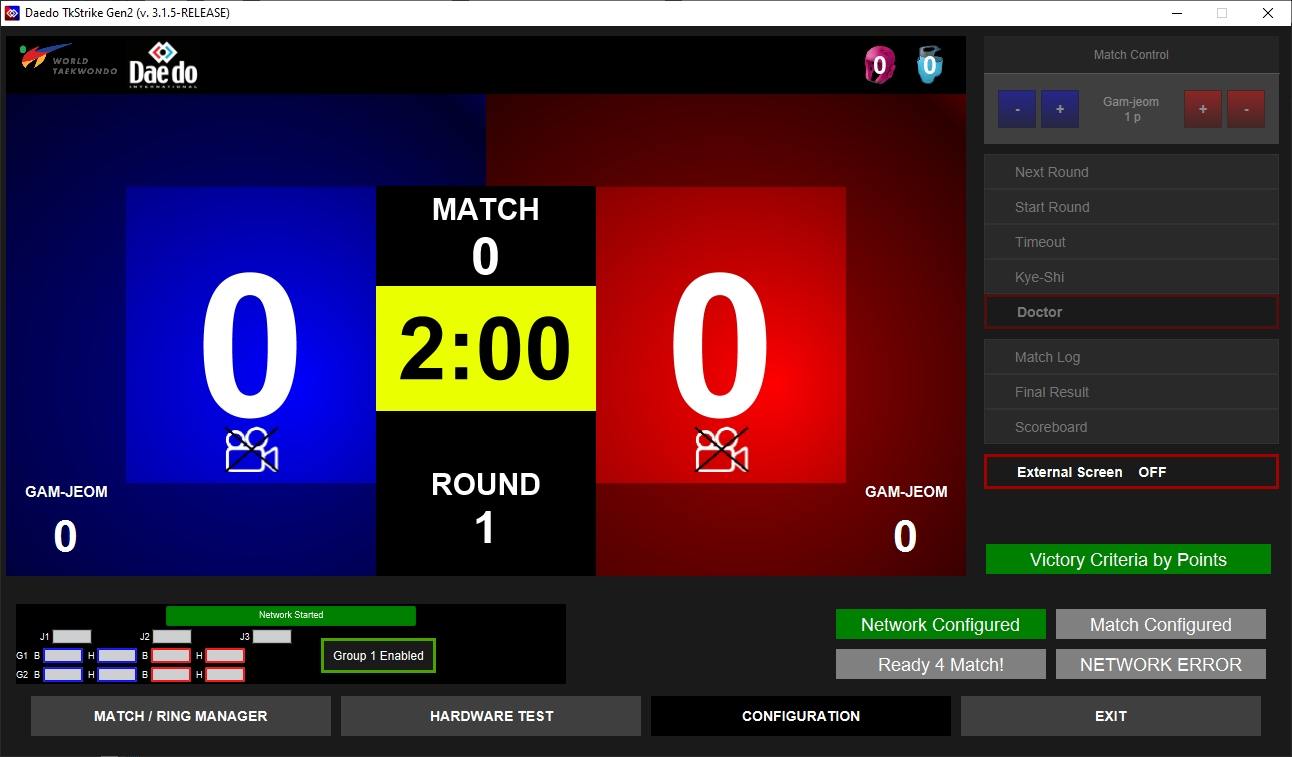
Once the Matches are numbered and scheduled, you can import all Matches from SET into tkStrike using the WT OVR Interface.
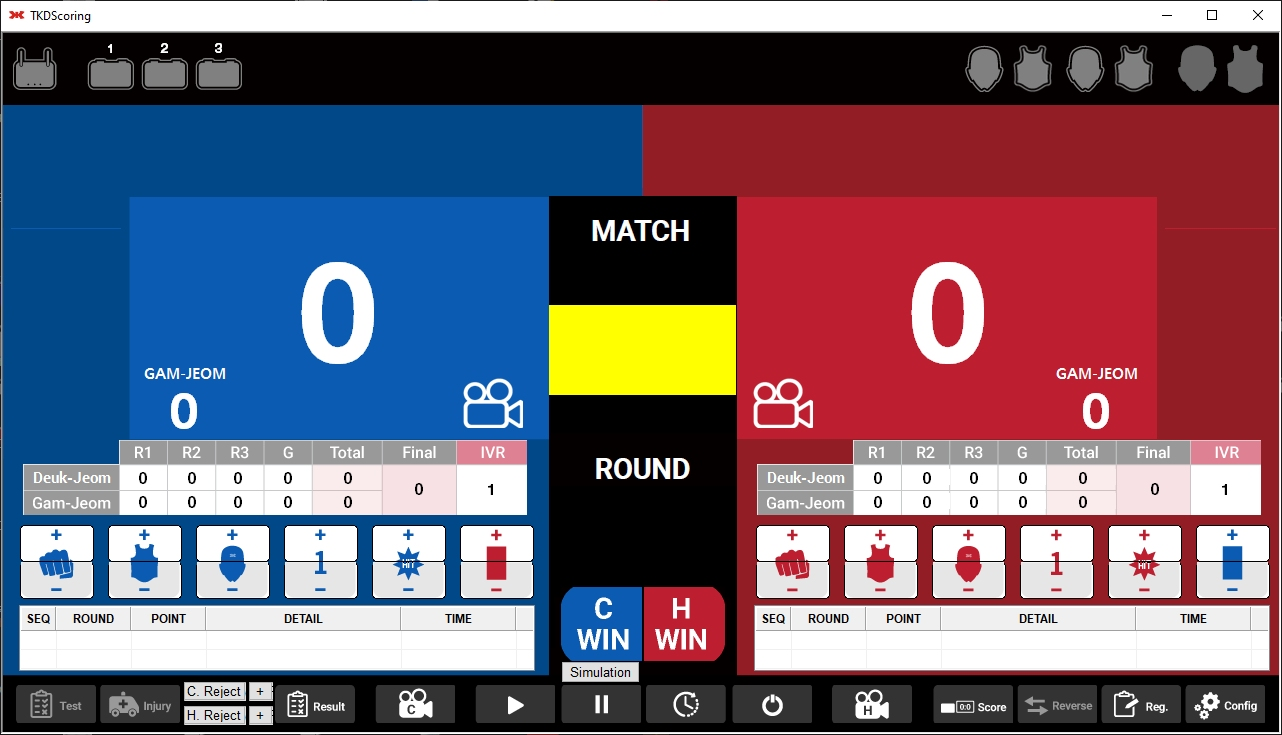
Once the Matches are numbered and scheduled, you can import all Matches from SET into KPNP TKDScoring using the WT OVR Interface.
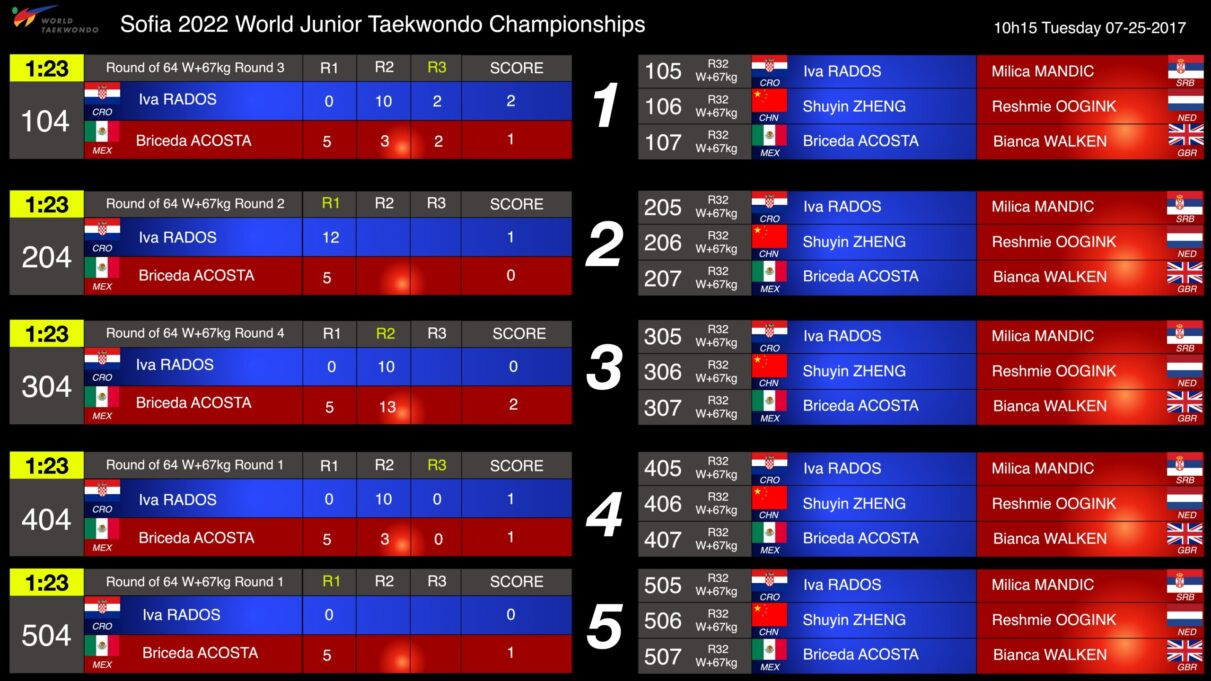
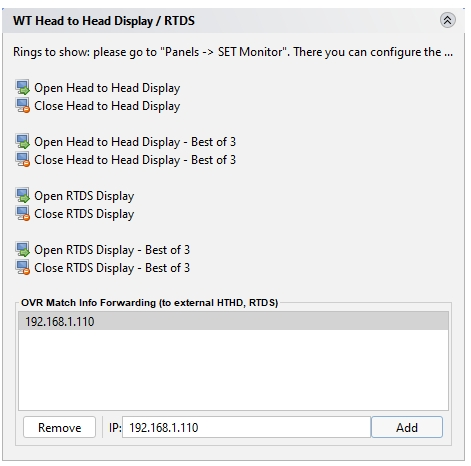
The RTDS and the Head to Head display can be found and opened also from Panels -> WT OVR.
Please note that the displays only show live information if the OVR Information from the Daedo and KPNP PSS is sent directly to the same computer.
In case you use a different OVR server or multiple of them, you can forward the OVR message to any computers running the RTDS and Head to Head displays.
To do so, please add the IP Address of the RTDS and Head to Head computers into the list “OVR Match Info Forwarding” on the OVR Server (getting the messages from Daedo and KPNP).
Make sure the Draw Mode of the WT Poomsae Categories are set to “Point table” and the Draw Mode Option is set to “Points->WT POOMSAE RECOGNIZED or Points->WT POOMSAE FREESTYLE”.

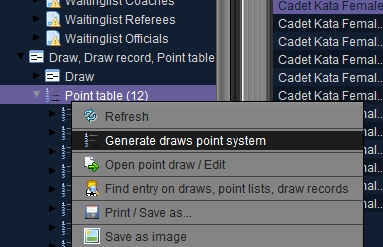
Right click on the Point table node in the Main Tree Menu and select “Generate draws point system”. Select the categories you want to generate the draws for from the list.
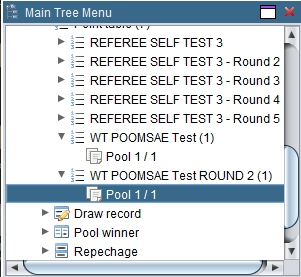
Open one generated and saved Pool/Group
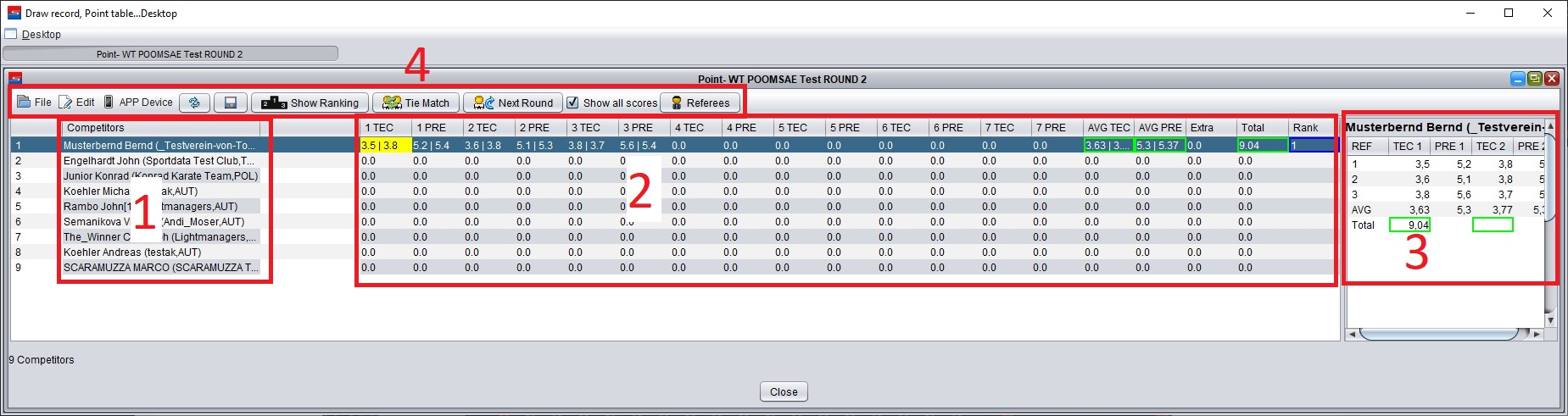

Manual and Electronic Score Calculation Panel
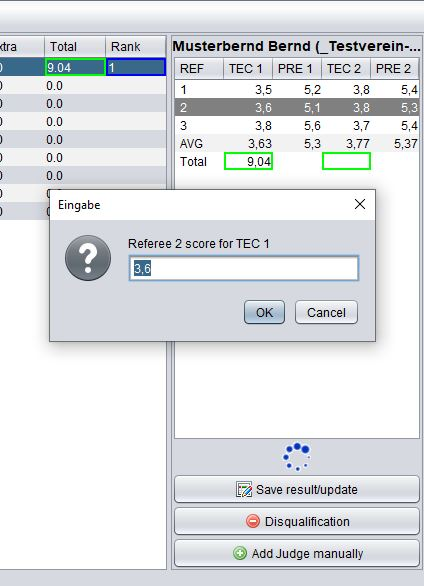
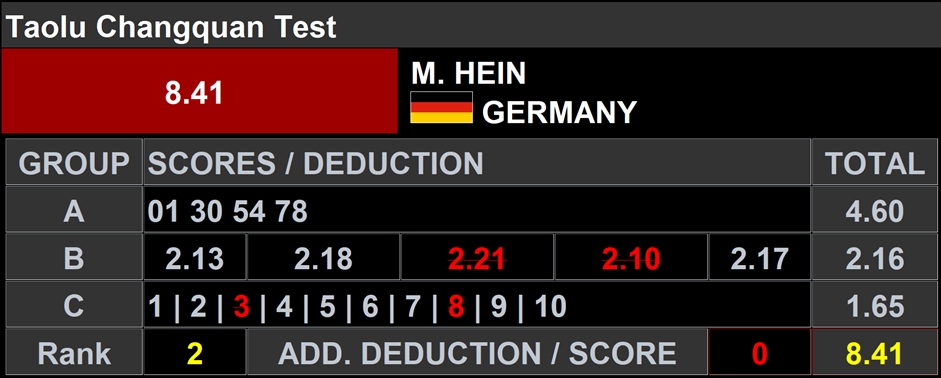
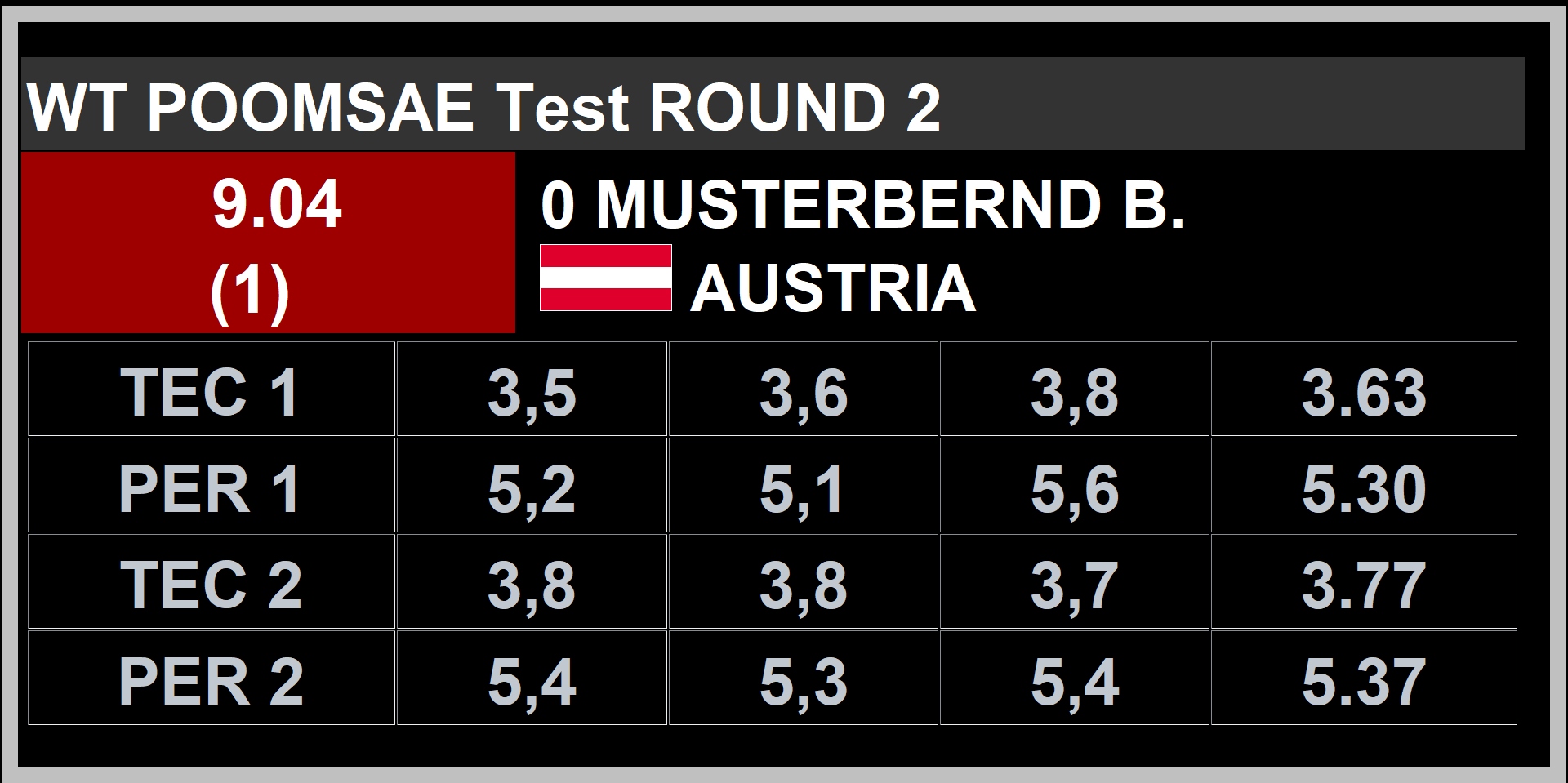
Total Scores in Red
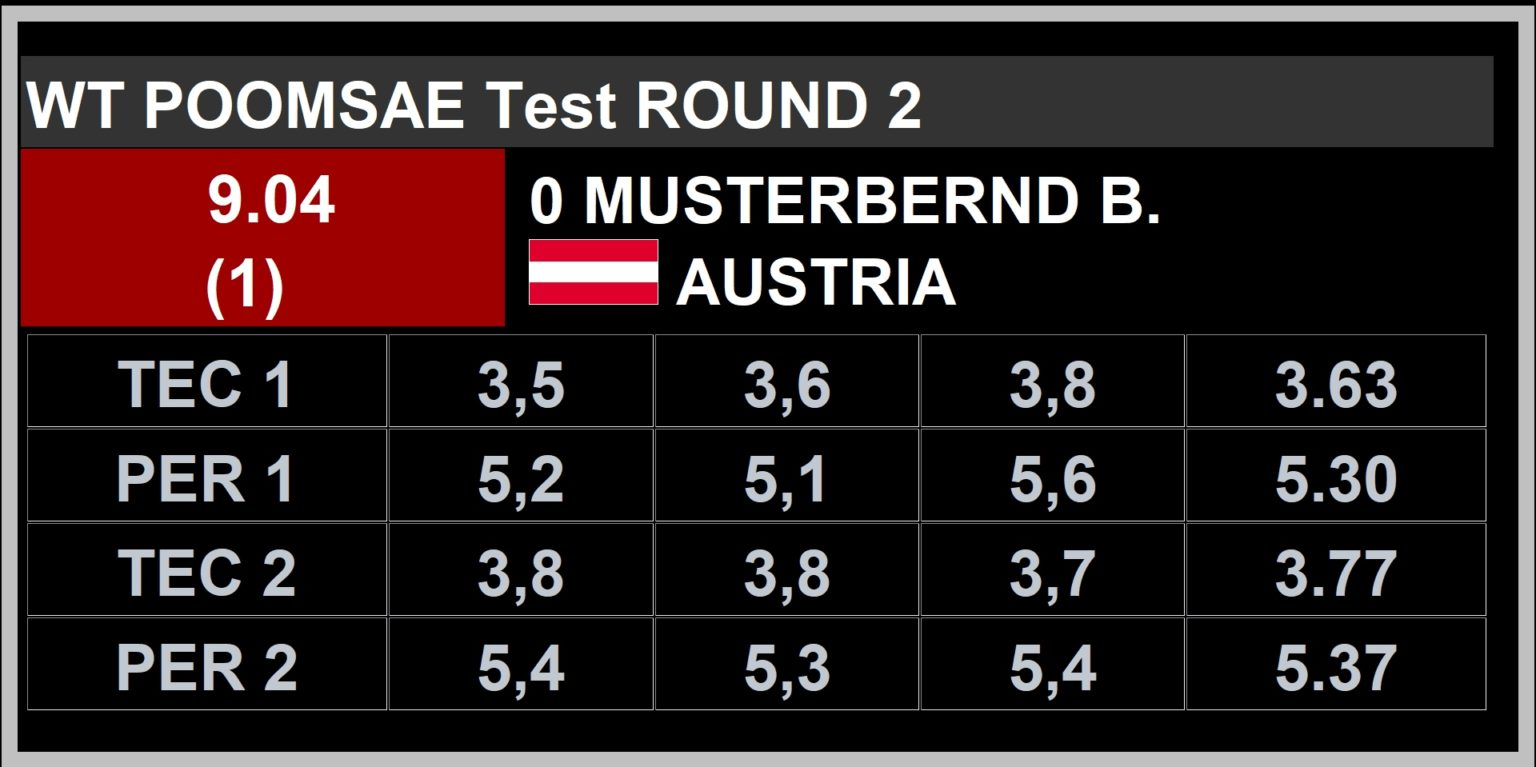
Show Ranking
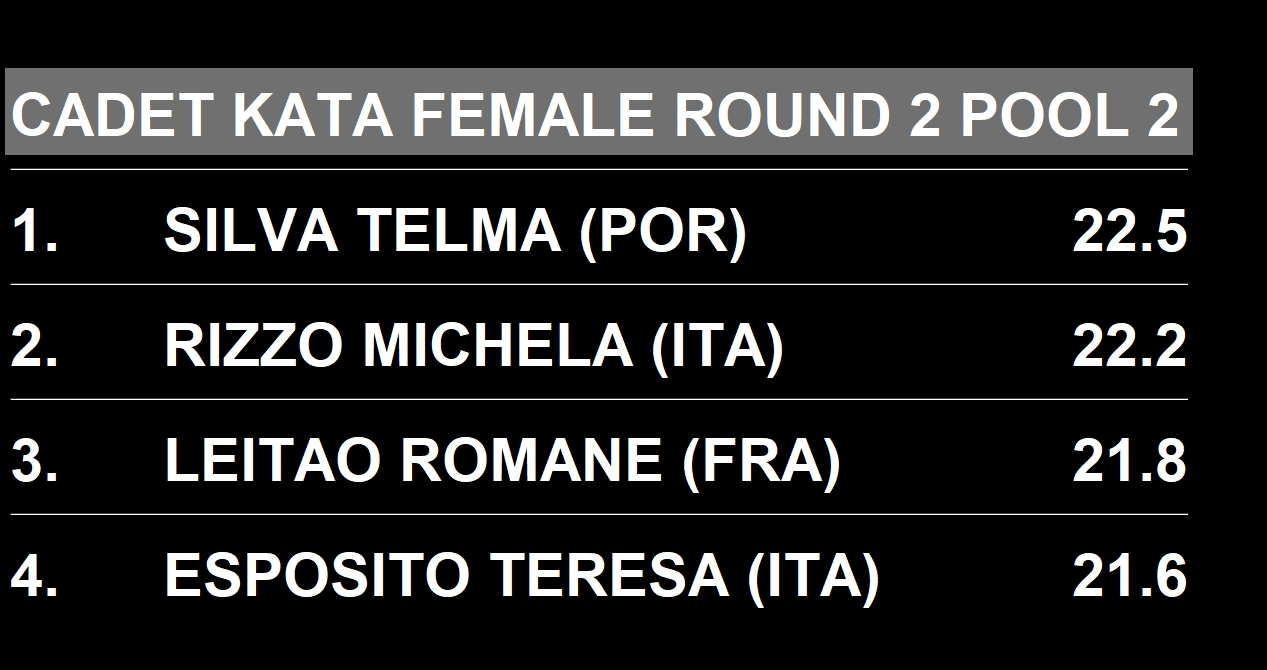
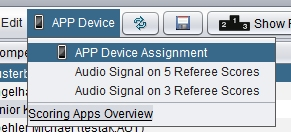
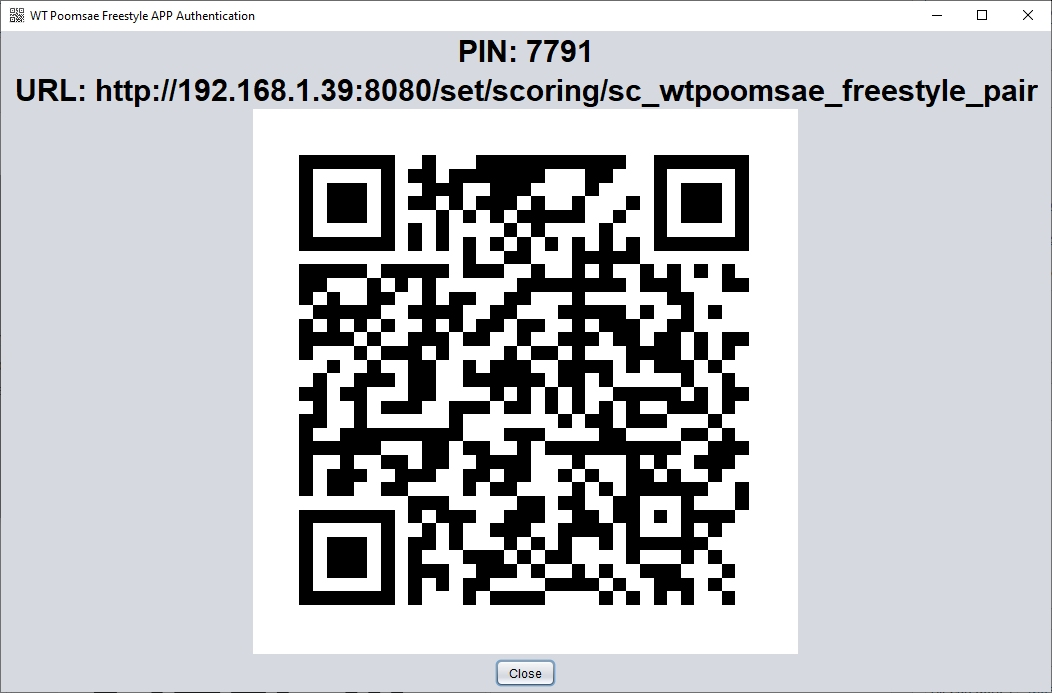
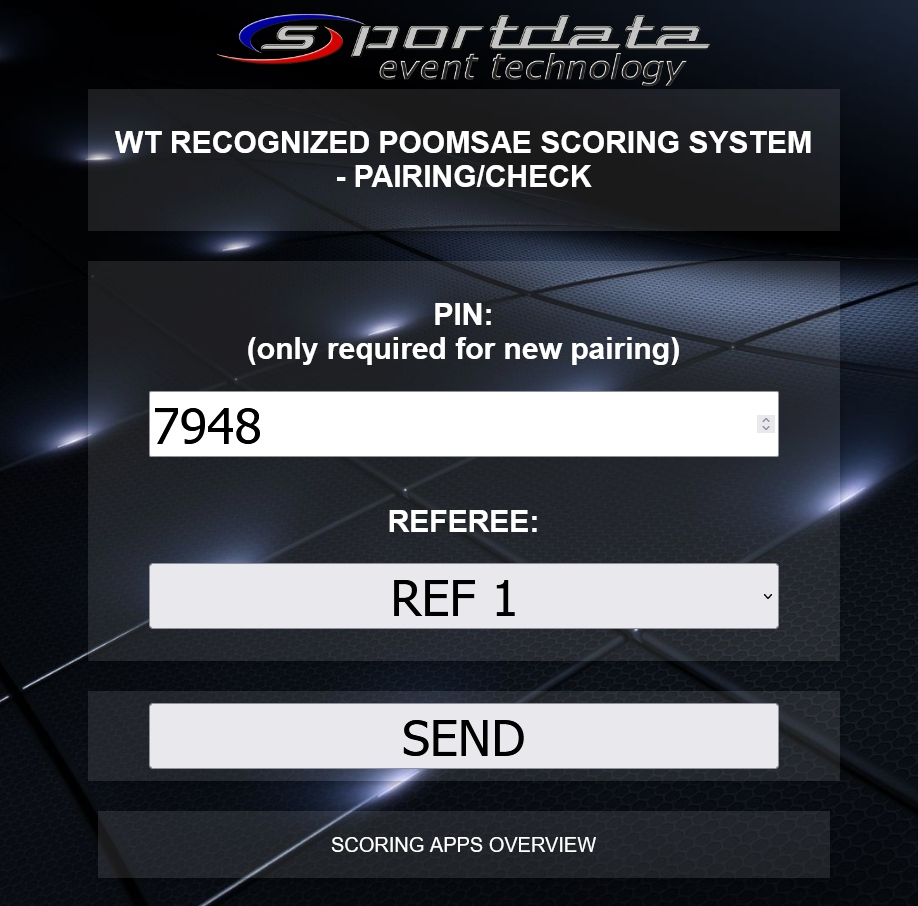

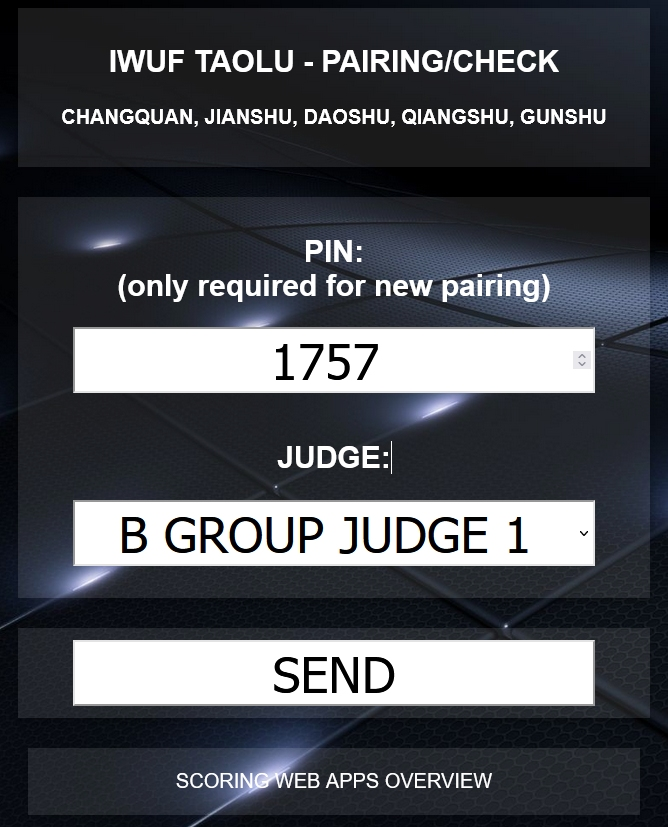
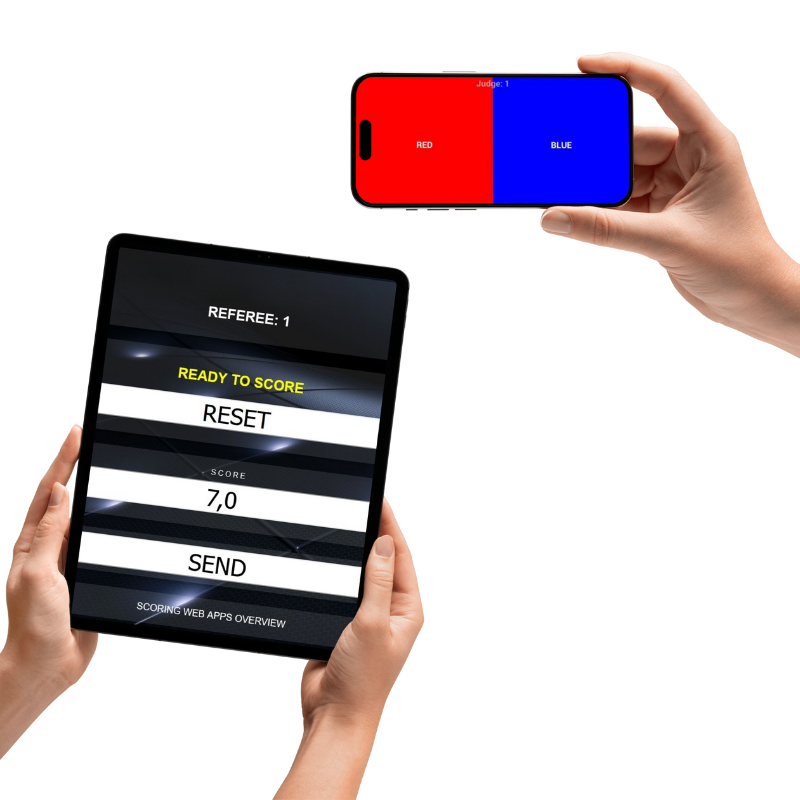
Press the RELOAD Button in the Browser of the scoring device. You are now ready to score!
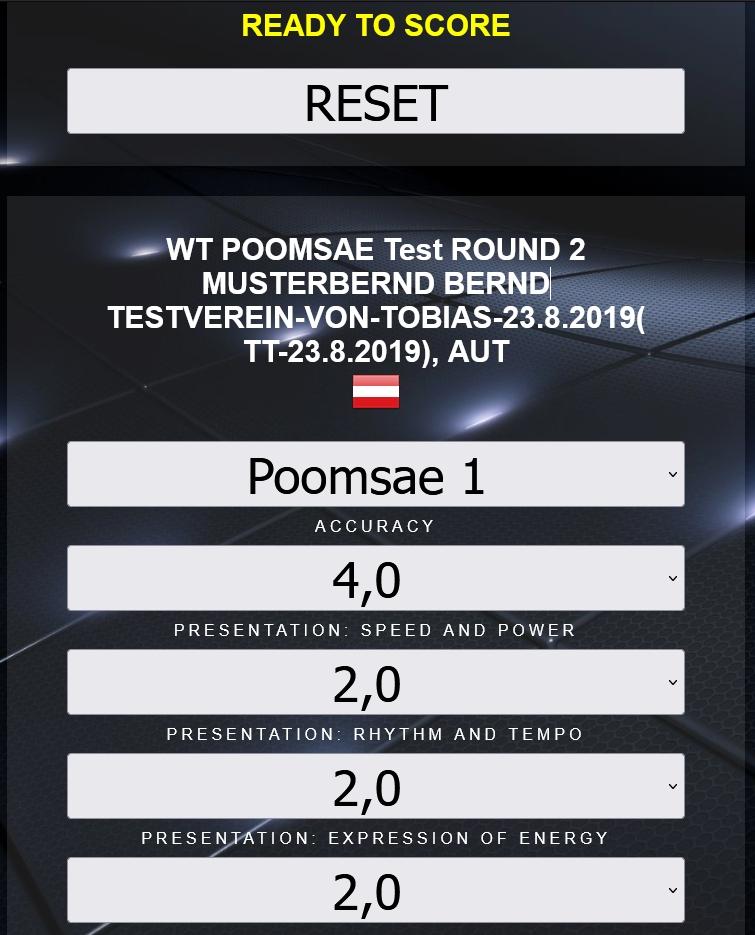
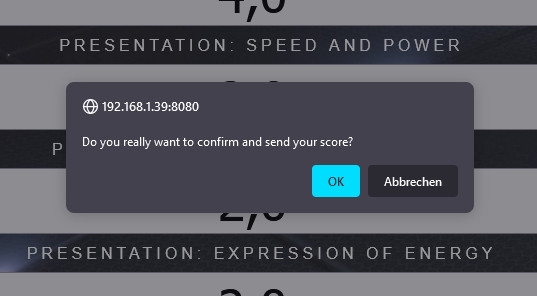
SEND: shows first a confirmation popup -> if confirmed sends all scores to the client computer
RESET: sets all scores and fields back to the default values
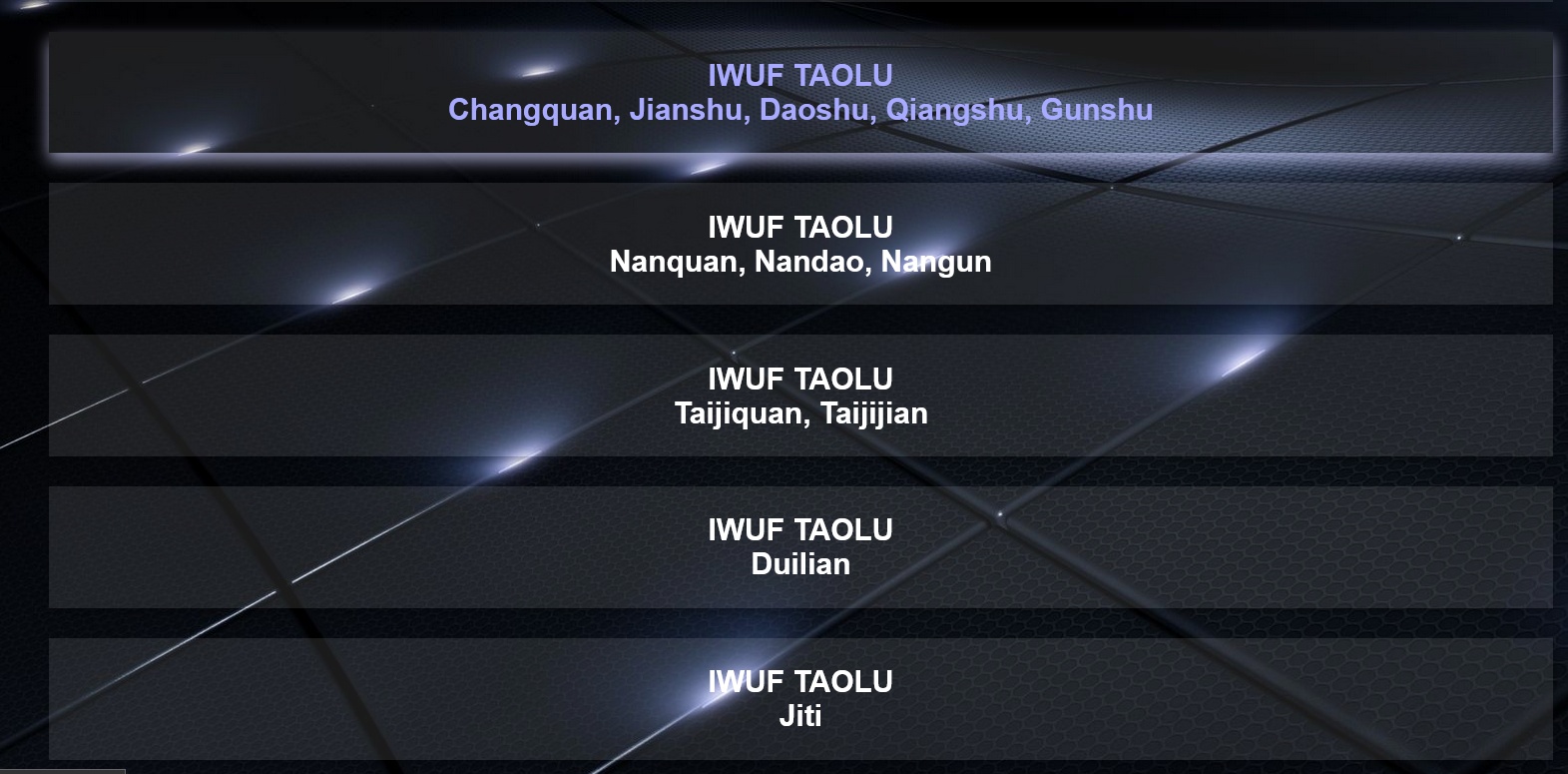
Click on the SCORING APP OVERVIEW link on the bottom of the scoring view
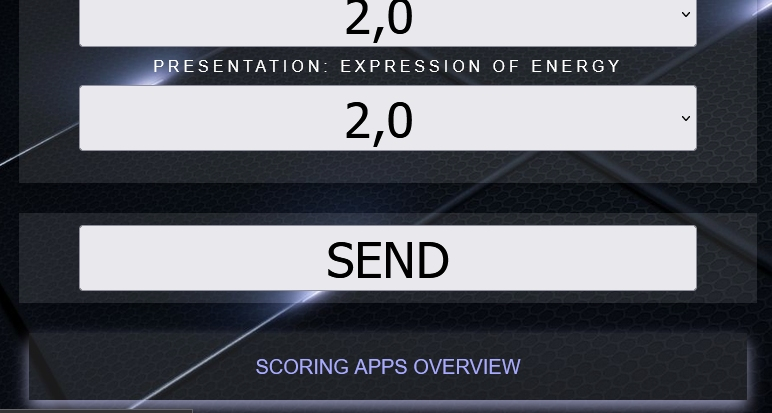
Select the required scoring app from the list of available scoring apps

Huawei MediaPad T3 Wifi Tablet-PC
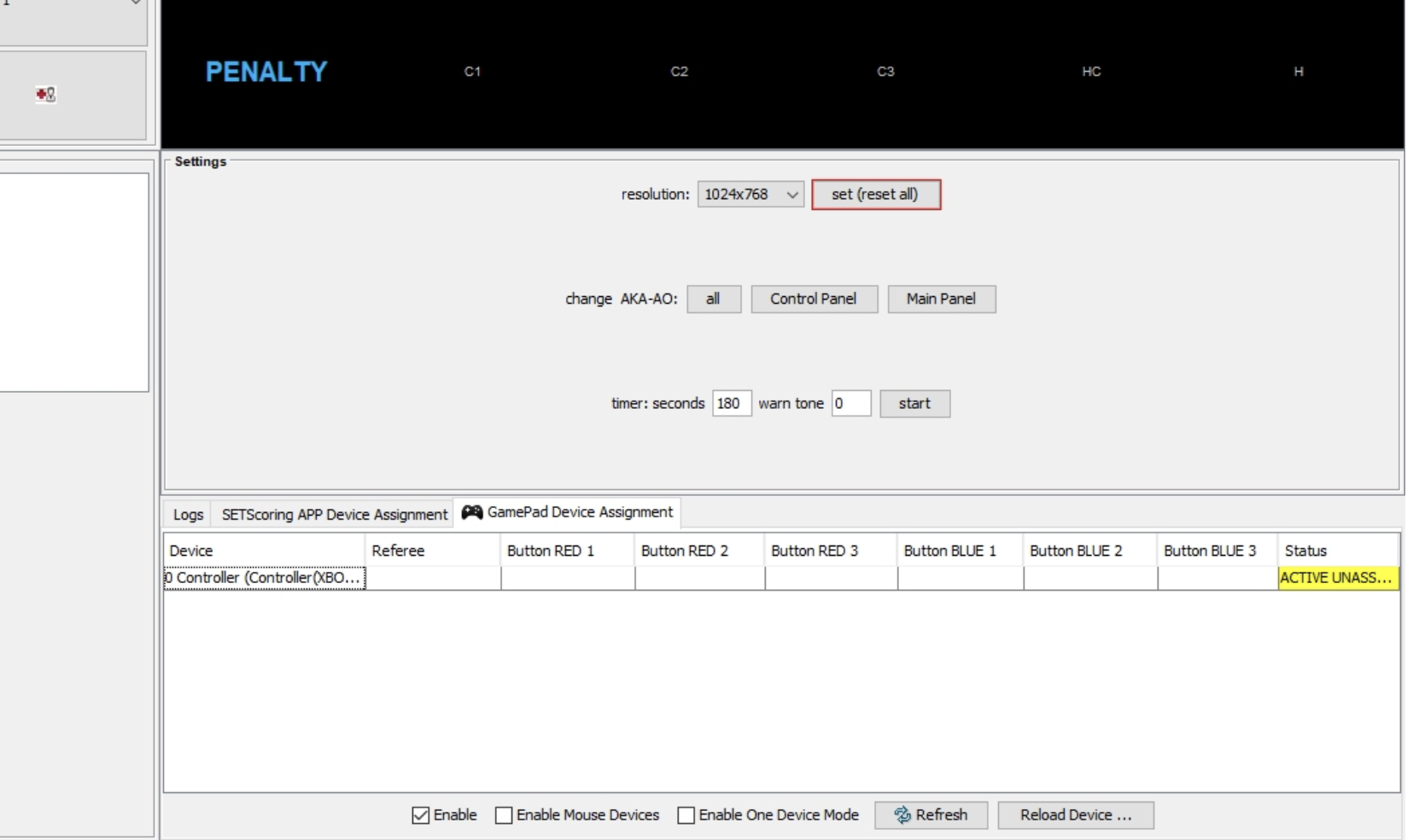
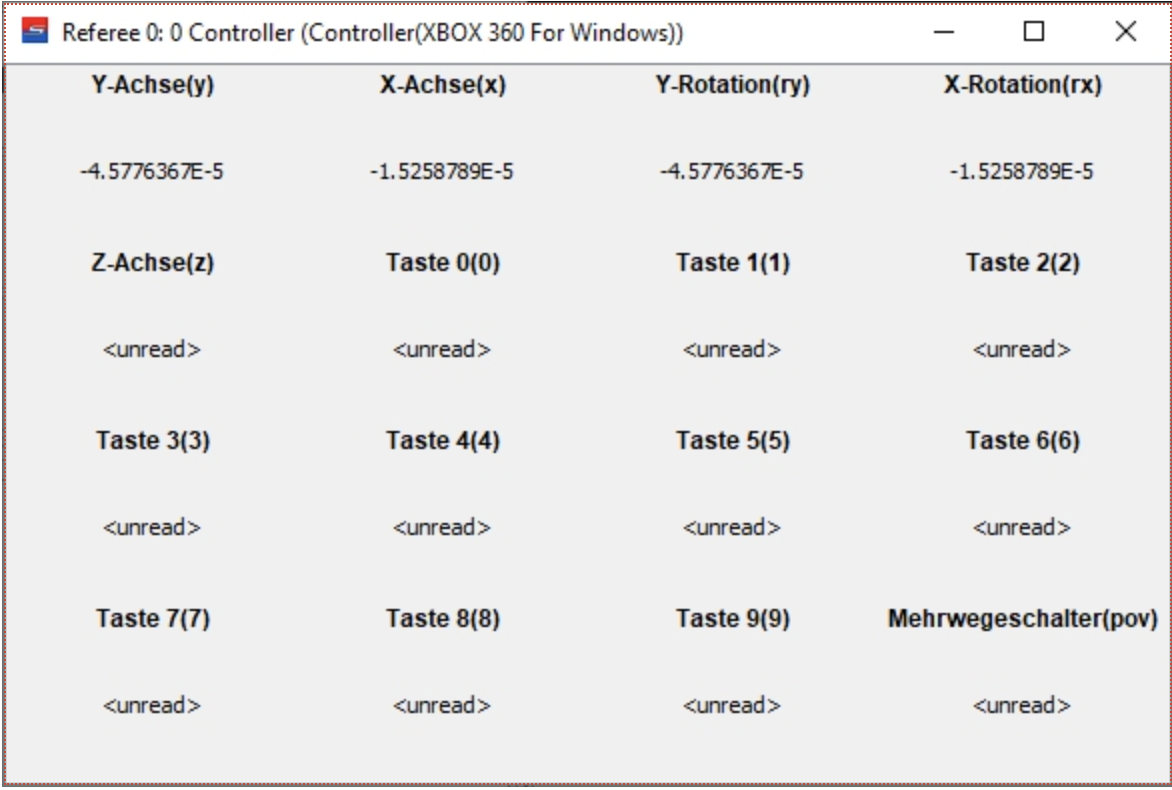


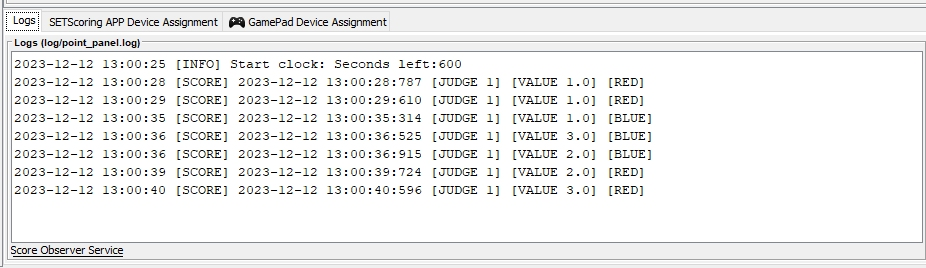
You are now ready to score. Each score sent by the referee is logged in the “Logs” panel. Also detected scores are logged so you can easily track all scores sent and scores detected.
Real-Time, Reliable, and Efficient
SET Scoring Apps provide a fully digital scoring solution for sports competitions. Designed for tablets and laptops, they enable real-time score input, automatic updates, and smooth integration with our SET OVR competition management systems. SET Scoring apps ensures smooth event operations, enhancing both efficiency and fairness in competitions.
Real-Time Scoring: Instant score updates ensure accuracy and transparency.
Wireless & Flexible: Works over Wi-Fi, reducing the need for extensive cabling.
User-Friendly Interface: Simple and intuitive for referees and officials.
Seamless Integration: Syncs with SET OVR for automated brackets and results.
Reduced Errors: Eliminates manual scorekeeping mistakes.
Live Updates & Broadcasting: Publishes results online for spectators and media.
Scoring Systems : WKF Kata – 2023, WT Poomsae, Wushu Taolu
How to use:
Login to your event in SET OVR on your laptop, and go to your browser on the tablet. They should be connected by WI-FI without internet.
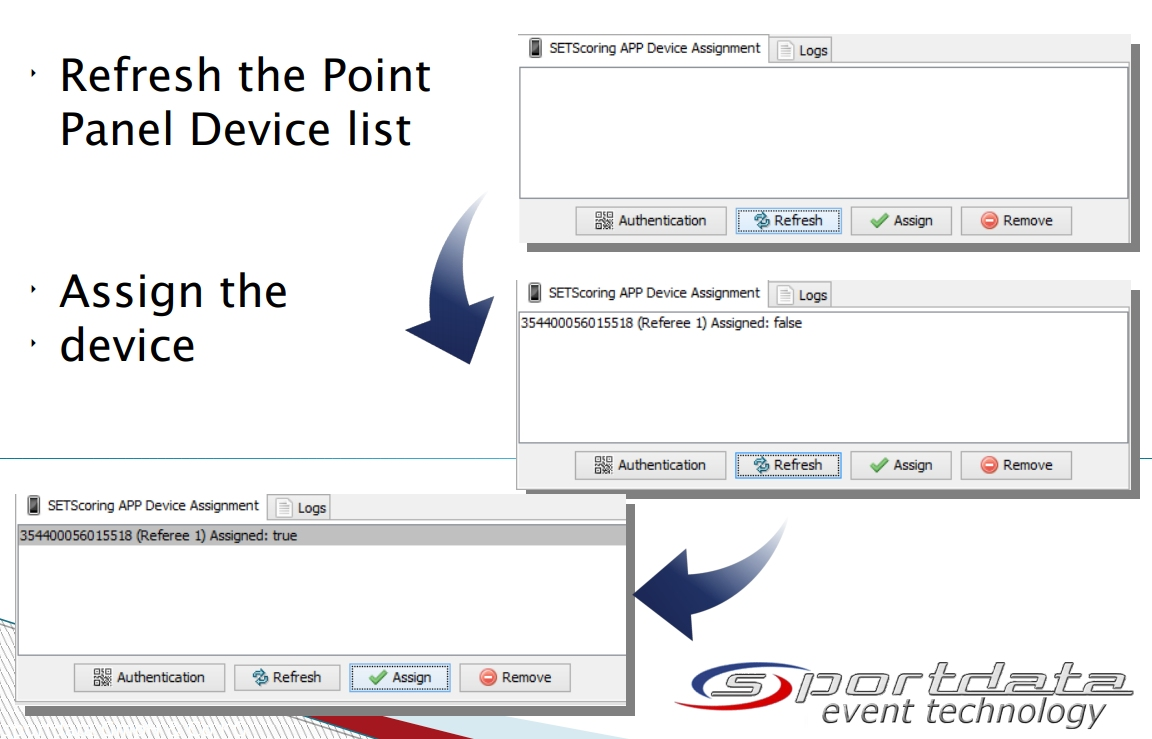
– Open SET OVR on match area laptop and go to point panel and go to set scoring app device assignment
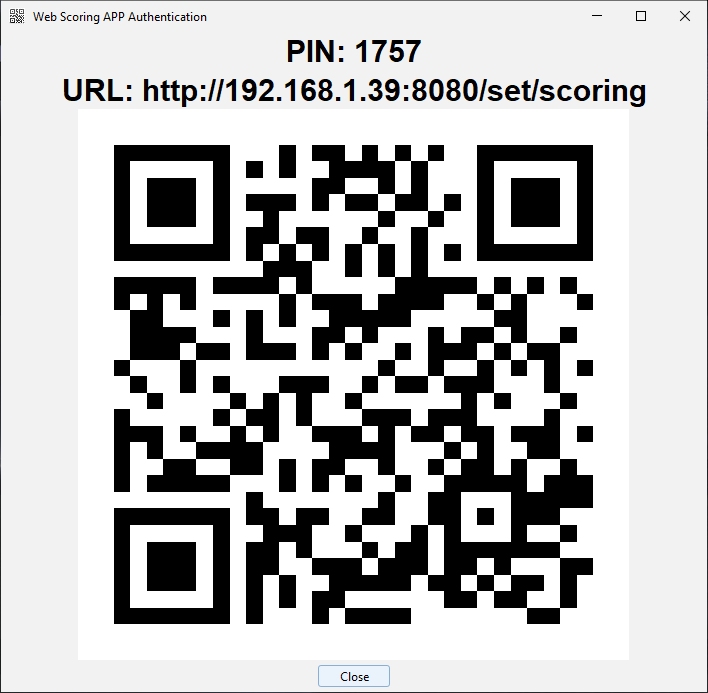
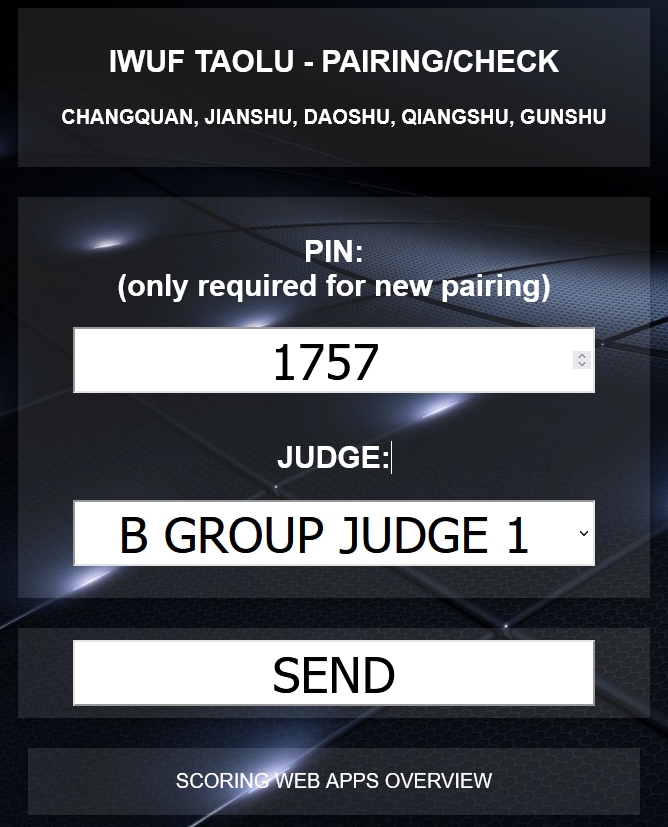
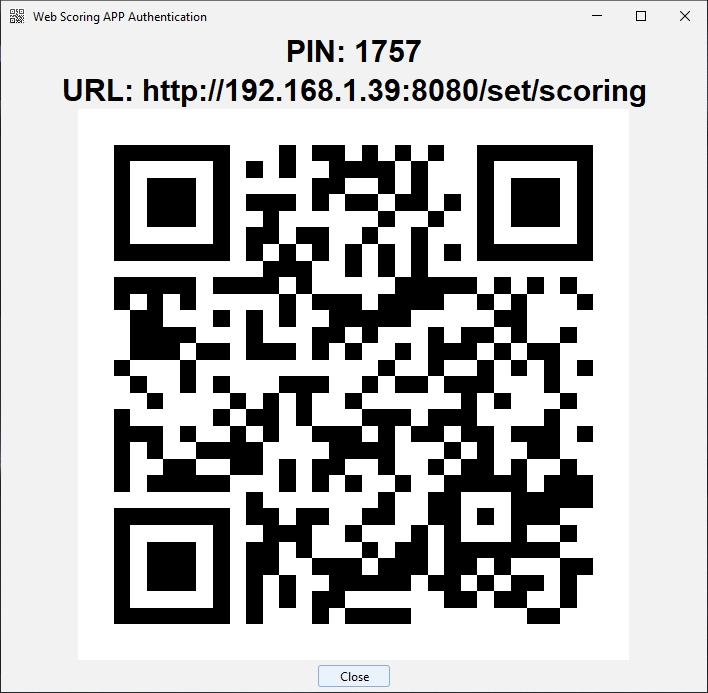
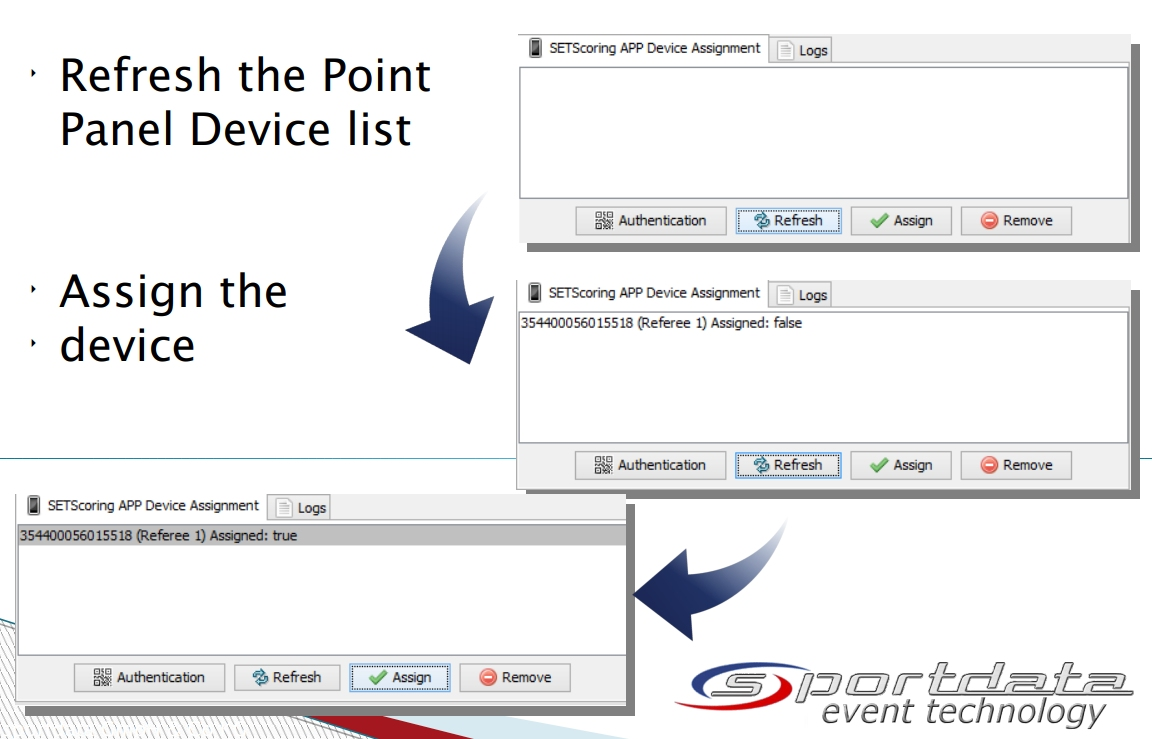
–Authentication Process: A URL will appear in the authentication window on SET OVR, type this into your tablet´s browser. Then, click the mode you wish to use in the web app overview and indicate the judge number, and type the code provided on the laptop screen. note: each time you close and reopen the authentication window the code will change. Confirm authentication on your laptop by refreshing the main panel next to authenticate and the judges will appear. Select the judge and press assign.


Scoring Systems: WKF Kata & Kumite – pre 2023, Kickboxing, Wushu -Sanda, ITF Taekwondo, IBA Boxing, MMA, Muaythai, Savate 10:9 Systems and more
How to use:
-Download app from download section onto tablet
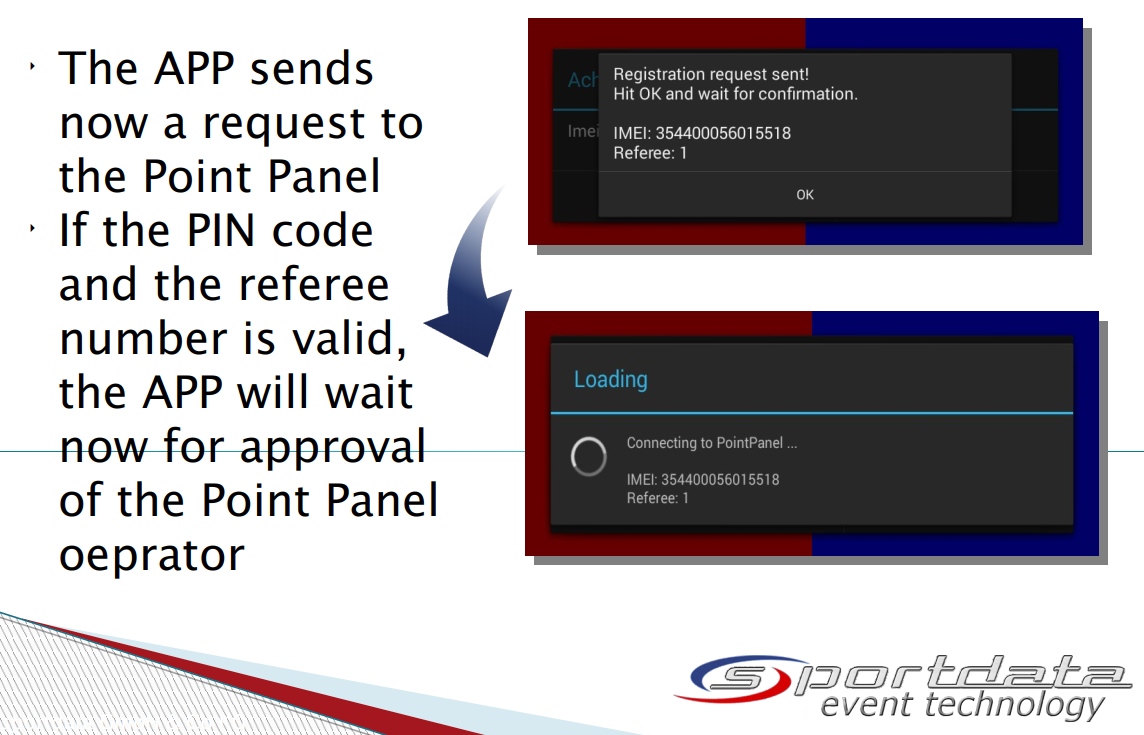
-Repeat the steps for Web Scoring app but instead of typing in the URL scan the QR code by opening the SET Scoring App and pressing new authentication.


Notes:
Point Panel automatically saves the device list, so you don’t need to assign the devices after restart of the software
If a referee # is already used by another device, it has first to be deleted from the assignment list
To ensure smooth operation of the web-based SET Scoring App, the following conditions must be met:
Software Installation
-The latest version of the SET Scoring App must be installed from downloads.
Network Recommendations
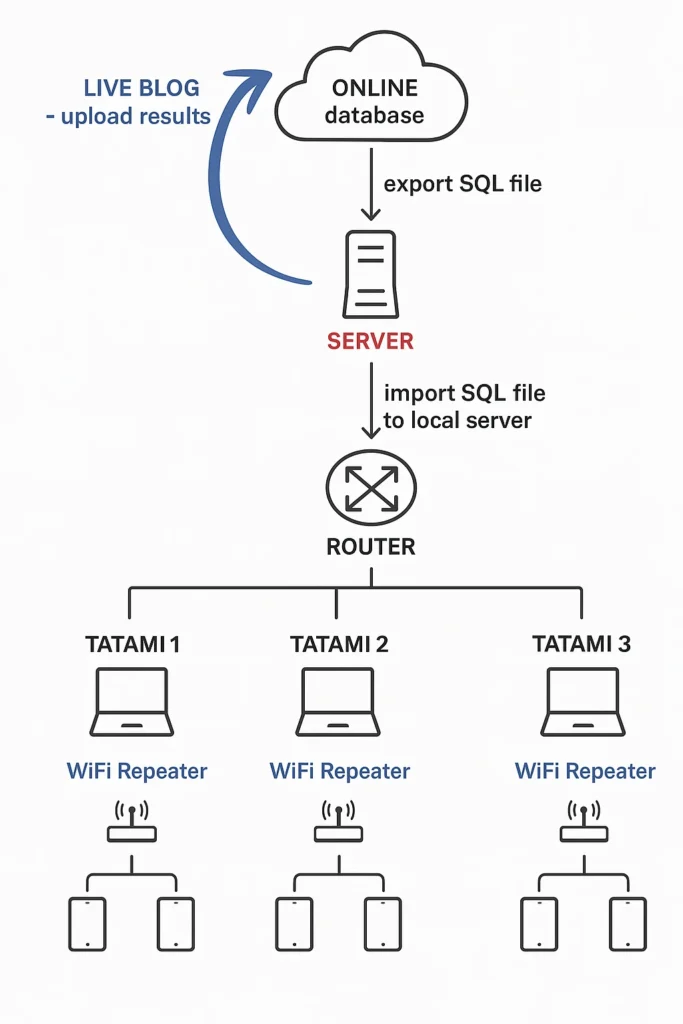
-A wired local network is recommended for match area computers.
-Wireless Repeaters should be used on all match areas to improve the wireless connection for scoring devices.
-If your match area router does not support Wireless Repeater mode, you can:
-Disable DHCP on the router.
-Assign the router a static IP address.
-To completely avoid wireless connections, use OTG Pluggable LAN Adapters to connect tablets via LAN cable to the router or switch (see the recommended hardware section below).
Firewall & Security Settings
-All SET Tatami laptops must have their firewall and any antivirus software disabled.
Port Configuration
-The system communicates via Port 8080. Ensure no other software or firewall is blocking this port.
Performance
Processor (CPU/GPU) → A fast processor ensures smooth operation and quick response times. Look for at least an octa-core processor.
RAM → A minimum of 2GB RAM is recommended
Storage → 64GB+ internal storage is preferable.
Battery Life → 12+ hours of battery life is ideal to last through long events without frequent charging
Connectivity & Networking
Wi-Fi → Support for dual-band Wi-Fi (2.4GHz & 5GHz) for stable network performance.
LAN Support → USB-C or OTG support for Pluggable LAN adapters to ensure wired connections when Wi-Fi is not reliable.
Ports & Expandability
USB-C with OTG support → Enables LAN adapters, external storage, and other peripherals.
Operating System & Software Compatibility
Android Version → Should be Android 11 or newer to ensure compatibility with the latest software updates.
Sportdata also integrates with other third-party devices as can be seen in the scoring app and devices on sportdata.org.
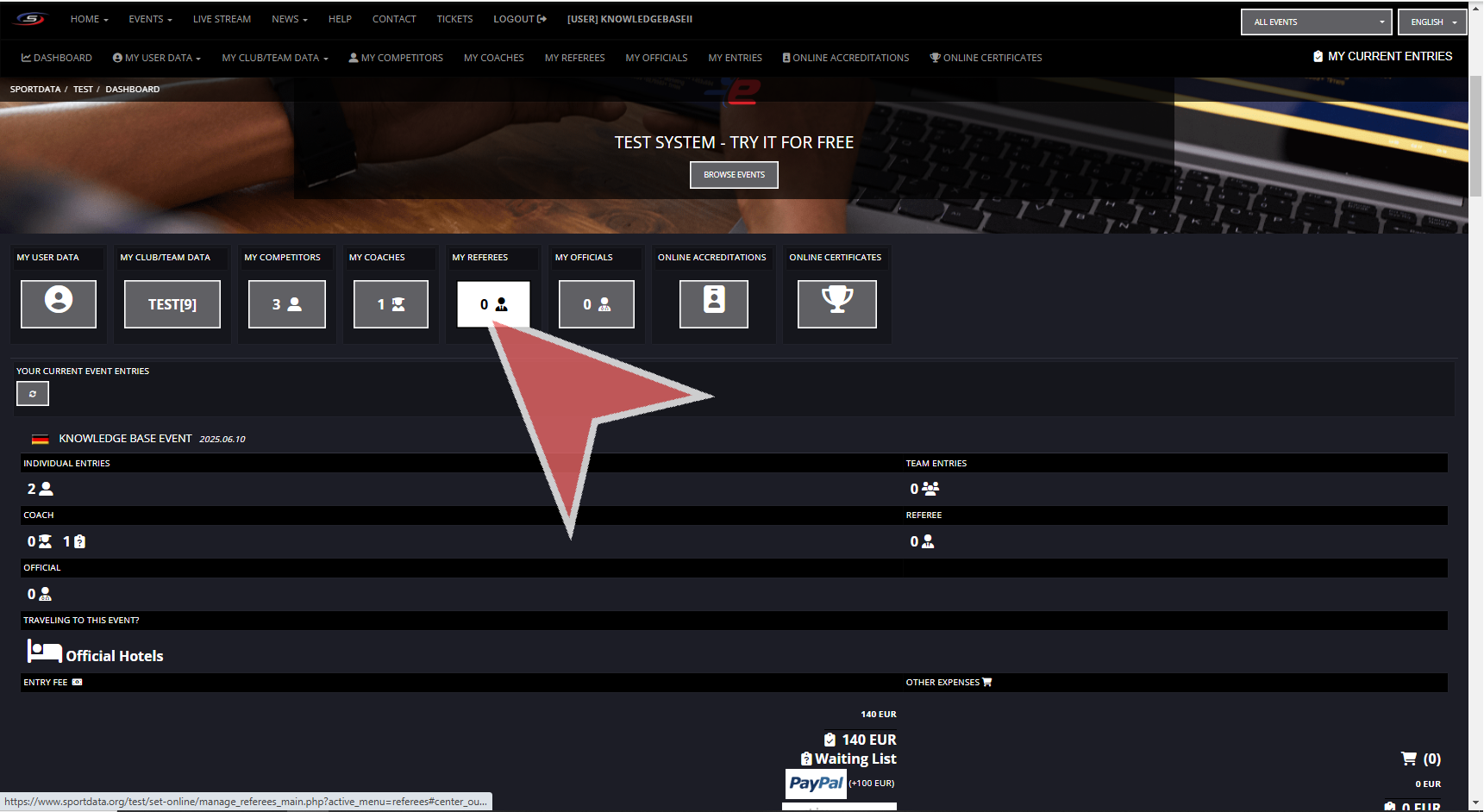
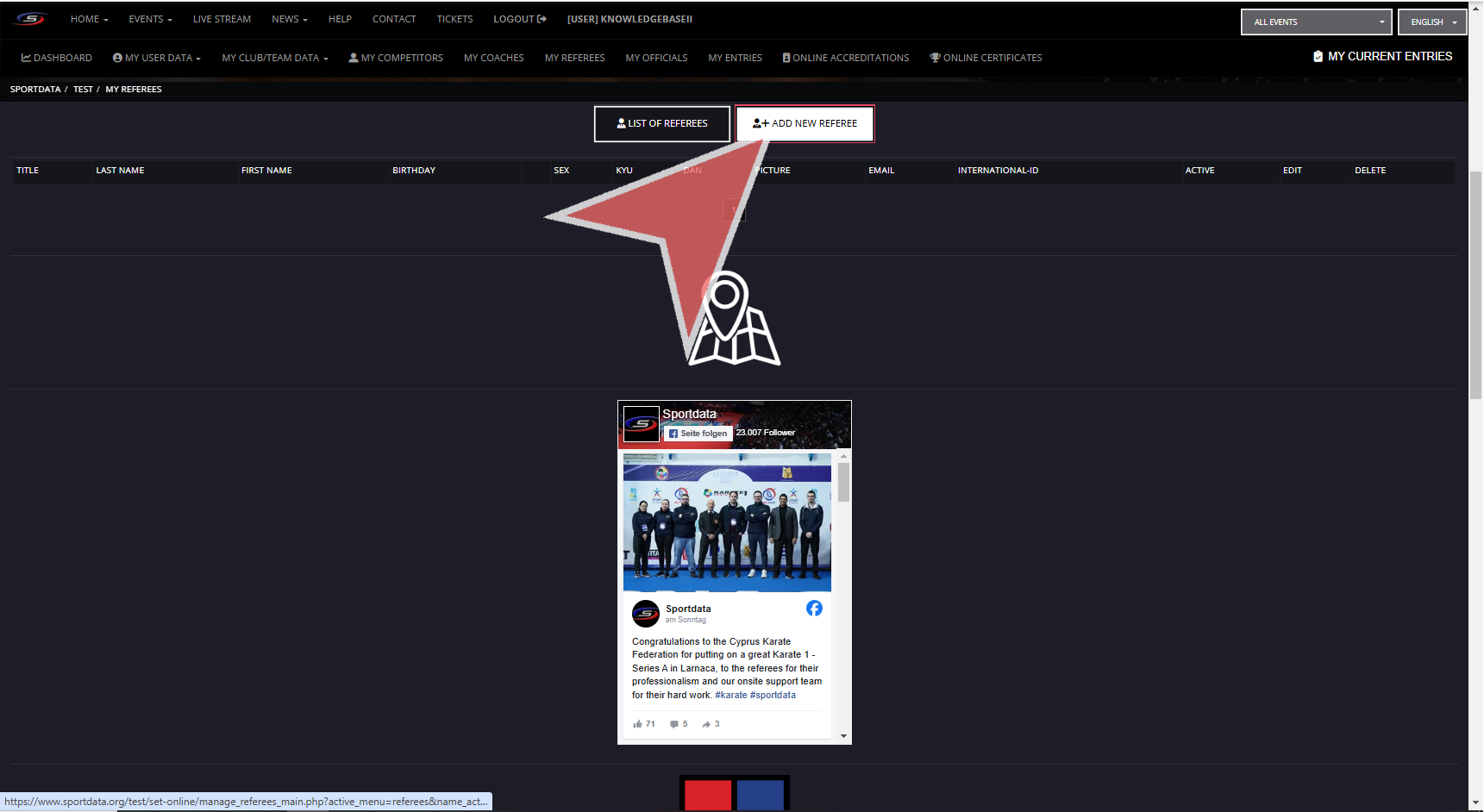
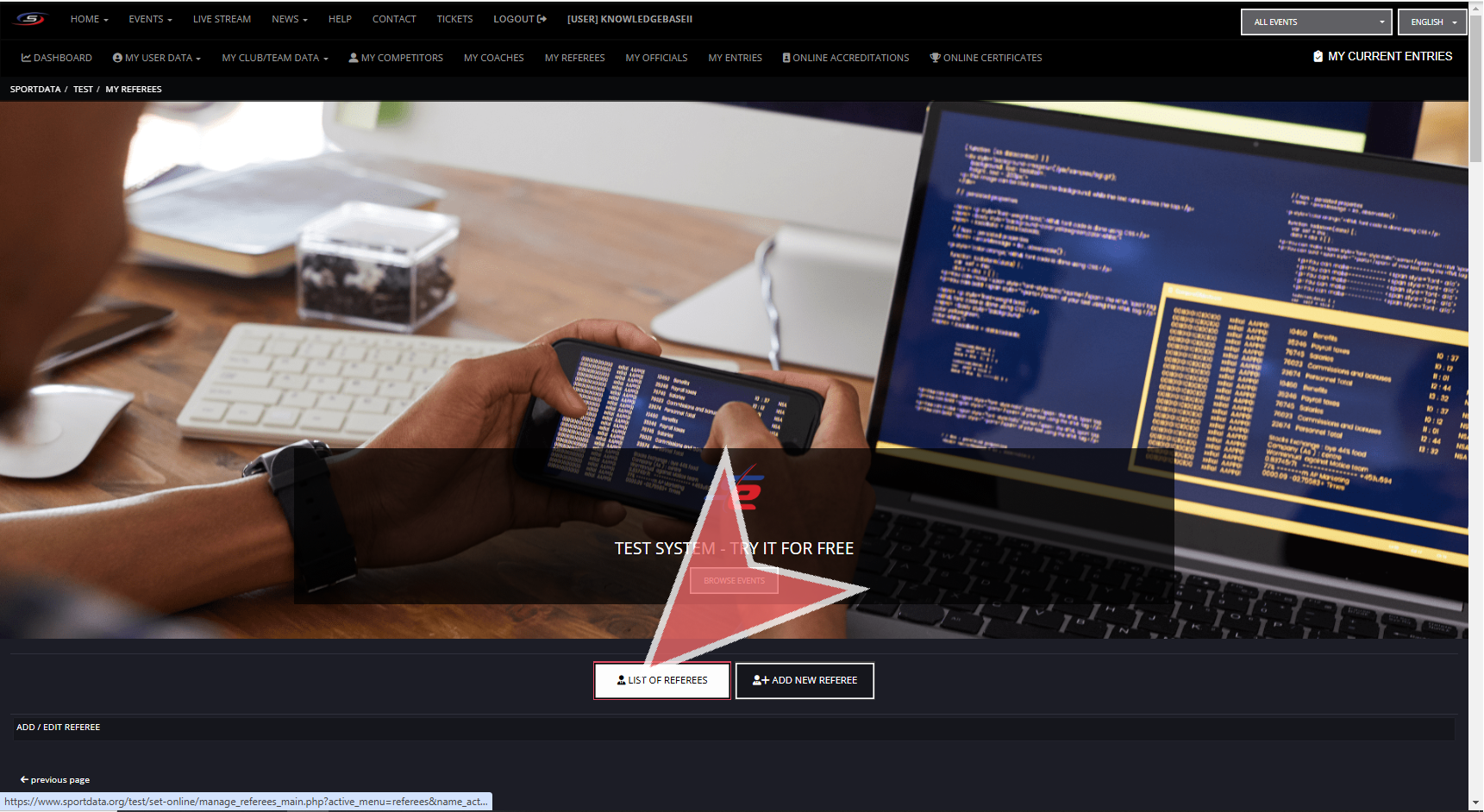
After signing in to your club account, in the dashboard, click my referees to create new referee profiles.
As you can see, in the list of referees there are no profiles. Click ‘ ADD NEW REFEREE’.
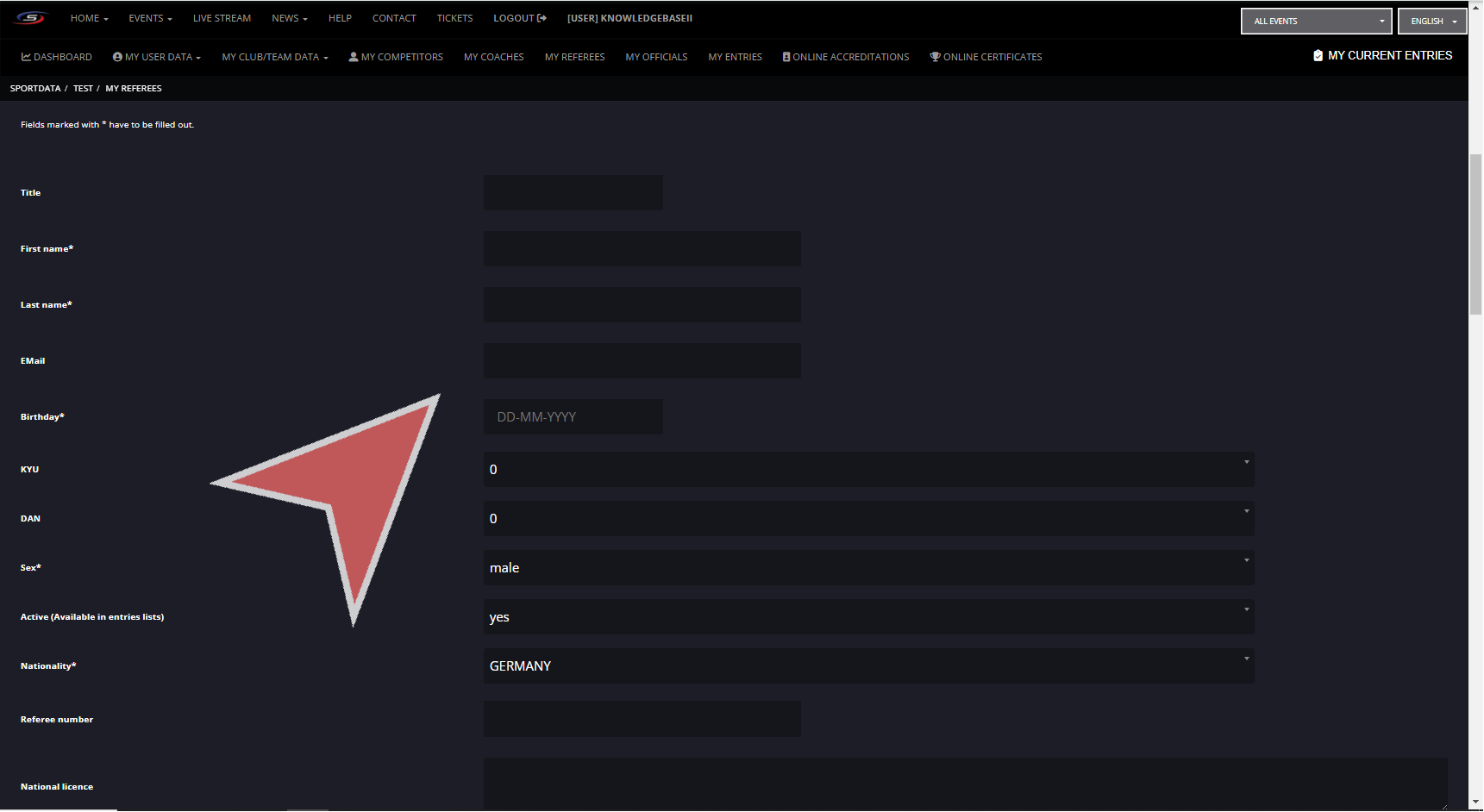
Fill out the profile information and click save.
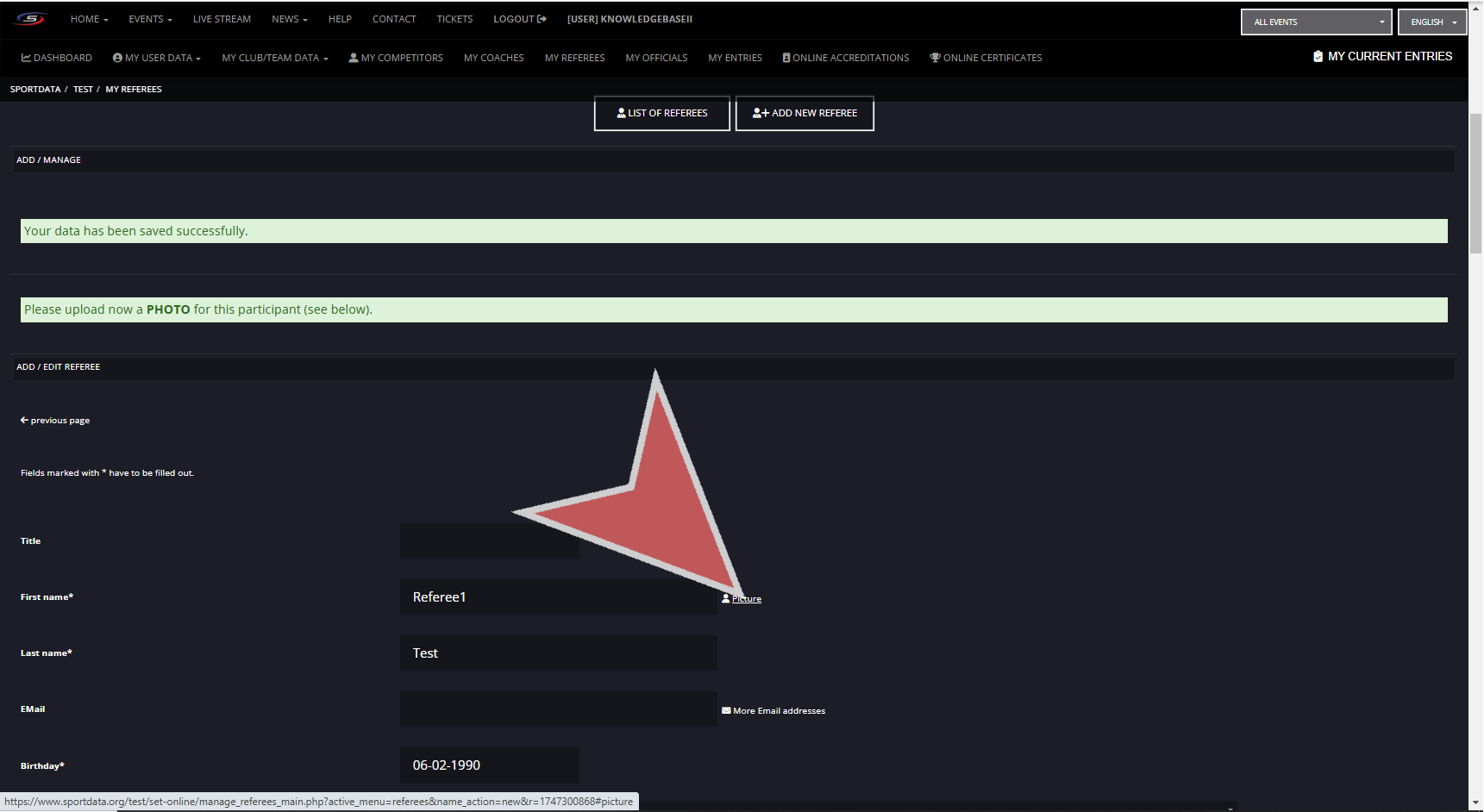
Click on the picture button to add a photo.
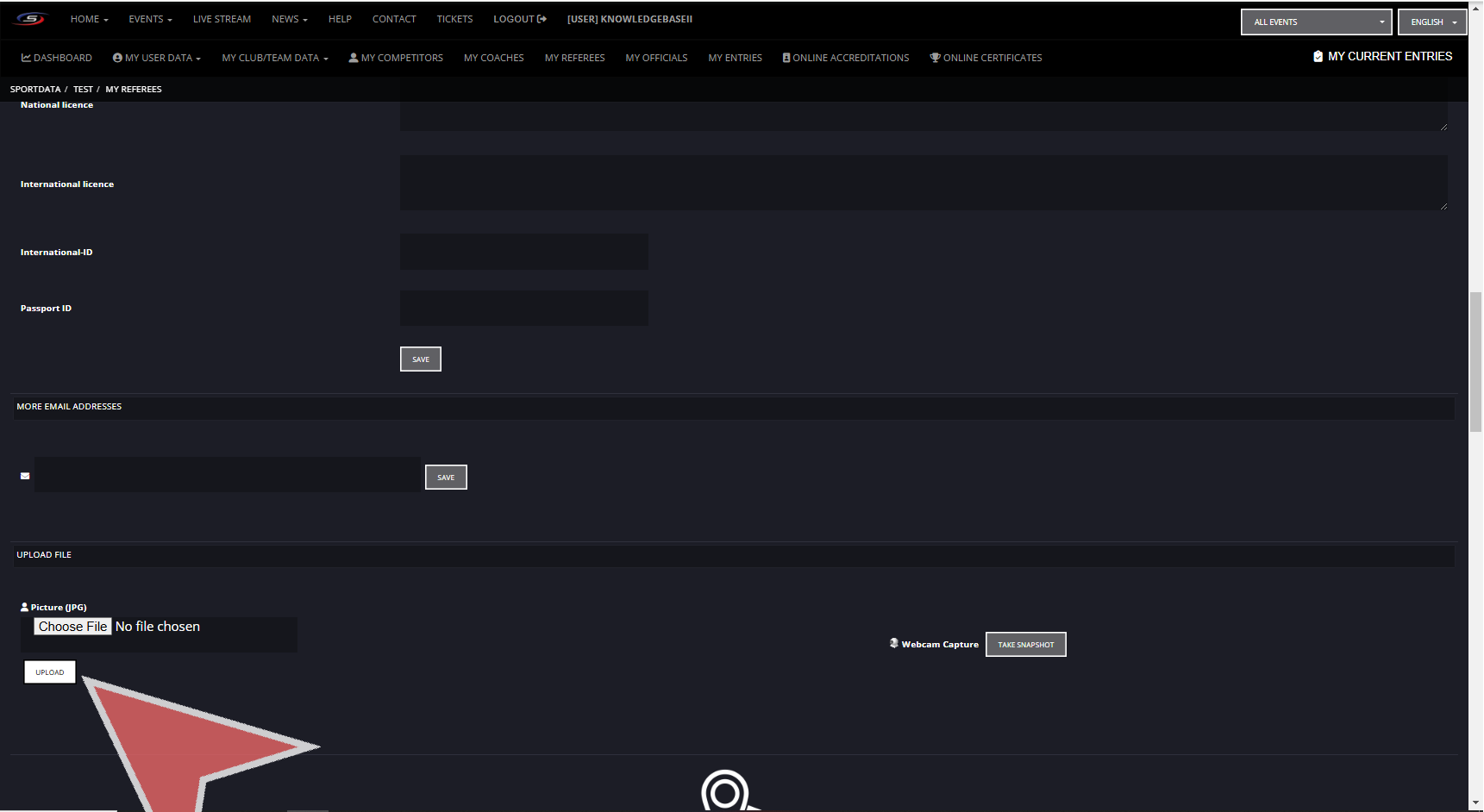
Choose a file, or webcam capture, then upload it to the profile.
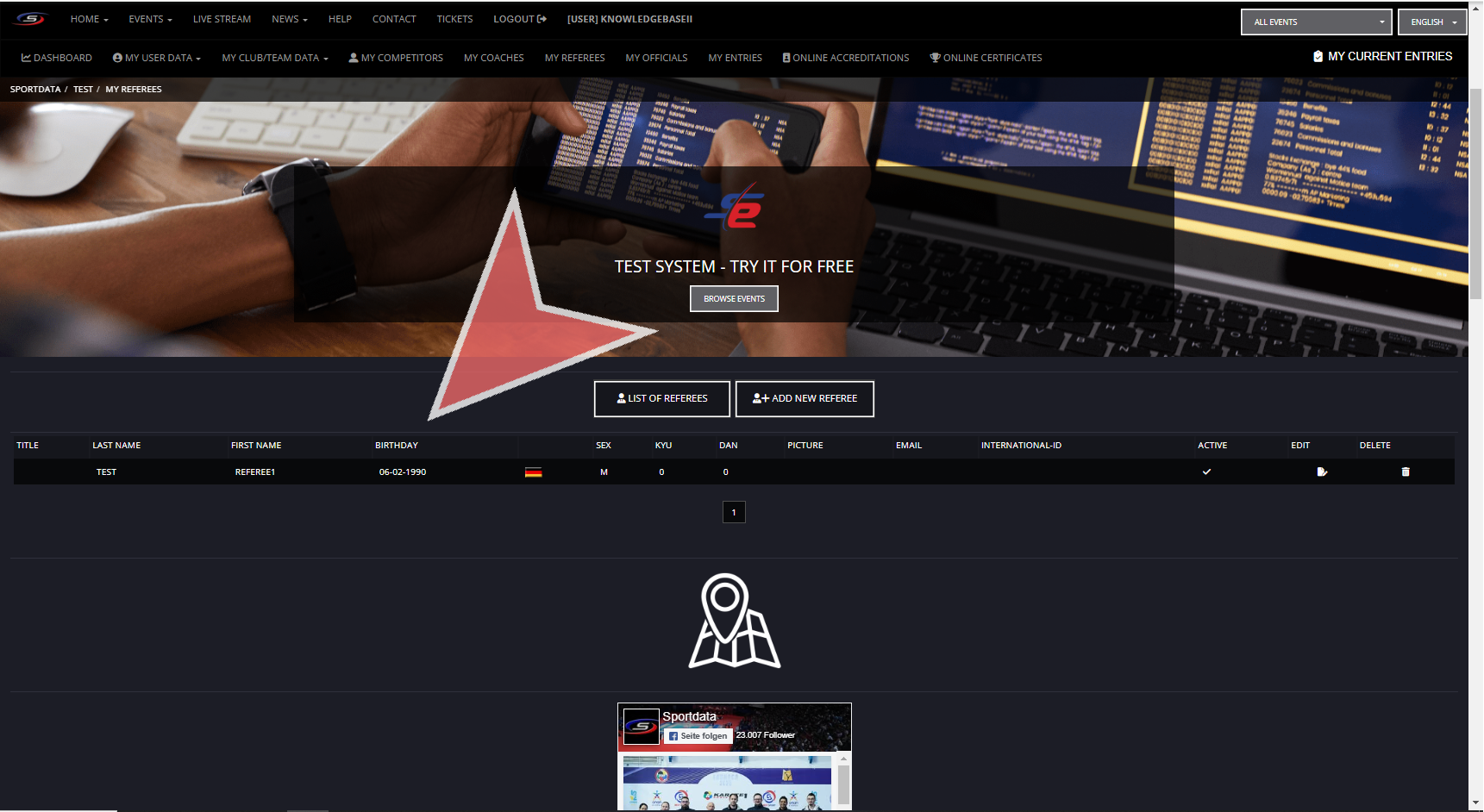
You can now see the new profile in the list of referees.
Referee list.
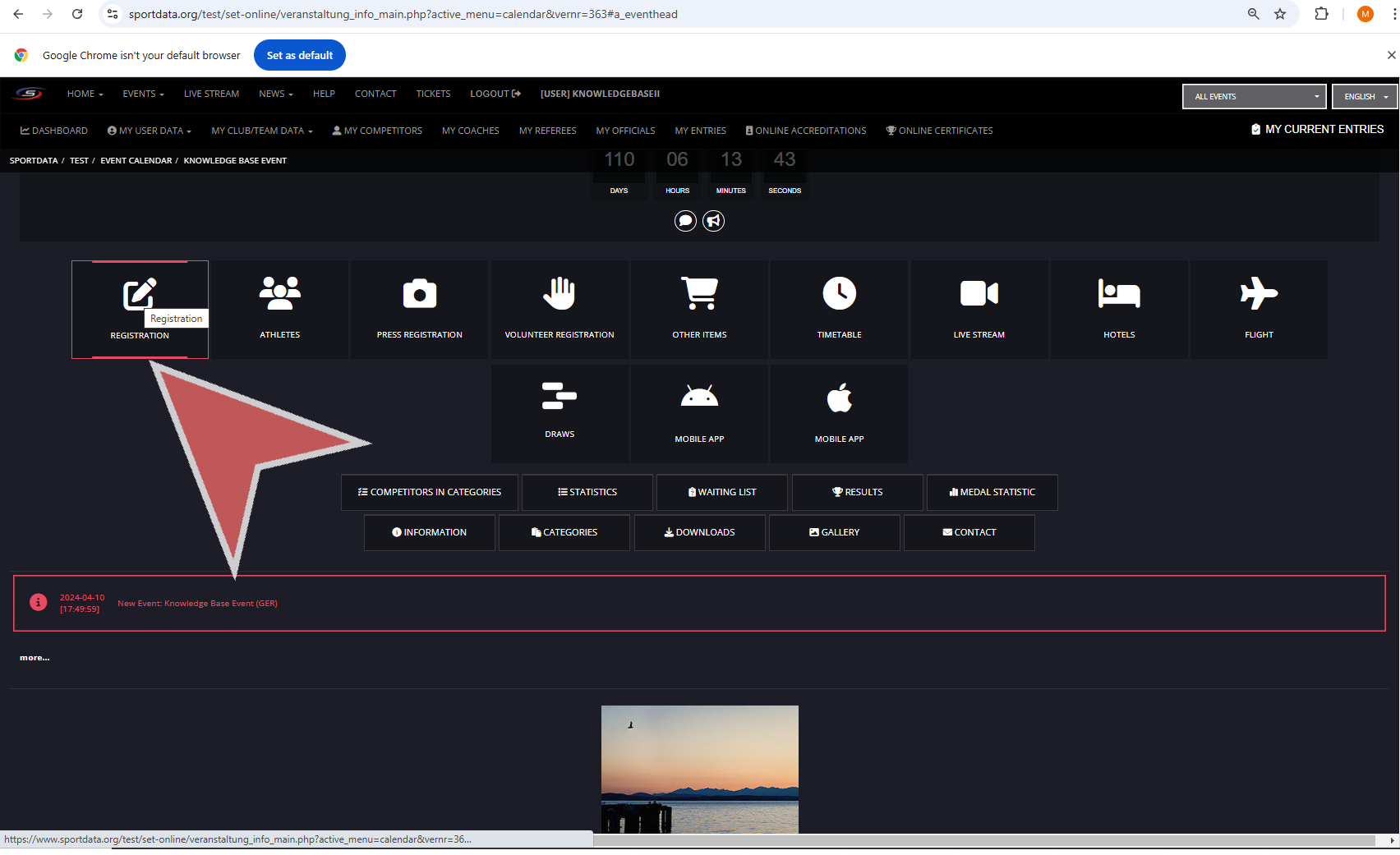
To register a referee to an event, go to the event page, and click on registration.
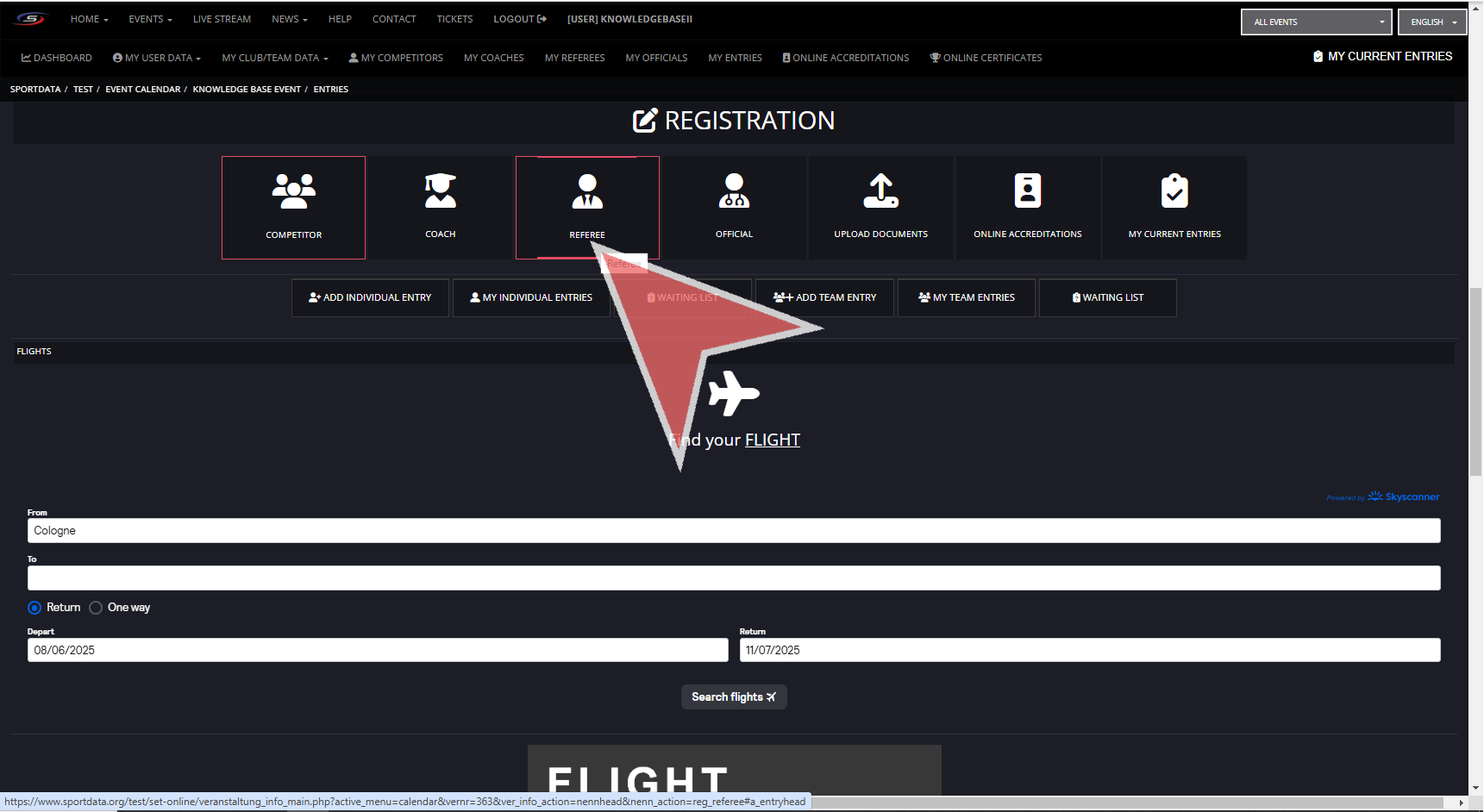
Click ‘REFEREE’.
Click on ‘ REGISTER NEW REFEREE’.
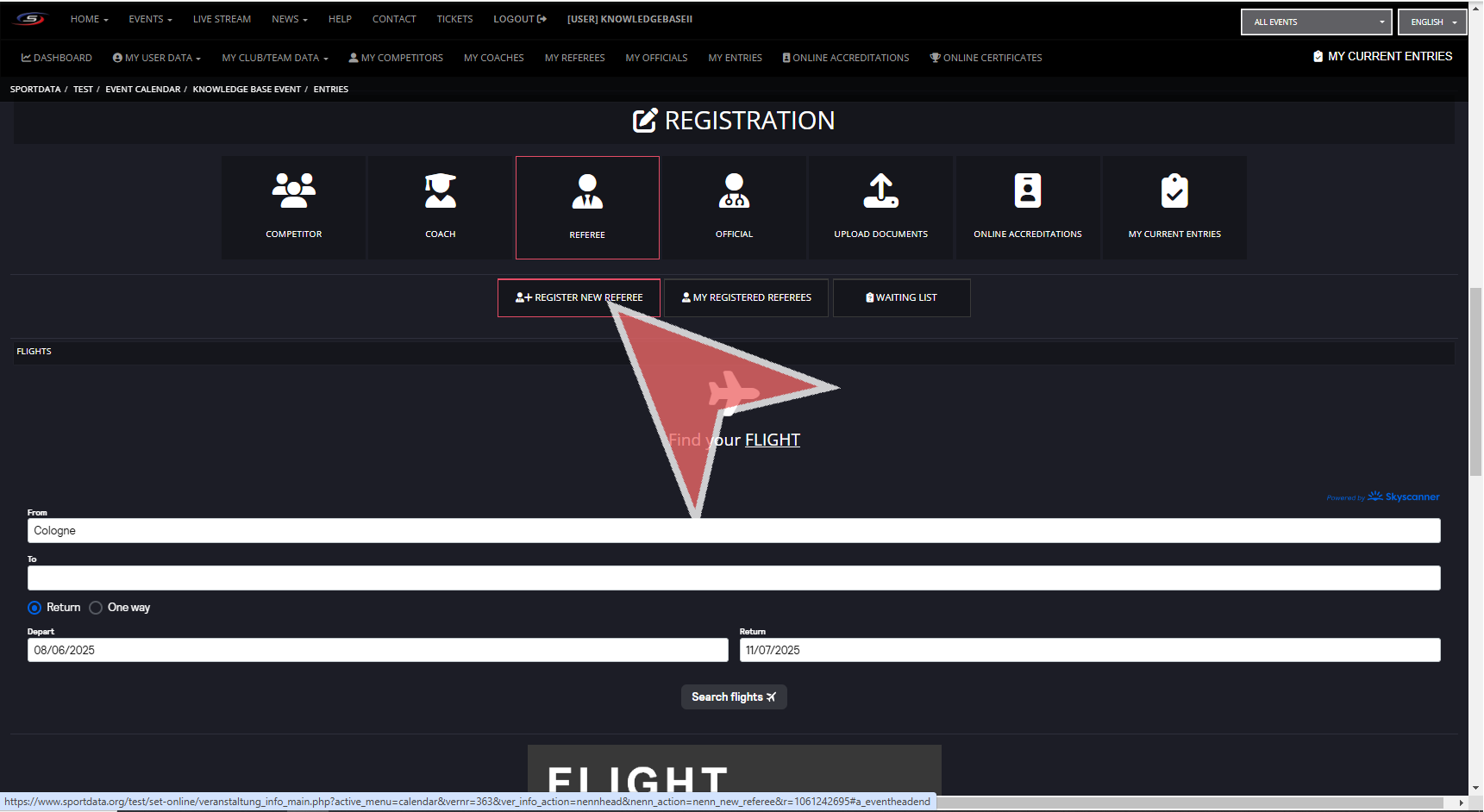
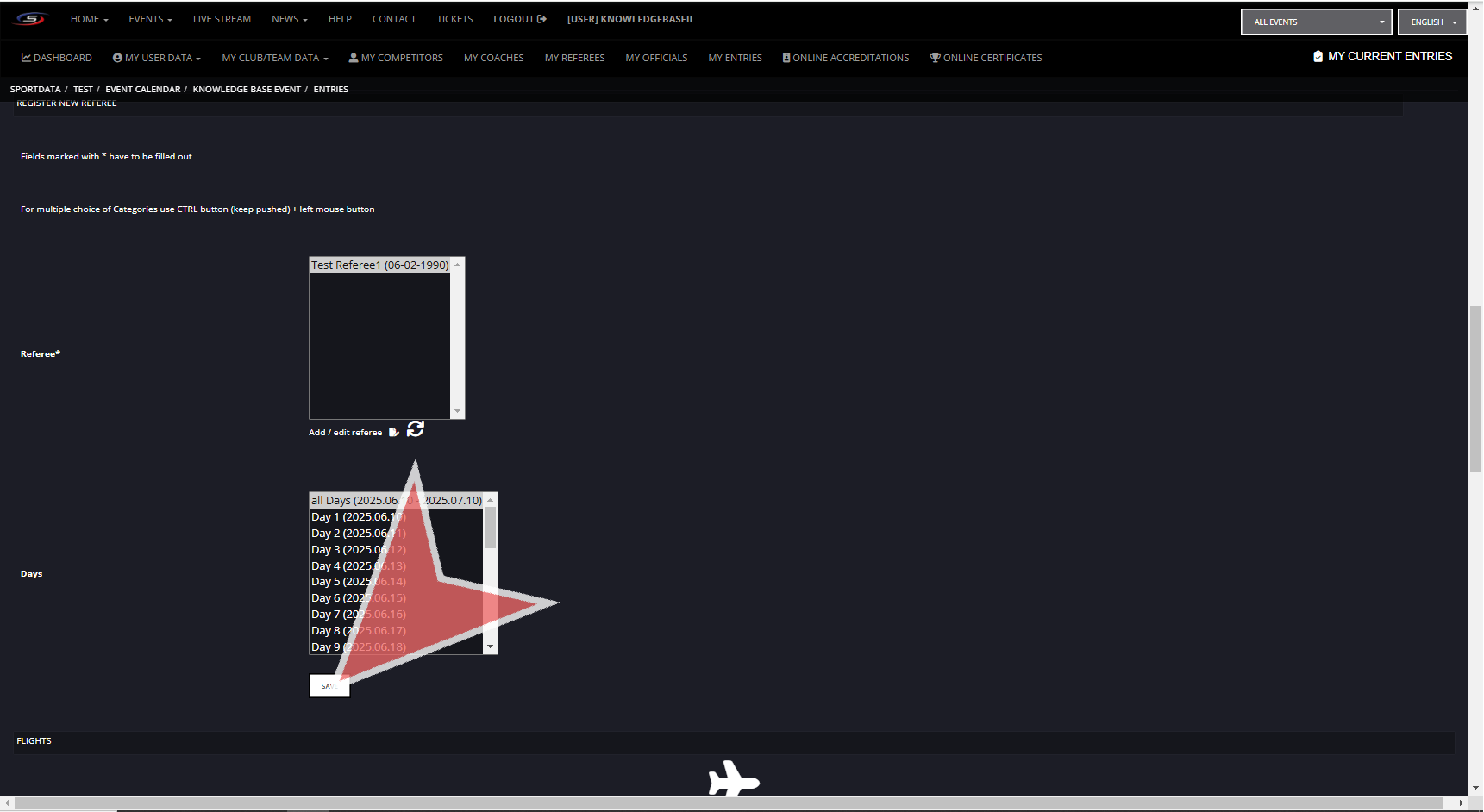
Select the referee you wish to register, if you need to add / edit referees profiles, click the button below, if not, then add which days they will be active at the event, and click the ‘Save’ button.
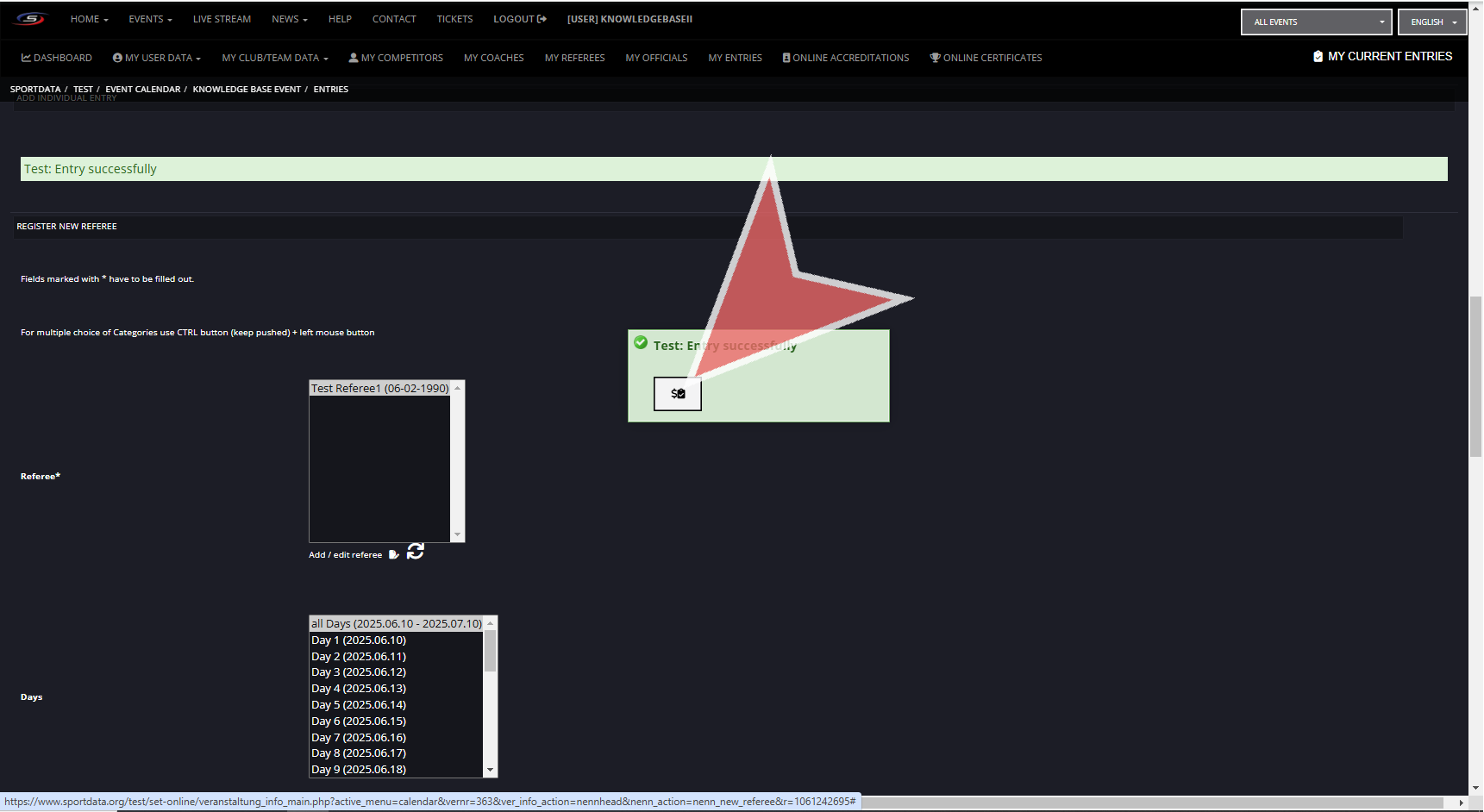
While it is uncommon that referees pay entry fees, to see all your entries and payment methods, you can click the button in the green box.
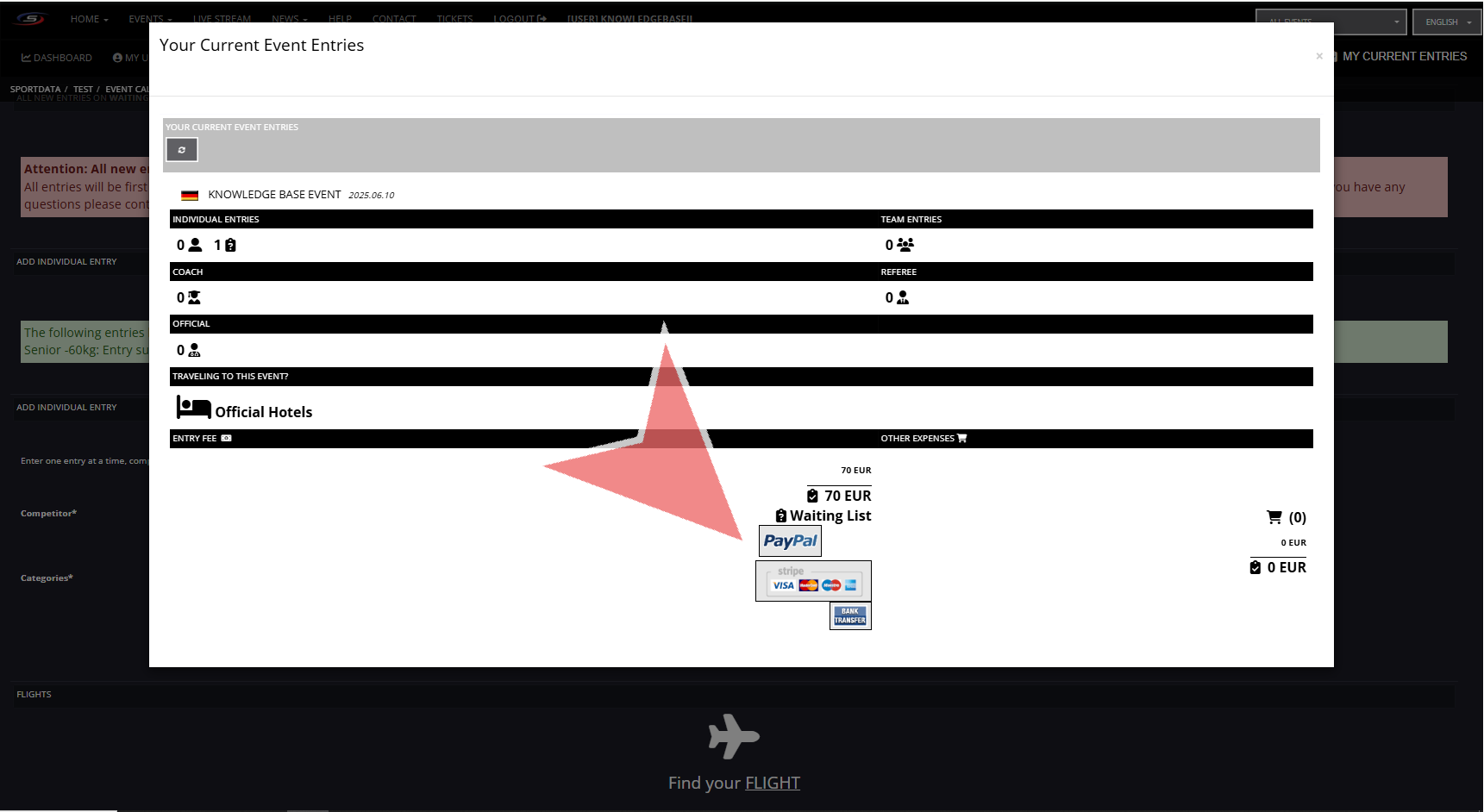
In the current event entries you can see that 1 referee is registered to the events, along with 2 athletes. To proceed with paying for your clubs entries, click on the available payment methods.
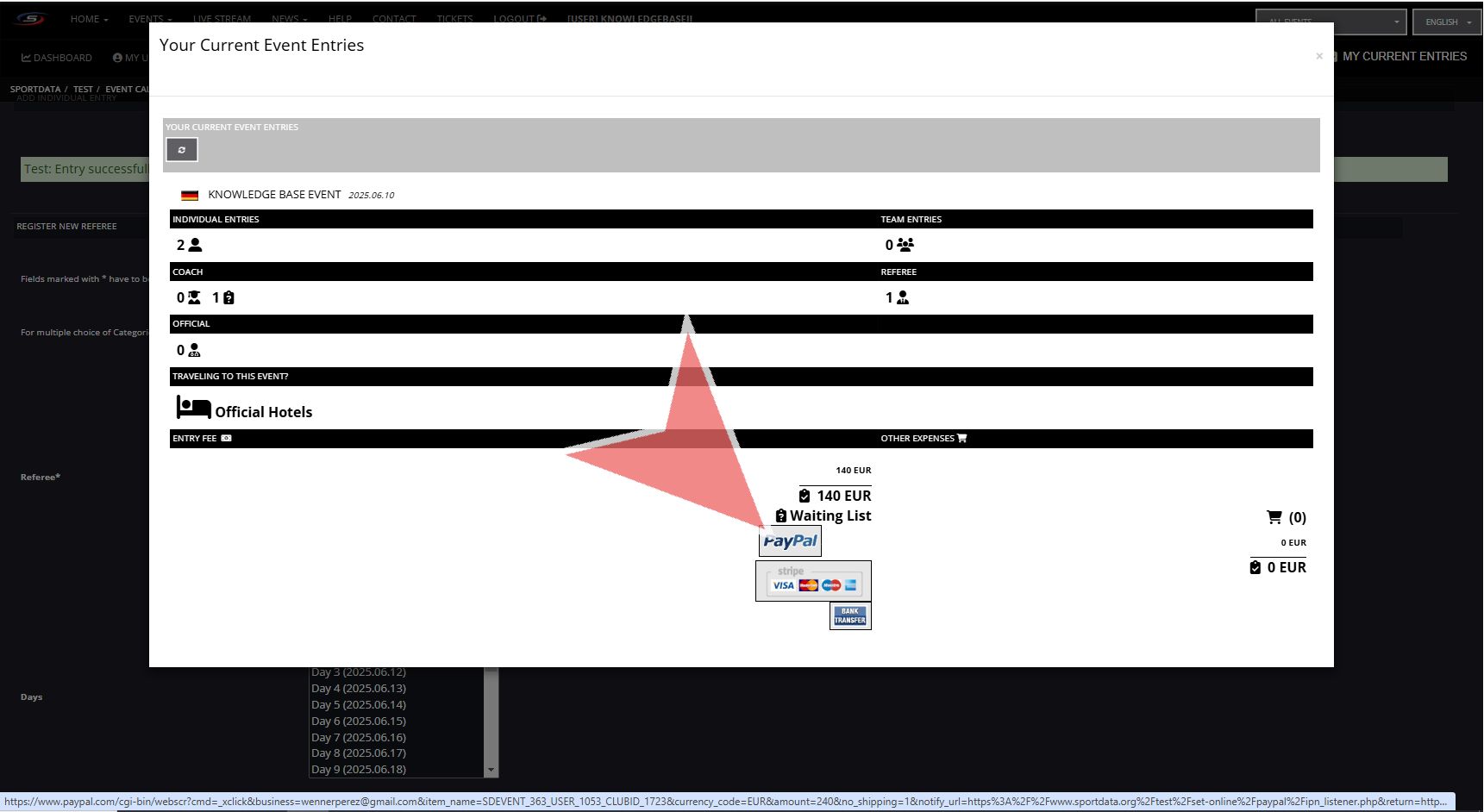
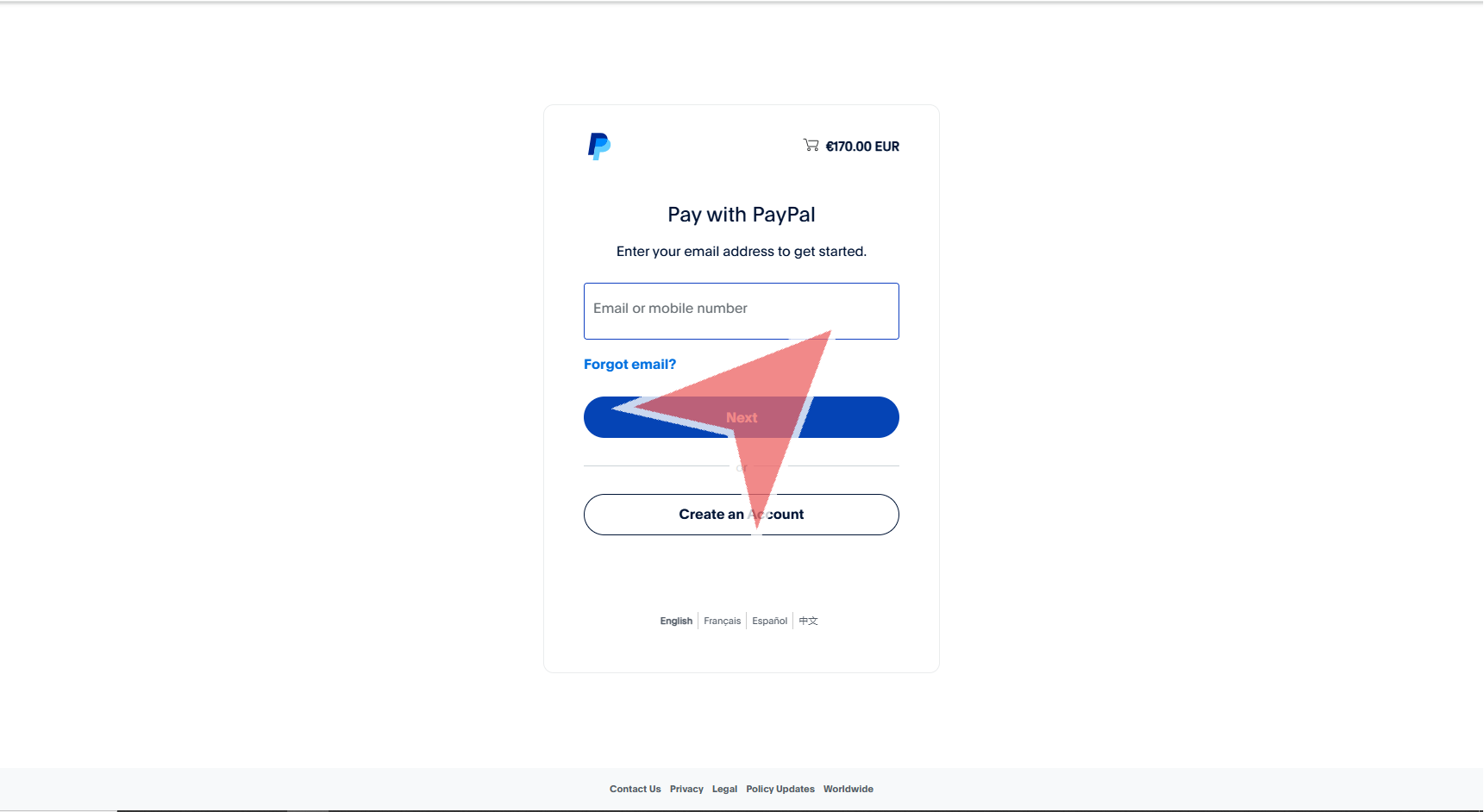
Proceed with the payment process selected.
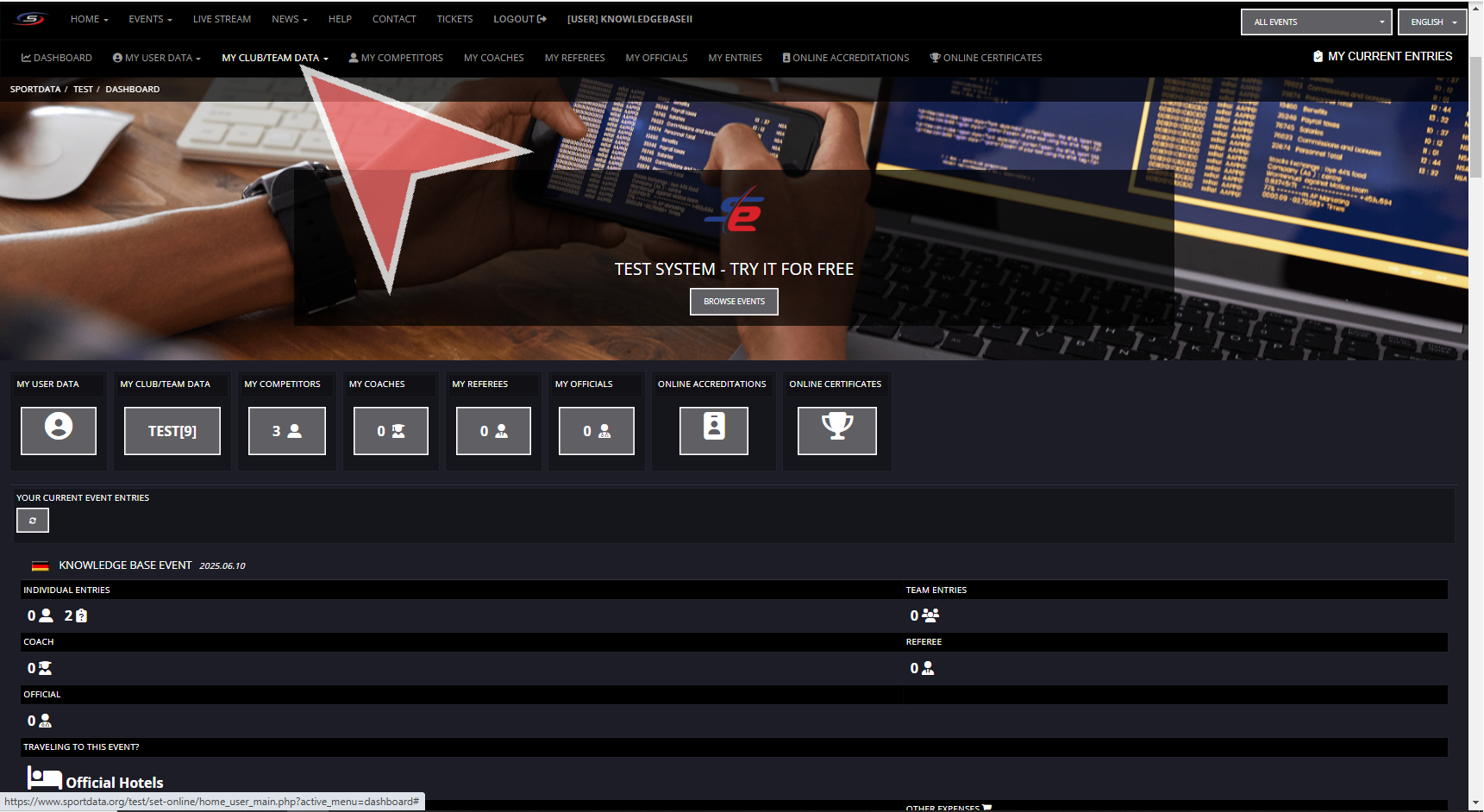
In your club account, go to my club/team data in the navbar.
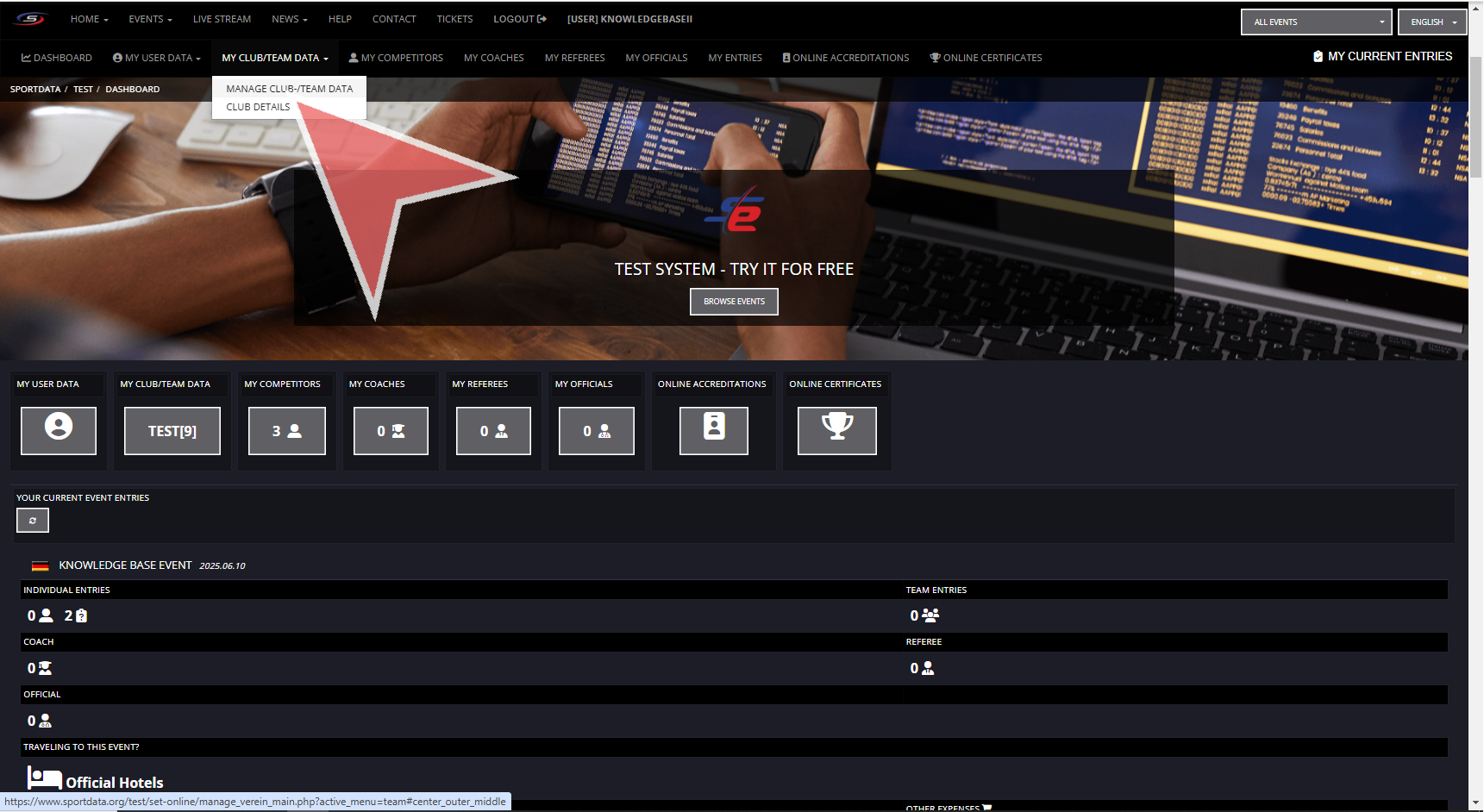
Click on manage club/team data.
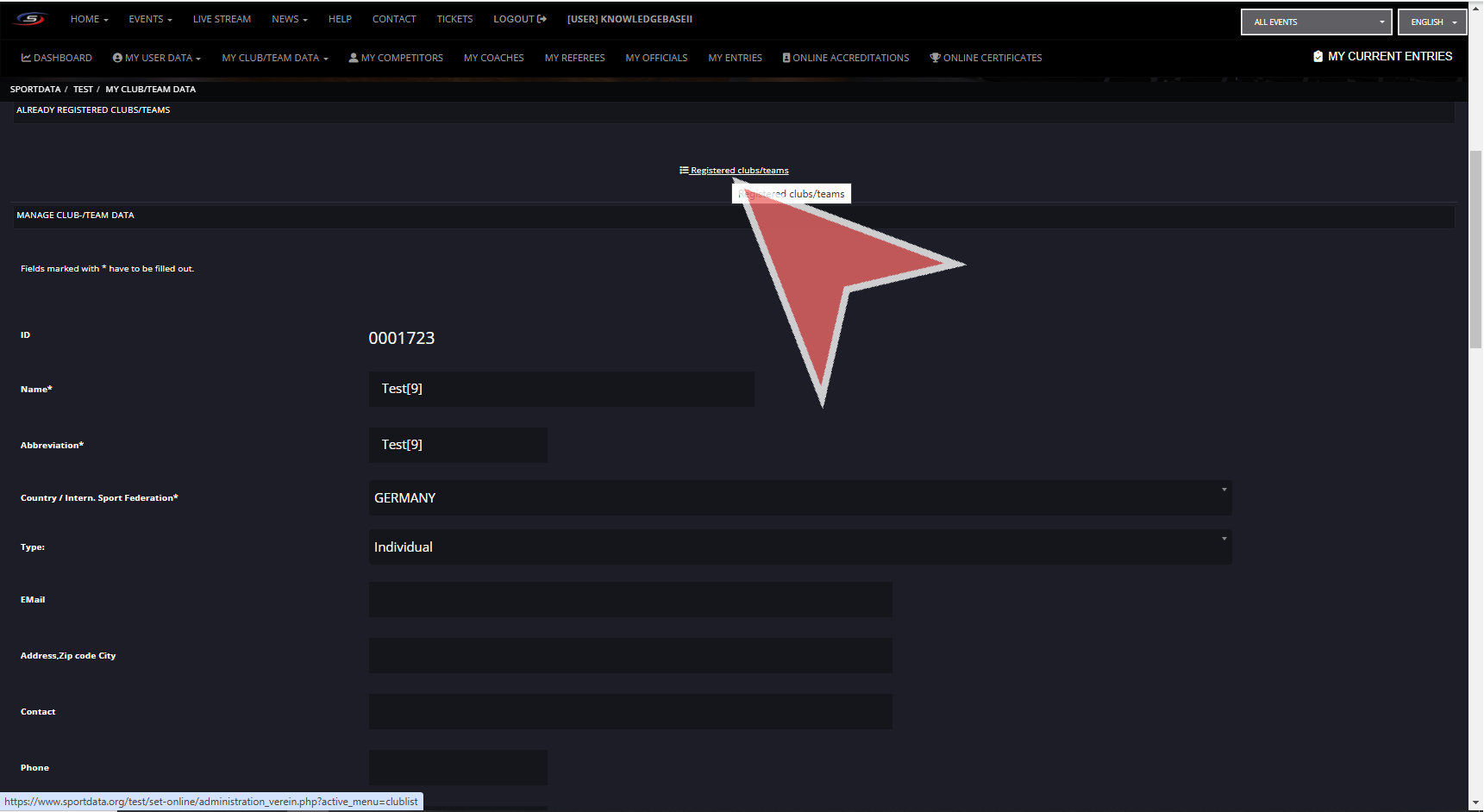
Click on the Registered clubs/teams button.
Search for the club name
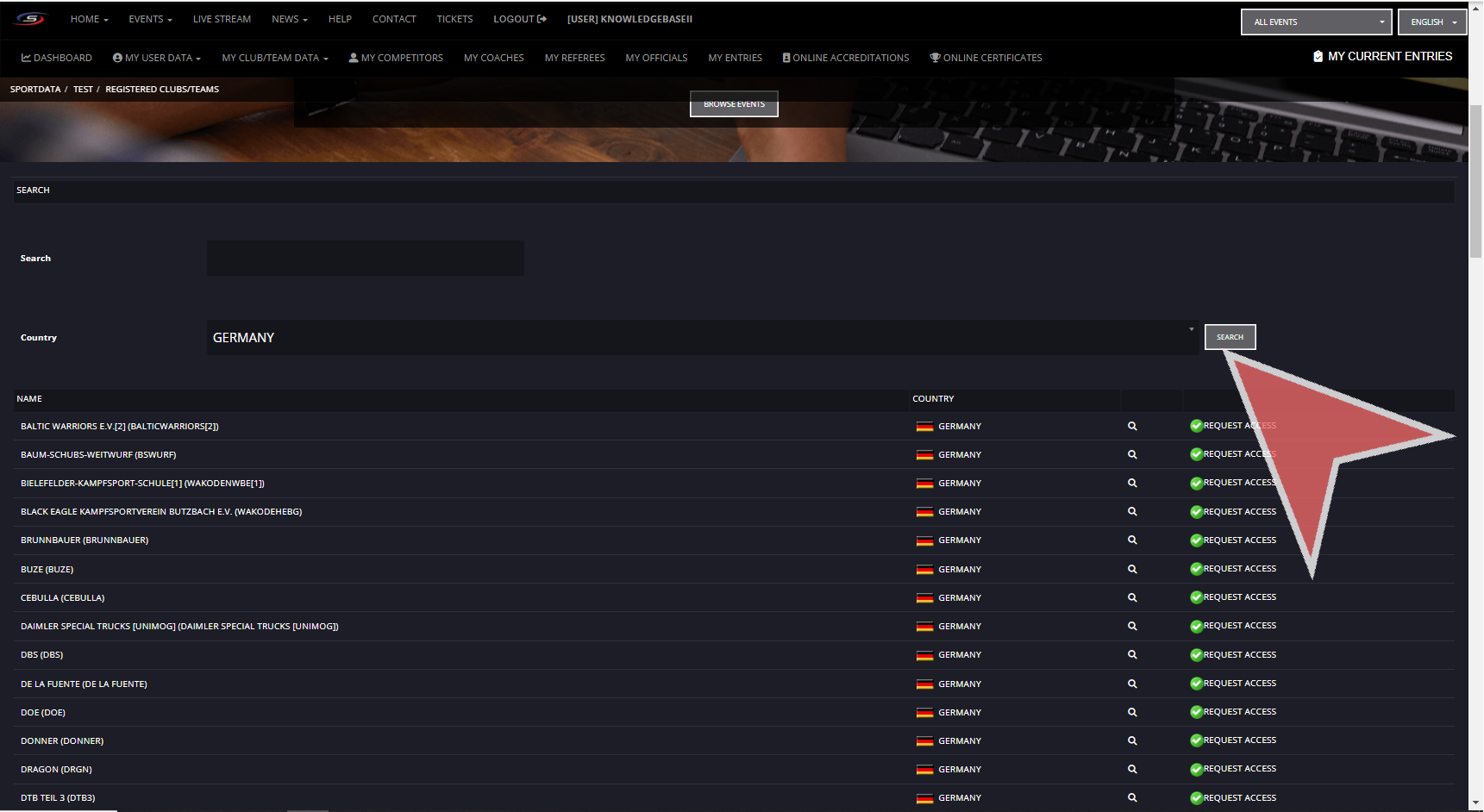
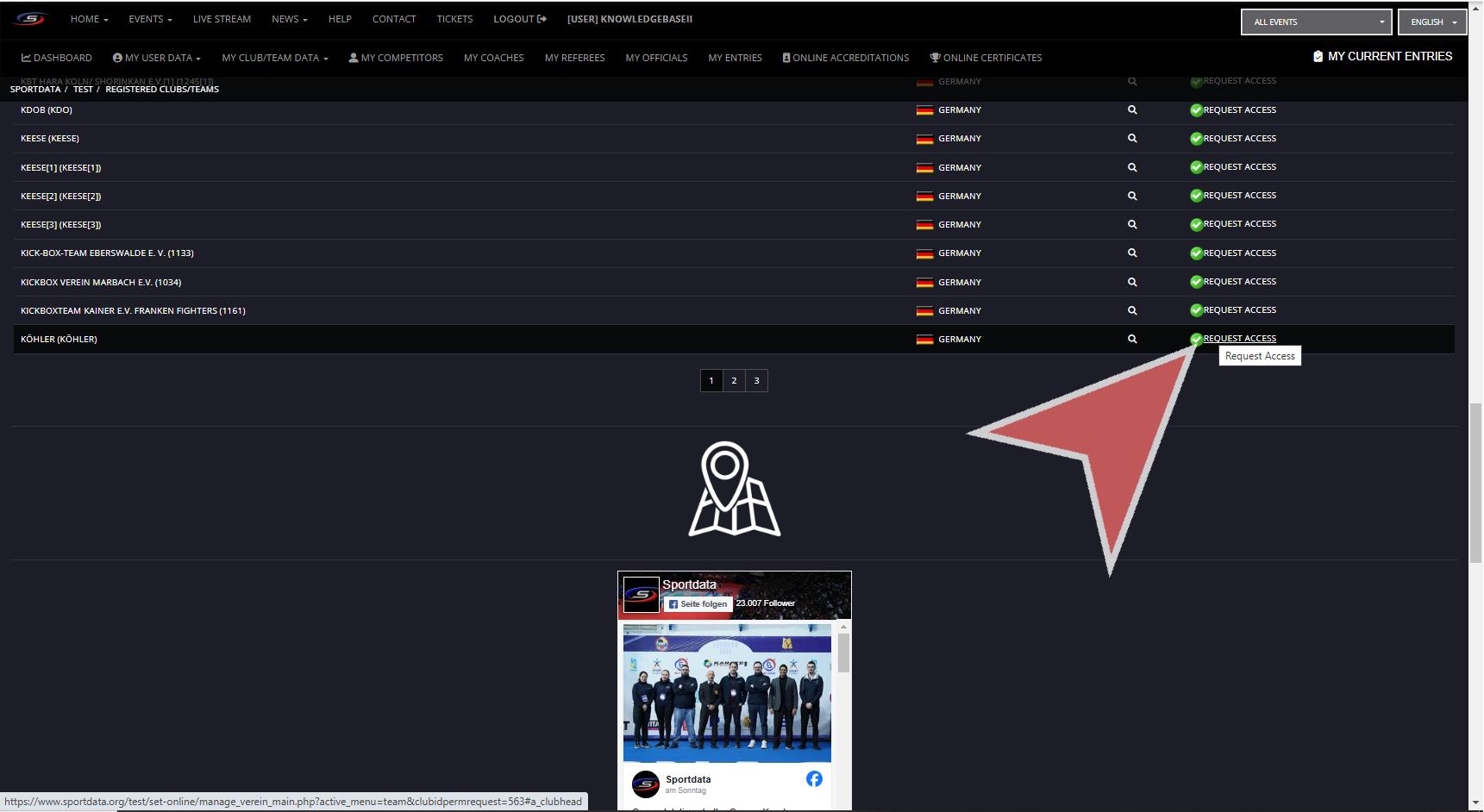
Click on request access.
To add a new coach to your club profile from your dashboard, click on my coach
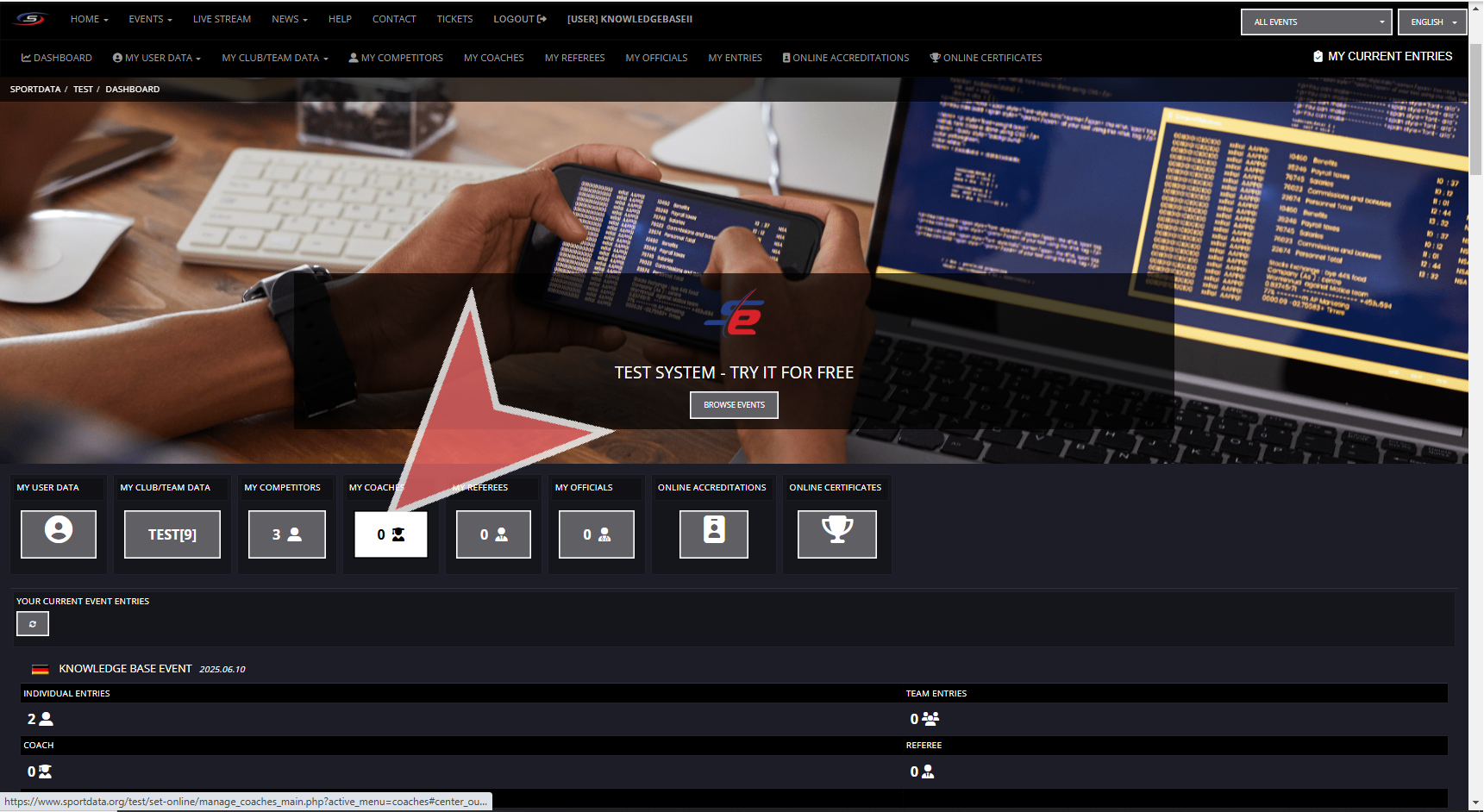
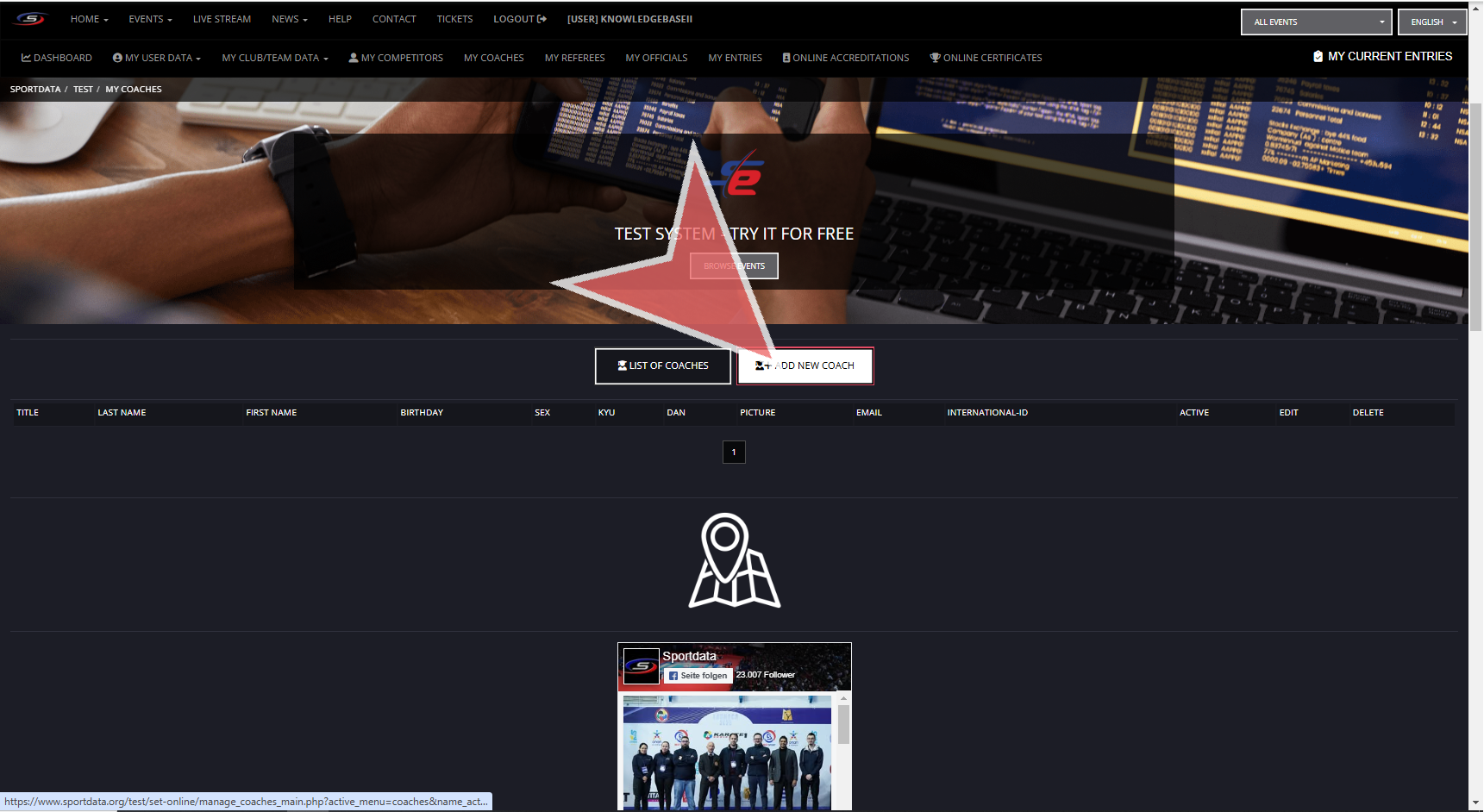
It will take you to the list of coaches, click on add new coach
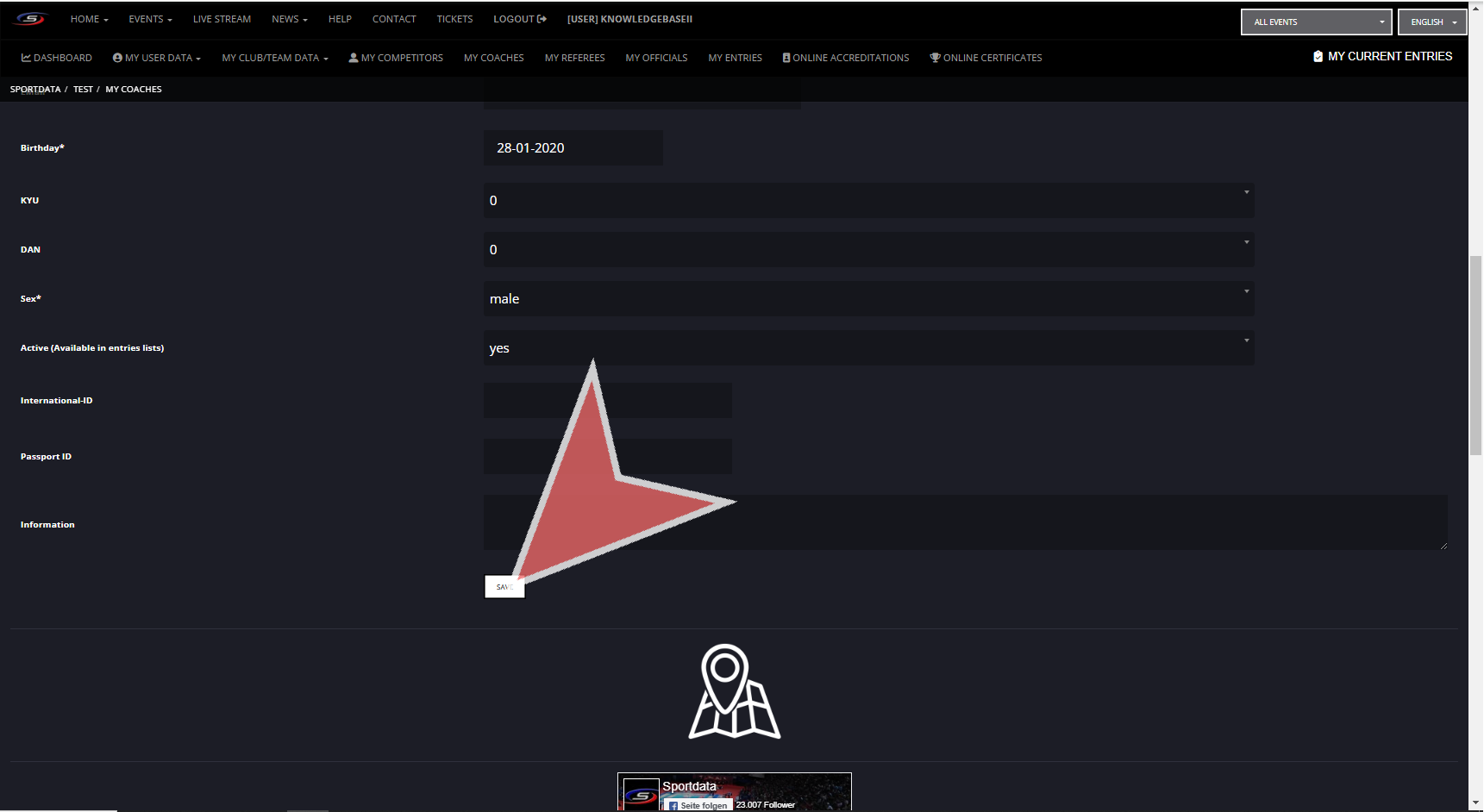
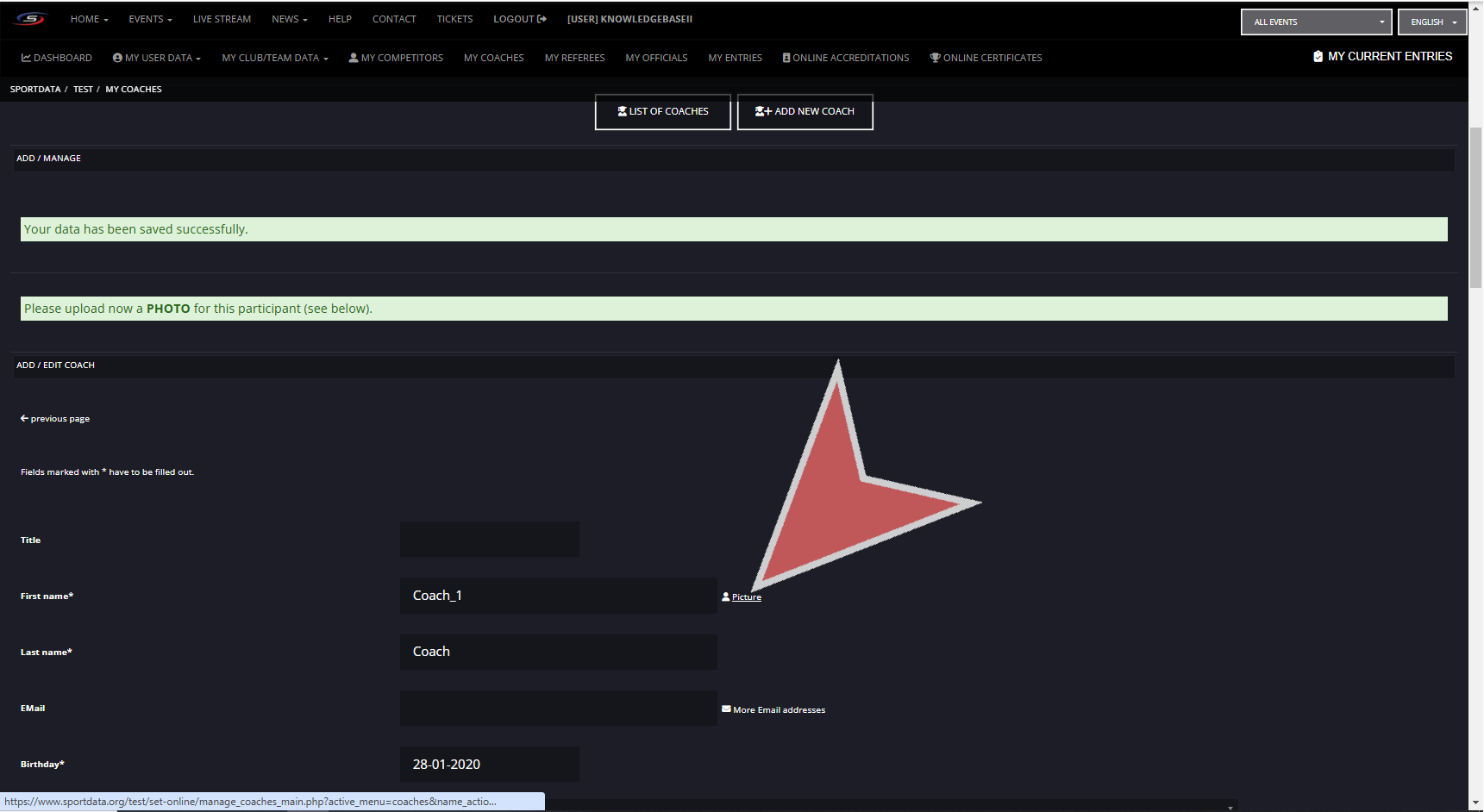
Fill in the data fields, and click save.
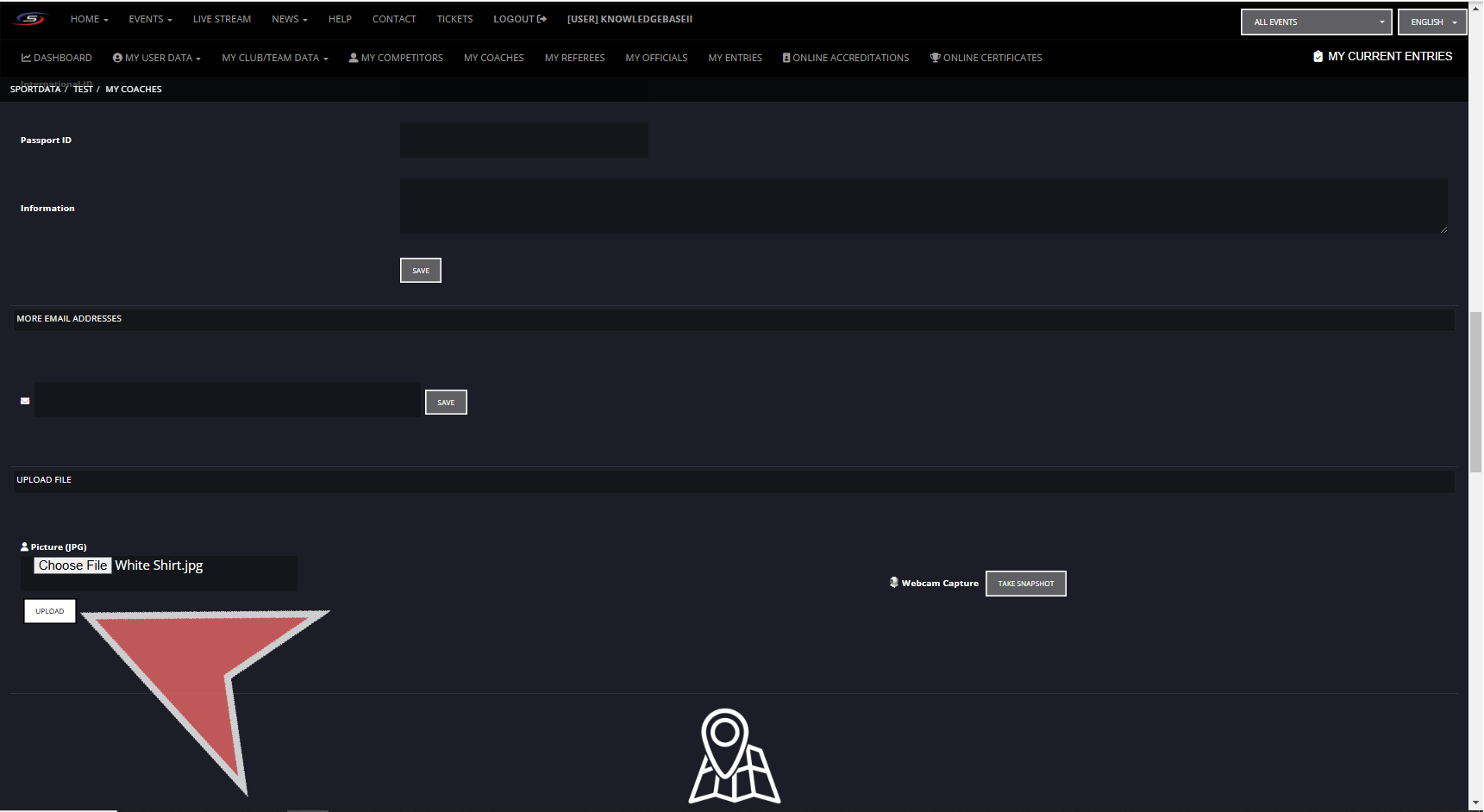
Then add a picture.
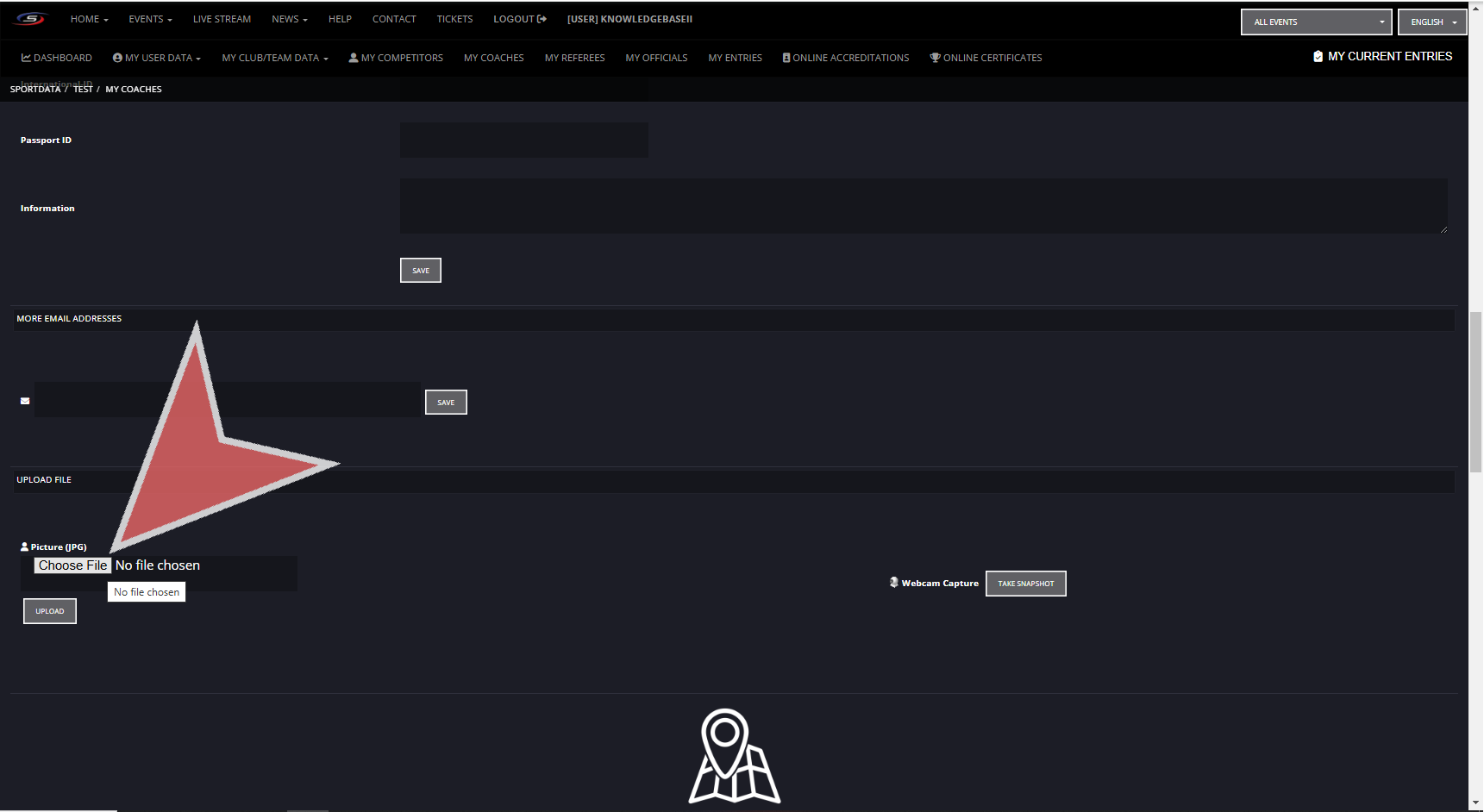
Either choose a file or use your webcam to take a snapshot.
Select a photo.
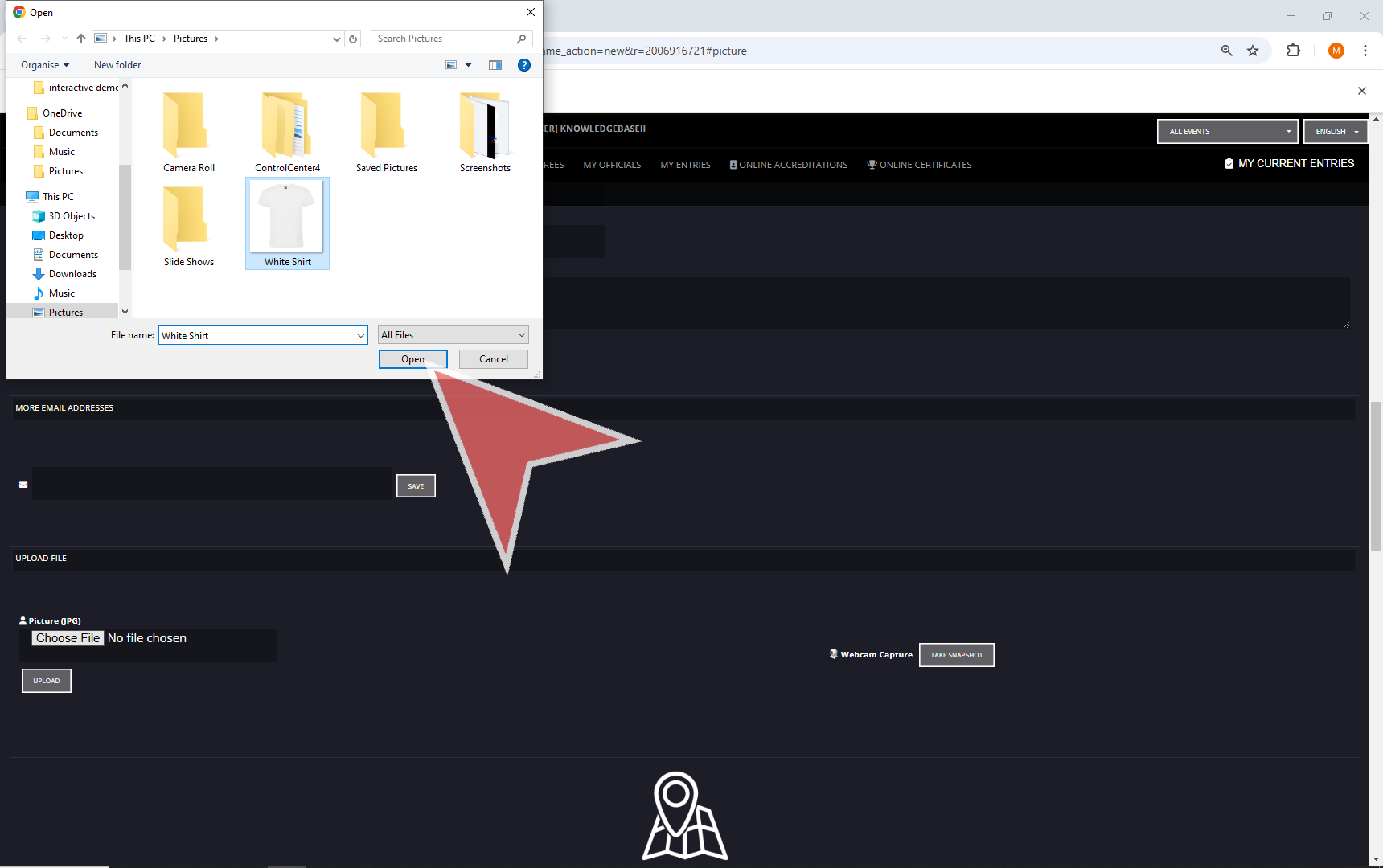
Click the ‘Upload’ button to add the photo to the coach profile.
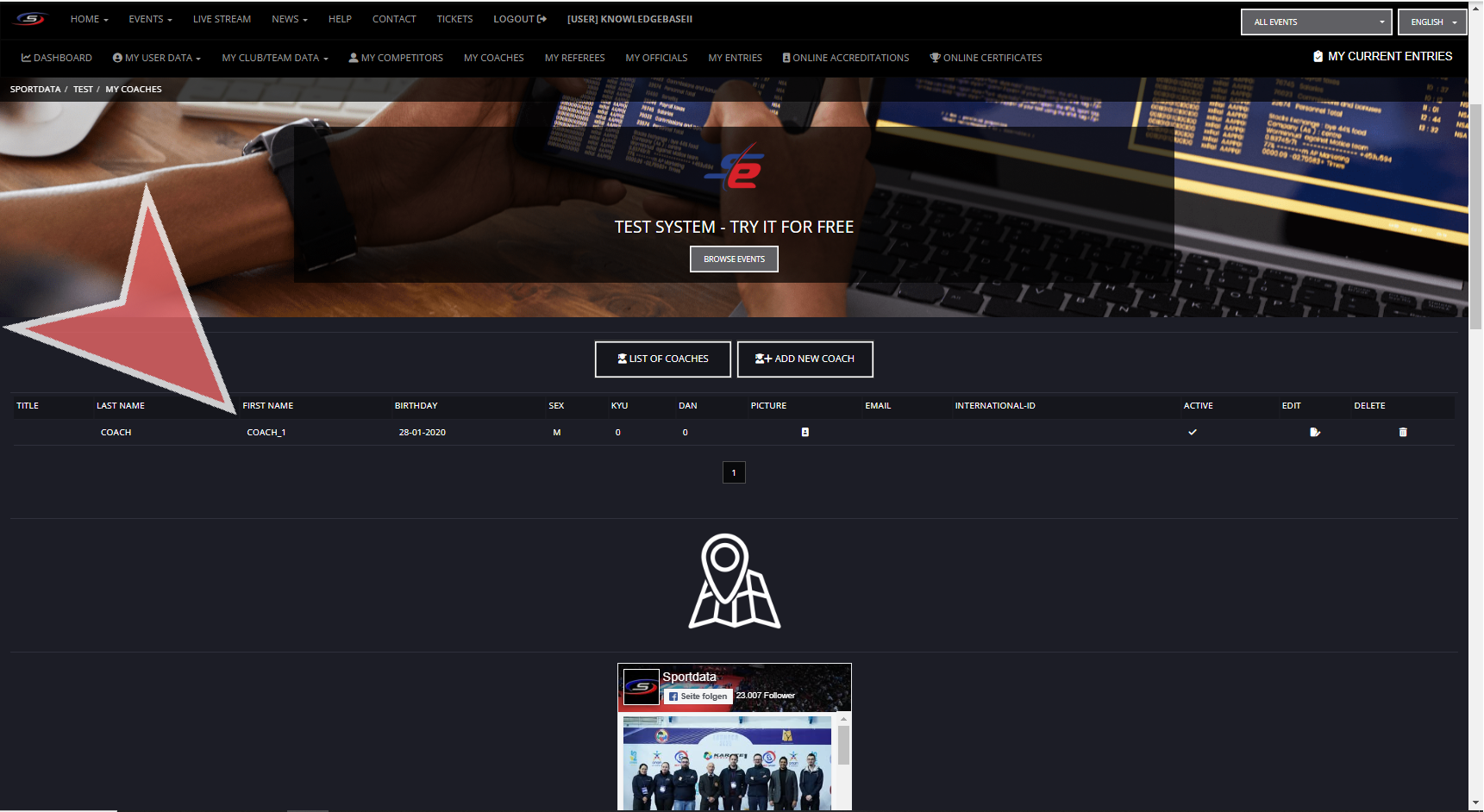
Go back to the list of coaches to see the newly added coach.
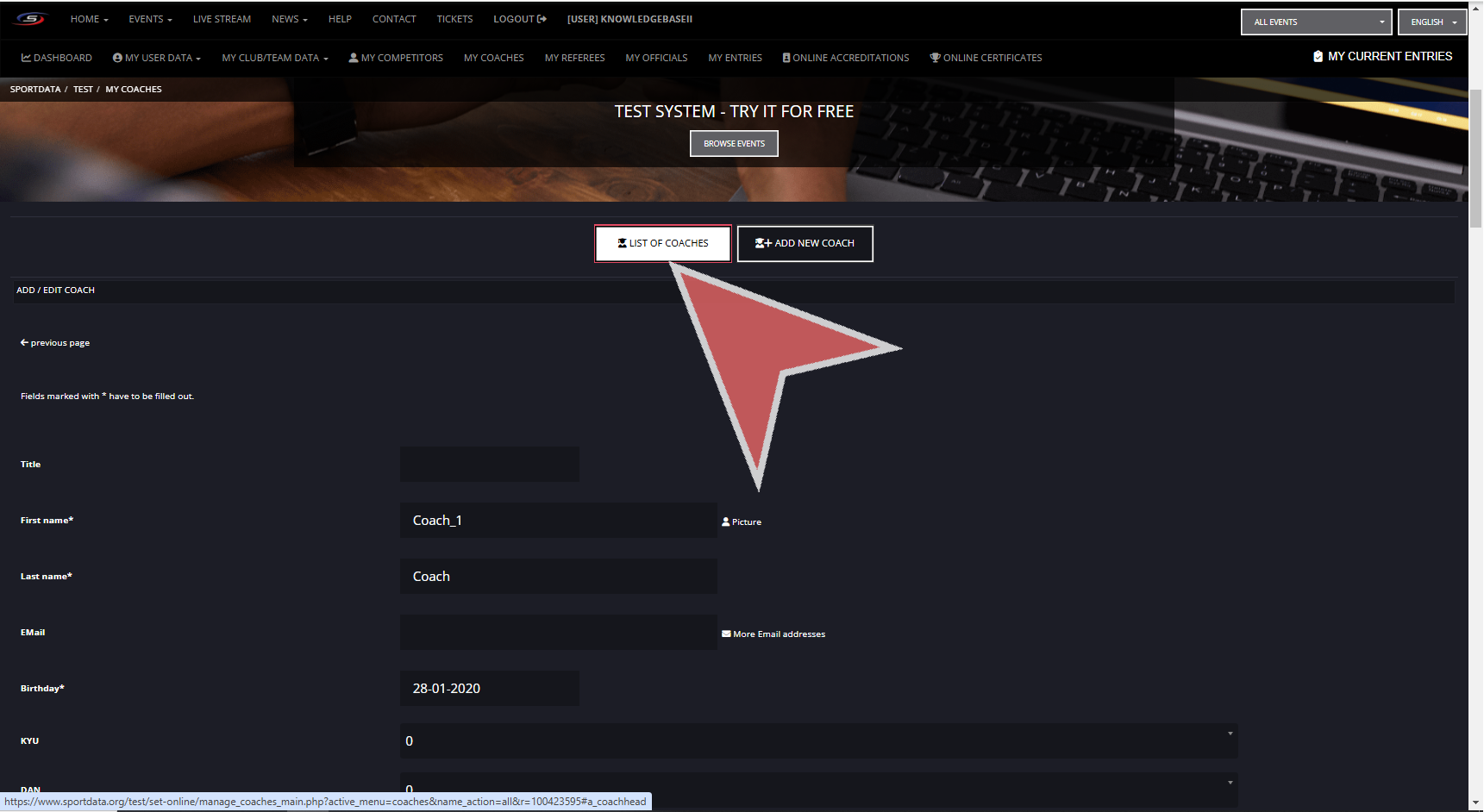
Next, go to the event you wish to register your coach.
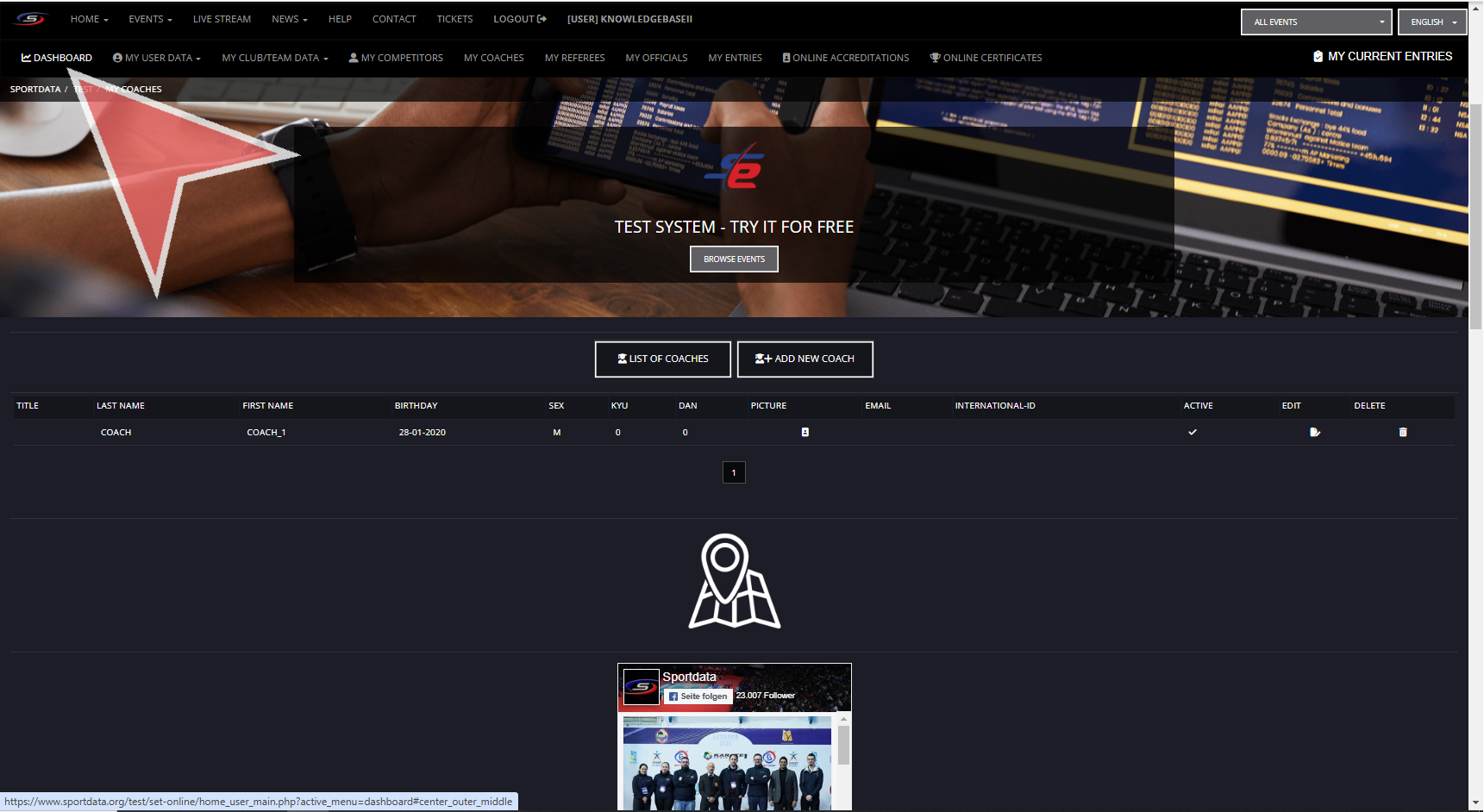
Go back to the dashboard to search for the event you would like to register to.
When you find your event, click on registration.
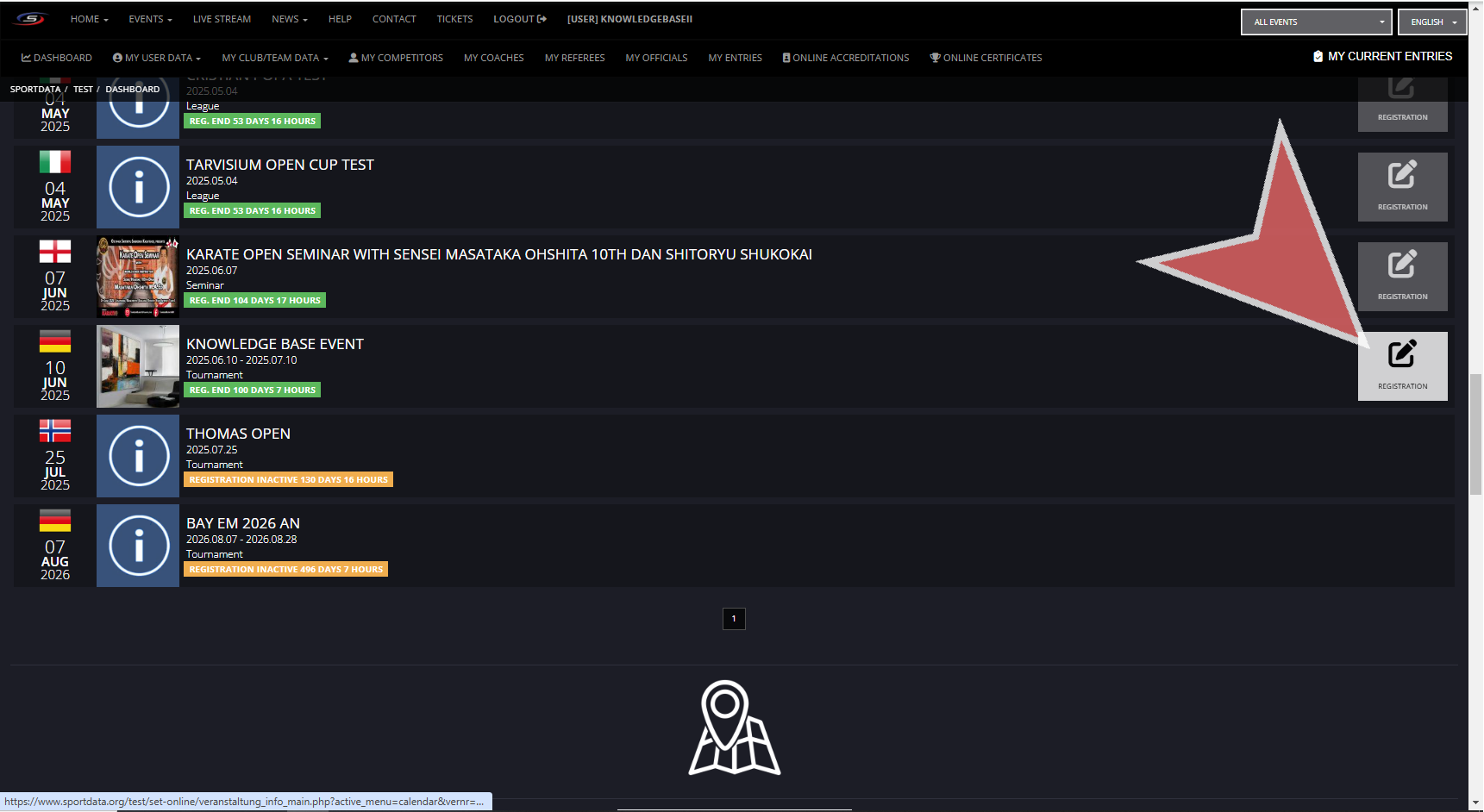
Click on Coach.
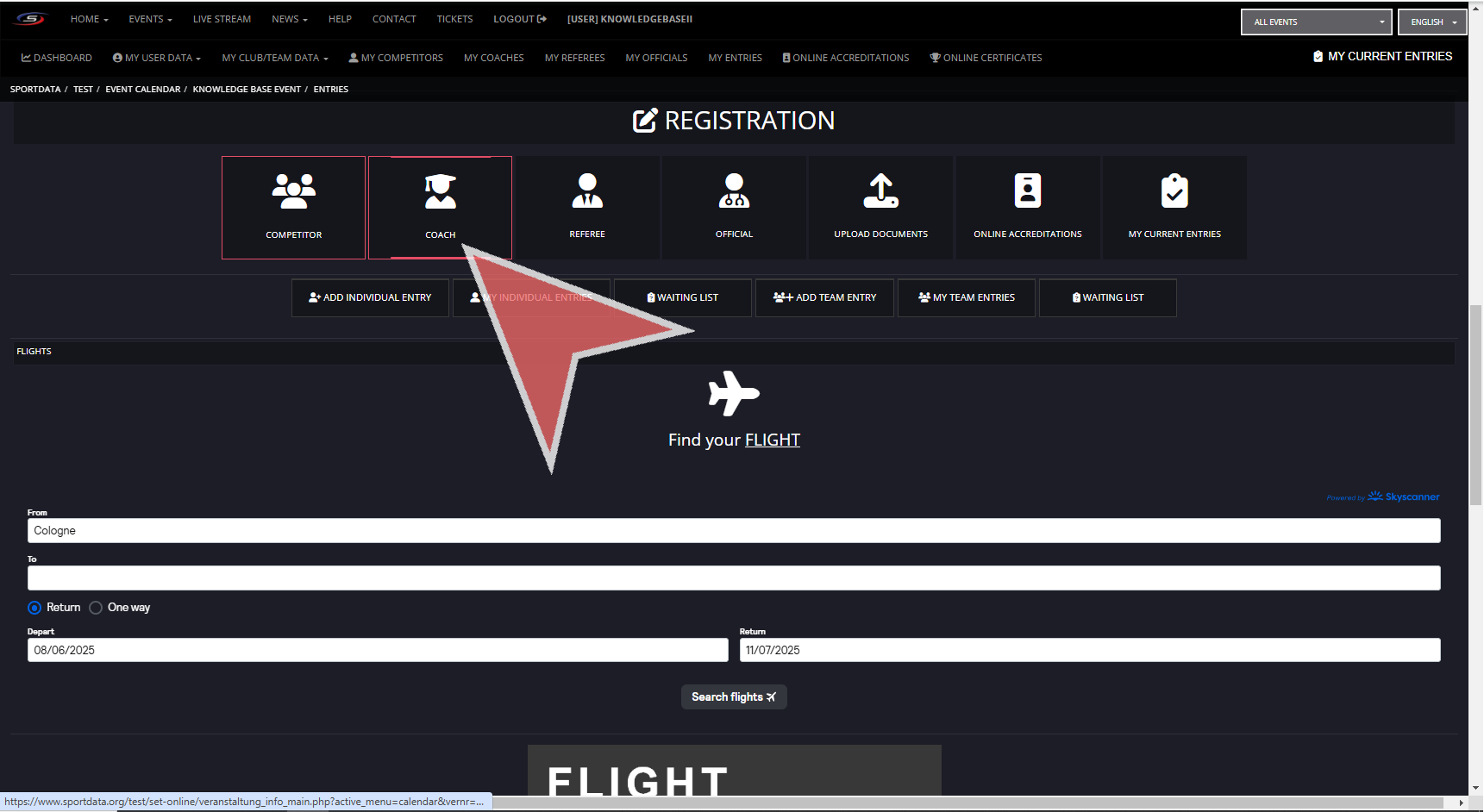
Click ‘ REGISTER NEW COACH’.
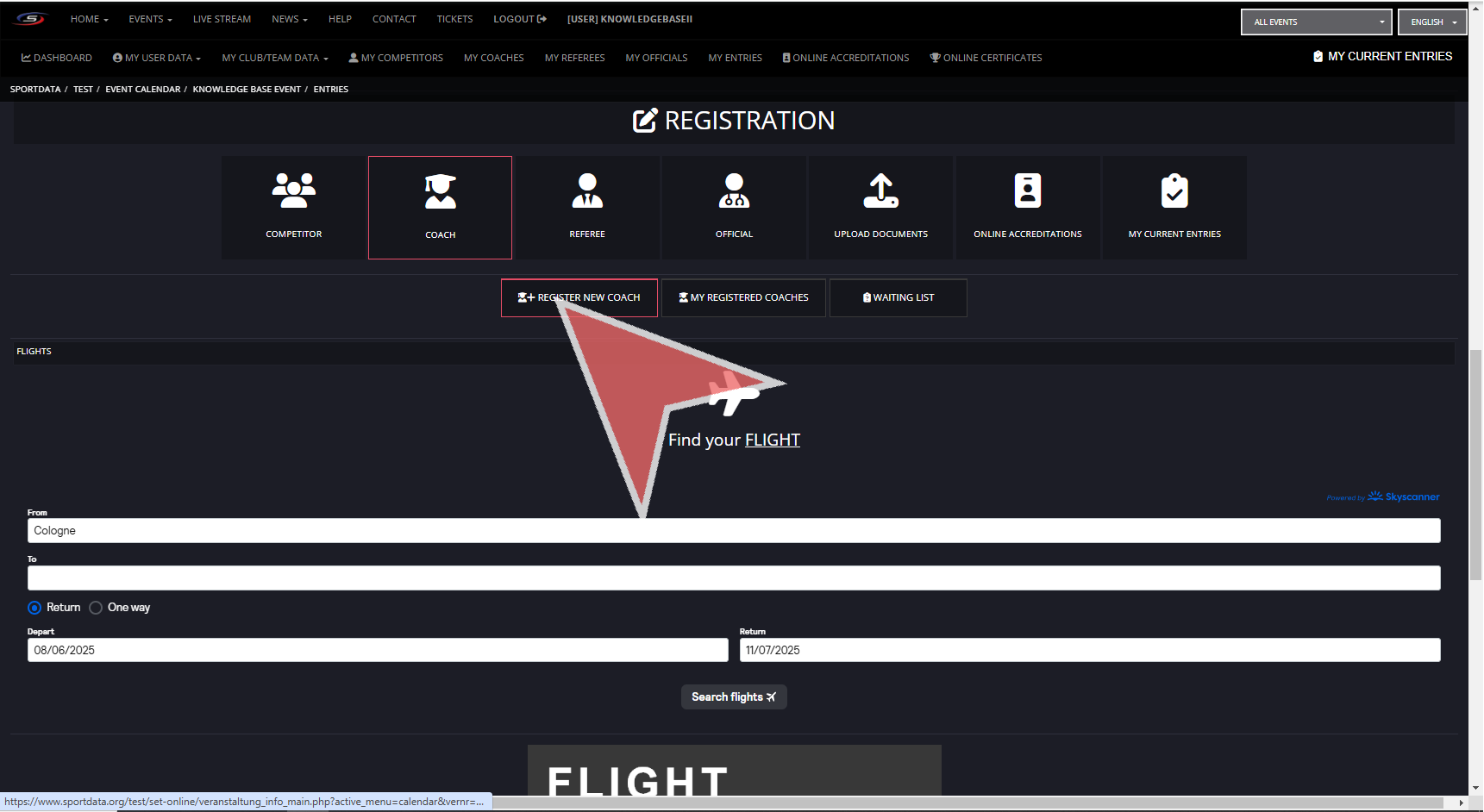
Select the coach you have newly added to your club account. If there are no coaches, then you will need to click on add / edit coach.
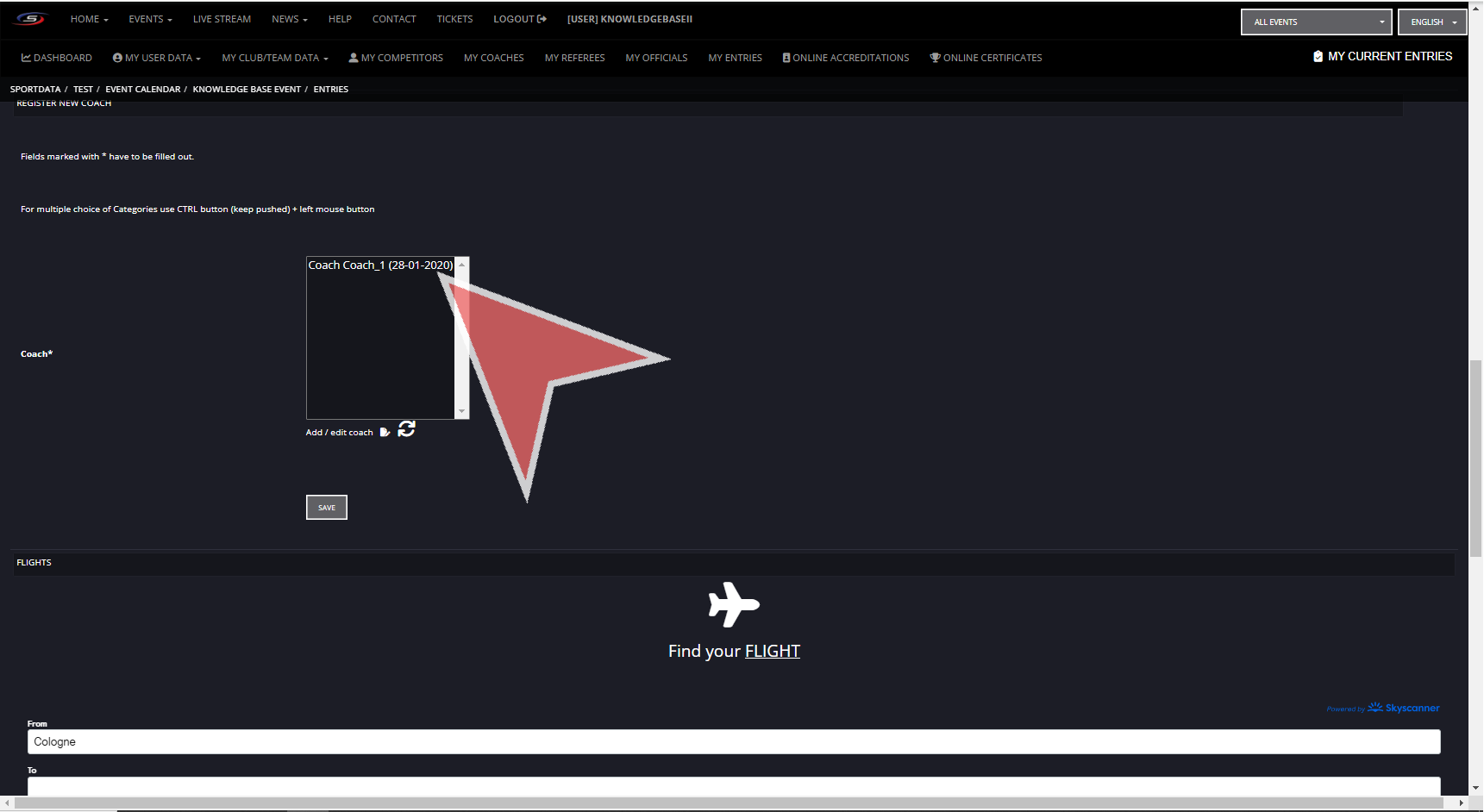
Press save.
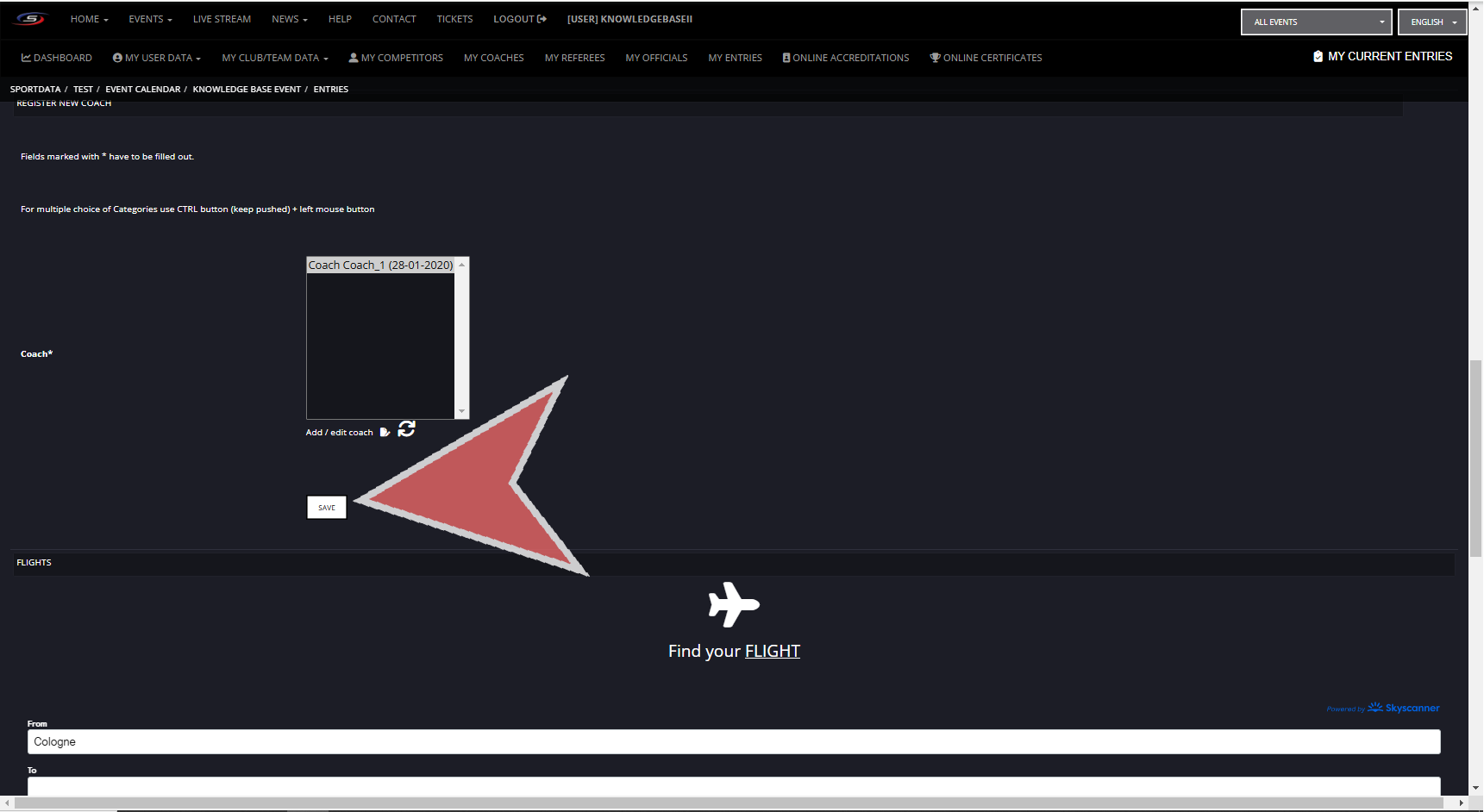
Payment
You have successfully added the coach to the event, now you can choose to continue with the payment by clicking on the button. Or, if you wish to continue registering participants, just click the green pop up box.
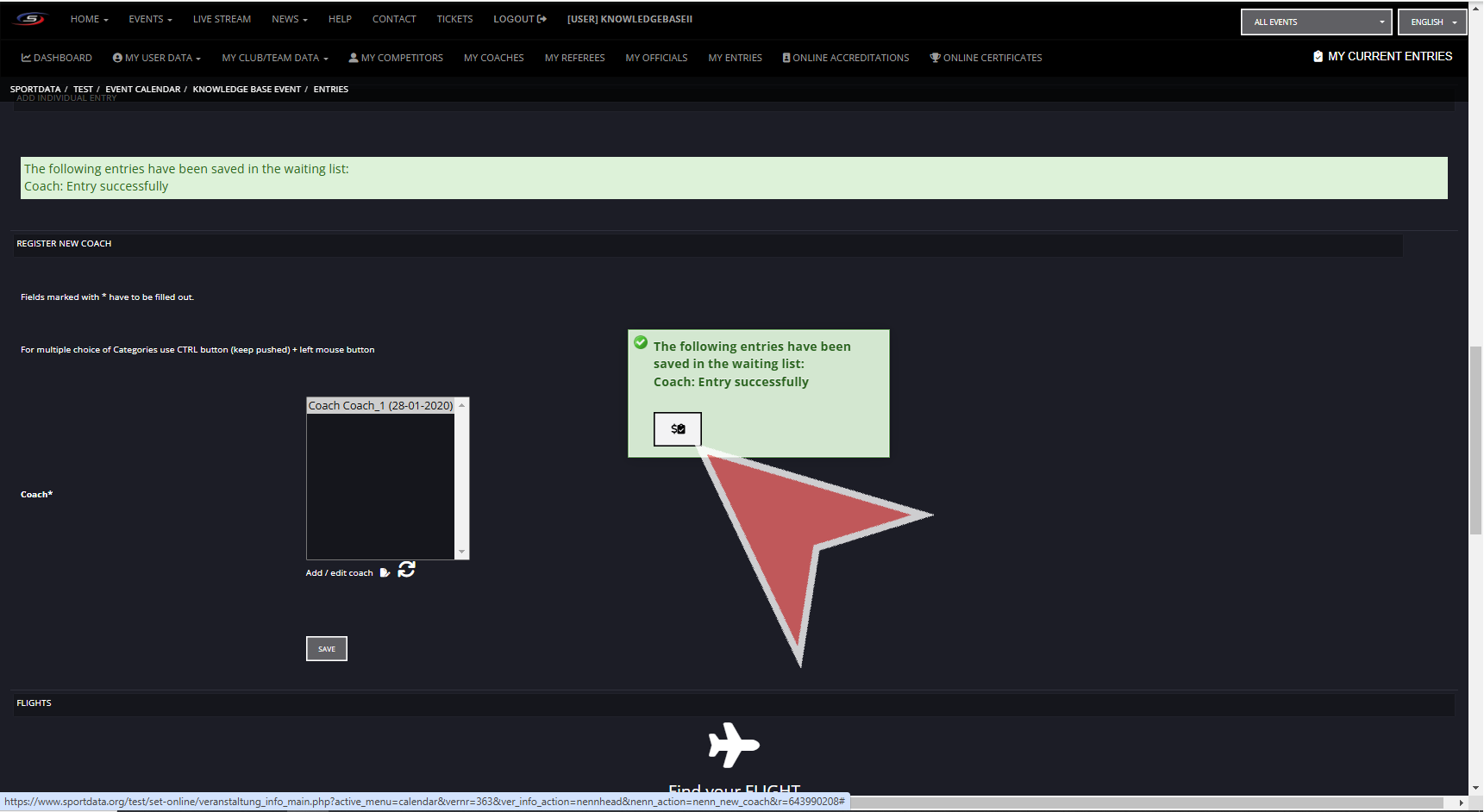
You can see your current event entries, the total amount for entry fee and other expenses. Click on the available payment options to proceed with payments. If you do not see any payment options, then the event organizers has not activated it and you should contact them directly.
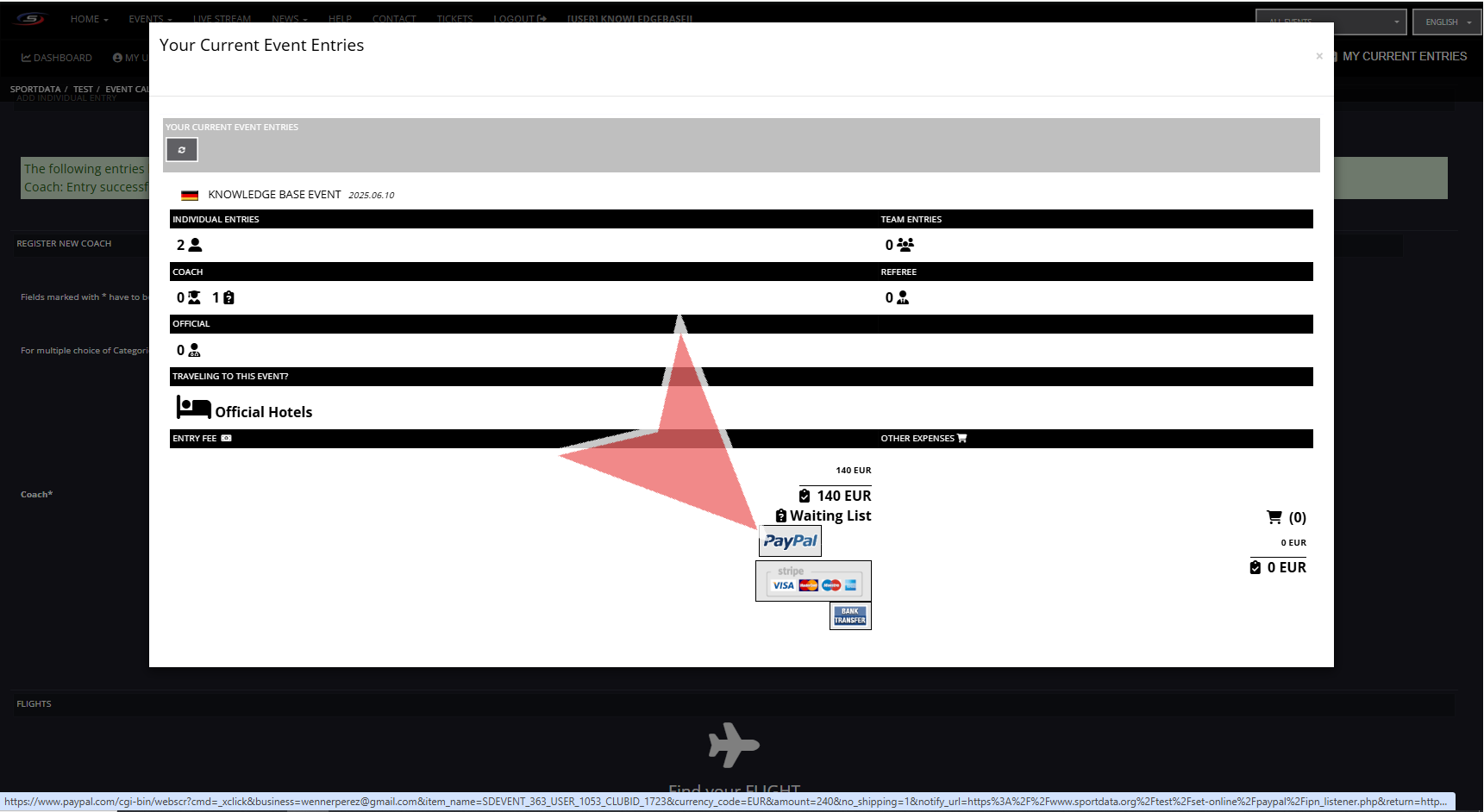
Complete the payment process.
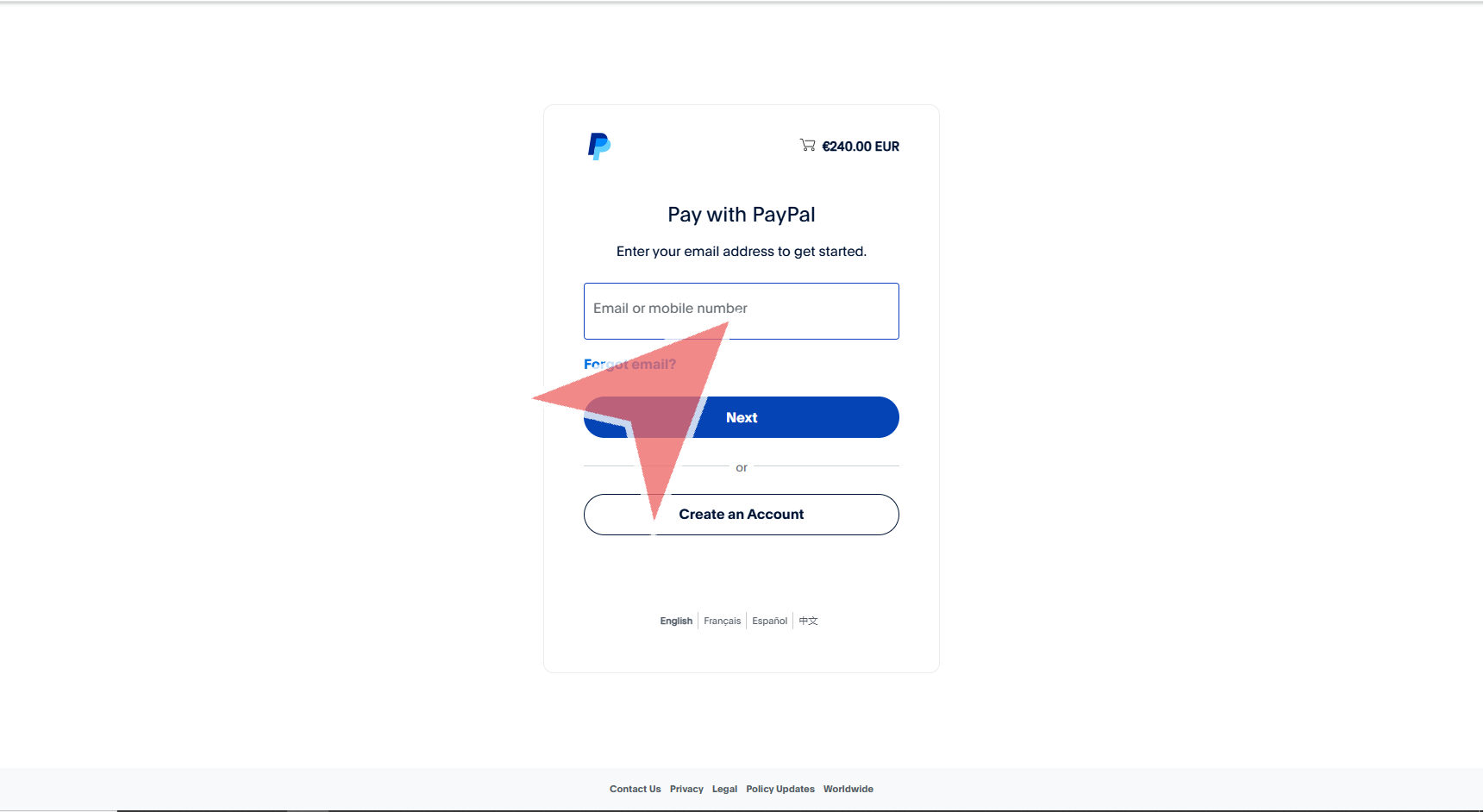
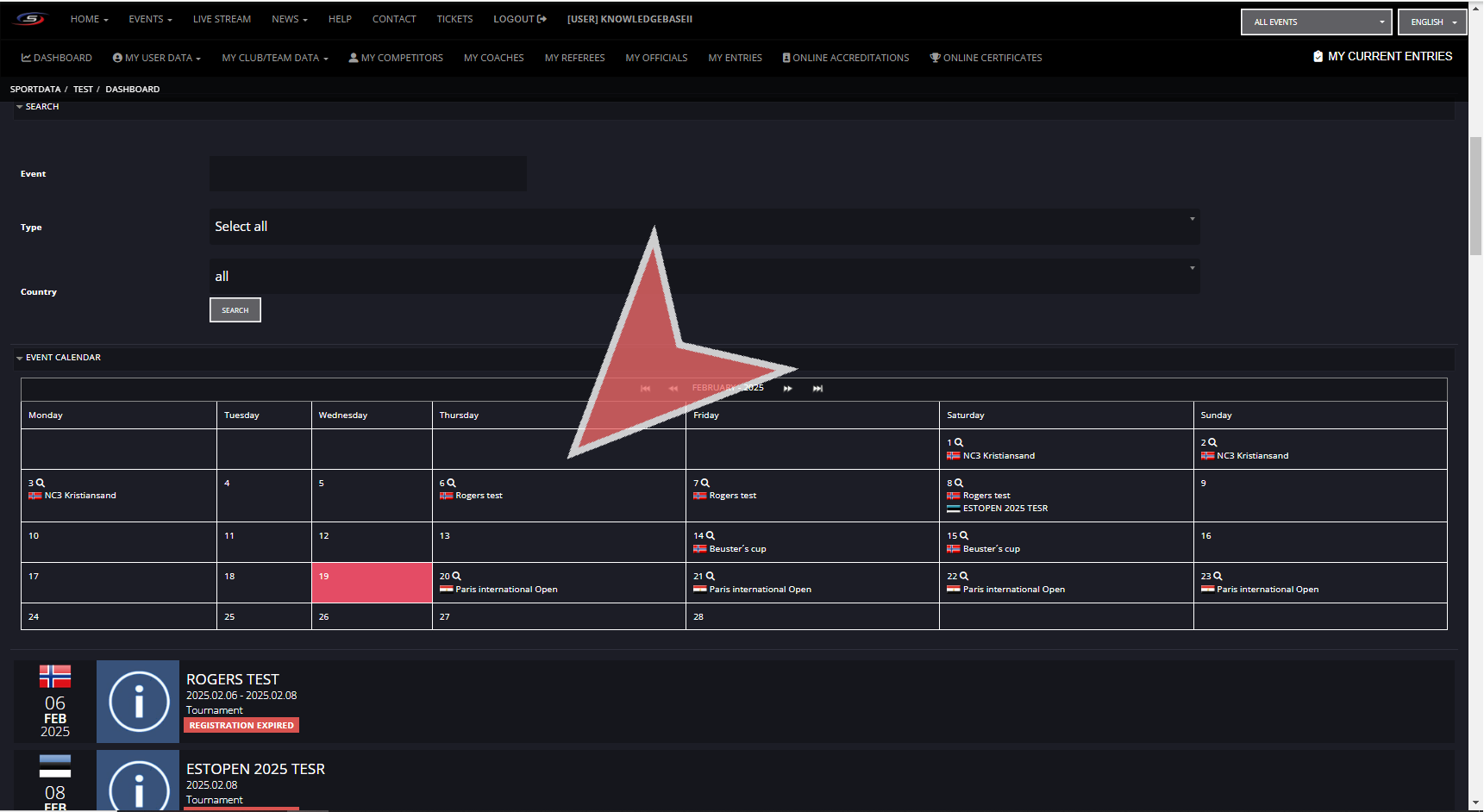
After having login in to your club account, use the search bar to find your event by filter by name, type and country.
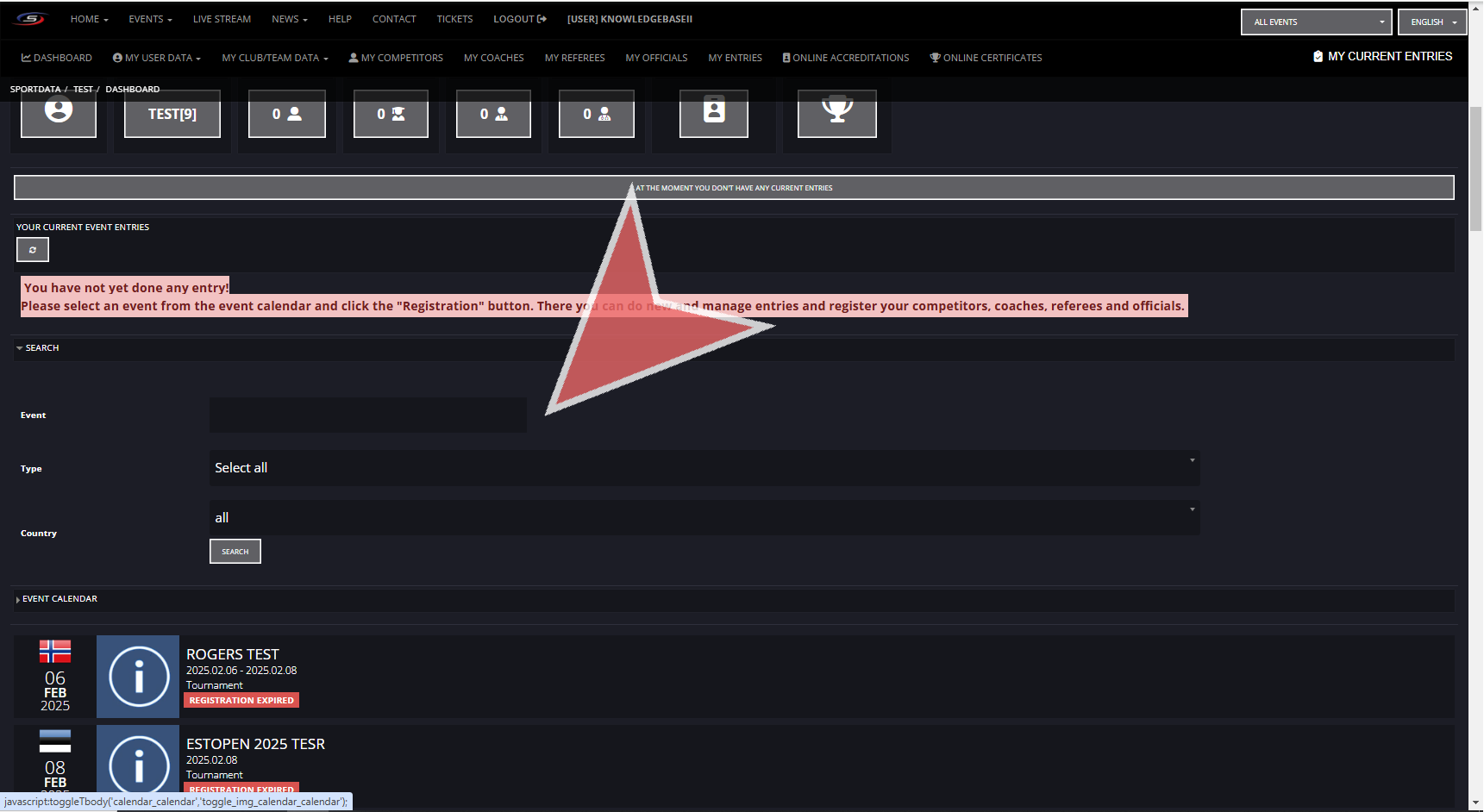
You can also use the event calendar feature.
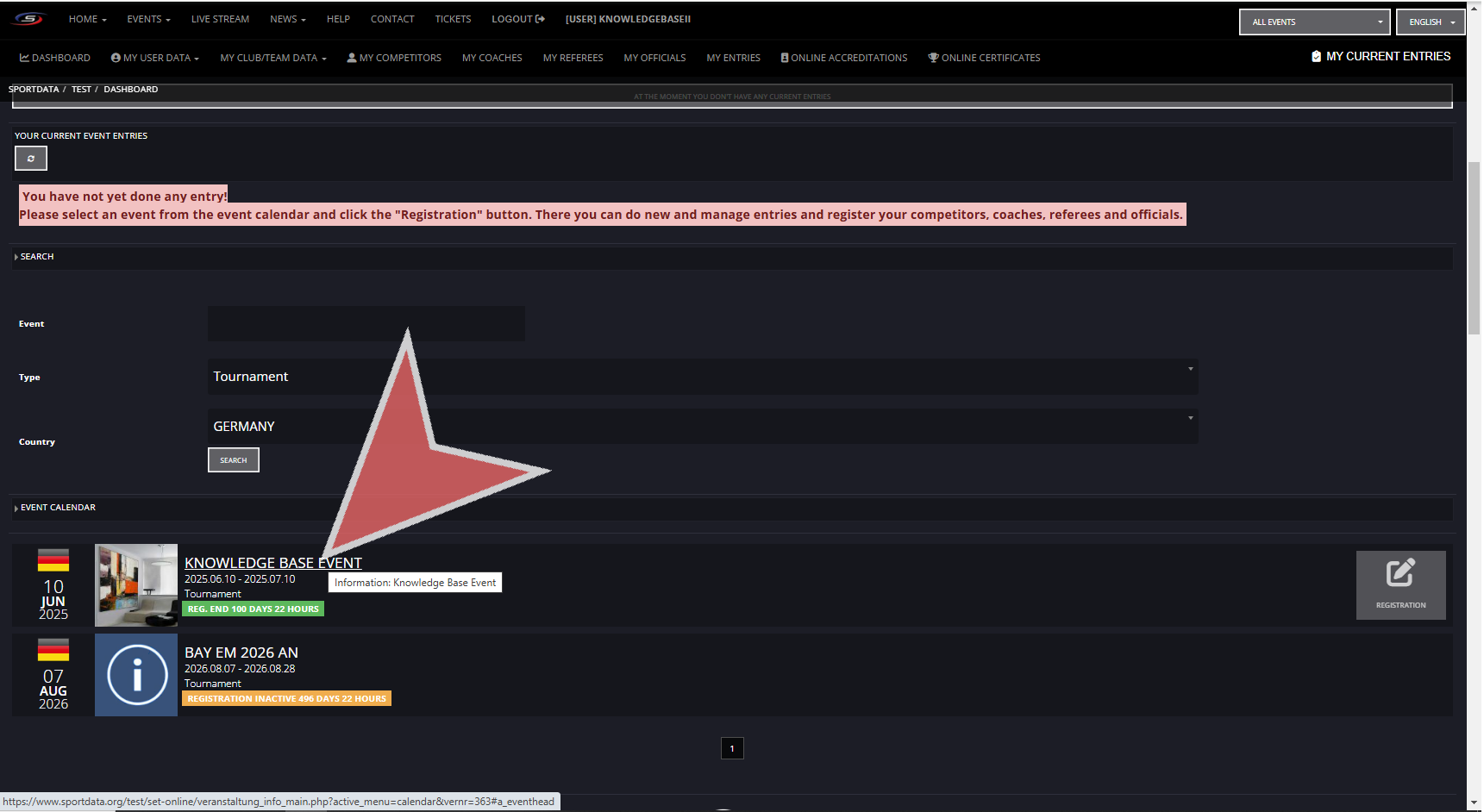
Click on your desired event.
click on the registration button.
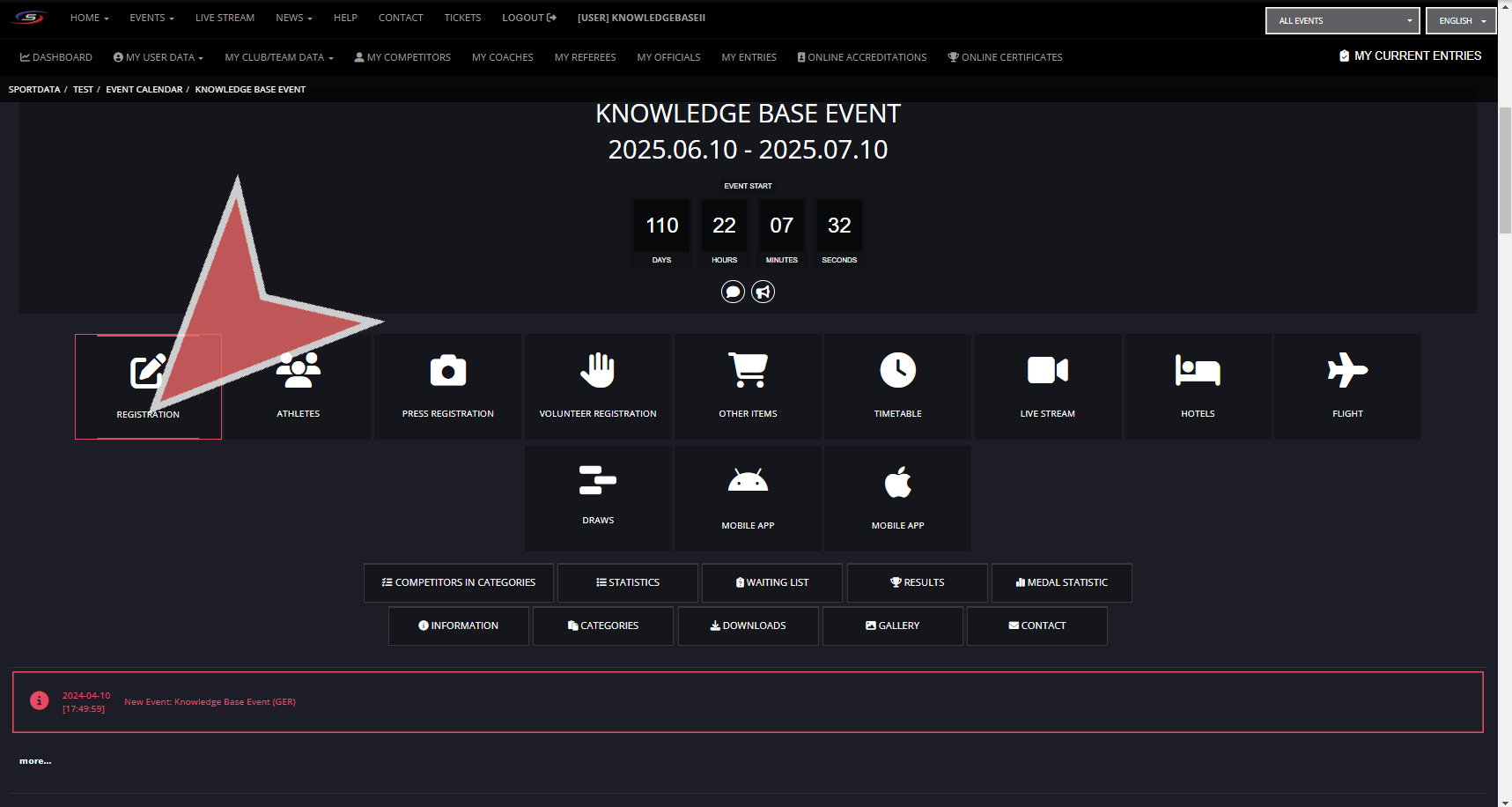
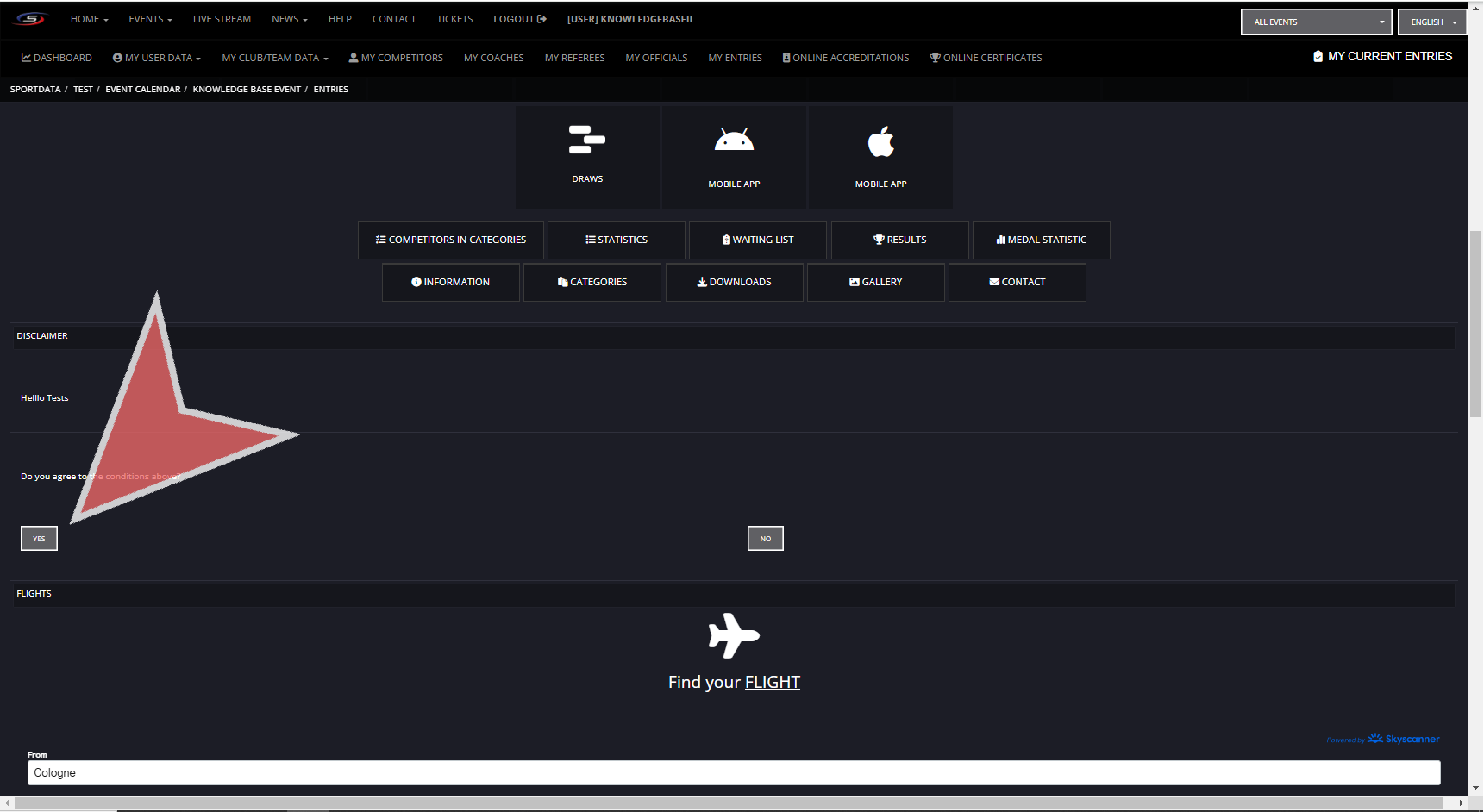
If this is your first time registering to this event you will need to agree to the disclaimer before proceeding.
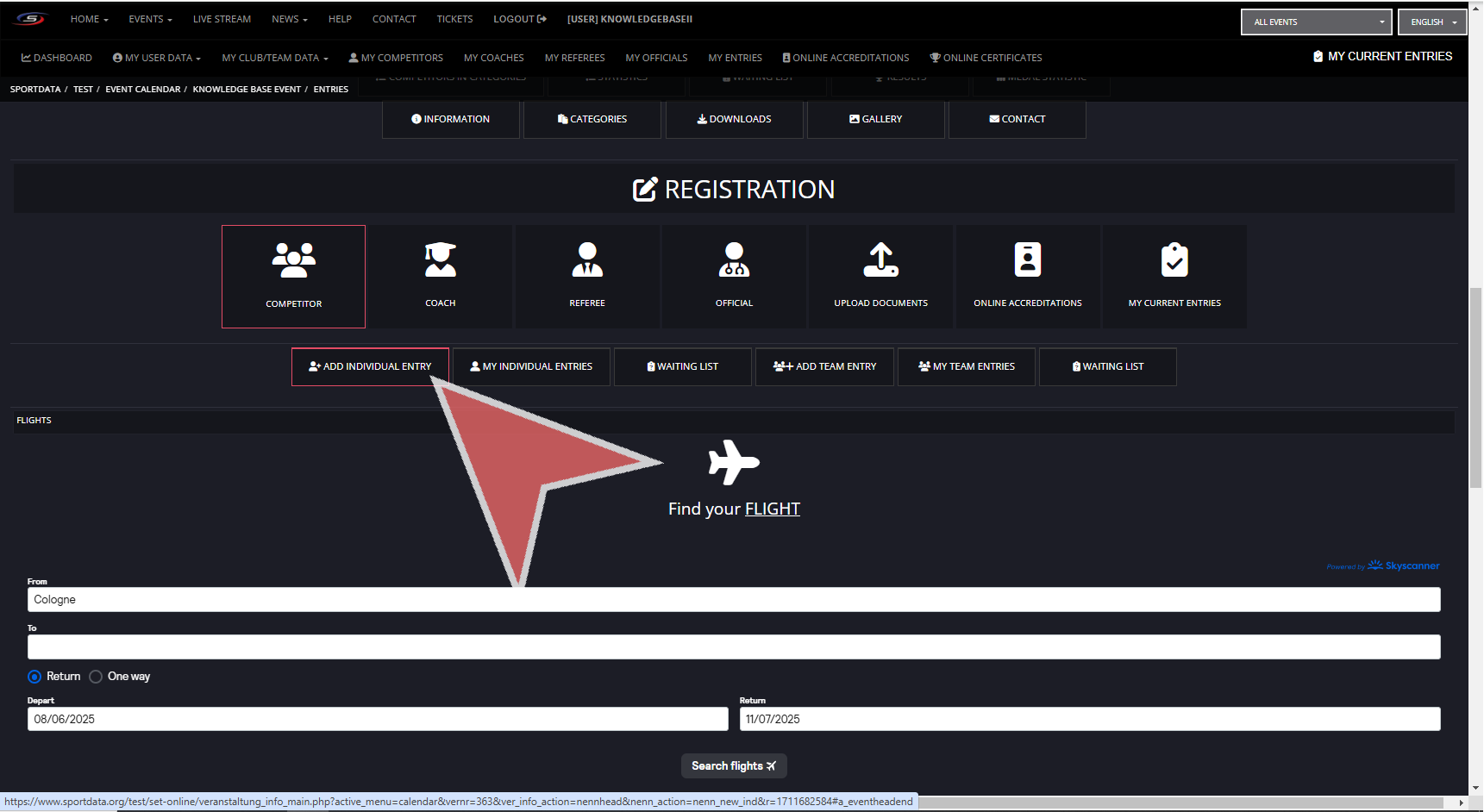
Click on competitor, and then, click on ADD INDIVIDUAL ENTRY.
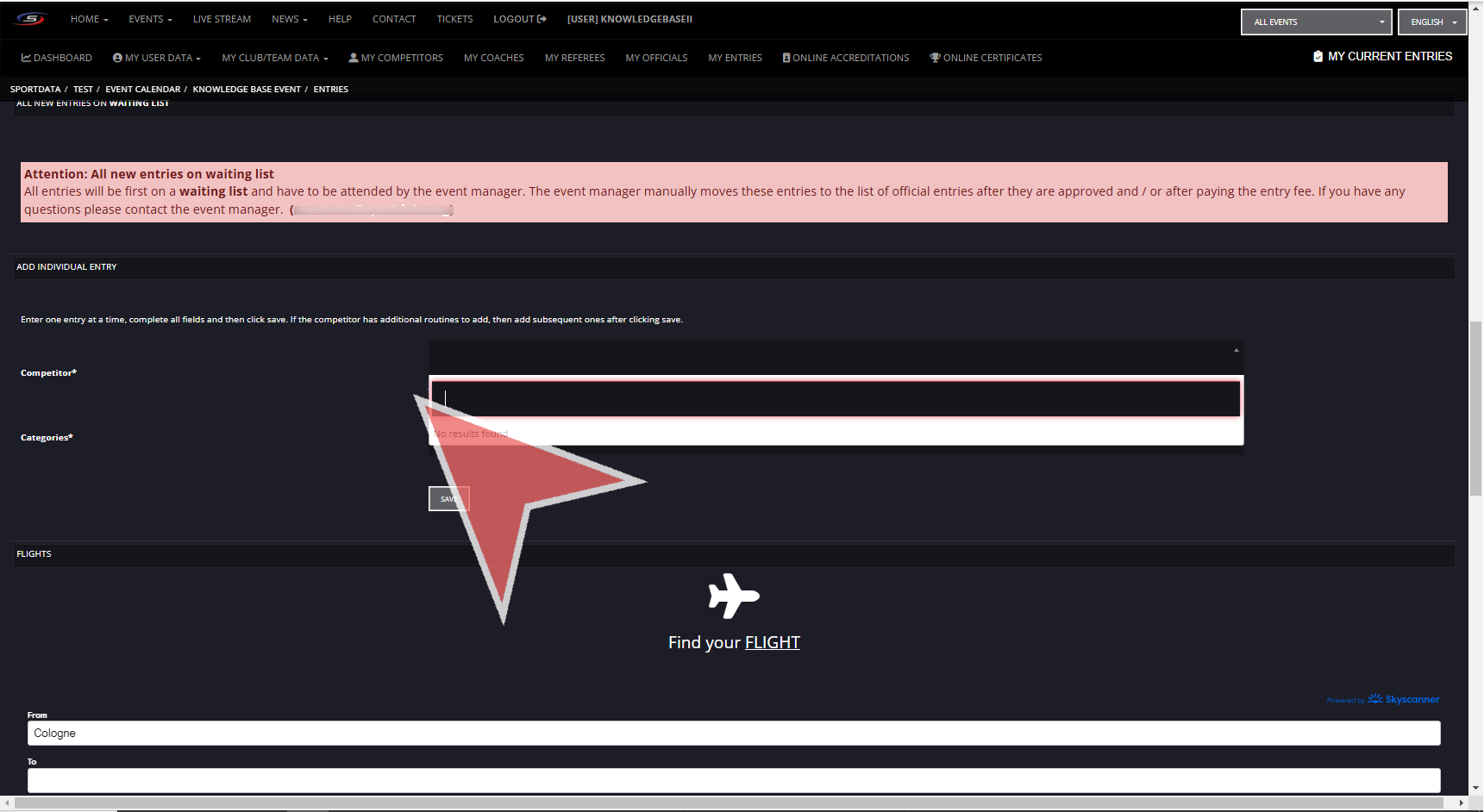
If you have not already created profile for your athletes, then northing will appear in the competitor space.
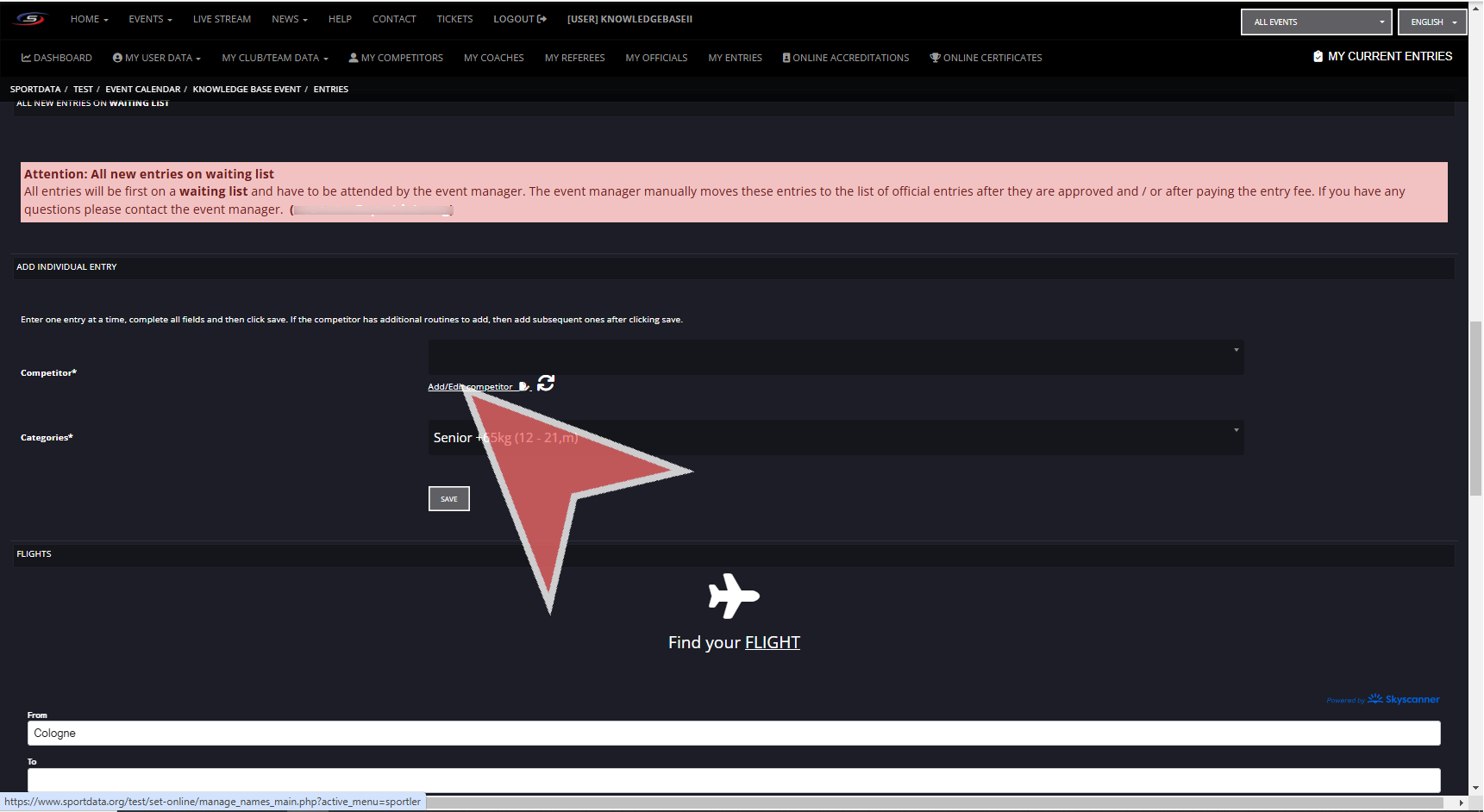
To create a competitor profile, click the add/edit competitor button. You will be taken to the competitors list.
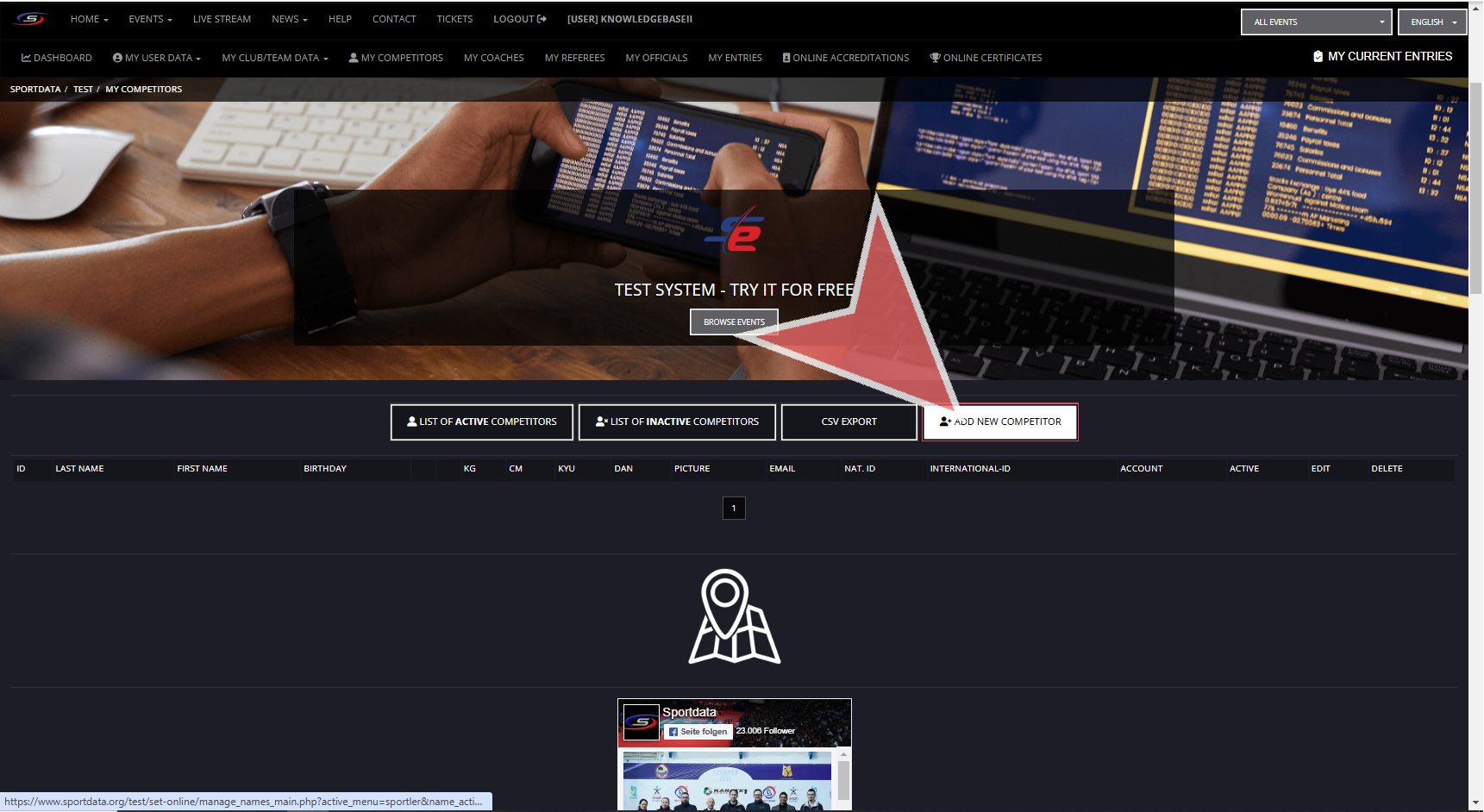
Click on Add New Competitor.
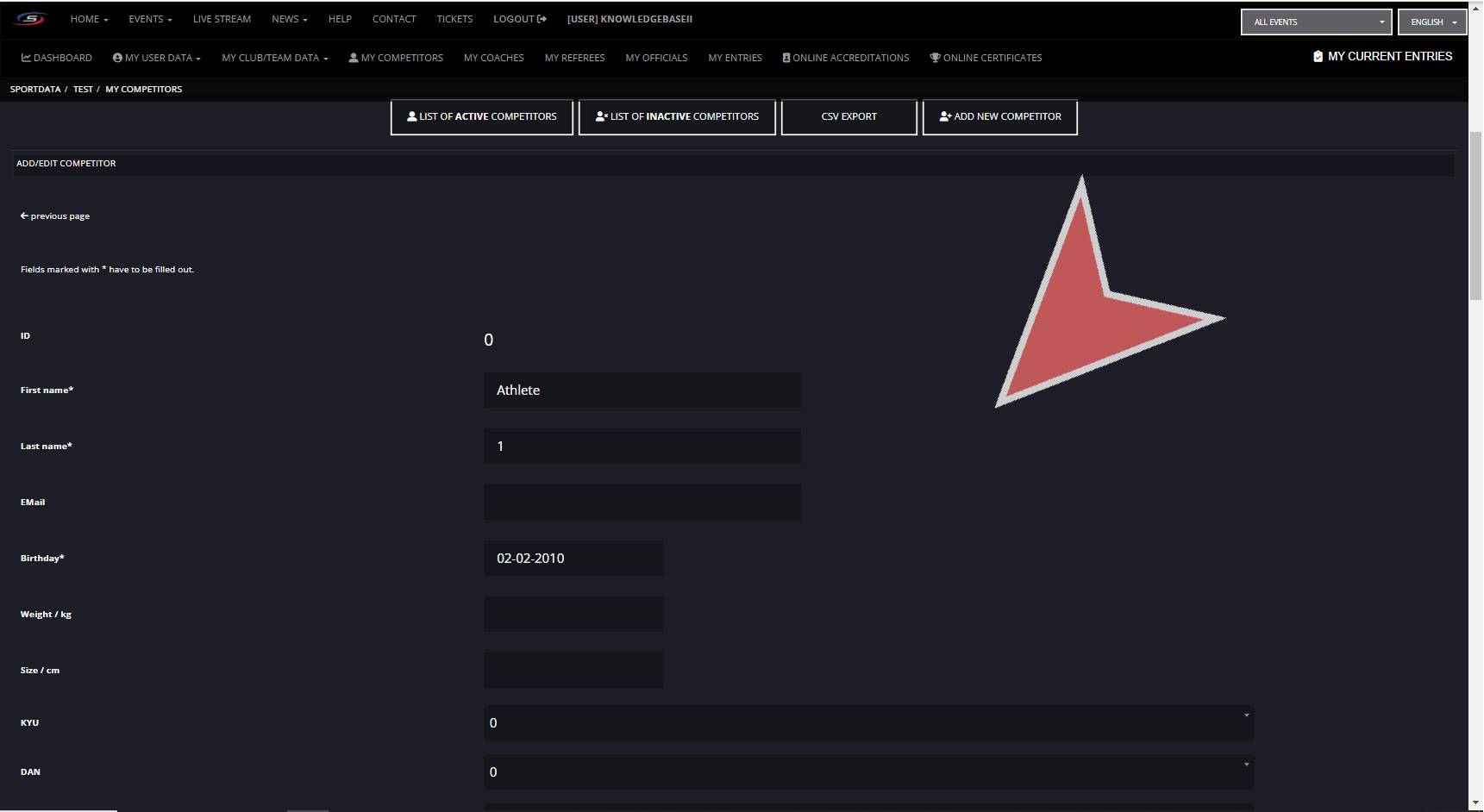
Fill out the athlete specific information. The email will allow the athlete to receive event specific notifications. Some events require additional information including Weight,Size, Kyu, Dan, etc.
The national and international ids can be important information for ranking, therefore if ranking points at an event can be earned it is important to match the ids to their ranking. Finally, after filling out the relevant information about your athlete, you can save their profile.
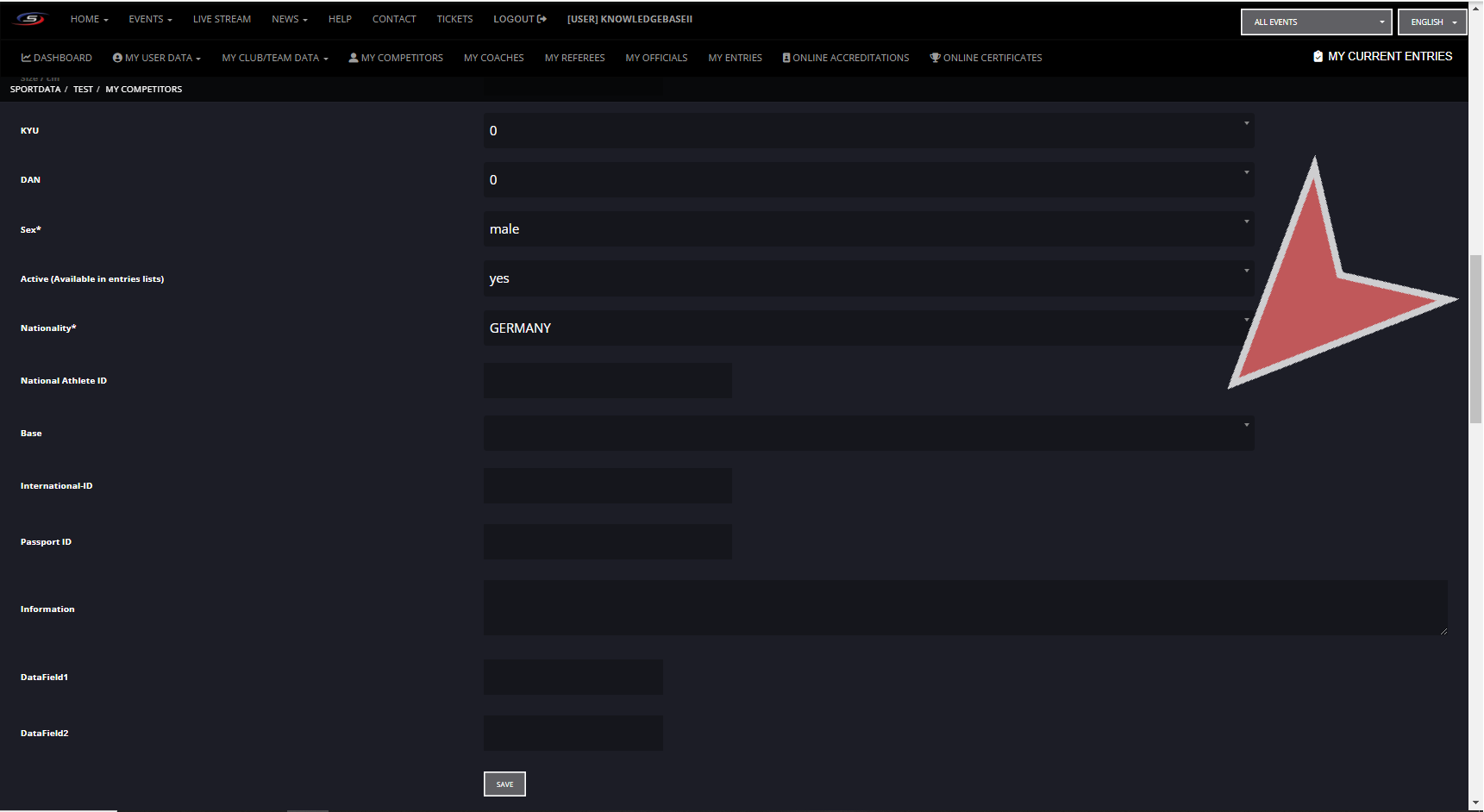
Now, you can include the picture to the by clicking picture or scrolling to the bottom of the page.
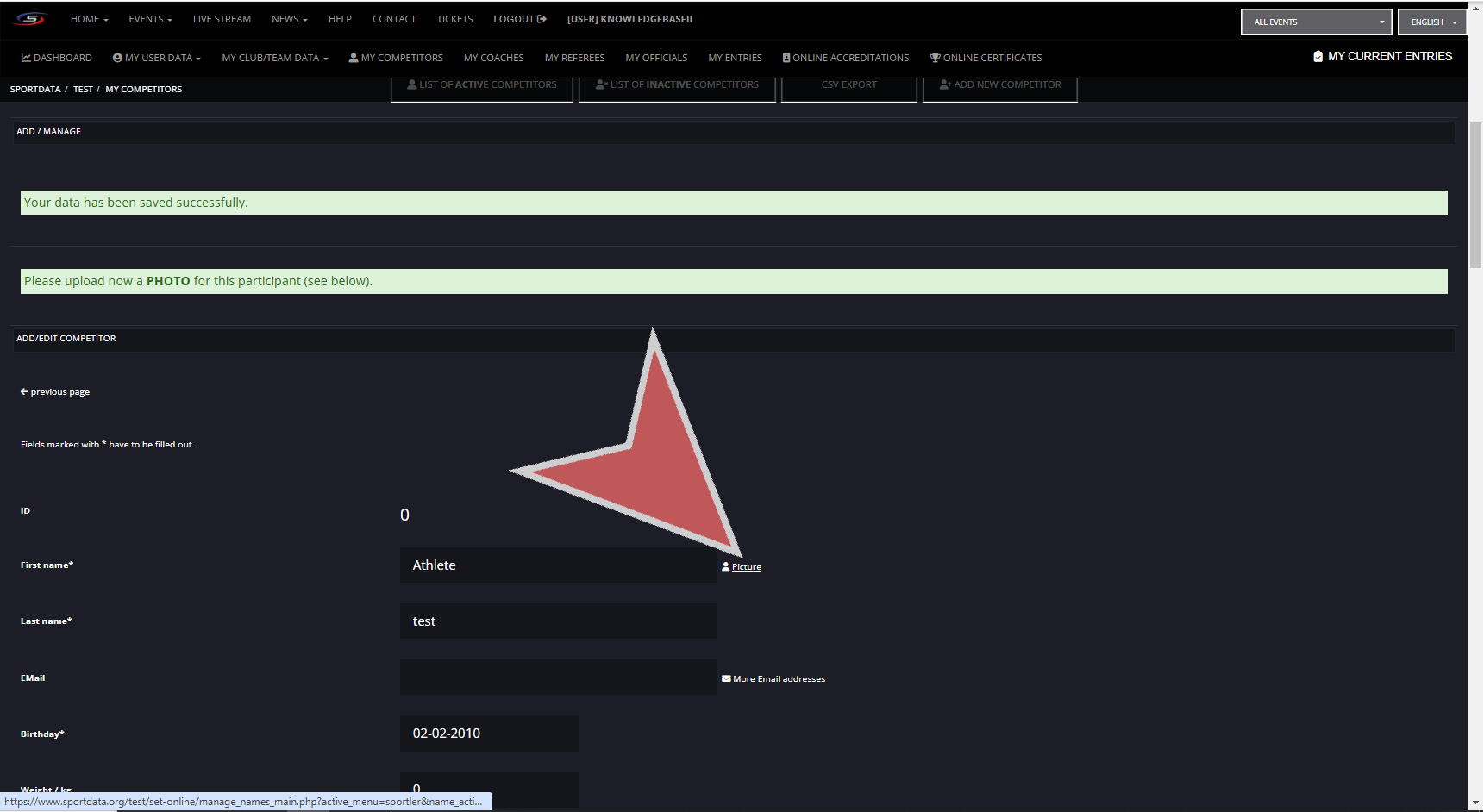
Choose a file, or take a snapshot with your webcam, and upload the file to the profile.
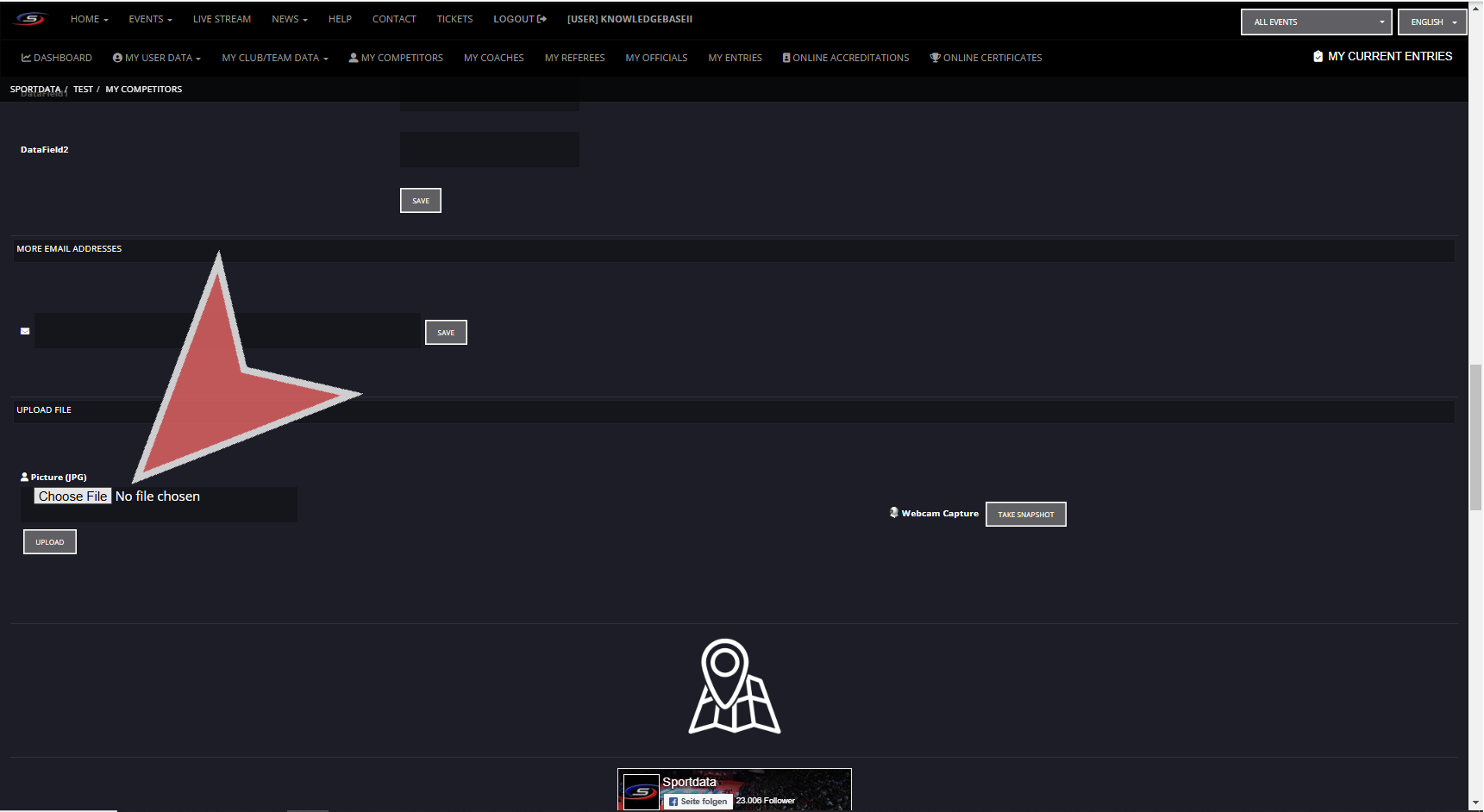
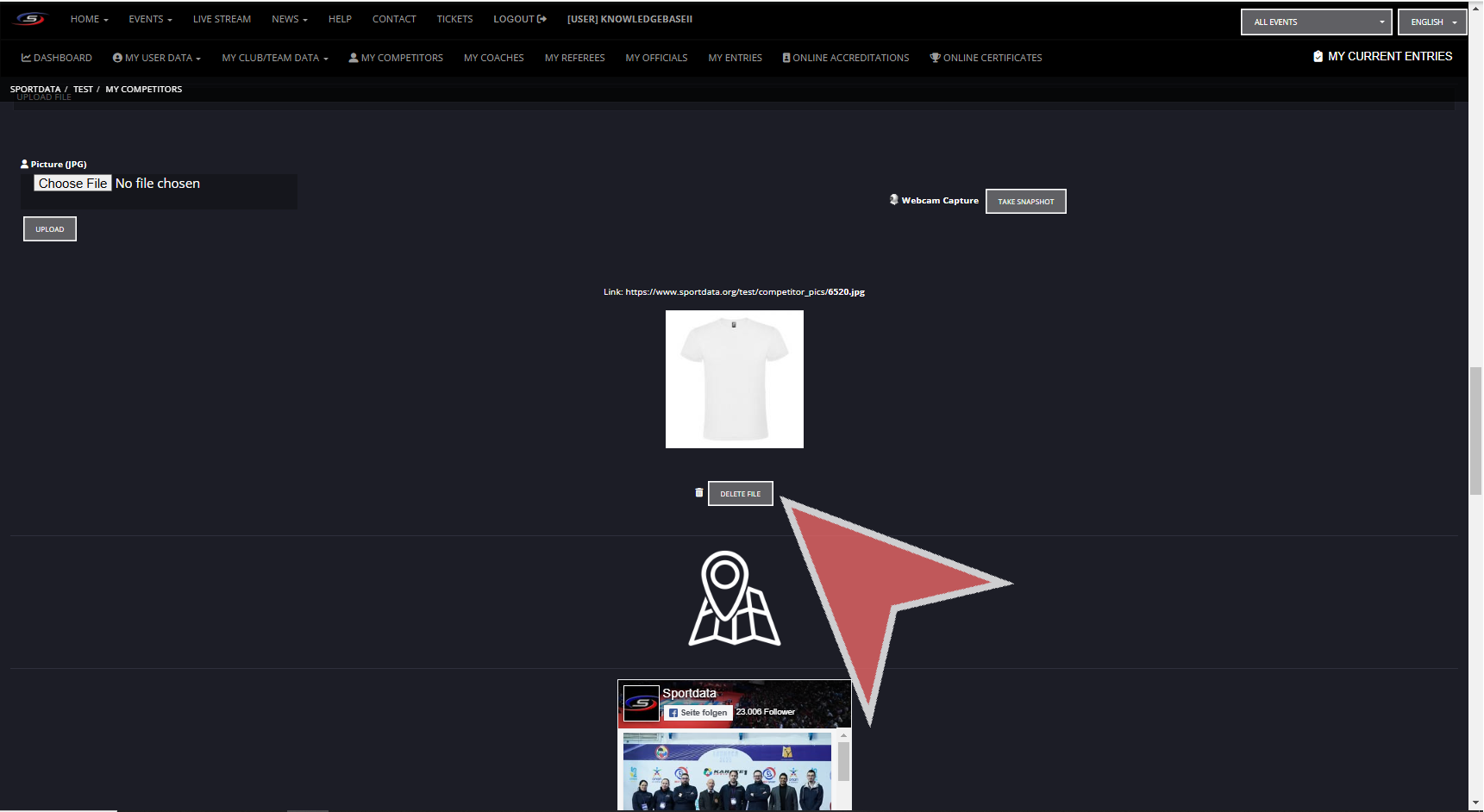
If you wish to delete your photo, press delete. Note, this picture will only be associated with this profile within your club account, and the athlete may have another photo within another club account or in another profile.
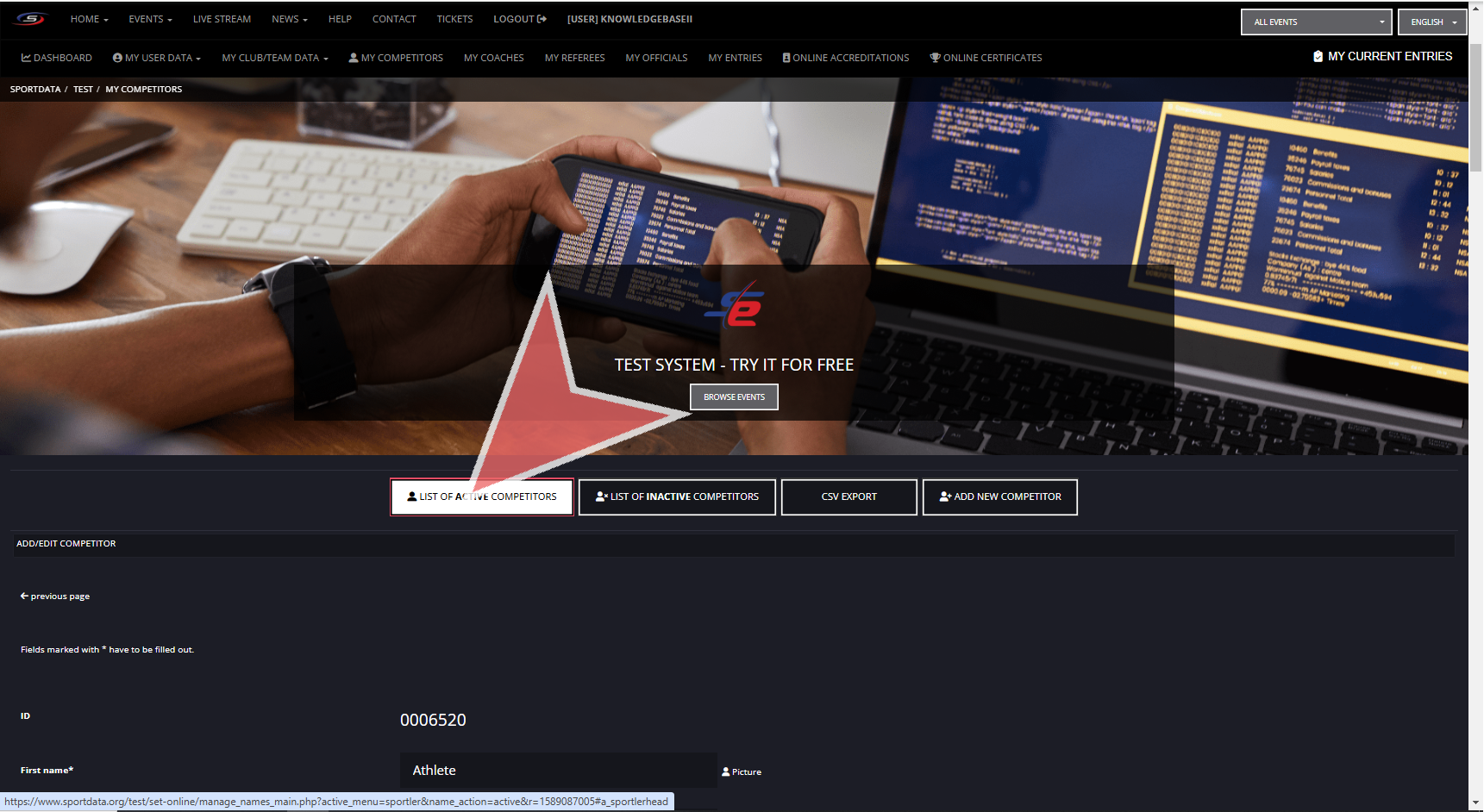
You can see the completed profile under the Active Competitors.
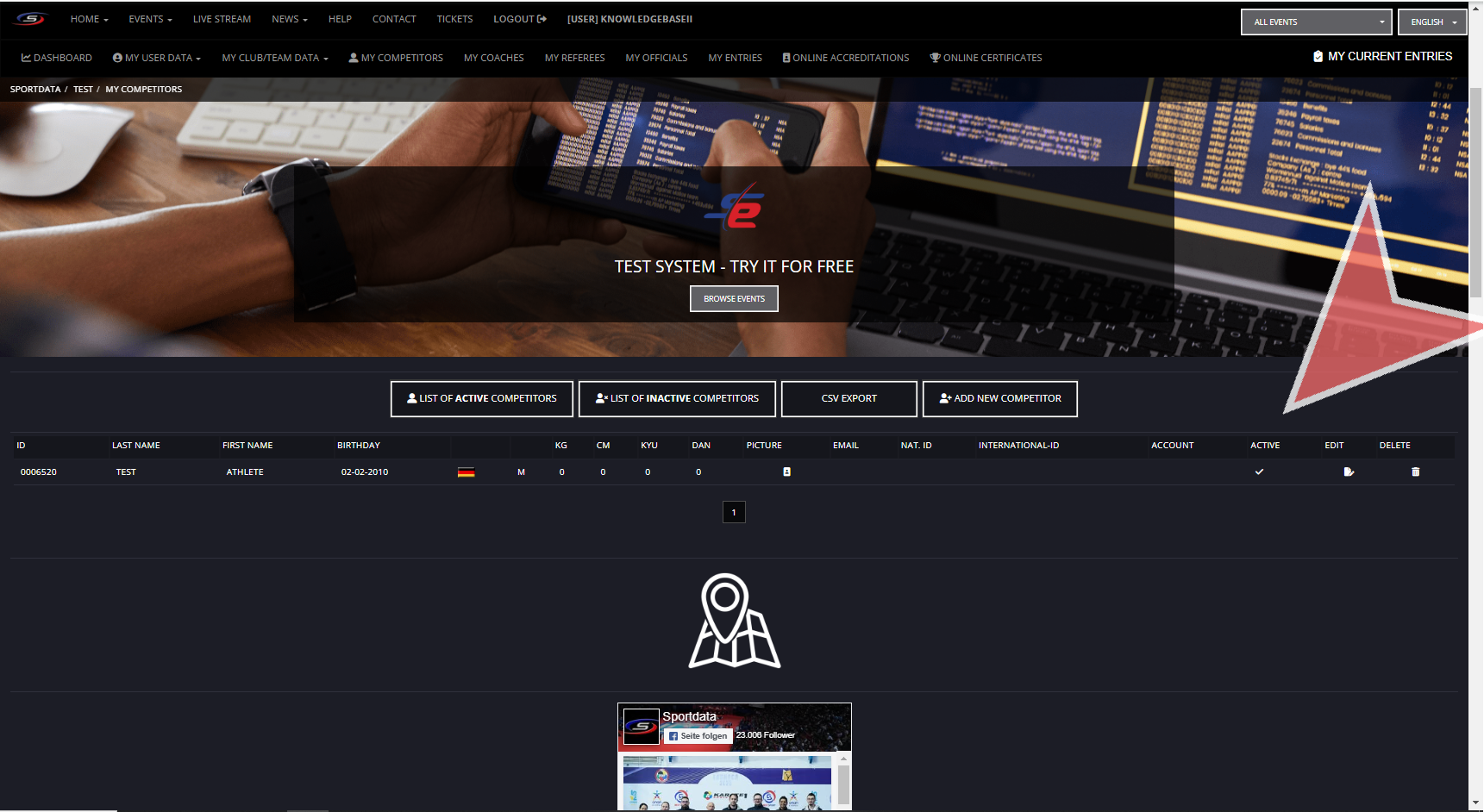
Here you can edit the profile or delete it.
Now that you have your athletes profile created, you can add them to the event registration
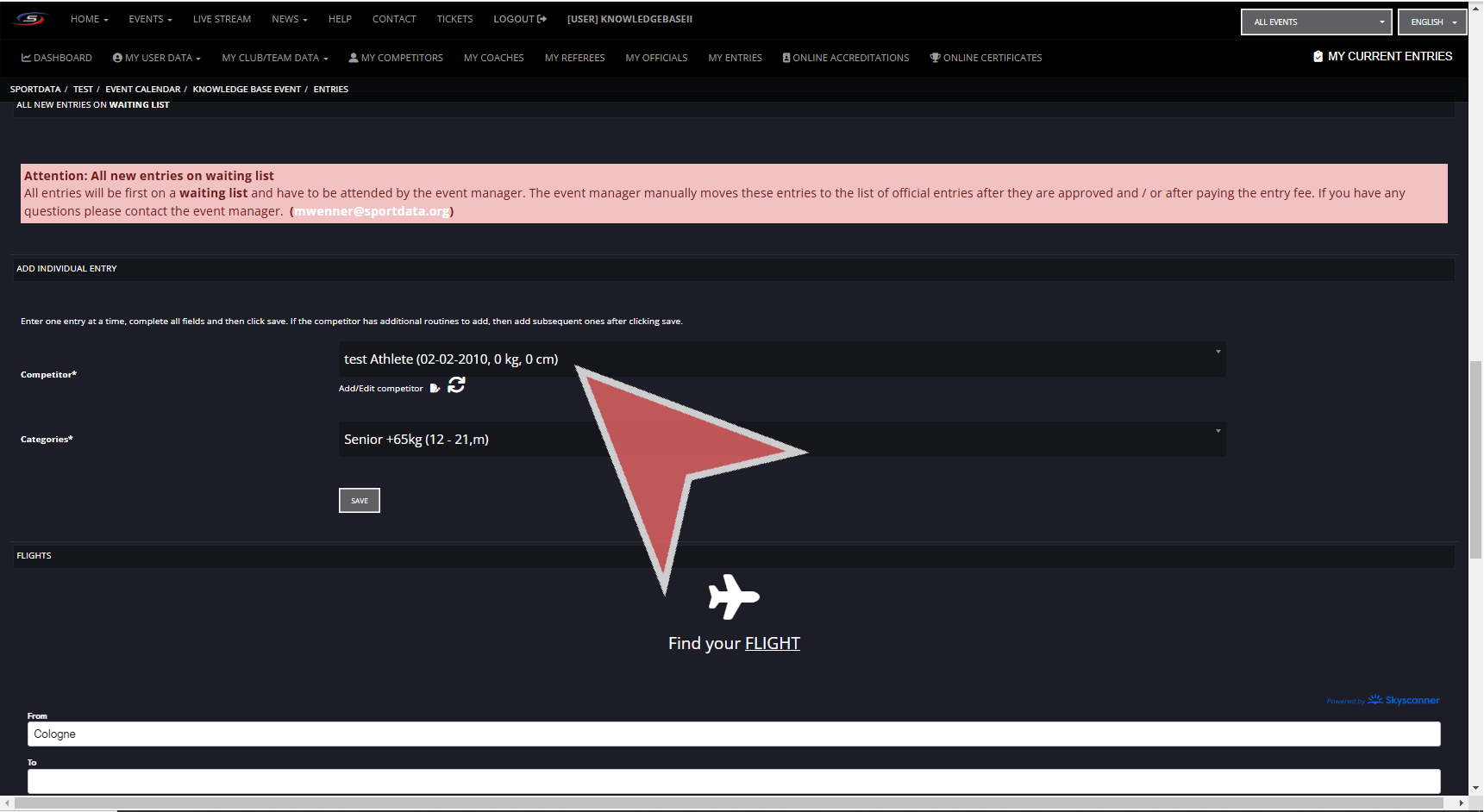
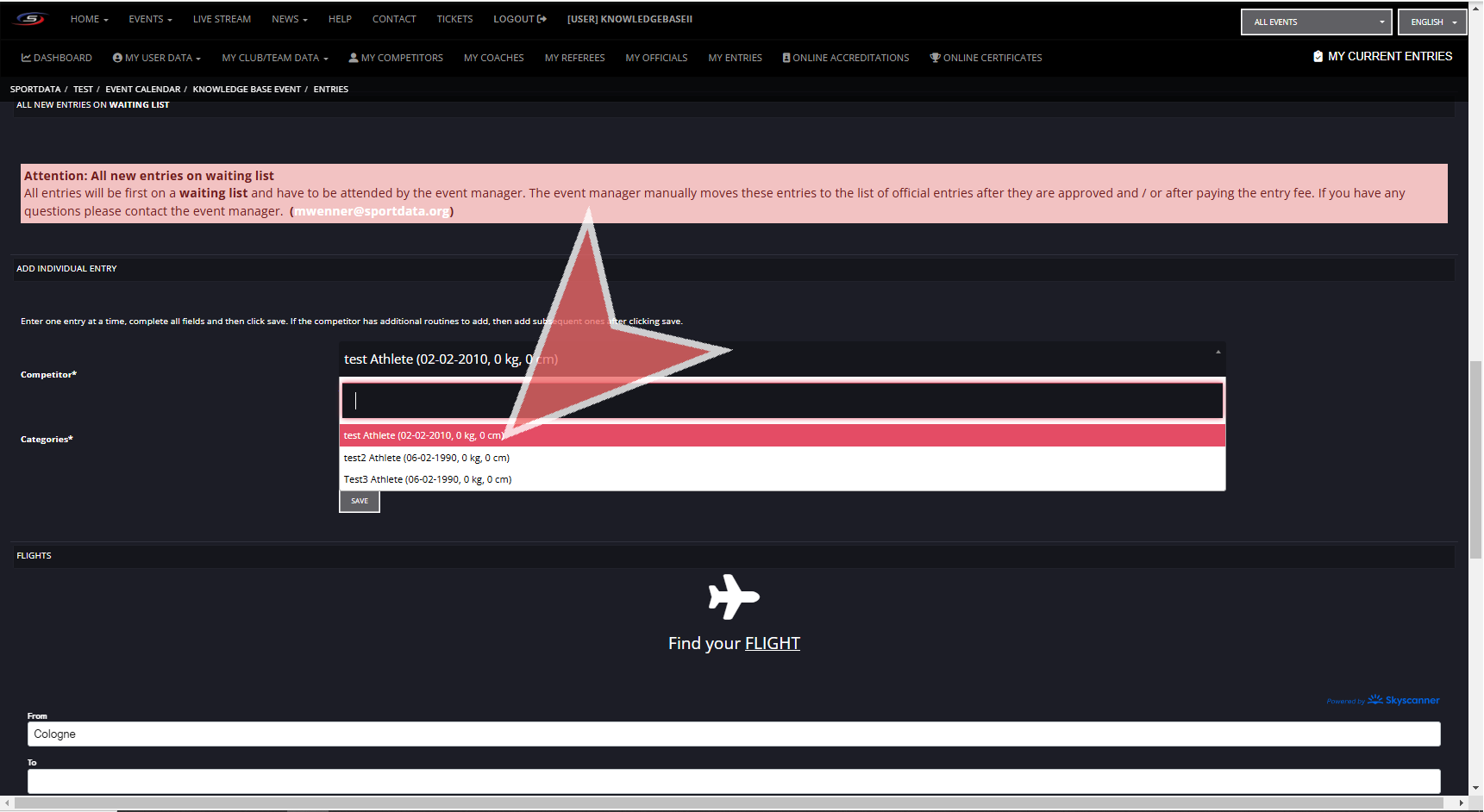
Select the athlete and the category.
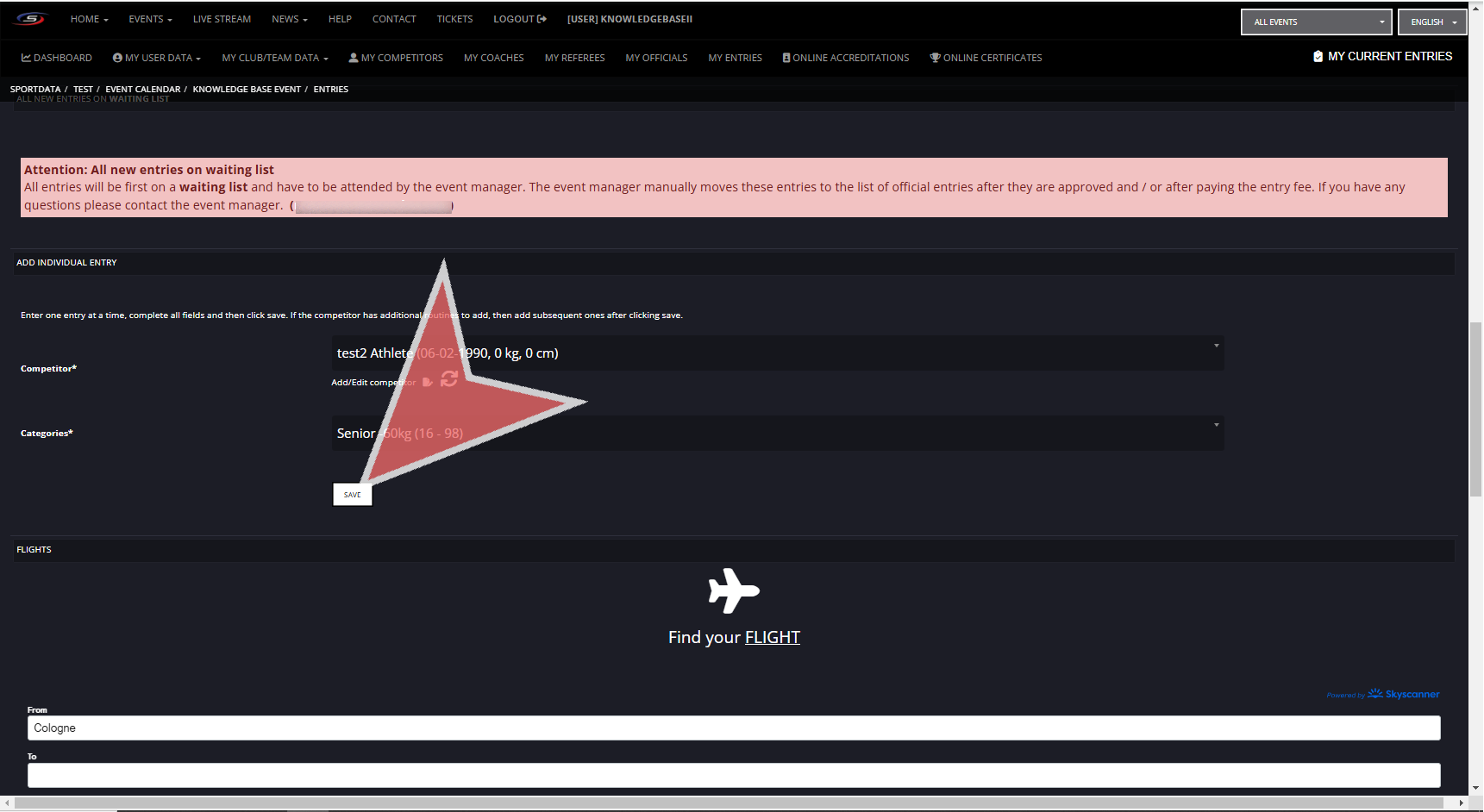
Save profile.
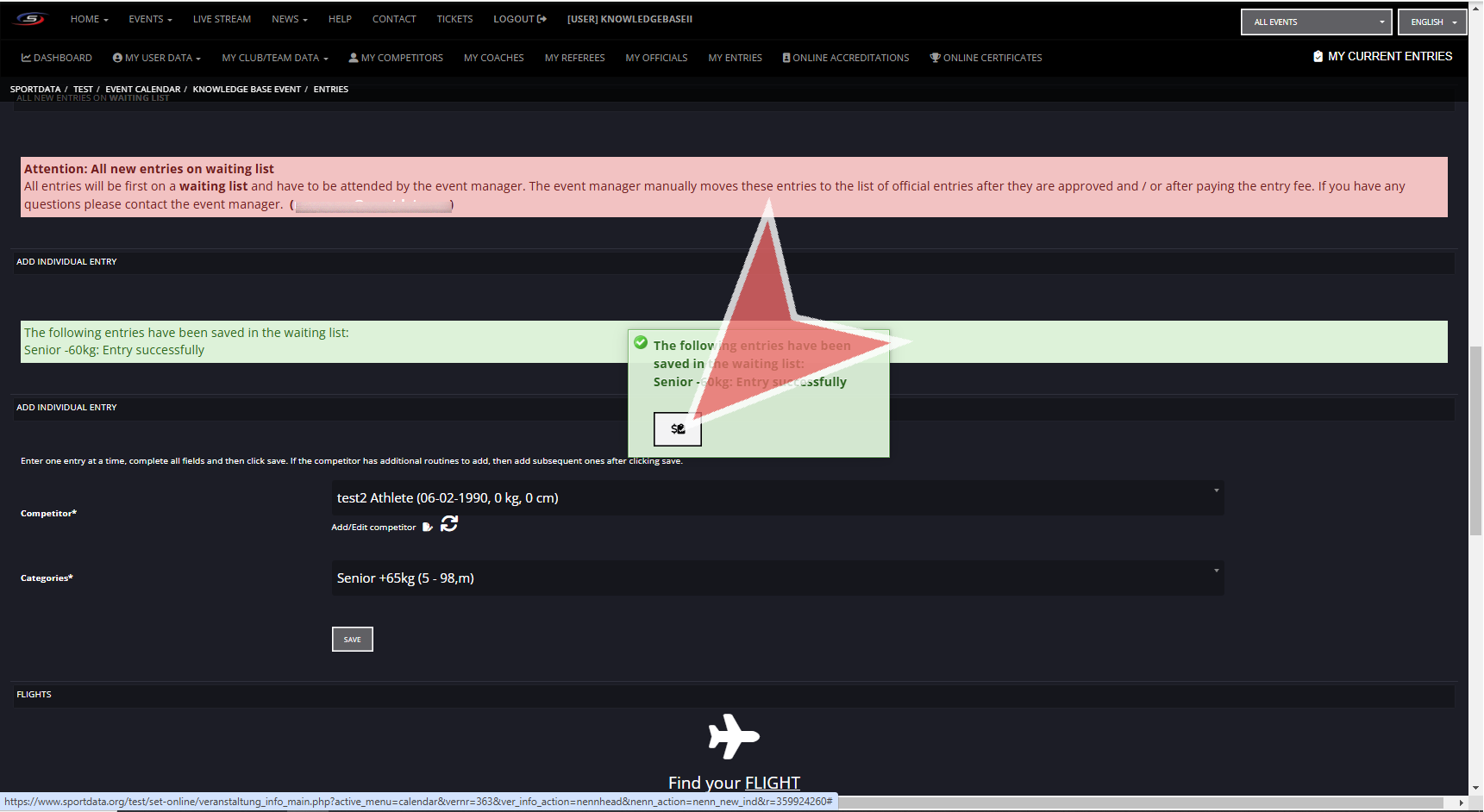
After saving the entry correctly, click on the button in the green pop up to proceed with payments. If you have more athletes to include, you can simply click the green pop up and register your next athlete.
Here, you will see a summary of all entries, including coach, official, referees, teams. Also, you will see the payments for the entry fee, as well as any other expenses from the store you have included into the cart. When you are ready to pay, you can click on the available payment options to proceed.
Payments will go directly to the event organizers and not to Sportdata.